How to edit task in ClickUp

Editing tasks in ClickUp is a core workflow for keeping your projects up-to-date and ensuring your team stays aligned. This guide walks you through the process of opening a task and modifying its details, from selecting the task to updating its priority level.
Quick summary
In this tutorial, you'll learn how to access a task in ClickUp and edit its key properties. You'll navigate to a specific task, open its editing interface, and update critical fields like status and priority to reflect current project needs.
Why this matters
Task editing is essential for project management—priorities change, statuses shift, and assignments need adjusting as work progresses. Being able to quickly and efficiently modify task details helps your team respond to changes in real time and maintain accurate project visibility.
Step-by-step guide
- 1
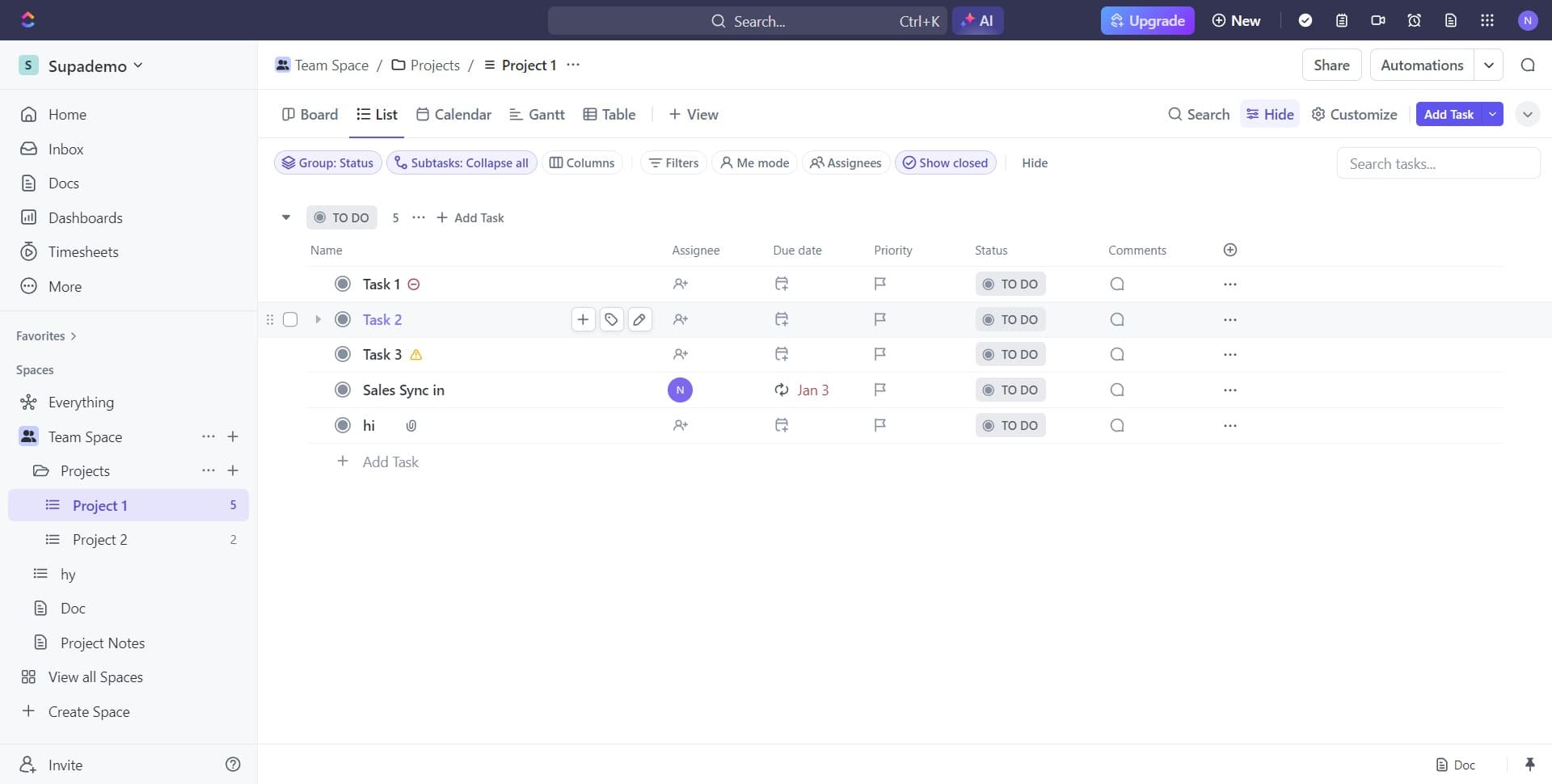
Select the task you want to edit
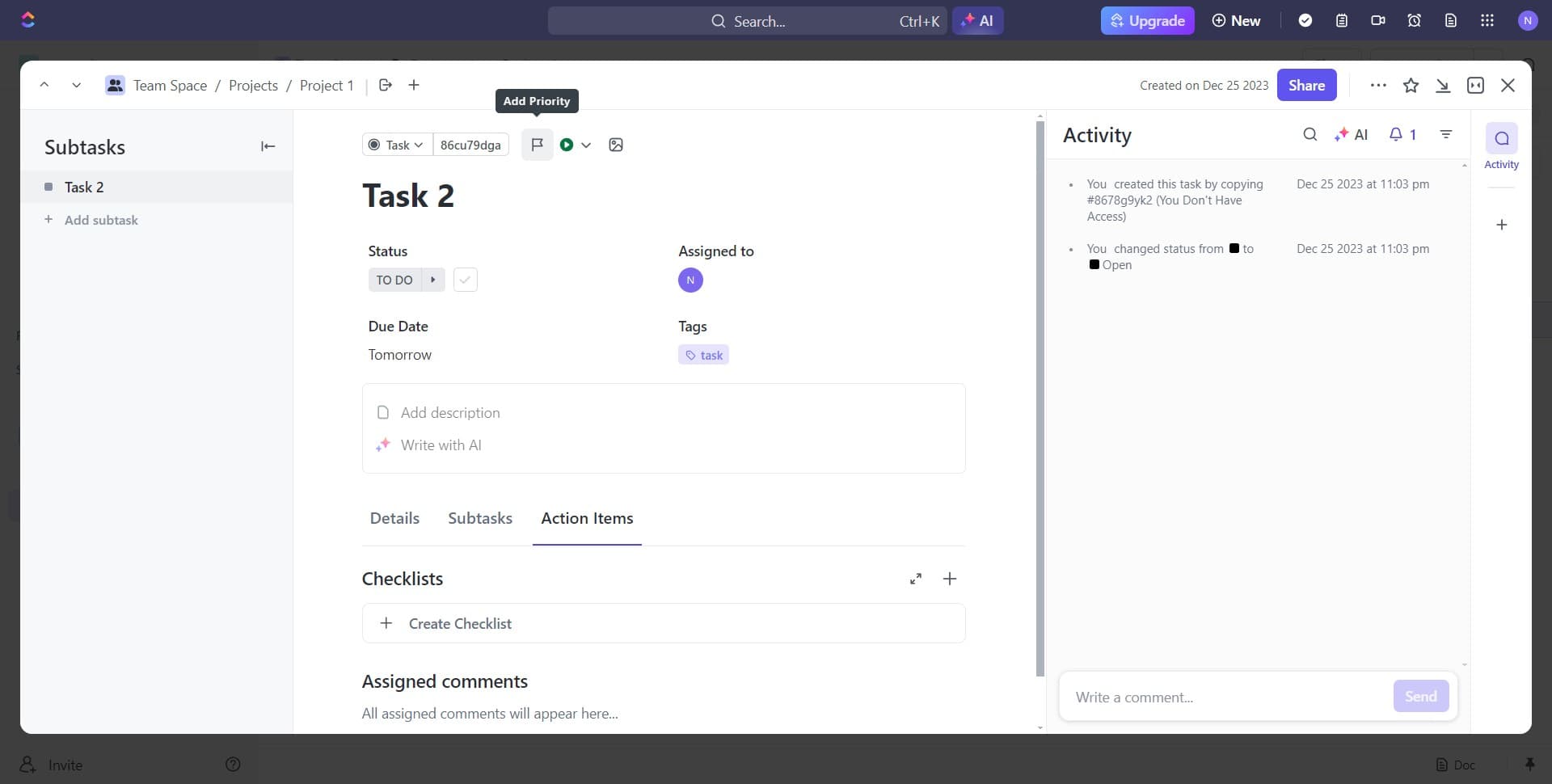
Click on the task name (in this example, 'Task 2') to open it. This displays the task details panel where you can view and modify all associated information.
- 2
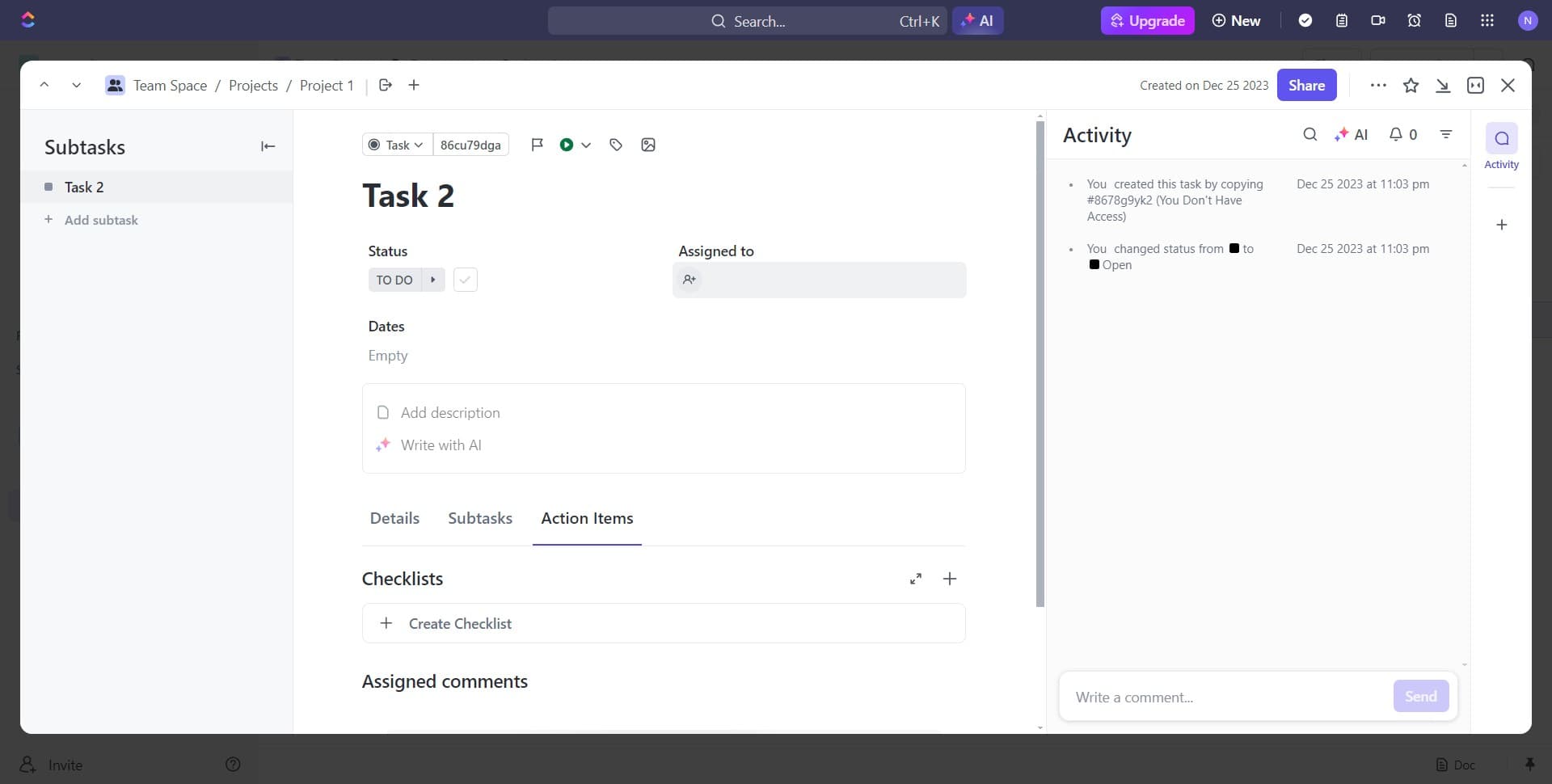
Access the task editing interface
Click the designated edit area to activate the task editing mode. This prepares the task for modifications and displays all editable fields.
- 3
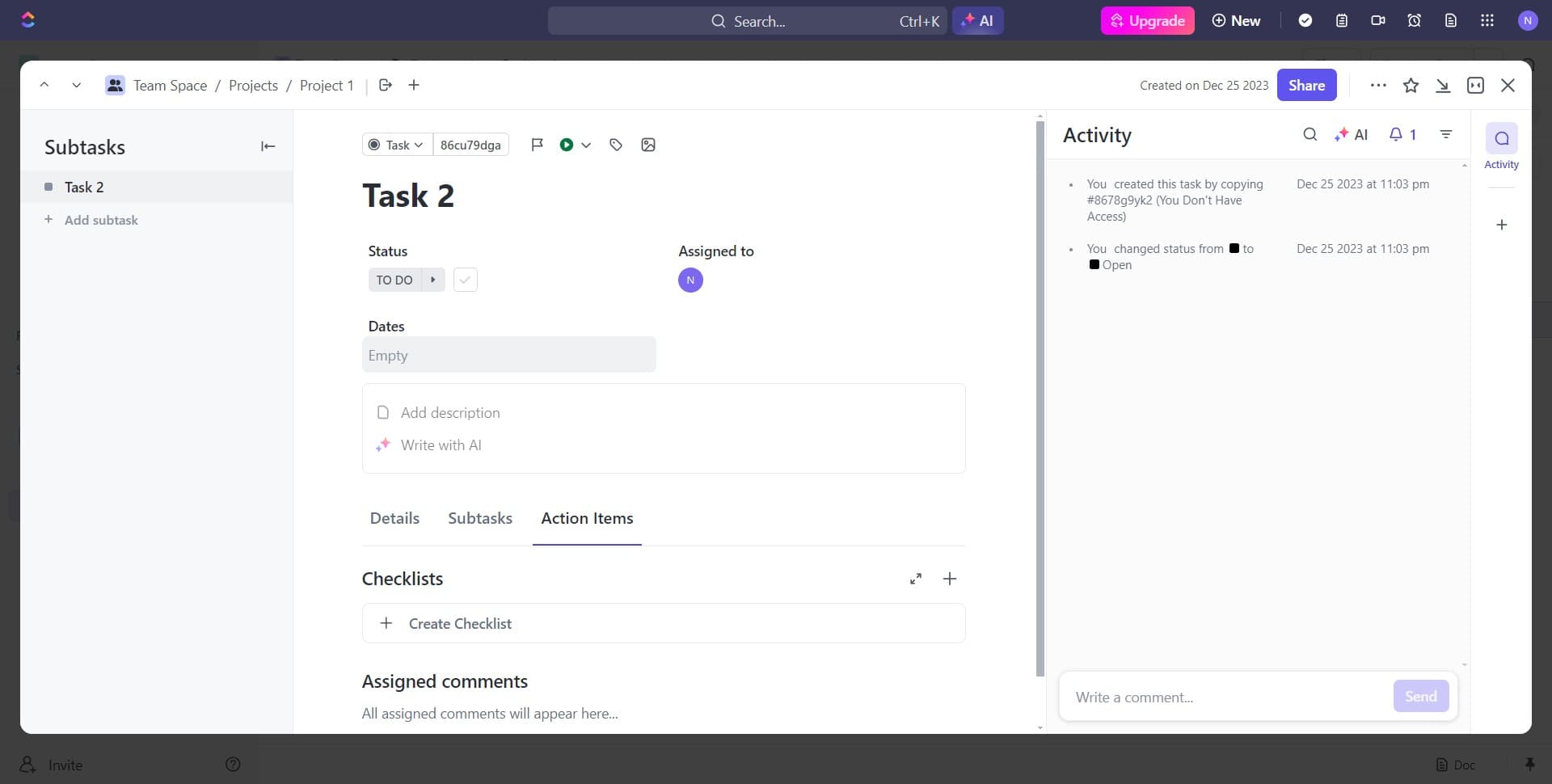
Update the task status field
Click on the status field (shown as 'Empty') to see available status options. Select the appropriate status to reflect the current state of the task.
- 4
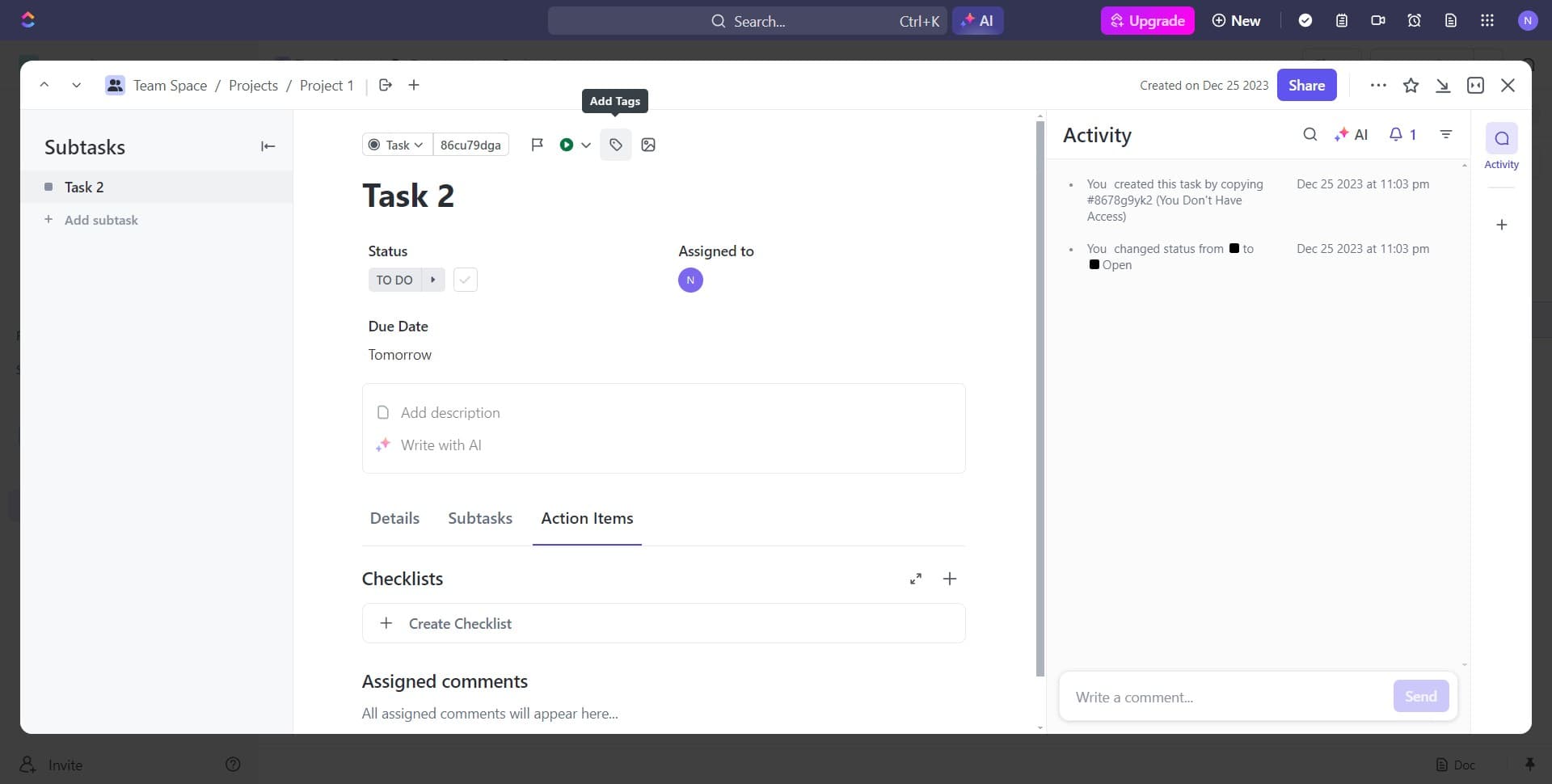
Configure additional task settings
Click the next editable field to modify another task property. Continue updating relevant details as needed for your workflow.
- 5
Save the changes
Click to confirm and save all modifications you've made to the task. Your changes are now applied and visible to your team.
- 6
Set the task priority level
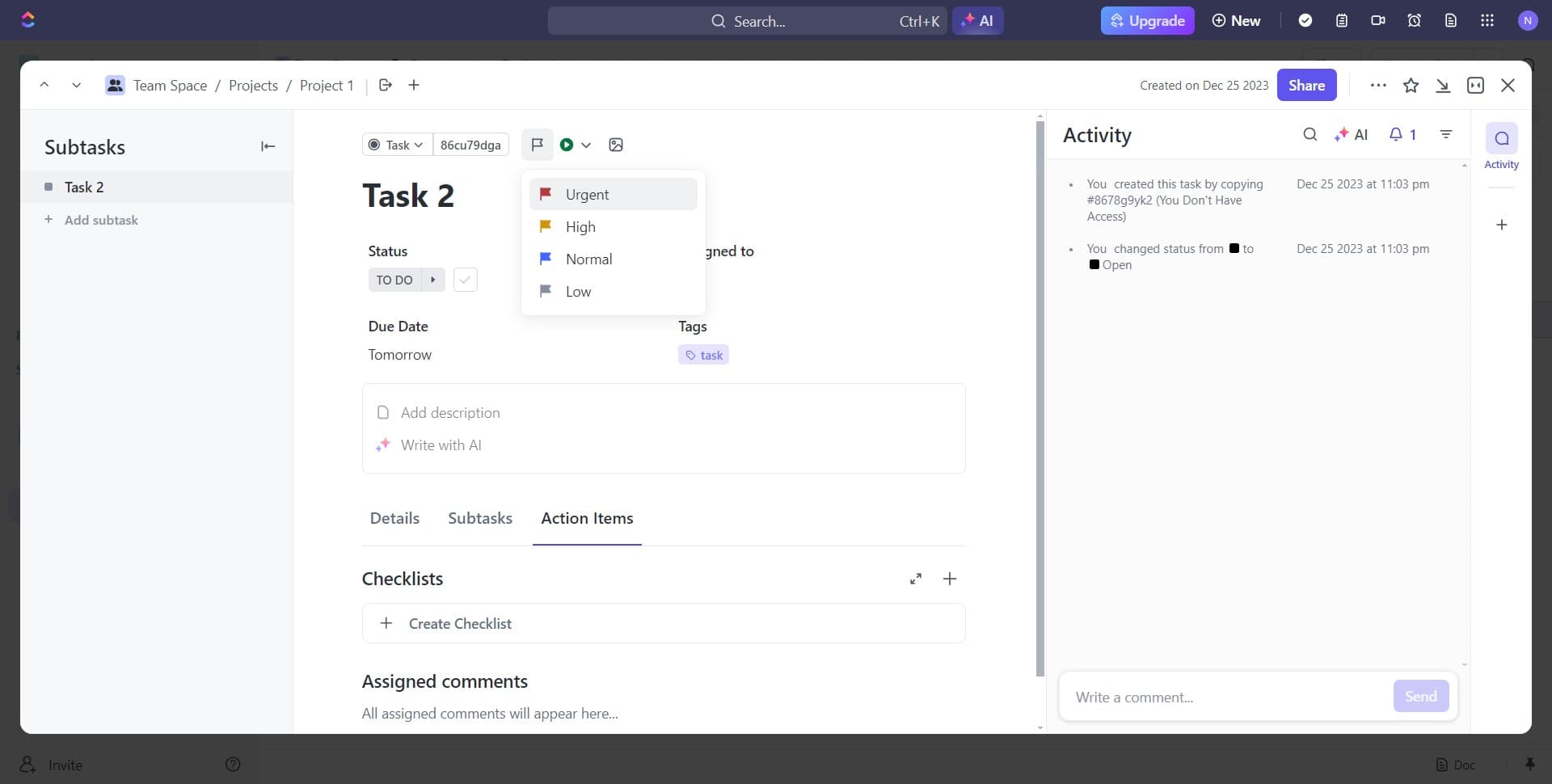
Click on the priority field and select 'Urgent' or another appropriate priority level. This ensures the task visibility and urgency are clearly communicated to your team members.
Frequently asked questions
Common questions about how to edit task in clickup.
Can I edit multiple tasks at once in ClickUp?
ClickUp supports bulk editing through its batch operations feature, which allows you to update multiple tasks simultaneously. However, for individual task editing with full detail control, you'll follow the single-task workflow outlined in this tutorial. Check your ClickUp plan level, as some bulk features may be available only in higher tiers.
What fields can I edit in a ClickUp task?
You can edit numerous task fields including status, priority, assignees, due dates, custom fields, descriptions, attachments, and more. The available fields depend on your workspace configuration and the task template being used. All editable fields will appear in the task details panel when you open a task.
How do I know if my task edits were saved?
ClickUp automatically saves changes as you edit, so you don't need to manually confirm saves for most fields. You'll see the updated information reflected immediately in the task details panel and throughout your project views. If you're unsure, refresh your browser or navigate away and back to confirm the changes persisted.
Can team members see my task edits in real time?
Yes, ClickUp updates task information in real time for all team members with access to that task. When you change a status, priority, or other field, collaborators viewing the same project will see the updates instantly. This ensures everyone stays informed about task progress and changes.
What's the difference between status and priority in ClickUp tasks?
Status tracks the progress state of a task (such as 'To Do', 'In Progress', or 'Done'), while priority indicates the urgency or importance level (such as 'Urgent', 'High', 'Normal', or 'Low'). Both are essential for effective task management—status shows where work stands, and priority helps teams focus on the most critical items first.