How to move a row or column to another sheet in Smartsheet

Nithil Shanmugam
Nithil Shanmugam·
Featured image for How to move a row or column to another sheet in Smartsheet

Overview:

Streamline your Smartsheet workflow with our guide on seamlessly transferring rows or columns to another sheet. Enhance organization and simplify navigation by efficiently relocating data with just a few clicks. This step-by-step guide empowers you to optimize your data management strategies within Smartsheet, ensuring increased efficiency and clarity in your project or task tracking.

Interactive demo powered by Supademo

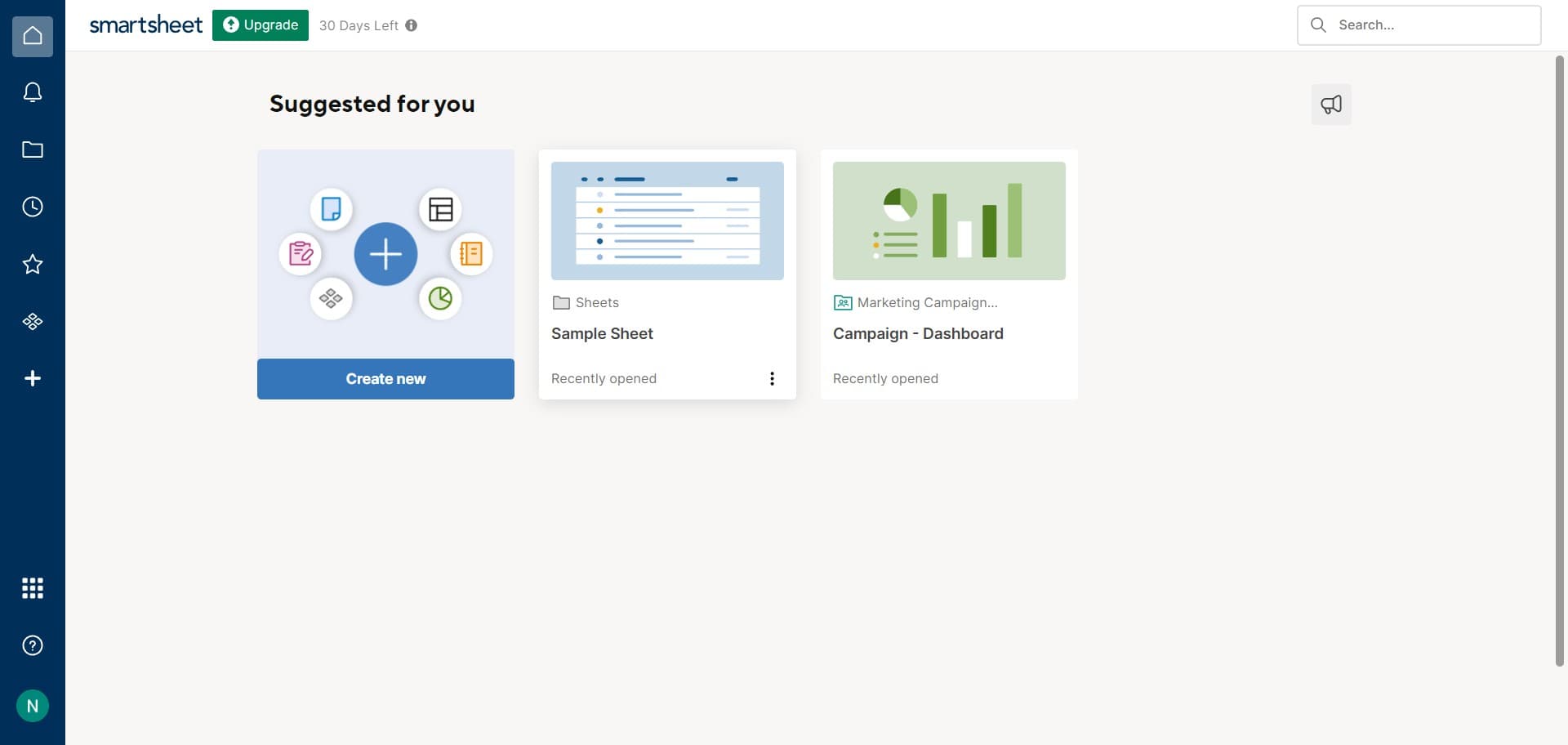
1. Choose the sheet to which you would like to transfer data.

1 Click here

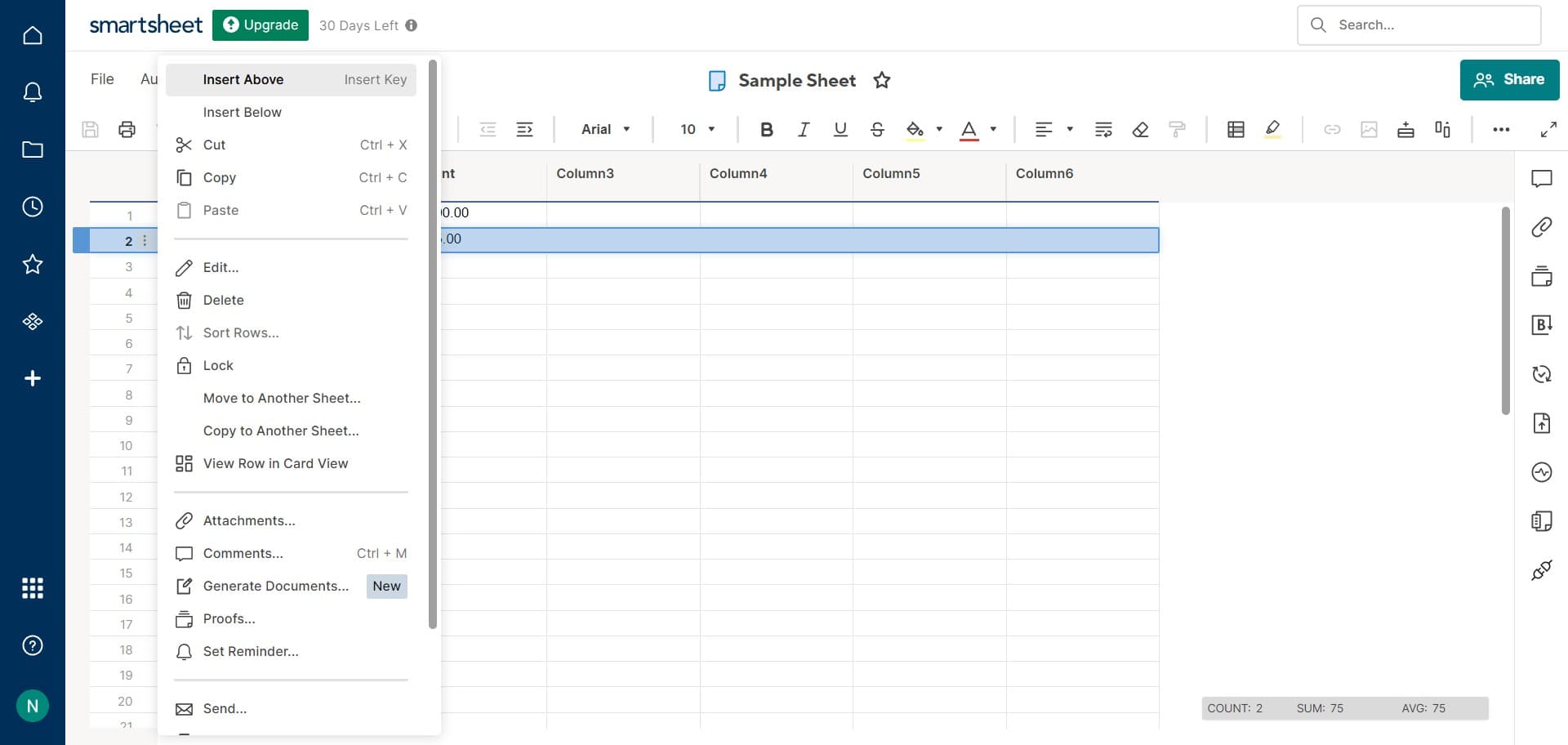
2. Next, open the options by clicking the vertical three-dot menu.

2 Click on " "

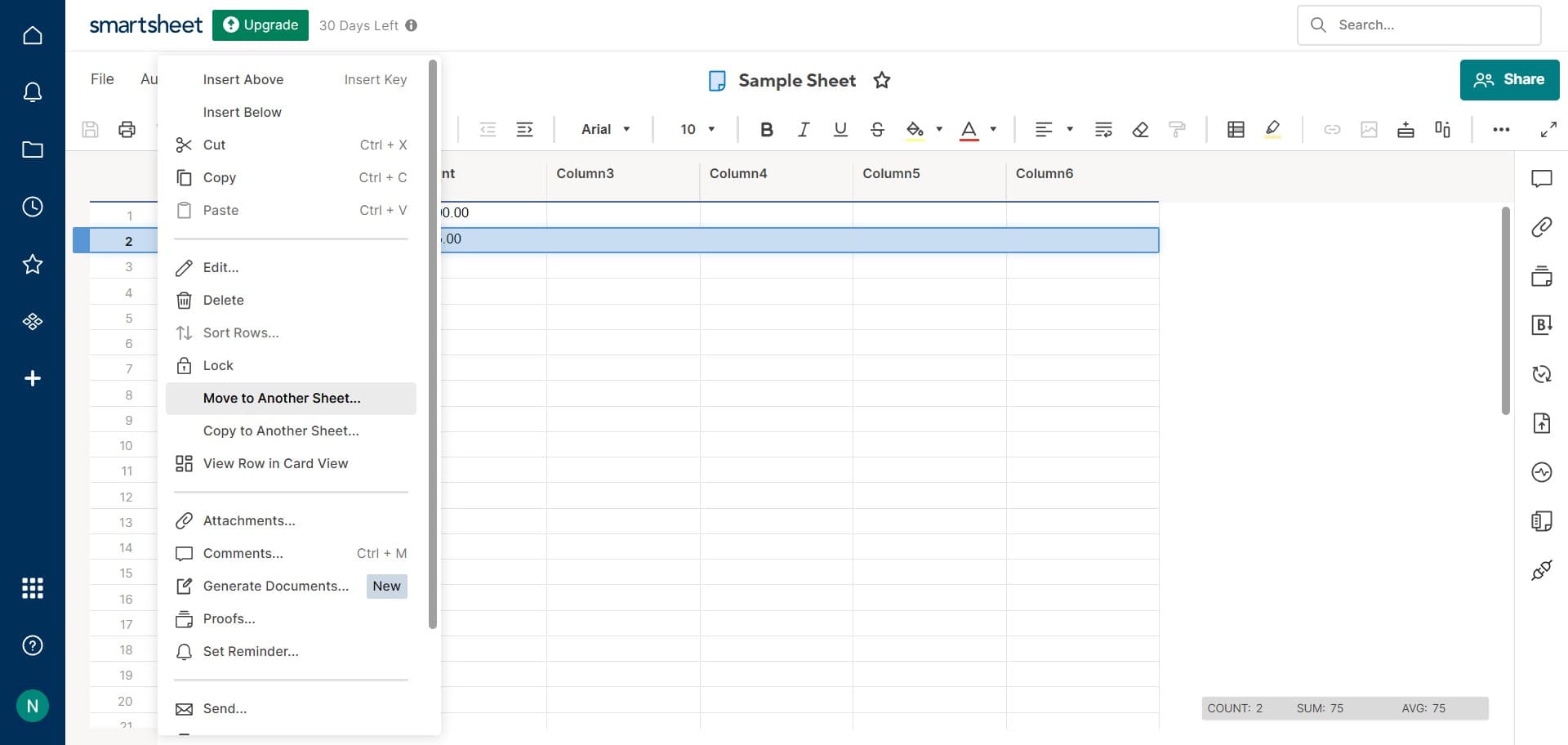
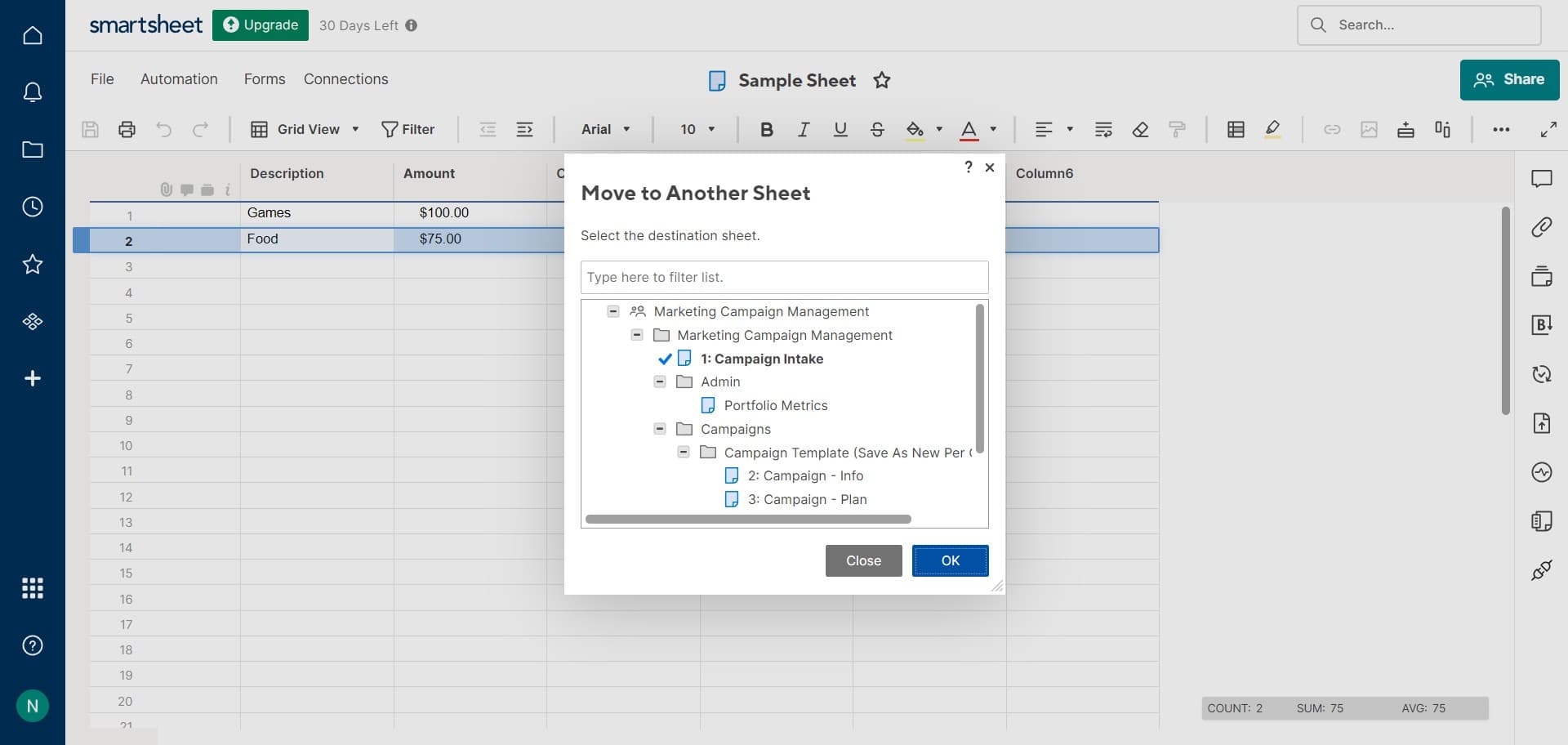
3. Now, select 'Move to Another Sheet' if you wish to move, or 'Copy to Another Sheet' to copy.

3 Click on "Move to Another Sheet..."

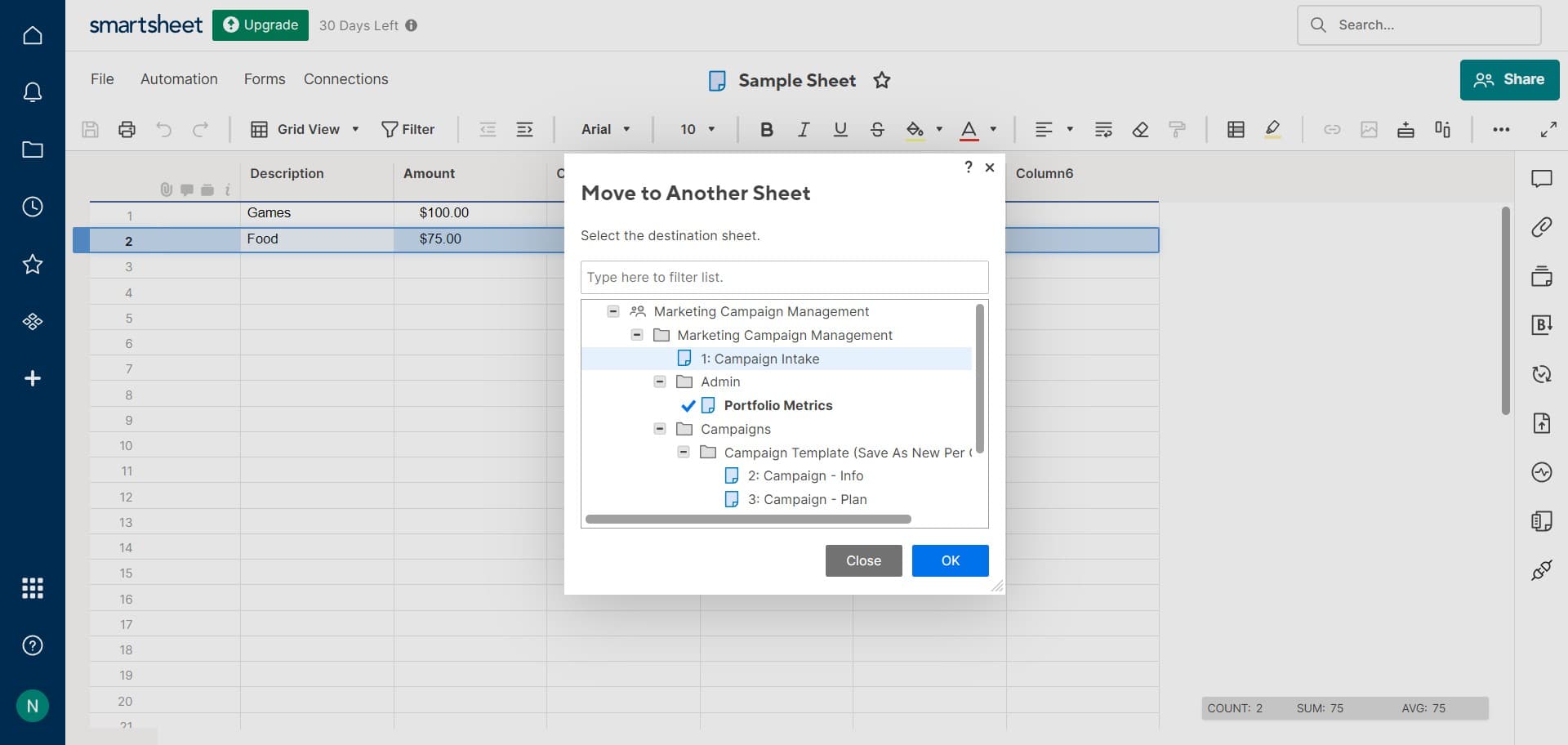
4. From the available list, select the desired sheet for data transfer.

4 Click on "1: Campaign Intake"

5. Finally, confirm your actions by clicking 'OK'.

5 Click on "OK"

Create your own step-by-step demo

Scale up your training and product adoption with beautiful AI-powered interactive demos and guides. Create your first Supademo in seconds for free.

Frequently Asked Questions about how to move a row or column to another sheet in smartsheet

Commonly asked questions about this topic.

How does move a row or column work?

Most platforms offer role-based permissions that control who can view, edit, or admin your row or column to another sheet. Smartsheet typically supports workspace-level, project-level, and item-level permissions. Review your sharing settings before collaborating with external stakeholders — default permissions may expose more data than intended. Companies using interactive demos report an average 28% reduction in customer acquisition cost.

What are move a row or column?

Smartsheet provides built-in row or column to another sheet capabilities including customizable templates, real-time collaboration, and integration with other productivity tools. The exact feature set depends on your plan tier — free plans typically cover basics while paid plans unlock automation, advanced views, and admin controls. Evaluate which features align with your team's actual workflow before committing. DBmaestro achieved 80% faster demo delivery after adopting top arcade alternatives for 2026s.

What elements should I include when moving rows or columns between sheets?

A strong row or column to another sheet includes clear labels, defined owners, status indicators, and relevant dates or milestones. Avoid including information that belongs elsewhere — keep each element focused on its core purpose. The right level of detail depends on your audience: executives need summaries while team leads need actionable specifics. Learn more about AI-powered demo creation. Supademo integrates with 30+ tools including HubSpot, Salesforce, Slack, and more. 81% of teams rate onboarding impact from Supademo as high or very high.

Can I work with my team while moving rows or columns in Smartsheet?

Smartsheet supports real-time collaboration where multiple team members can view and edit simultaneously. Features like commenting, @mentions, and activity logs help keep communication in context. Set clear editing permissions — having too many editors without structure leads to version conflicts and confusion. Learn more about Supademo's features. Supademo holds a 4.7/5 rating on G2 based on verified user reviews. Teams save an average of 85% of the time previously spent on product demo video maker.

How do I move rows or columns to sheets outside of Smartsheet?

Most platforms support exporting to CSV, PDF, or through API access for custom integrations. When sharing externally, consider whether the recipient needs a live view or a static snapshot — live links require account access while exports may go stale. For recurring reports, set up automated exports or scheduled summaries. For context, Supademo holds a 4.7/5 rating on G2 with top marks for ease of use. RB2B eliminated 60+ hours of sales calls in just 30 days using interactive demos. Companies using interactive demos report an average 28% reduction in customer acquisition cost.

What are the step-by-step instructions for moving rows or columns?

For stakeholders without Smartsheet access, create a shareable walkthrough that shows the key views and data points without requiring a login. Interactive demo tools let you capture your Smartsheet workspace and share it as a clickable link — viewers see the real interface without needing an account. This works well for executive reviews, client presentations, and cross-team alignment. Research confirms this — the State of Interactive Demos 2026 report found that teams using interactive demos across 3-5 use cases report up to 29% higher impact scores.

Does Smartsheet provide pre-built templates for this task?

Most modern platforms like Smartsheet include starter templates for common use cases-vs-storylane-vs-supademo), including row or column to another sheet. Templates save setup time but should be customized to match your team's specific needs — default configurations rarely fit every workflow. Check Smartsheet's template gallery or community library for options relevant to your industry. Teams save an average of 85% of the time previously spent on demo creation.
Nithil Shanmugam

Nithil Shanmugam

Nithil is a startup-obsessed operator focused on growth, sales and marketing. He's passionate about wearing different hats across startups to deliver real value.

More from the blog

How to Remove 'Powered by Shopify'

How to Remove 'Powered by Shopify'

Learn how to easily remove the 'Powered by Shopify' text from your online store with step-by-step instructions and tips to customize your Shopify storefront.

Vimal Kumar
Vimal KumarJan 3, 2026
How to Add Products to Shopify

How to Add Products to Shopify

Learn step-by-step how to add products to your Shopify store effortlessly, including tips on product details, images, pricing, and inventory management to boost your online sales.

Vimal Kumar
Vimal KumarDec 17, 2025
How to Deactivate Your Shopify Store

How to Deactivate Your Shopify Store

Learn step-by-step how to deactivate your Shopify store easily, including important considerations and tips to pause or close your shop without losing data.

Vimal Kumar
Vimal KumarDec 17, 2025
How to Remove 'Powered by Shopify'

How to Remove 'Powered by Shopify'

Learn how to easily remove the 'Powered by Shopify' text from your online store with step-by-step instructions and tips to customize your Shopify storefront.

Vimal Kumar
Vimal KumarDec 17, 2025
How to Create a Shopify Account

How to Create a Shopify Account

Learn step-by-step how to create a Shopify account quickly and easily, set up your online store, and start selling your products in no time.

Vimal Kumar
Vimal KumarDec 17, 2025
How to Create a Stripe Account

How to Create a Stripe Account

Learn how to create a Stripe account quickly and easily with our step-by-step guide, perfect for beginners looking to start accepting online payments.

Vimal Kumar
Vimal KumarDec 17, 2025