How to Navigate Attio Workspace

Attio's workspace is the central hub where you manage your CRM data, contacts, and workflows. Understanding how to navigate this interface efficiently is essential for maximizing productivity and accessing the features you need quickly.
Quick summary
In this tutorial, you'll learn how to navigate Attio's workspace interface, including accessing key sections, understanding the layout, and finding the tools you need to manage your customer relationships effectively.
Why this matters
Effective workspace navigation ensures you can quickly access contacts, manage records, and execute workflows without wasting time searching for features. Mastering the layout helps your team work more efficiently and reduces the learning curve for new users.
Step-by-step guide
- 1
Log in to your Attio account
Enter your credentials on the Attio login page and click Sign In. You'll be directed to your workspace dashboard after successful authentication.
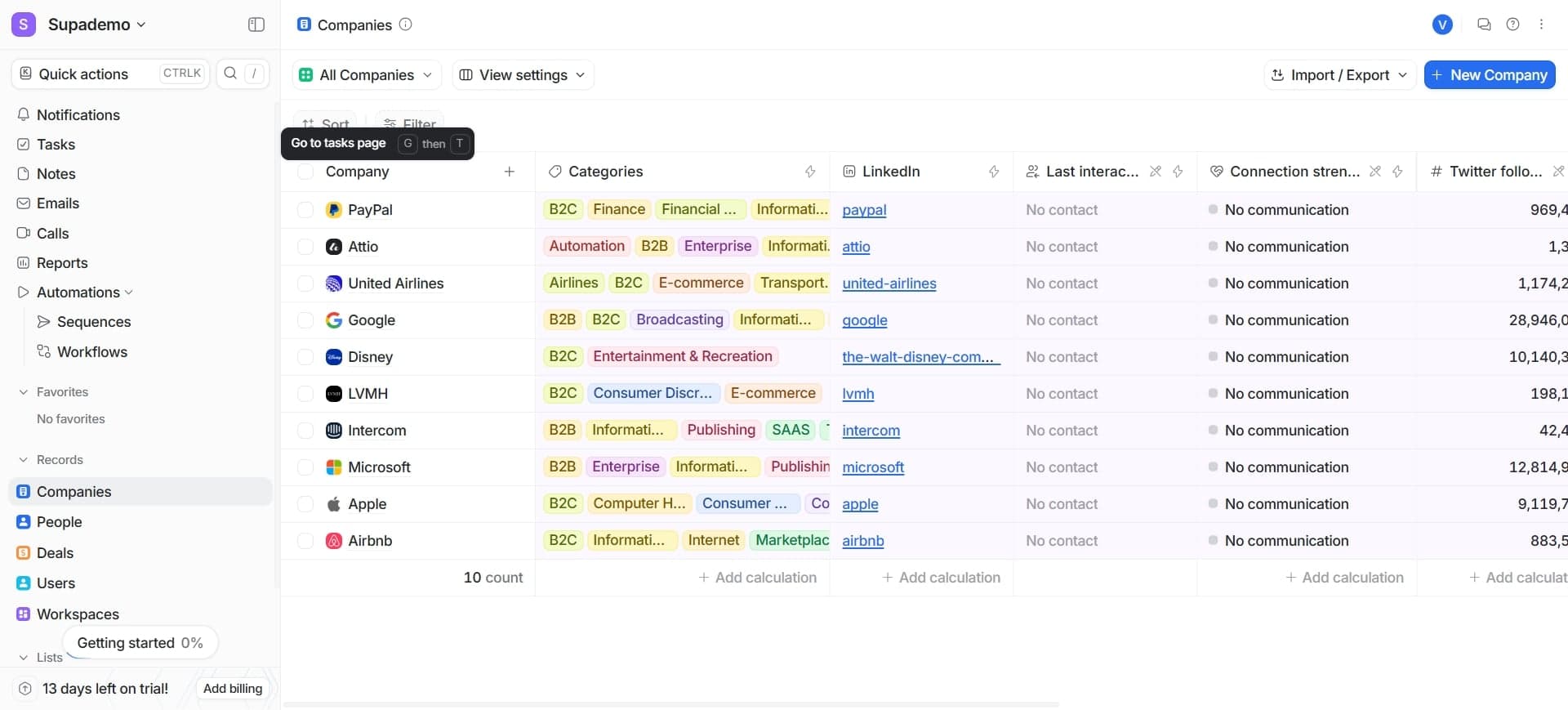
- 2
Explore the main navigation sidebar
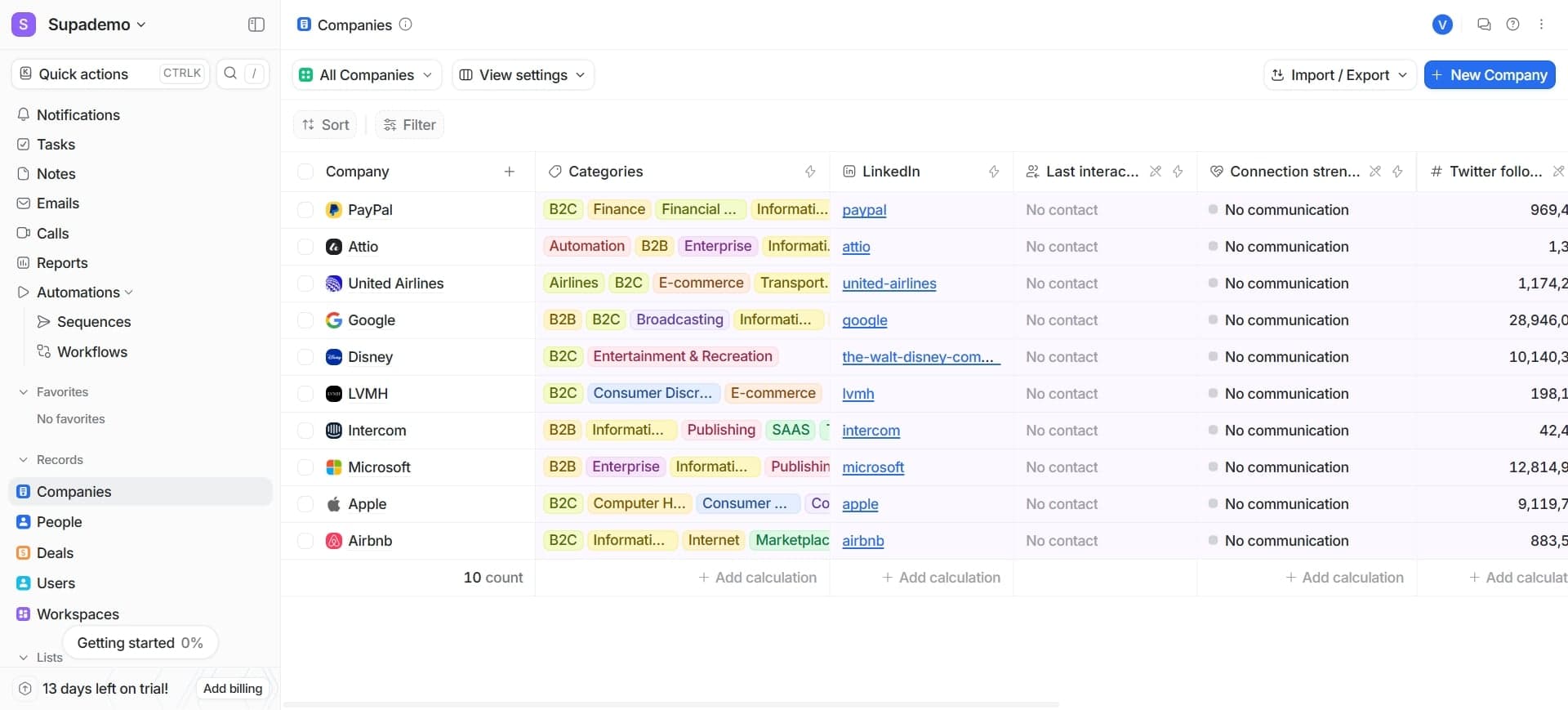
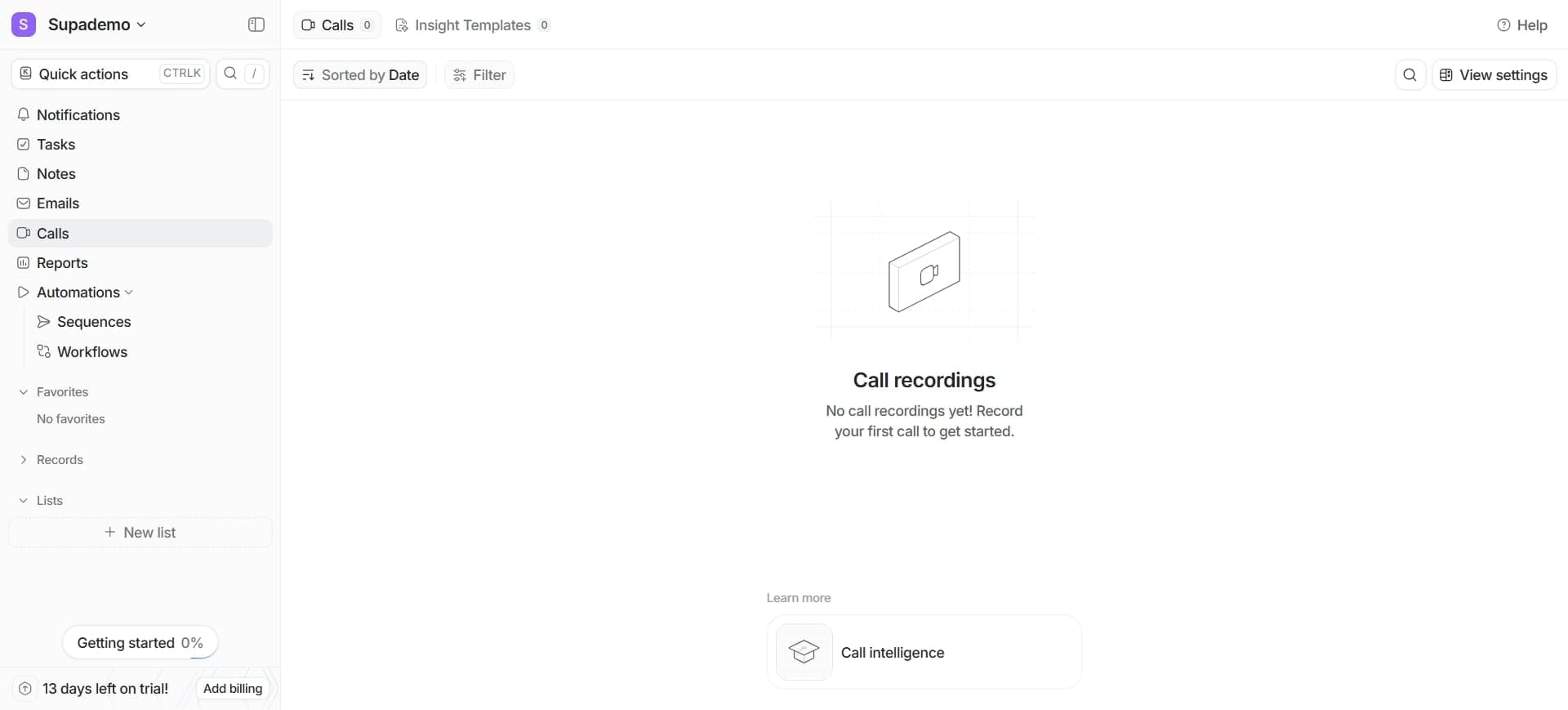
Look at the left sidebar to see the primary navigation options. This sidebar contains quick access links to major workspace sections like Contacts, Lists, and Workflows.
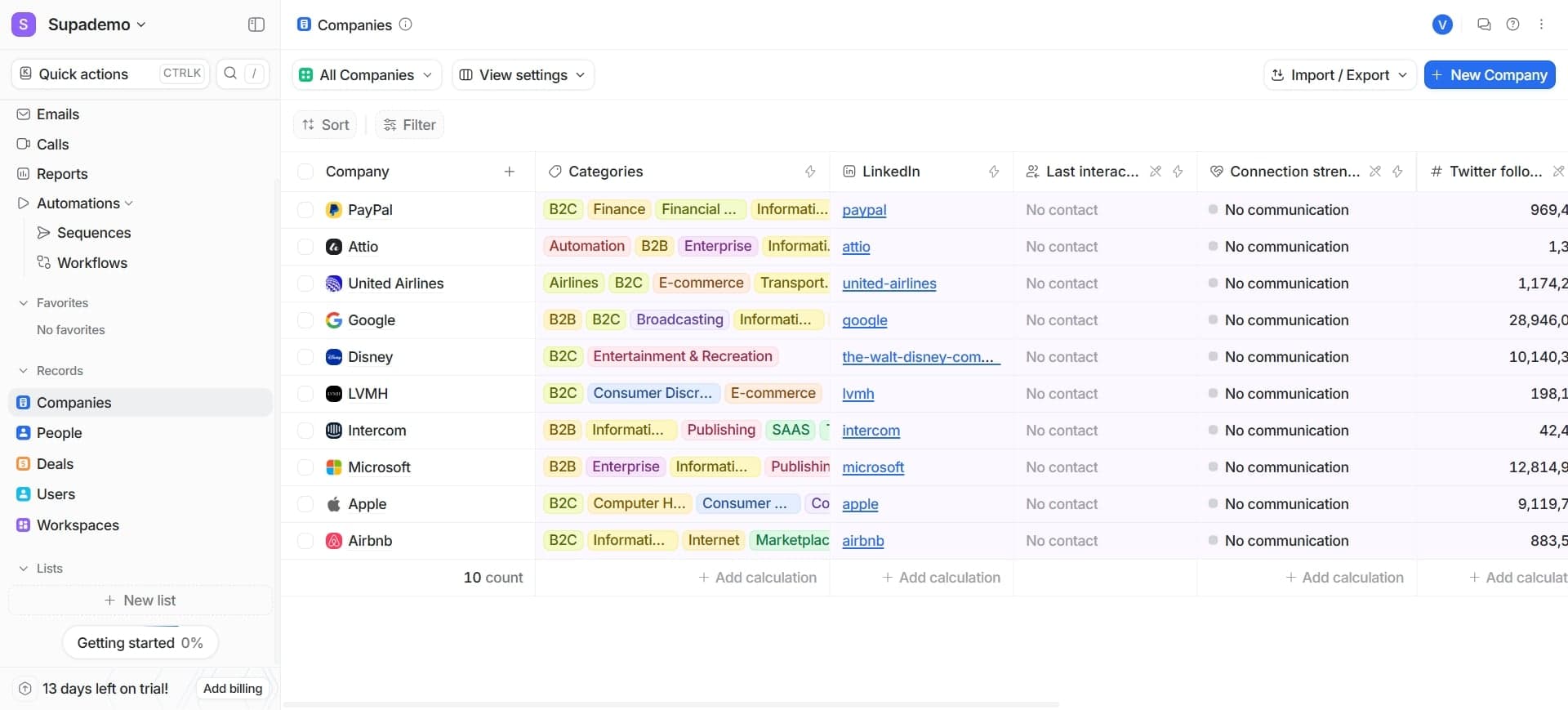
- 3
Access the contacts section
Click on Contacts in the sidebar to view your contact database. This section displays all your stored contacts and allows you to search, filter, and manage contact records.
- 4
Review the top navigation bar
The top bar contains your workspace name, search functionality, and user account menu. Use this area to switch between workspaces or access account settings.
- 5
Open the lists view
Click on Lists in the navigation sidebar to view your saved contact lists and segmentations. This section helps you organize and target specific contact groups.
- 6
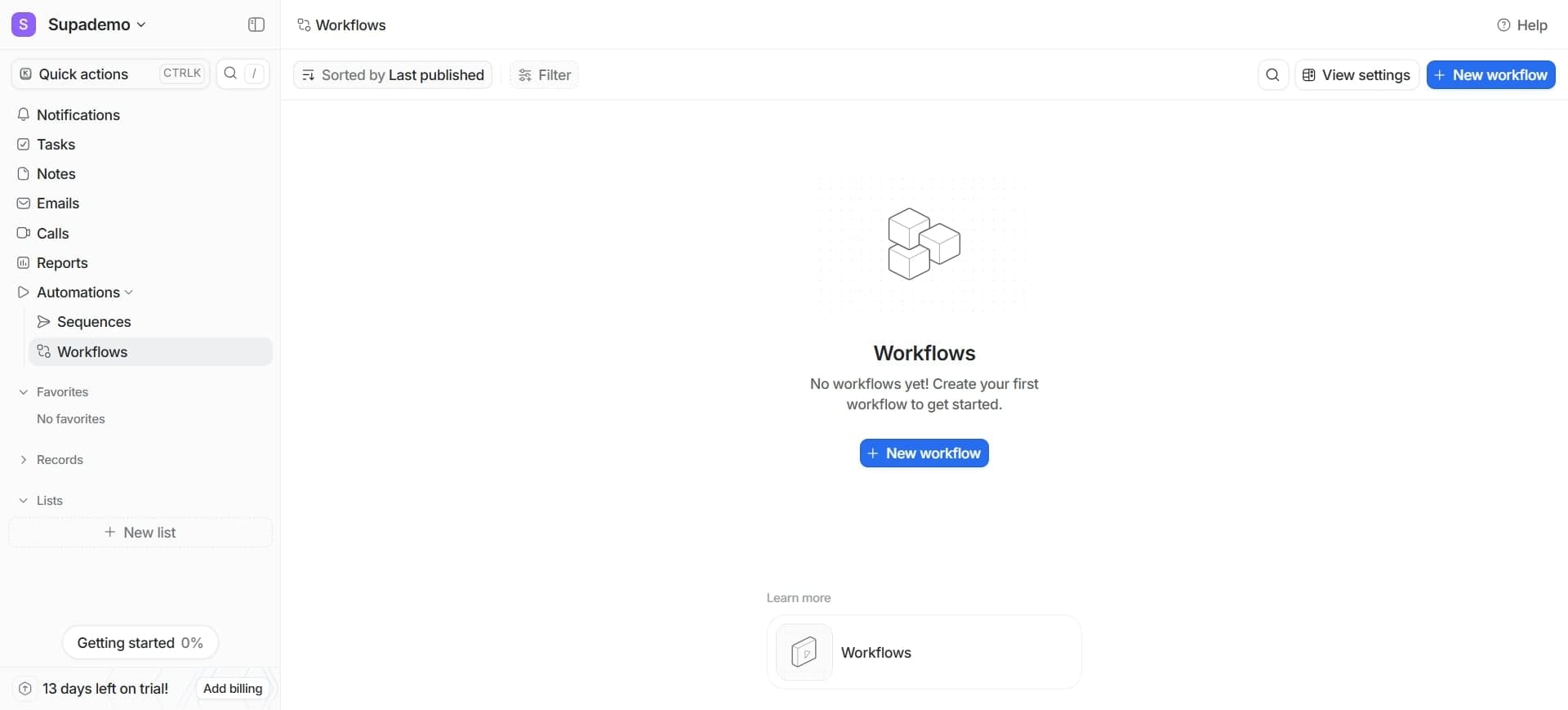
Navigate to workflows section
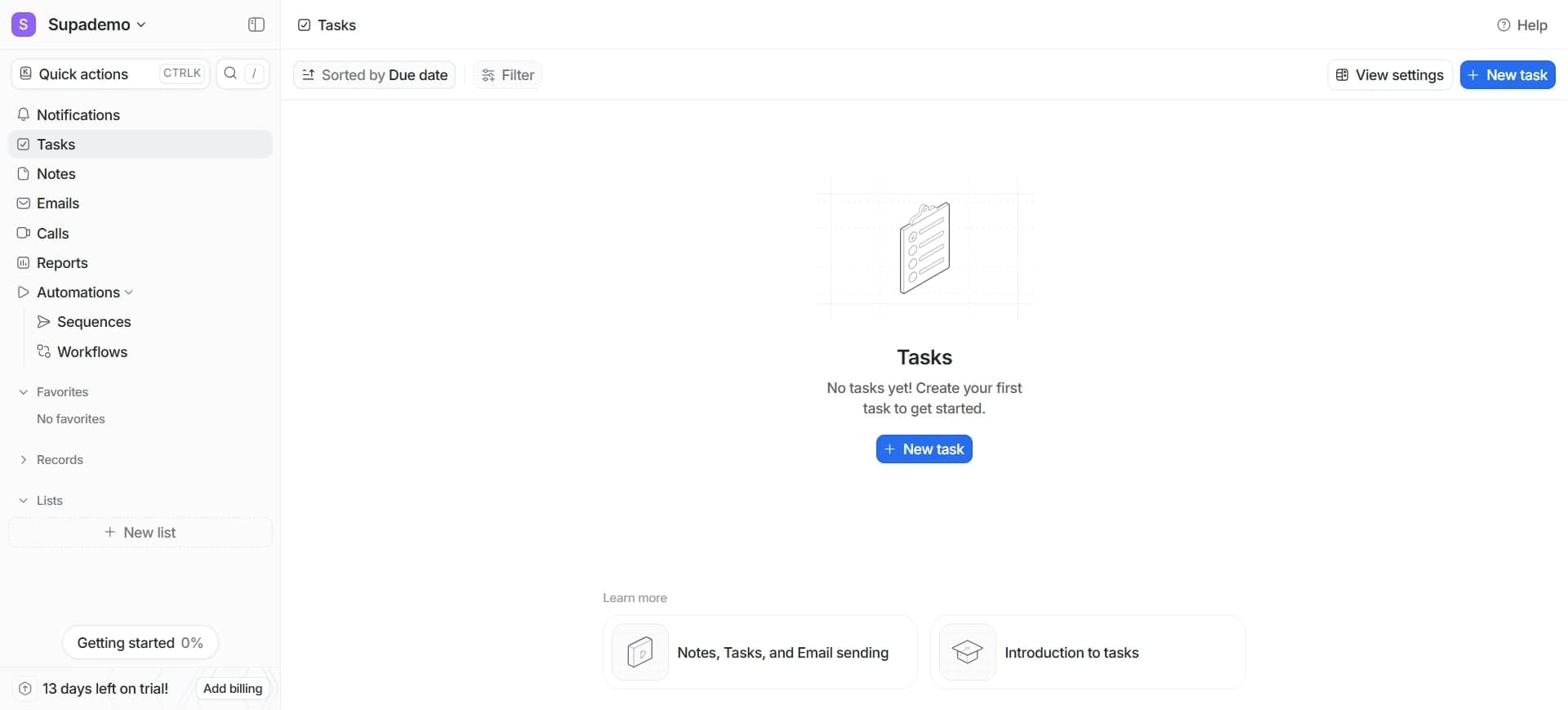
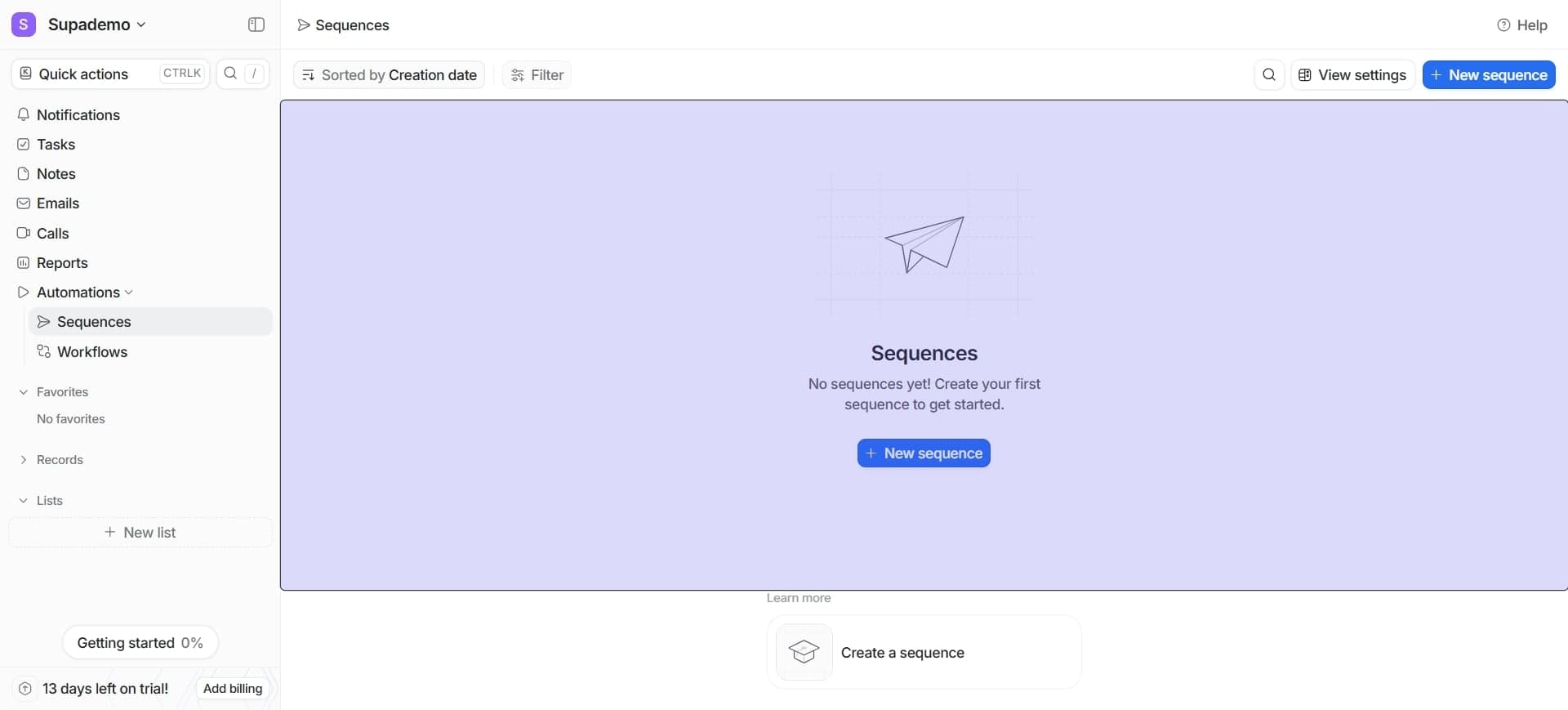
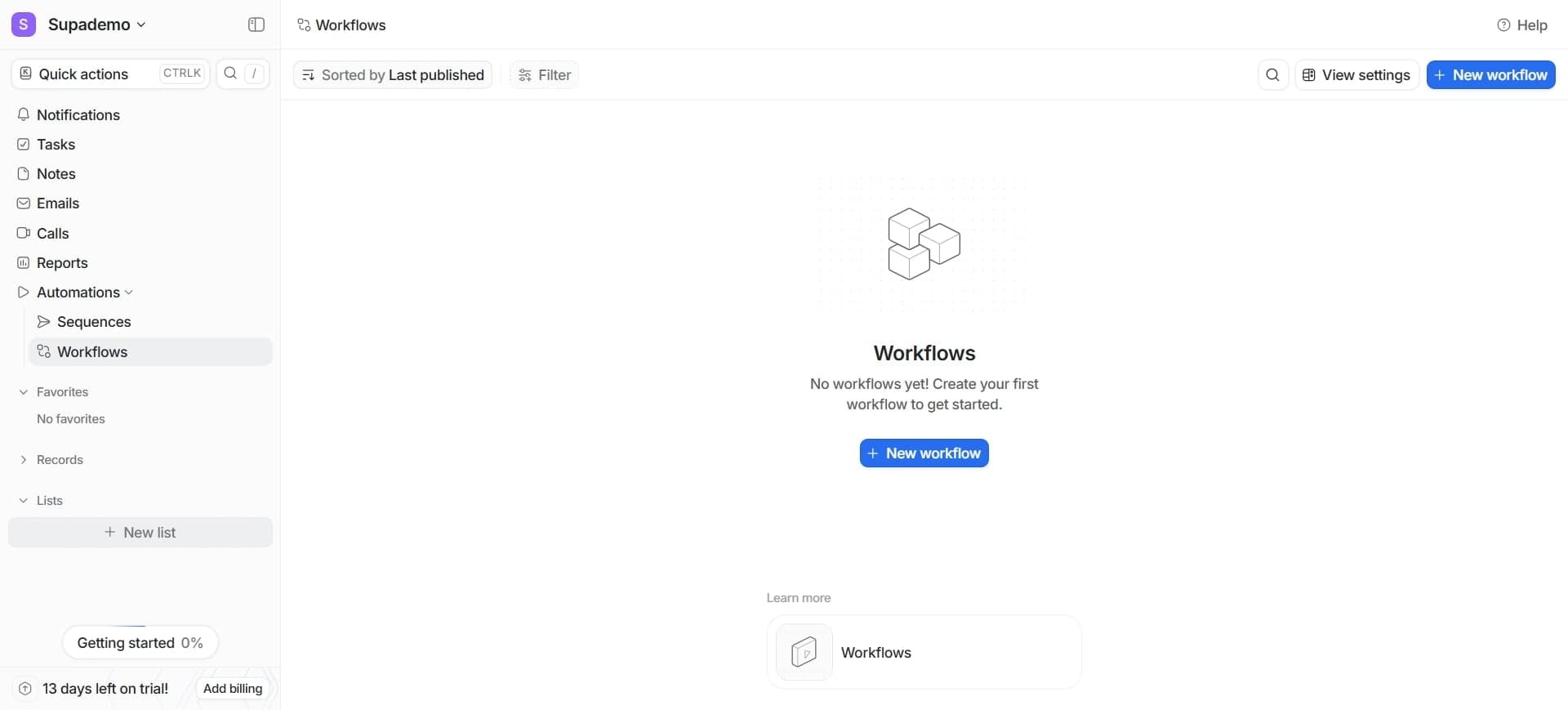
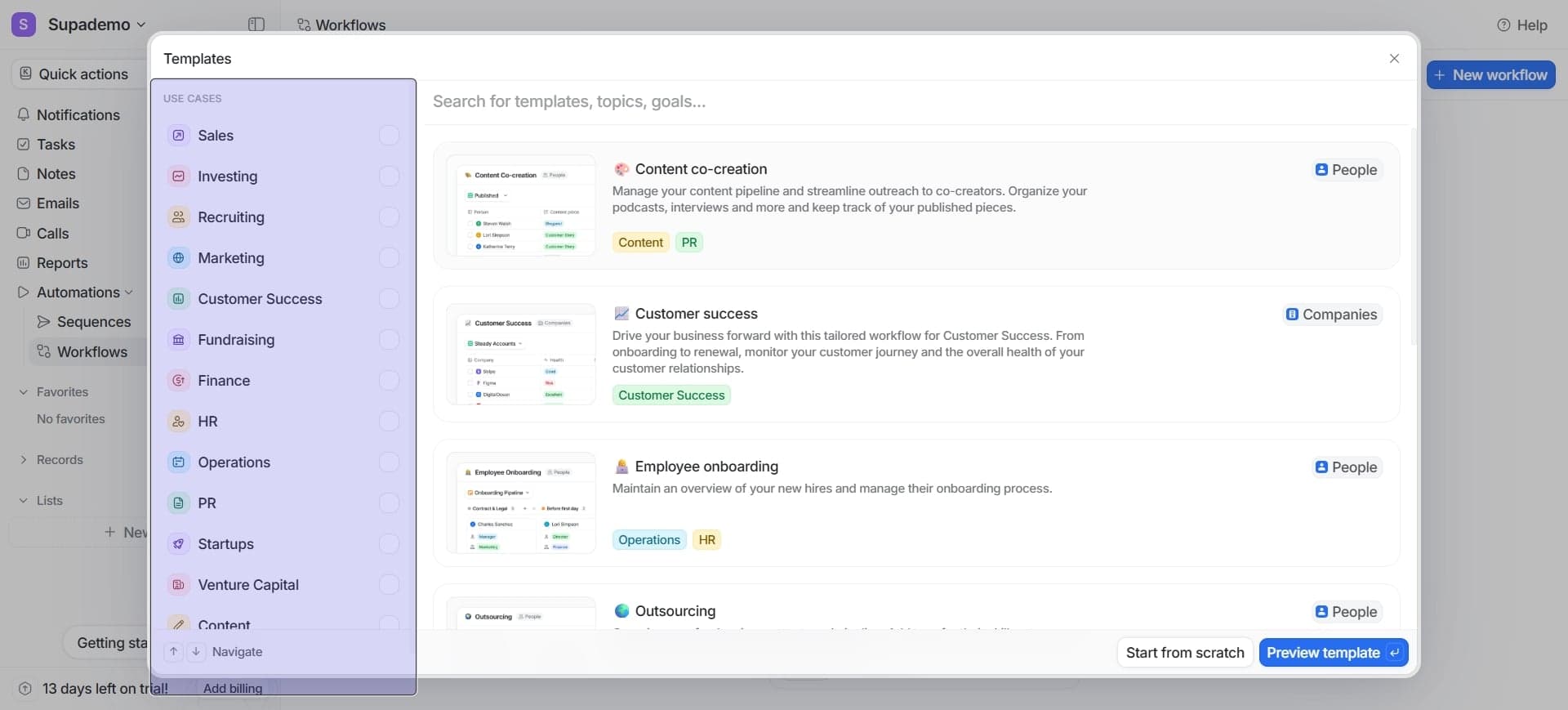
Select Workflows from the sidebar to access automation sequences and process automation tools. Here you can create, edit, and monitor your automated workflows.
- 7
Explore the settings area
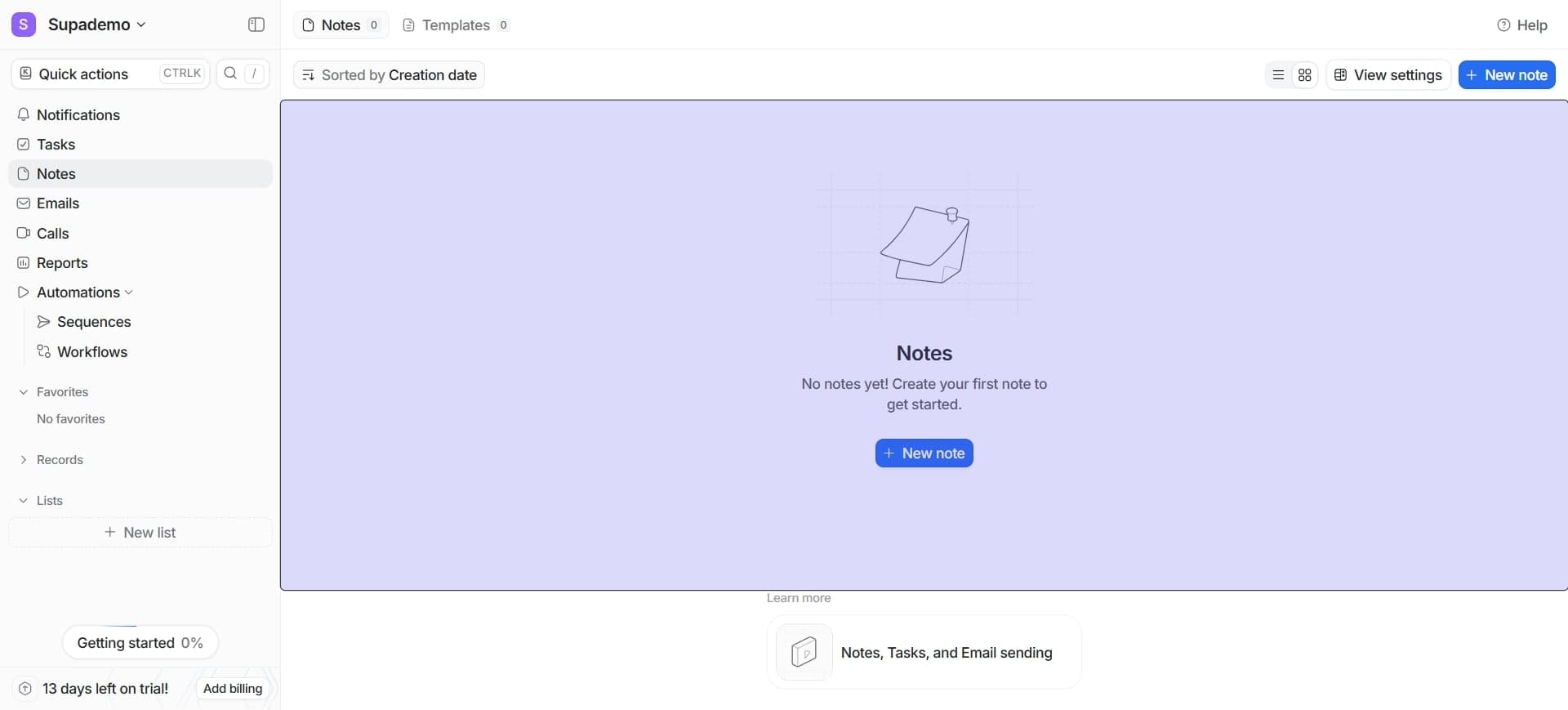
Click on the settings icon (usually gear icon) in the top right corner to access workspace settings, user management, and integration options.
- 8
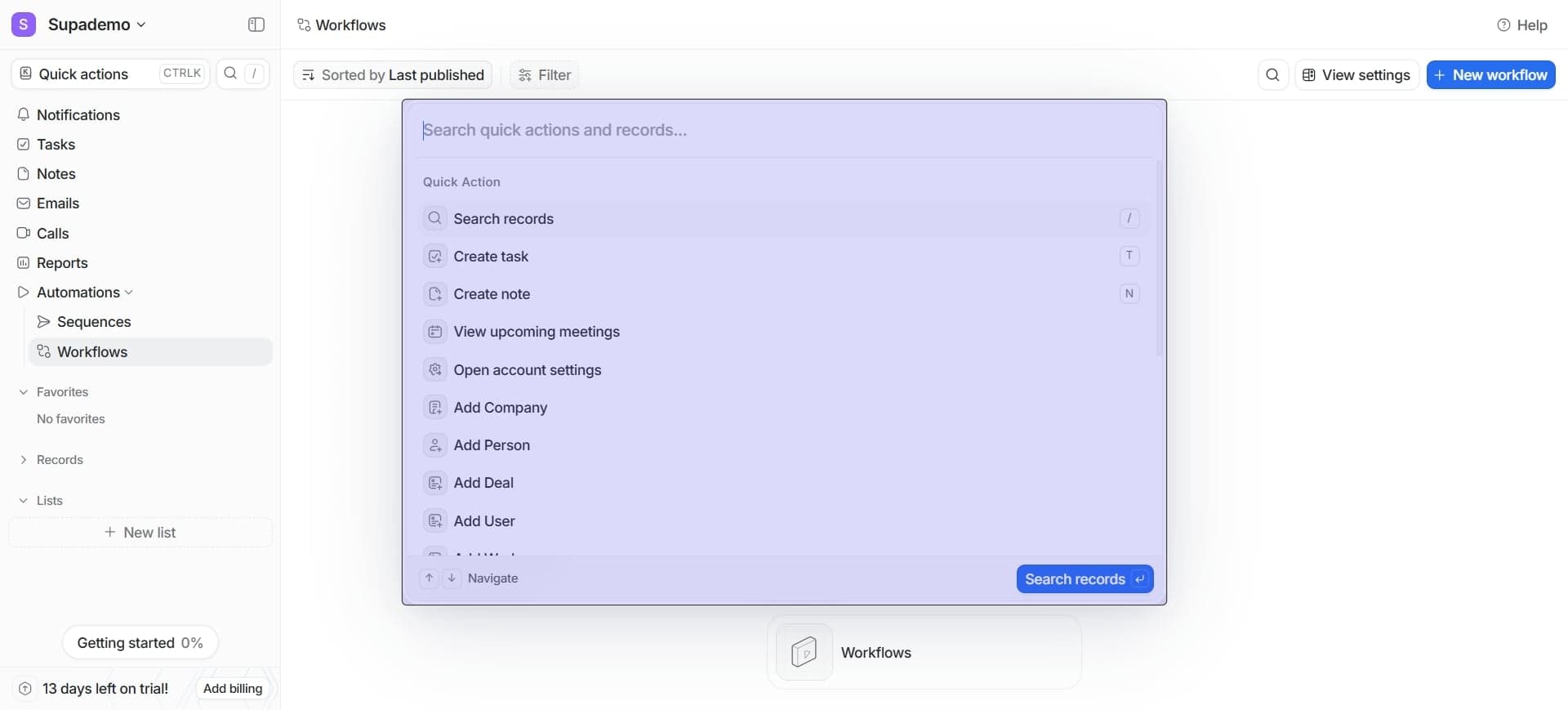
Use the search functionality
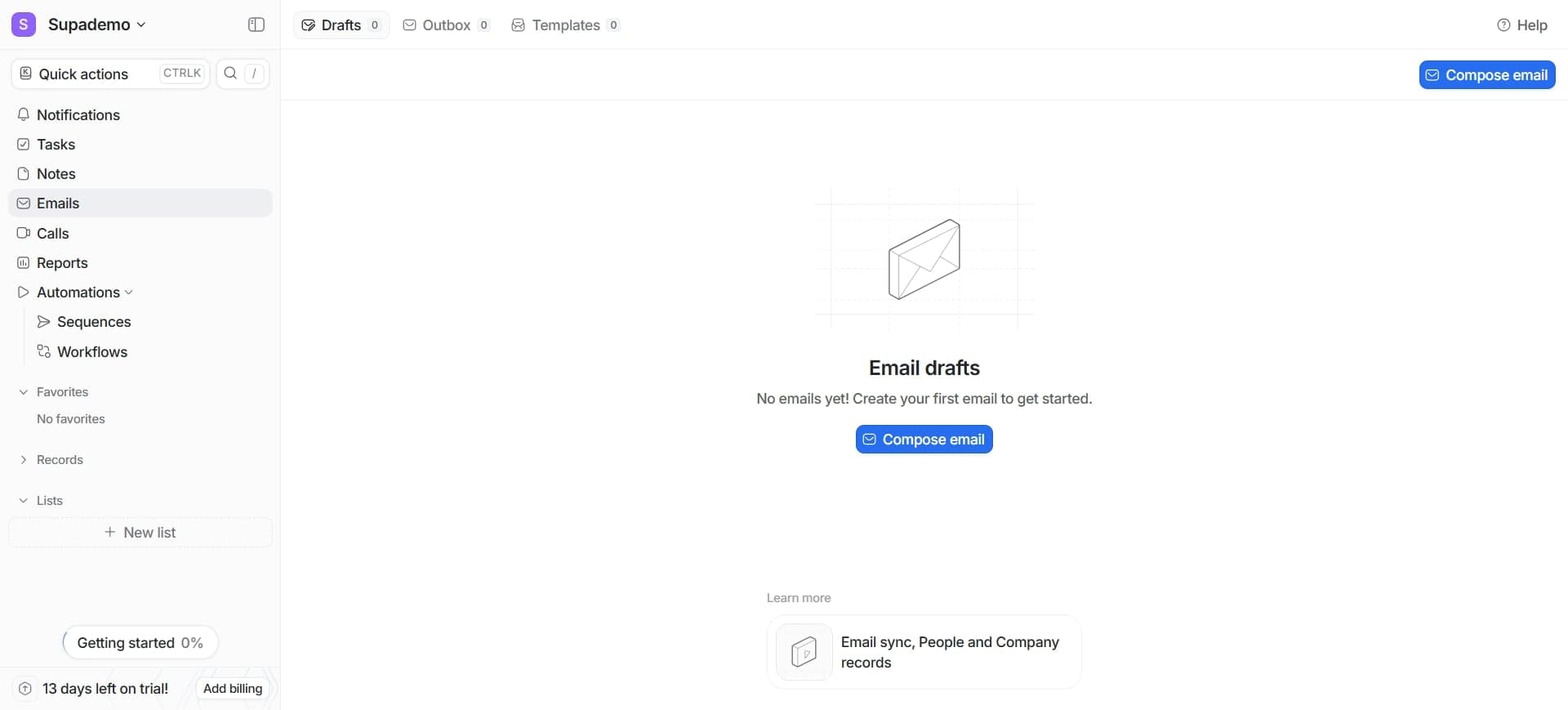
Click the search bar at the top of the workspace to quickly find contacts, records, or features. This global search saves time when navigating between items.
- 9
Access your user profile menu
Click your profile avatar or name in the top right corner to view profile options, preferences, and logout functionality.
- 10
Understand the workspace switcher
If you have multiple workspaces, use the workspace dropdown in the top navigation to switch between different Attio environments.
- 11
Review recent items or shortcuts
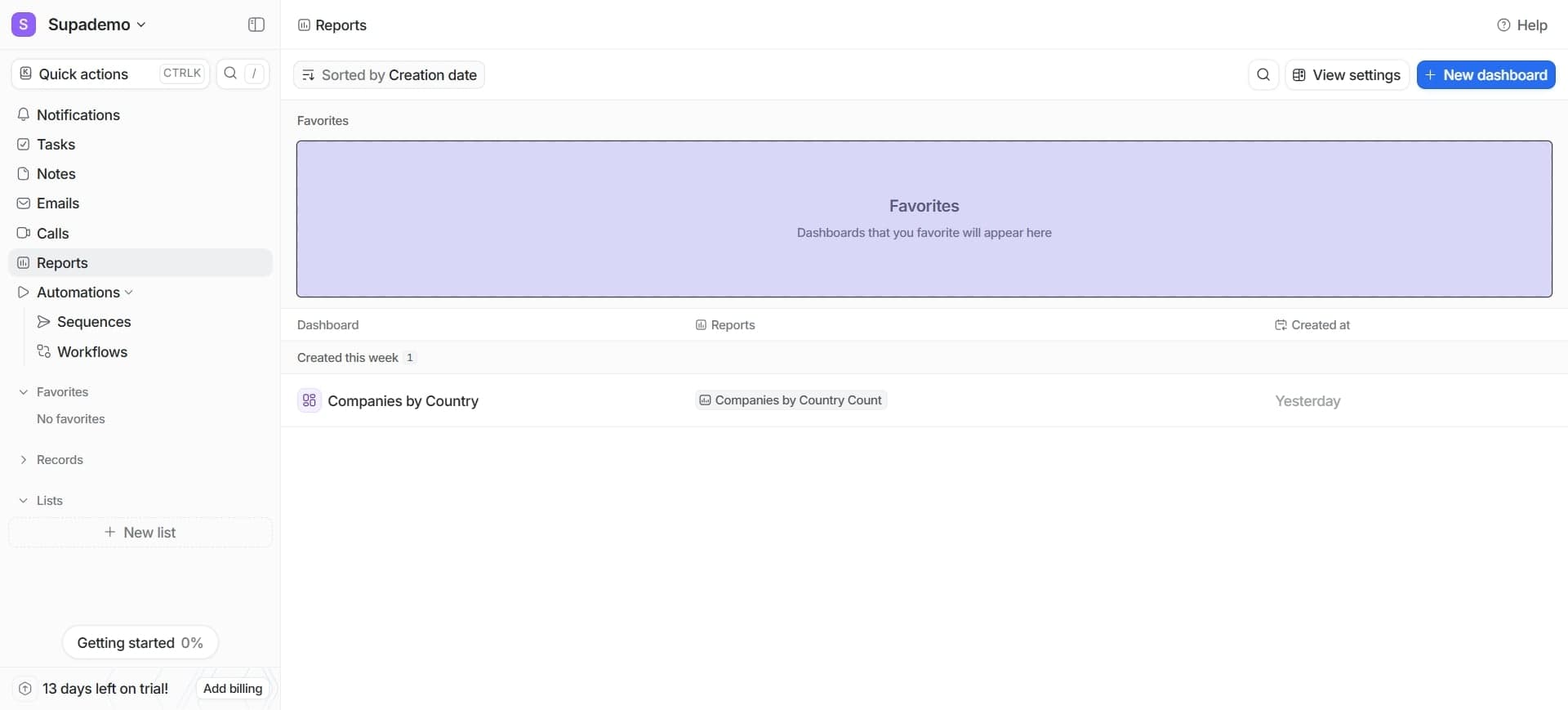
Check for a Recent or Favorites section in your navigation to quickly access frequently used contacts, lists, or workflows.
- 12
Explore the help and support resources
Look for a help icon or support button in the interface, typically in the top right corner, to access documentation and customer support options.
- 13
Customize your workspace view
Adjust layout preferences, column visibility, and sidebar organization through settings to personalize your workspace according to your workflow needs.
Frequently asked questions
Common questions about how to navigate attio workspace.
How do I switch between different Attio workspaces?
Click on the workspace name or dropdown selector in the top navigation bar. If you have access to multiple workspaces, you'll see a list to choose from. Select the workspace you want to access and it will load immediately.
Where can I find my contacts in Attio?
Click on the Contacts option in the left sidebar to access your contact database. You can then search, filter, or browse through all your stored contact records from this main view.
How do I access workspace settings?
Click the settings icon (typically a gear symbol) in the top right corner of your workspace. From there you can manage user permissions, integrations, workspace details, and other configuration options.
What is the difference between Lists and Contacts in the sidebar?
Contacts shows your entire contact database where you can manage individual records. Lists allows you to create saved segmentations and groups of contacts based on specific criteria for targeted workflows and campaigns.
Can I customize what appears in my sidebar navigation?
Many CRM platforms allow sidebar customization through settings or preferences. Check your workspace settings or look for a sidebar customization option to pin or reorder navigation items based on your workflow priorities.