How to set up Autoresponder rules in Gorgias

Autoresponder rules in Gorgias enable you to automatically send messages to customers based on specific triggers and conditions. Setting up these rules saves your team time by automating repetitive responses and ensuring no customer inquiry goes unanswered.
Quick summary
In this tutorial, you'll learn how to set up autoresponder rules in Gorgias from start to finish. You'll discover how to define triggers, configure conditions, and activate rules that automatically respond to customer messages.
Why this matters
Autoresponder rules are critical for maintaining responsive customer service without manual intervention. They help reduce response times, improve customer satisfaction, and allow your support team to focus on complex issues that require human attention.
Step-by-step guide
- 1
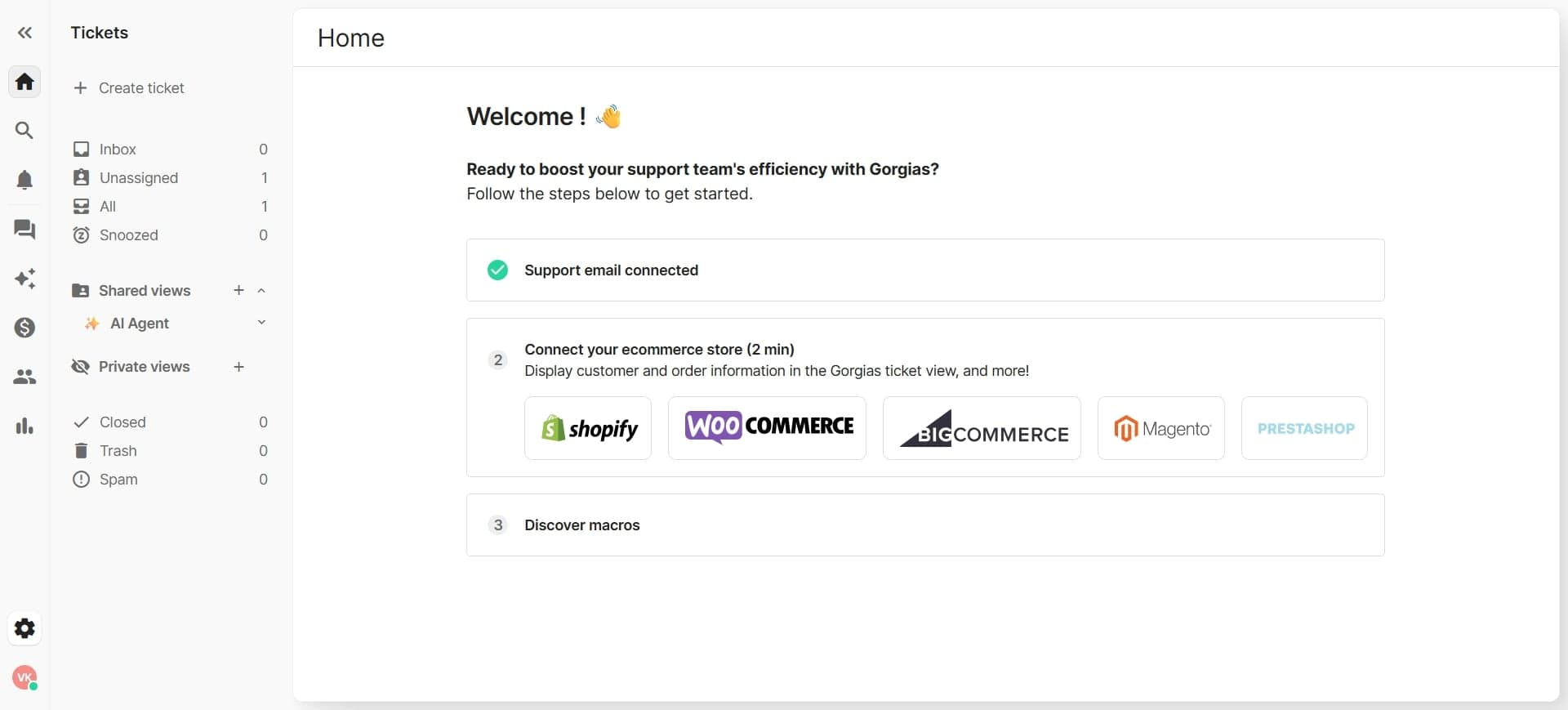
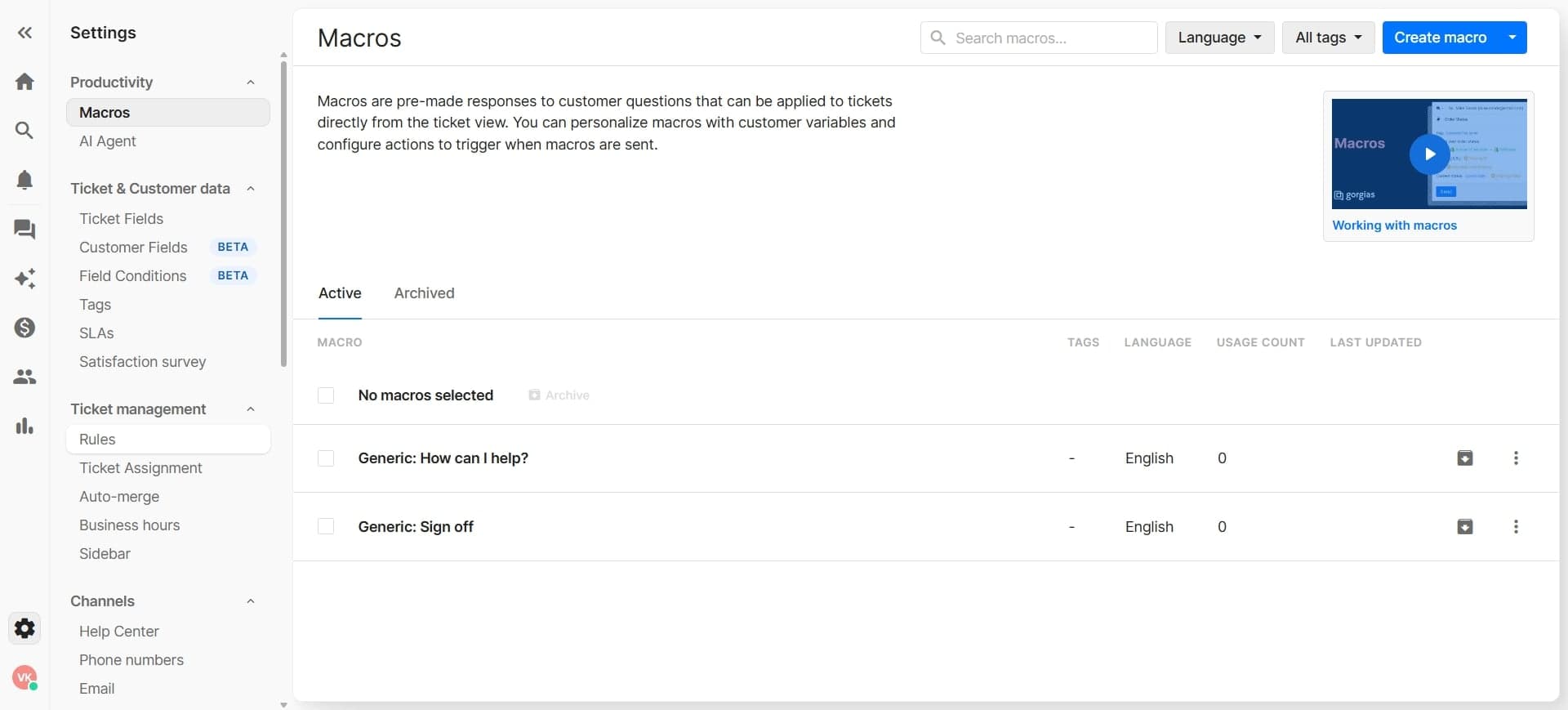
Navigate to autoresponder settings
Log into your Gorgias account and find the autoresponder section in your main settings menu. This is typically located under the automation or rules configuration area.
- 2
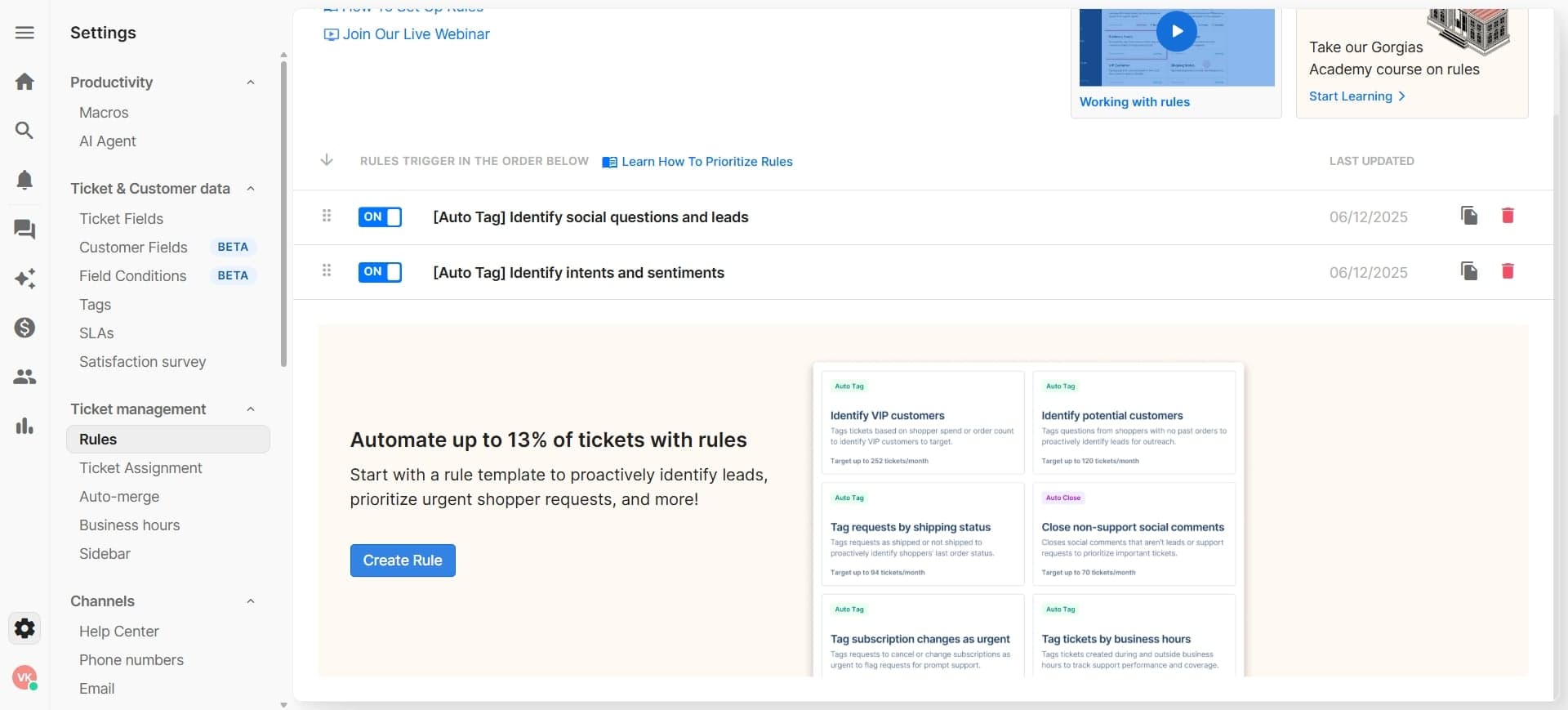
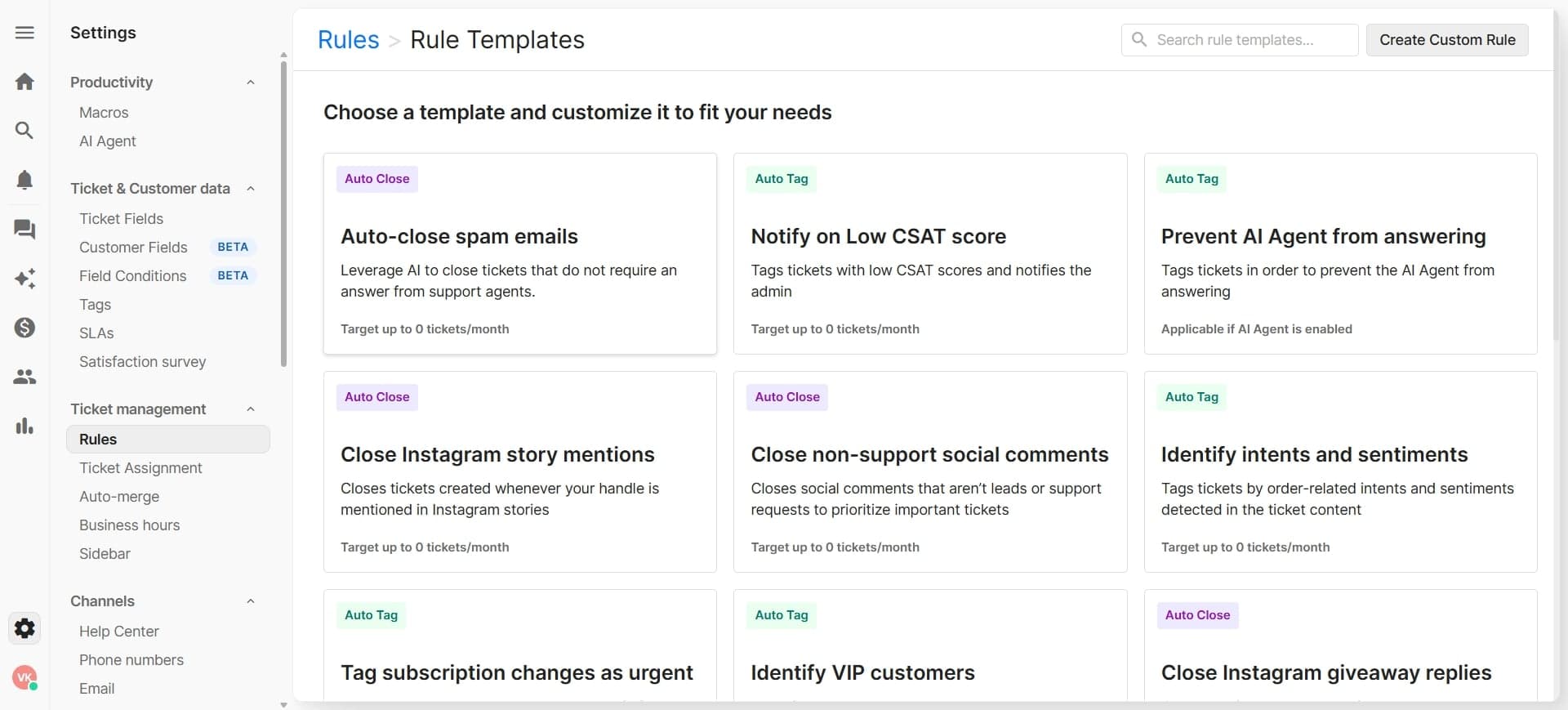
Create a new autoresponder rule
Click the button to create a new rule and give it a descriptive name that reflects its purpose. This name will help you and your team identify the rule later for management and editing.
- 3
Define the trigger condition
Select what event should activate the autoresponder, such as a new message from a customer, a ticket from a specific channel, or a message containing certain keywords. The trigger determines when Gorgias will execute your autoresponse.
- 4
Set additional conditions
Add any extra conditions that must be met for the rule to execute, such as customer status, ticket priority, or specific tags. Multiple conditions allow you to target your autoresponses more precisely.
- 5
Compose the autoresponse message
Write the message that will be automatically sent when the rule is triggered. You can use dynamic variables like the customer's name or ticket number to personalize the response.
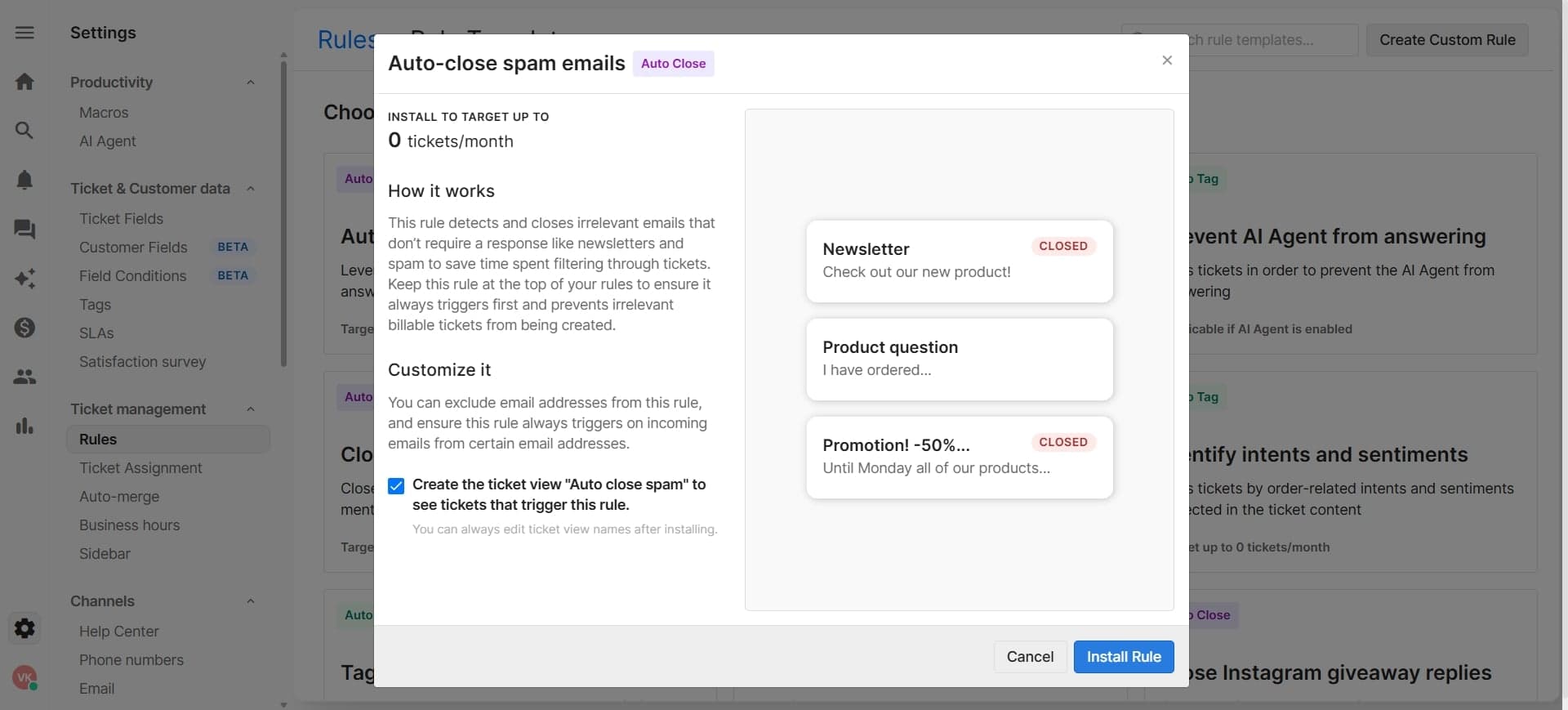
- 6
Configure rule settings and priority
Set the order in which multiple rules should execute and specify any additional settings like delay timing or assignment rules. This ensures your autoresponders work together smoothly without conflicts.
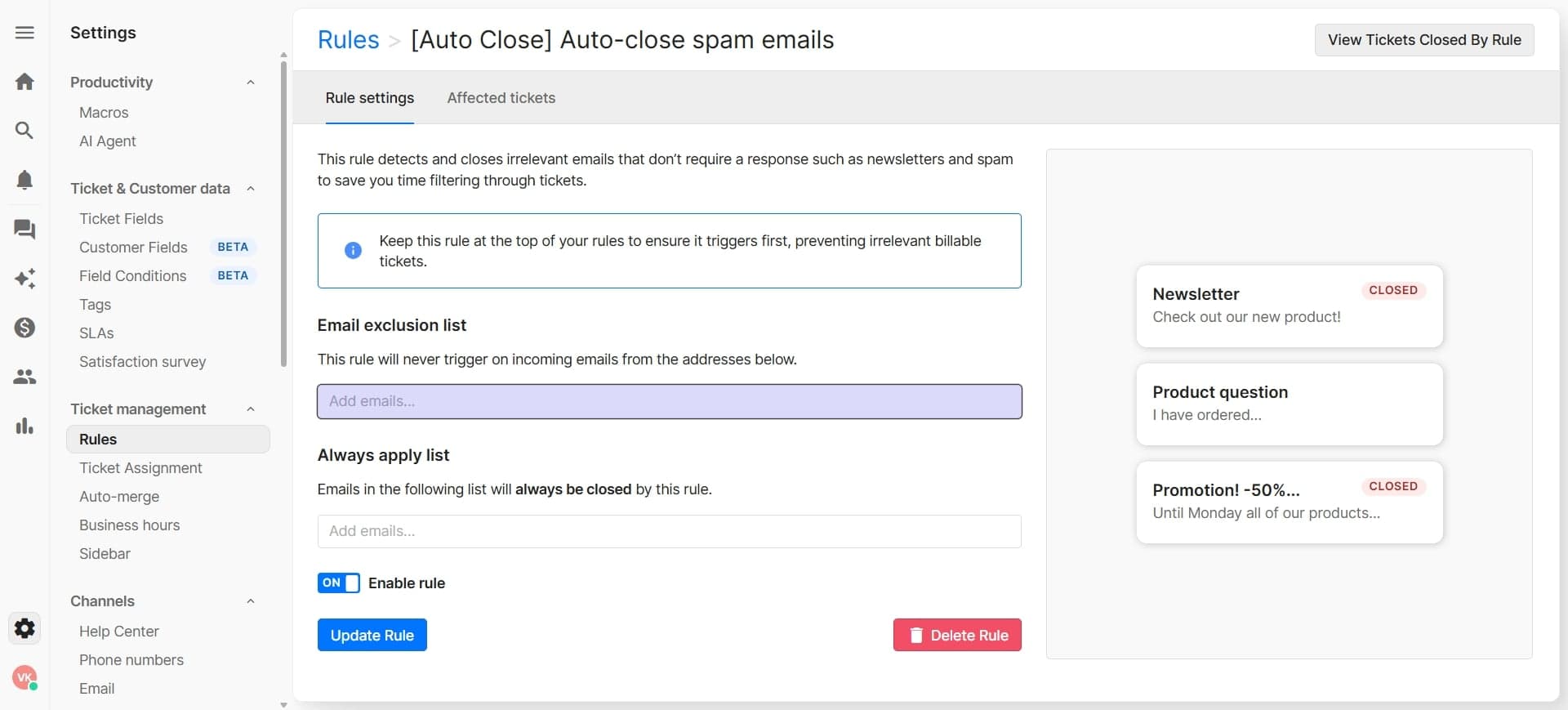
- 7
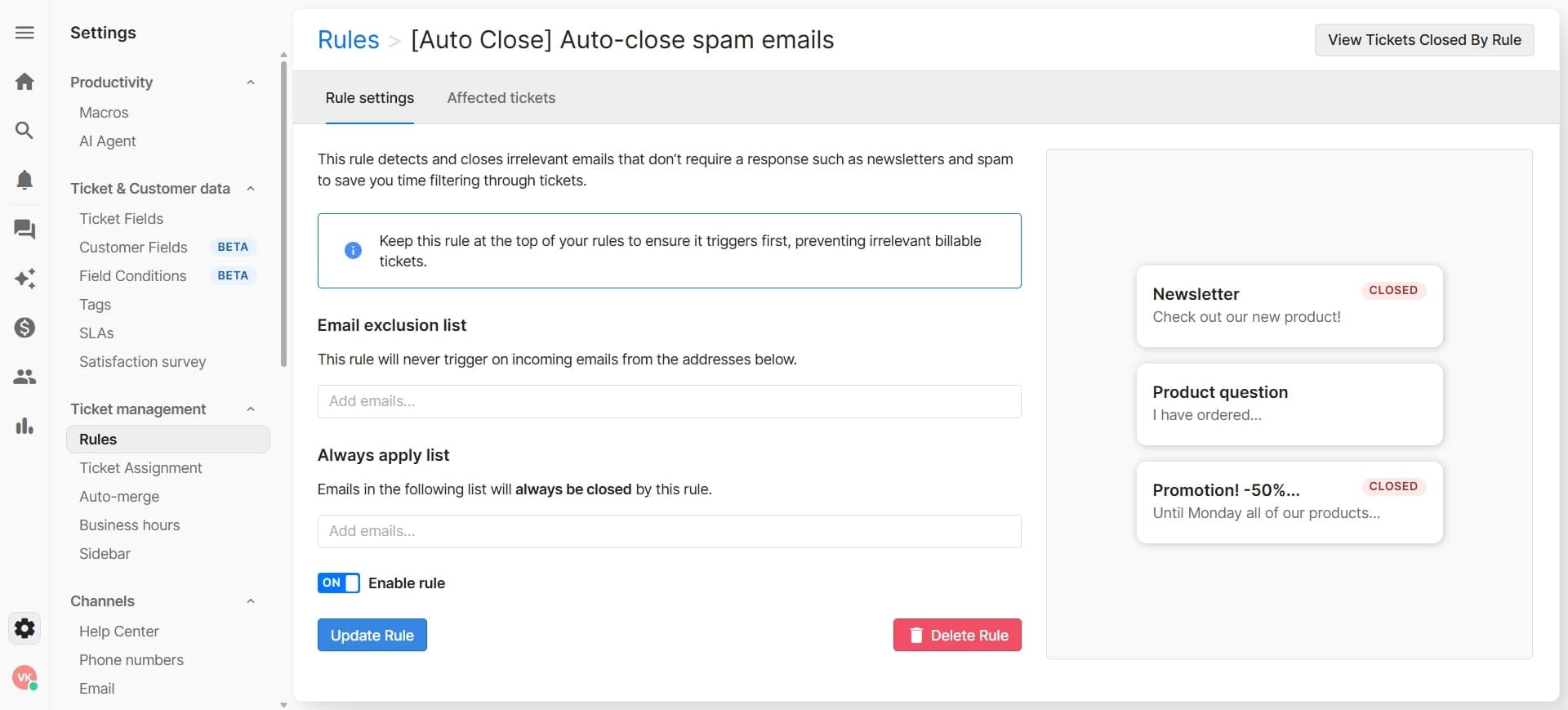
Activate and test the autoresponder
Enable the rule and test it with a sample message to confirm it triggers correctly and sends the intended response. Monitor the results to ensure the autoresponder is functioning as expected.
Frequently asked questions
Common questions about how to set up autoresponder rules in gorgias.
Can I use multiple conditions in a single autoresponder rule?
Yes, Gorgias allows you to combine multiple conditions using AND/OR logic to create more sophisticated autoresponder rules. This lets you target specific scenarios with precision and avoid unnecessary autoresponses.
What variables can I use in autoresponse messages?
Gorgias supports dynamic variables such as customer name, ticket ID, channel name, and custom fields. These variables automatically populate with the correct information when the autoresponse is sent, making messages feel personalized.
Can I set a delay before the autoresponse is sent?
Yes, many autoresponder rules in Gorgias allow you to configure a delay. This is useful for scenarios where you want to send a follow-up message after a set period rather than immediately.
What happens if multiple autoresponder rules are triggered simultaneously?
Gorgias executes multiple rules based on their priority order. You can adjust the priority settings for each rule to control which autoresponses take precedence when several rules match the same condition.
How do I disable an autoresponder rule without deleting it?
You can toggle the rule's active status on and off from the rule settings page. This allows you to temporarily disable a rule for testing or seasonal adjustments without having to recreate it later.