How to Set Up Email Forwarding in HelpScout

Email forwarding in Help Scout allows you to convert incoming emails into support tickets automatically, streamlining your customer communication workflow. This setup ensures that all customer inquiries reach your Help Scout inbox without manual intervention.
Quick summary
In this tutorial, you'll learn how to configure email forwarding in Help Scout by setting up mailboxes, generating forwarding addresses, and testing the connection. By the end, your team's email will be fully integrated into Help Scout for centralized ticket management.
Why this matters
Email forwarding is critical for teams that receive customer inquiries across multiple channels. Without proper forwarding setup, important messages can be missed or duplicated, leading to slower response times and inconsistent customer service. Configuring this correctly ensures every email becomes a trackable support ticket.
Step-by-step guide
- 1
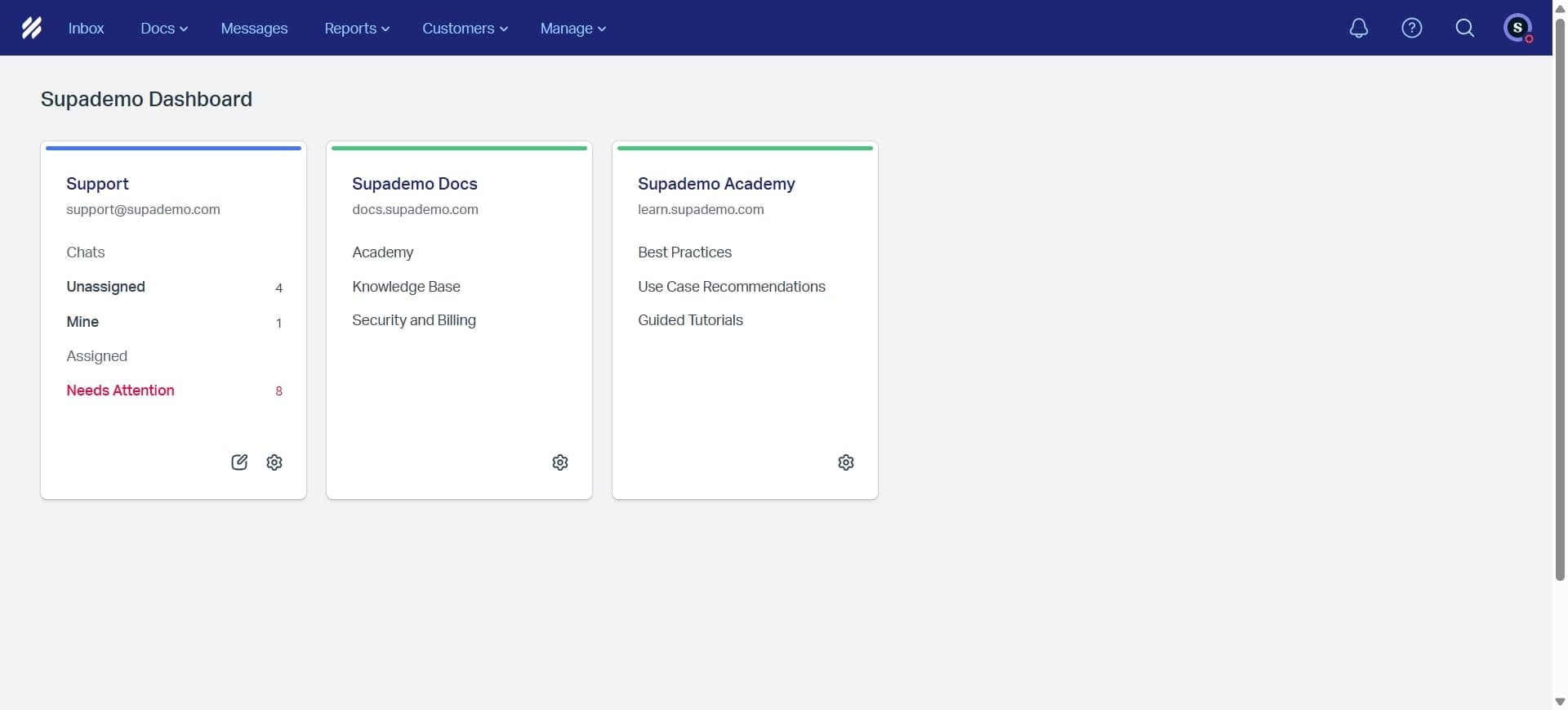
Access Help Scout settings
Log in to your Help Scout account and navigate to the Settings menu, typically found in the top-right corner or main navigation. Look for the gear icon or 'Settings' option to begin the configuration process.
- 2
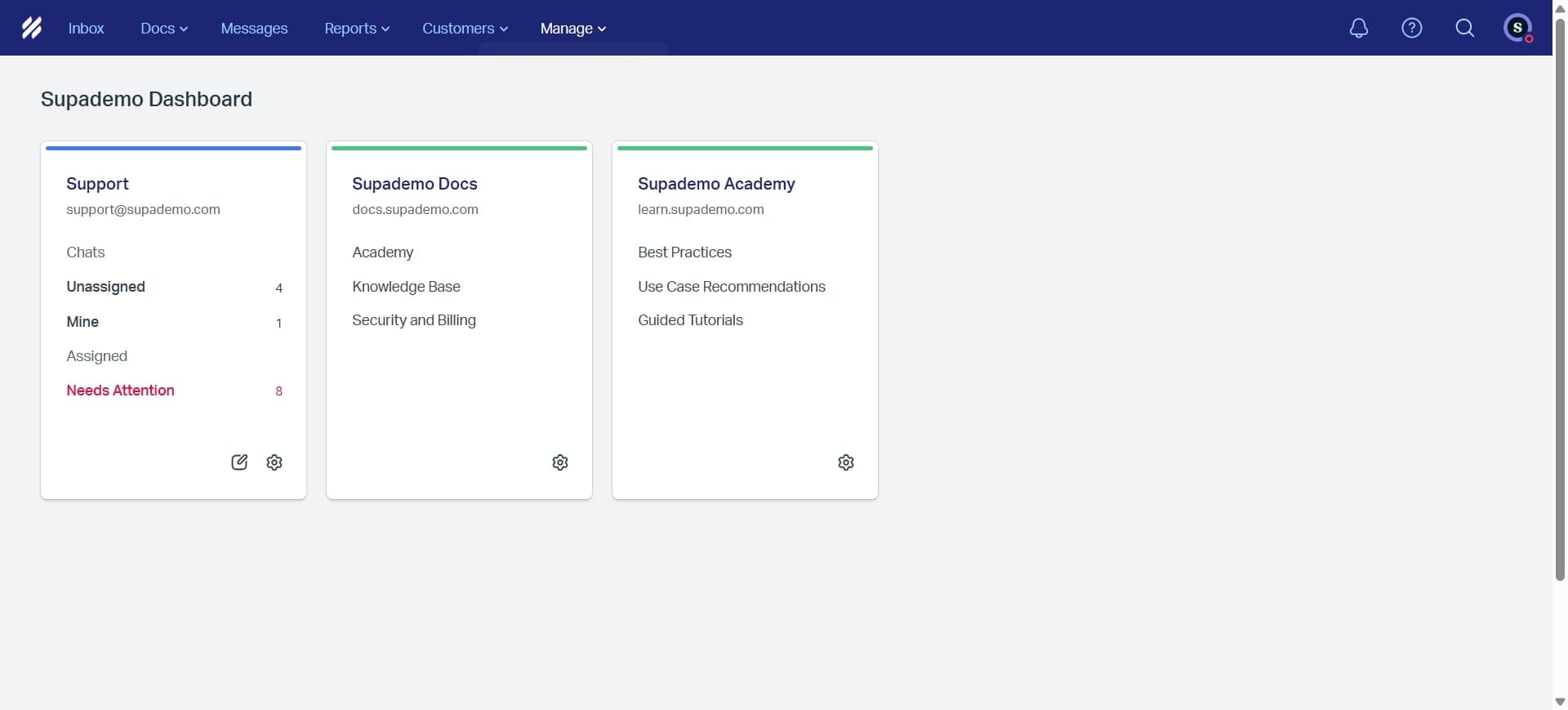
Locate the Mailboxes section
Within Settings, find and click on the 'Mailboxes' option. This section manages all your incoming email addresses and forwarding configurations.
- 3
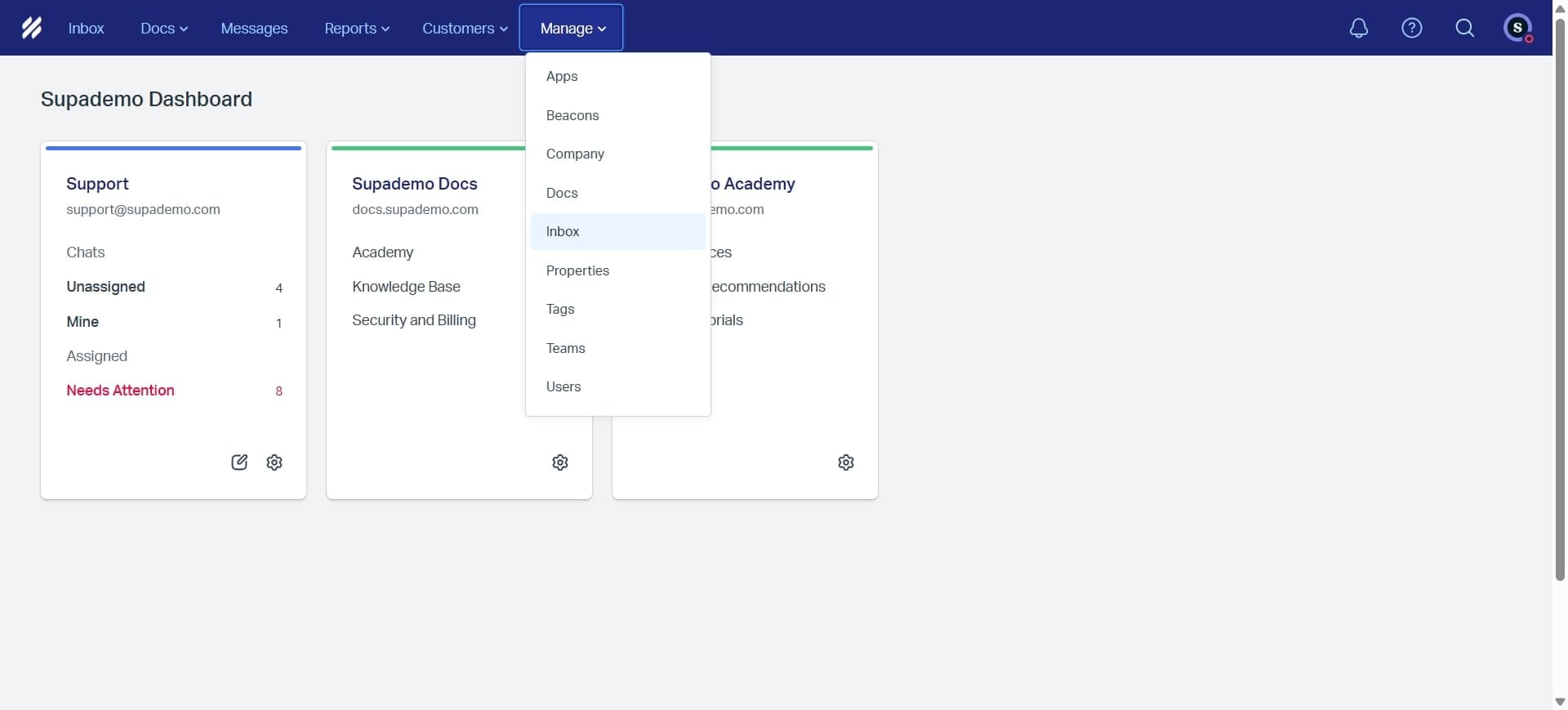
Select or create a mailbox
Choose an existing mailbox or create a new one by clicking the appropriate button. You'll need at least one mailbox to set up email forwarding.
- 4
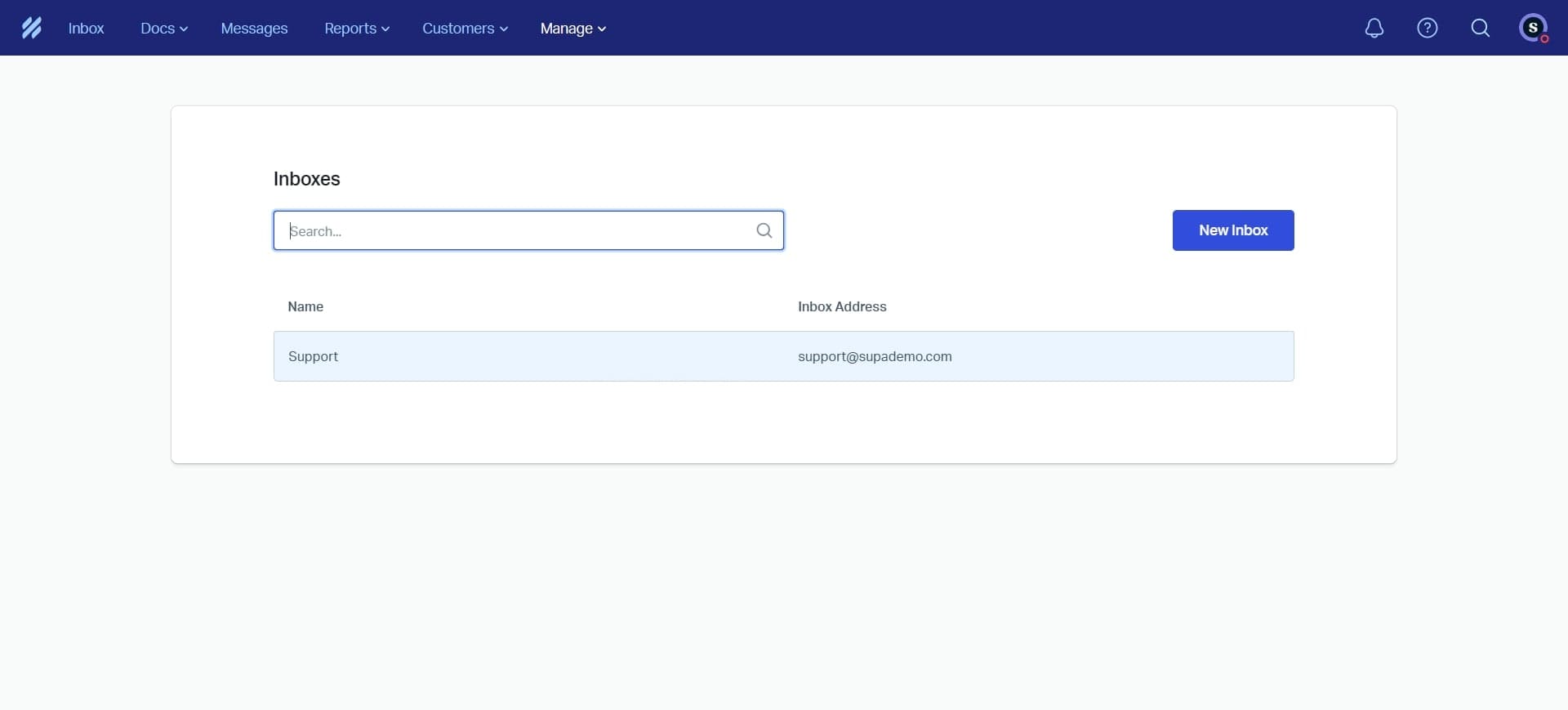
Open mailbox settings
Click on the mailbox you want to configure to access its detailed settings and options for email forwarding.
- 5
Find the forwarding address
Look for the 'Email Forwarding' or 'Forward Emails' section within the mailbox settings. Help Scout will display a unique forwarding email address for this mailbox.
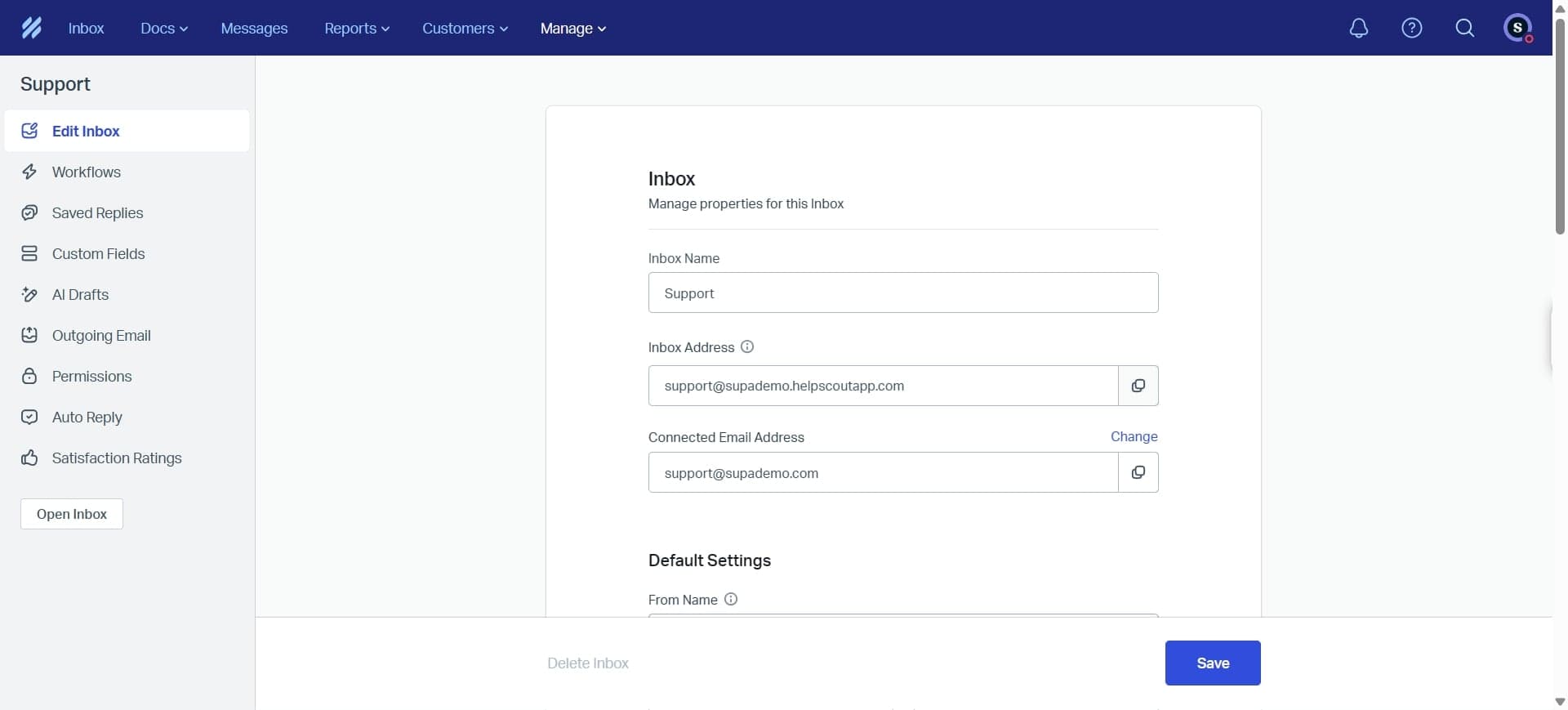
- 6
Copy the forwarding email address
Select and copy the Help Scout forwarding address provided. This address is what you'll use to forward emails from your regular inbox or email provider.
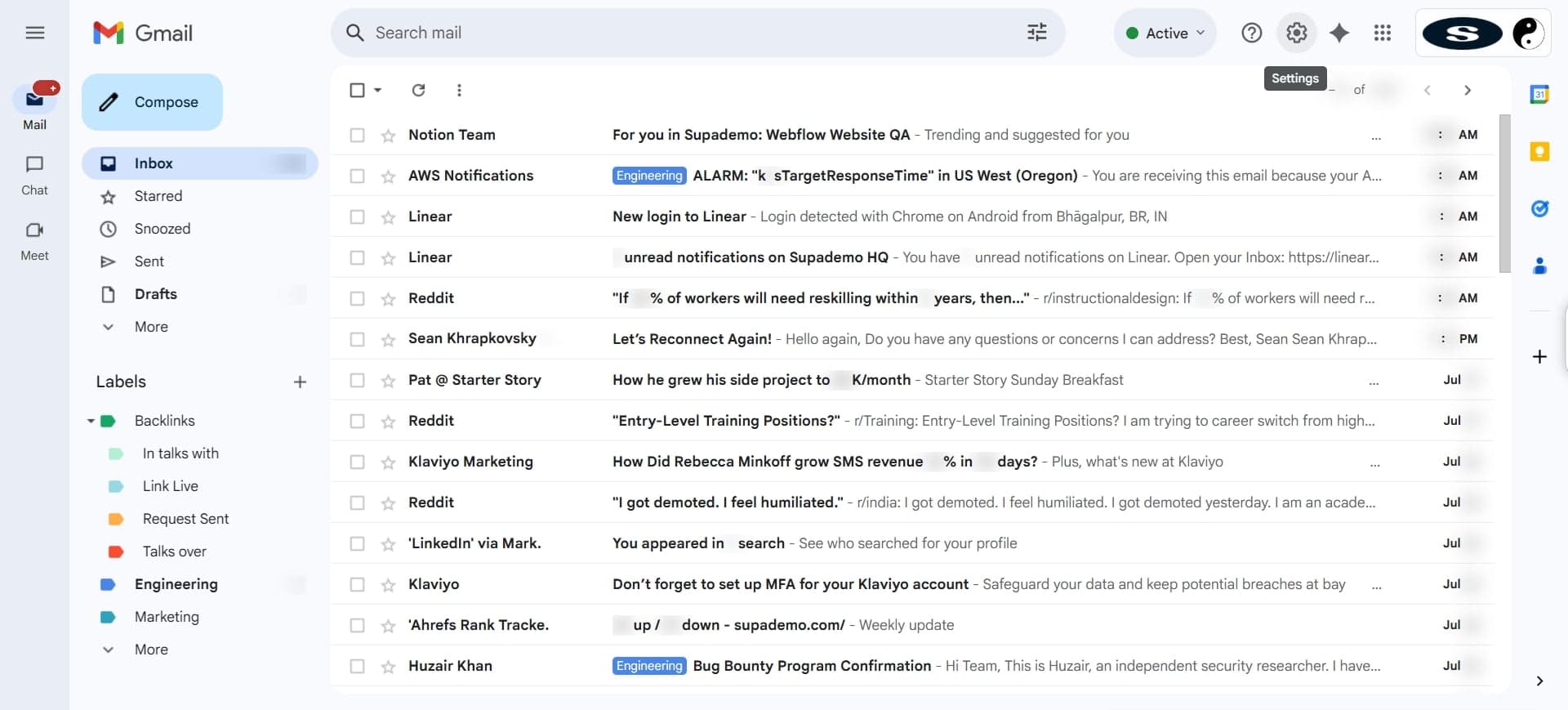
- 7
Access your email provider settings
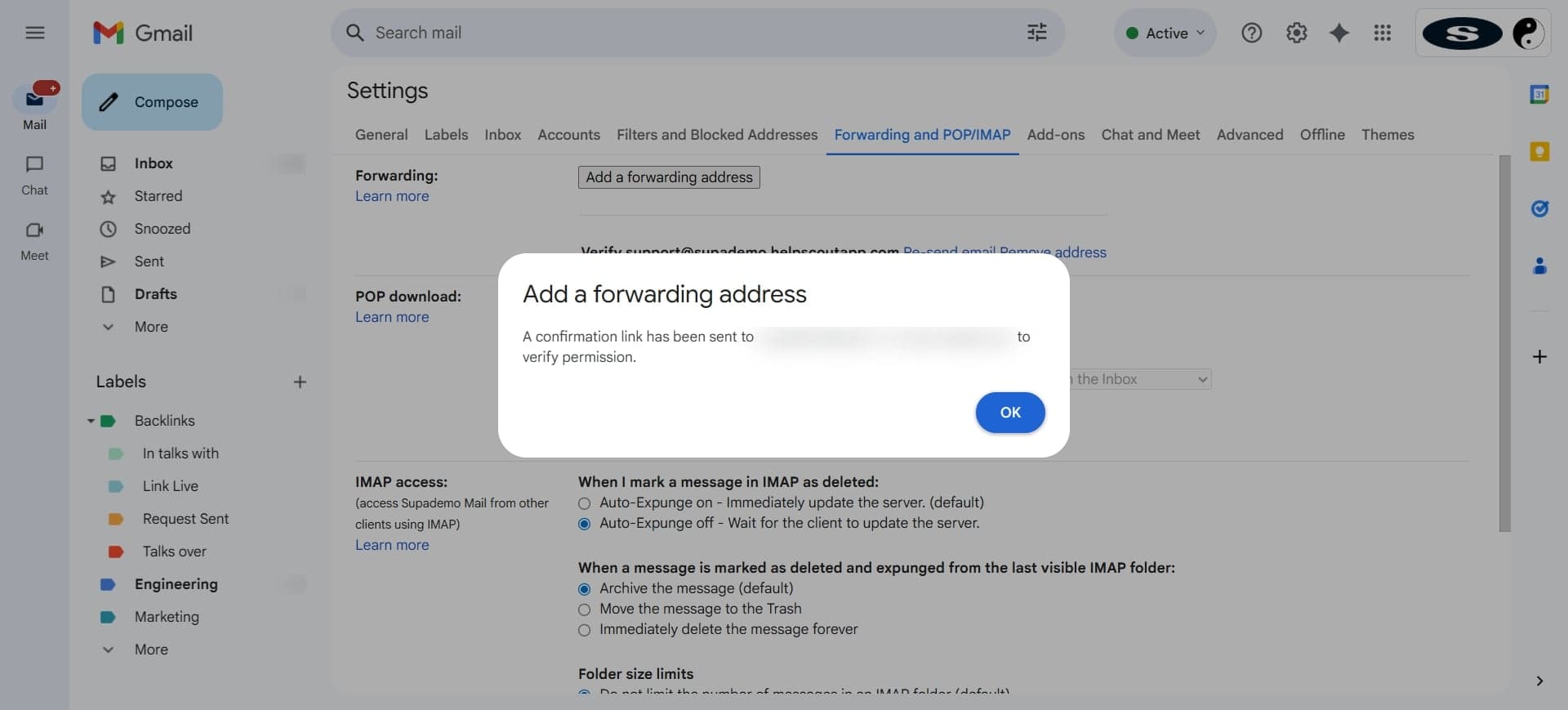
Log in to your email provider (Gmail, Outlook, etc.) in a separate tab or window. Navigate to the forwarding or rules settings for your email account.
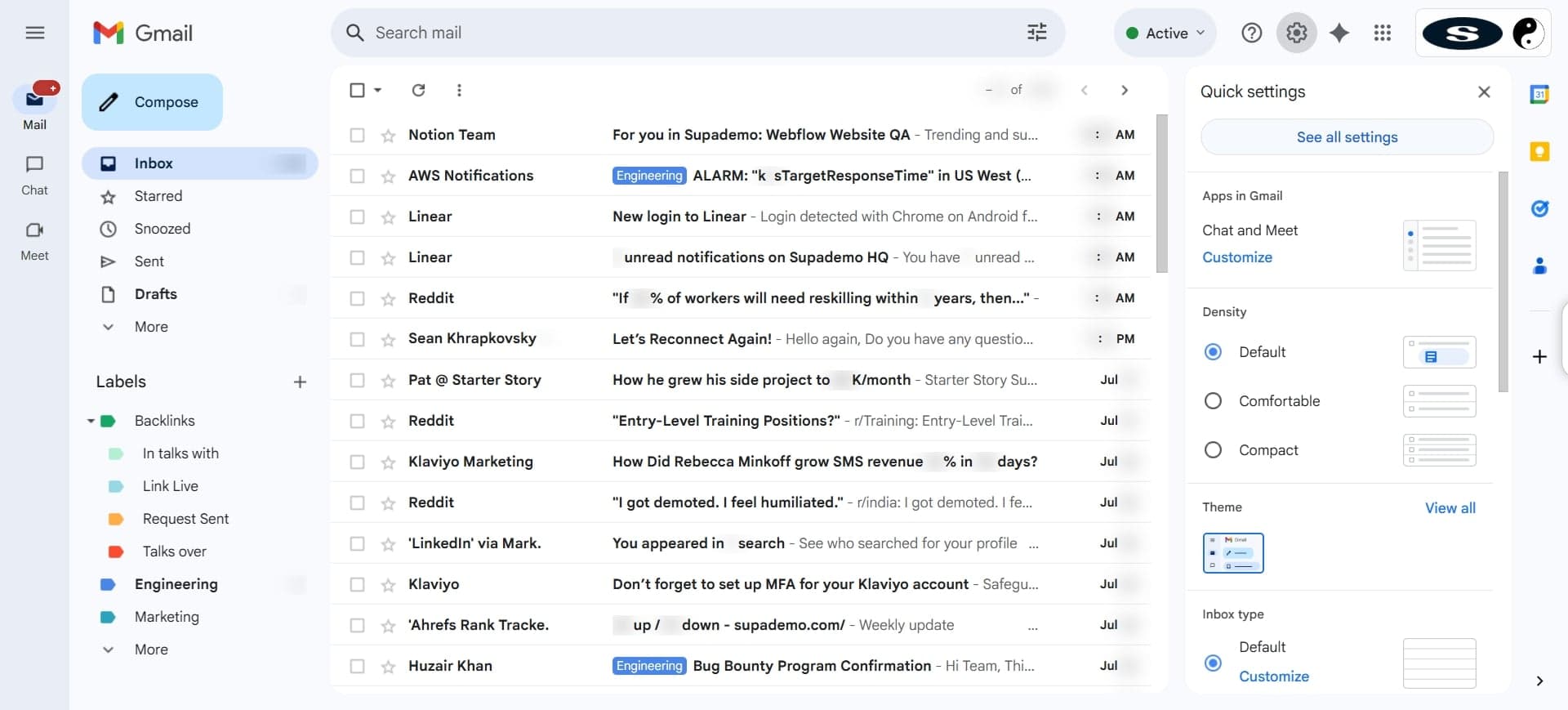
- 8
Create a forwarding rule
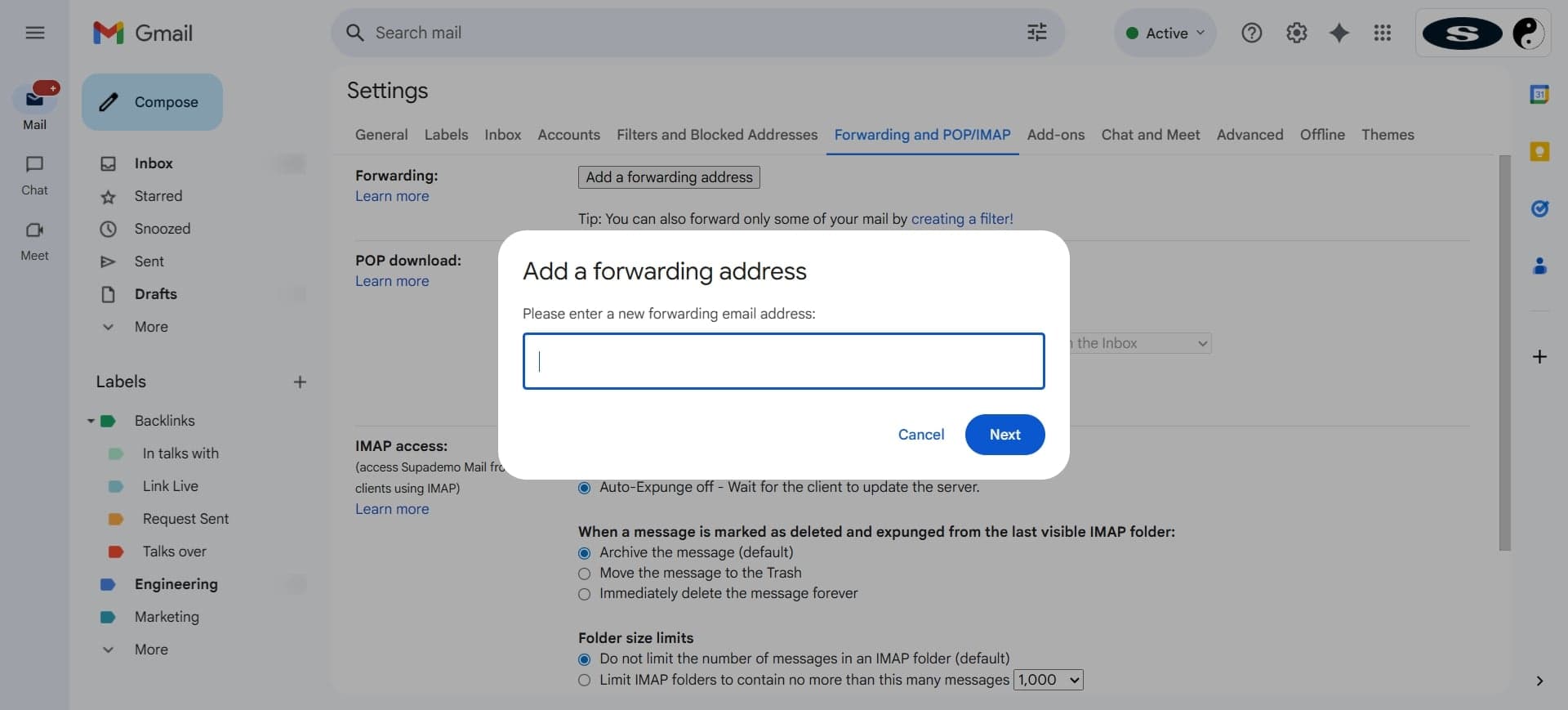
Set up a new email forwarding rule that automatically sends emails to the Help Scout address you copied. The exact steps depend on your email provider, but typically involve selecting 'Forward' or 'Rules' options.
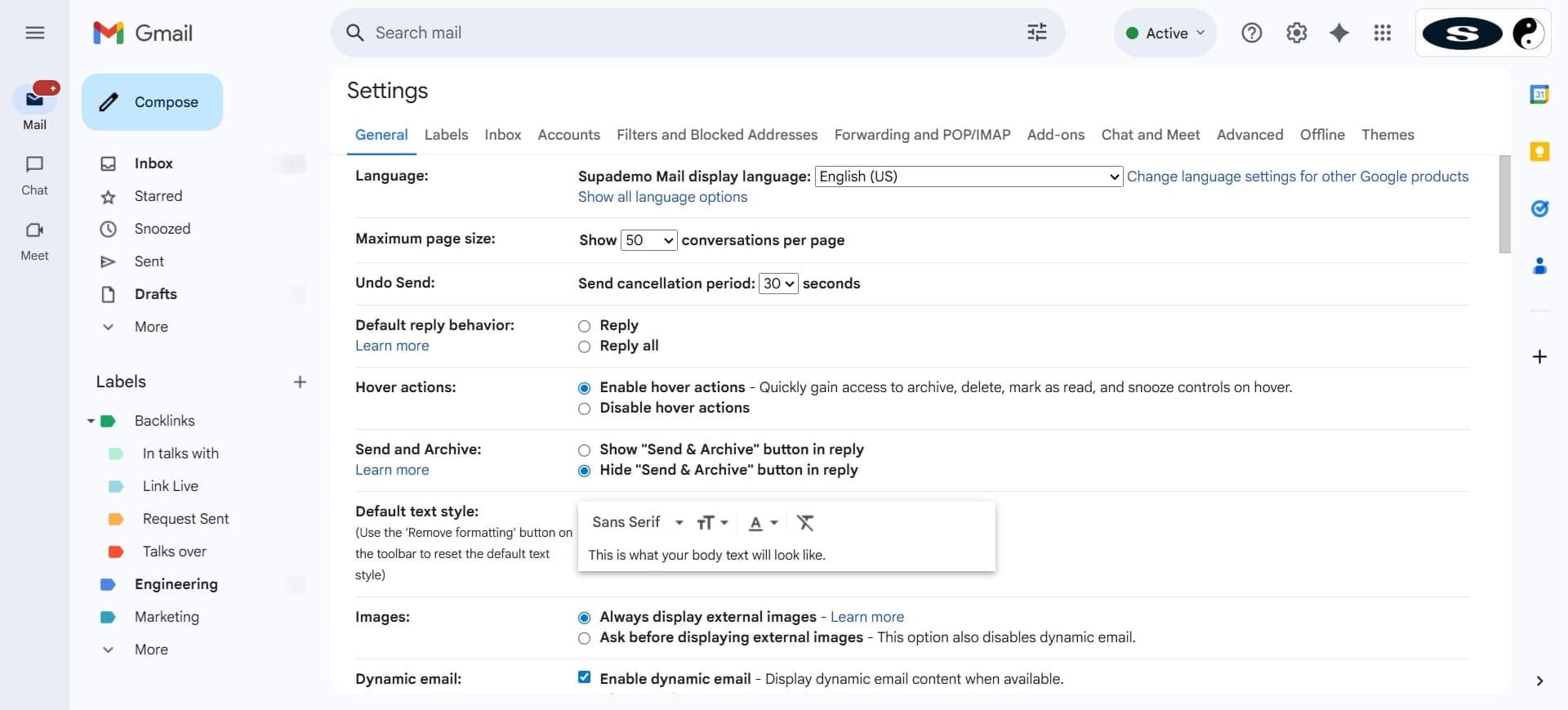
- 9
Specify which emails to forward
Configure the rule to forward all incoming emails or specific emails based on filters like sender, subject, or recipient. Most teams forward all emails to ensure nothing is missed.
- 10
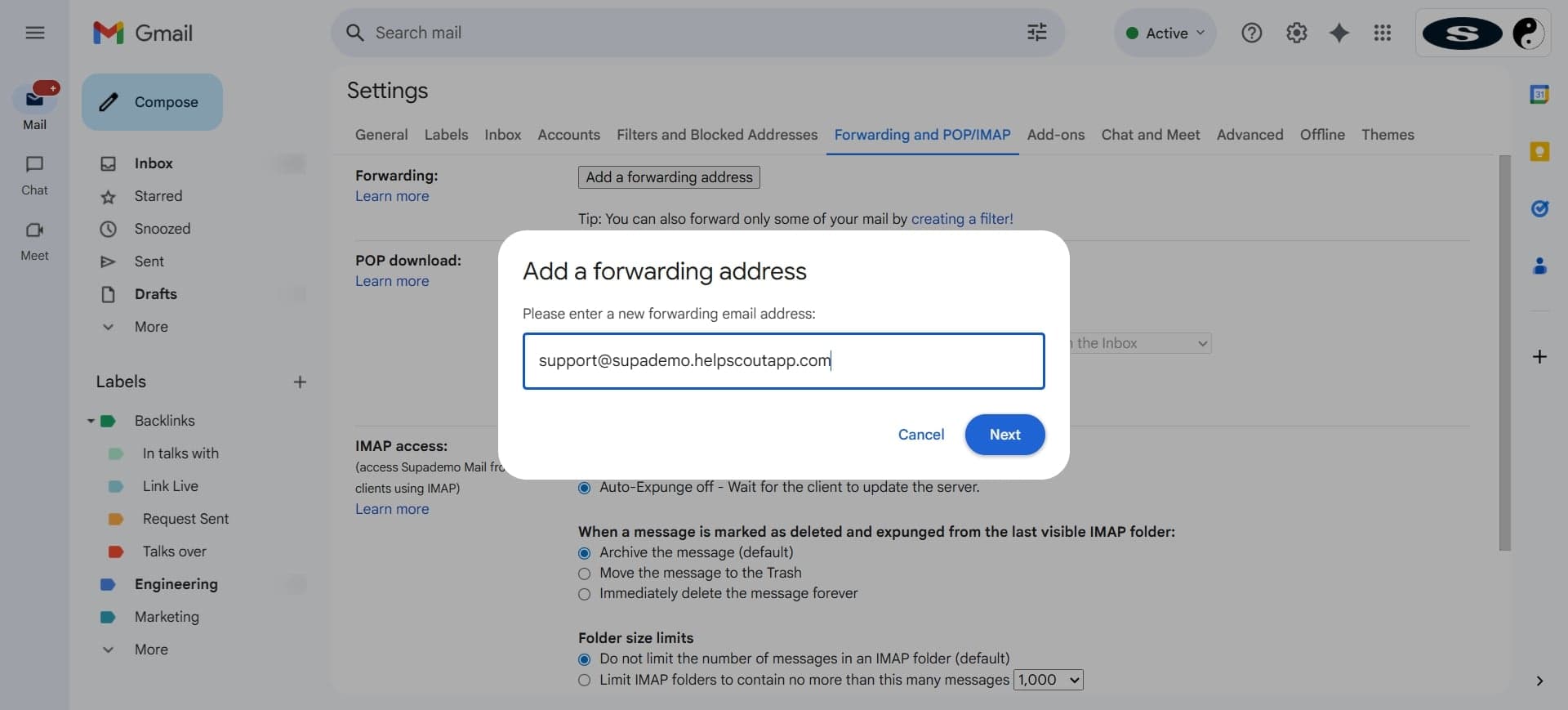
Save the forwarding rule
Confirm and save the rule in your email provider. You should see a confirmation message indicating the forwarding rule is now active.
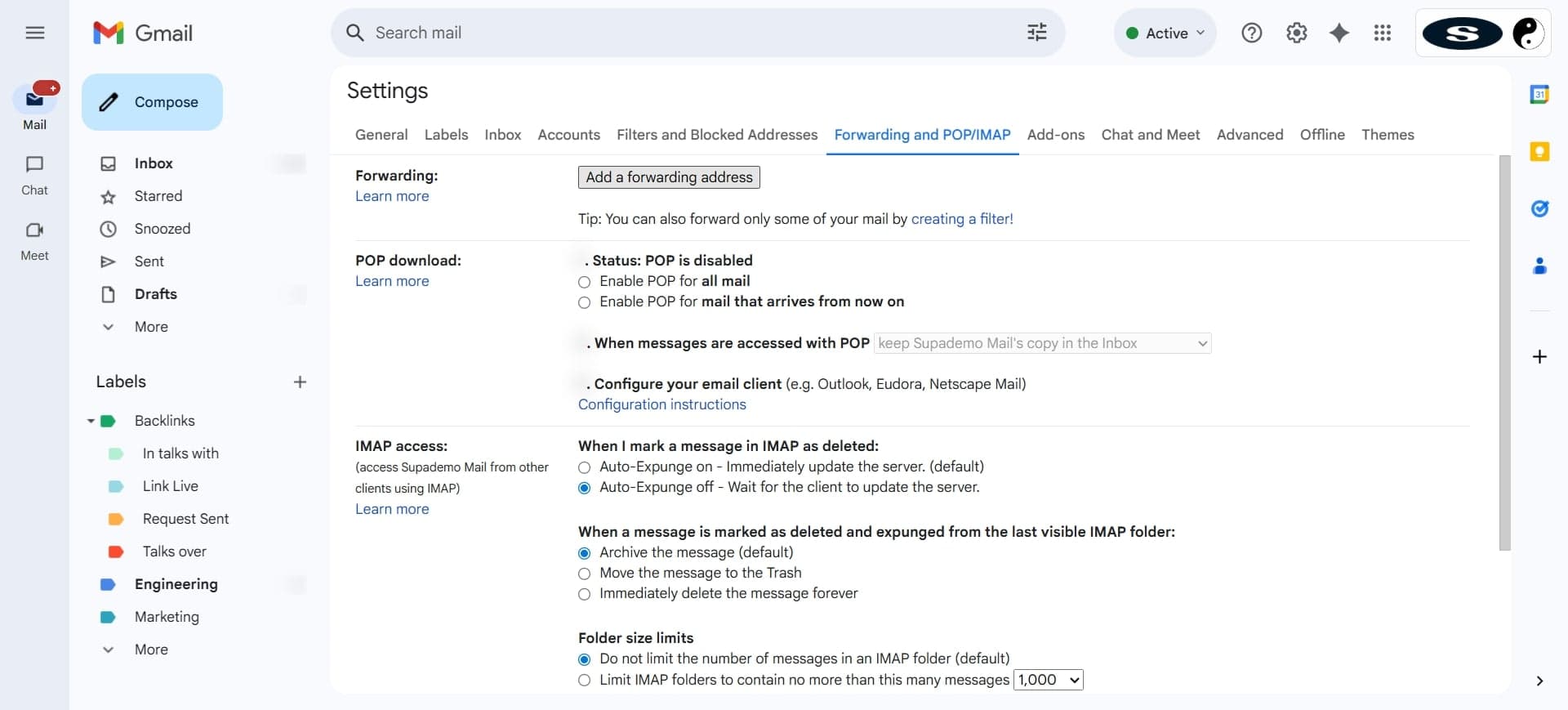
- 11
Return to Help Scout settings
Go back to the Help Scout mailbox settings page where you copied the forwarding address. Look for a 'Verify' or 'Test' option to confirm the connection.
- 12
Initiate the verification process
Click the verification button and follow any prompts. Help Scout will send a test email to your original email address to confirm forwarding is working correctly.
- 13
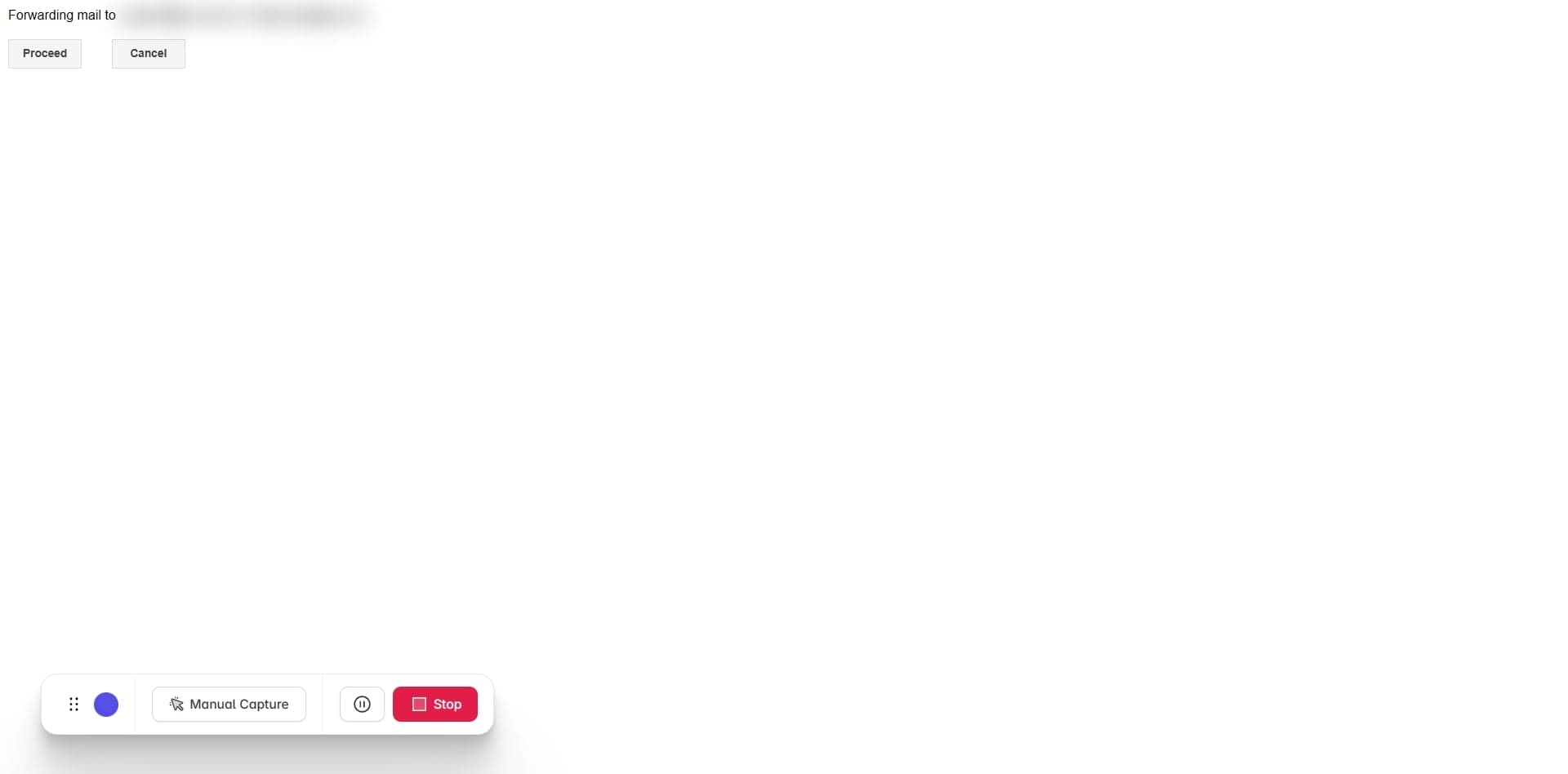
Send a test email
Reply to the test email or send a new email to your original inbox to trigger the forwarding. This will verify that emails are being successfully forwarded to Help Scout.
- 14
Confirm successful forwarding
Check your Help Scout mailbox to see if the test email appeared as a new ticket. Once confirmed, your email forwarding is fully configured and operational.
Frequently asked questions
Common questions about how to set up email forwarding in helpscout.
Can I forward emails from multiple email addresses to Help Scout?
Yes, Help Scout supports multiple mailboxes, and you can set up forwarding for each one independently. Simply repeat the configuration process for each email address you want to integrate. Each mailbox will have its own unique forwarding address in Help Scout.
What happens to emails after they're forwarded to Help Scout?
Forwarded emails automatically become support tickets in Help Scout, visible to your team members with appropriate permissions. The original email remains in your email provider's inbox unless you configure additional rules to delete or archive it.
How long does it take for forwarded emails to appear in Help Scout?
Typically, forwarded emails appear in Help Scout within seconds to a few minutes. If emails aren't appearing after several minutes, verify that your forwarding rule is active in your email provider and check that the Help Scout forwarding address was copied correctly.
Can I stop email forwarding without losing ticket history?
Yes, you can disable or remove email forwarding at any time without affecting your existing tickets. Simply delete the forwarding rule from your email provider or disable the mailbox in Help Scout. Your historical tickets and conversations will remain intact.
What if I accidentally forward emails to the wrong Help Scout address?
Check your email provider's forwarding rules and update or delete the incorrect rule. Then verify that your new forwarding rule points to the correct Help Scout address. You can always find the correct address in your Help Scout mailbox settings.