How to share docs privately in ClickUp

Sharing documentation securely within your team is crucial for maintaining control over sensitive information. ClickUp's private document sharing feature allows you to distribute docs to specific collaborators while keeping them hidden from the broader workspace. This guide walks you through the process of sharing docs privately using ClickUp's advanced settings.
Quick summary
In this tutorial, you'll learn how to navigate to your ClickUp docs, access advanced sharing settings, and generate a private link for controlled document distribution. You'll discover how to configure permissions and share your documentation with only the intended recipients.
Why this matters
Private doc sharing in ClickUp ensures that sensitive project information, internal notes, and confidential documentation remain accessible only to authorized team members. This workflow is essential for maintaining security protocols while enabling seamless collaboration on restricted content. Managing document visibility helps prevent accidental information leaks and keeps your workspace organized.
Step-by-step guide
- 1
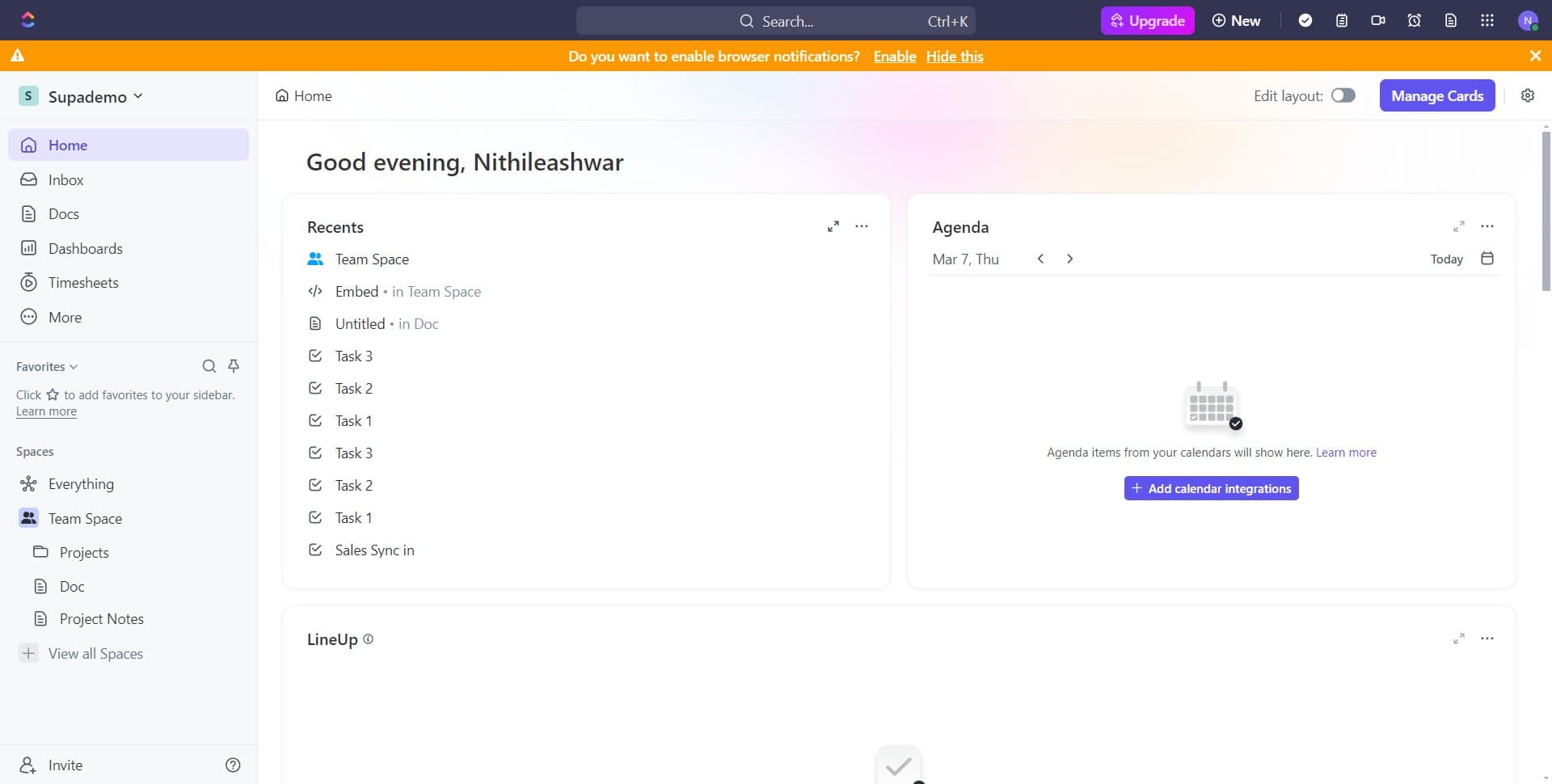
Open agenda items section
Navigate to your ClickUp workspace and locate the agenda items folder. Click on 'Agenda items fr...' to access the documents stored in this section.
- 2
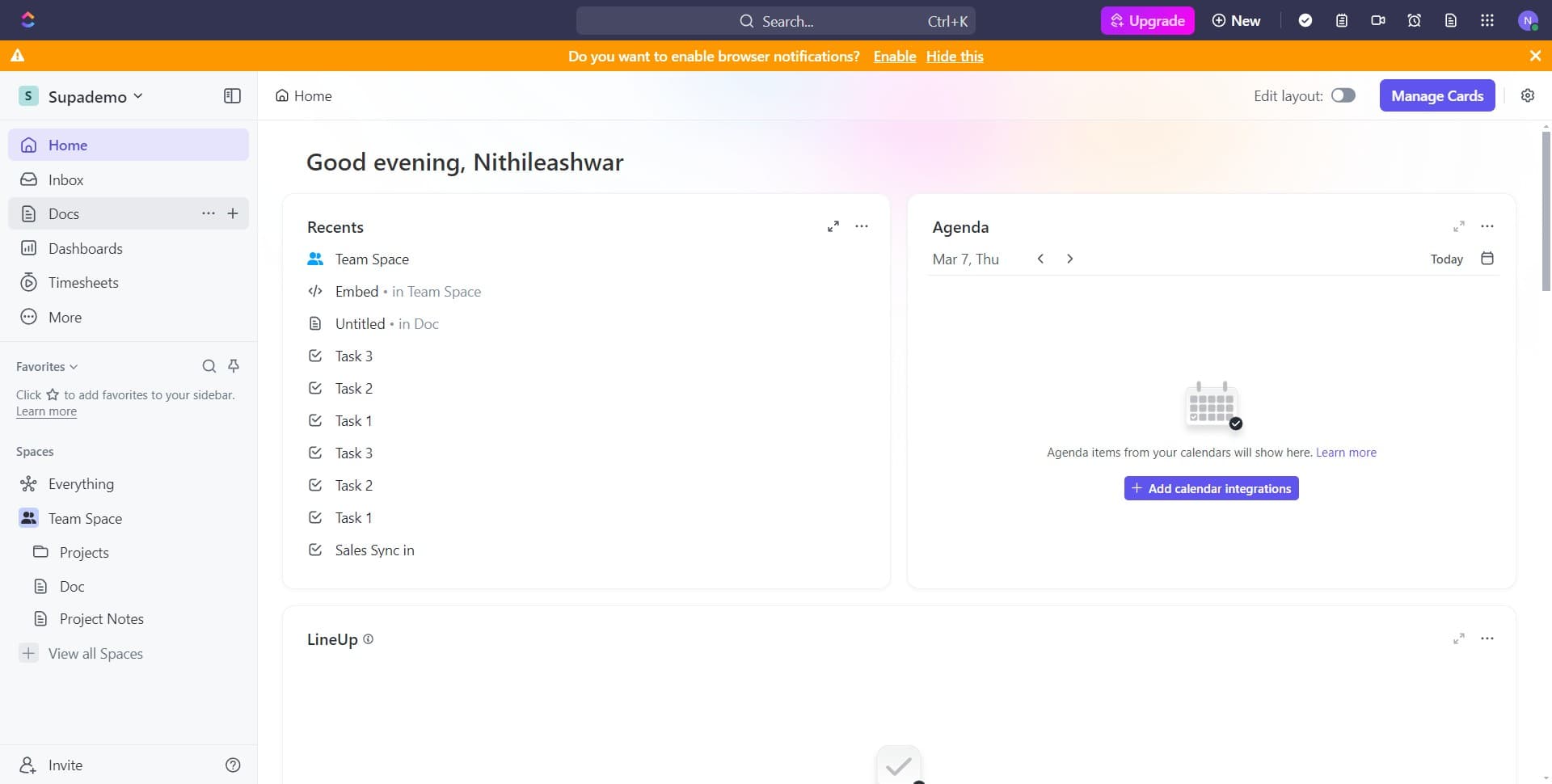
Click on Docs tab
Select the 'Docs' tab to view all documentation within your current workspace. This will display your available documents in a list view.
- 3
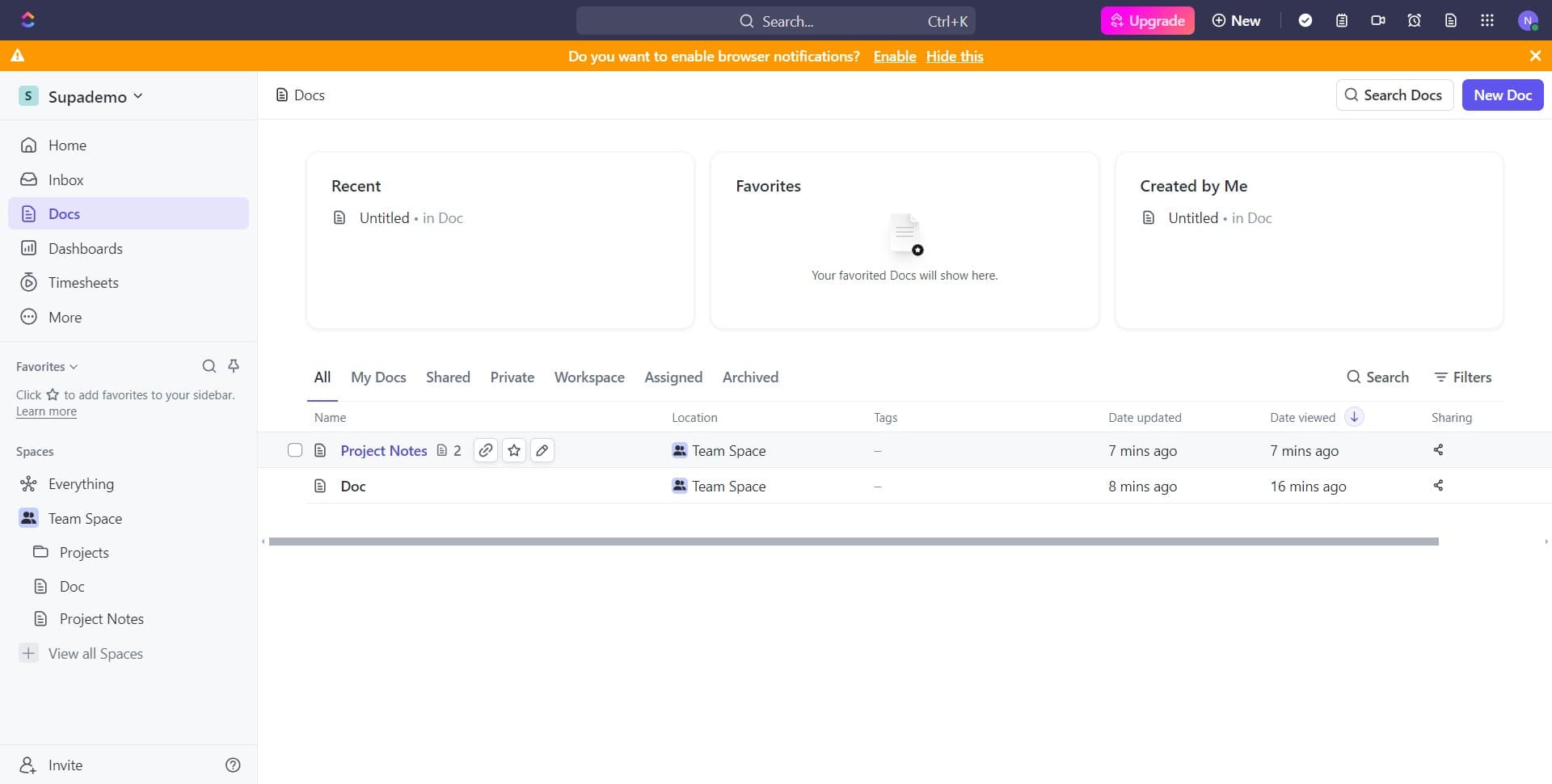
Select Project Notes 2
Find and click on 'Project Notes 2' to open the specific document you want to share privately. This will load the document content and reveal sharing options.
- 4
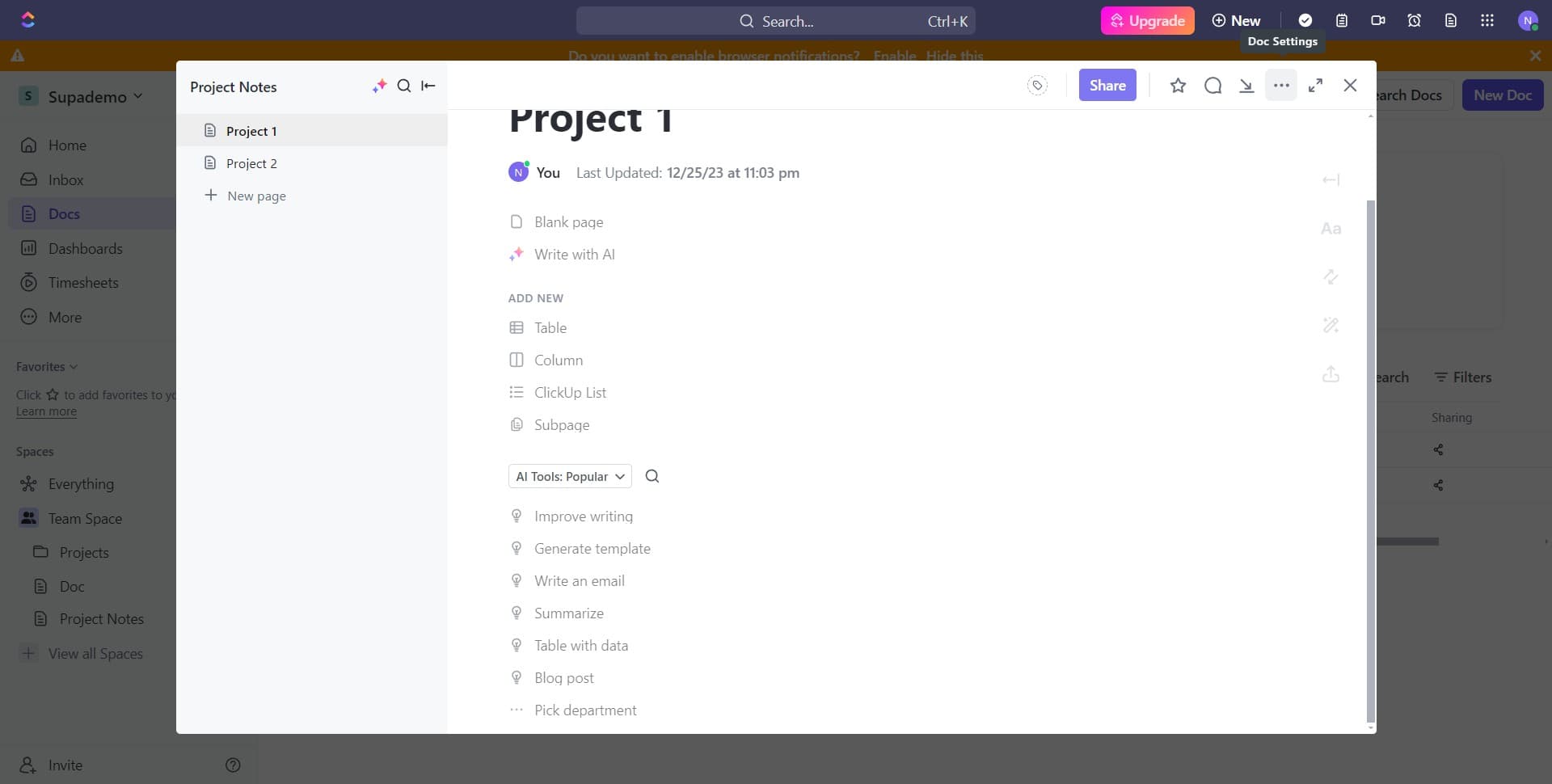
Access sharing options
Click on the designated area to bring up the sharing and collaboration menu. This menu contains all the controls you need to manage document access.
- 5
Proceed to sharing configuration
Click the next option to advance to the detailed sharing configuration panel. This step prepares the interface for setting up private access controls.
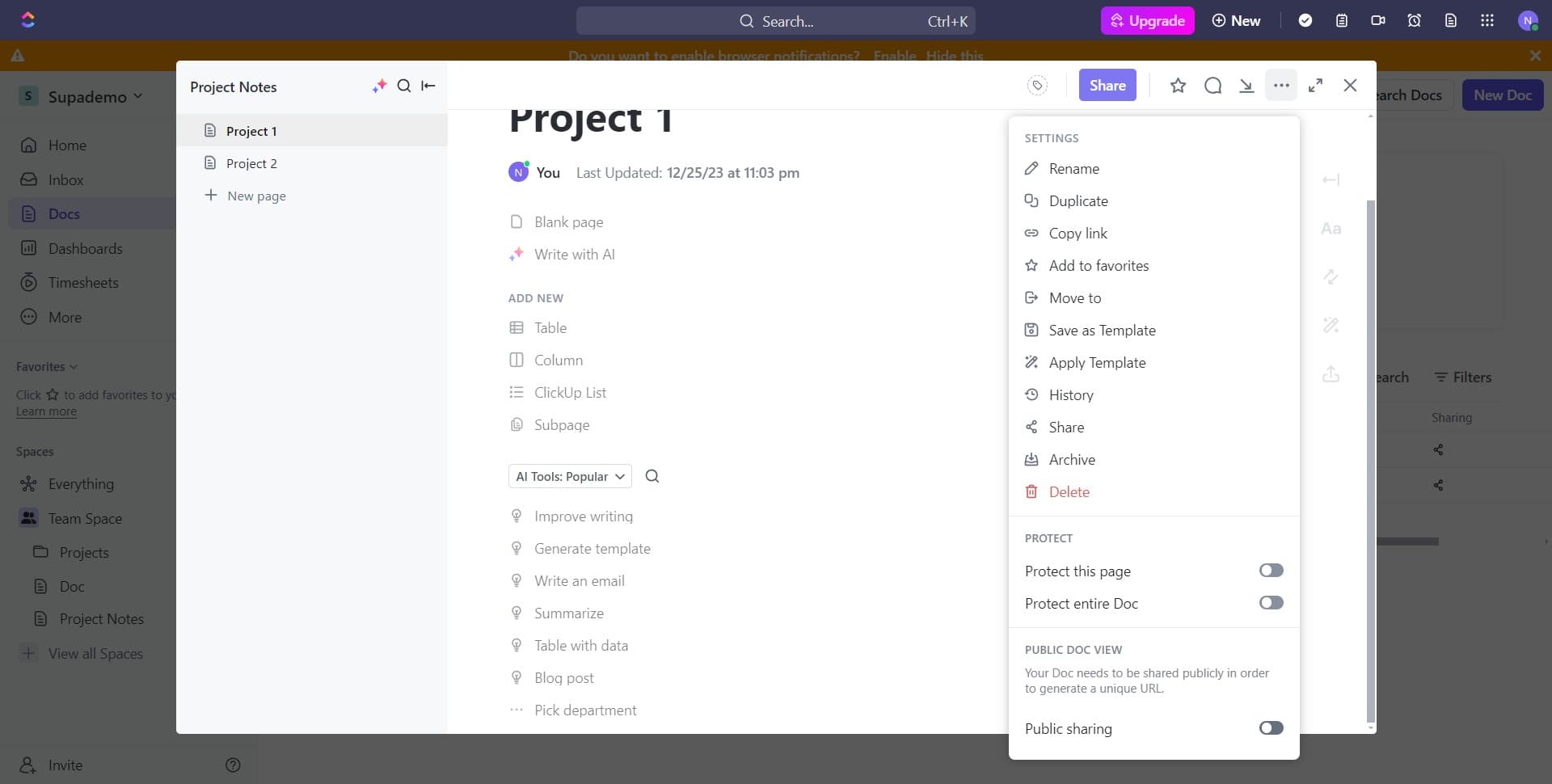
- 6
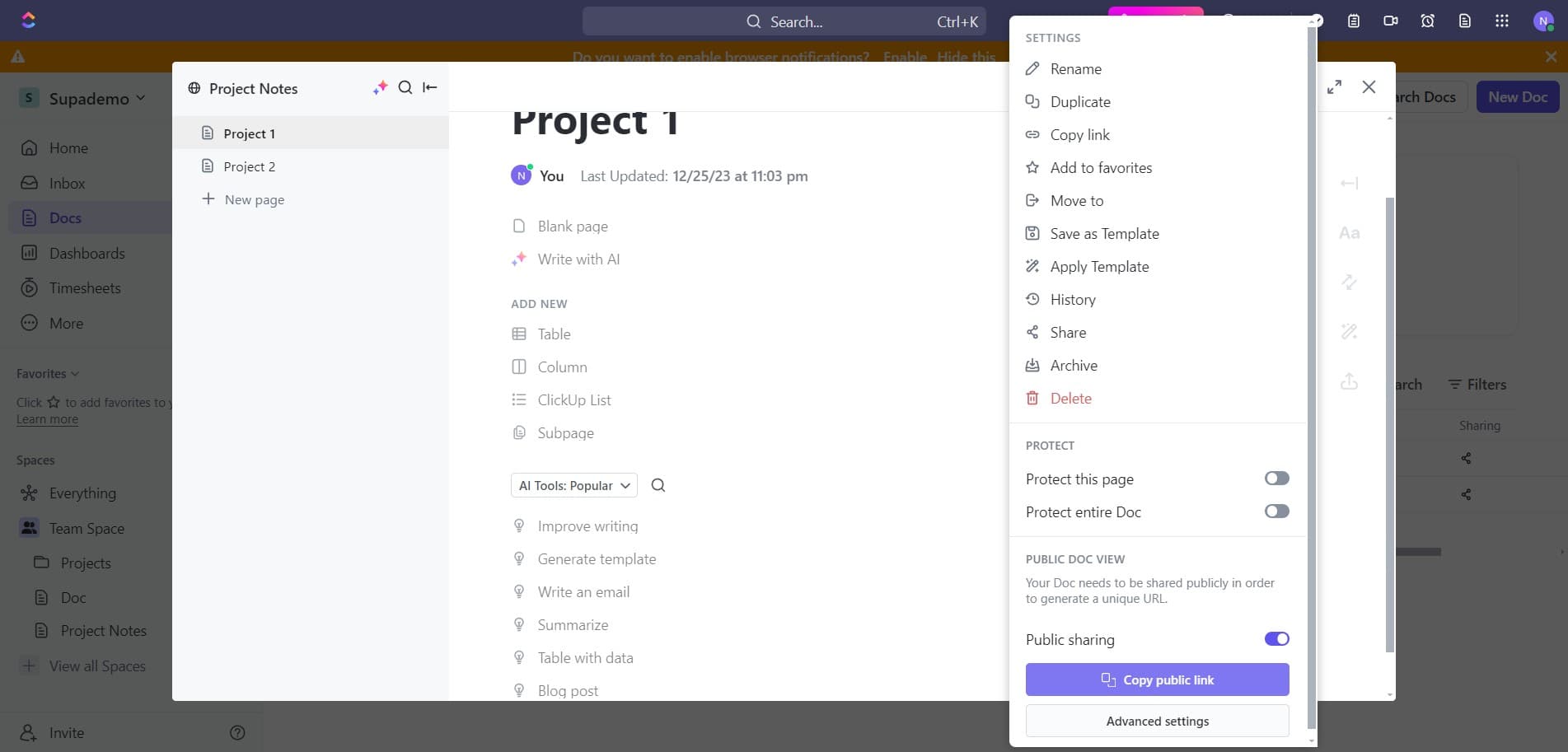
Open Advanced settings
Click on 'Advanced settings' to access detailed sharing controls and permission options. This section gives you granular control over who can access and modify your document.
- 7
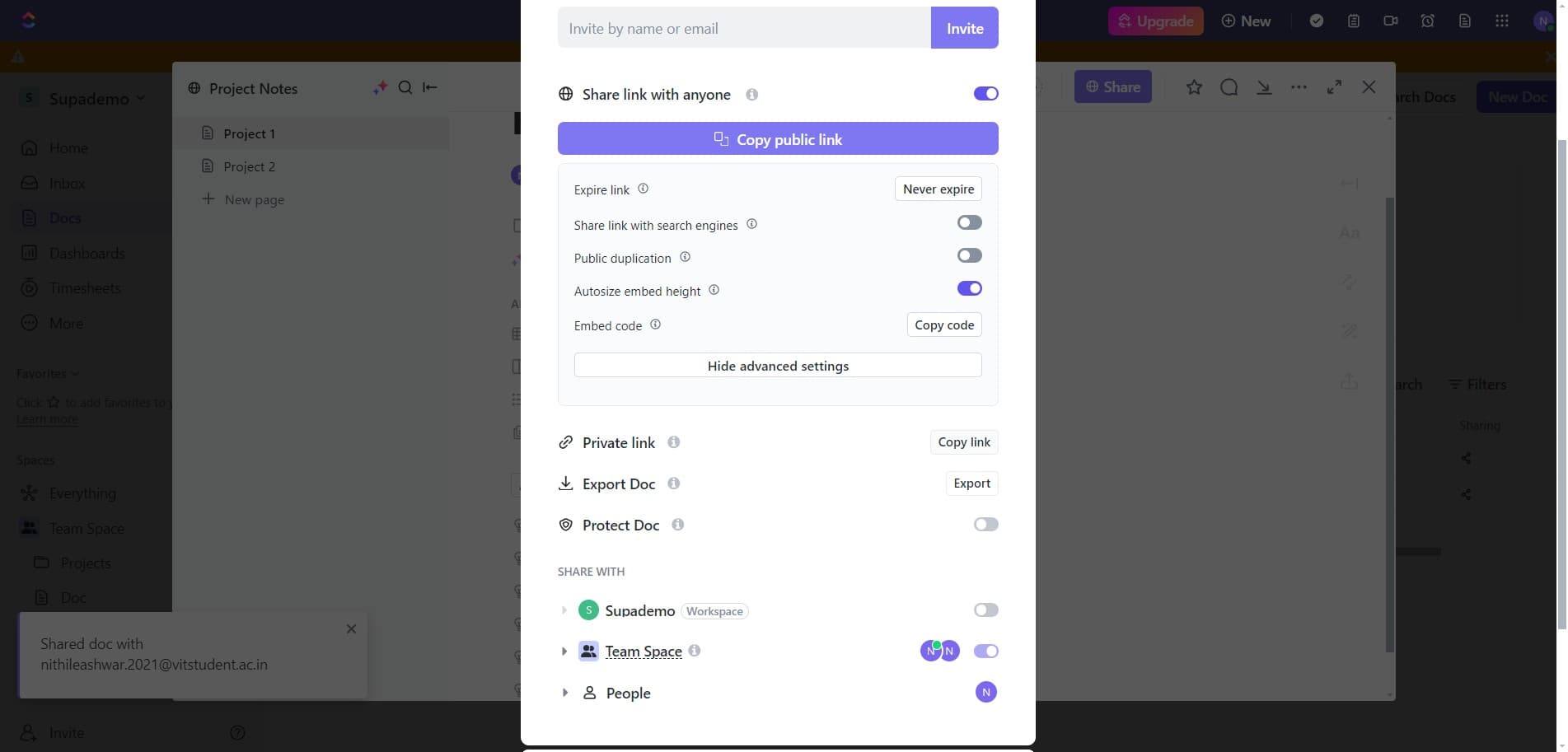
Copy the private link
Click 'Copy link' to generate and copy a private sharing link to your clipboard. This link can be shared directly with specific team members via email or message.
- 8
Upload or finalize sharing
Complete the sharing process by uploading or confirming the document settings. Your private document link is now ready to distribute to authorized collaborators.
Frequently asked questions
Common questions about how to share docs privately in clickup.
Can I control what permissions people have with a private link?
Yes. ClickUp's advanced settings allow you to configure specific permissions such as view-only, edit, or comment access. You can adjust these permissions before or after sharing the link with recipients.
What's the difference between private and public doc sharing?
Private doc sharing using custom links restricts access to only those who receive the link and have the correct permissions, while public sharing makes docs visible to anyone in your workspace or on the internet. Private sharing is ideal for sensitive information that needs controlled distribution.
Can I revoke access to a privately shared doc?
Yes. You can manage access by returning to the advanced settings and adjusting permissions or generating a new link if needed. Revoking the old link will prevent anyone who only had that link from accessing the document.
Do recipients need a ClickUp account to view a private doc?
This depends on your ClickUp workspace settings and the specific permissions you configure. Some setups allow guest access without an account, while others require recipients to be invited as workspace members.
Can multiple people have different permission levels on the same doc?
Yes. ClickUp allows you to assign different permission levels to different team members or groups. You can grant some people edit access while limiting others to view-only access on the same document.