How to share Google Analytics access

Managing access to your Google Analytics account is essential for collaboration and maintaining proper data governance. This guide walks you through the process of sharing Google Analytics access with team members, allowing you to grant appropriate permissions without compromising account security.
Quick summary
In this tutorial, you'll learn how to navigate Google Analytics settings and add users to your account with the right access levels. By following these steps, you'll be able to efficiently manage who can view and interact with your analytics data.
Why this matters
Sharing analytics access enables team members to monitor performance metrics and make data-driven decisions without requiring account owner credentials. Proper access management ensures accountability, security, and allows different team members to work with the data relevant to their roles.
Step-by-step guide
- 1
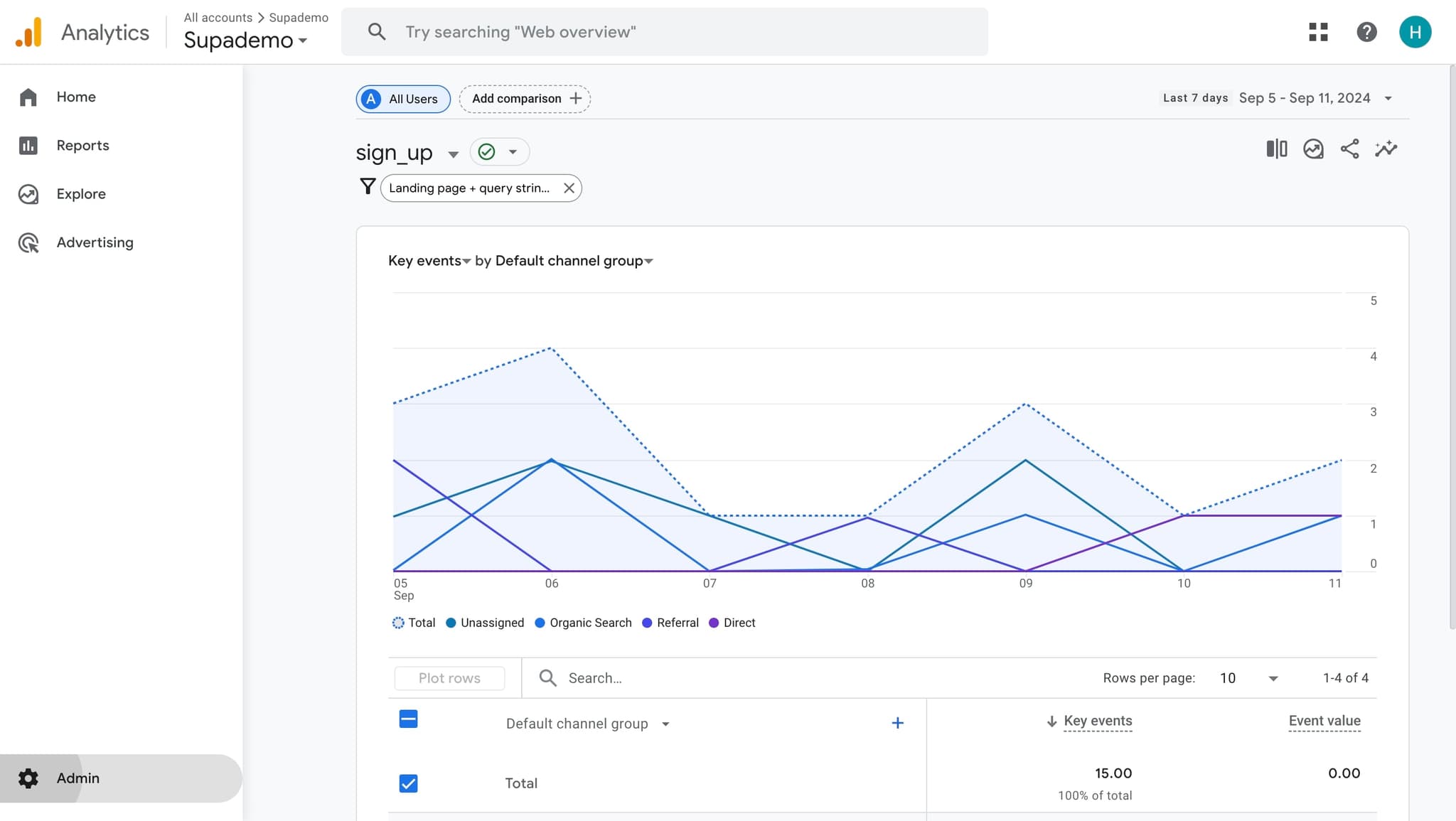
Open the Settings menu
Click on the settings_filled icon to access the main settings interface. This is typically located in the bottom-left corner of your Google Analytics dashboard.
- 2
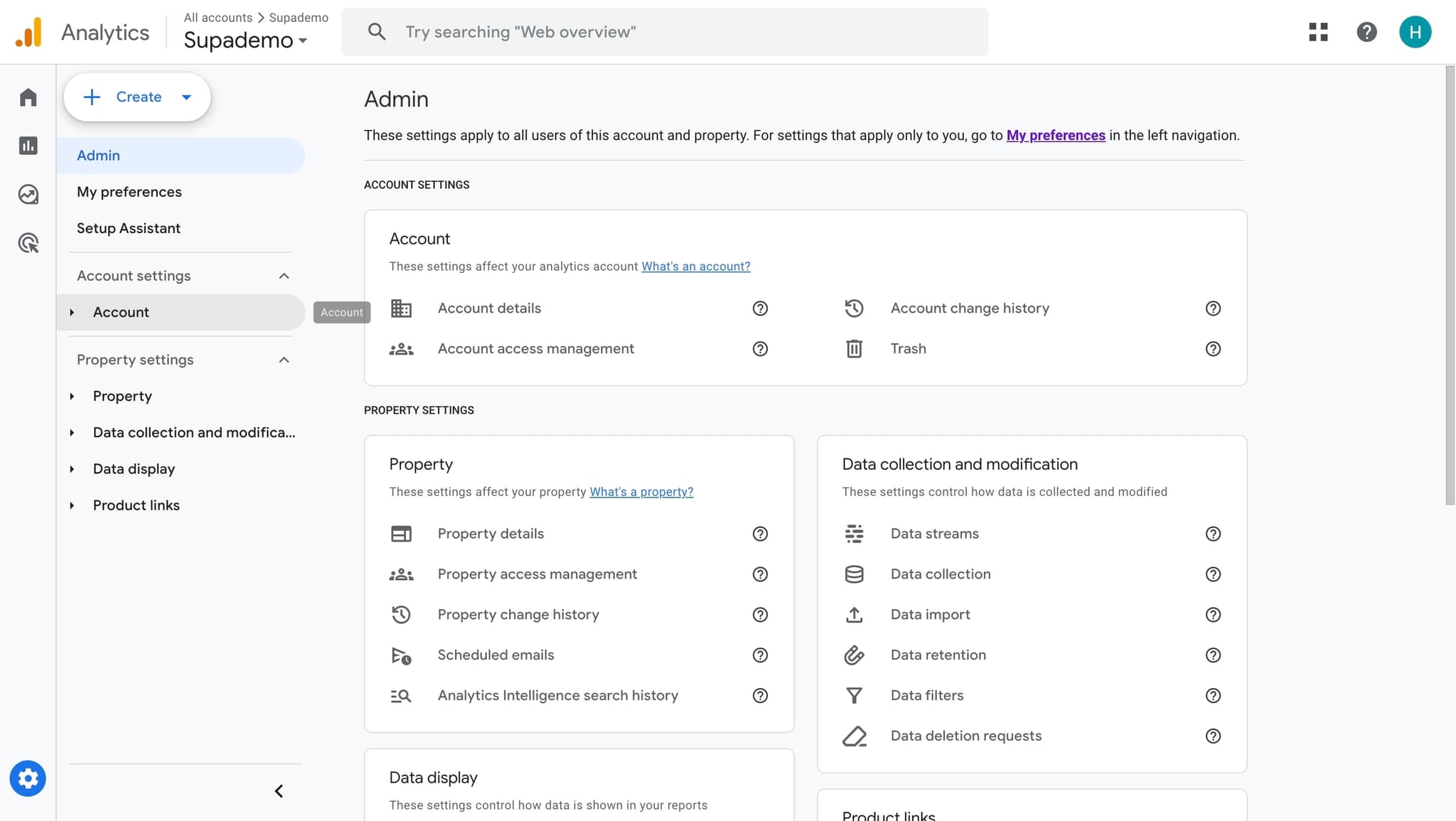
Navigate to the next section
Click on the arrow_right to proceed to additional settings options. This expands the menu to reveal more configuration choices.
- 3
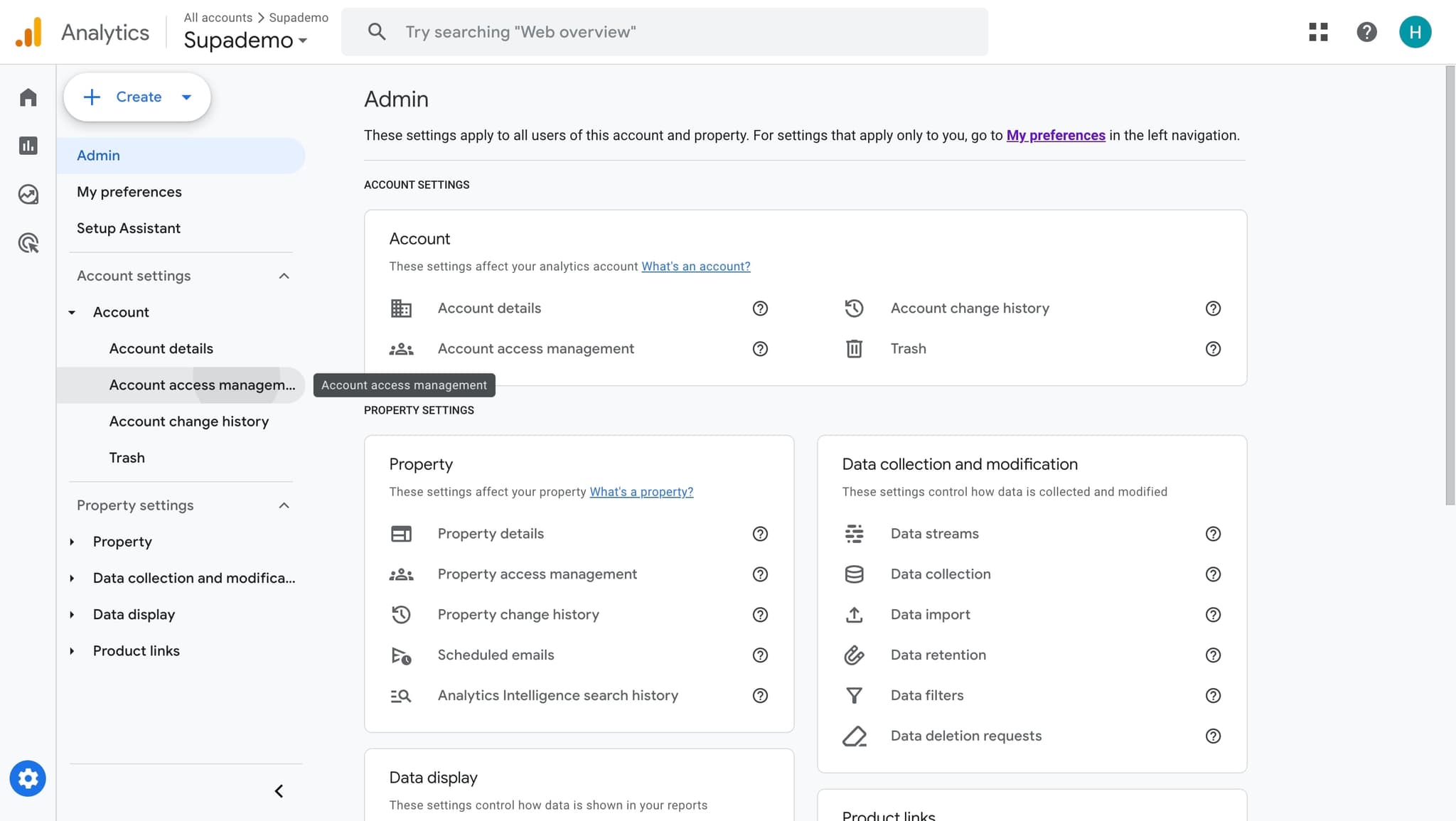
Select Account access management
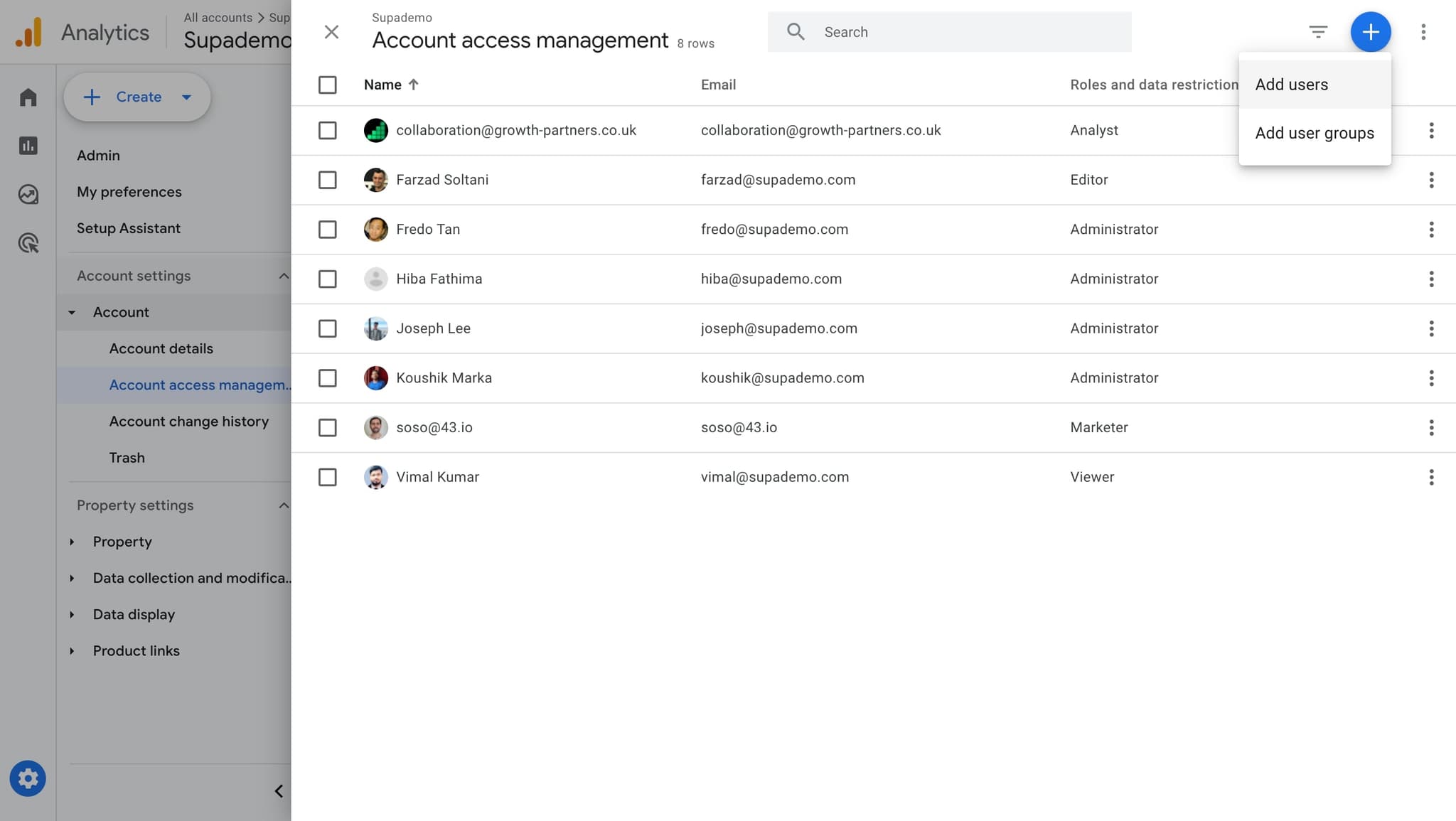
Click on the Account access management option to view and manage user permissions. This section controls who has access to your analytics data and what they can do with it.
- 4
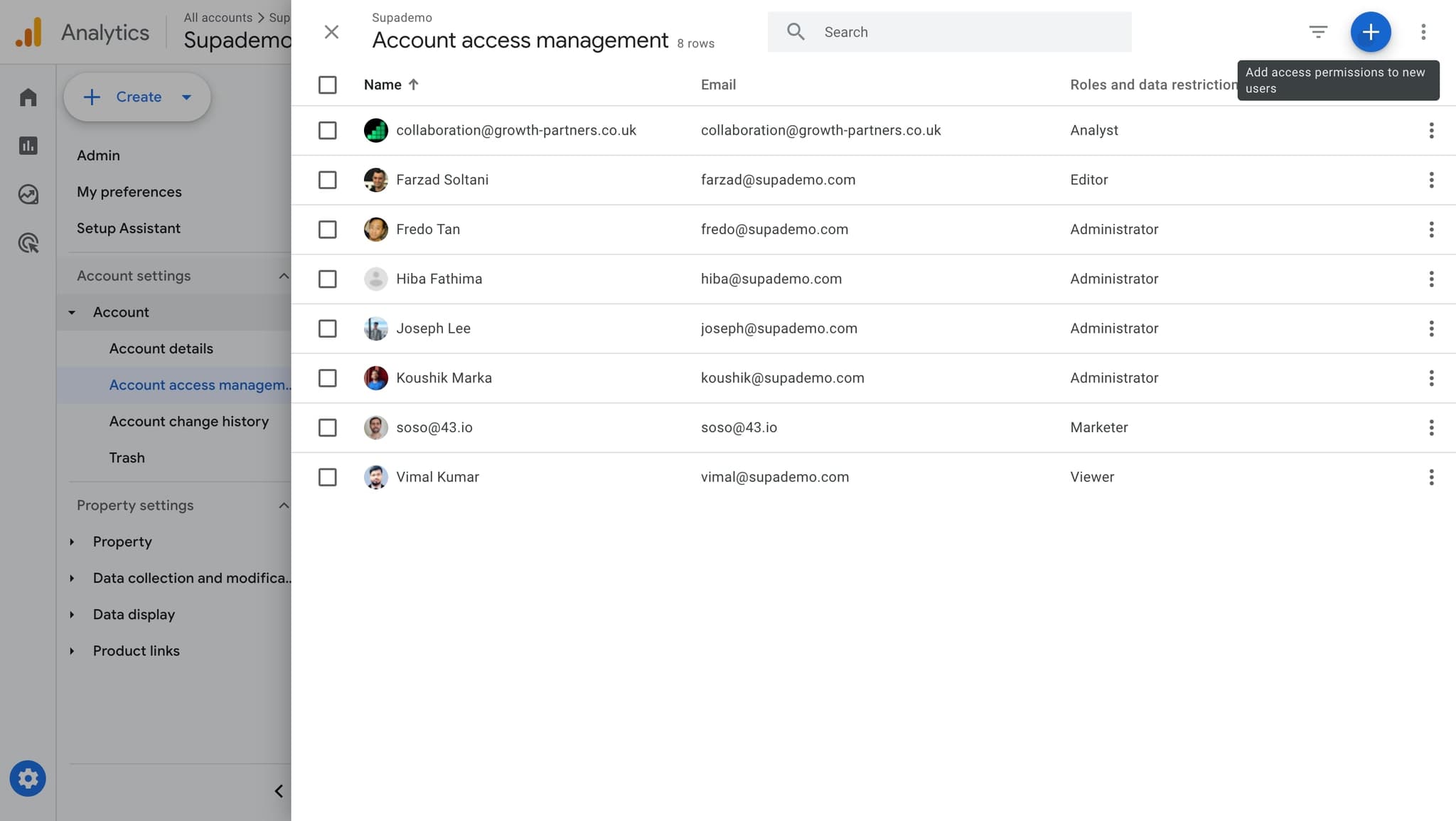
Initiate adding access
Click on the add button to begin the process of granting access to a new user. This opens the interface for inviting team members to your account.
- 5
Choose Add users option
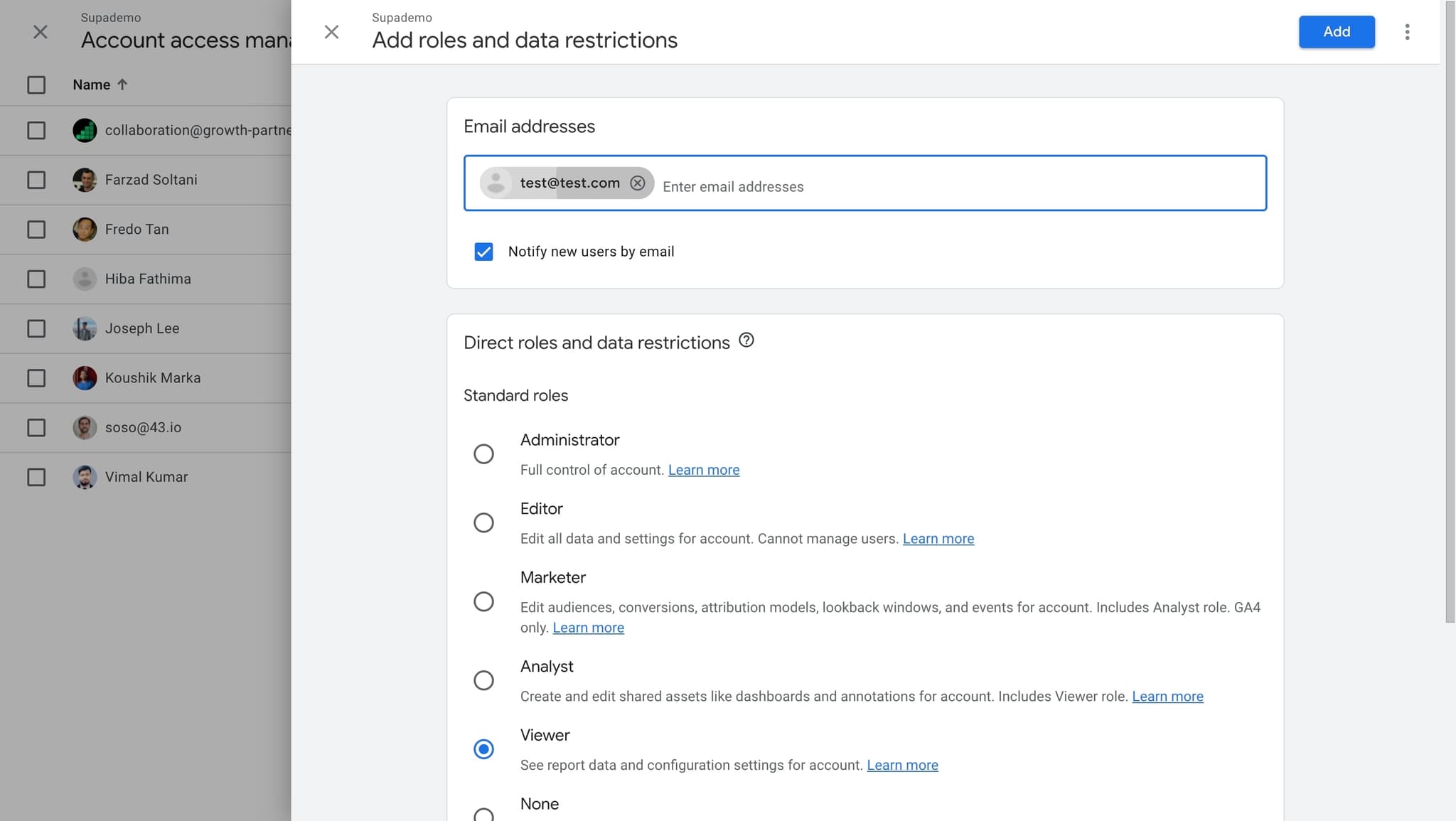
Click on Add users to select this action from the available options. You'll now be able to enter the email addresses of people you want to invite.
- 6
Review or cancel the action
Click on cancel if you need to exit this screen without completing the invitation. Use this option if you need to double-check information or change your selection.
- 7
Confirm your selection
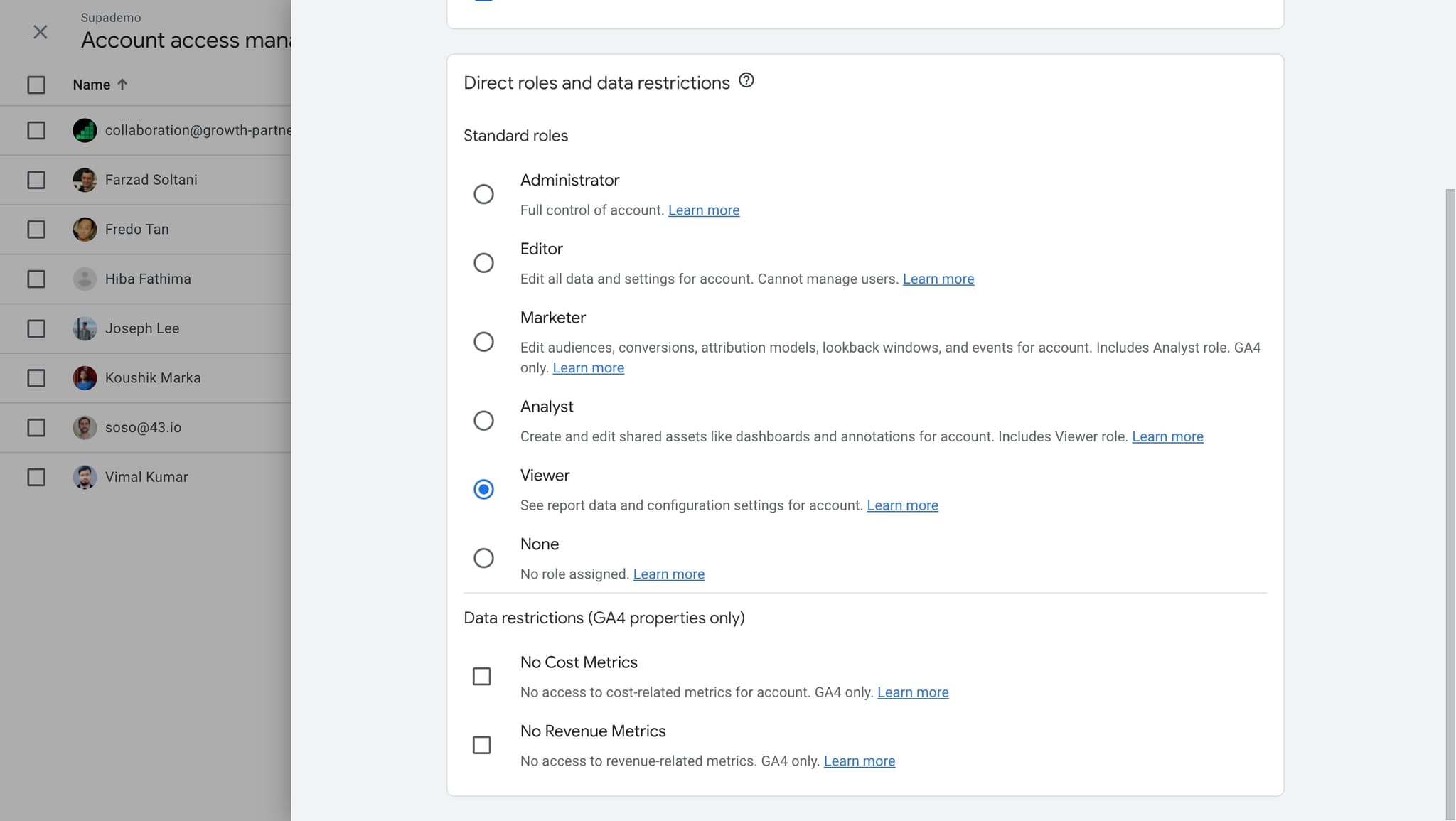
Click here to proceed with your chosen action. This finalizes your input and moves you forward in the access sharing process.
- 8
Complete the access setup
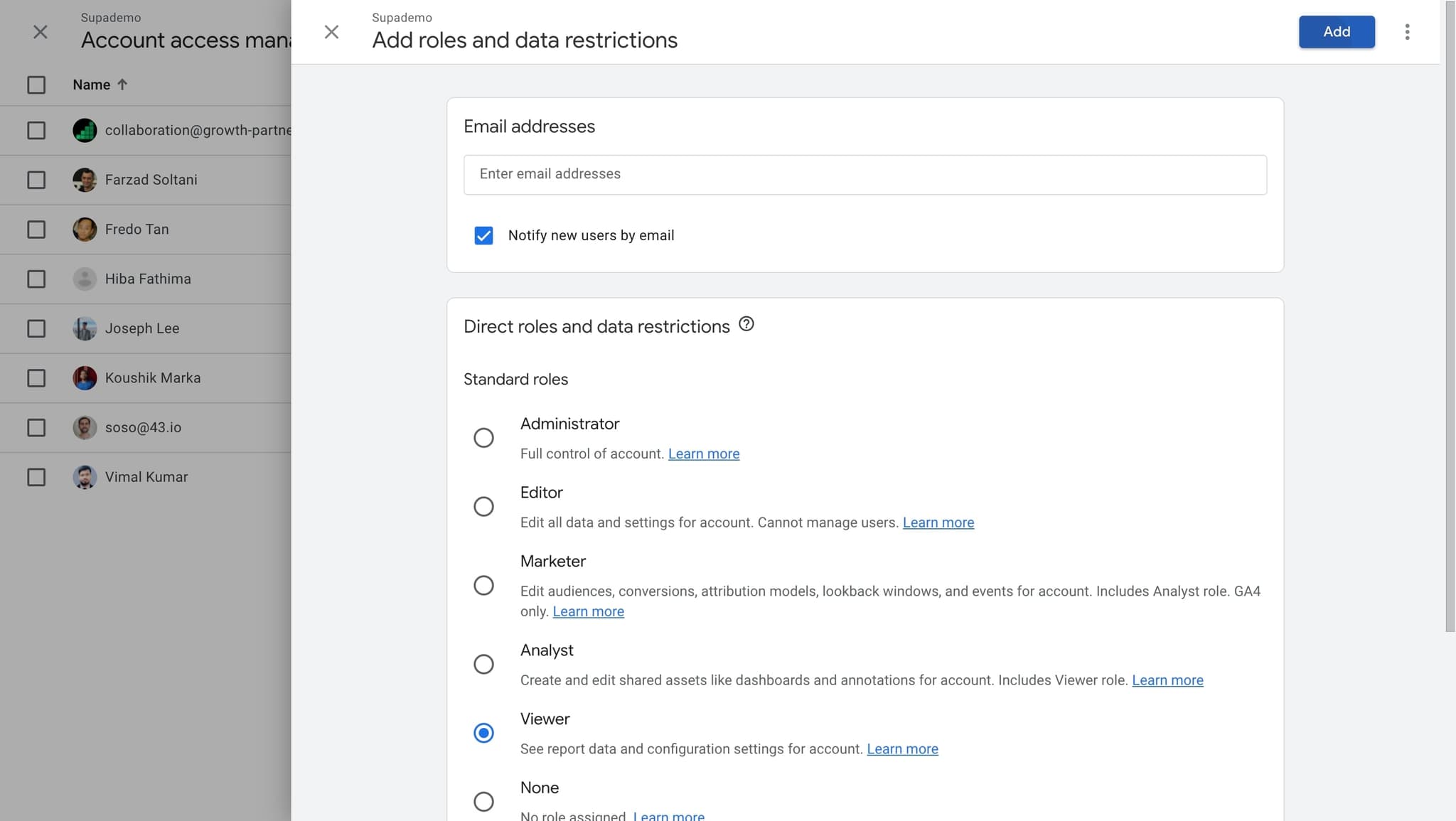
Click here to finish adding the user and confirm their access permissions. Your team member will now be able to access the analytics data according to the role you've assigned.
Frequently asked questions
Common questions about how to share google analytics access.
What permission levels are available when sharing Google Analytics access?
Google Analytics offers several permission levels including Viewer, Analyst, Editor, and Administrator. Each role grants different capabilities, from read-only access for Viewers to full account management for Administrators. Choose the appropriate role based on what your team member needs to accomplish.
Can I remove a user's access after granting it?
Yes, you can remove user access at any time through the Account access management section. Simply select the user you want to remove and delete their access. This immediately revokes their ability to view or interact with your analytics data.
How long does it take for a user to gain access after I add them?
Access is typically granted immediately after you complete the invitation process. The invited user will receive an email notification and can begin accessing the analytics account right away, provided they sign in with the correct Google account.
Can I grant different access levels to different properties within my account?
Yes, Google Analytics allows you to manage permissions at both the account and property levels. You can assign different roles to the same user across various properties, giving you granular control over what each team member can access.
What should I do if a user doesn't receive their access invitation email?
Check the user's spam or promotions folder first, as the invitation email may have been filtered. If the email still isn't found, verify that you entered the correct email address and consider resending the invitation through the Account access management section.