How to Unpublish a Typeform

Unpublishing a Typeform allows you to temporarily disable your form from collecting responses while keeping all your form data and settings intact. This is useful when you need to pause data collection, make updates, or archive a form that's no longer active.
Quick summary
In this tutorial, you'll learn how to unpublish a Typeform in just a few steps. You'll discover where to find the publish settings and how to toggle your form's status from live to unpublished.
Why this matters
Unpublishing a form is essential for managing your data collection lifecycle without losing your work. Whether you're conducting seasonal surveys, performing maintenance, or simply want to pause responses temporarily, knowing how to unpublish ensures you maintain control over when your forms are accessible.
Step-by-step guide
- 1
Log in to your Typeform account
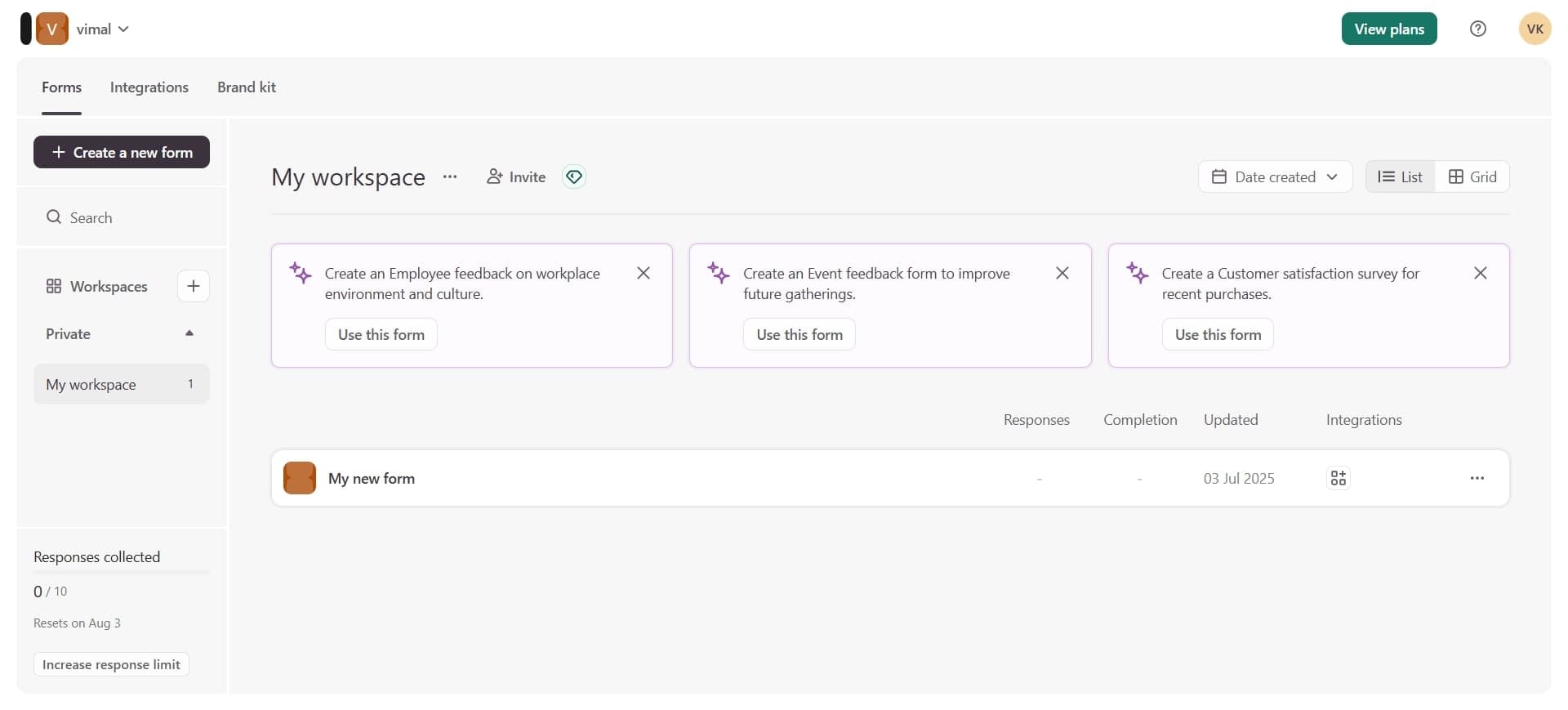
Open Typeform and sign in with your credentials. Once logged in, you'll see your dashboard with all your created forms listed.
- 2
Select the form to unpublish
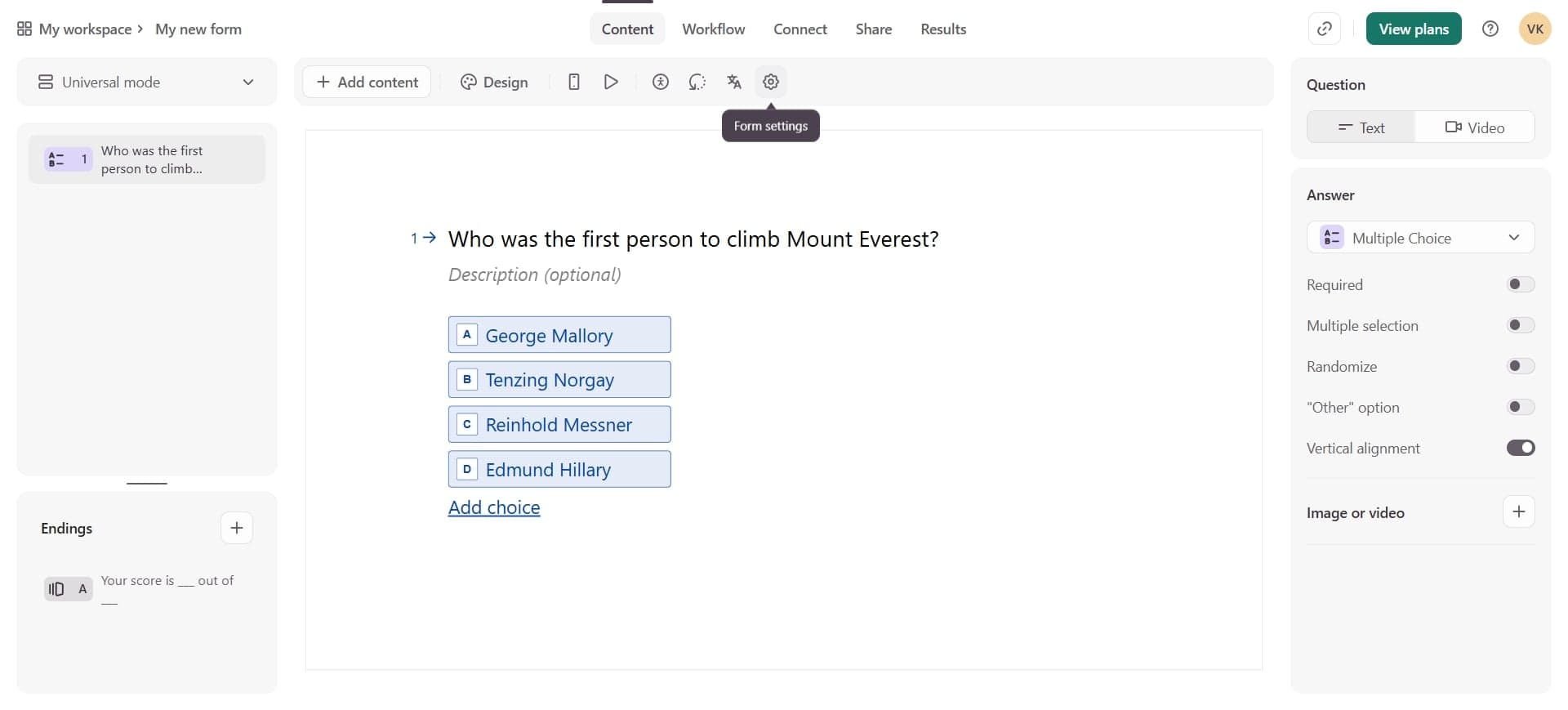
Click on the form you want to unpublish from your list. This will open the form editor view where you can manage all settings.
- 3
Access the Share or Publish settings
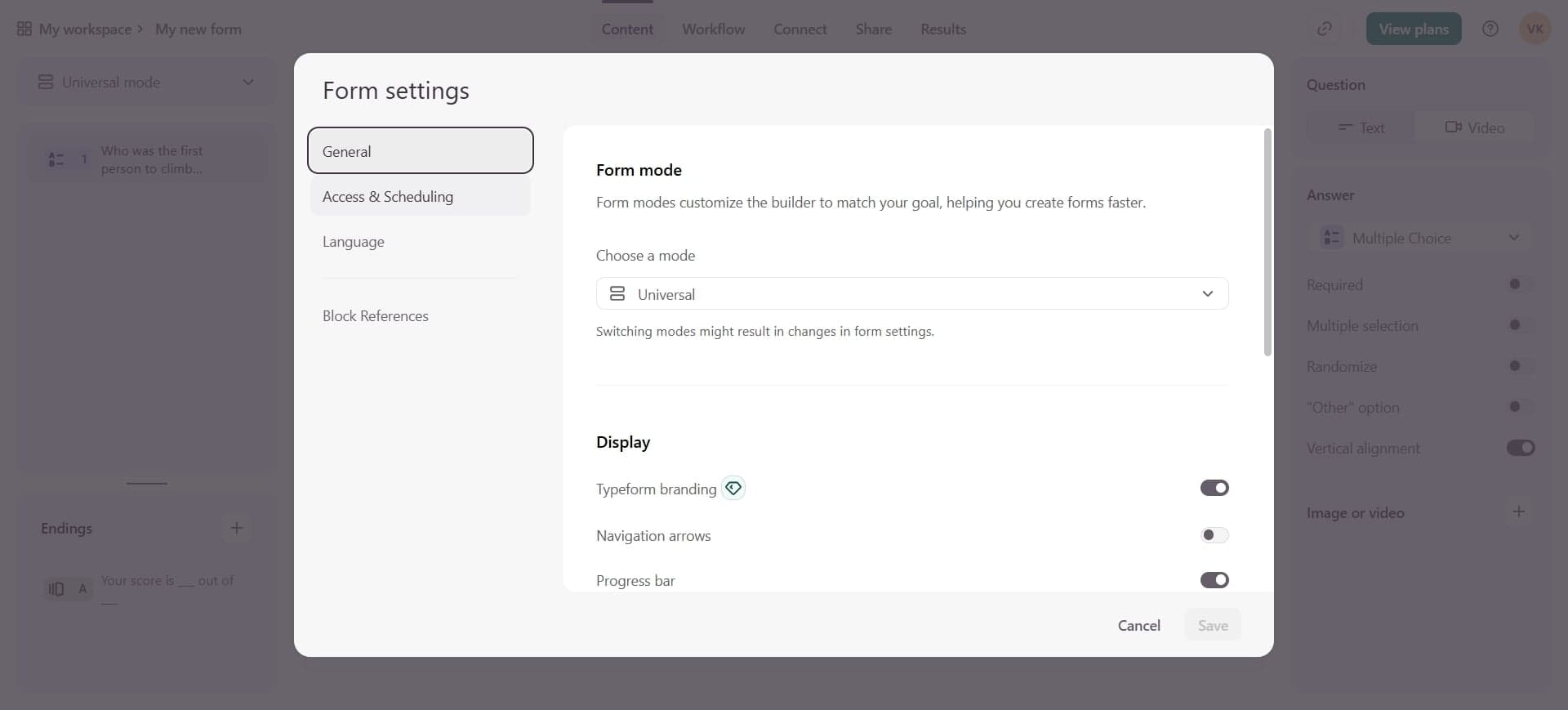
Look for the Share button or Publish settings option, typically located in the top right corner of the form editor. Click it to view your current form's sharing and publication status.
- 4
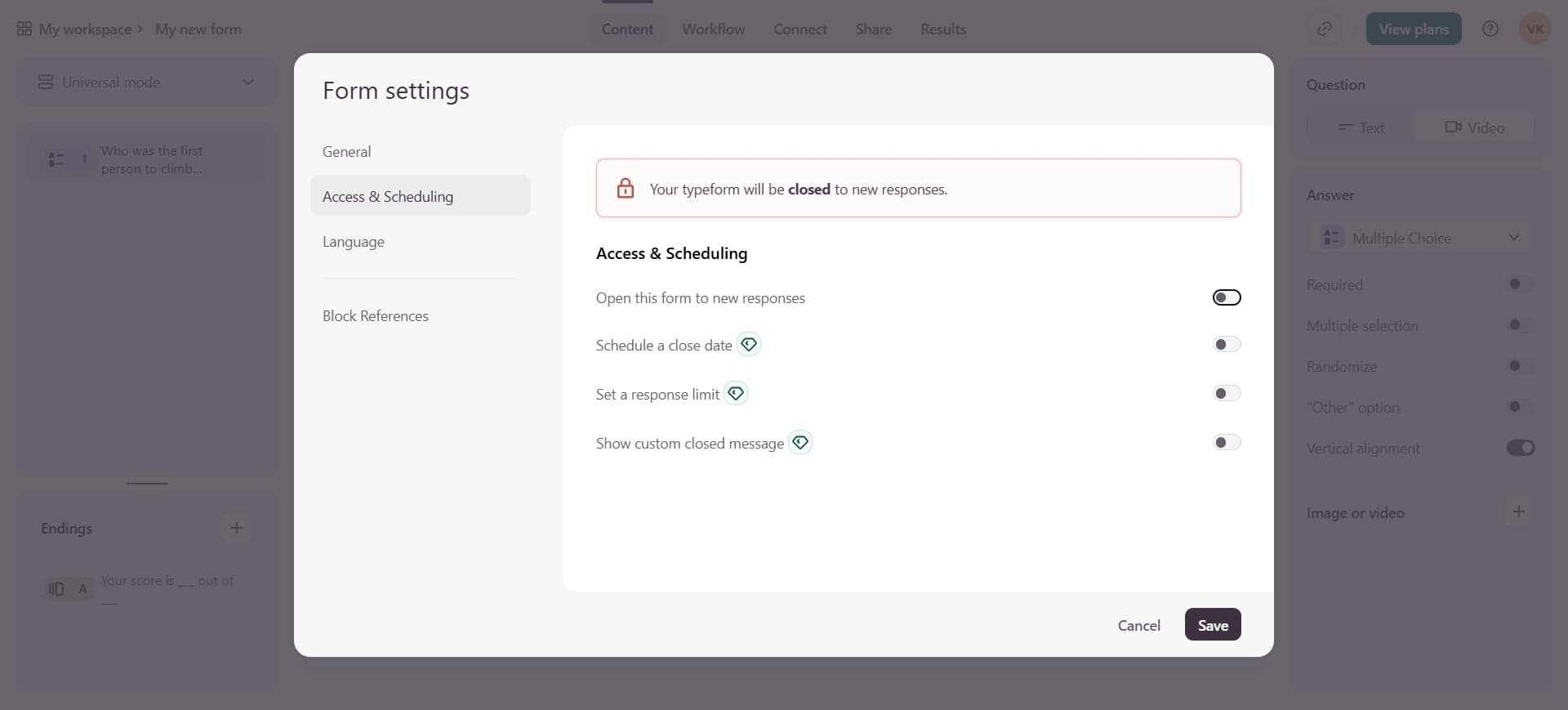
Toggle the publication status off
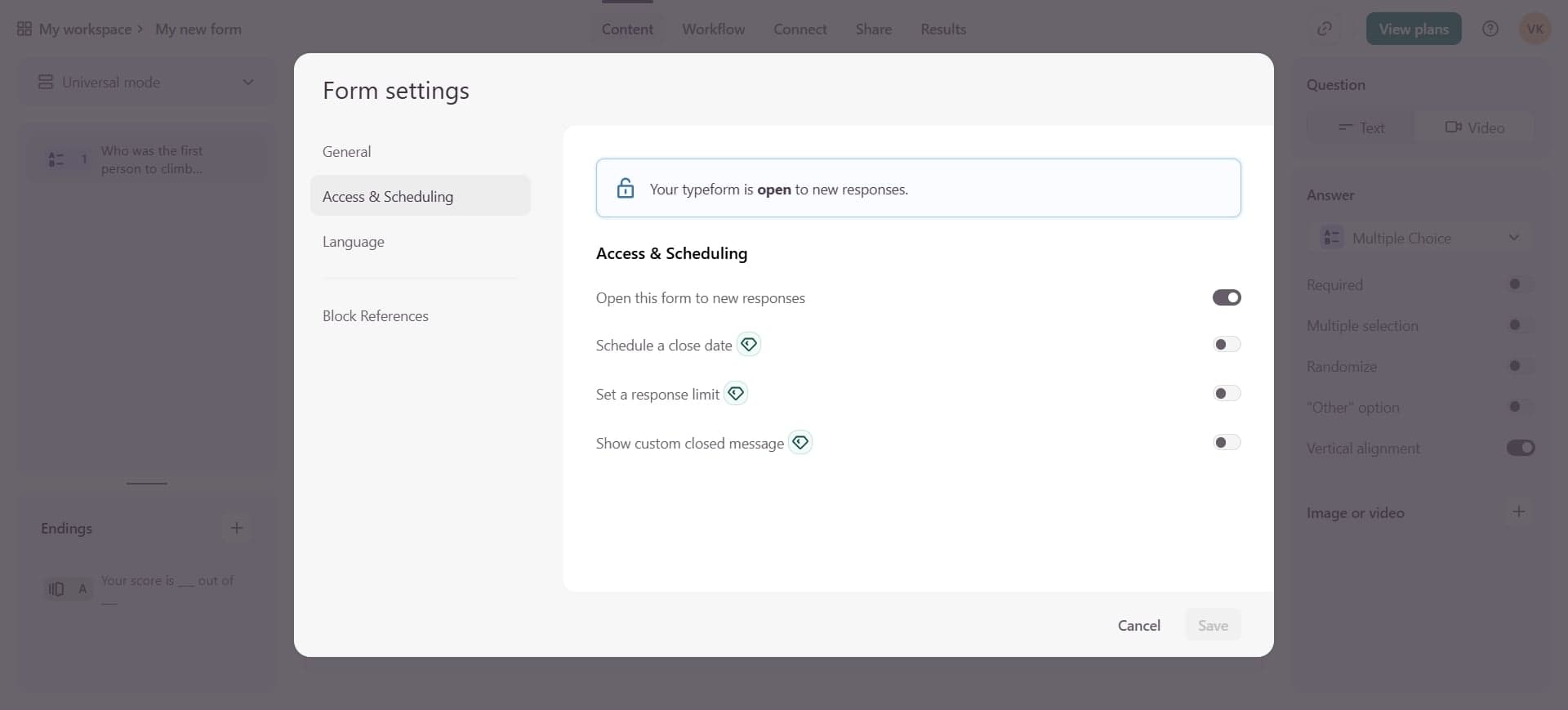
In the Share menu, locate the toggle or switch that controls whether your form is published. Click to toggle it off, which will unpublish your form and stop it from collecting new responses.
- 5
Confirm the changes
Save your changes if prompted. Your form is now unpublished and no longer accessible via the public link, though all existing responses and form data remain safely stored.
Frequently asked questions
Common questions about how to unpublish a typeform.
Will unpublishing a Typeform delete my existing responses?
No, unpublishing a form does not delete any of your existing responses or form data. All collected information remains safely in your account and can be accessed anytime. Unpublishing only stops new responses from being submitted.
Can I republish a form after unpublishing it?
Yes, you can republish an unpublished form at any time by following the same steps and toggling the publication status back on. Your form structure, questions, and settings will remain exactly as you left them.
What happens to the form link when I unpublish?
When you unpublish a form, the public link becomes inactive and anyone trying to access it will see an error message. The link itself doesn't change, so if you republish later, the same link will work again.
Can I unpublish a form temporarily for edits?
Yes, unpublishing is a good way to temporarily pause data collection while you make updates or changes. Once you're done editing and want to resume collecting responses, simply republish the form.
Is there a difference between unpublishing and deleting a form?
Yes, unpublishing pauses your form from collecting new responses but keeps all your data and settings intact. Deleting a form permanently removes it and all its associated data. Unpublishing is a safer, reversible option.