How to Use Attio with Third-Party Tools

Attio's integration capabilities allow you to connect your CRM with the tools you already use daily, from email platforms to project management software. This guide walks you through the process of setting up and managing third-party integrations within Attio to streamline your workflow and keep data synchronized across your tech stack.
Quick summary
In this tutorial, you'll learn how to discover available integrations in Attio, connect third-party tools to your workspace, configure integration settings, and manage your active connections. By the end, you'll be able to leverage Attio's ecosystem to automate data flow and enhance team productivity.
Why this matters
Integrating third-party tools with Attio eliminates manual data entry, reduces errors, and ensures your customer information stays current across all platforms. Whether you're syncing email data, project updates, or communication logs, proper integration setup is essential for maintaining a single source of truth and enabling your team to work more efficiently.
Step-by-step guide
- 1
Open the integrations section
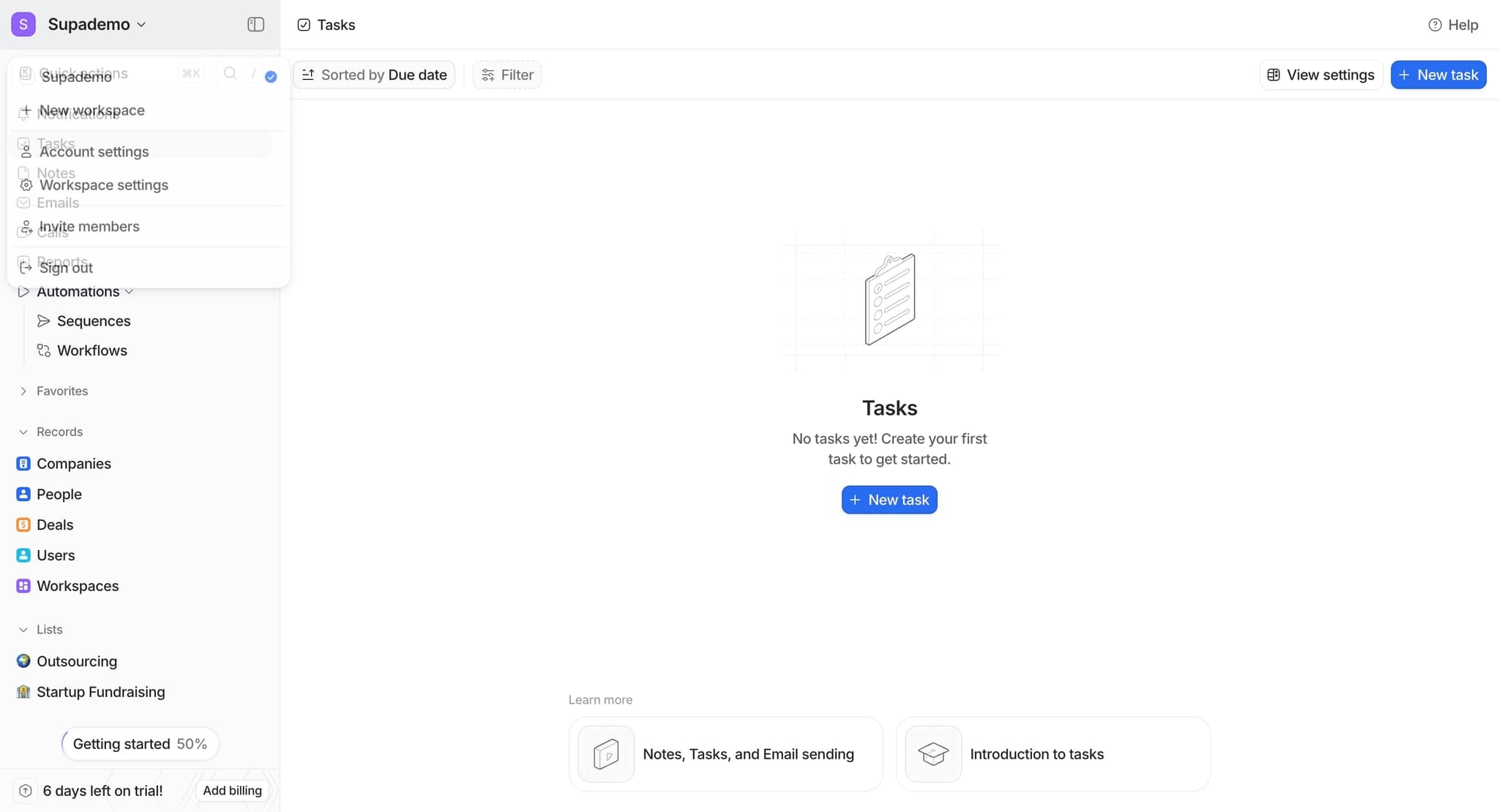
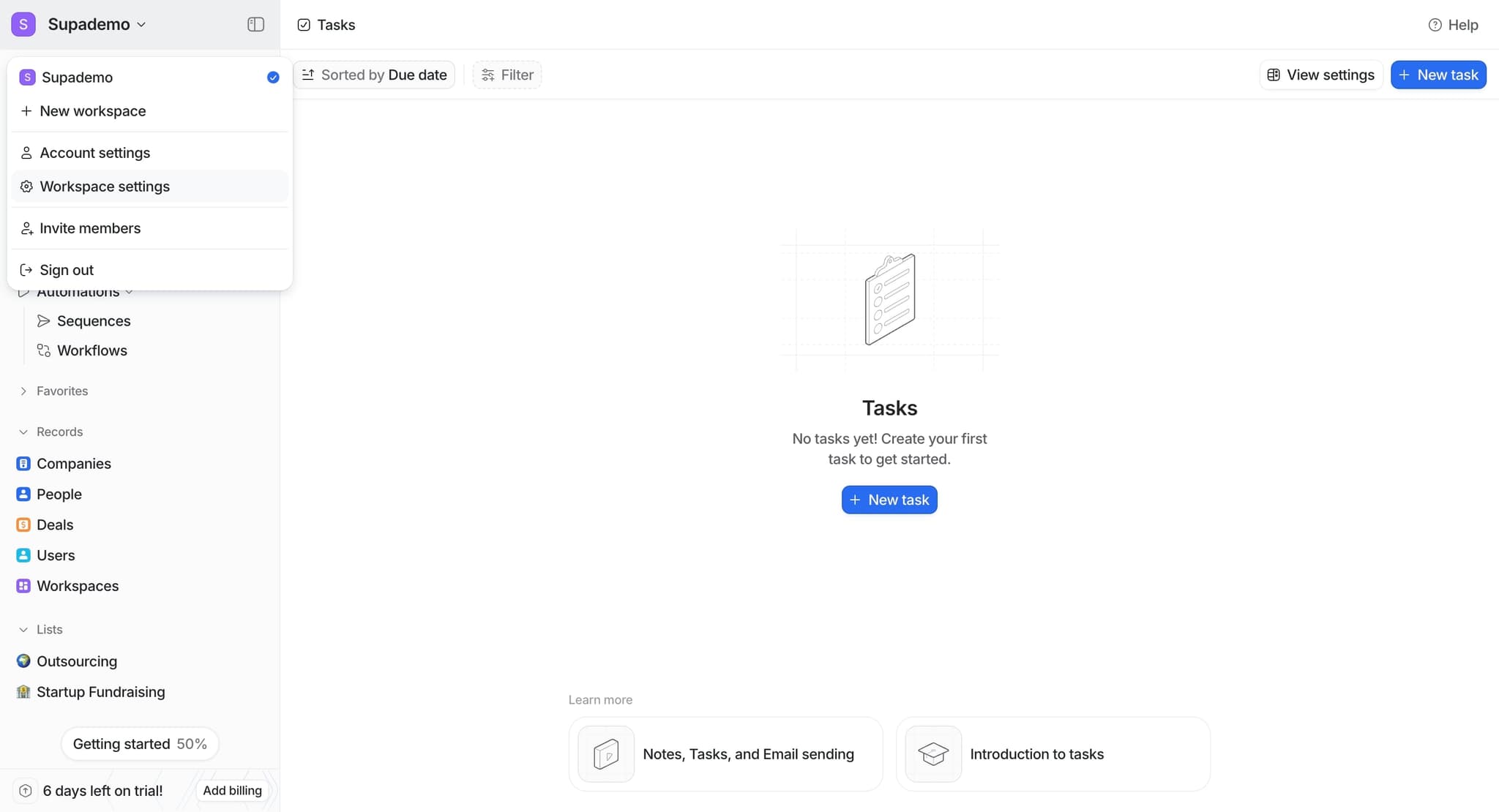
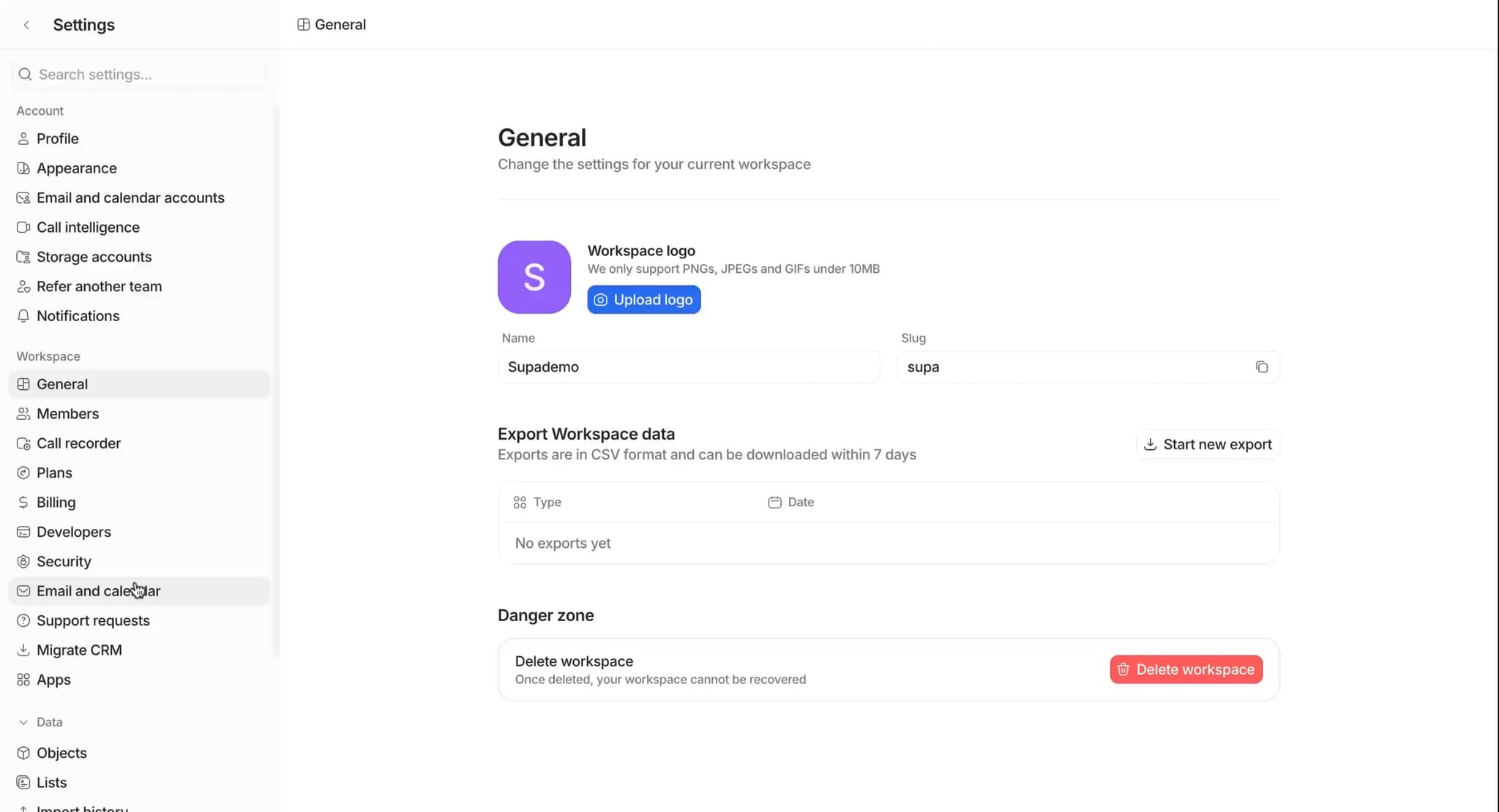
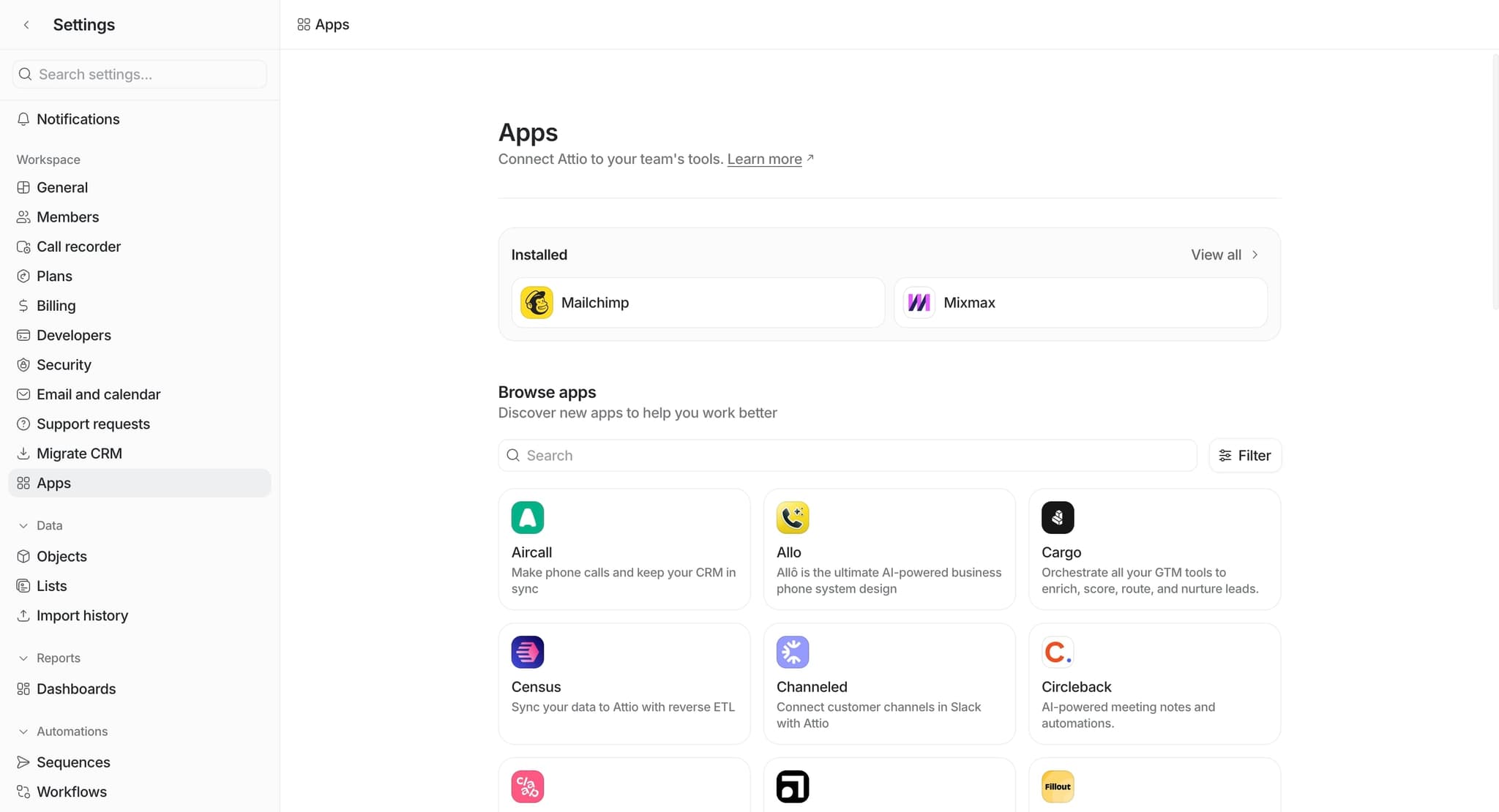
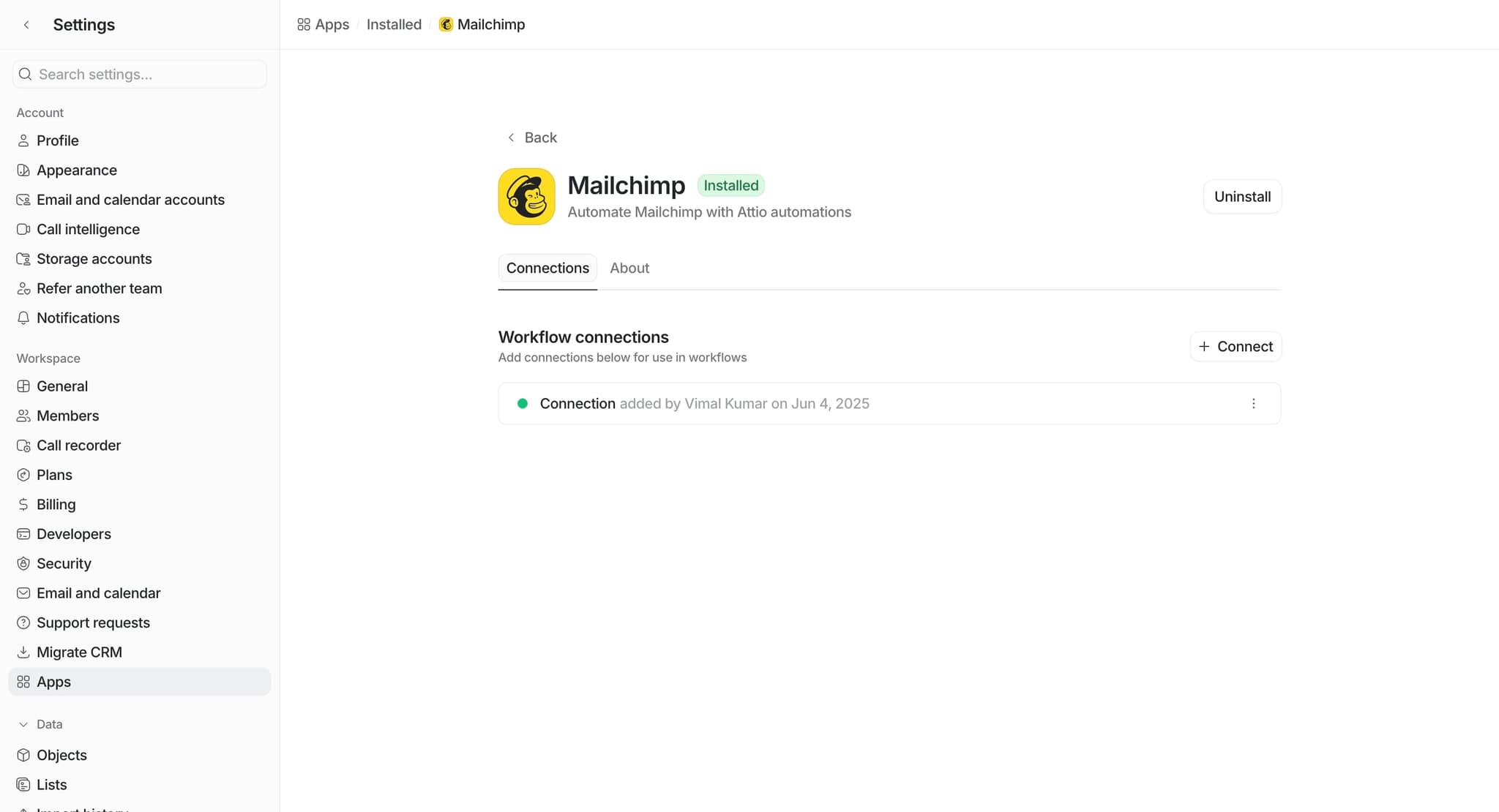
Navigate to your workspace settings and locate the Integrations or Apps section in the main menu. This is where you'll find all available third-party integrations and manage your current connections.
- 2
Browse available integrations
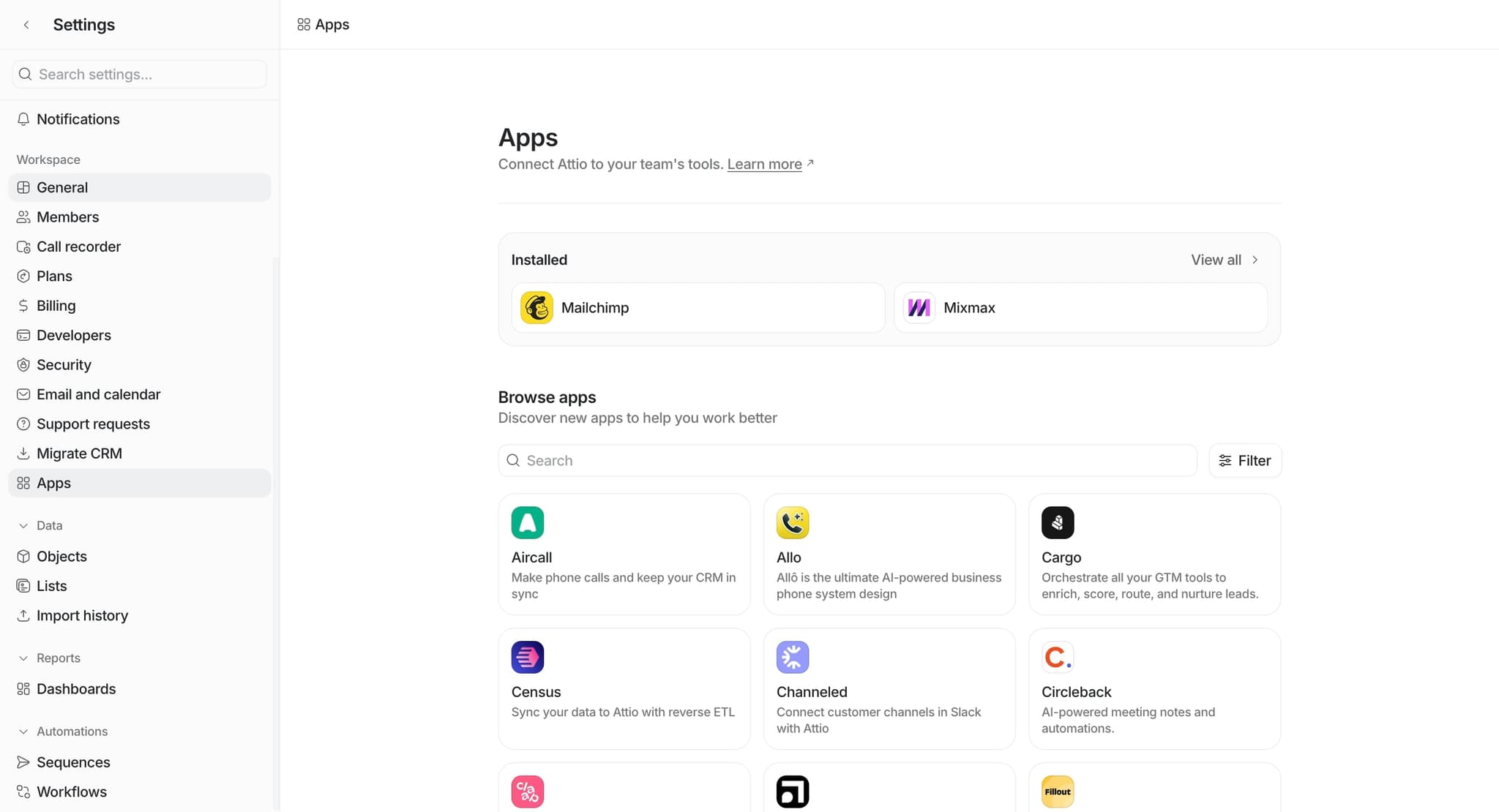
Review the list of supported third-party tools in the integration marketplace. Use filters or search to find the specific tool you want to connect to Attio.
- 3
Select your desired integration
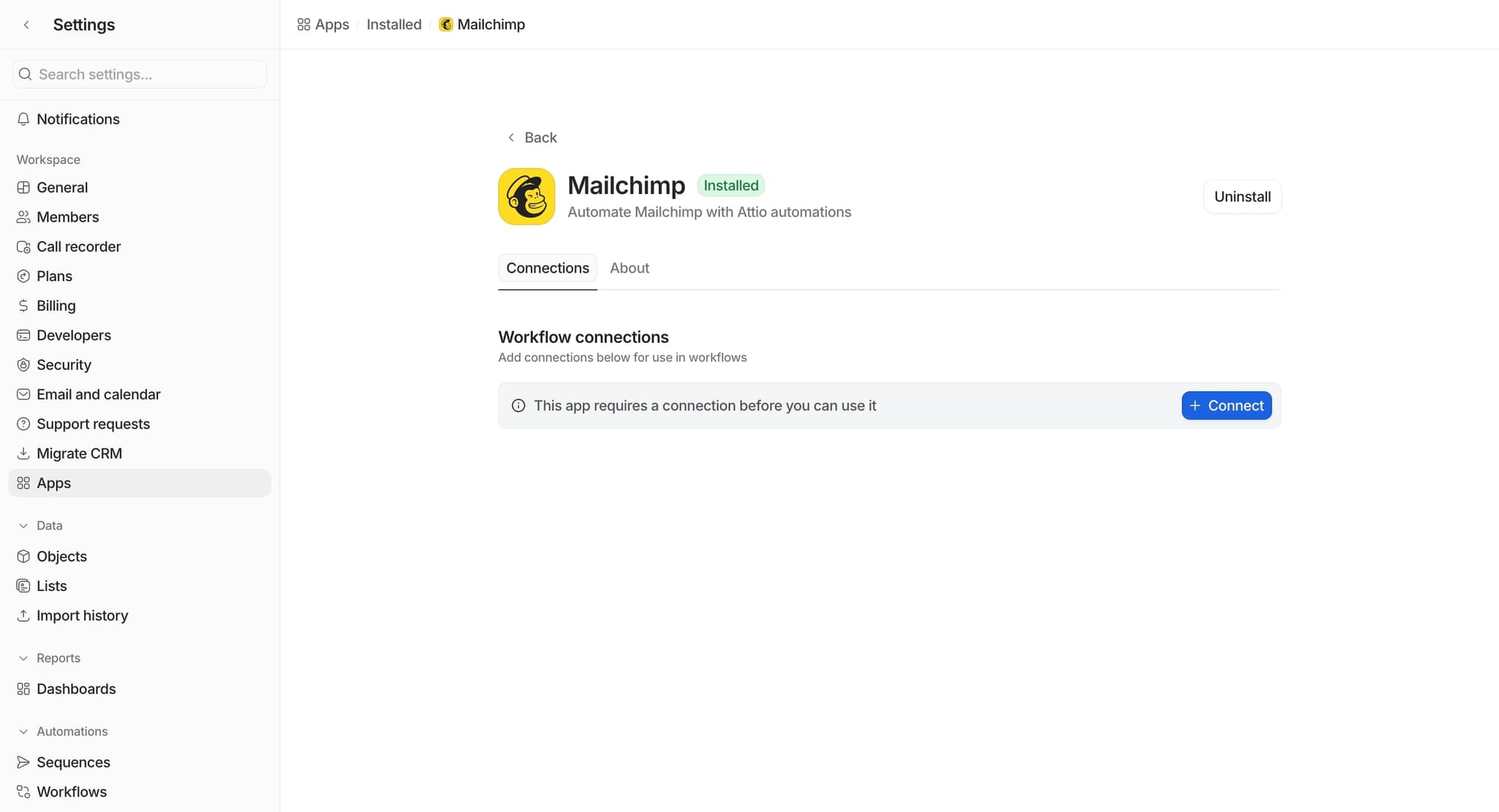
Click on the integration tile or card for the tool you want to add. This will open the integration details page with information about what data syncs and how the connection works.
- 4
Click the connect button
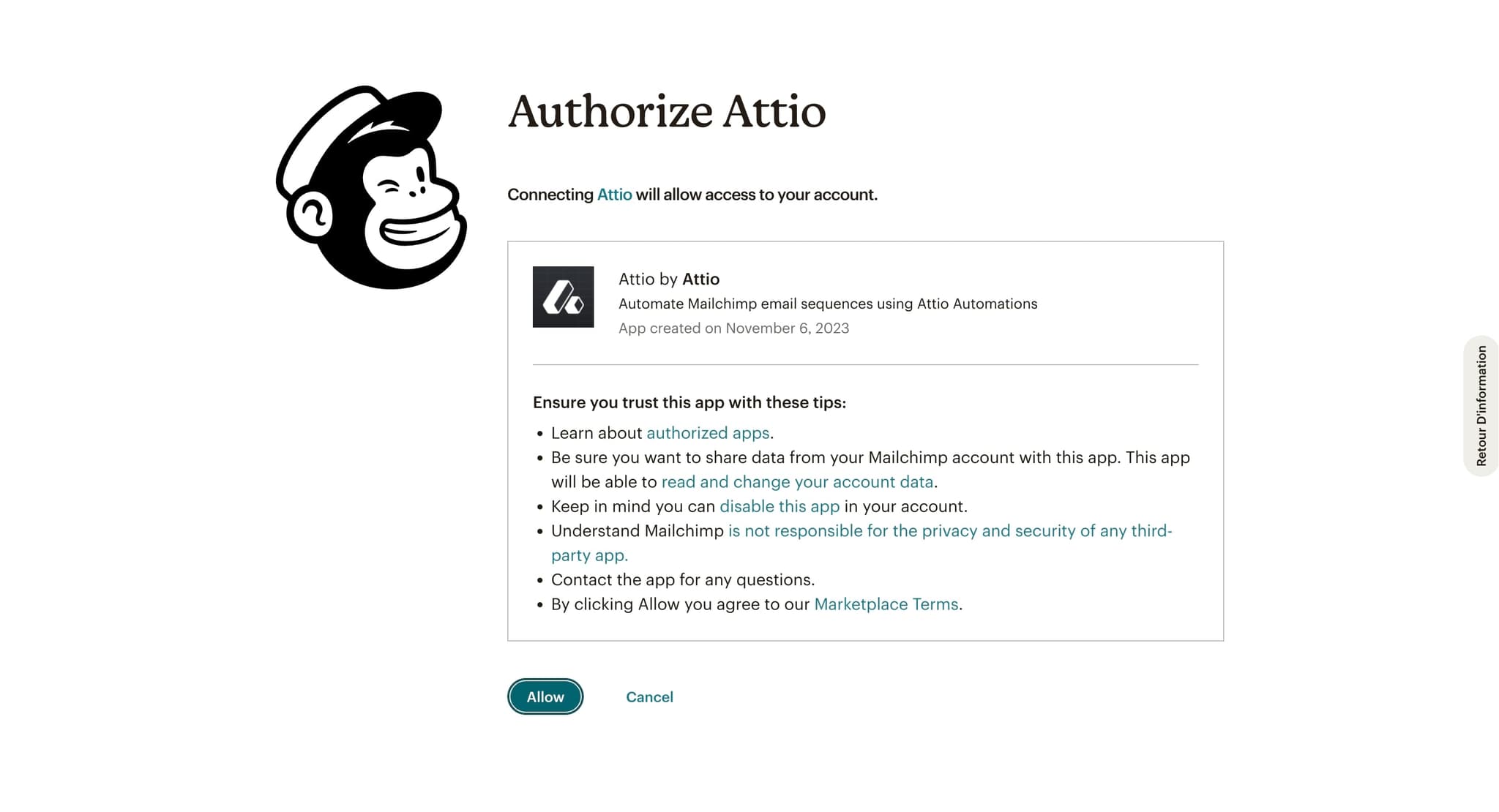
Select the Connect, Install, or Authorize button to initiate the integration process. You may be prompted to log in to the third-party service or grant Attio permission to access your account.
- 5
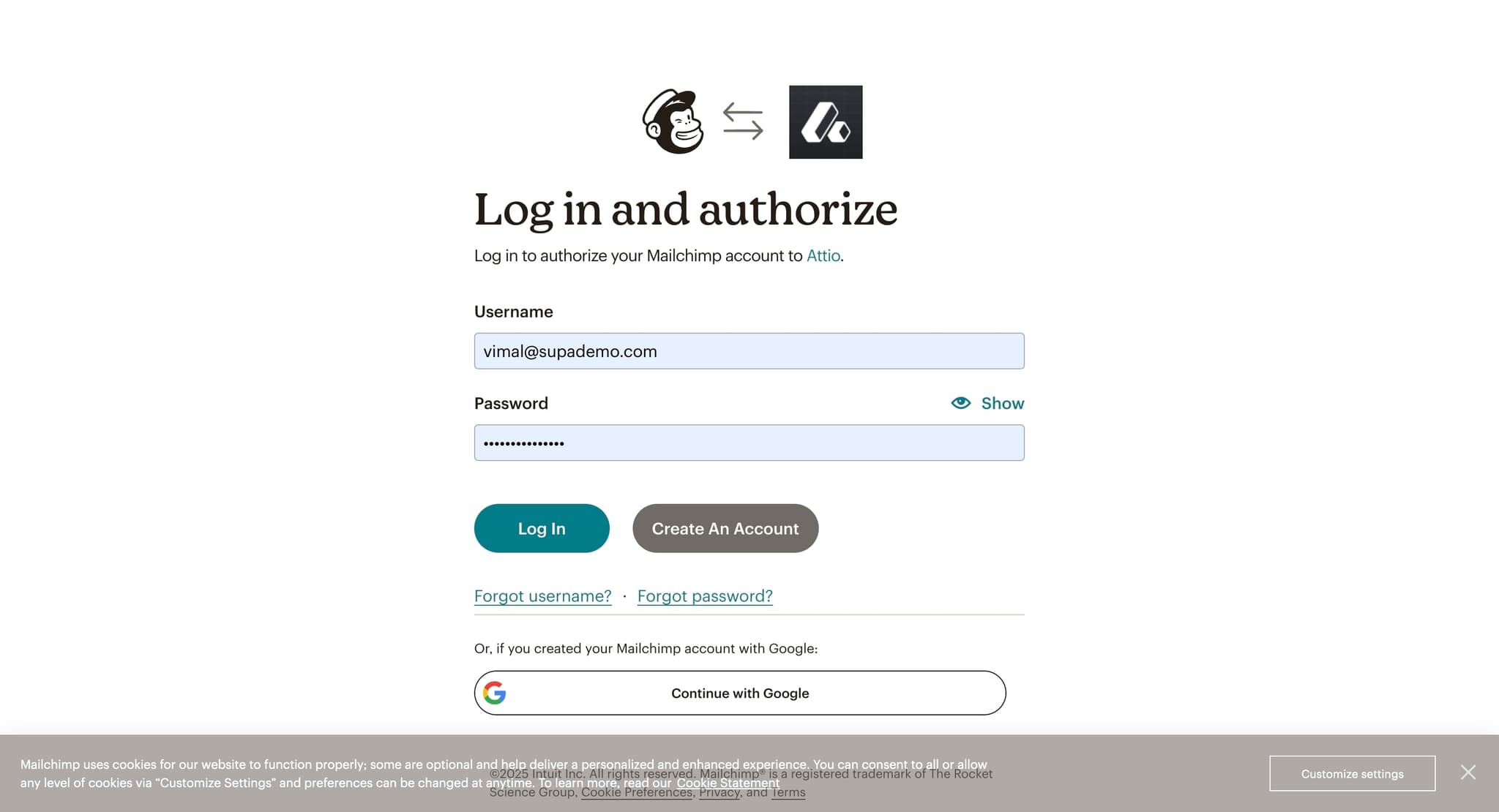
Authenticate with the third-party service
Complete the authentication flow for the external tool, which typically involves logging in and authorizing Attio to access specific data or features. Follow the prompts until you receive confirmation of successful authentication.
- 6
Configure integration settings
Once authenticated, customize how the integration behaves by selecting which data fields to sync, setting sync frequency, and defining any mapping rules between Attio and the external tool. Review the options carefully to ensure they match your workflow needs.
- 7
Map data fields
Match fields from the third-party tool to corresponding fields in Attio so data syncs correctly. For example, map the external tool's email field to Attio's email field to ensure proper data alignment.
- 8
Set sync preferences
Choose whether data should sync in one direction only or bidirectionally, and determine the sync frequency such as real-time, hourly, or daily. Save your preferences once you've configured them.
- 9
Enable the integration
Toggle or click the switch to activate the integration and start syncing data between Attio and the third-party tool. You should see a confirmation message indicating the integration is now live.
- 10
Monitor integration status
Return to your integrations dashboard to verify the connection is active and check for any sync errors or warnings. Most integrations display last sync time and connection health status for easy monitoring.
Frequently asked questions
Common questions about how to use attio with third-party tools.
Which third-party tools can I integrate with Attio?
Attio supports a variety of integrations including email clients, calendar applications, project management platforms, communication tools, and data warehouse services. Visit the integrations section in your workspace settings to see the complete list of supported tools and check if new integrations have been added.
What happens to my data during the integration process?
During integration setup, Attio securely authenticates with the third-party service using OAuth or API tokens. Your data is synced according to the configuration you set, with field mapping ensuring information aligns correctly between platforms. Attio does not store credentials for the external service; instead, it maintains secure tokens for ongoing access.
Can I integrate multiple instances of the same tool?
This depends on the specific integration. Some tools support multiple connections for different accounts or teams, while others allow only one active integration per workspace. Check the integration details page or contact Attio support to confirm if your tool supports multiple instances.
How do I troubleshoot a failed integration?
First, verify that your login credentials for the third-party service are correct and that your account has the necessary permissions. Check the integration status page for error messages or sync failures. If issues persist, consult Attio's help documentation for that specific integration or reach out to support for assistance.
Can I modify or disable an integration after it's active?
Yes, you can edit integration settings at any time by returning to the integrations section and selecting the active integration. You can adjust data mappings, sync frequency, and field selections. You can also temporarily disable or permanently disconnect an integration if you no longer need it.