How to Use Saved Replies in HelpScout

Saved Replies in HelpScout allow you to create and reuse templated responses for common customer inquiries, saving time and ensuring consistency across your support team. This feature is essential for streamlining your customer service workflow and reducing repetitive typing.
Quick summary
In this tutorial, you'll learn how to create, access, and use Saved Replies in HelpScout to standardize your customer communications. You'll discover how to manage your reply library and apply templates efficiently to incoming conversations.
Why this matters
Saved Replies help support teams respond faster to common questions while maintaining a professional tone and consistent messaging. By establishing a library of pre-written responses, your team can focus on complex issues while ensuring every customer receives timely, high-quality replies.
Step-by-step guide
- 1
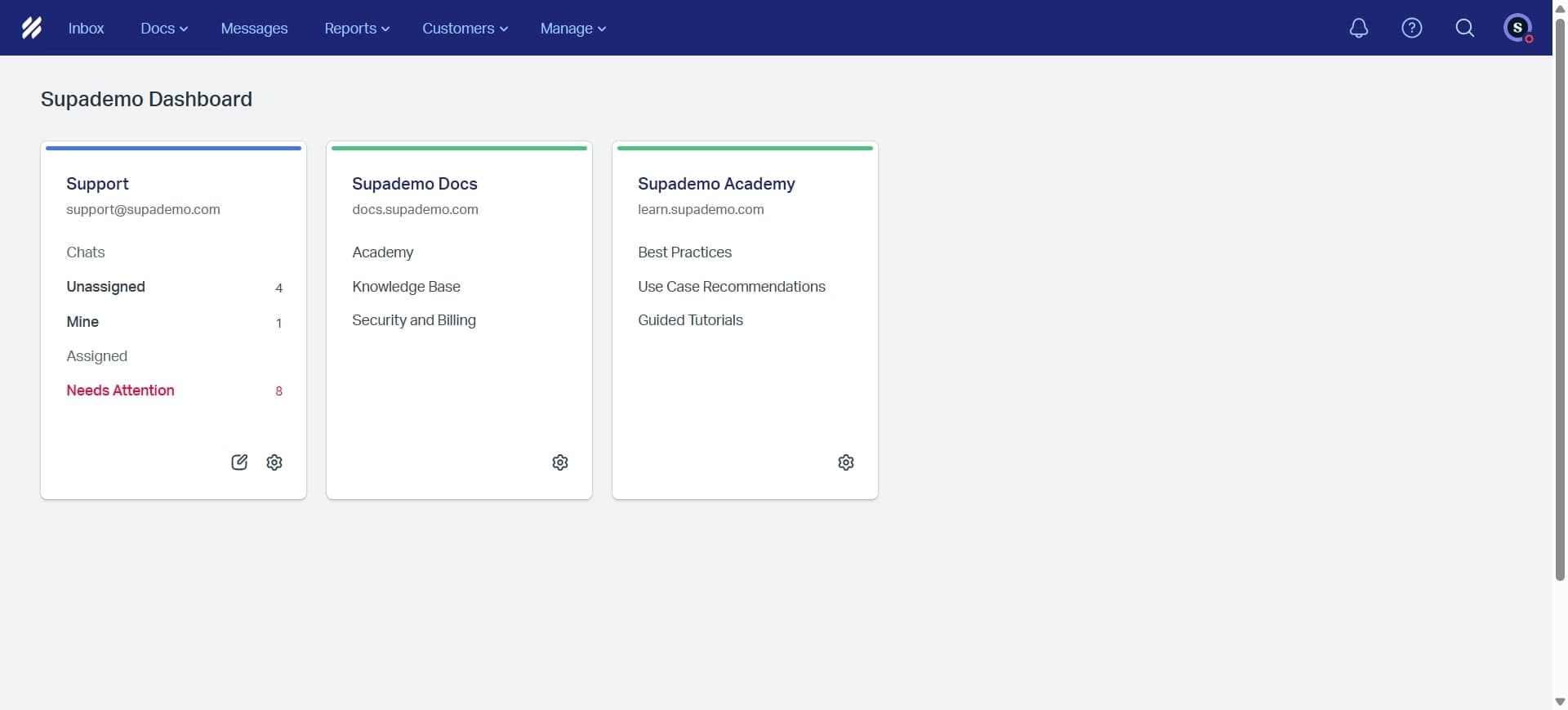
Access the HelpScout settings menu
Log into your HelpScout account and navigate to the main menu. Look for the settings or gear icon to begin accessing the Saved Replies feature.
- 2
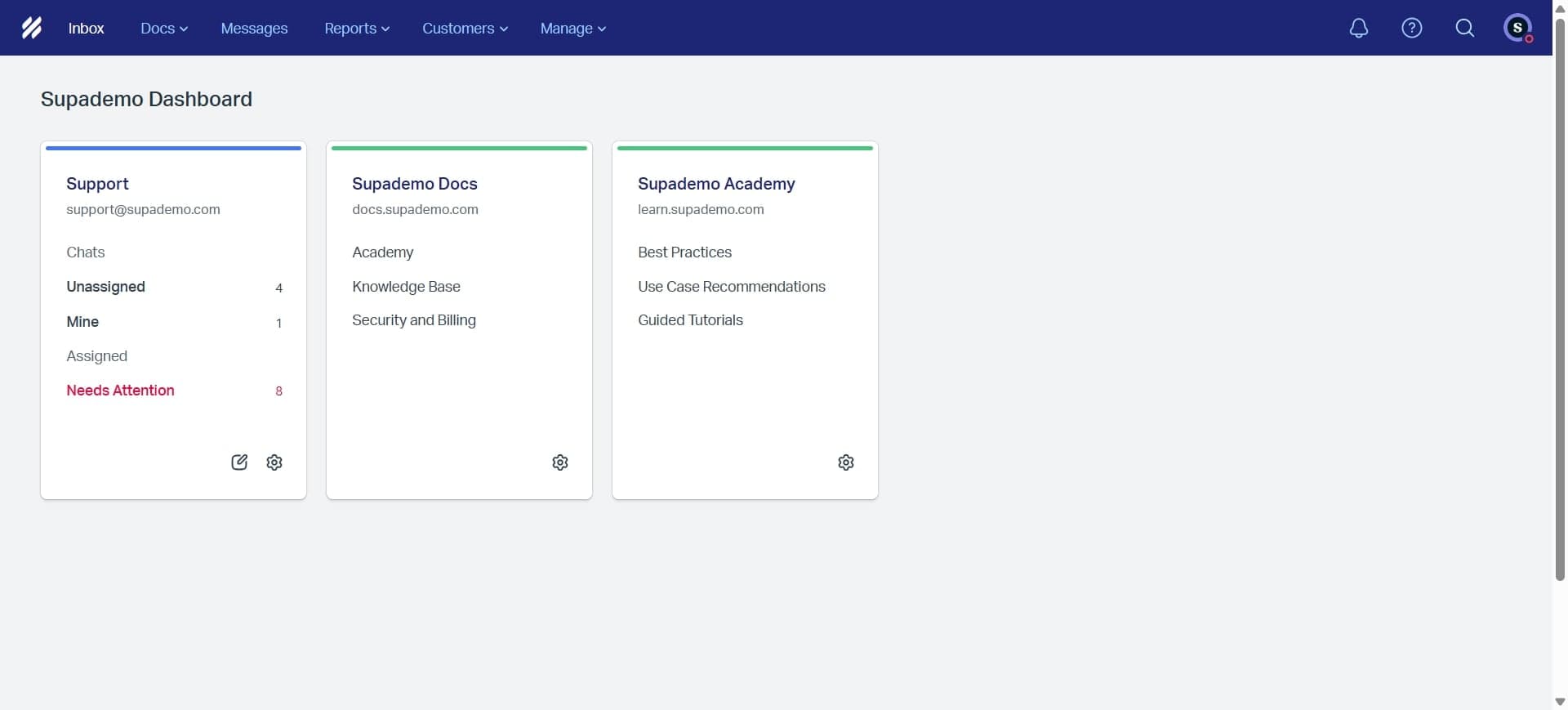
Locate the Saved Replies section
Within settings, find and click on the Saved Replies option. This section displays all existing saved replies and provides options to create new ones.
- 3
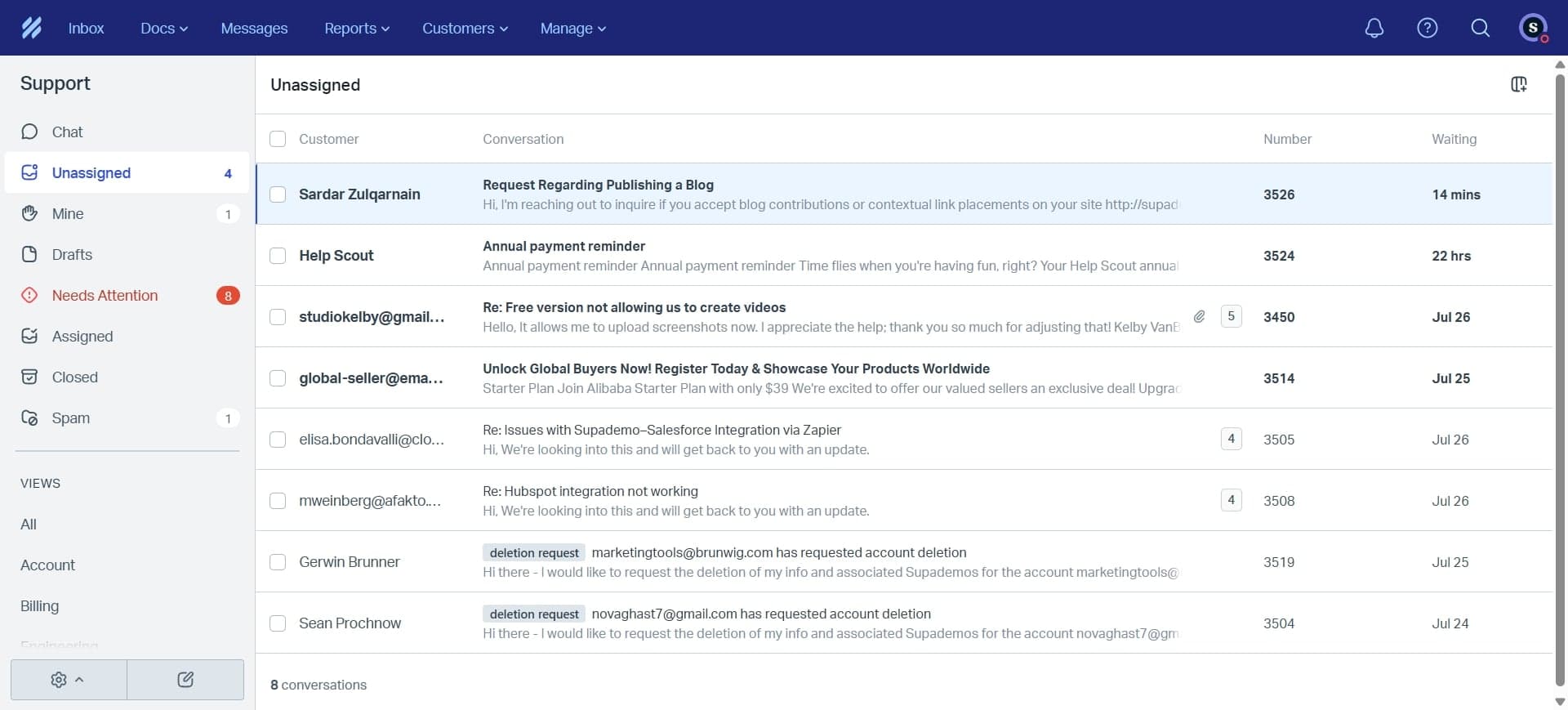
Click the create new reply button
Select the button to create a new Saved Reply. You'll be prompted to enter details for your template.
- 4
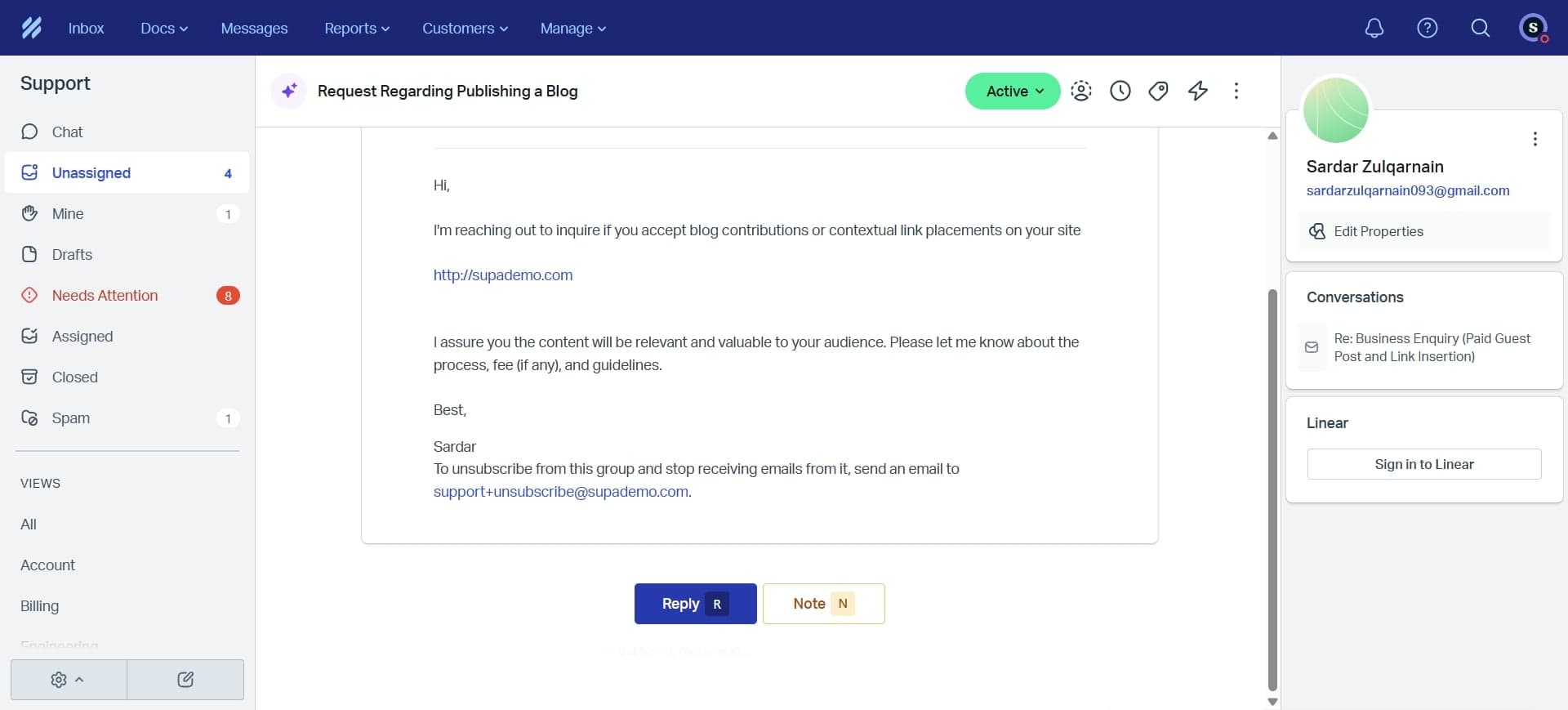
Enter a descriptive reply title
Give your Saved Reply a clear, searchable name that describes its purpose. For example, use titles like 'Password Reset Instructions' or 'Refund Acknowledgment'.
- 5
Write the reply template content
Compose the body text of your Saved Reply, including any common phrases, instructions, or information you frequently share. You can use formatting and personalization tokens if available.
- 6
Configure reply visibility settings
Choose whether this reply is available to your entire team or specific team members. Set any other preferences for when and how the reply should be used.
- 7
Save the reply template
Click the save button to store your Saved Reply in HelpScout. The reply is now available for use in all future conversations.
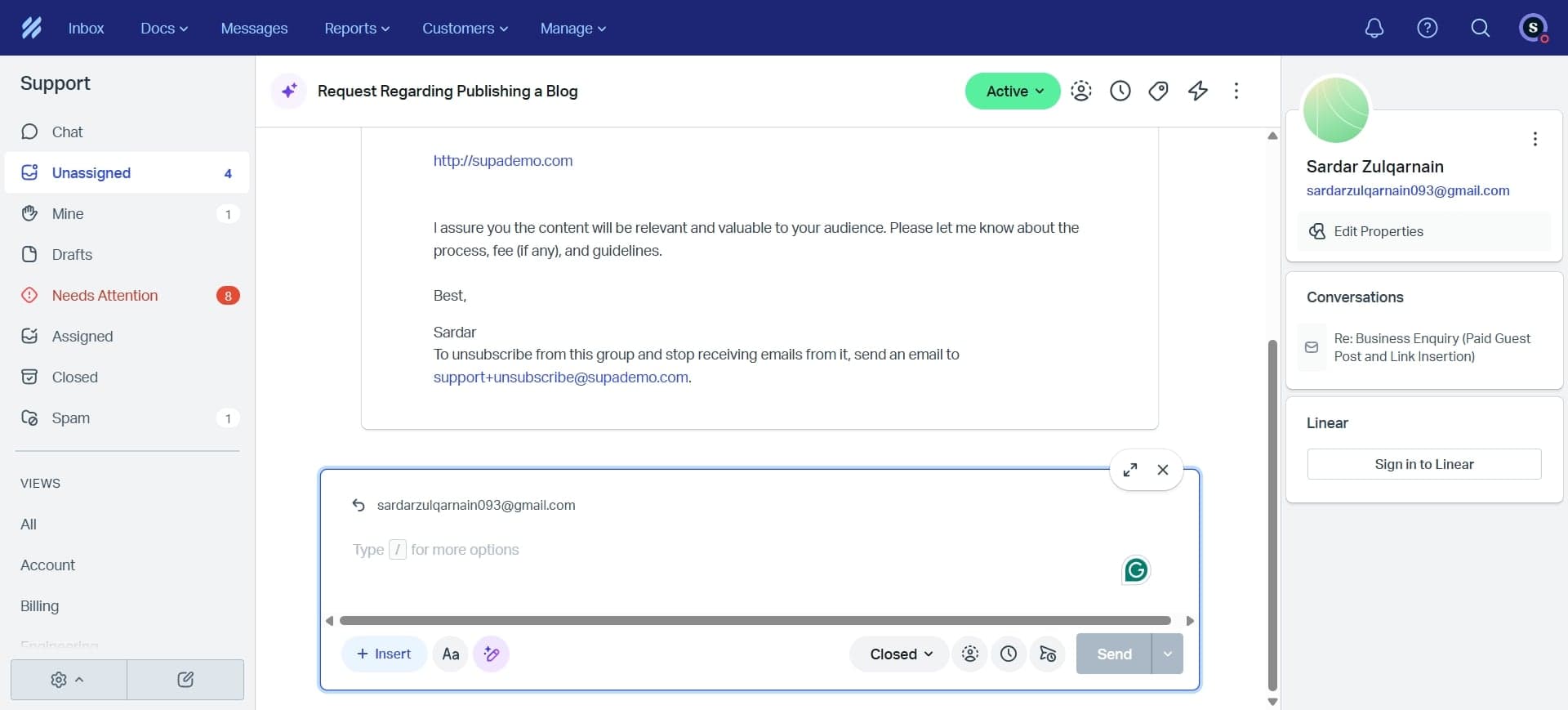
- 8
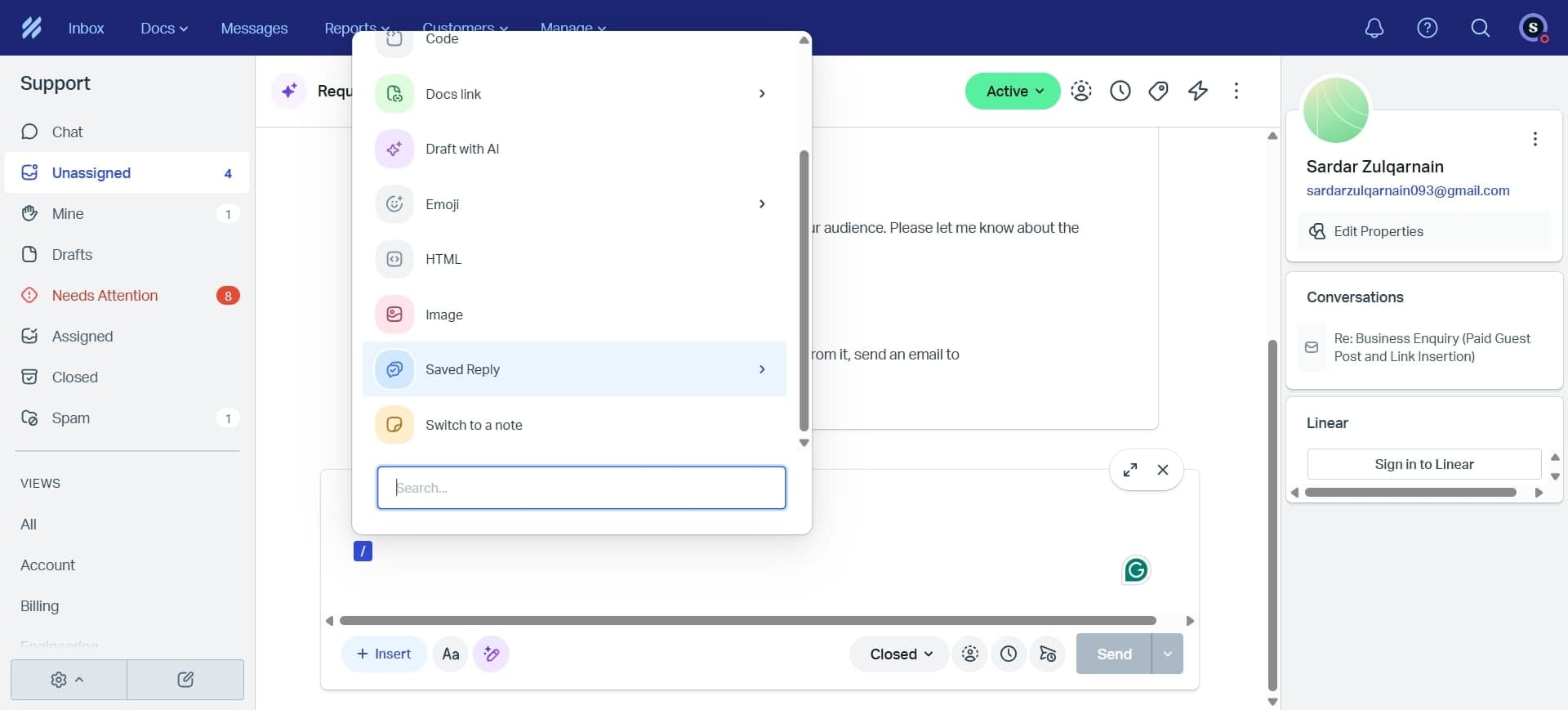
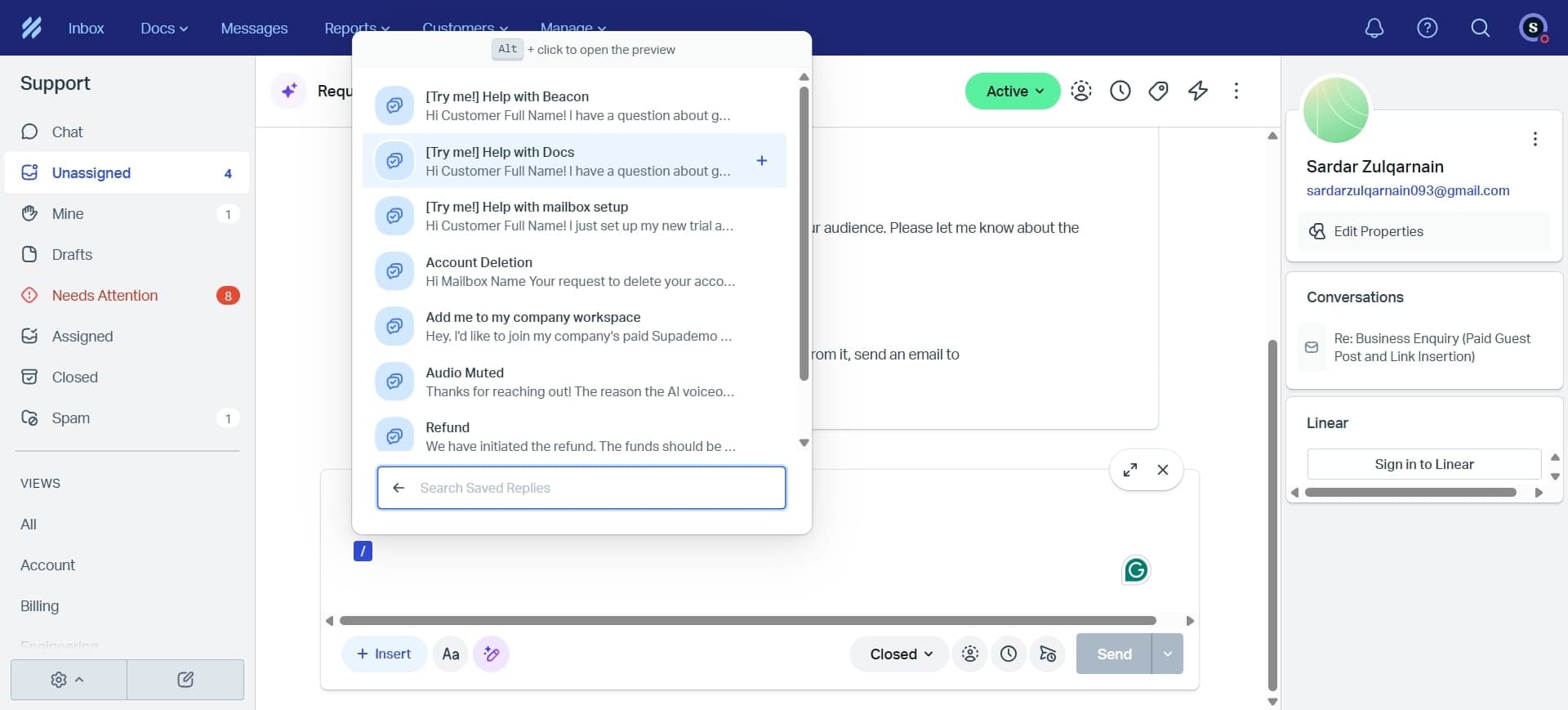
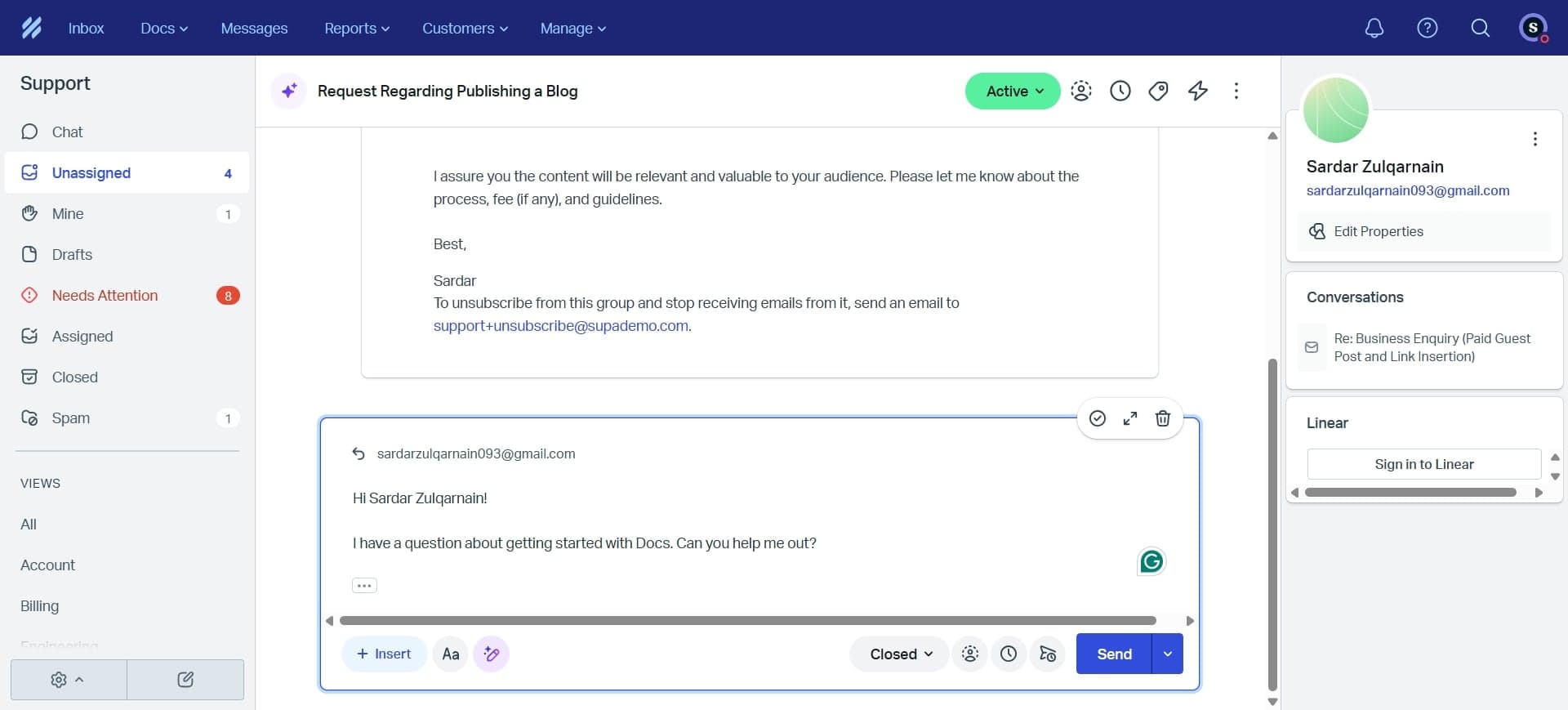
Apply saved reply to a conversation
When responding to a customer, look for the Saved Replies option in the compose window. Select your pre-written reply from the list and customize it as needed before sending.
Frequently asked questions
Common questions about how to use saved replies in helpscout.
Can I edit a Saved Reply after creating it?
Yes, you can edit Saved Replies at any time by accessing the Saved Replies section in settings and selecting the reply you want to modify. Changes apply to the template going forward and won't affect previously sent responses. This allows you to keep your replies current and relevant.
Can different team members have access to different Saved Replies?
Yes, HelpScout allows you to set visibility permissions for each Saved Reply. You can create team-specific replies or make them available to your entire support team during setup or editing.
Is there a limit to how many Saved Replies I can create?
HelpScout doesn't impose a strict limit on the number of Saved Replies you can create, but it's best practice to keep your library organized and manageable. Focus on creating replies for your most common inquiries to maximize efficiency.
Can I add personalization to my Saved Replies?
Yes, most Saved Replies can include customer information like names, email addresses, or ticket details through HelpScout's personalization tokens. Check your HelpScout documentation to see which tokens are available for your account.
How do I search for a Saved Reply quickly during a conversation?
When composing a response, HelpScout typically displays your Saved Replies in a searchable list. You can type keywords from your reply title to quickly filter and find the template you need.