How to wrap texts in Google Sheets

Text wrapping in Google Sheets allows you to display long content within a single cell without expanding column widths or losing readability. This feature is essential when working with descriptions, notes, or multi-line entries that need to remain organized within their cells.
Quick summary
In this tutorial, you'll learn how to apply text wrapping to cells in Google Sheets. By following these straightforward steps, you'll be able to format your spreadsheet so that longer text displays across multiple lines within each cell.
Why this matters
Text wrapping improves spreadsheet clarity and professionalism by keeping your data neatly contained. Without wrapping, long text either overflows into adjacent cells or gets cut off, making your sheet harder to read and less suitable for sharing or printing.
Step-by-step guide
- 1
Select the cells to wrap
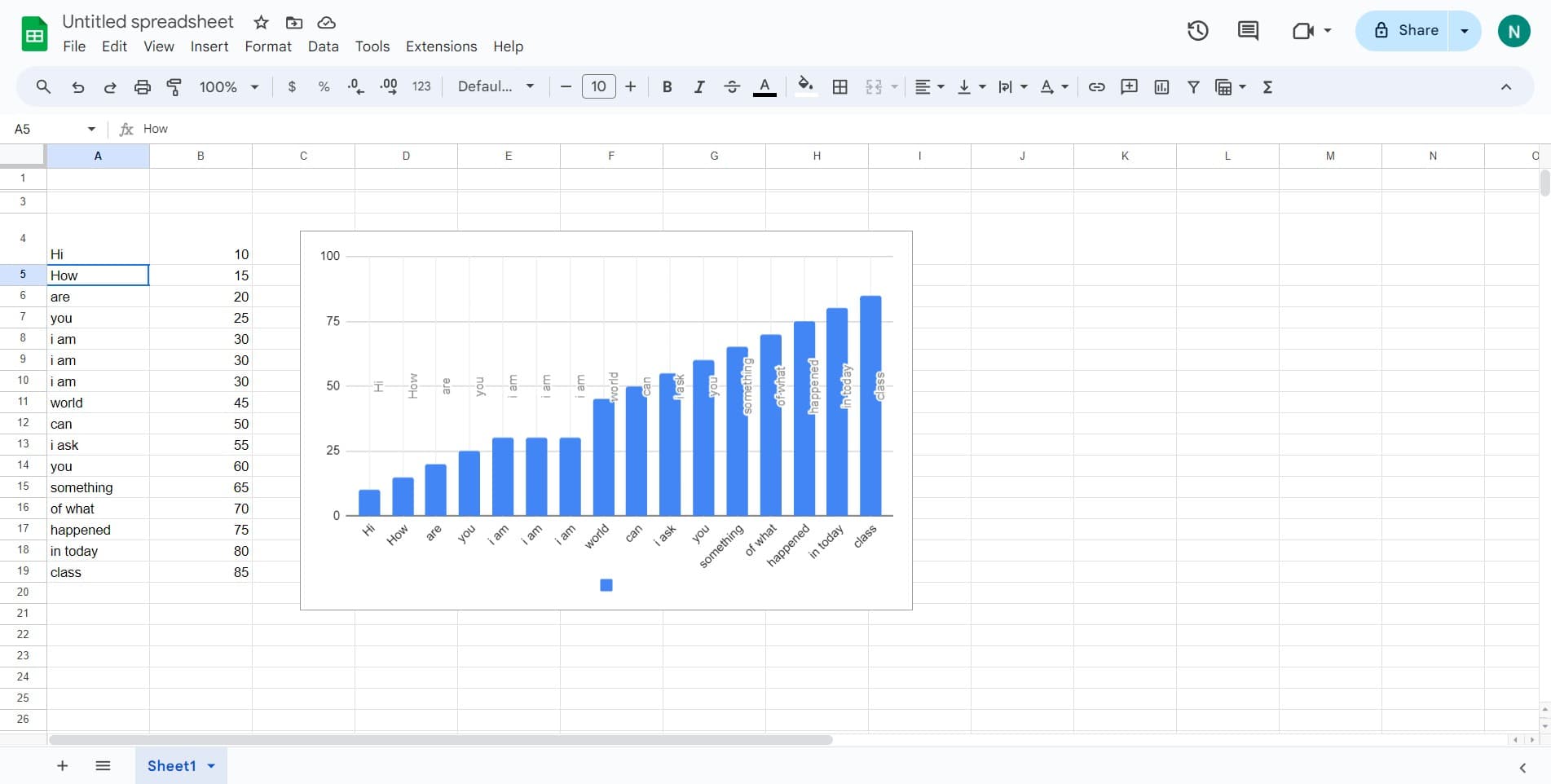
Begin by clicking on the cell or range of cells containing the text you want to wrap. You can select a single cell, multiple cells, or an entire column depending on your needs.
- 2
Open the Format menu
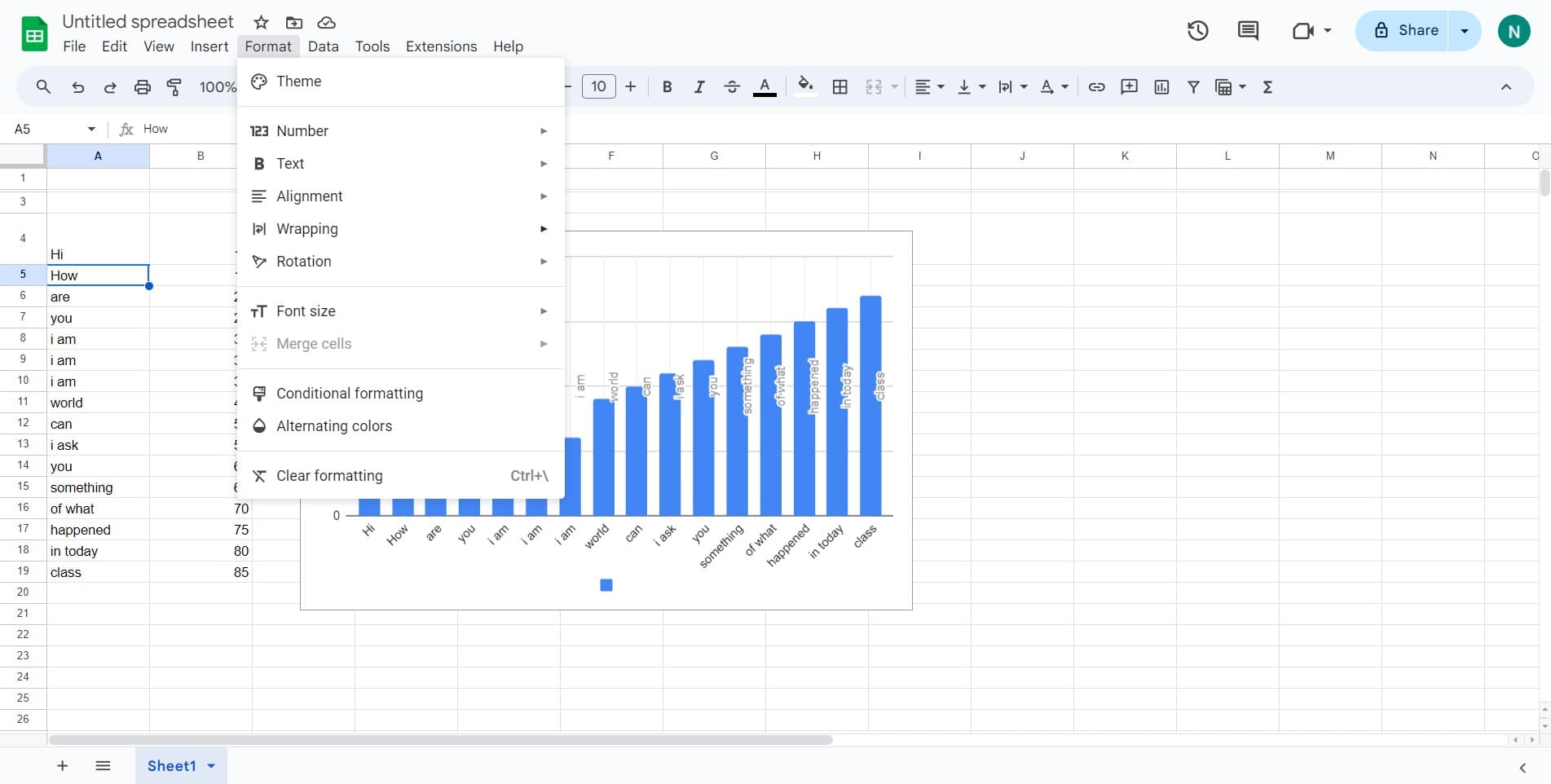
Click on the Format menu in the top navigation bar. This will open a dropdown menu with various formatting options for your selected cells.
- 3
Navigate to Wrapping options
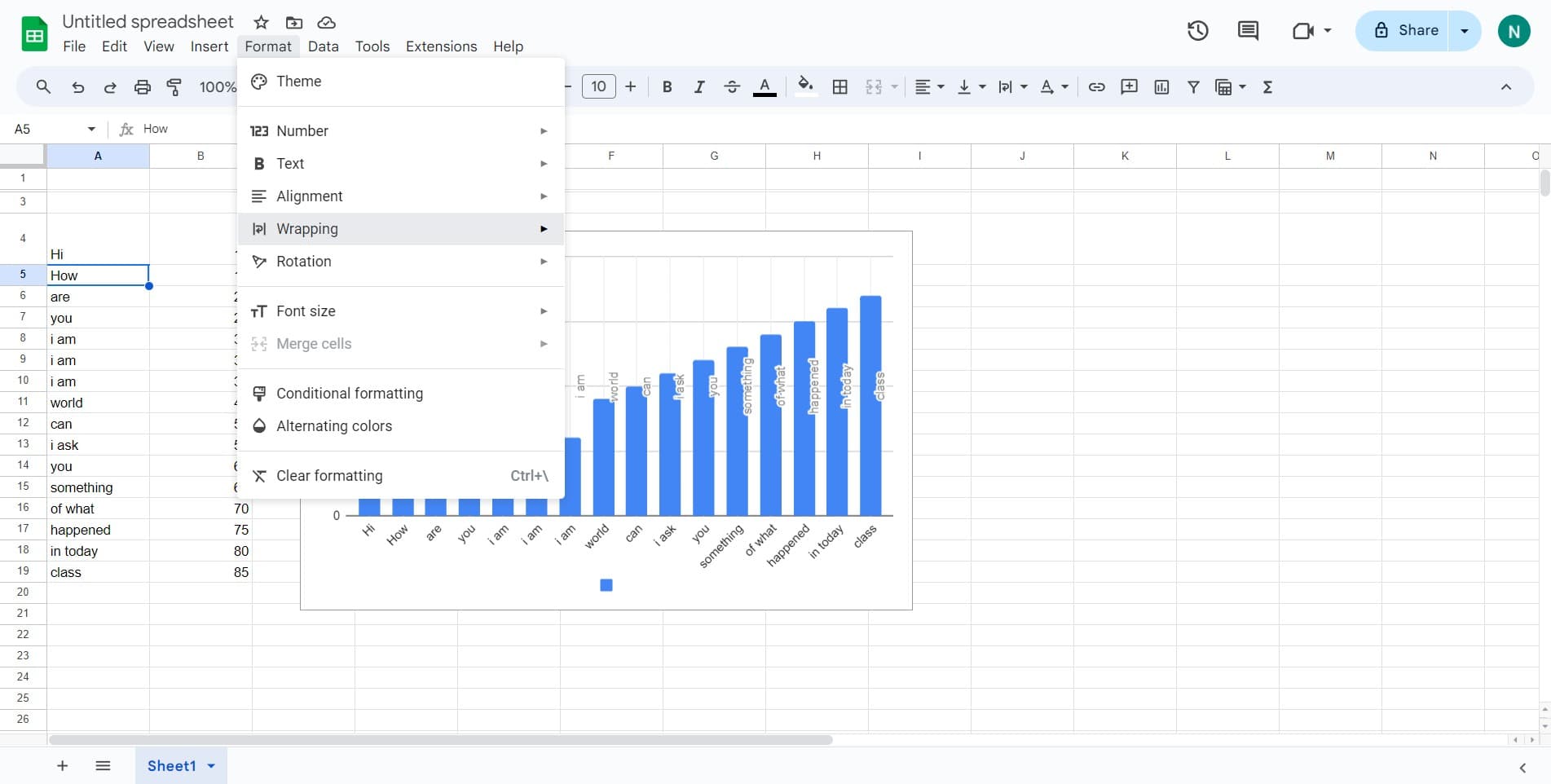
From the Format dropdown, locate and hover over or click on the Wrapping option. This will reveal a submenu with different text wrapping settings.
- 4
Apply Wrap text
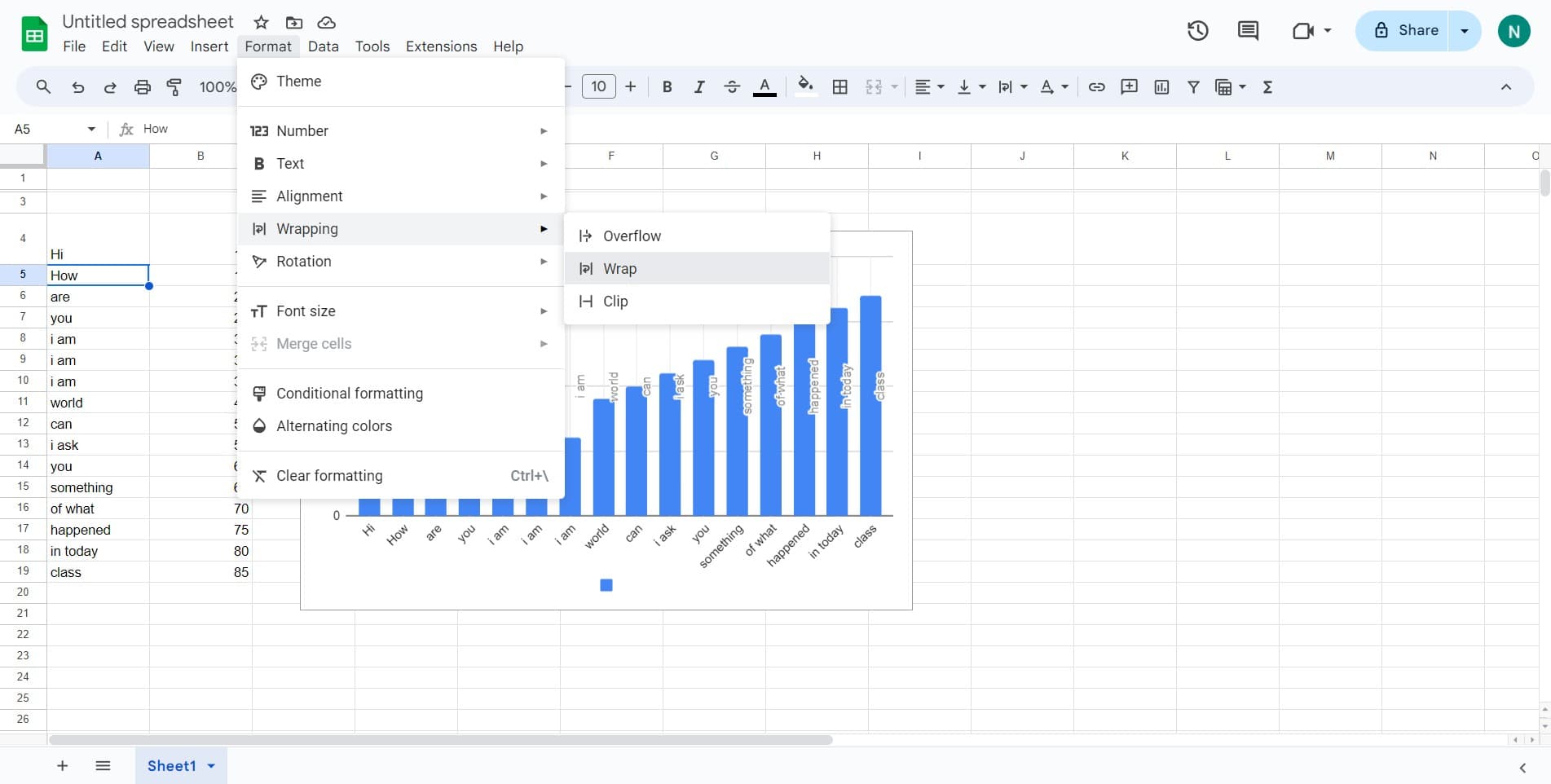
Click on the Wrap option (often labeled as just 'Wrap' or with a wrap icon). Google Sheets will immediately apply text wrapping to your selected cells, and any text that exceeds the cell width will now display on multiple lines.
Frequently asked questions
Common questions about how to wrap texts in google sheets.
Can I wrap text in just one cell, or do I need to wrap an entire column?
You can wrap text in individual cells or select multiple cells at once to apply wrapping to all of them simultaneously. This gives you complete flexibility to format only the cells that need it.
What happens to row height when I enable text wrapping?
Google Sheets automatically adjusts the row height to accommodate wrapped text so that all content remains visible. You can also manually adjust row height if needed by dragging the row border.
Can I undo text wrapping if I change my mind?
Yes, you can easily undo text wrapping by selecting the wrapped cells, going to Format > Wrapping, and choosing the unwrap option. You can also use Ctrl+Z (or Cmd+Z on Mac) to undo immediately after applying it.
Does text wrapping affect how data is exported or printed?
Text wrapping carries over to most export formats and print layouts, so your wrapped formatting will generally be preserved when you download or print your spreadsheet. However, some formats may handle wrapping differently, so it's worth checking your specific export needs.
What's the difference between Wrap, Overflow, and Clip text options?
Wrap displays text on multiple lines within the cell and expands row height automatically. Overflow allows text to extend into adjacent cells if they're empty. Clip hides any text that exceeds the cell boundaries. Choose based on your layout and readability needs.