How to create a chart view in Airtable

Chart views in Airtable transform raw data into visual insights, making it easier to spot trends and patterns at a glance. This guide walks you through creating a chart view from your existing Airtable base, enabling you to visualize your data in meaningful ways without leaving the platform.
Quick summary
In this tutorial, you'll learn how to add a chart view to your Airtable base by accessing the visualization options and configuring your extension. You'll discover where to find the chart feature and how to set it up to display your data effectively.
Why this matters
Chart views are essential for data-driven decision-making, allowing teams to quickly understand patterns and relationships in their data. Rather than analyzing spreadsheets manually, visualizations help stakeholders grasp insights immediately and communicate findings more persuasively.
Step-by-step guide
- 1
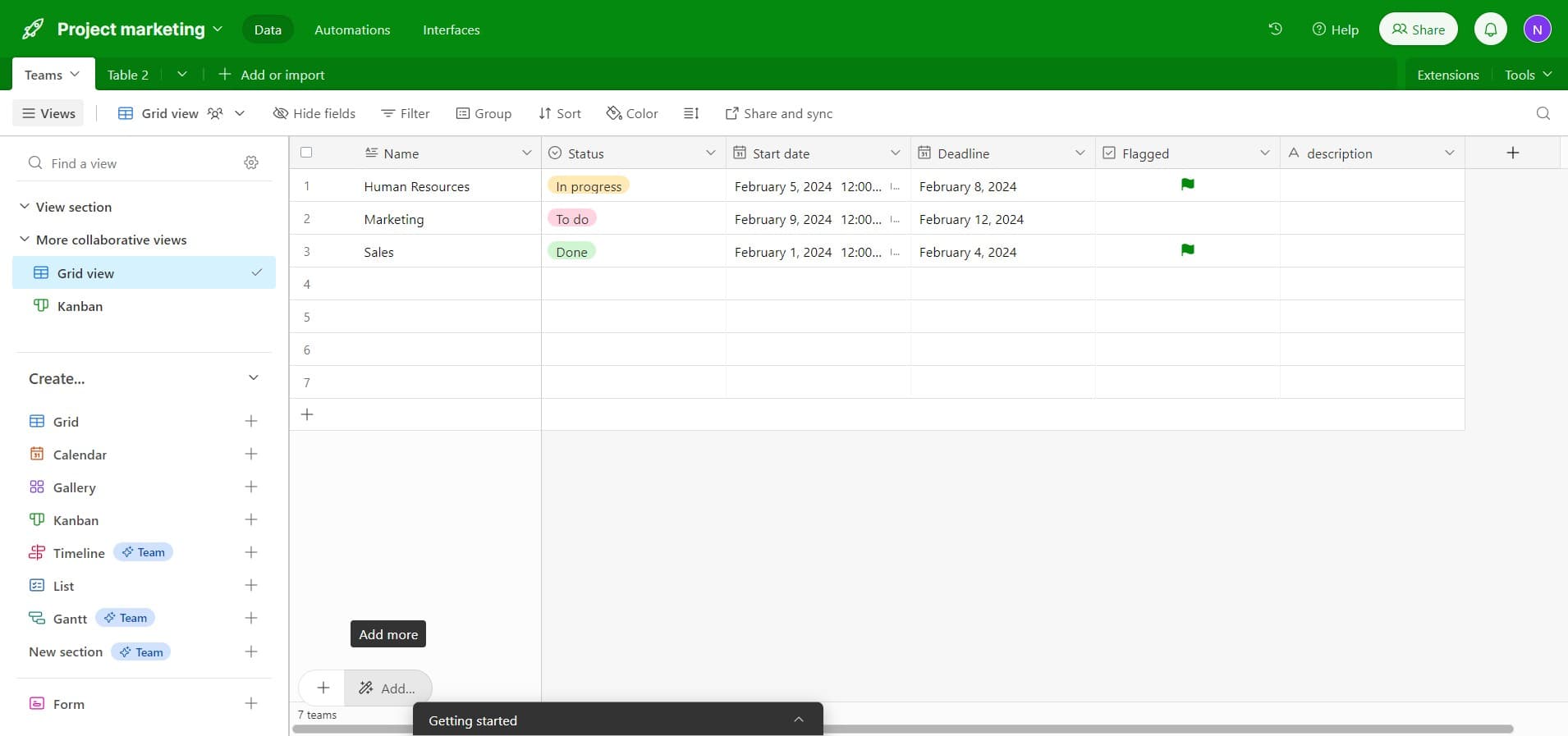
Click on the Add button
In your Airtable base, locate and click the 'Add...' button, typically found at the top of your views panel. This opens the menu for adding new views or extensions to your base.
- 2
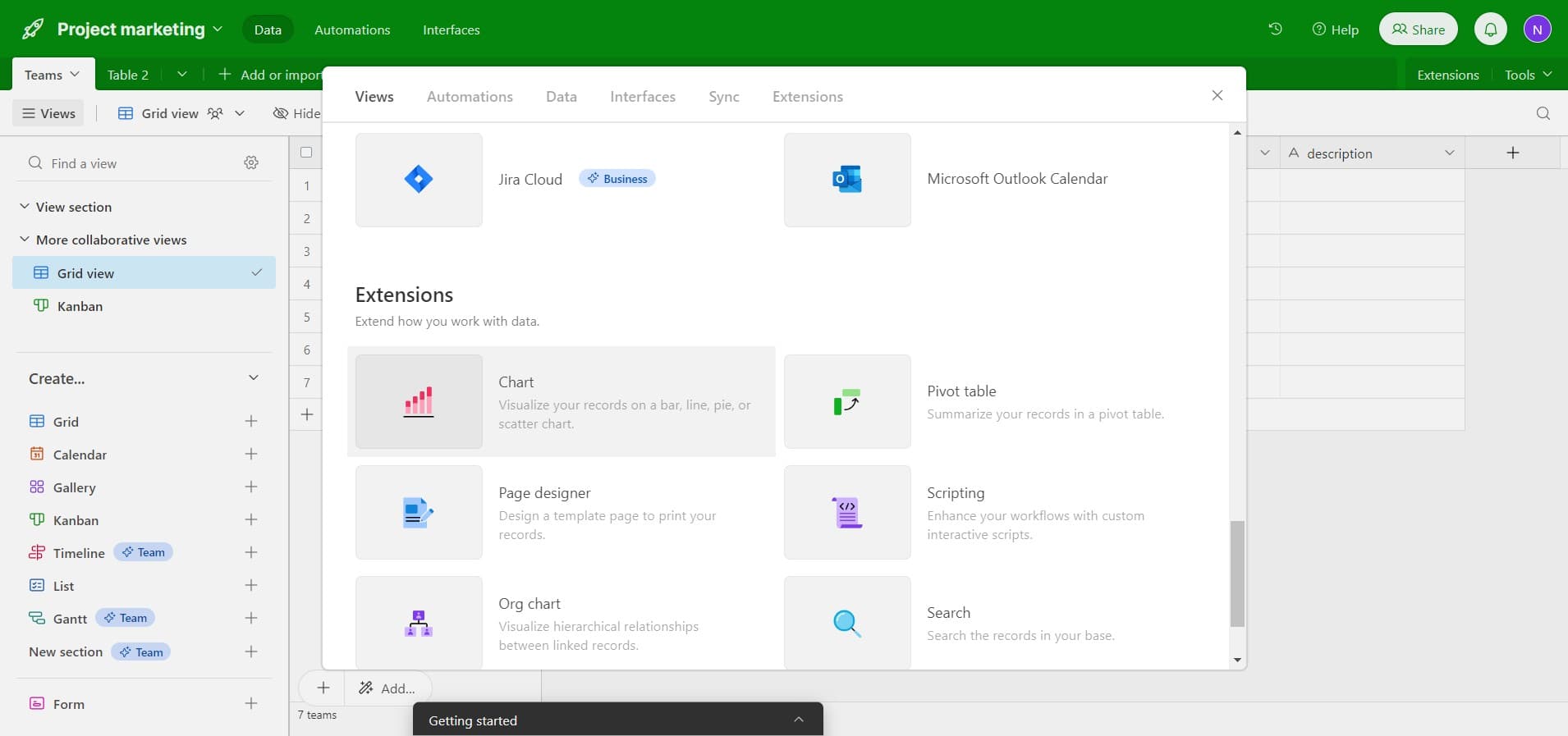
Select Visualize your data
From the dropdown menu, click on 'Visualize your...' option to access the visualization features available for your base. This reveals chart and other visual view options.
- 3
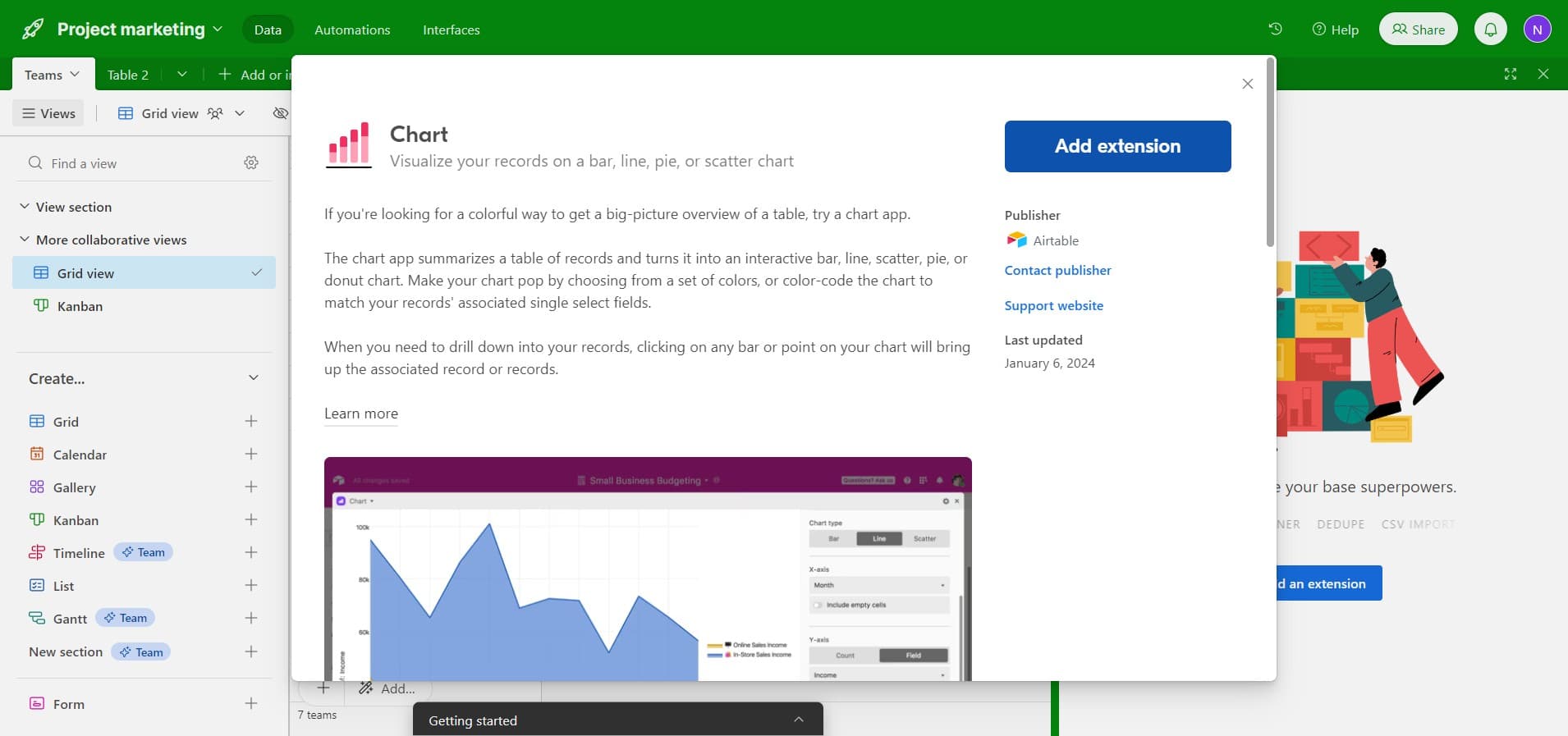
Click Add extension
Select 'Add extension' from the available options to enable chart functionality. This prepares your base to integrate the charting extension.
- 4
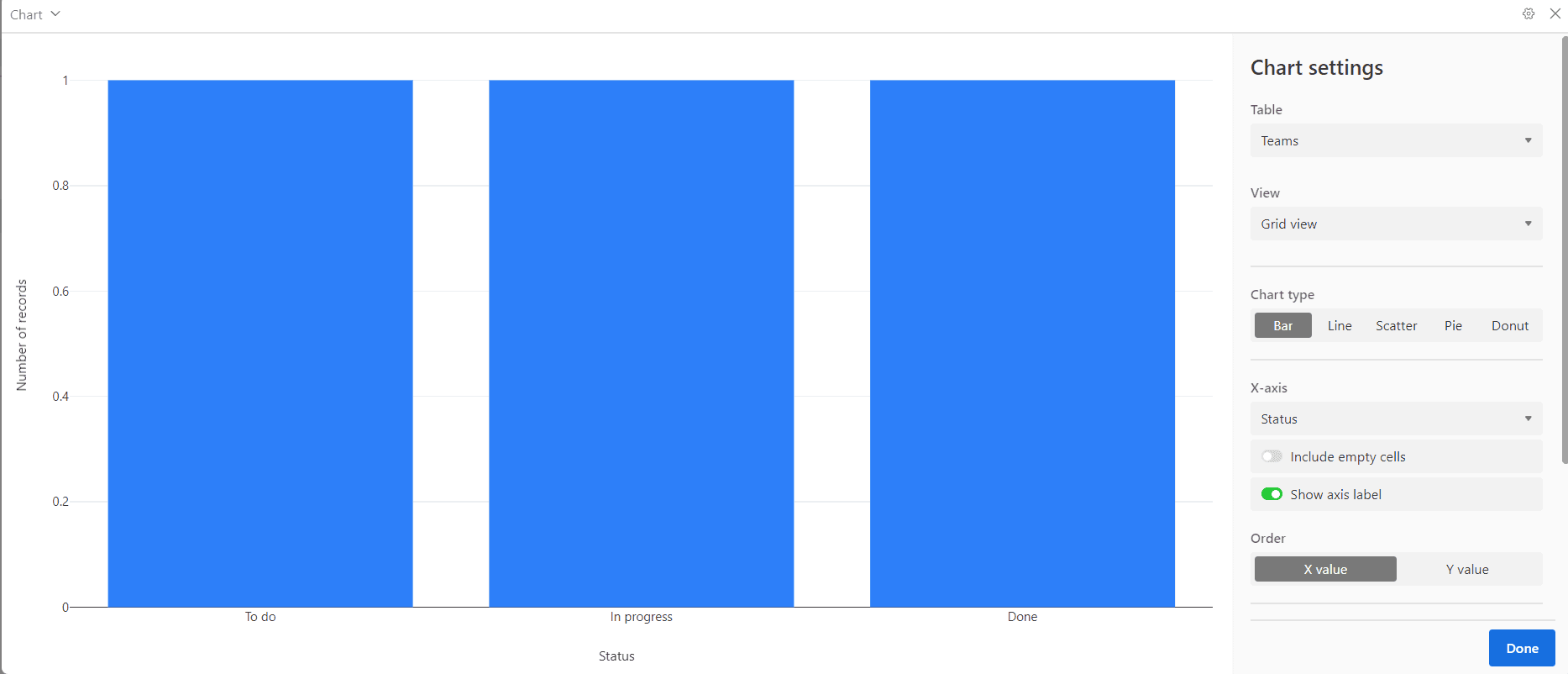
Upload configuration step one
Complete the first upload step by selecting or configuring your chart parameters. Follow the on-screen prompts to specify the data source and initial chart settings.
- 5
Upload configuration step two
Proceed with the second upload step, continuing to refine your chart configuration. Configure additional parameters as needed for your visualization.
- 6
Upload configuration step three
Complete the third upload step to further customize your chart settings. Review and adjust any remaining options to match your data visualization requirements.
- 7
Upload configuration step four
Perform the fourth upload step to finalize your chart configuration. Ensure all settings align with your intended visualization outcome.
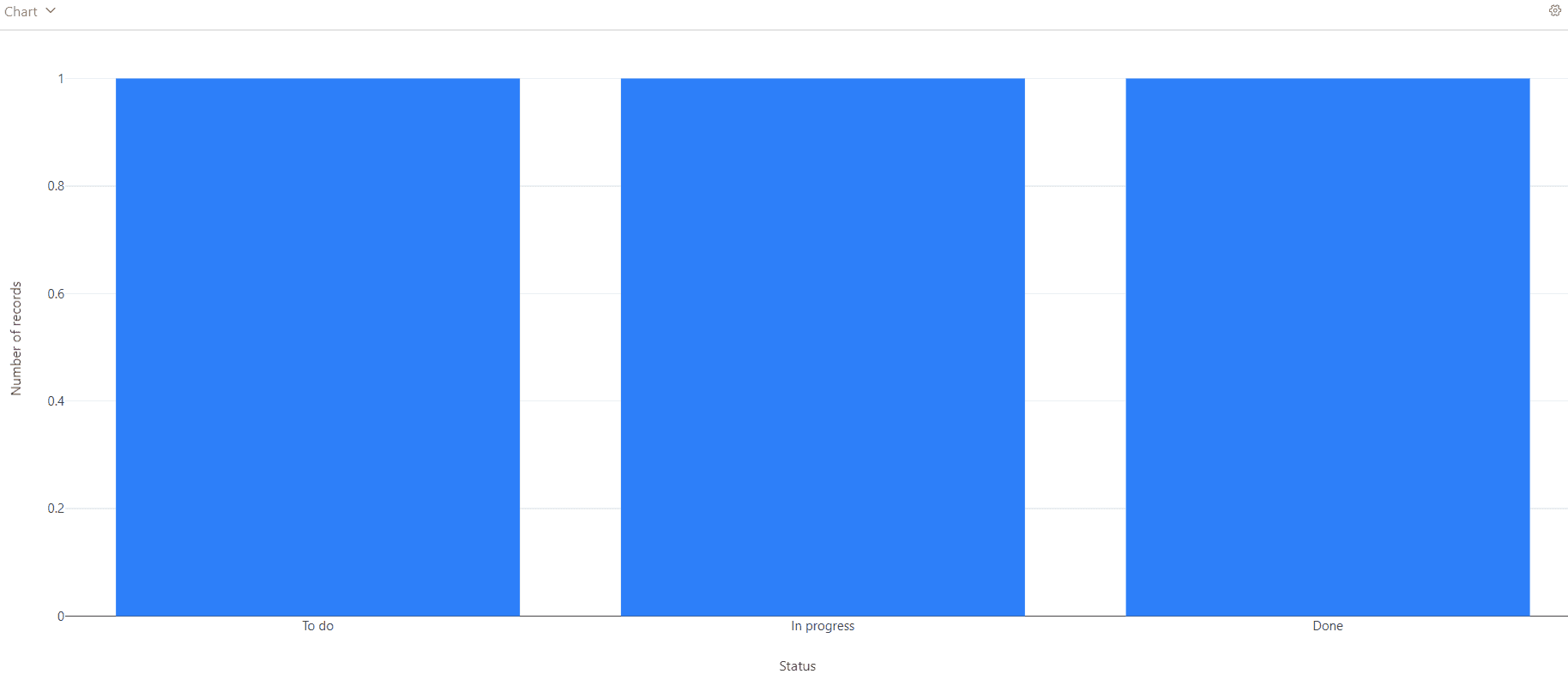
- 8
Upload and activate the chart view
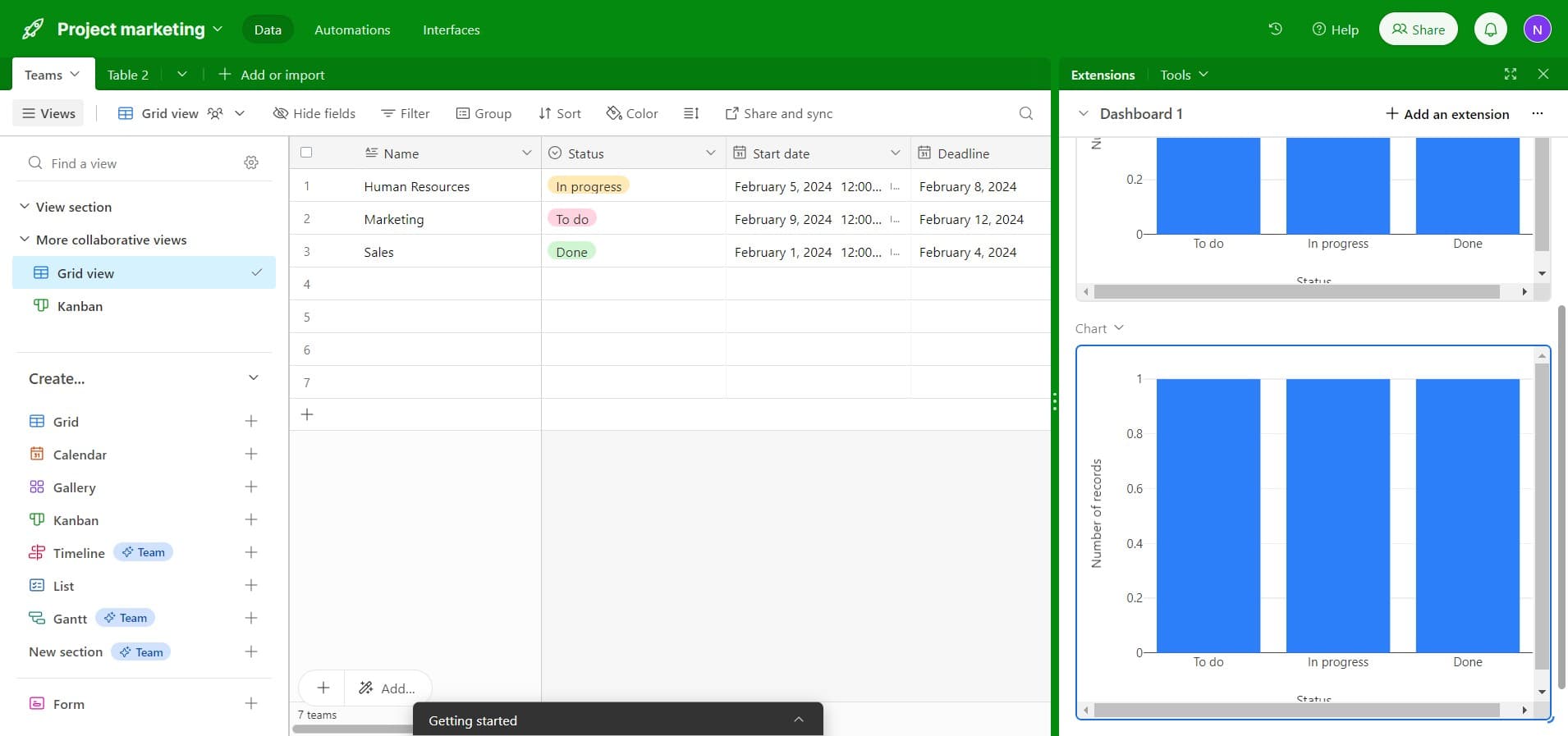
Complete the final upload step to activate your chart view. Your chart will now appear as a new view in your base, displaying your data visually.
Frequently asked questions
Common questions about how to create a chart view in airtable.
Airtable supports various chart types including bar charts, pie charts, line graphs, and scatter plots. The available chart types depend on your data structure and field types. Select the chart type that best represents your data relationships and insights.
Yes, you can edit your chart view at any time by clicking on the chart settings. Modify the fields being visualized, change the chart type, adjust filters, and update grouping options to refine your visualization.
Chart views are available on most Airtable plans, but functionality may vary depending on your subscription level. Check your current plan details to confirm access to all charting features you need.
Share chart views by sharing your entire base or specific views through Airtable's sharing settings. You can control permissions to determine whether team members can view, edit, or comment on the chart.
Your chart updates automatically whenever the underlying data changes. This real-time synchronization ensures your visualizations always reflect the current state of your base without manual refreshing.