How to set up and embed a kanban board in Airtable

Kanban boards in Airtable provide a visual way to organize and track your work across different stages. This guide walks you through setting up a kanban view and embedding it for seamless collaboration with your team.
Quick summary
In this tutorial, you'll learn how to create a kanban board view in Airtable, customize it with sorting and filtering options, and embed it for easy access. By the end, you'll have a fully functional kanban board ready to share with stakeholders.
Why this matters
Kanban boards help teams visualize workflow progress and identify bottlenecks at a glance. Embedding your kanban view makes it accessible to team members and clients without requiring them to log into Airtable, improving transparency and collaboration.
Step-by-step guide
- 1
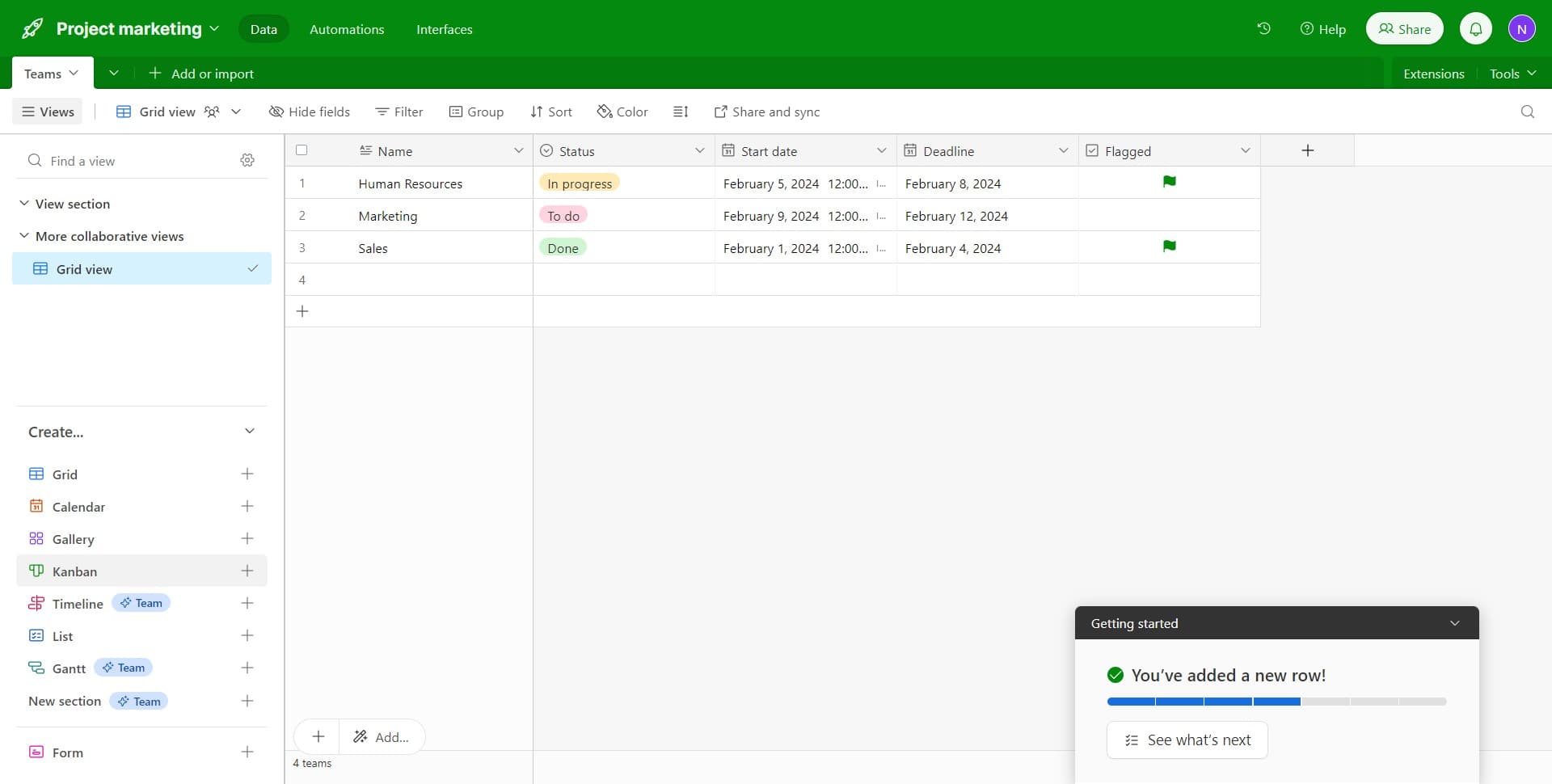
Open the Kanban view type
Click on 'Kanban' to access Airtable's kanban board layout. This will allow you to visualize your records as cards organized by status columns.
- 2
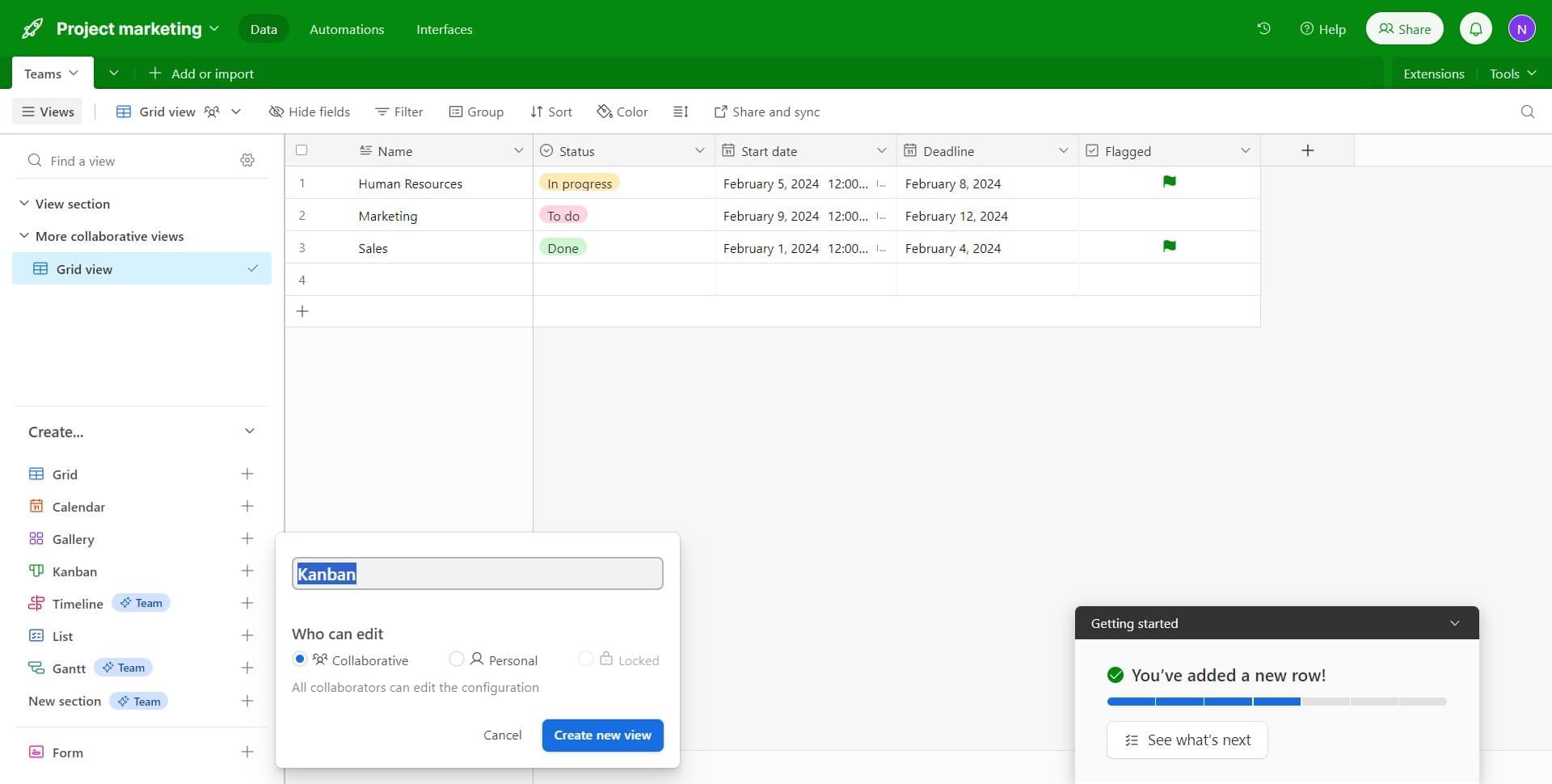
Create a new view
Click on 'Create new view' to start building your kanban board. You'll be prompted to configure the view settings and choose which field will organize your cards into columns.
- 3
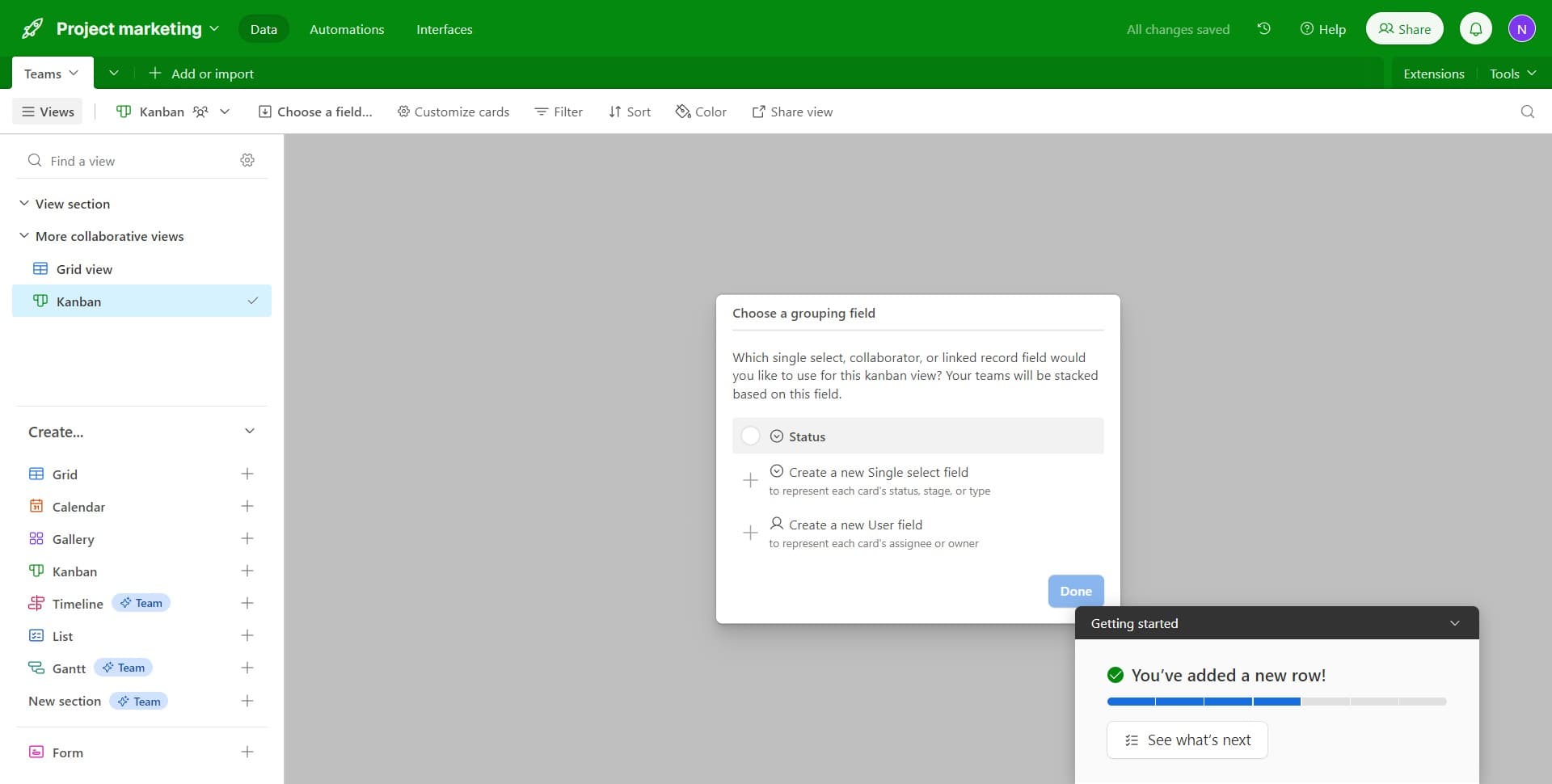
Confirm view setup
Click the confirmation button to proceed with the kanban view creation. Airtable will now generate your board with the default column configuration.
- 4
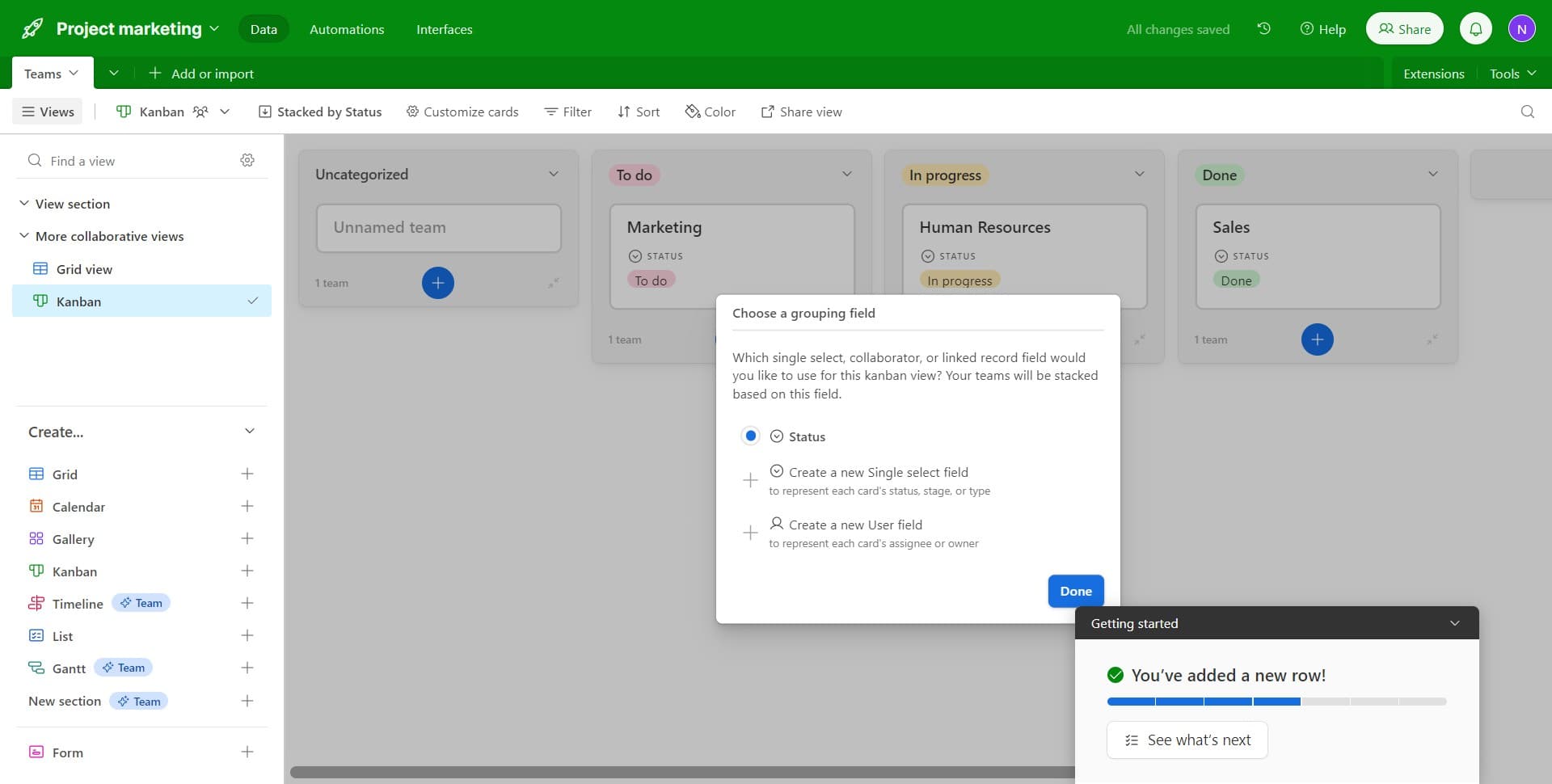
Finalize the view
Click on 'Done' to complete the initial setup of your kanban board. Your view is now active and ready for customization.
- 5
Add sorting rules
Click on 'Sort' to organize your cards within each column. You can sort by multiple fields to prioritize tasks and improve readability.
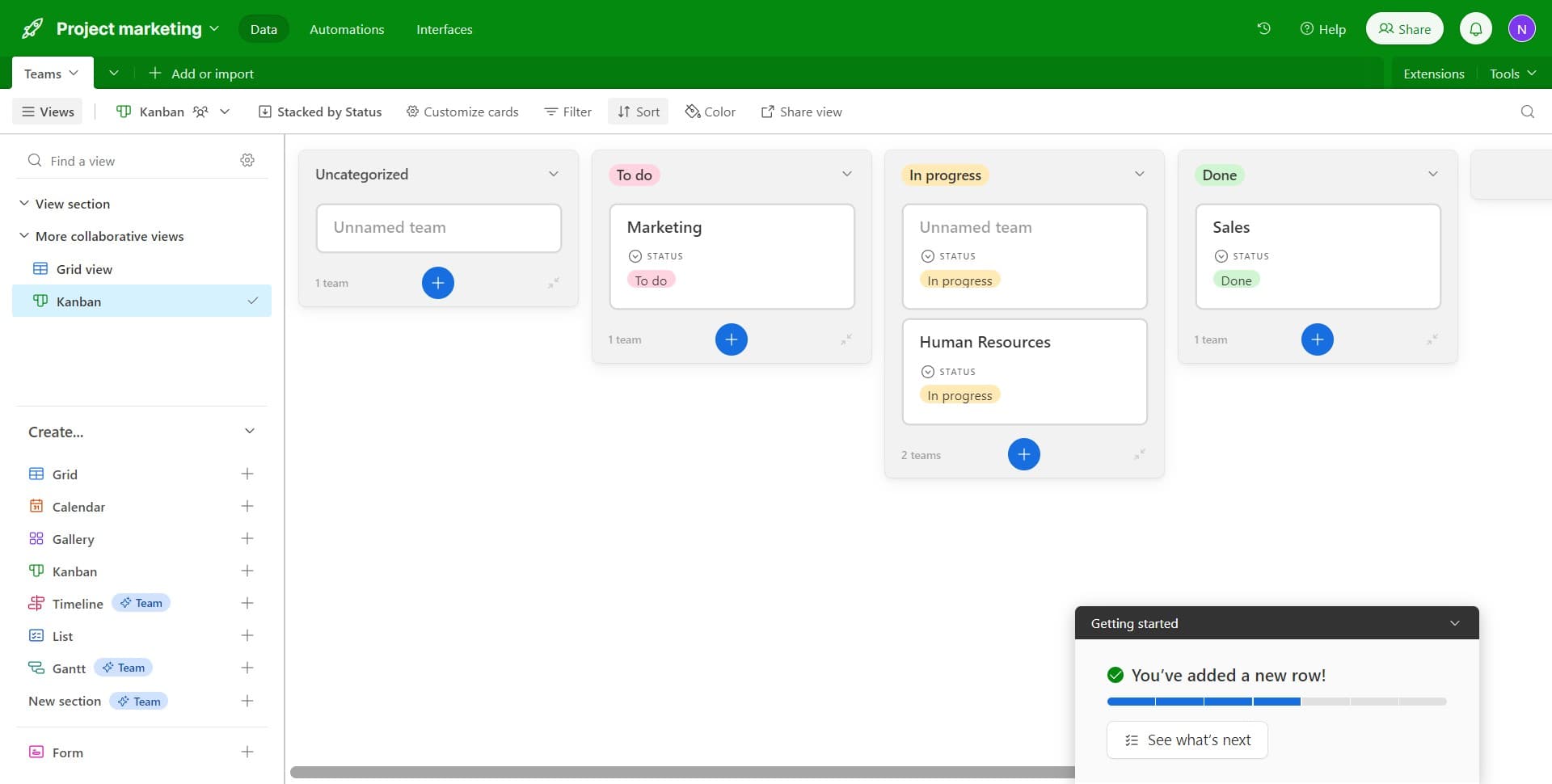
- 6
Apply filtering criteria
Click on 'Filter' to show only the records that meet your specified conditions. This helps you focus on relevant tasks and reduce visual clutter.
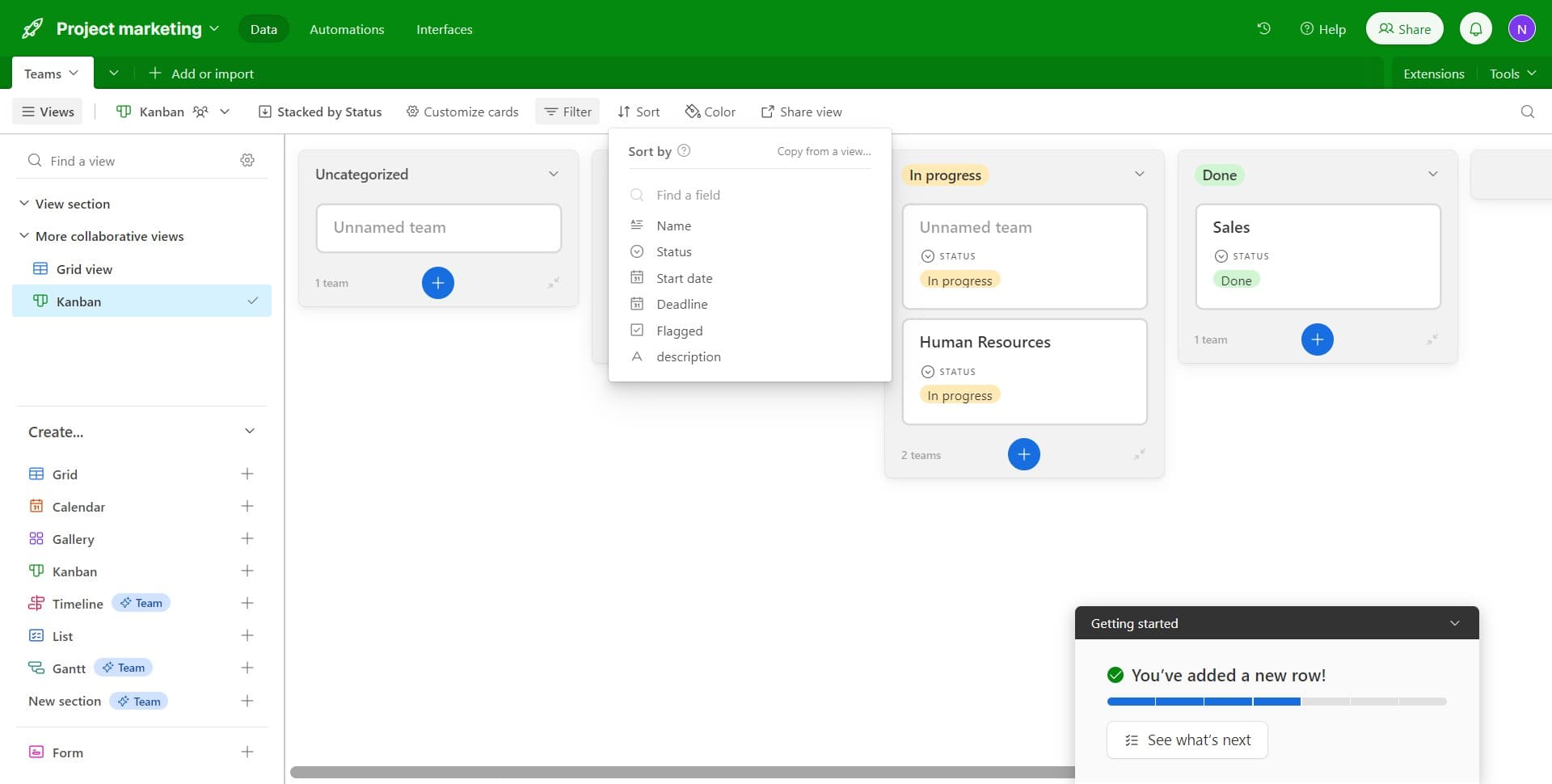
- 7
Select your filter field
Click on 'Name' to choose which field you want to filter by. This is typically a status, priority, or category field that segments your work.
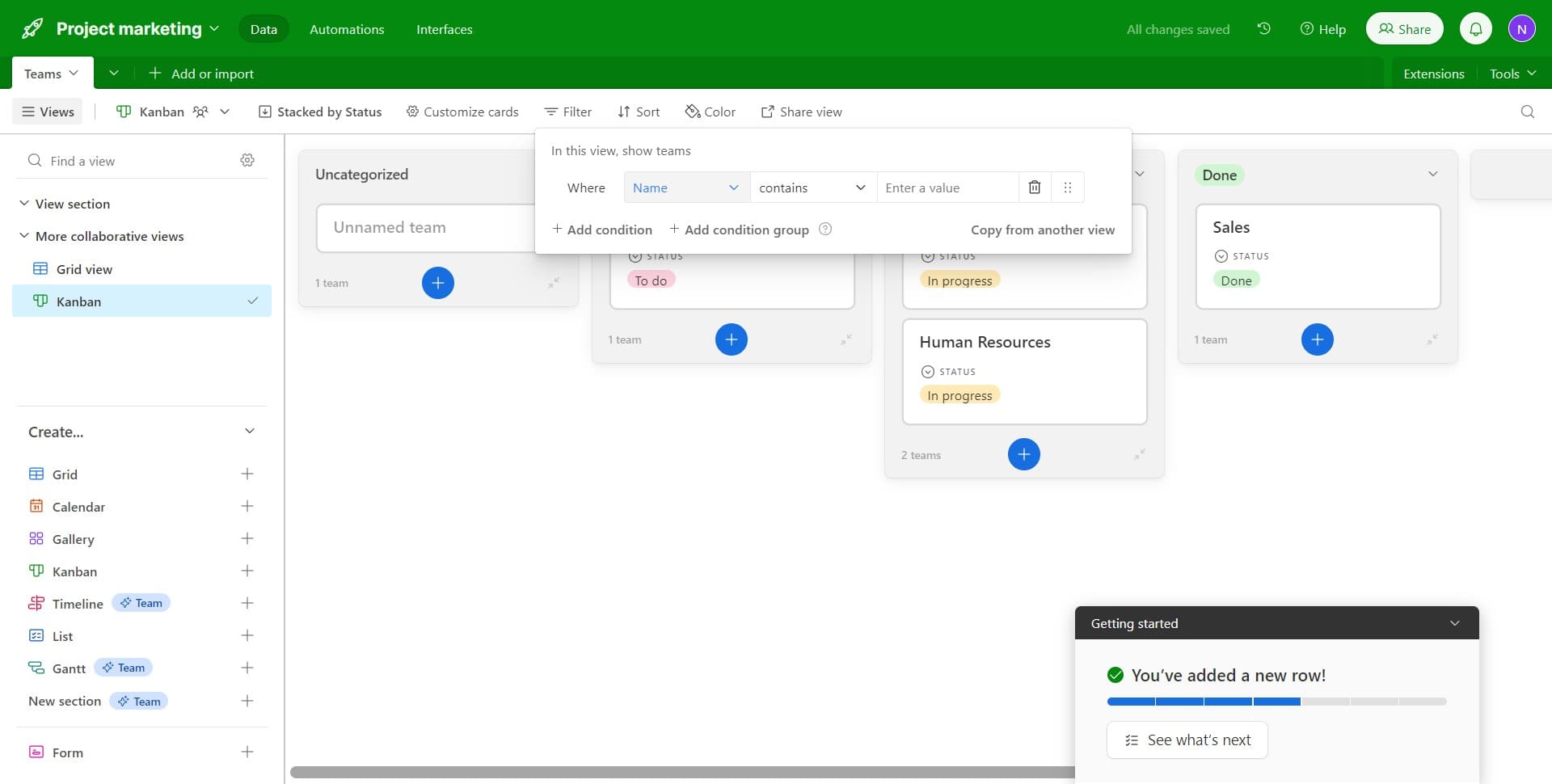
- 8
Set filter conditions
Click on 'In progress' to specify the filter value. This will display only cards with that status, allowing you to focus on active work items.
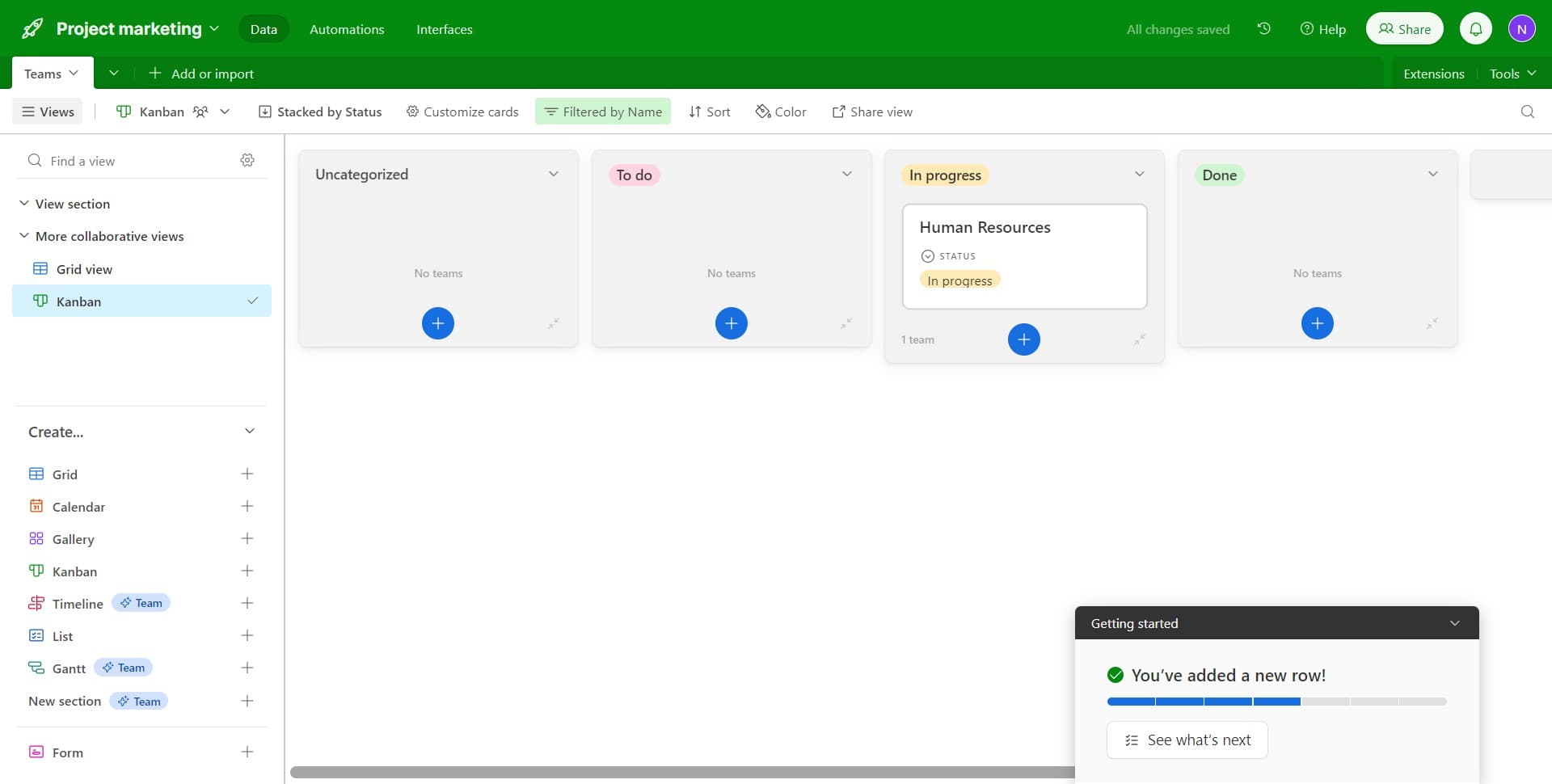
- 9
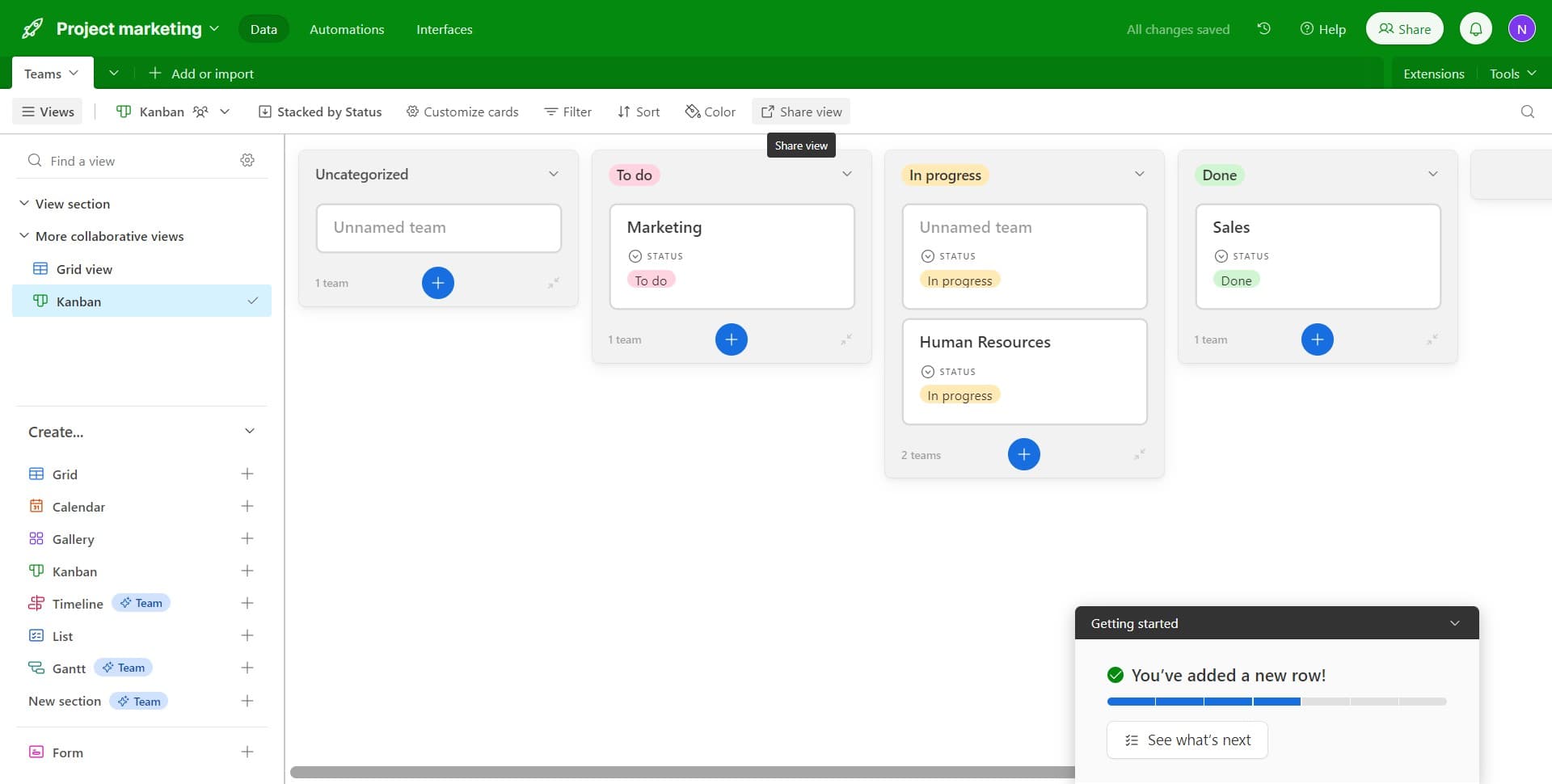
Access sharing options
Click on 'Share view' to open the sharing menu. This gives you options to control who can access your kanban board.
- 10
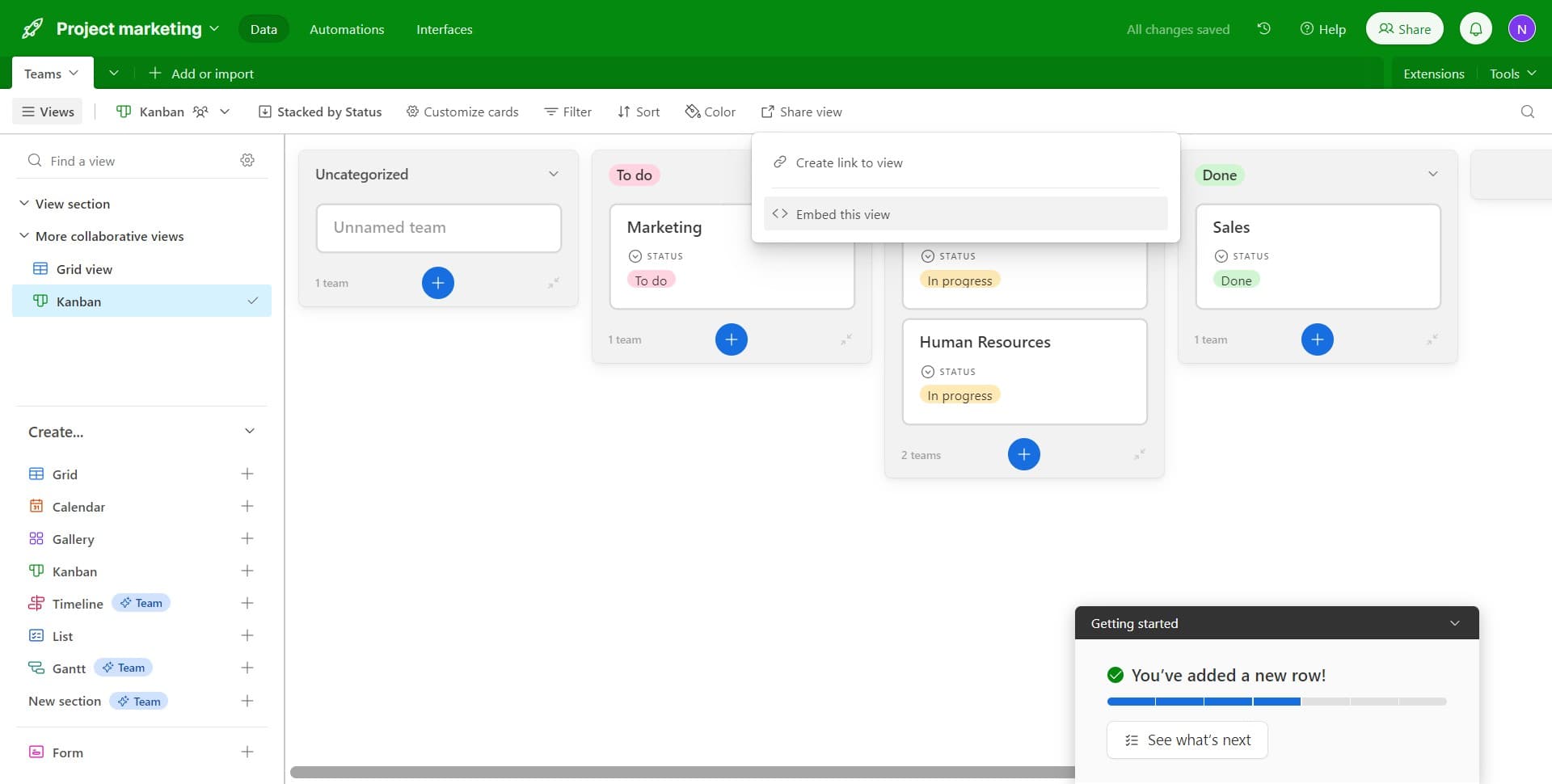
Embed the kanban view
Click on 'Embed this view' to generate an embed code. You can now place your kanban board on a website, blog, or internal portal for external access.
Frequently asked questions
Common questions about how to set up and embed a kanban board in airtable.
Yes, when you create a new kanban view, Airtable asks you to select the field that will organize cards into columns. You can change this field at any time by editing the view settings. Common choices include status, stage, or priority fields.
Sorting arranges your cards in a specific order within each column, such as by due date or priority. Filtering hides cards that don't meet your criteria, showing only the records you want to see. Both can be used together.
Embedded views are read-only by default, meaning viewers can see the kanban board but cannot edit records directly. If you want to allow editing, you can adjust sharing permissions in your embed settings.
Airtable allows unlimited views per table, so you can create as many kanban boards, grids, calendars, and other view types as you need. Each view can have its own filters, sorts, and customizations.
Changes you make to the kanban view in Airtable are reflected in real-time on your embedded board. You don't need to regenerate the embed code or republish anything, making it easy to keep your board current.