How to set up and use conversations in Apollo.io

Apollo.io's Conversations feature enables teams to manage client communications and collaboration in one centralized place. This tutorial walks you through setting up conversations and using key features like sharing and drafting follow-up emails to streamline your sales workflow.
Quick summary
In this tutorial, you'll learn how to access the Conversations module in Apollo.io, view conversations in action, share insights with your team, and draft professional follow-up emails. By the end, you'll be able to manage multi-threaded communications and collaborate internally on prospect outreach.
Why this matters
Conversations in Apollo.io help sales teams maintain organized communication records with prospects while enabling internal collaboration. This reduces email clutter, ensures context isn't lost between team members, and allows for faster, more coordinated outreach that improves conversion rates.
Step-by-step guide
- 1
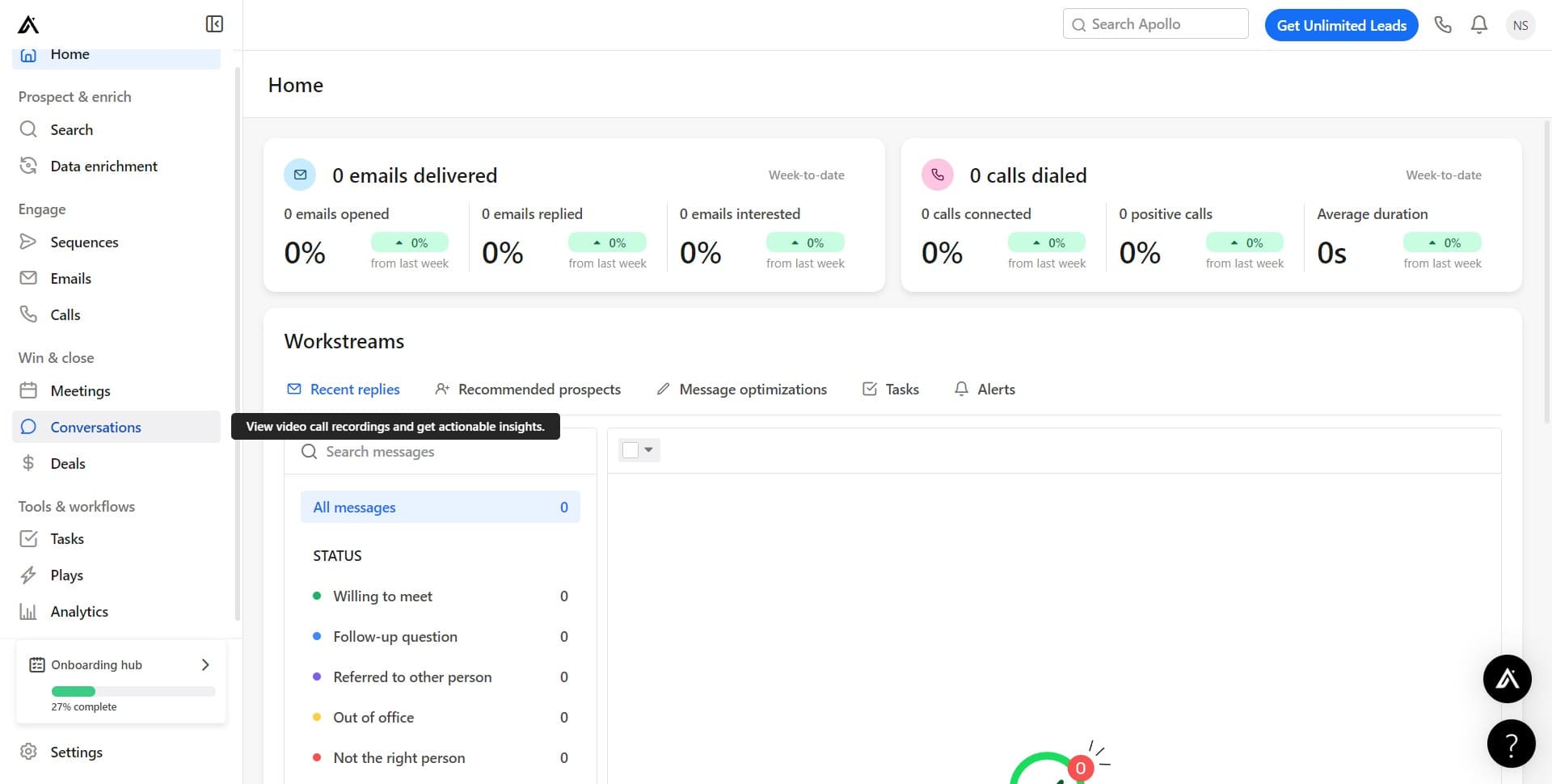
Access the Conversations feature
Navigate to the main menu and click on 'Conversations' to open the conversations module. This is your central hub for managing all client communications and team collaboration.
- 2
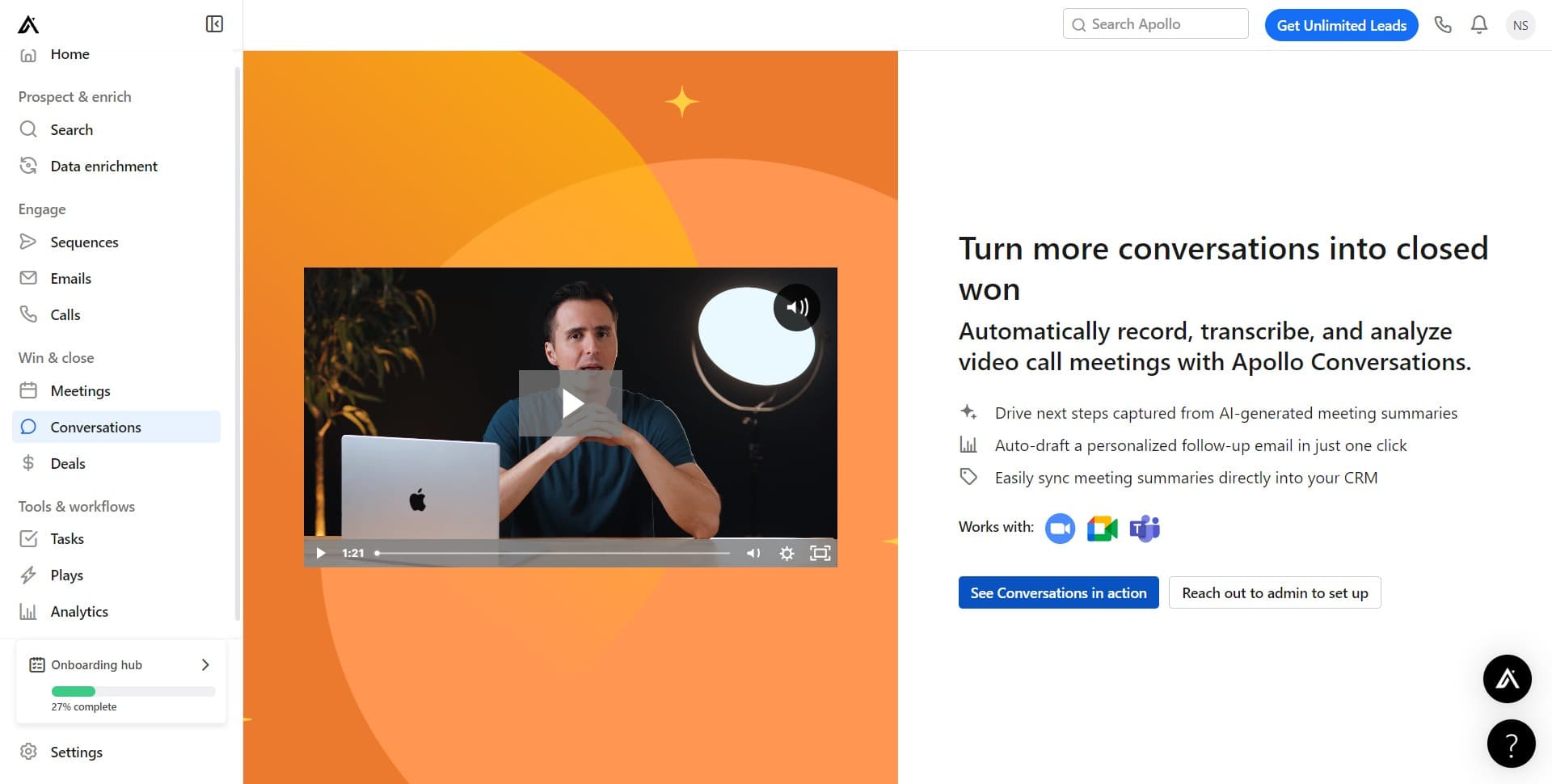
View Conversations in action
Click on 'See Conversations in action' to watch a brief demonstration of how the feature works. This overview will show you key capabilities before you start using it.
- 3
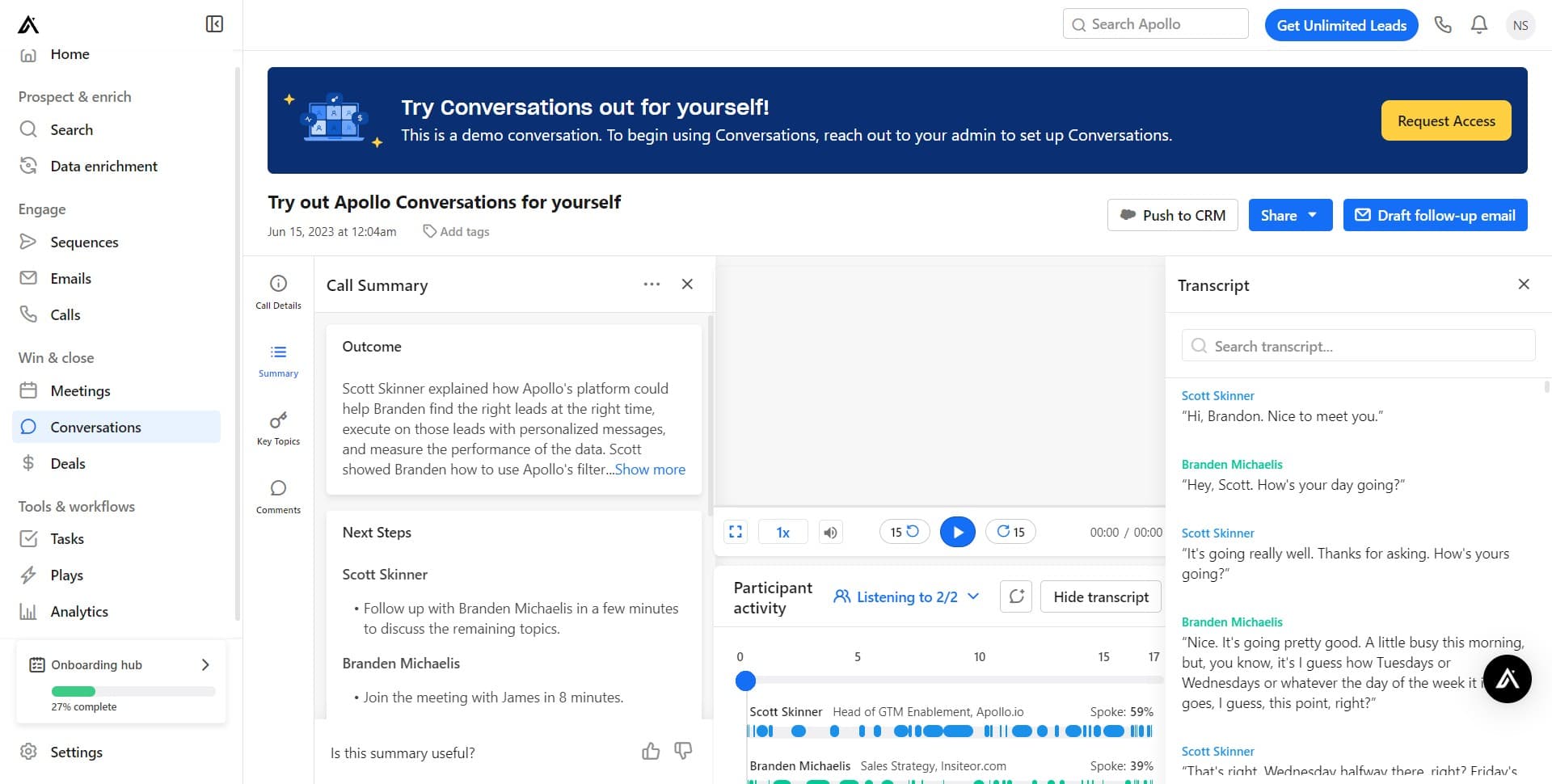
Skip the introductory tour
Click 'Skip Tour' to proceed directly to the conversations workspace. You can always return to learn more details later if needed.
- 4
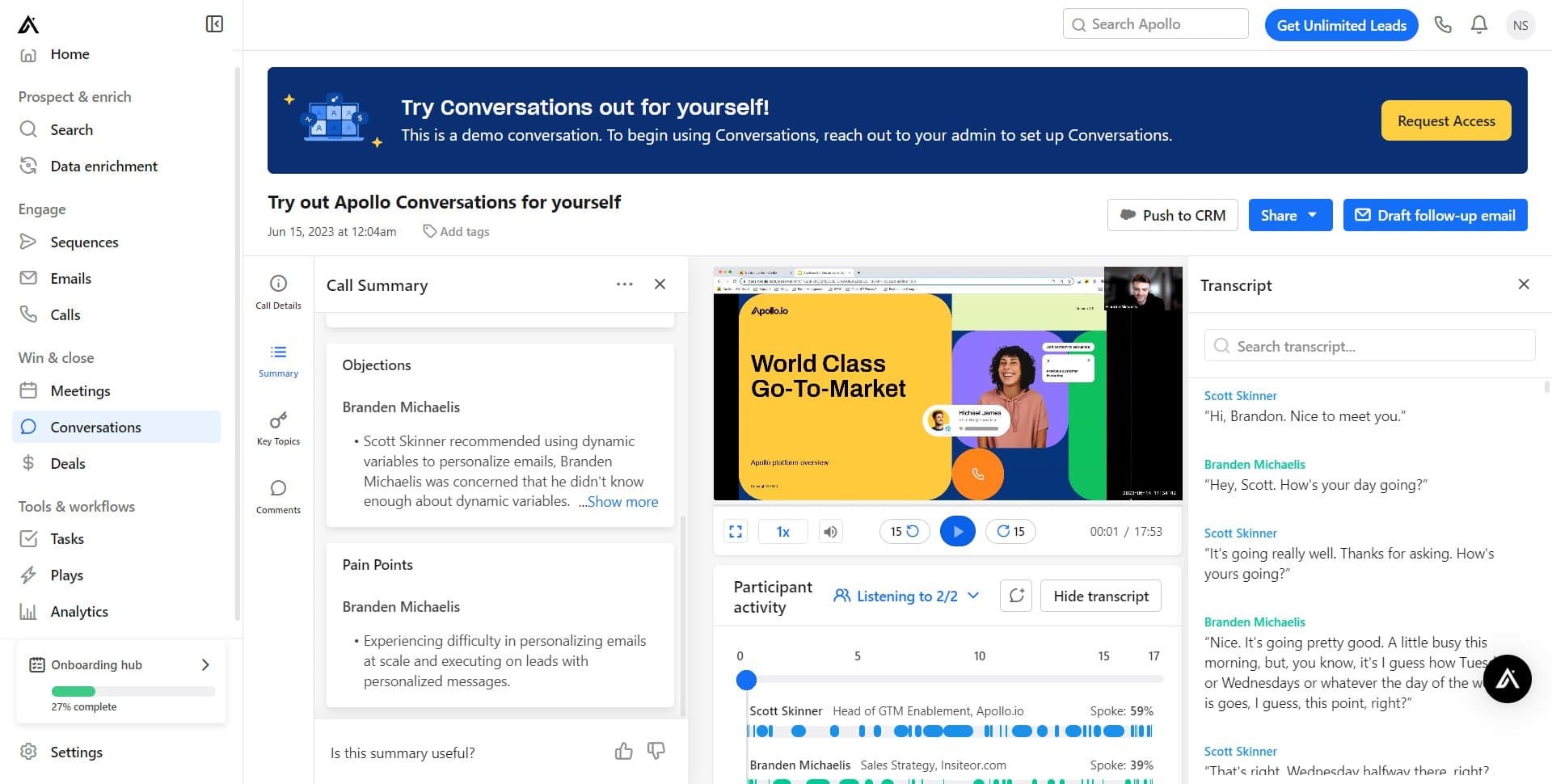
Open a conversation thread
Click on the conversation you want to view or manage. This opens the full conversation thread with all messages and details.
- 5
Review conversation details
Examine the conversation content and context. This step helps you understand the full communication history before taking any action.
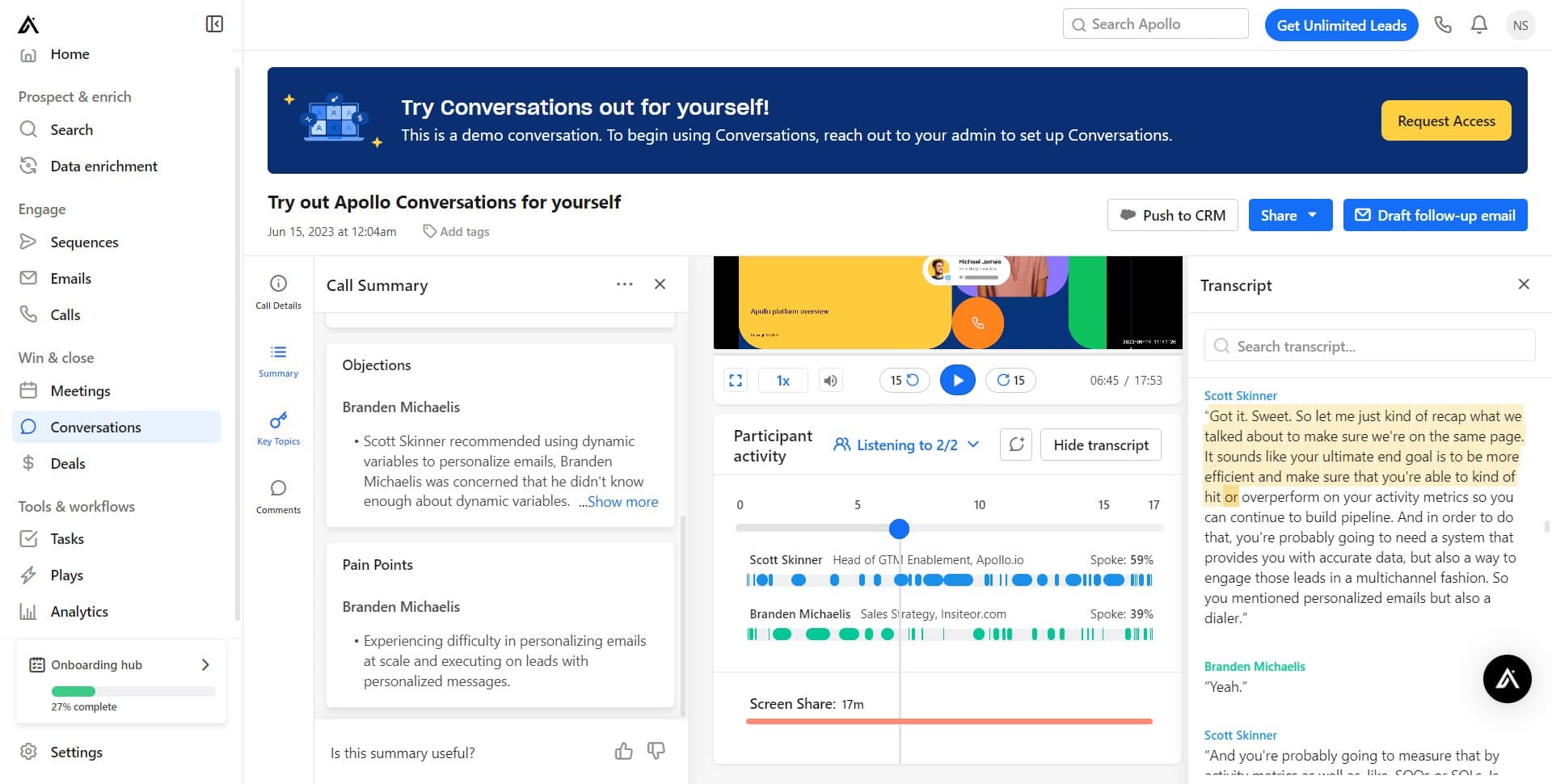
- 6
Access conversation options
Click to reveal the available actions for this conversation. Options typically include sharing, drafting replies, and other management features.
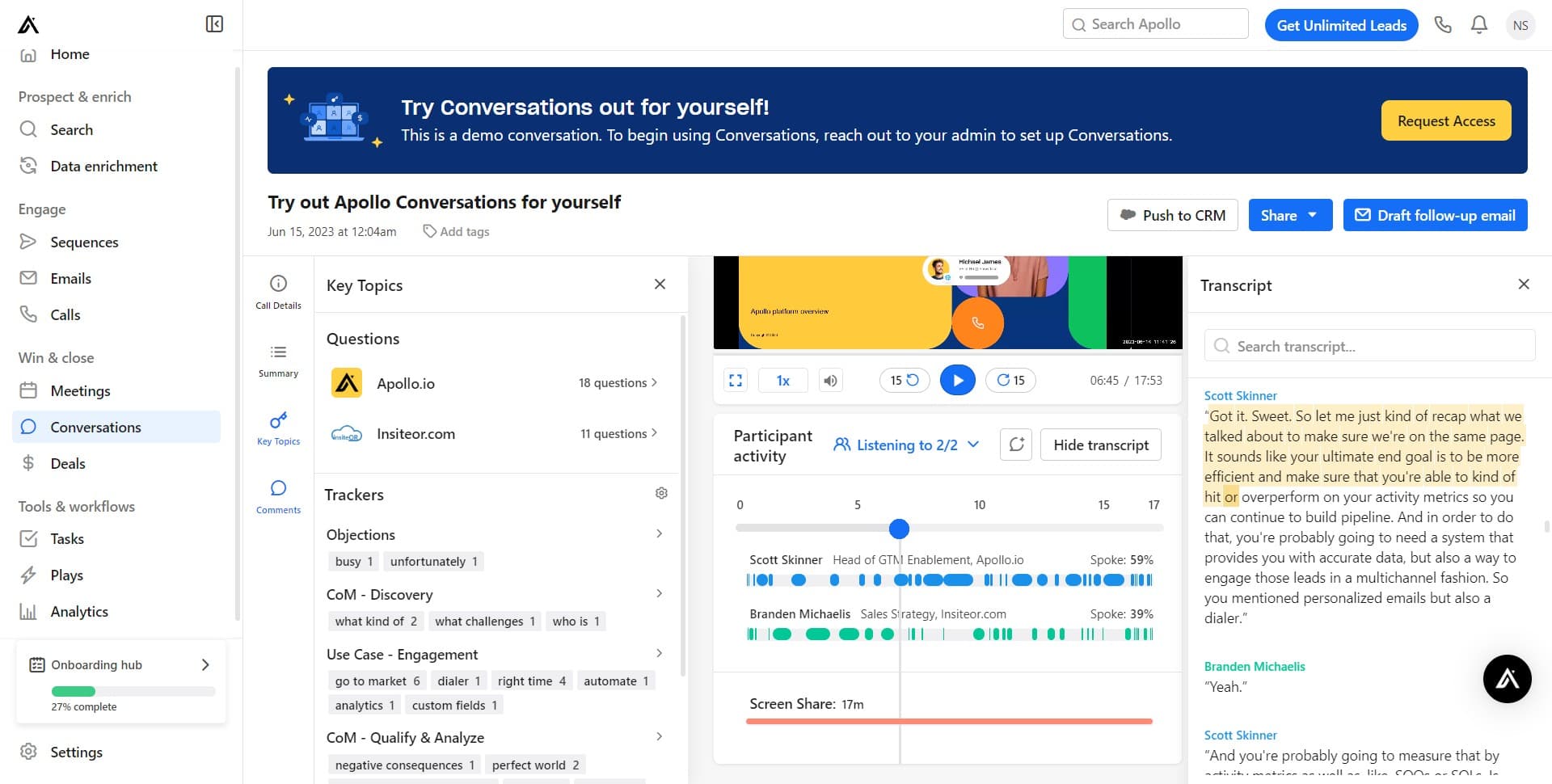
- 7
Prepare for team sharing
Navigate to the sharing options by clicking the relevant control. This prepares you to collaborate with team members on this conversation.
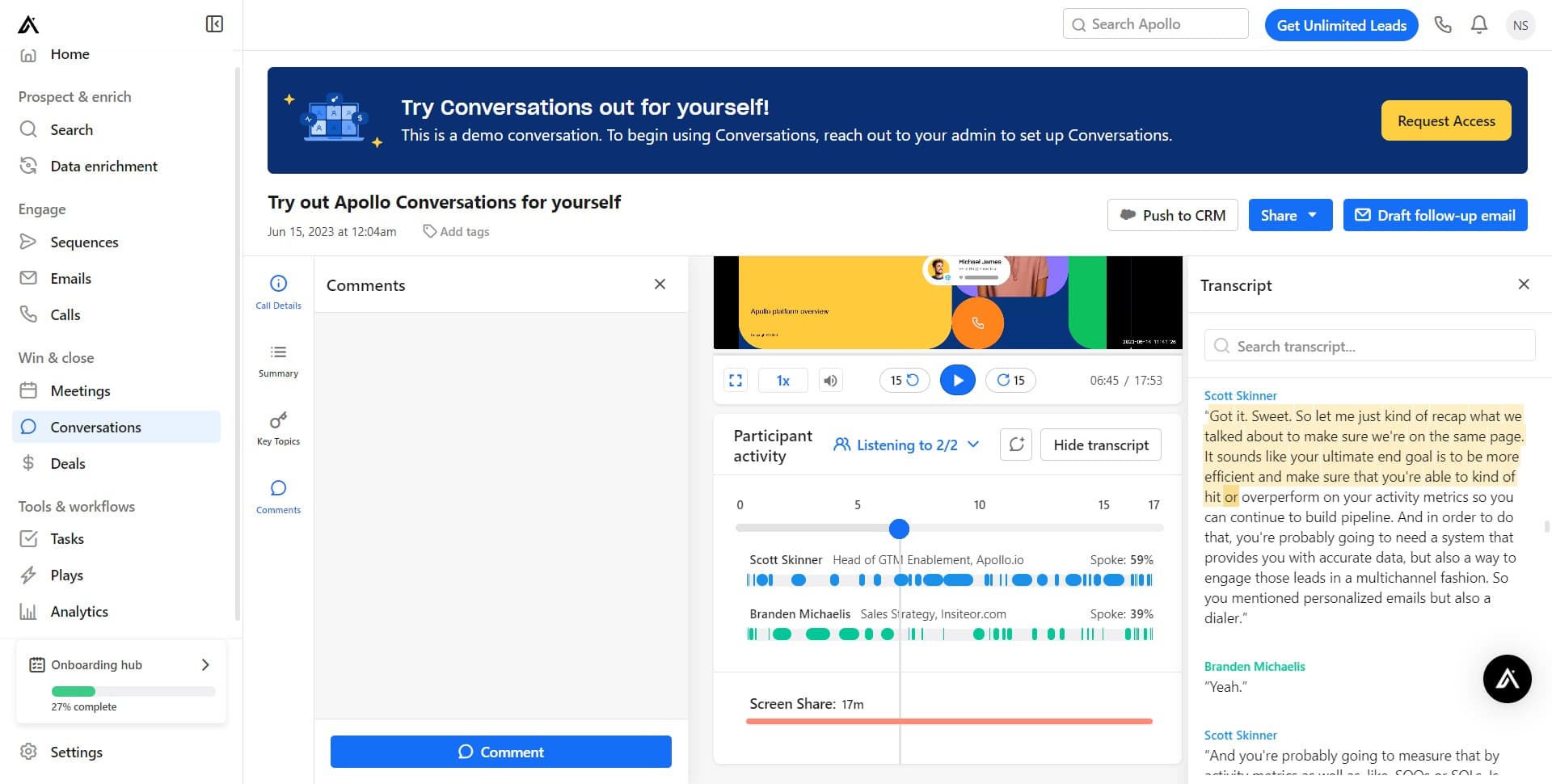
- 8
Click the Share button
Click 'Share' to open sharing options for this conversation. This allows you to distribute insights and updates to relevant team members.
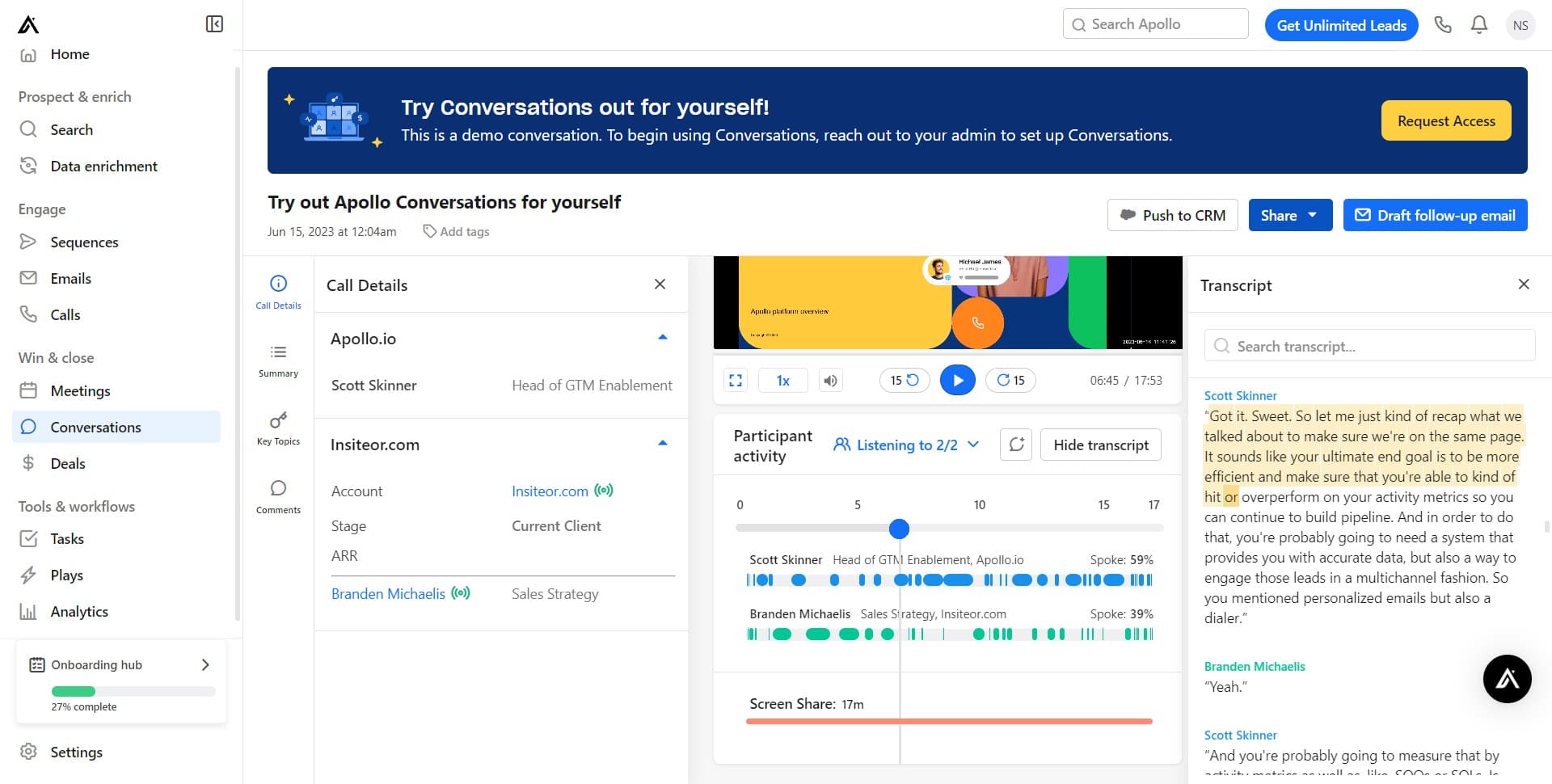
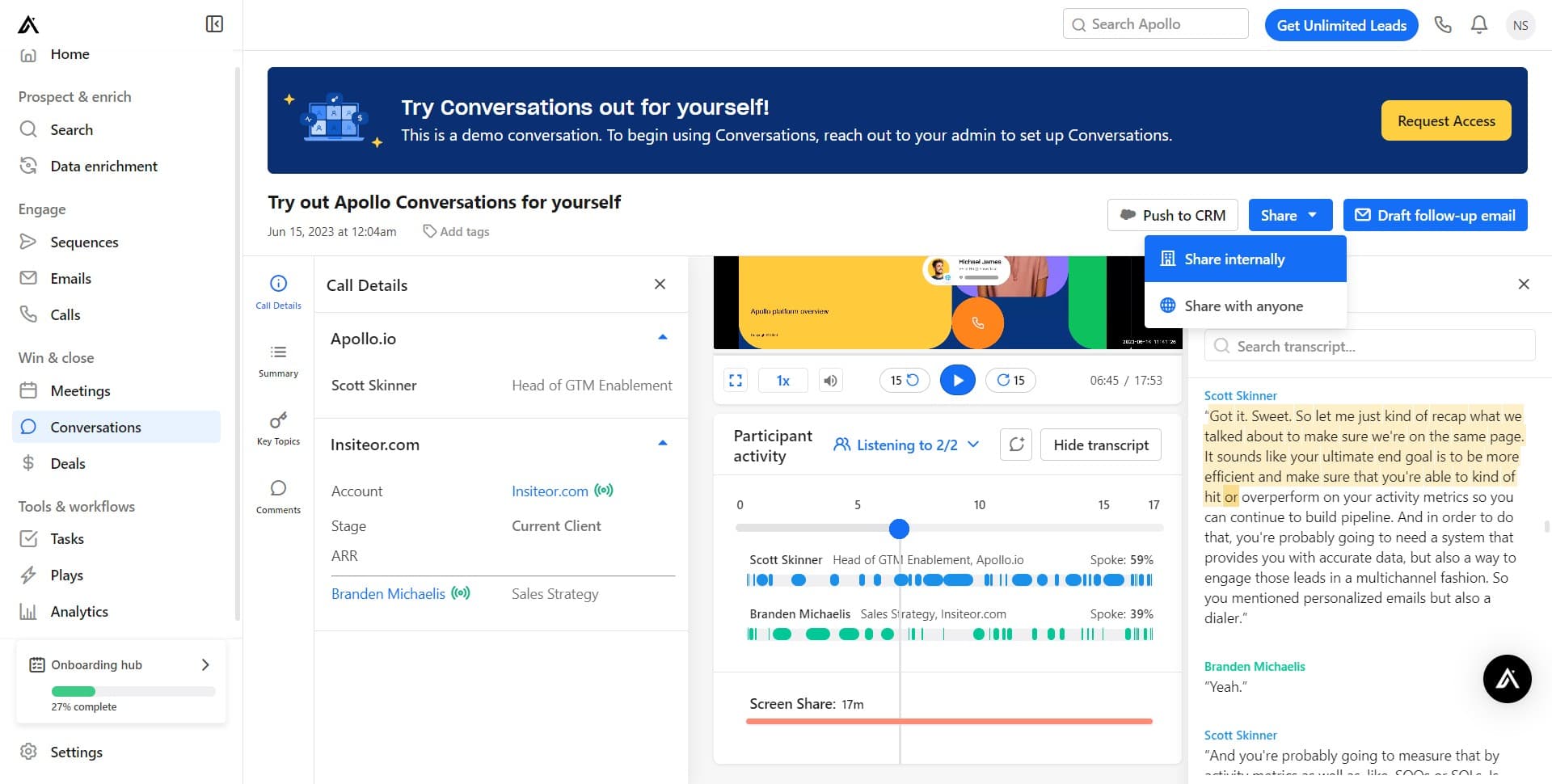
- 9
Share internally with your team
Click 'Share internally' to select team members who should see this conversation. This keeps important communication context visible to your entire sales team.
- 10
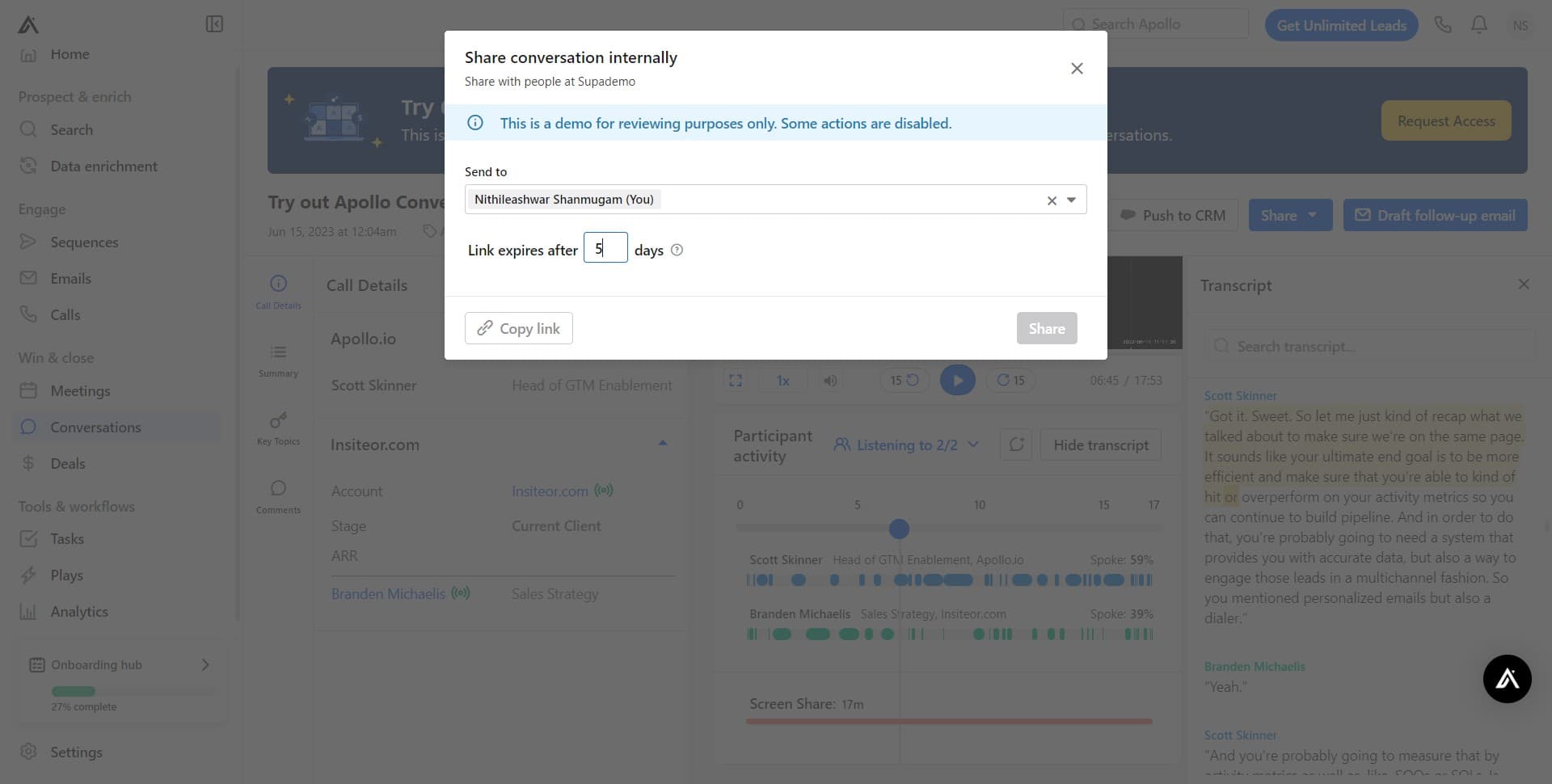
Select team members
Click to choose which team members should receive access to this shared conversation. You can select multiple people depending on your team structure.
- 11
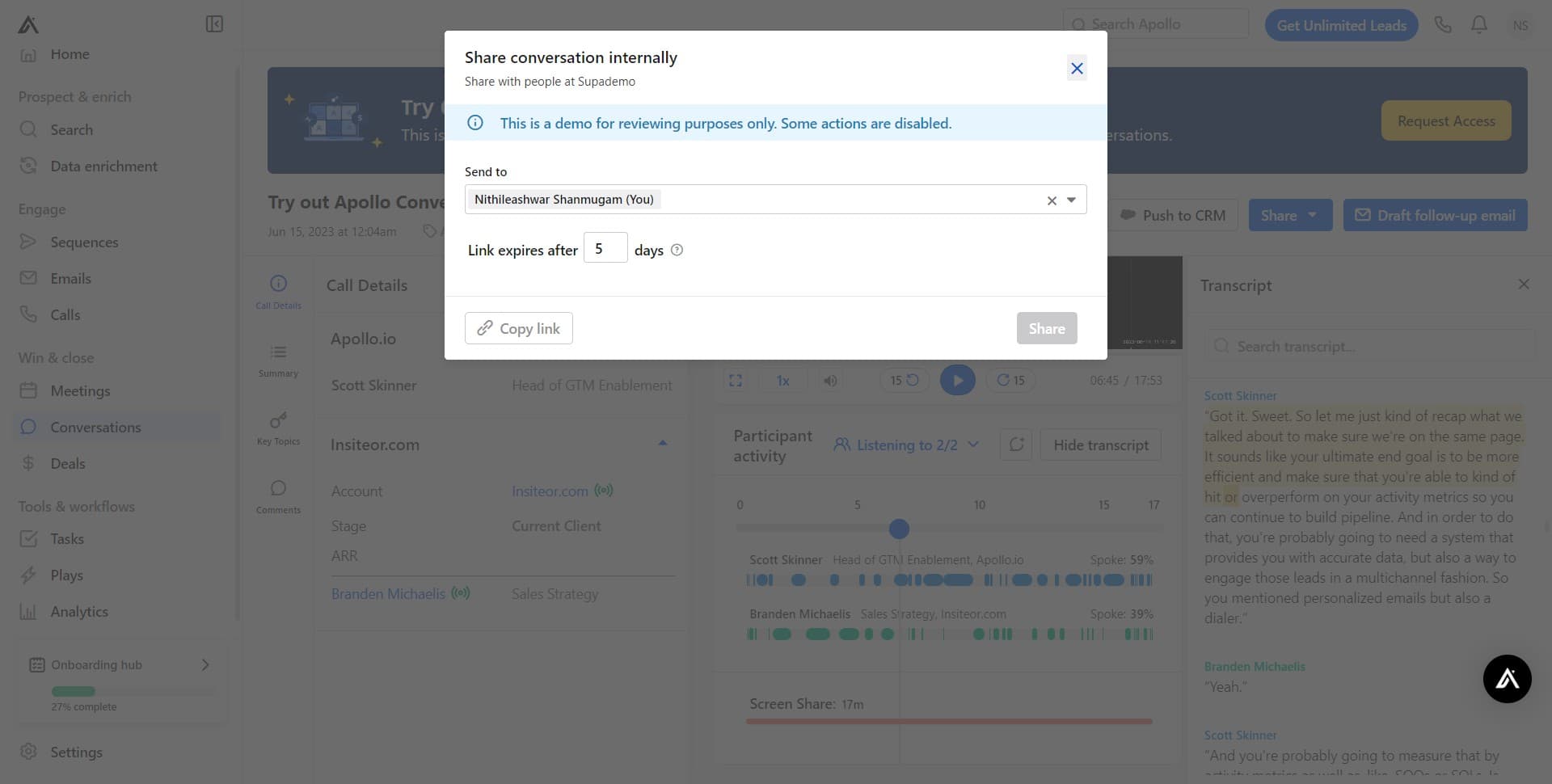
Confirm internal sharing
Click to finalize and send the internal share notification. Your selected team members will now have access to this conversation.
- 12
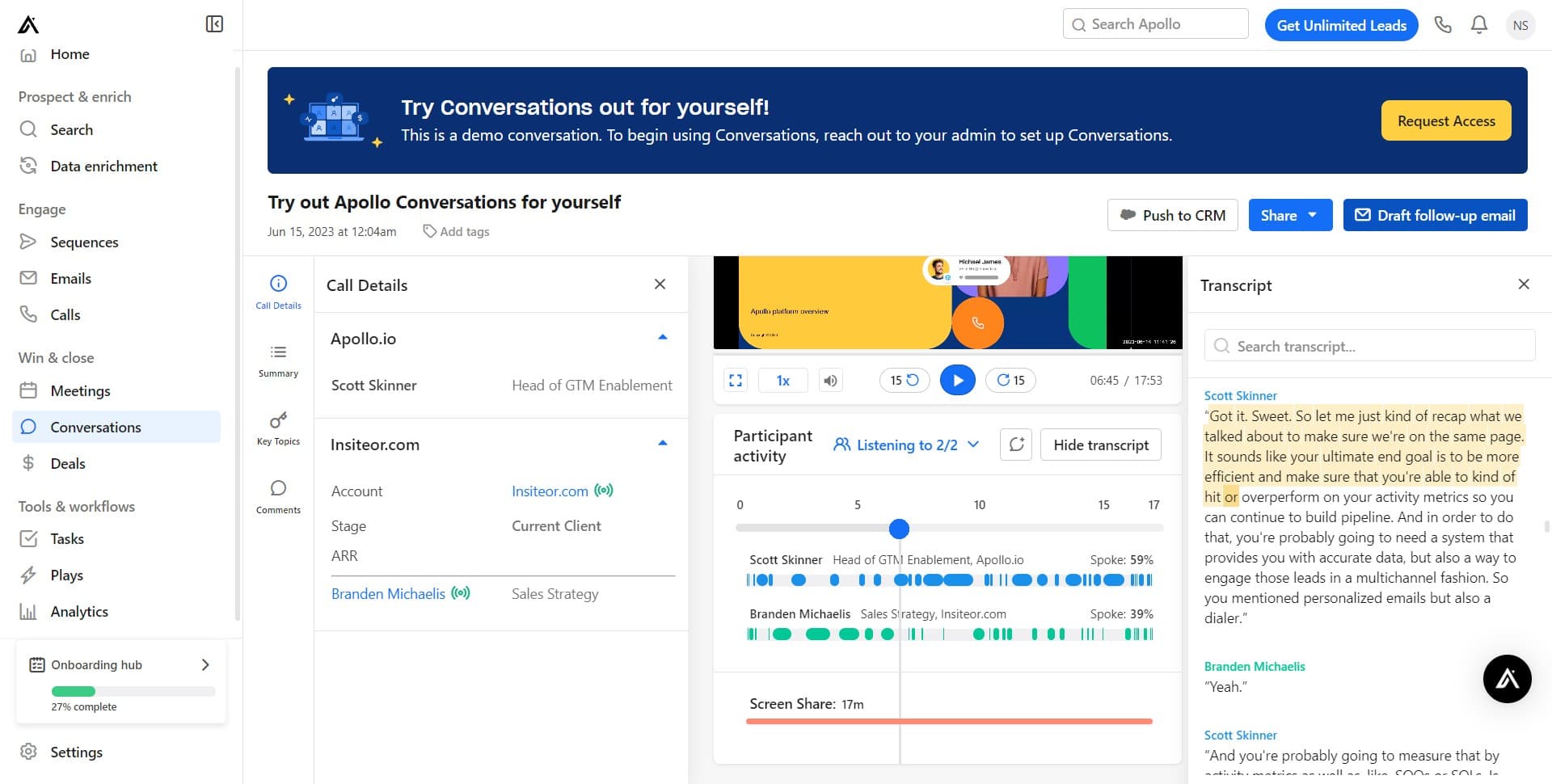
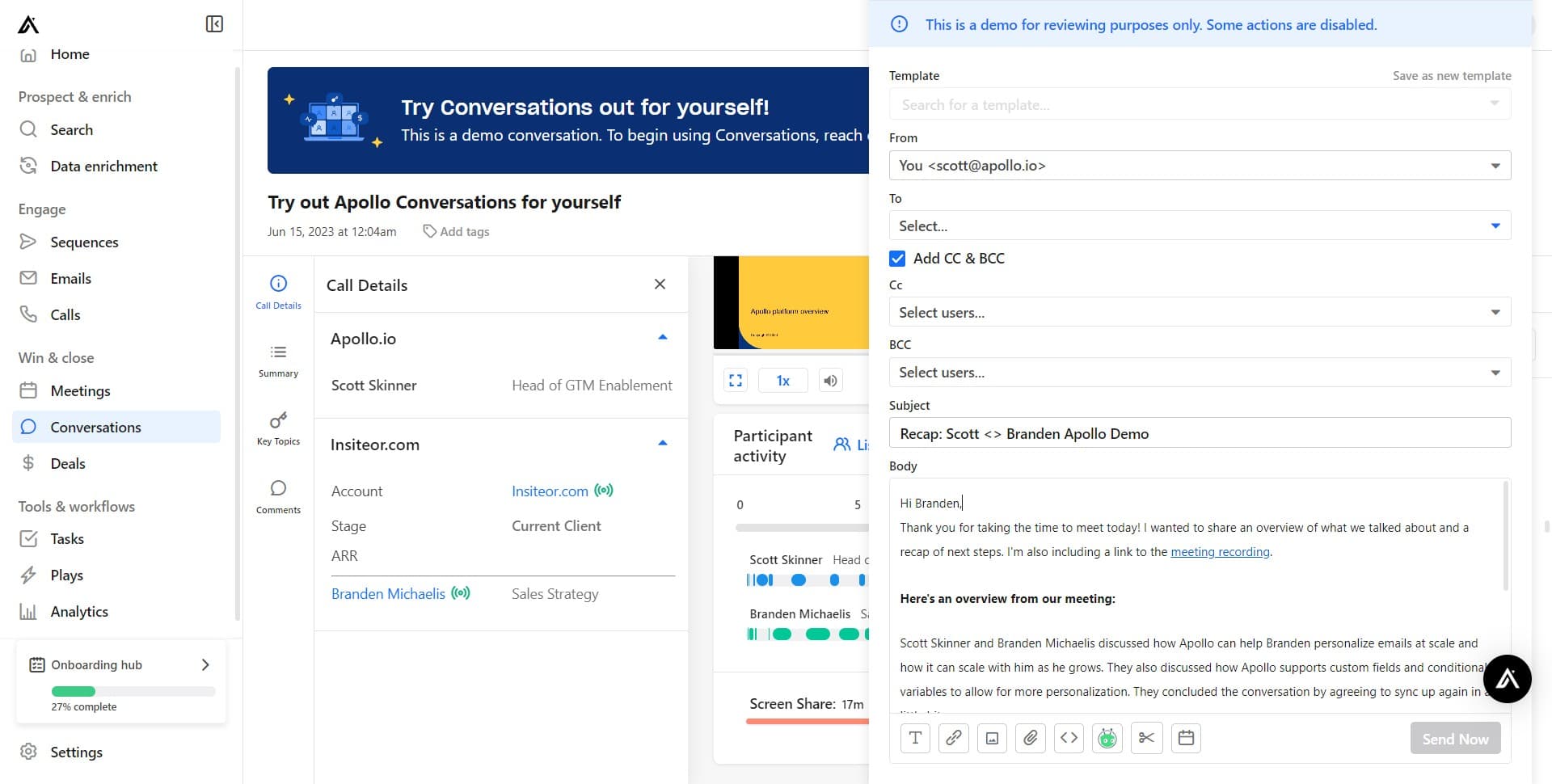
Draft a follow-up email
Click 'Draft follow-up email' to begin composing a response to the prospect. Apollo.io provides a compose window with context from the conversation.
- 13
Start composing the message
Click on the message body area (starting with 'Hi Branden,') and begin typing your follow-up email. The system populates with a greeting and context to help you compose faster.
- 14
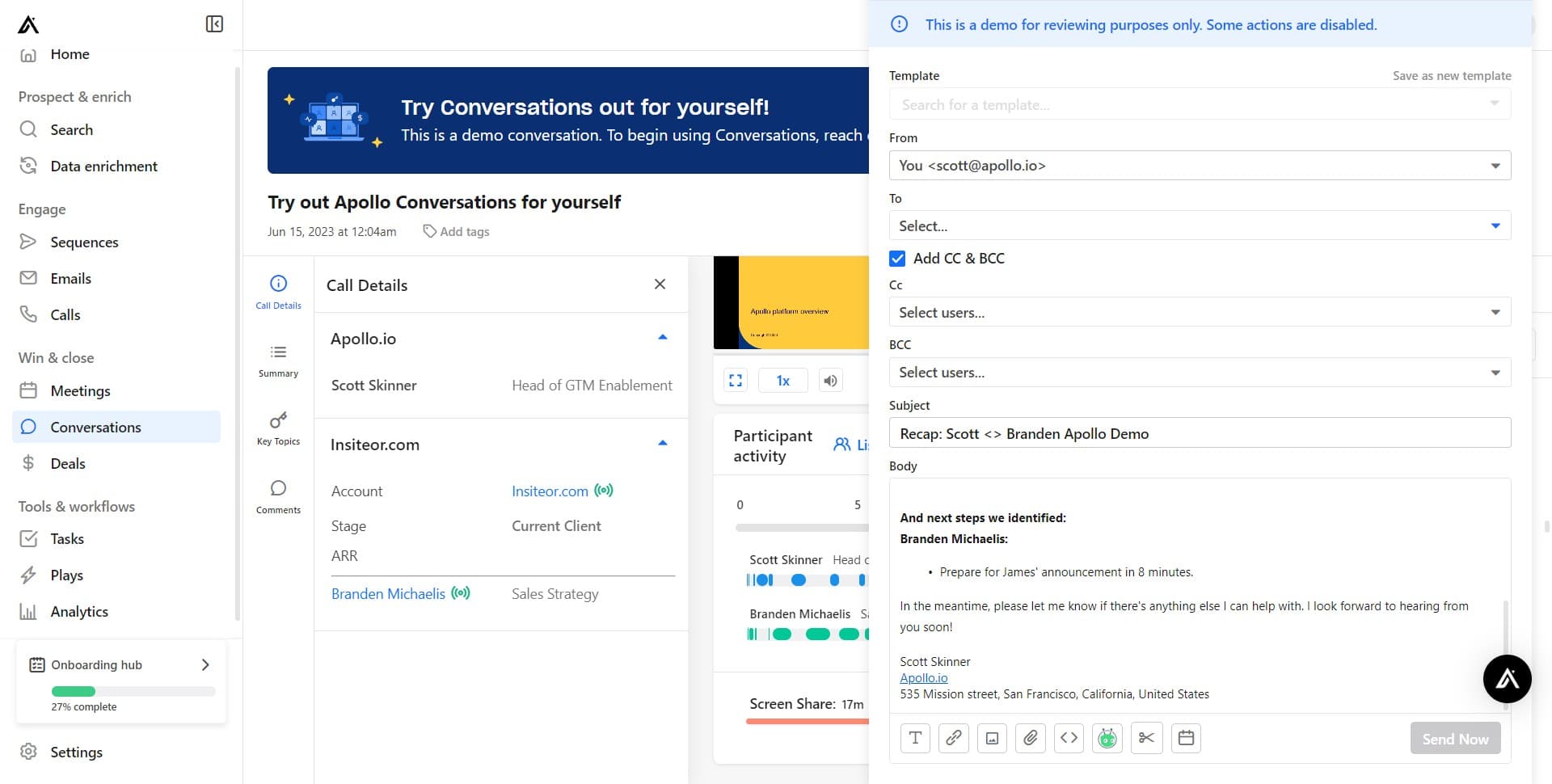
Complete and send the follow-up
Click 'Try out Apollo' or your send button to finalize and dispatch the follow-up email. Your message will be logged in the conversation thread for future reference.
Frequently asked questions
Common questions about how to set up and use conversations in apollo.io.
The 'Share internally' option is designed for team members within your organization. If you need to share conversation details with external parties, you may need to forward specific information manually or check your Apollo.io account permissions for external sharing capabilities.
Follow-up emails drafted in Apollo.io are sent through the platform and automatically logged in your conversation thread. This ensures all communication stays organized in one place and maintains a complete communication history with the prospect.
Conversations are typically read-only records of communication that has already occurred. However, you can draft new follow-up emails and add new messages to the thread that will be visible to anyone you've shared the conversation with.
Skipping the tour takes you directly to the active conversations workspace so you can start working immediately. You won't miss any functionality; the tour is just an optional introduction to help new users learn the interface faster.
Yes, multiple team members can draft and send follow-up emails within a shared conversation thread. Each email is logged separately, allowing your team to collaborate on prospect outreach while maintaining a clear record of who said what.