How to create a custom task rule in Asana

Custom task rules in Asana automate your workflow by moving tasks, changing statuses, and managing assignments based on conditions you define. This guide walks you through creating a rule that organizes tasks and updates their status automatically.
Quick summary
In this tutorial, you'll learn how to set up a custom task rule in Asana that moves recently assigned tasks to a section, marks them for today, and automatically completes them. By the end, you'll have a fully functional rule that saves time on repetitive task management.
Why this matters
Custom task rules reduce manual work and ensure consistency across your projects. When tasks are automatically organized and prioritized, your team stays aligned and deadlines are less likely to be missed.
Step-by-step guide
- 1
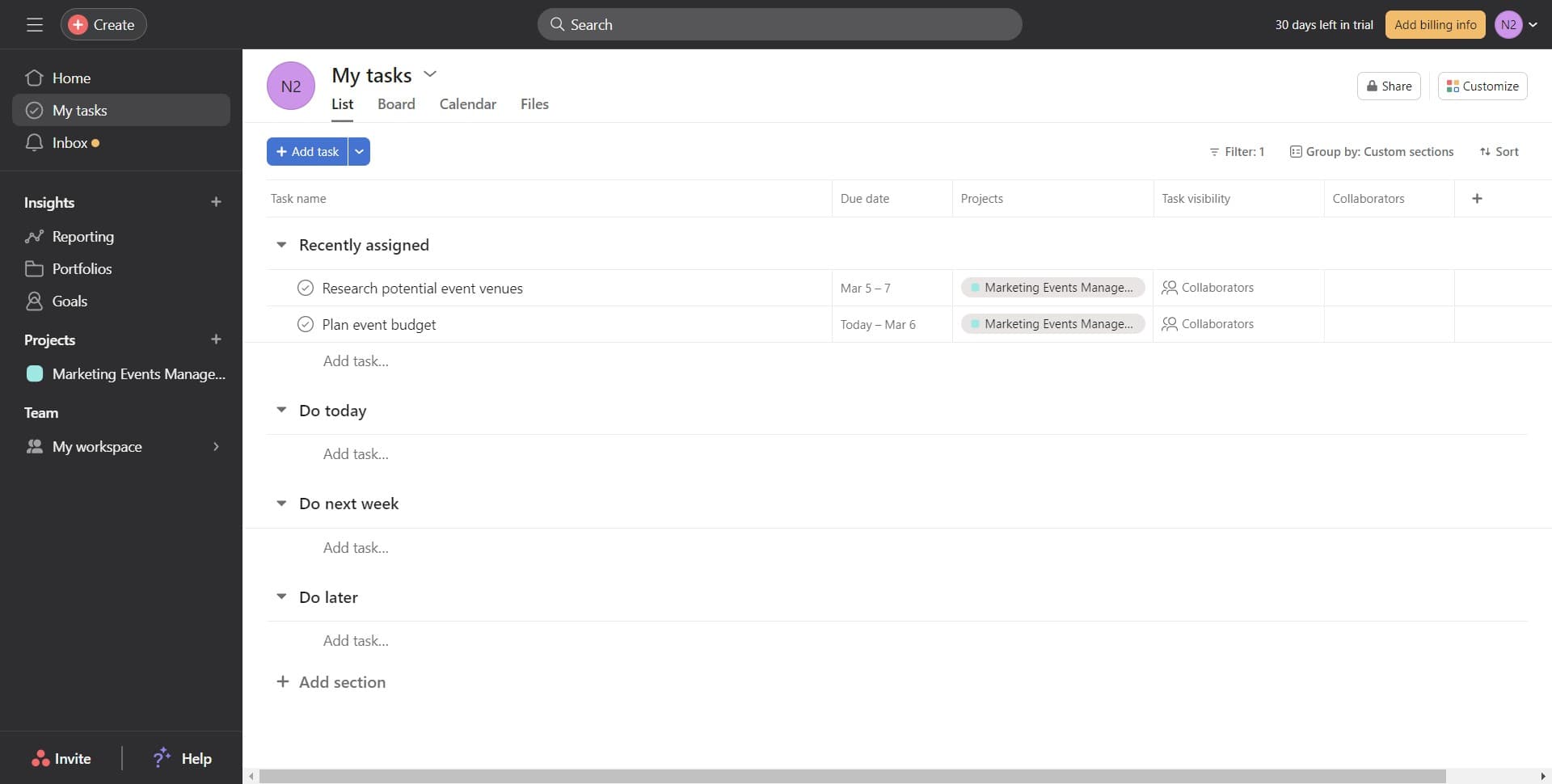
Open My Tasks
Click on the 'My tasks' section to access your personal task list. This is where you'll set up the rule to manage your assigned tasks automatically.
- 2
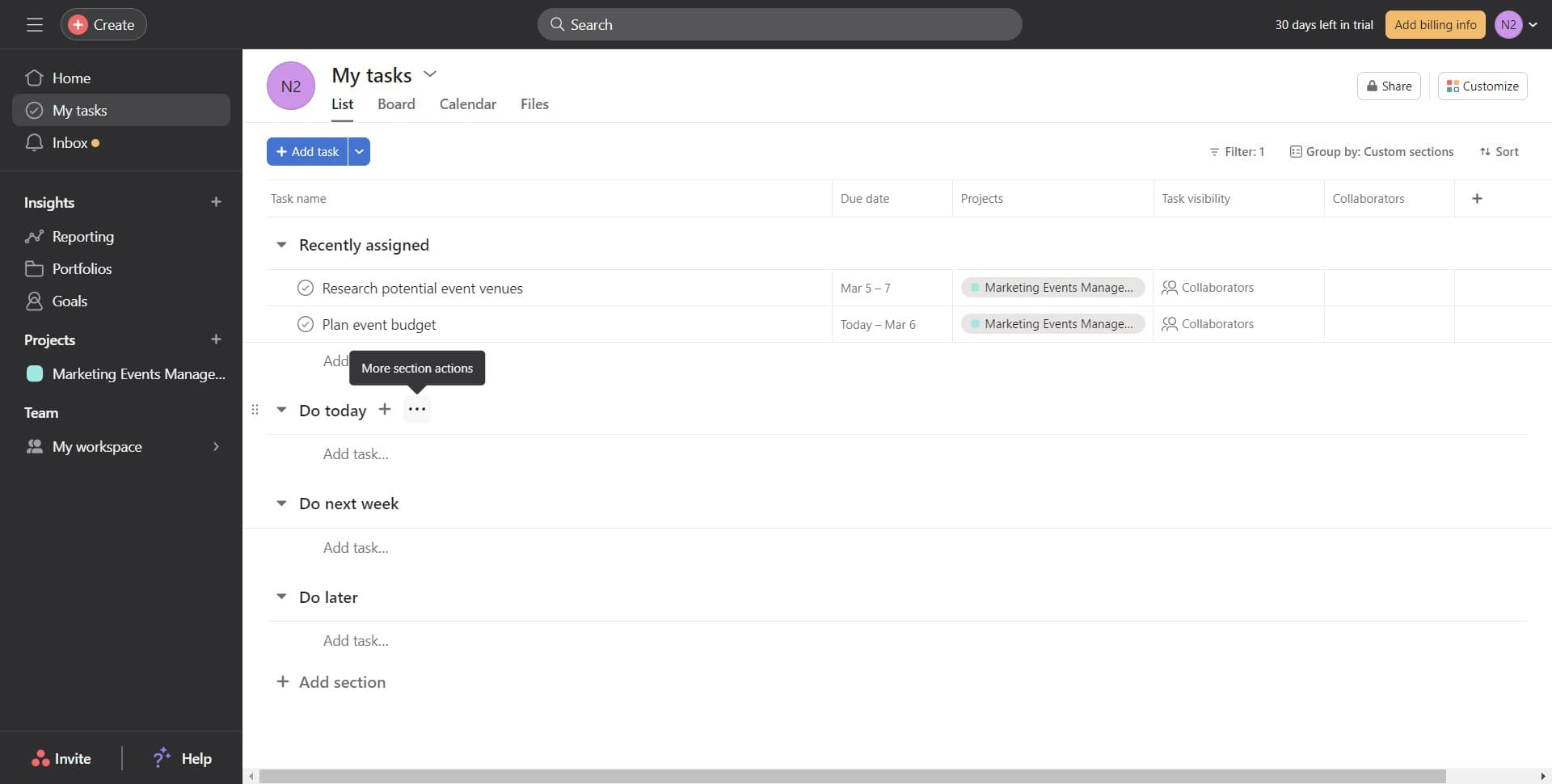
Access the rules menu
Click the designated area to open the rules configuration menu. This menu allows you to create and manage custom task rules.
- 3
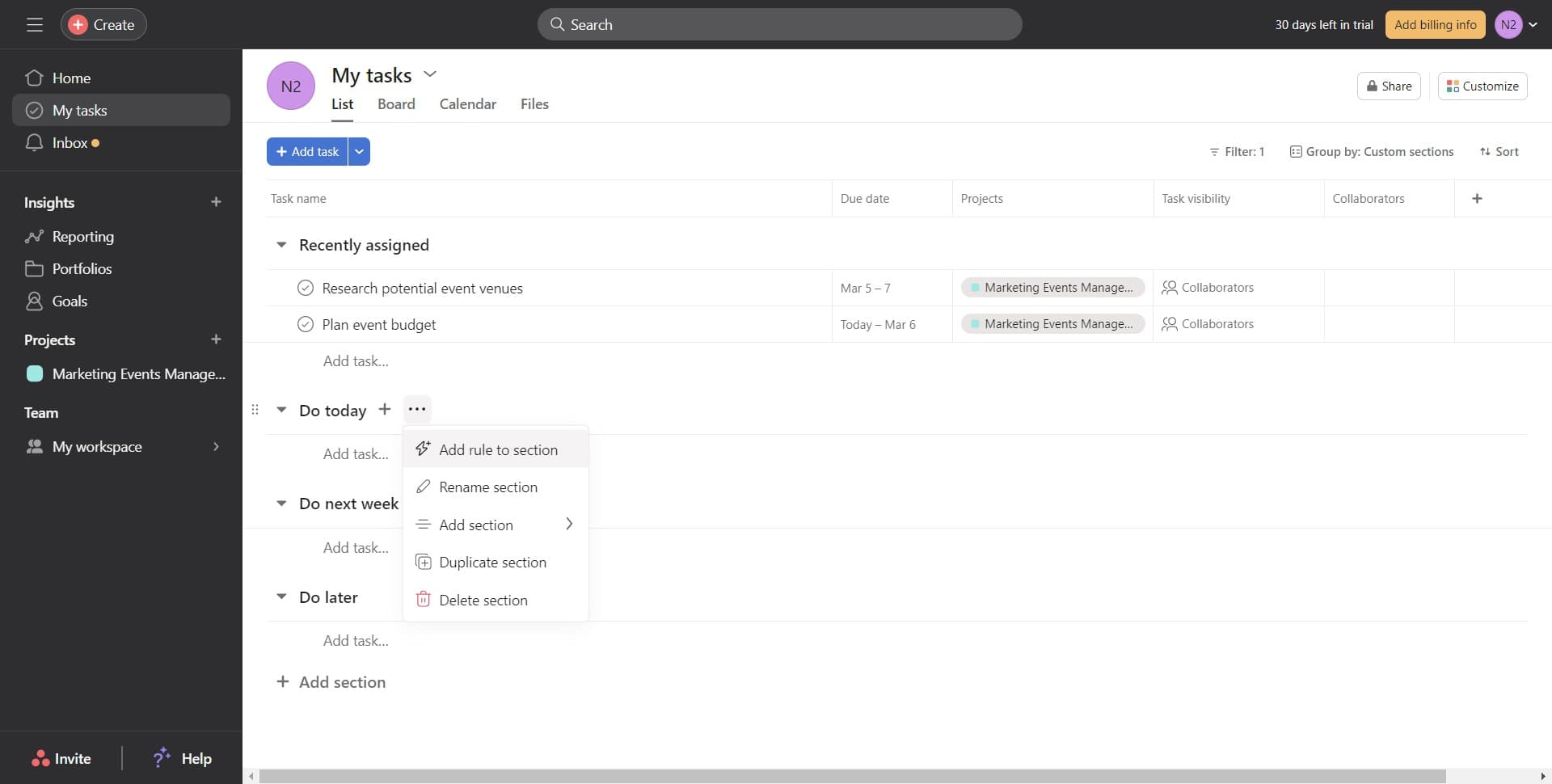
Add rule to section
Click on 'Add rule to section' to create a new custom rule. You'll now define the conditions and actions for your automation.
- 4
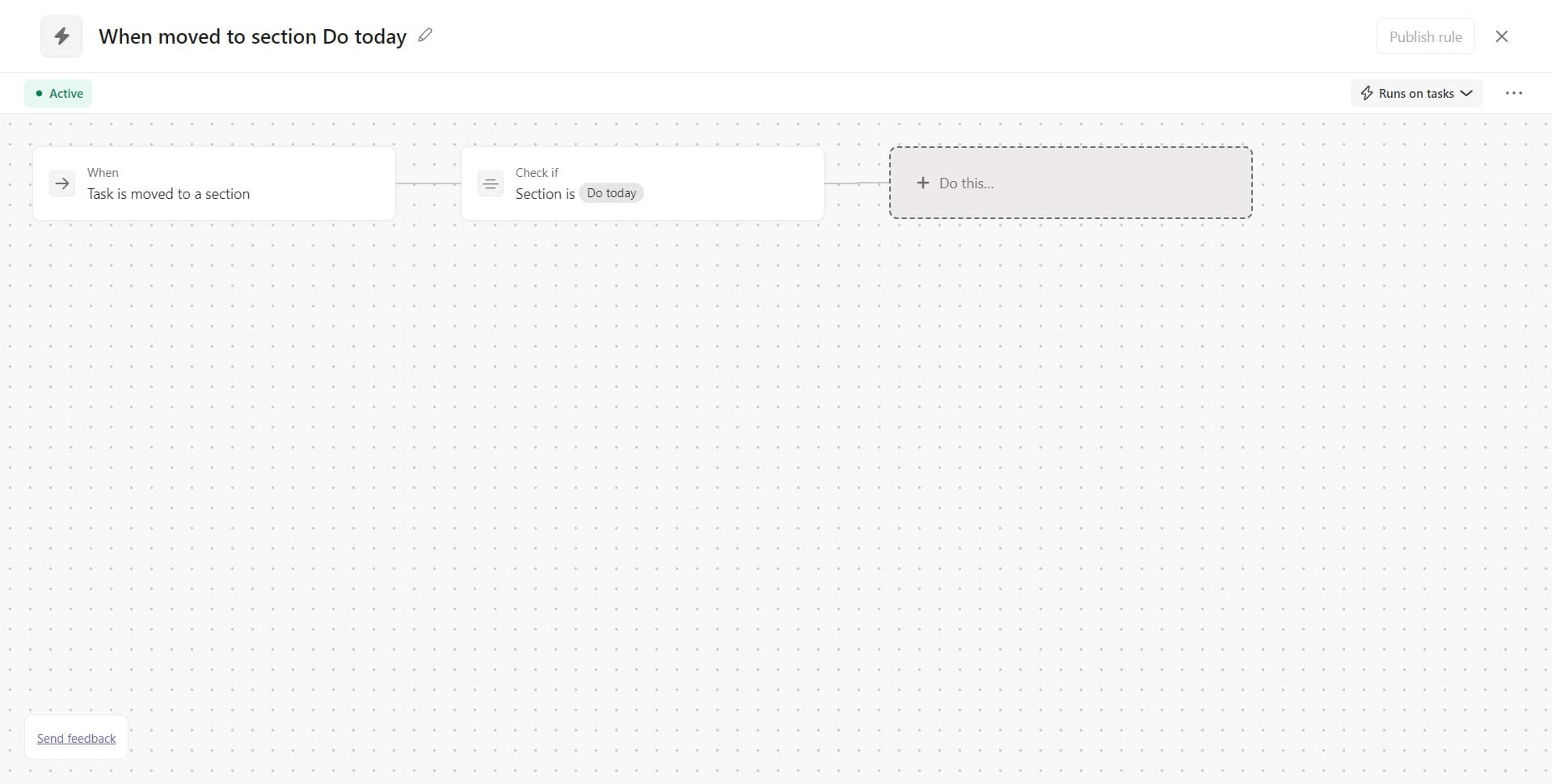
Set the first action
Click on 'Do this…' to specify what should happen when your rule triggers. This is where you'll begin defining your automation actions.
- 5
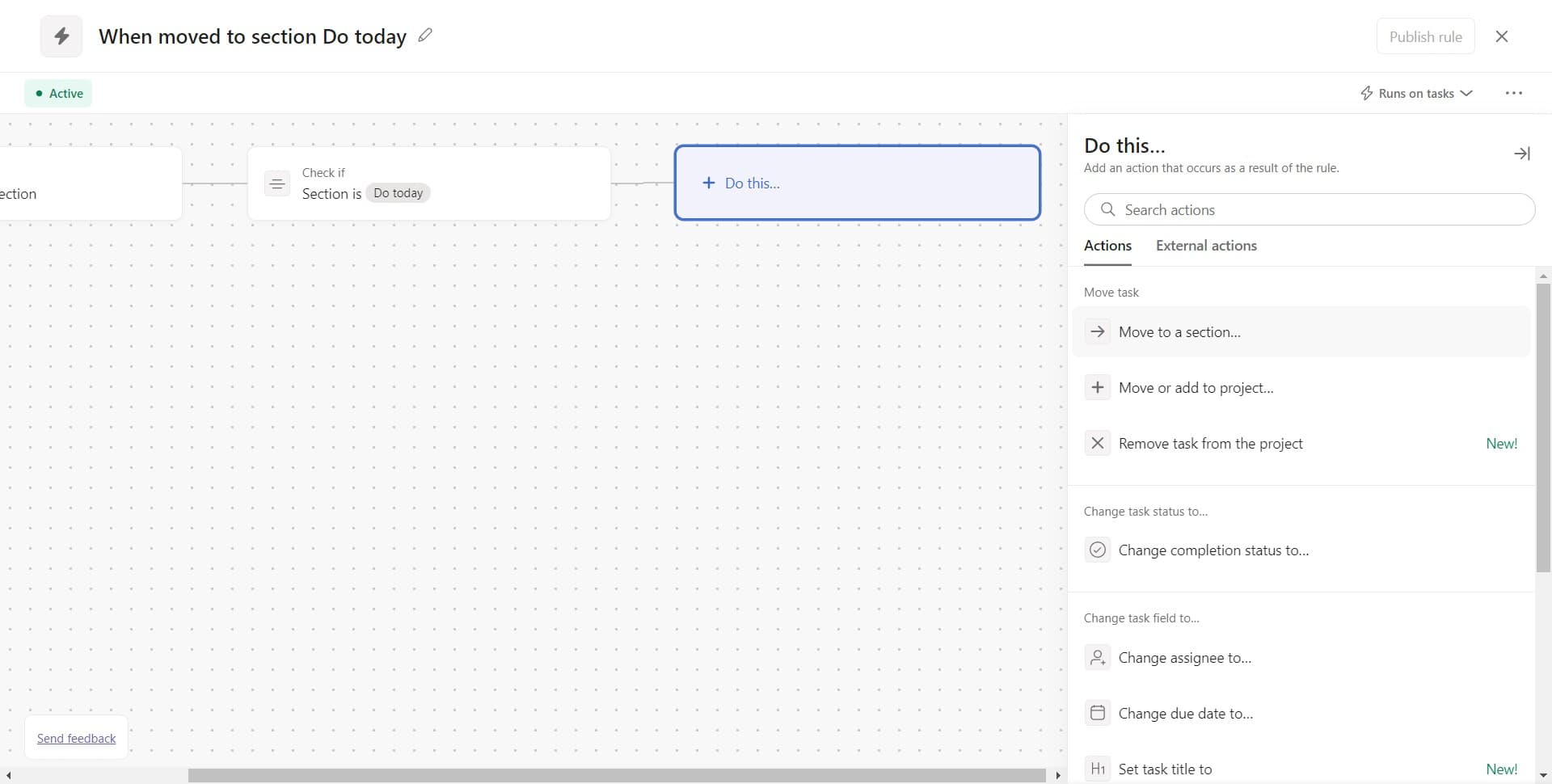
Move to a section
Click on 'Move to a section…' to specify where tasks should be moved. This action will automatically relocate tasks matching your rule's conditions.
- 6
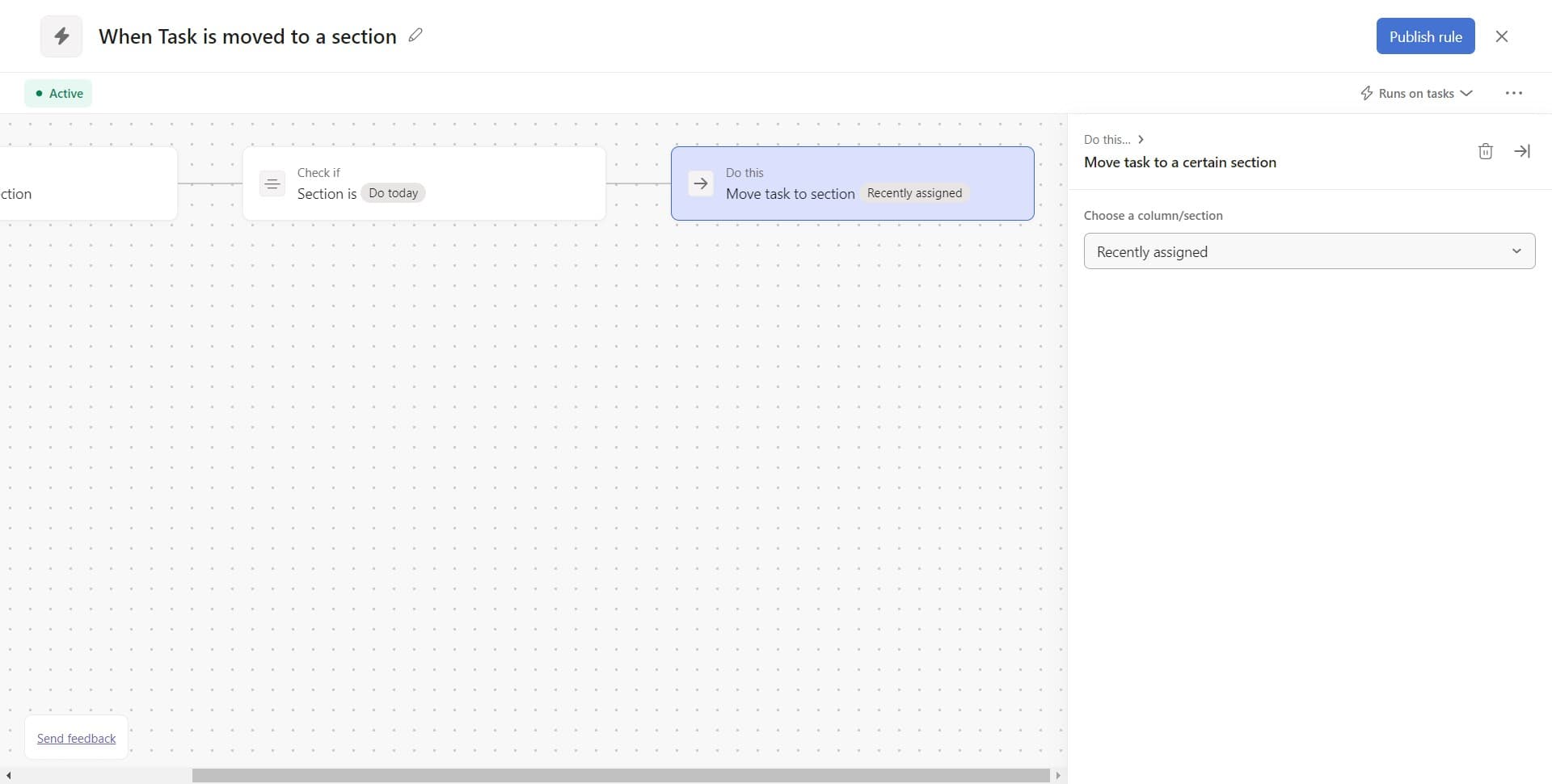
Select Recently Assigned
Click on 'Recently assigned' to designate this as the target section. Tasks meeting your rule's criteria will now move to this section automatically.
- 7
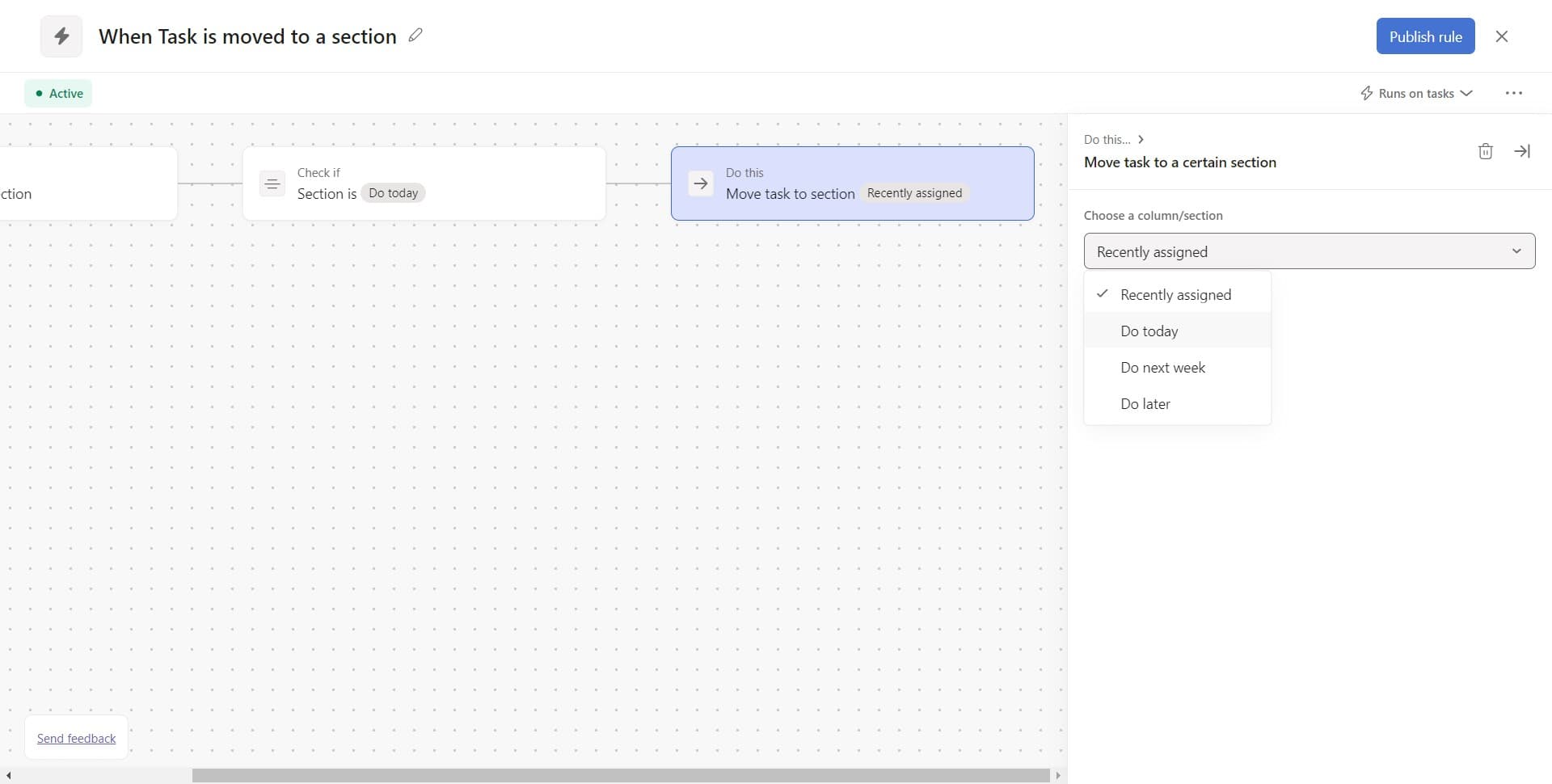
Mark task for today
Click on 'Do today' to set recently assigned tasks as high priority. This ensures they appear in your today view for immediate attention.
- 8
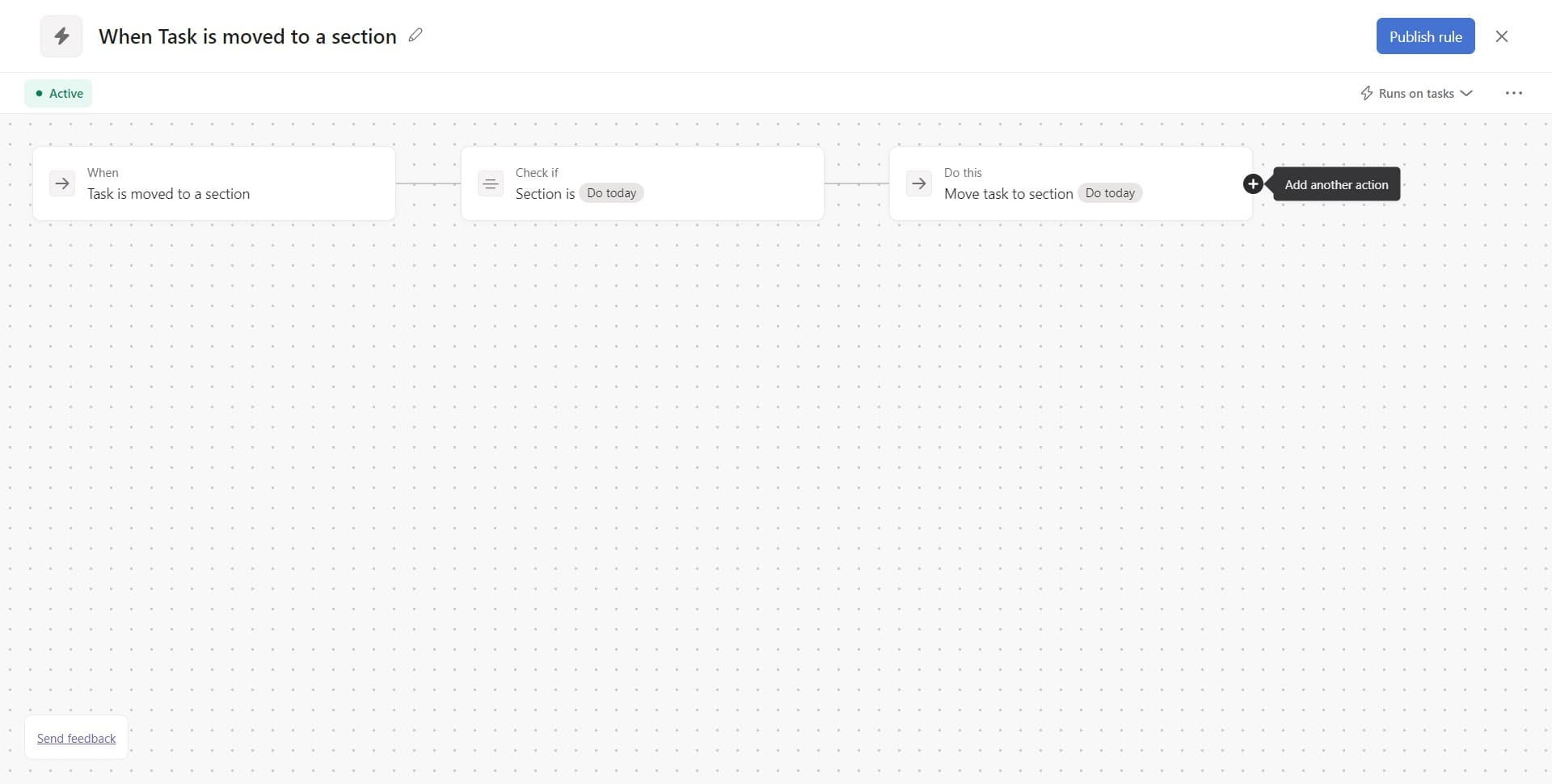
Configure the next action
Click the designated area to add another action to your rule. You can now layer additional automations on top of the section move.
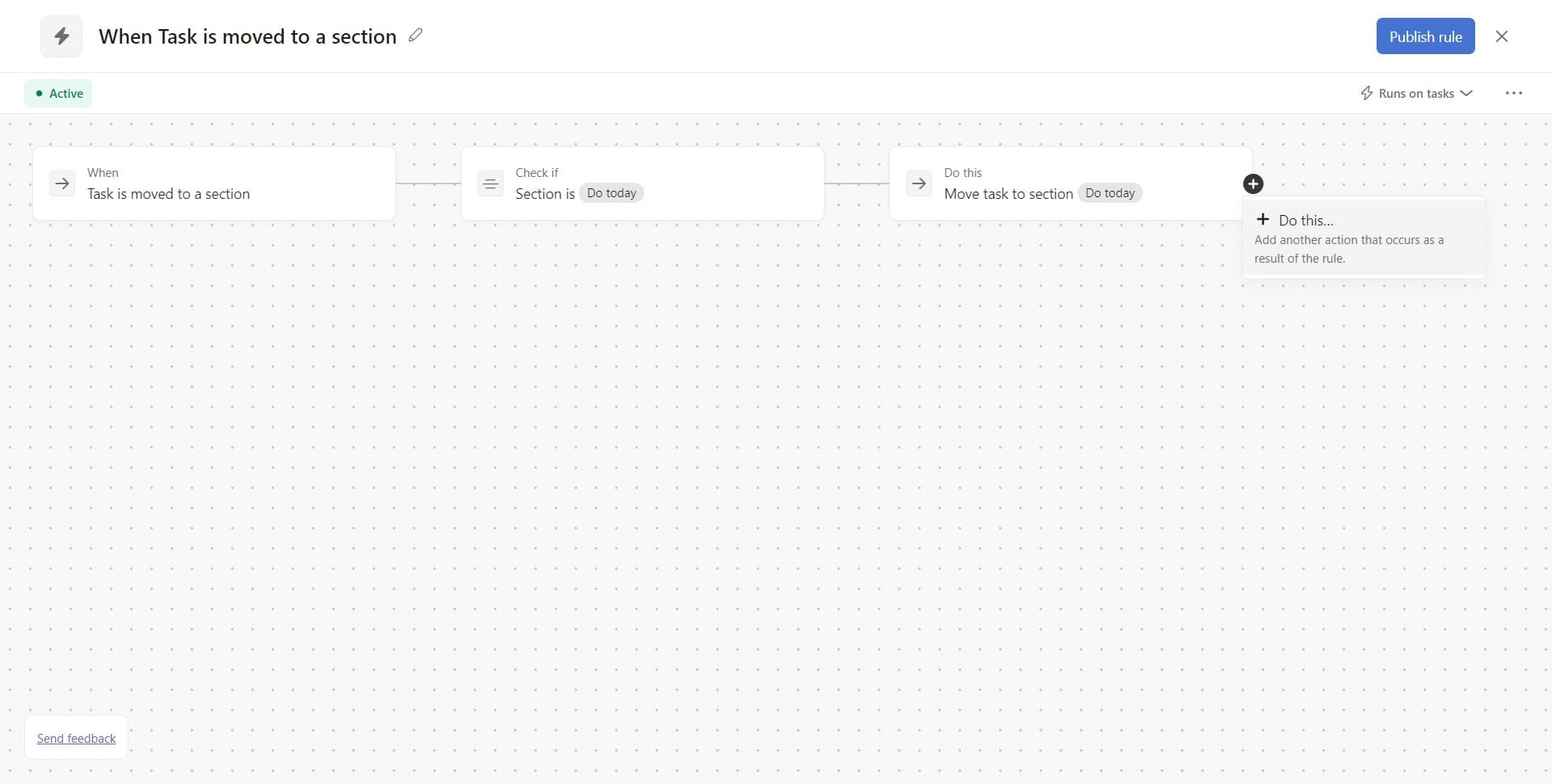
- 9
Add another action
Click on 'Add another act...' to expand your rule with additional behaviors. This allows you to combine multiple automations in a single rule.
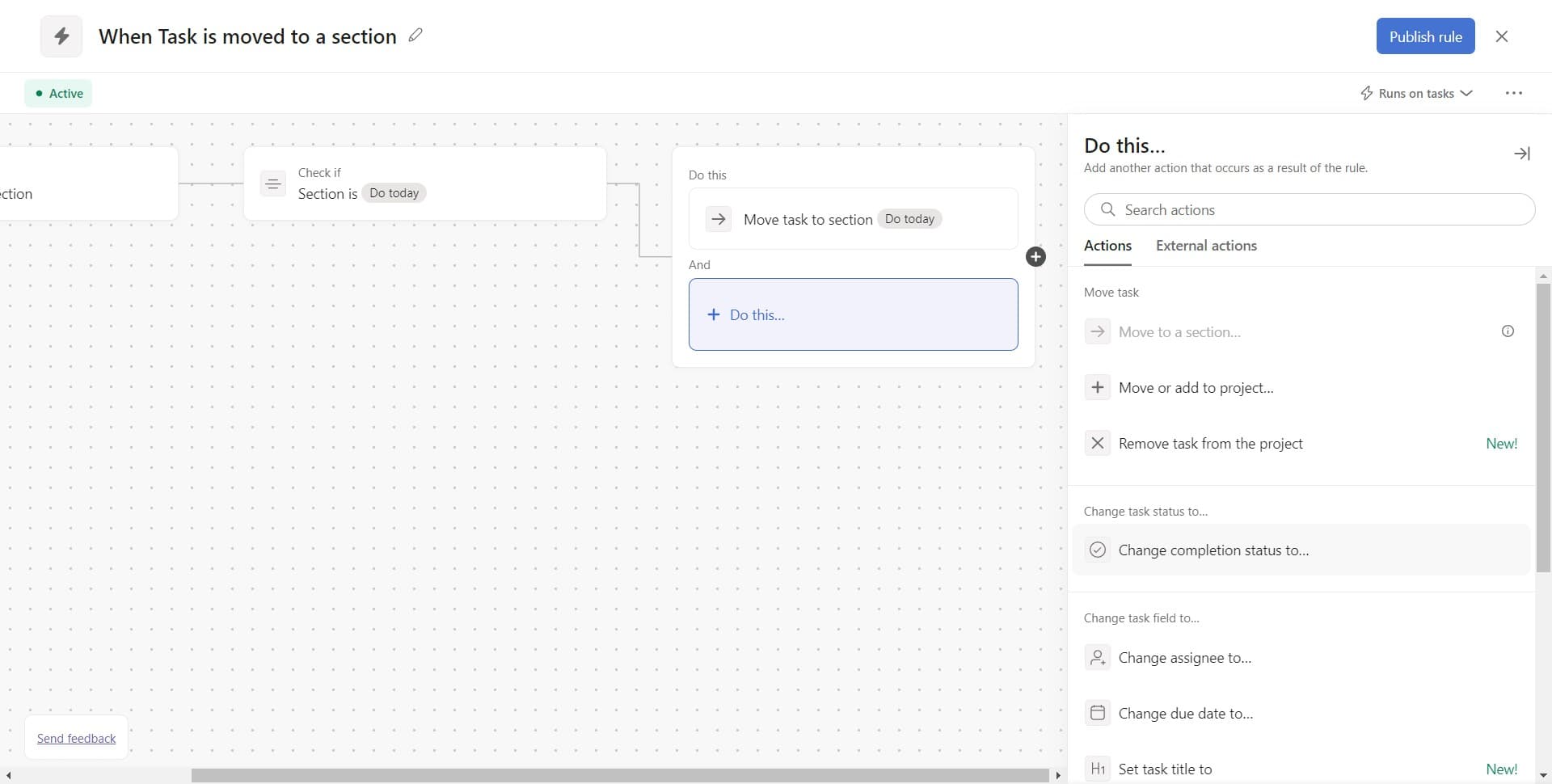
- 10
Change completion status
Click on 'Change completion status to…' to add an action that modifies task completion. This lets you automate the status updates alongside movement and prioritization.
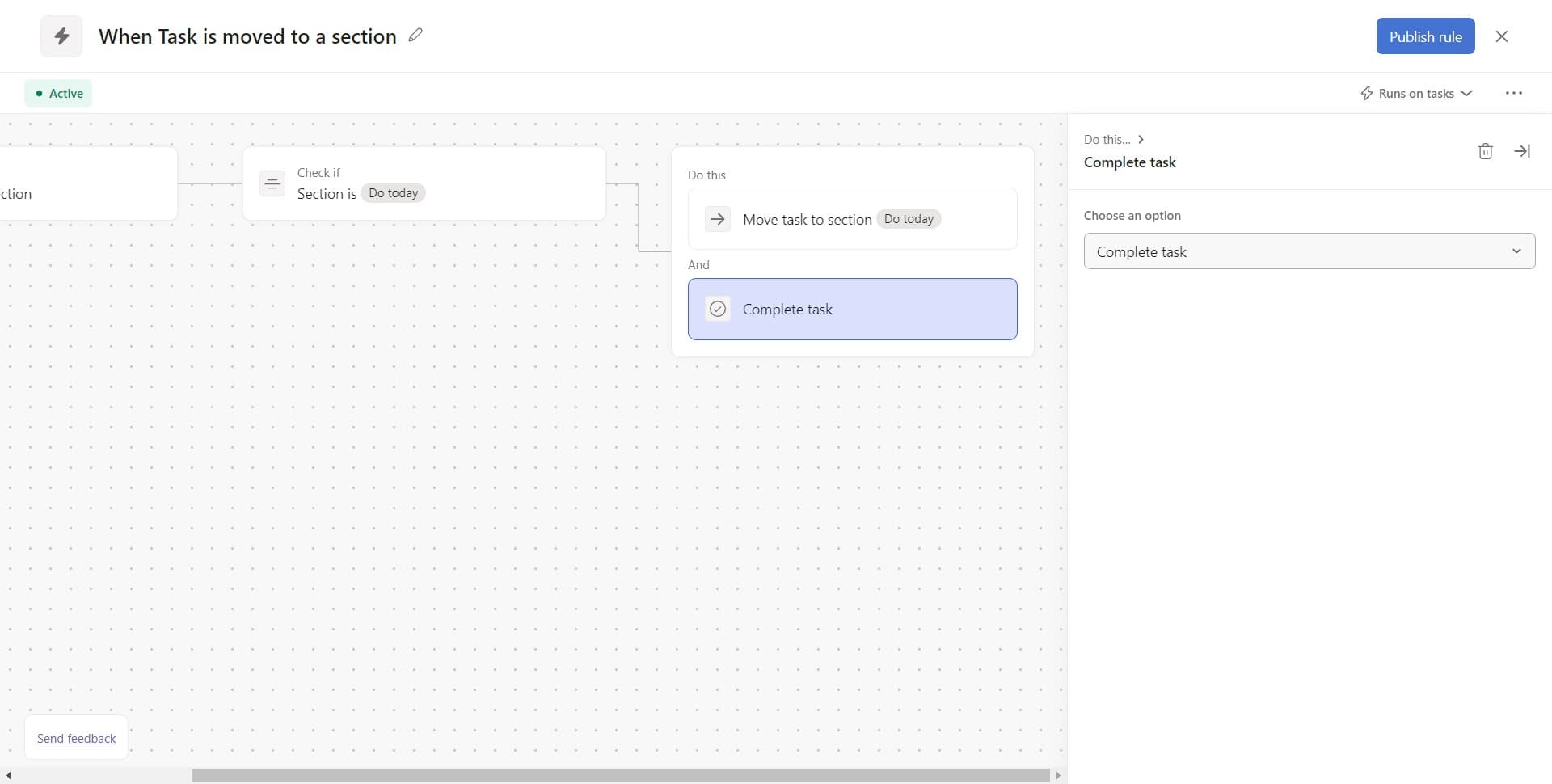
- 11
Set to complete task
Click on 'Complete task' to have tasks automatically marked as complete when the rule triggers. This action finalizes your automation sequence.
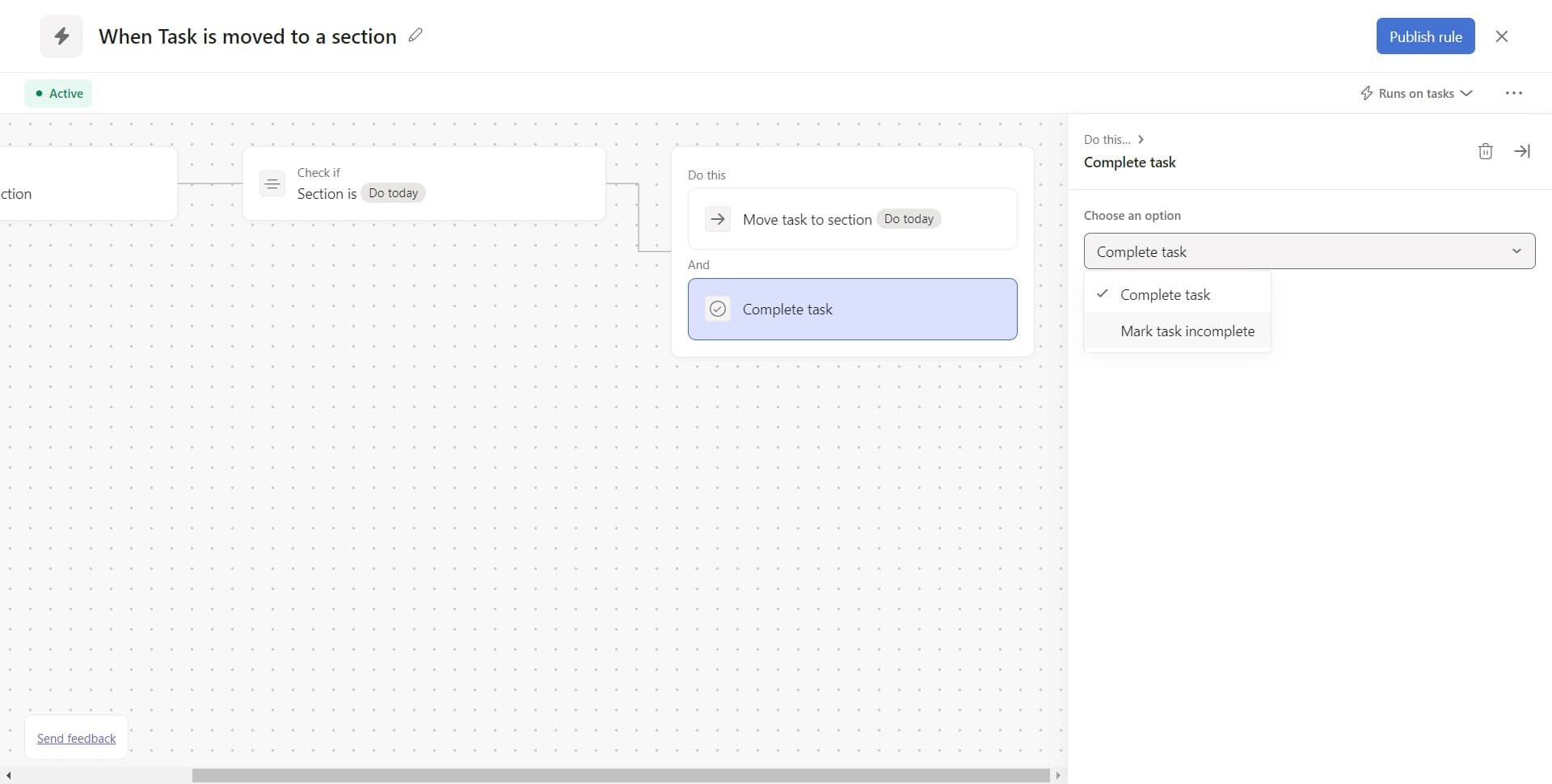
- 12
Mark task incomplete
Click on 'Mark task incomplete' if you need to revert a completion status as part of your workflow. This option provides flexibility in your automation logic.
- 13
Save the rule
Click upload or the save button to finalize your custom task rule. Your automation is now active and will apply to matching tasks going forward.
Frequently asked questions
Common questions about how to create a custom task rule in asana.
Yes, Asana allows you to create multiple custom rules within a single project. Each rule can target different conditions and trigger different actions, giving you precise control over your workflow automation.
If a task matches multiple rules, all applicable rules will execute in sequence. Asana processes them based on the order they were created, so plan your rule sequence accordingly to avoid conflicts.
Yes, you can modify or delete rules at any time. Simply return to the rules configuration menu, select the rule you want to change, and update its conditions or actions as needed.
Rules typically apply going forward to new tasks that meet the conditions. Existing tasks in your project generally won't be affected unless you manually trigger the rule or adjust its configuration.
Beyond moving sections and changing completion status, you can add actions like assigning tasks, setting due dates, adding followers, or changing priority levels. The available actions depend on your Asana plan and project structure.