How to create a follow-up task in Asana

Follow-up tasks in Asana help you stay on top of dependent work and ensure nothing falls through the cracks. This tutorial walks you through creating a follow-up task from an existing task, enabling better project tracking and team accountability.
Quick summary
In this tutorial, you'll learn how to create a follow-up task in Asana by accessing the task options, selecting the follow-up task feature, and completing the task creation process. By the end, you'll be able to link dependent tasks and maintain clear workflows across your projects.
Why this matters
Follow-up tasks are essential for managing complex projects where one deliverable depends on another. They help teams understand task dependencies, reduce bottlenecks, and ensure that preparatory work like research is properly documented and tracked before moving to the next phase.
Step-by-step guide
- 1
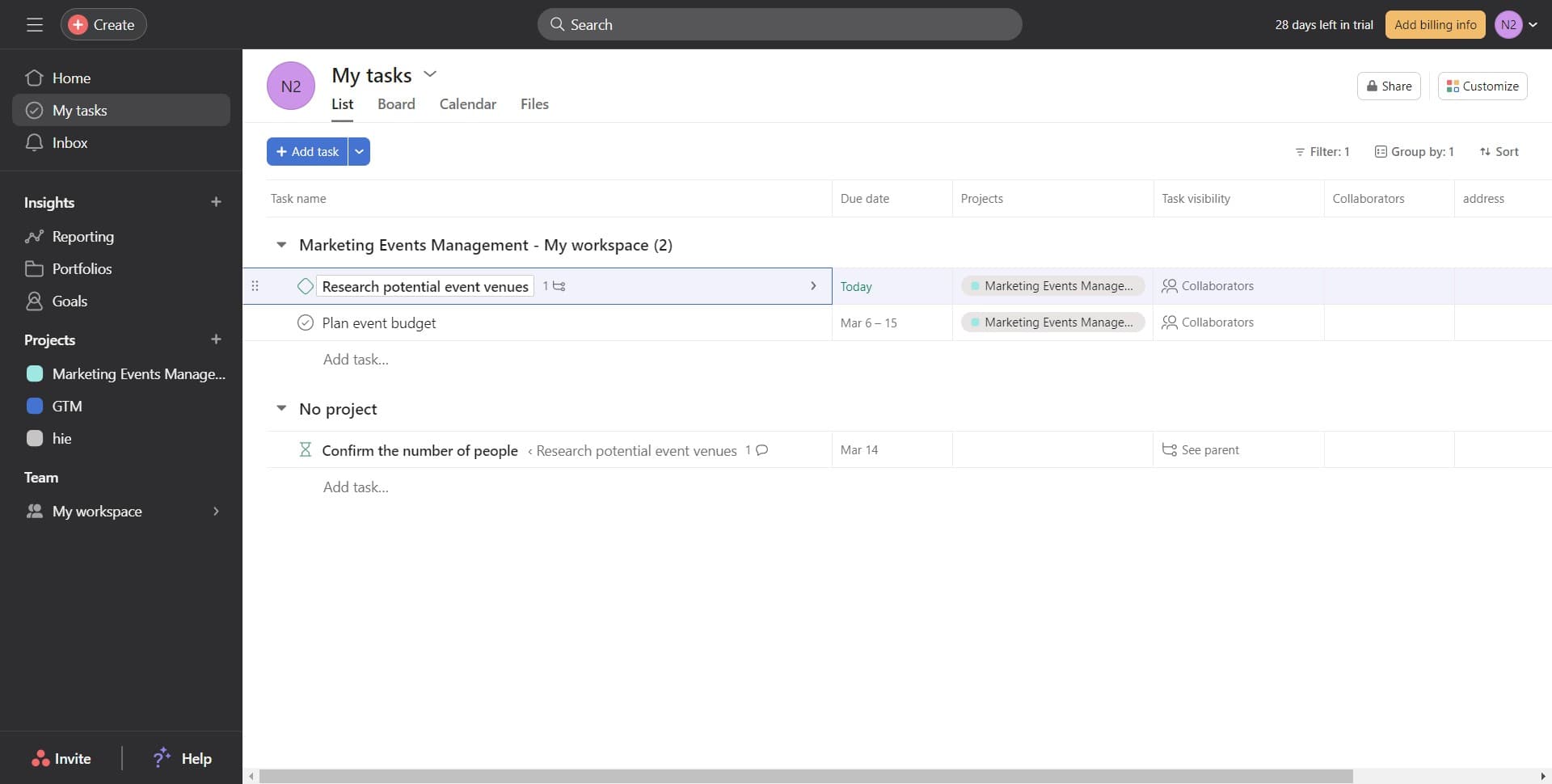
Open the primary task
Click on the task number or title to open the task detail view. This is the task from which you want to create a follow-up.
- 2
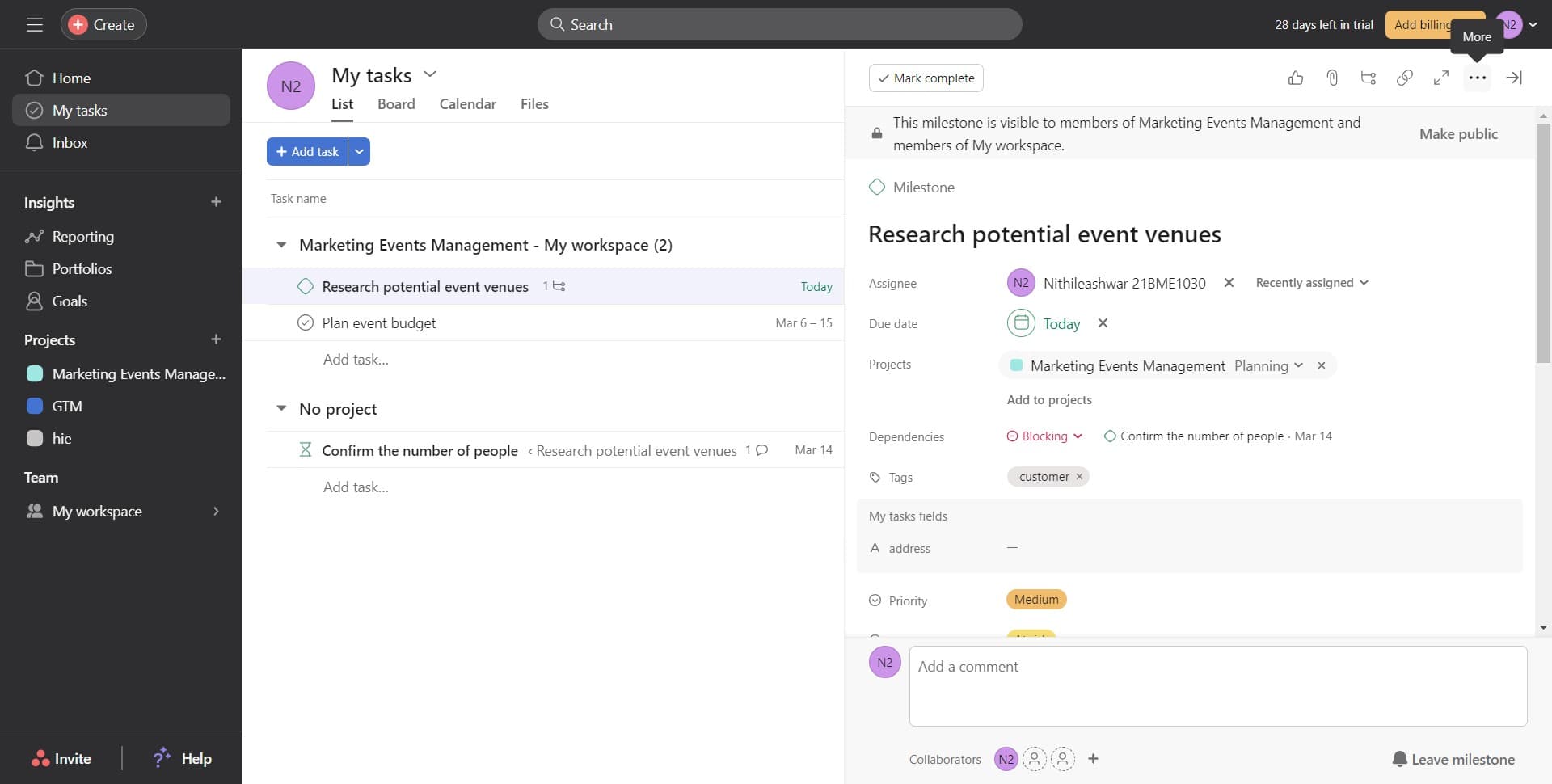
Access the task menu
Click on the menu icon or options button within the task details. This reveals additional actions you can take on the task.
- 3
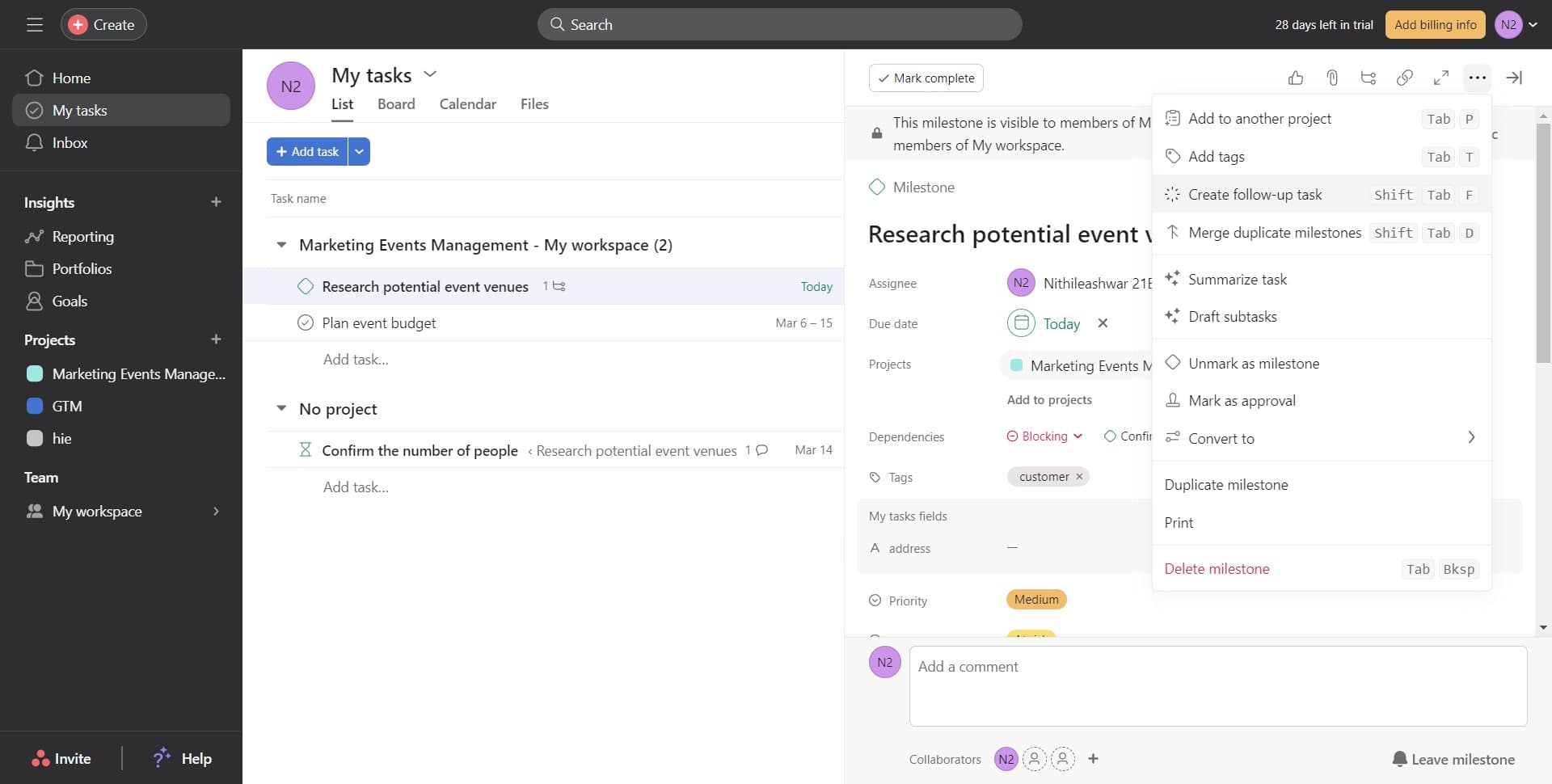
Select Create follow-up task
Click on the 'Create follow-up task' option from the menu. Asana will prepare a new task linked to the current one.
- 4
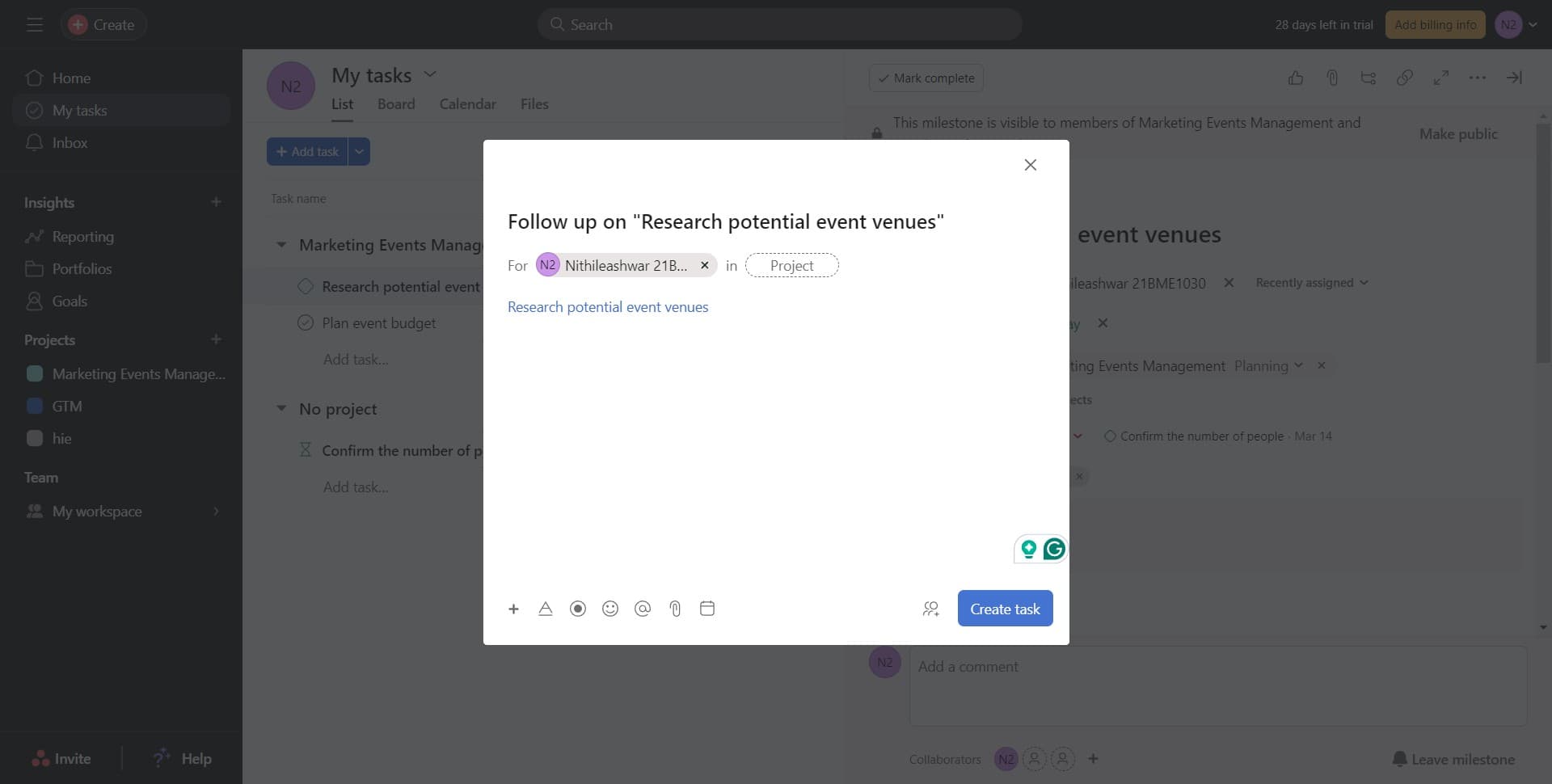
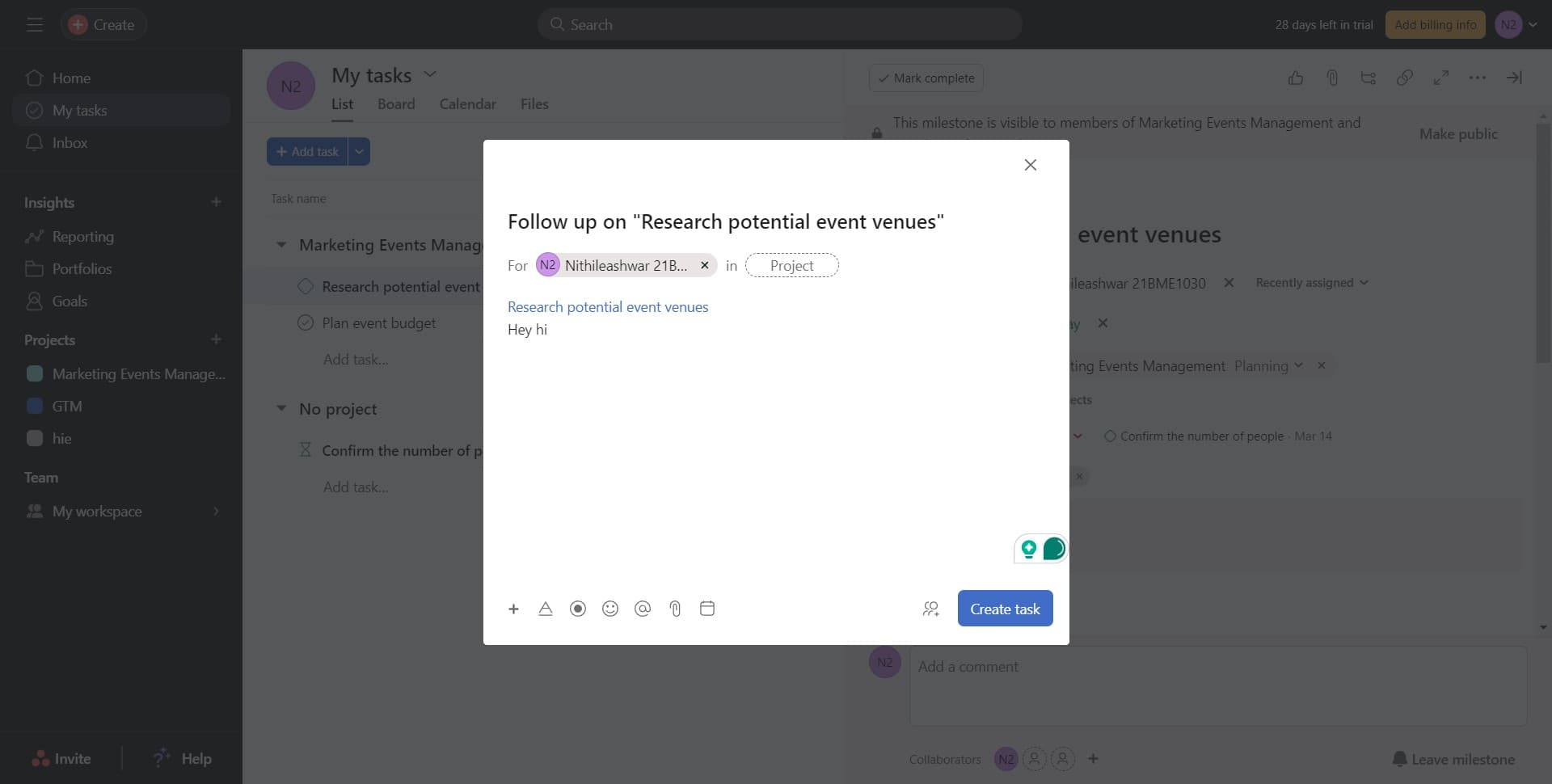
Name the follow-up task
Enter the title for your follow-up task, such as 'Research potential event venues'. This should clearly describe the next action or phase of work.
- 5
Confirm task creation
Click on 'Create task' to finalize the follow-up task. Asana will automatically link it to the original task, establishing the dependency.
- 6
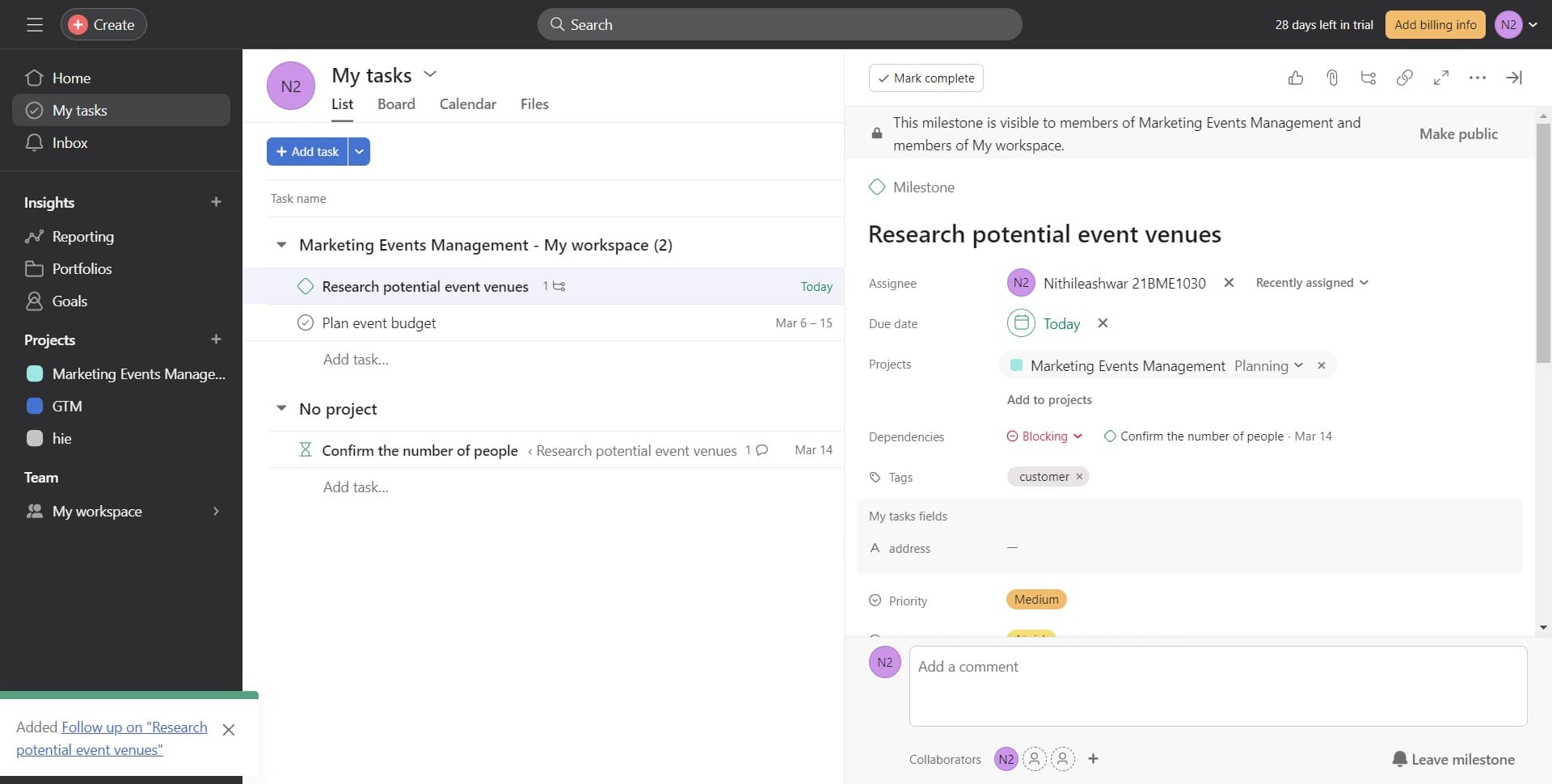
View the linked follow-up task
Click on the follow-up task name (e.g., 'Follow up on R...') to open it and assign team members, set due dates, or add additional details as needed.
Frequently asked questions
Common questions about how to create a follow-up task in asana.
A follow-up task is a separate, dependent task linked to the original task, typically representing work that happens after the current task is complete. A subtask is a smaller piece of work that is part of the main task itself. Follow-up tasks are useful for sequential workflows, while subtasks break down a single task into smaller components.
Yes, after creating a follow-up task, you can click on it to open its details and assign it to any team member in your Asana workspace. This is helpful for handing off work to different people as projects progress through phases.
Asana's notification behavior depends on your workspace settings and whether you mention the task owner in the follow-up task. It's best practice to communicate task dependencies directly to ensure everyone is aligned on the workflow.
You can view task dependencies by using Asana's timeline view or by checking the task details of individual tasks where follow-ups are listed. Some teams also use custom fields or project templates to track dependent work visually.
Yes, you can create follow-up tasks from follow-up tasks, allowing you to build multi-step workflows. This is useful for complex projects with several sequential phases, but be mindful of keeping your project structure clear and manageable.