How to Invert Colors in Canva

Canva doesn't have a one-click invert button, but you can achieve a color inversion effect using the Duotone filter with swapped highlight and shadow colors. This tutorial walks you through the process step by step.
Quick summary
In this tutorial, we'll explore how to invert colors on an image in Canva. You'll use the Duotone effect with swapped highlight and shadow colors to achieve a color inversion effect, setting highlights to black and shadows to white.
Why this matters
Color inversion creates striking visual effects that work well for artistic designs, social media graphics, and brand materials. While Canva doesn't offer a direct invert tool, the Duotone workaround gives you a similar result with additional control over the exact colors used.
Step-by-step guide
- 1
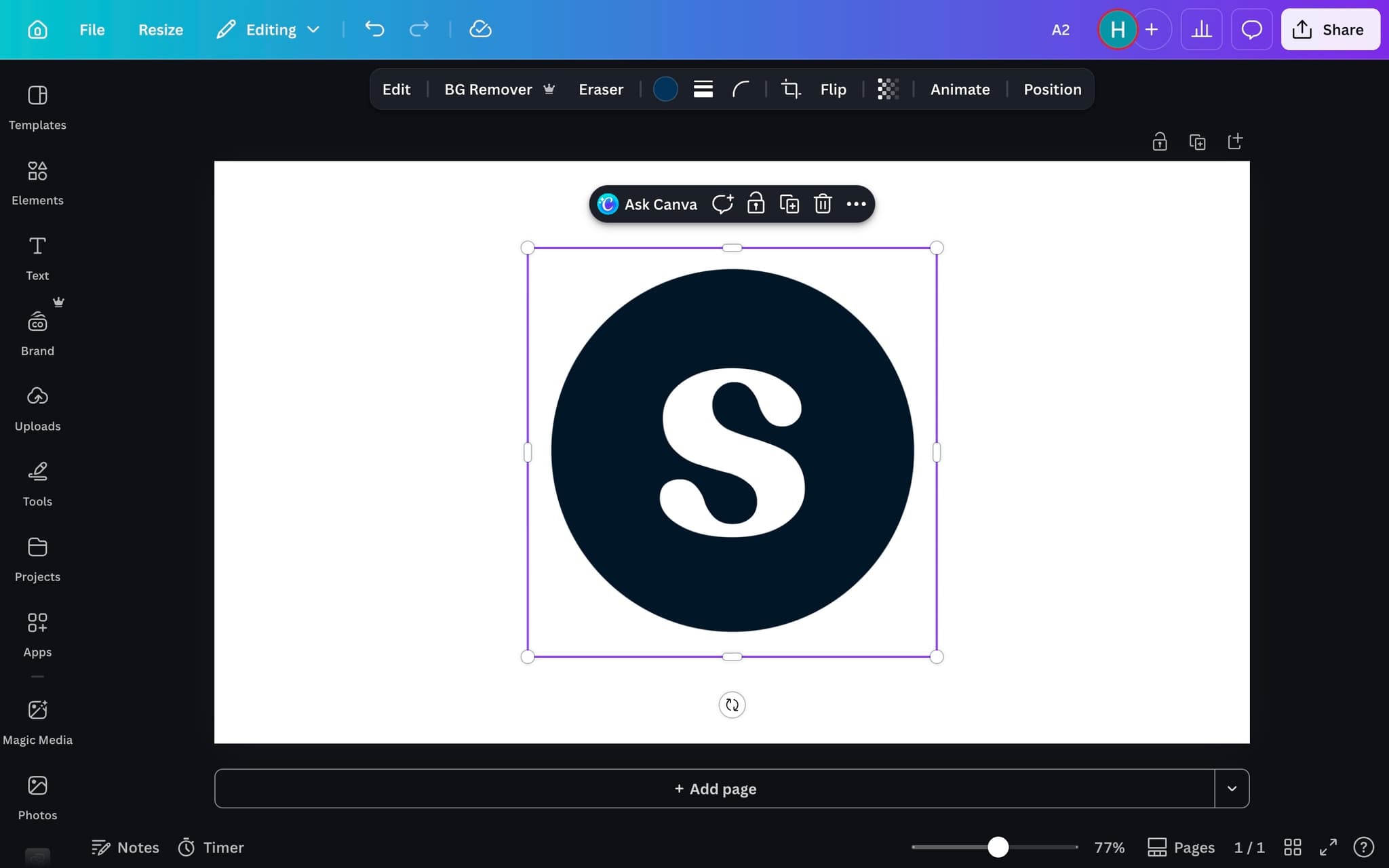
Click on the image to select it
Click the image you want to invert. The image needs to be selected before you can access editing tools. Make sure you see the selection handles around the image.
- 2
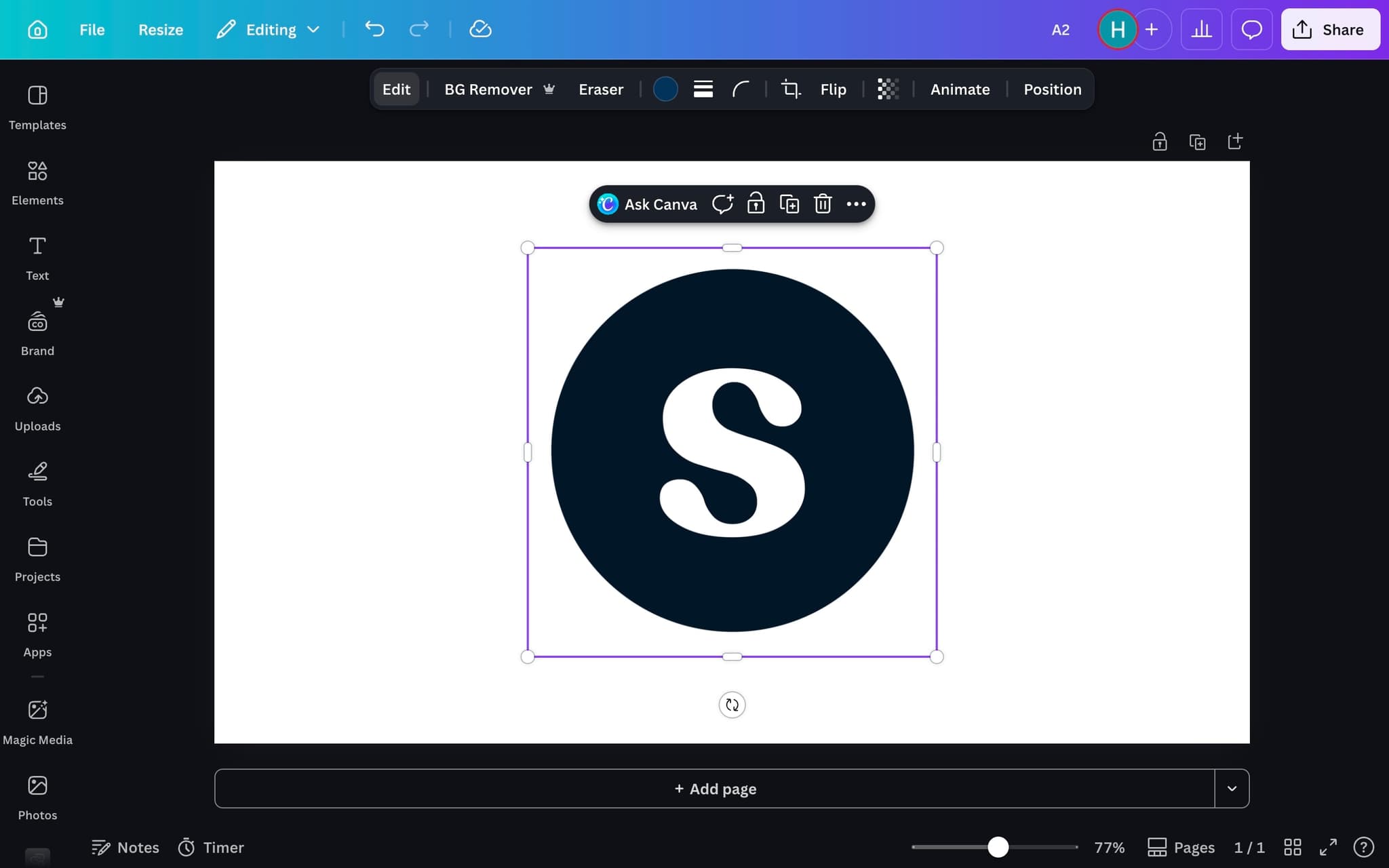
Click the Edit button
With the image selected, click the Edit button in the toolbar. This opens a panel with various image editing options including filters, adjustments, and effects.
- 3
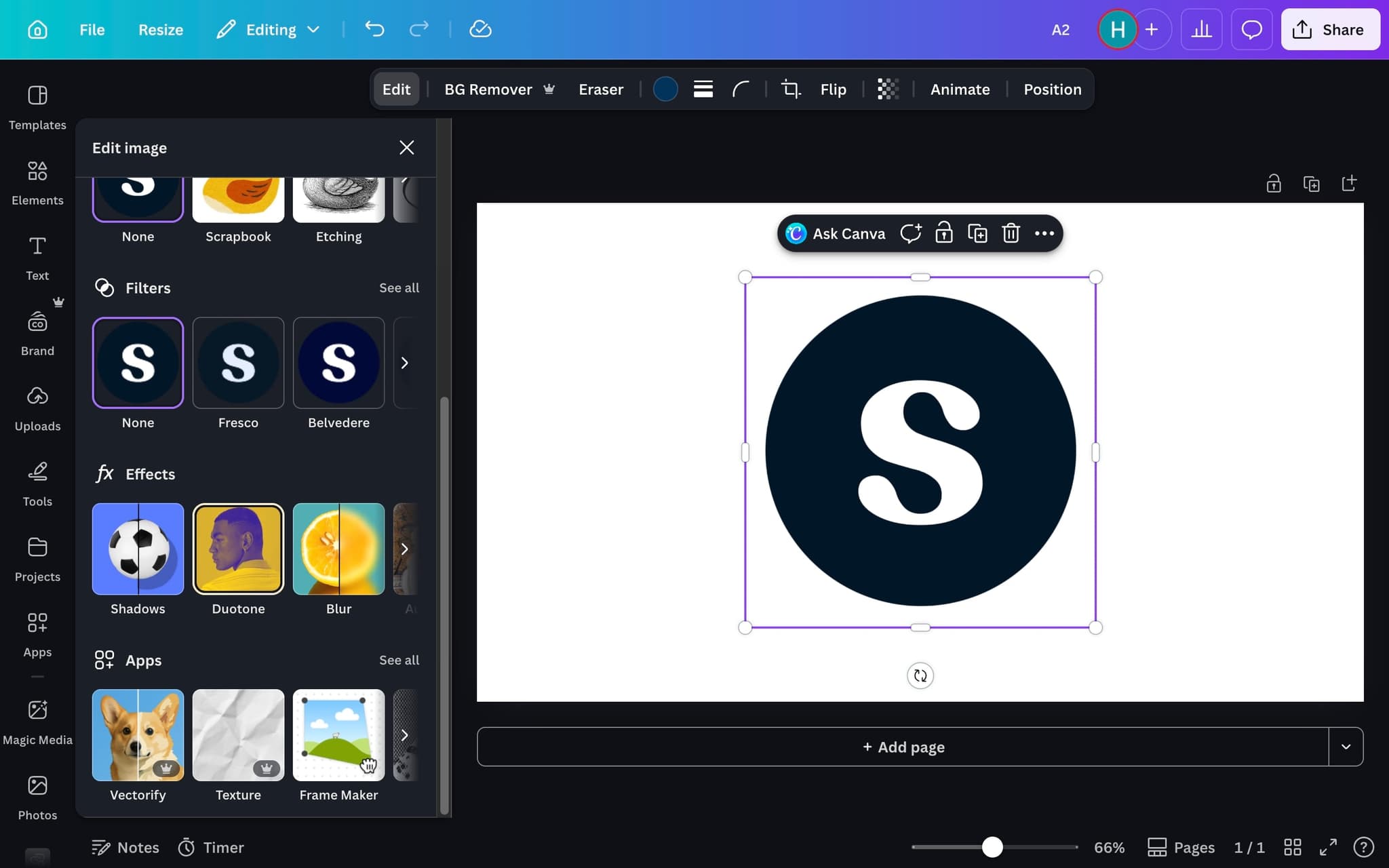
Select the Duotone effect
Scroll through the effects and click on Duotone. This effect maps two colors across the tonal range of your image, replacing shadows with one color and highlights with another.
- 4
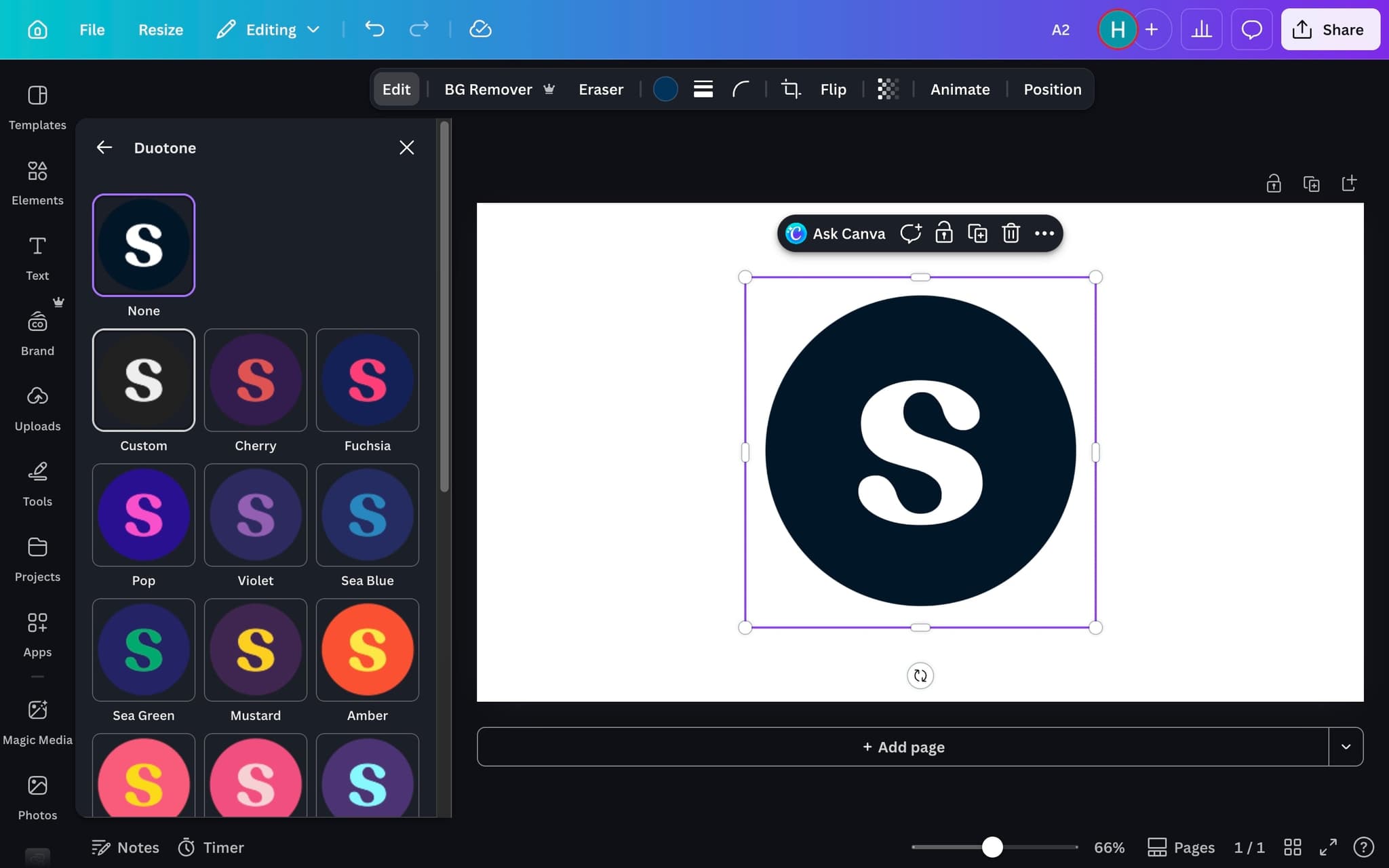
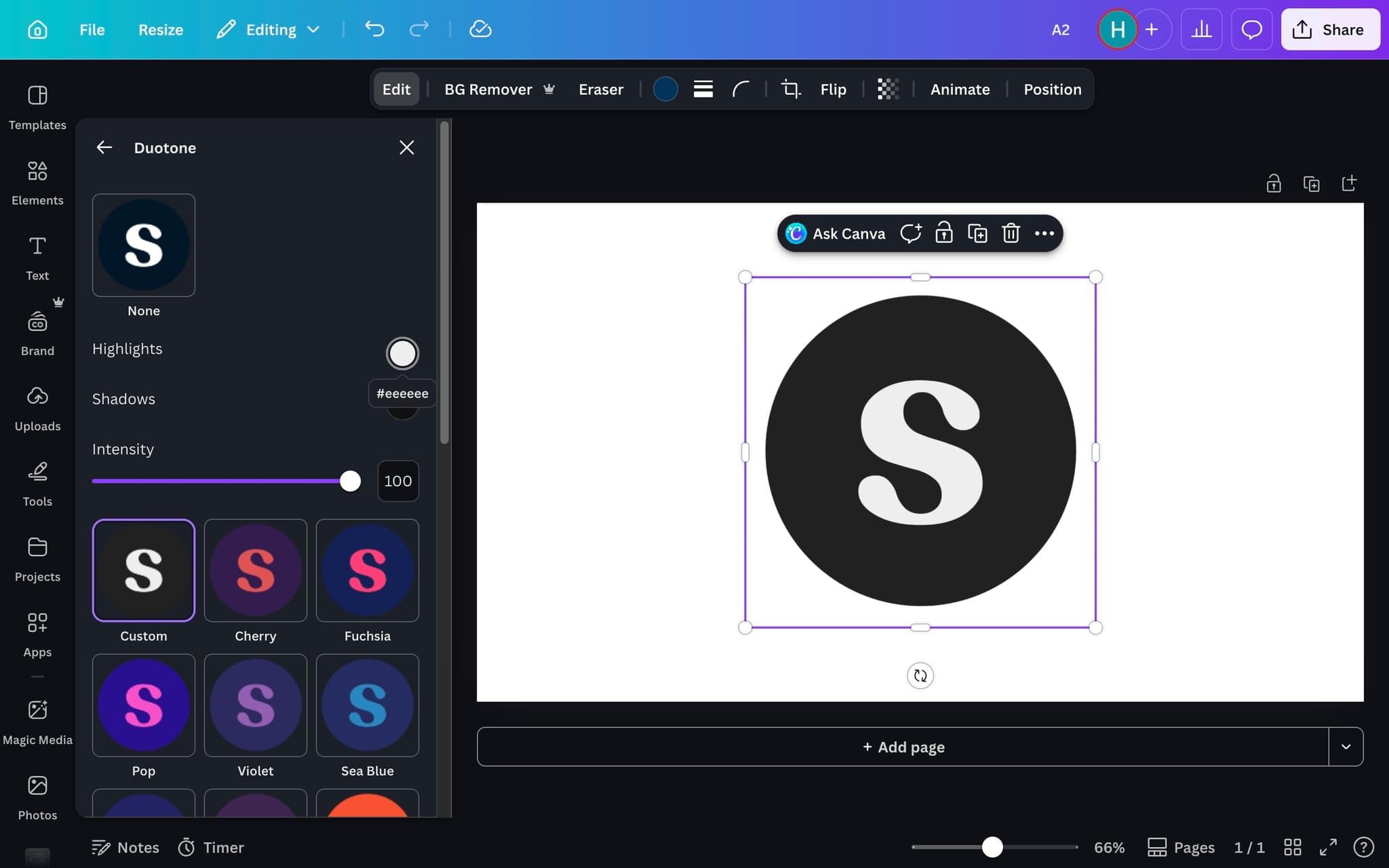
Click Custom to set your own colors
Instead of using a preset, click Custom to manually choose your highlight and shadow colors. This is where you'll set up the inverted color mapping.
- 5
Swap the highlight and shadow colors
Change the Highlights color to black and the Shadows color to white (or whatever inverse combination you want). This reversal is what creates the inversion effect, mapping dark areas to light and light areas to dark.
- 6
Review the color settings
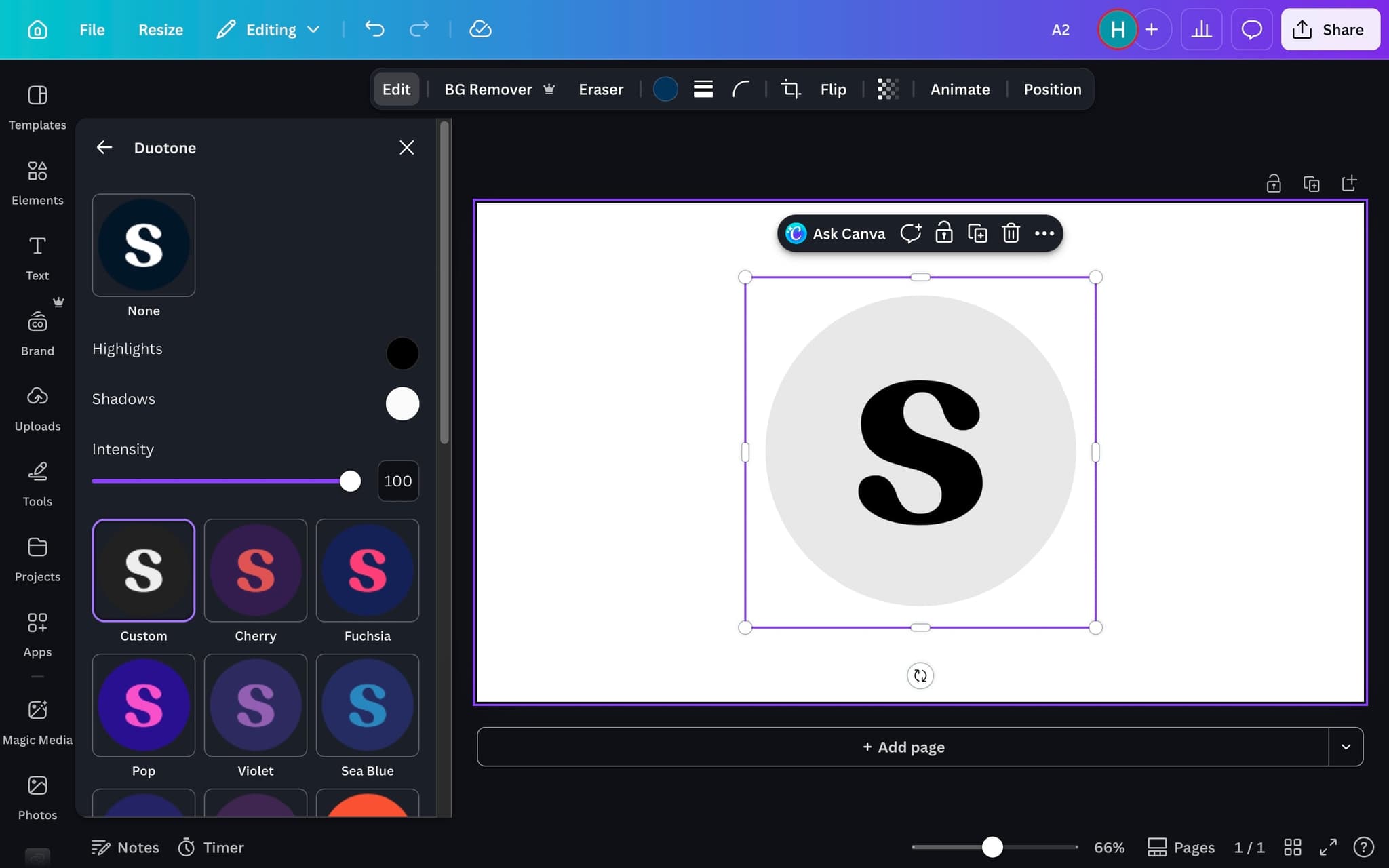
Confirm that you've set highlights to black and shadows to white. You can experiment with other color pairs too, like swapping your brand colors for a creative duotone inversion effect.
- 7
Your inverted image is ready
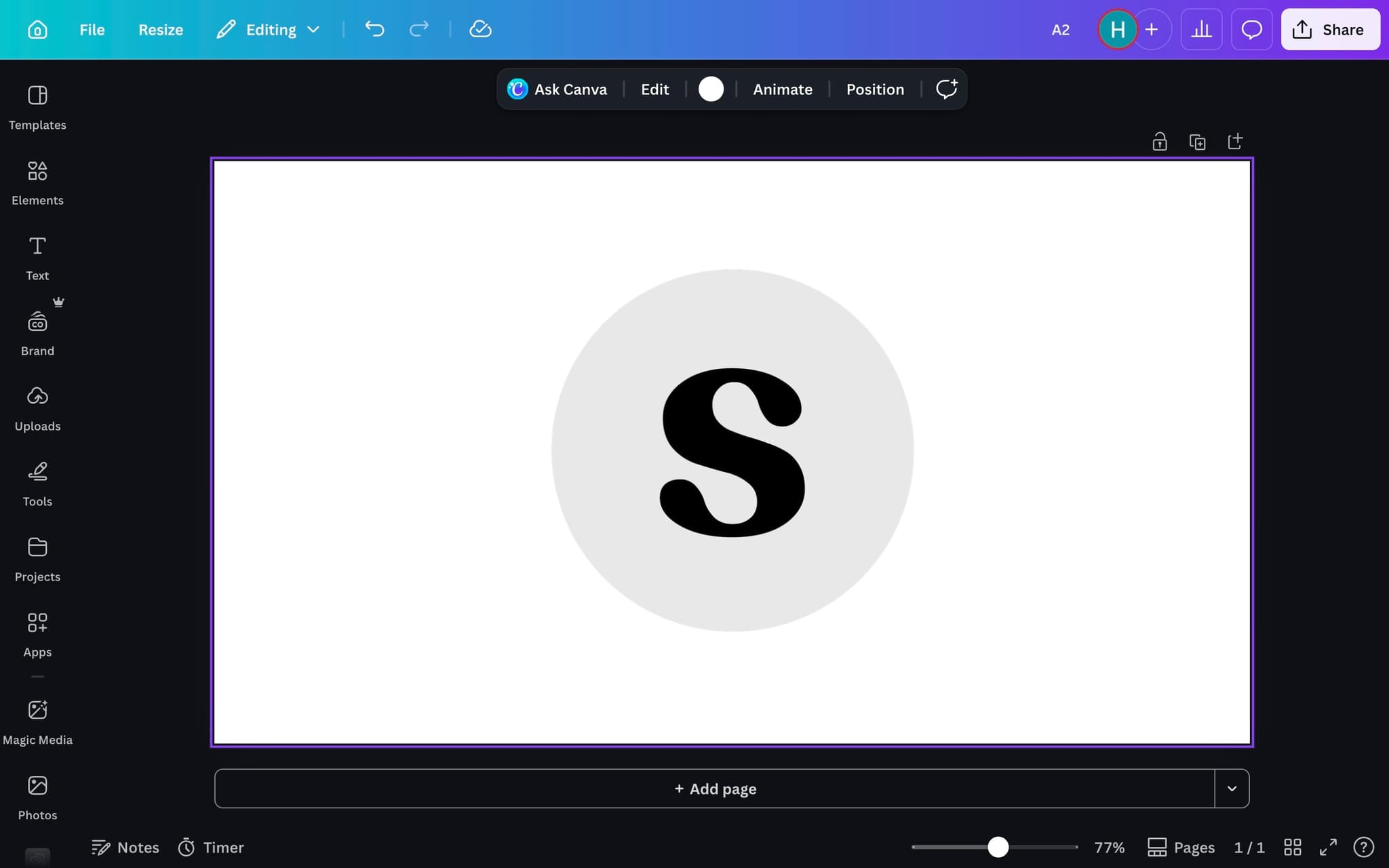
The image now displays with inverted colors. The effect is non-destructive, meaning you can go back and adjust the colors or remove the Duotone effect entirely at any time without affecting the original image.
Frequently asked questions
Common questions about how to invert colors in canva.
Canva does not ship a one click invert filter the way Photoshop does. The closest native option is the Duotone effect combined with contrast and brightness adjustments, which approximates the look without performing a mathematical pixel inversion. For a true negative, prepare the file in another editor and upload the inverted version back into Canva.
Apply the Duotone effect with black and white as the two anchor colours, then push brightness and contrast to opposite extremes. The result approximates a photographic negative without leaving Canva. Higher contrast source photos produce a cleaner negative than flat or low contrast images.
Selective inversion is not supported natively in Canva. The workaround is to duplicate the image, apply the inversion to the copy, and mask the area you want to show using the Background Remover or a shape frame. Layer the masked copy on top of the original to achieve the partial effect.
Because Canva simulates inversion through contrast and duotone rather than true pixel inversion, saturated midtones can compress into grey. Starting with a high contrast, well lit source image usually produces a cleaner result. Boosting saturation after applying the effect can also pull the colours back from grey.
A sandbox demo gives each viewer an isolated, clickable copy of the Canva flow they can explore freely, which means one recording can power tutorials across every campaign without re-recording. As Fredo Tan, Head of Growth at Supademo, puts it: "For campaign teams, embedded interactive walkthroughs typically reach 3 to 4x the engagement of static design guides on the same pages."
Adoption has grown rapidly as buyers expect self serve product experiences before booking a call. The state of interactive demos 2026 report benchmarks usage across industries, team sizes, and funnel stages.