How to Highlight Words in Canva

Highlighting text in Canva adds a colored background behind your words, making them stand out from the rest of your design. This tutorial shows you how to apply the Background text effect and customize its appearance.
Quick summary
In this tutorial, we'll explore how to highlight words in Canva using the Background text effect. You'll select a text box, open the Effects panel, apply the Background option, and customize properties like color, roundness, and spread.
Why this matters
Text highlighting draws attention to key phrases, headings, or calls to action in your designs. It's a simple way to improve readability against complex backgrounds and add visual emphasis without changing your overall layout.
Step-by-step guide
- 1
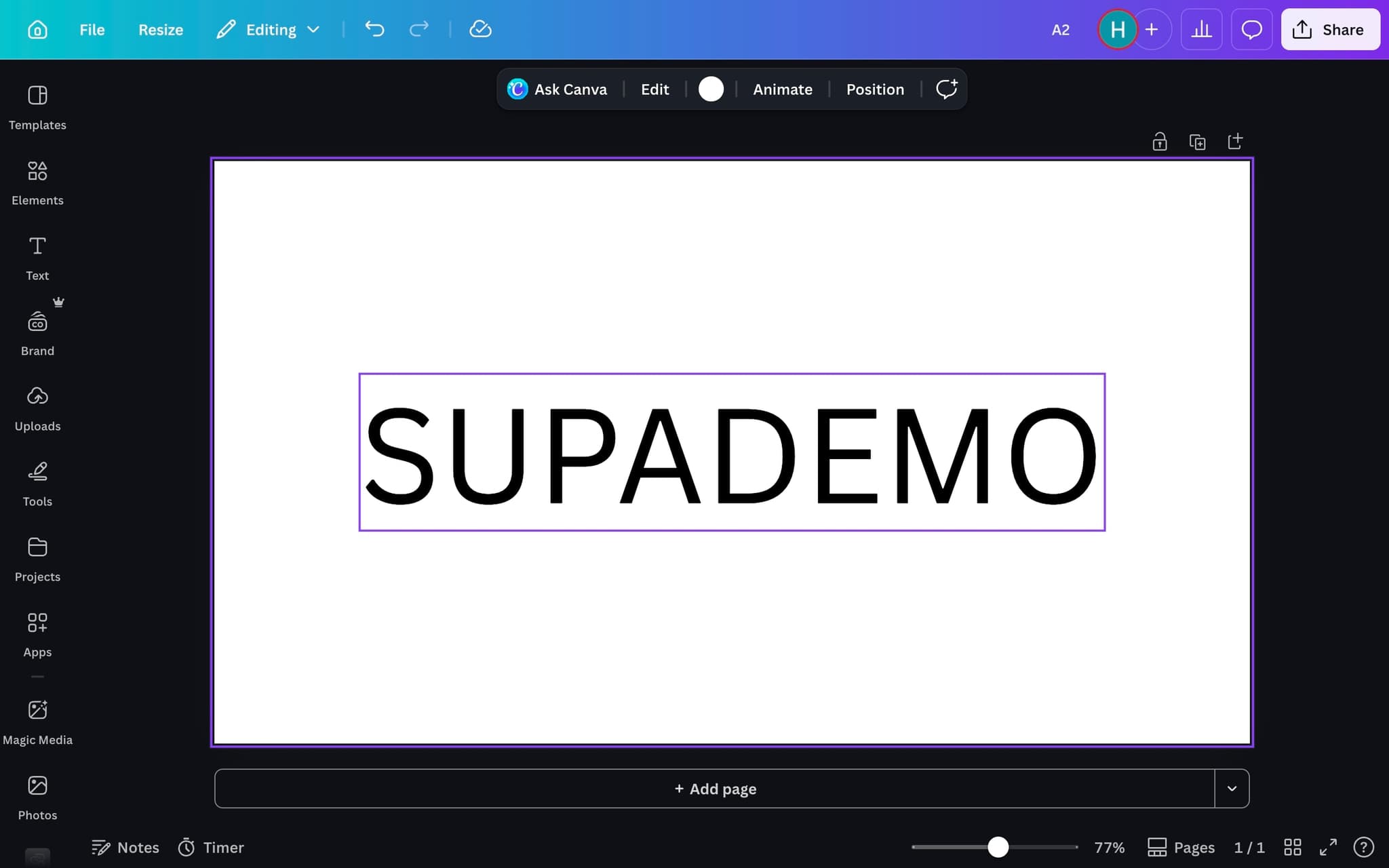
Select the text box
Click on the text element you want to highlight. Make sure the entire text box is selected rather than individual characters, since the Background effect applies to the whole text block.
- 2
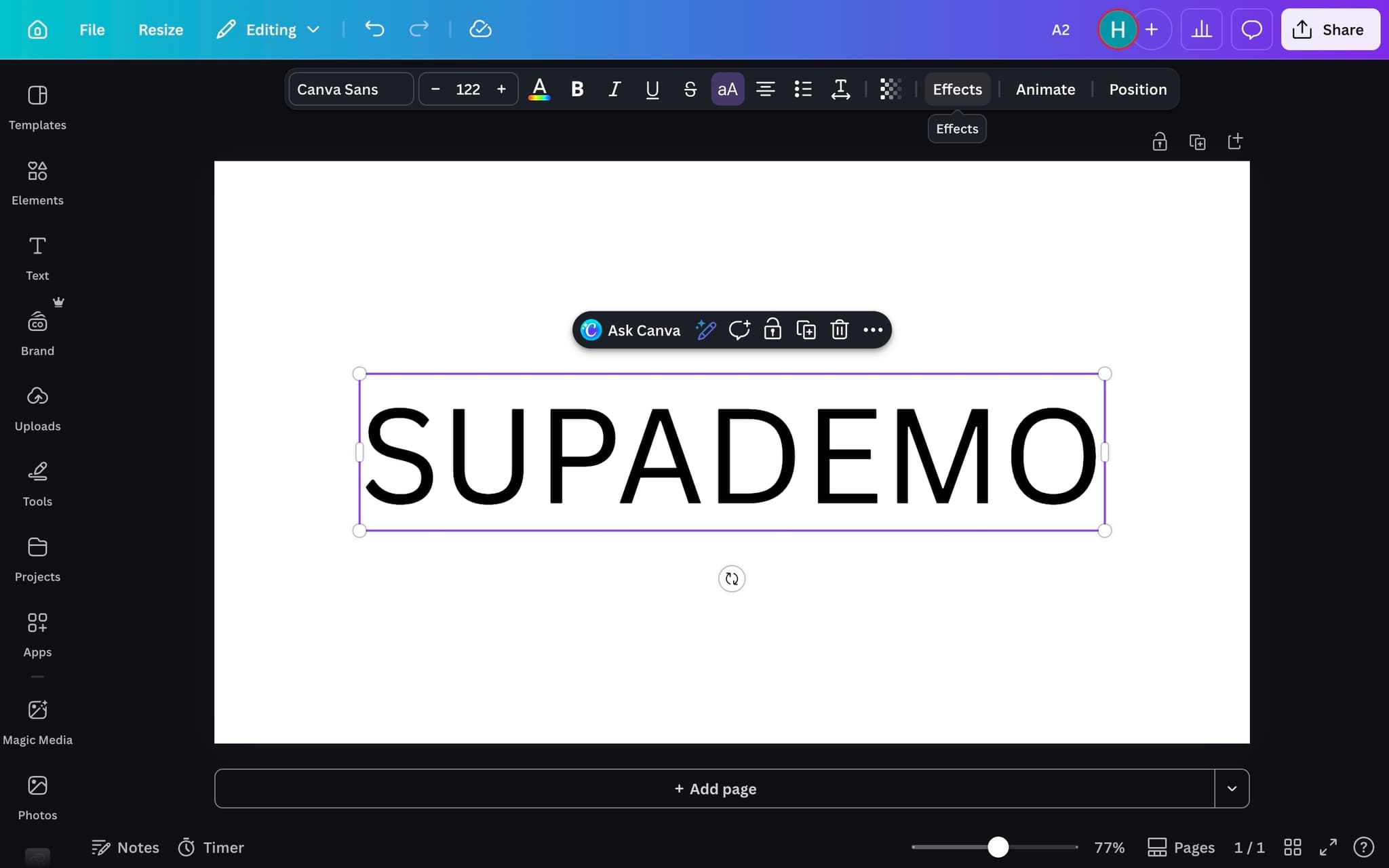
Click the Effects button
With the text selected, click the Effects button in the toolbar. This opens the effects panel where you can browse available text effects including Shadow, Lift, Echo, and Background.
- 3
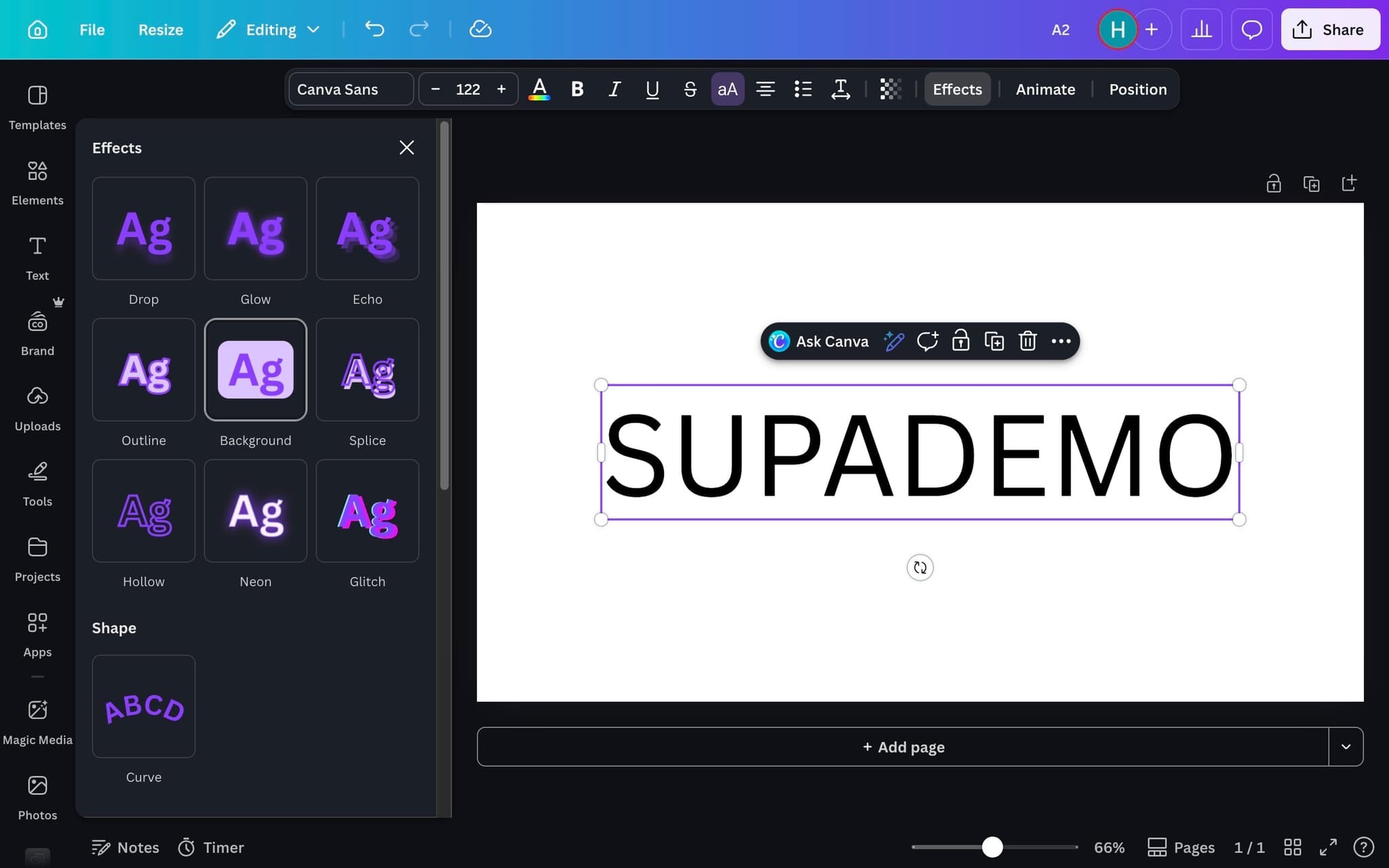
Select the Background effect
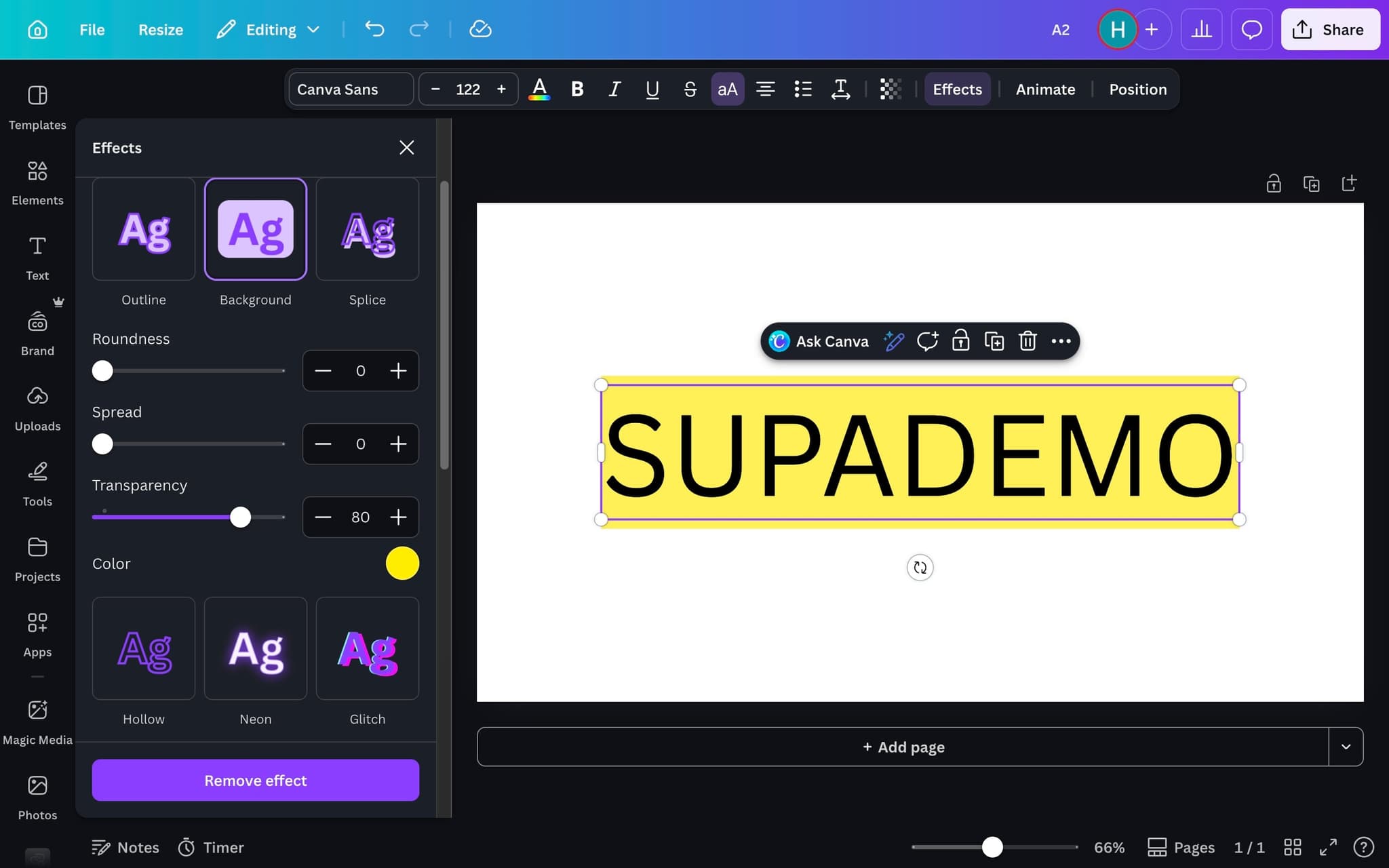
Click on the Background effect option. A solid color highlight will immediately appear behind your text using a default color. The effect covers each line of text individually, creating a highlight-marker look.
- 4
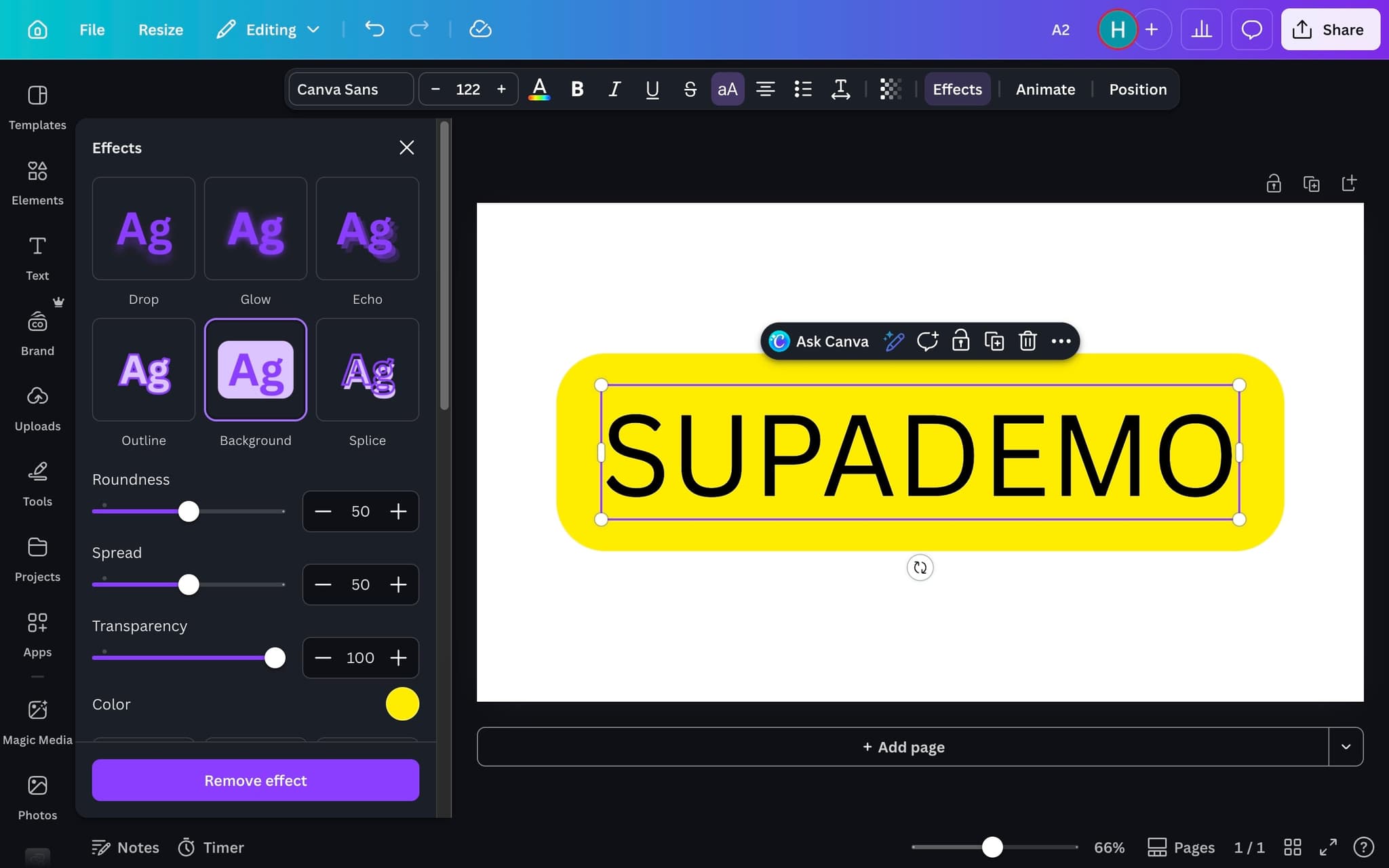
Customize the highlight properties
Adjust the Roundness, Spread, Transparency, and Color settings to match your design. Roundness controls the corner radius of the highlight shape, Spread adjusts padding around the text, and Transparency controls how opaque the highlight appears.
- 5
Your highlighted text is ready
Review the final result to make sure the highlight looks good with your overall design. You can go back and fine-tune any of the properties at any time by selecting the text and returning to the Effects panel.
Frequently asked questions
Common questions about how to highlight words in canva.
Canva does not have a native highlighter toggle in its text toolbar. The common workaround is to place a rectangle shape behind the target words, lower its opacity slightly, and group it with the text so the two move together. Canva also ships a Background text effect that simulates a highlighter pen for single lines.
You can split the line into separate text boxes and style only the target word with a background rectangle. Alternatively, apply the Background effect from the Effects panel, which draws a coloured band behind each line of text. For precise control over a single word, the rectangle method is the most reliable.
Yes. Every background rectangle or Background effect has its own colour picker, so different words can carry different highlight colours within the same design. Hex values are supported, which means you can match highlights exactly to your brand palette. Document colours are also remembered in the sidebar for quick reuse. Brand consistency at this level pays off broadly: per Supademo's State of Interactive Demos 2026 report, teams using their workflows for four or more use cases report 31% higher overall satisfaction.
If the highlight shape and the text layer are not grouped, the rectangle stays anchored to its original coordinates while the text moves. Select both layers and press the group shortcut so they scale and move together. Once grouped, the highlight will follow any future resize or drag action.
A guided HTML demo records the Canva interface as real DOM, not a flat image, and lets viewers click through it in their own browser, so a design ops hand off feels like the real editor rather than a recorded video. As Fredo Tan, Head of Growth at Supademo, puts it: "For design ops, interactive walkthroughs are the closest thing to handing someone the Canva editor without scheduling a live call. That is why recurring workflows finally stop needing 1:1 training."
Several SaaS companies publish their walkthroughs as public marketing pages to show prospects how the product works without a call. This curated list of interactive product walkthrough examples shows how they structure storylines, branching, and calls to action.