How to Make Landscape Template in Canva

Landscape orientation is essential for presentations, desktop wallpapers, and wide-format designs. This tutorial shows you how to set up a landscape template in Canva.
Quick summary
In this tutorial, we'll explore how to create a landscape template in Canva. You'll use the Resize tool to enter custom dimensions where the width is larger than the height, then create a resized copy of your design in landscape orientation.
Why this matters
Choosing the right orientation from the start saves time and ensures your content fits properly. Landscape layouts are standard for presentations, video thumbnails, website banners, and social media covers.
Step-by-step guide
- 1
Click Create a design
From the Canva home screen, click the 'Create a design' button.
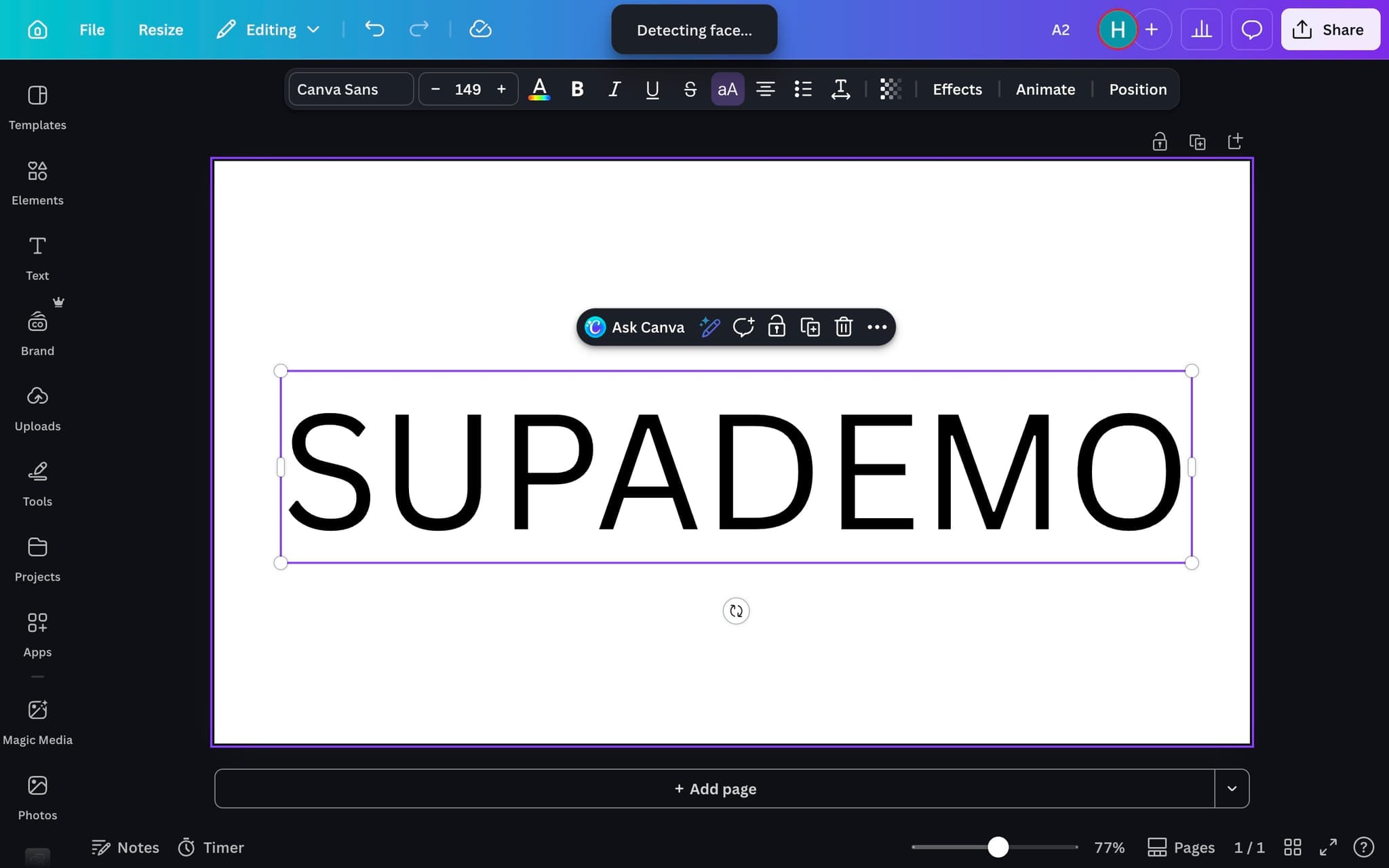
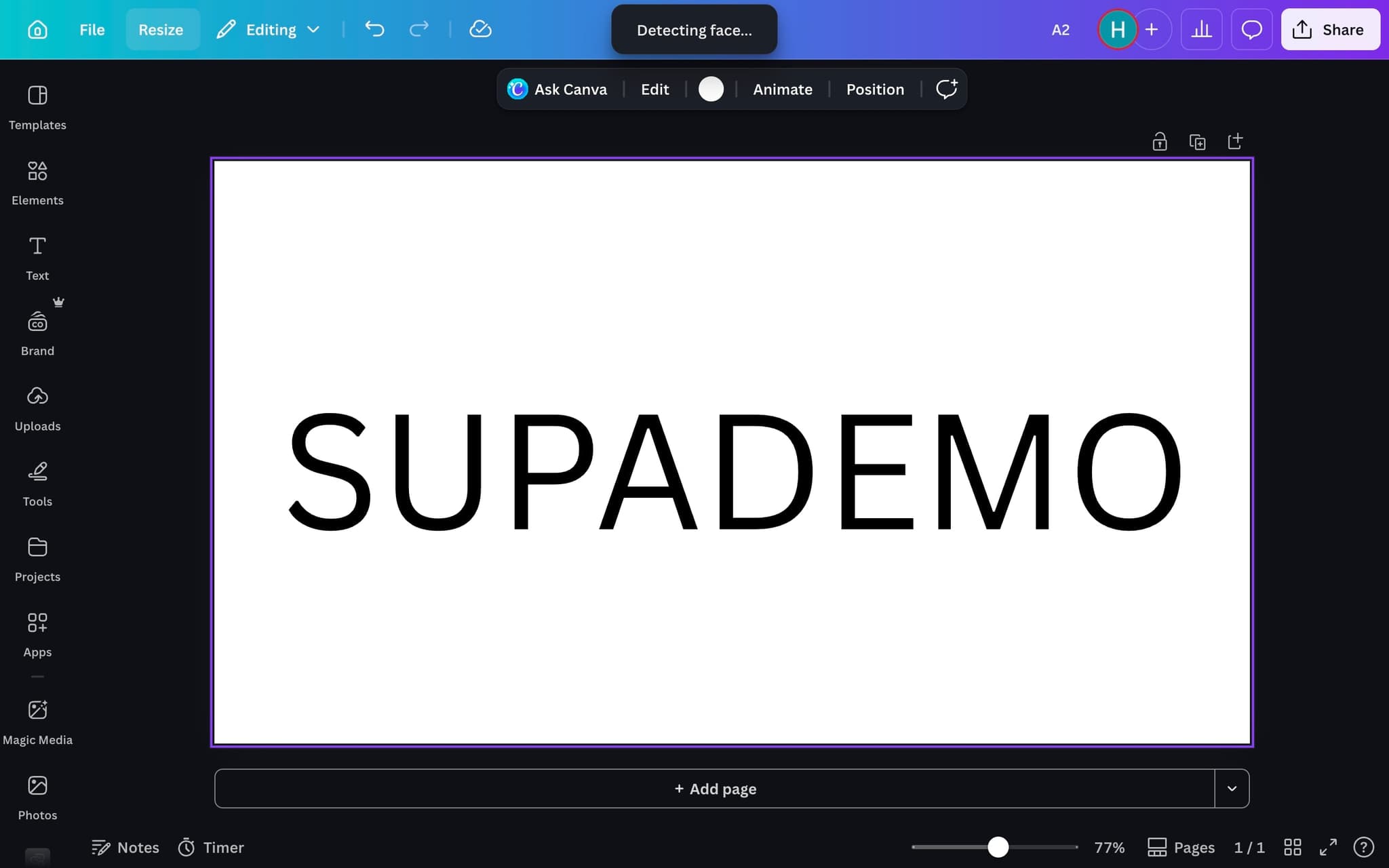
- 2
Choose custom size
Select 'Custom size' to manually set your dimensions.
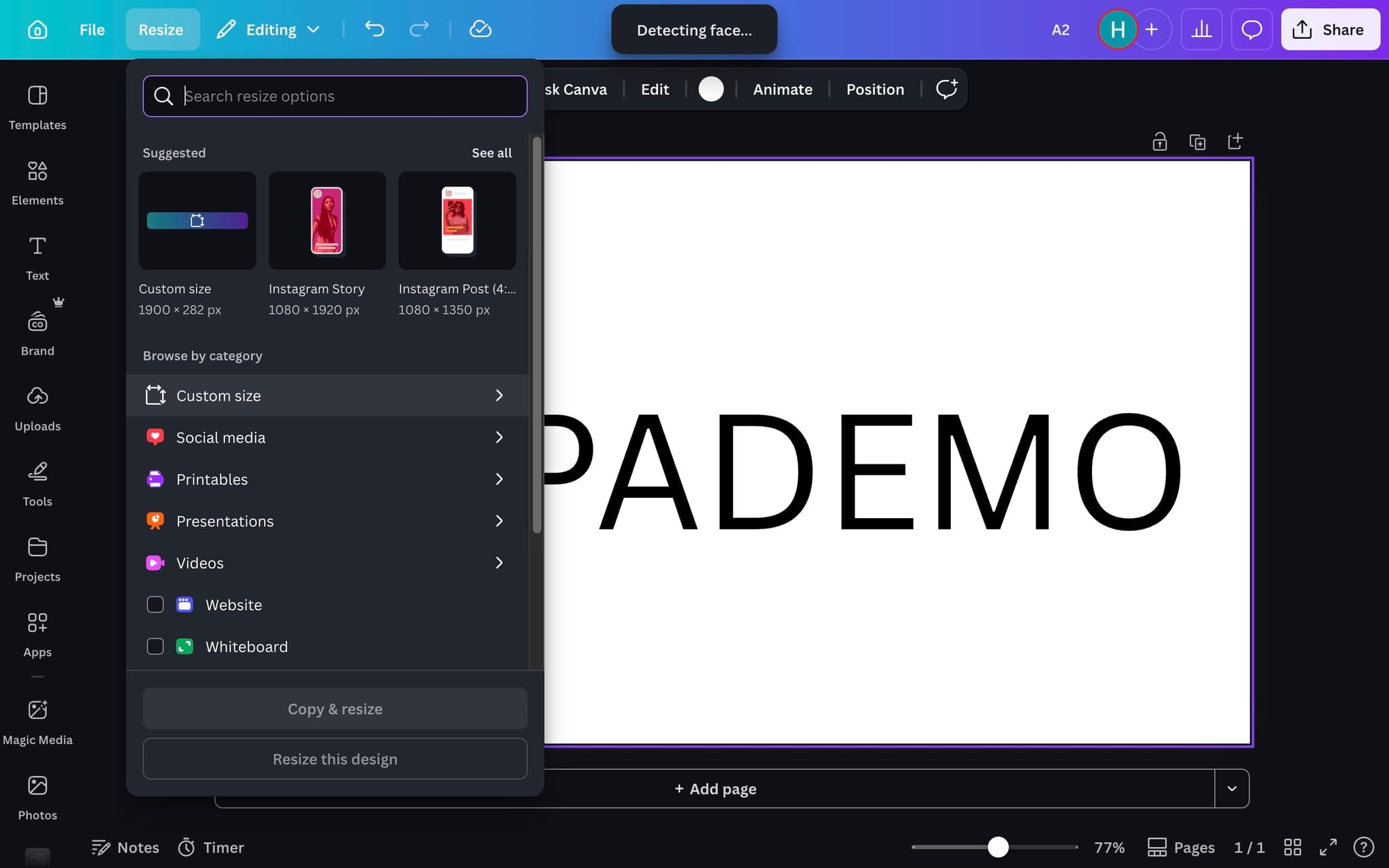
- 3
Set landscape dimensions
Enter a width that's larger than the height — for example, 1920 × 1080 for a standard HD landscape.
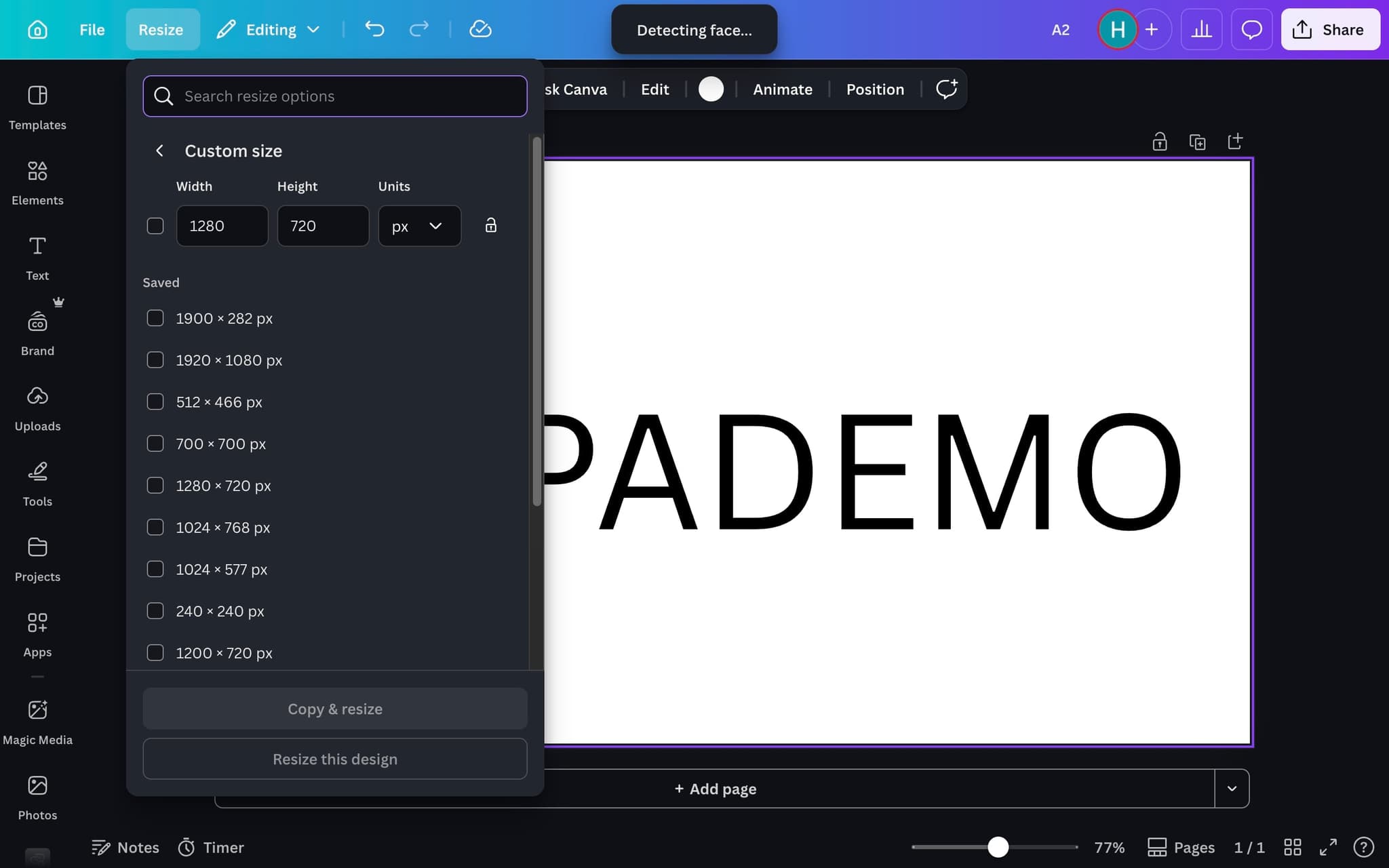
- 4
Start designing
Your new canvas opens in landscape orientation, ready for you to add content.
Frequently asked questions
Common questions about how to make landscape template in canva.
Canva's default landscape presentation is 1920 by 1080 pixels, matching a standard 16 to 9 HD display. This size works for slide decks, YouTube thumbnails, and most web backgrounds without rescaling. You can change the dimensions any time through the Resize option on paid plans. Length matters as much as size for any visual asset: per Supademo's State of Interactive Demos 2026 report, hero demos average 10 to 12 steps and 15 to 18 words per hotspot, which is a useful benchmark for any team building short form visual content.
Use the Resize and Magic Switch feature on Canva Pro to reflow the design from portrait to landscape in one click. Canva repositions elements automatically based on its layout rules, although dense or stacked designs usually need manual tweaking afterwards. The original portrait version is preserved as a separate file.
Yes. The Custom Size option on the homepage lets you enter any width and height in pixels, inches, or millimetres when creating a new design. This is how designers build landscape templates for non standard print jobs like trade show banners or oversized postcards. Custom sizes are saved with the file and can be reused as a template.
Projectors often display at a lower native resolution than HD, so designs built at small pixel dimensions can look soft when scaled up. Build your template at 1920 by 1080 or larger and let the projector scale down cleanly. Using vector elements wherever possible also keeps edges sharp at any size.
Rather than exporting flat slides into a brand guidelines PDF, designers can convert their Canva flow into a clickable tour using a product demo video maker, and embed it directly inside the brand doc so viewers step through each screen as if they were using the real editor. As Vimal Kumar, Product Operations Associate at Supademo, puts it: "The fastest way to onboard a new design team to any brand system is to record the actual Canva flow once and let people click through it at their own pace."
Screenshot decks require a presenter to explain the context, while interactive tours guide users themselves with tooltips and checkpoints. Teams that shifted from decks to in app tutorials report higher first session activation and fewer follow up support tickets.