How to Edit a PDF in Canva

Canva's PDF import feature lets you upload existing PDF files and edit them directly in the Canva editor. This tutorial walks you through the import and editing process.
Quick summary
In this tutorial, we'll explore how to edit a PDF in Canva. You'll upload a PDF file through the File menu, let Canva convert it into editable elements, and then modify text, images, and layout using Canva's standard editing tools.
Why this matters
Being able to edit PDFs without specialized software saves time and money. Canva makes it accessible to update documents, presentations, and marketing materials that were originally created as PDFs.
Step-by-step guide
- 1
Upload your PDF
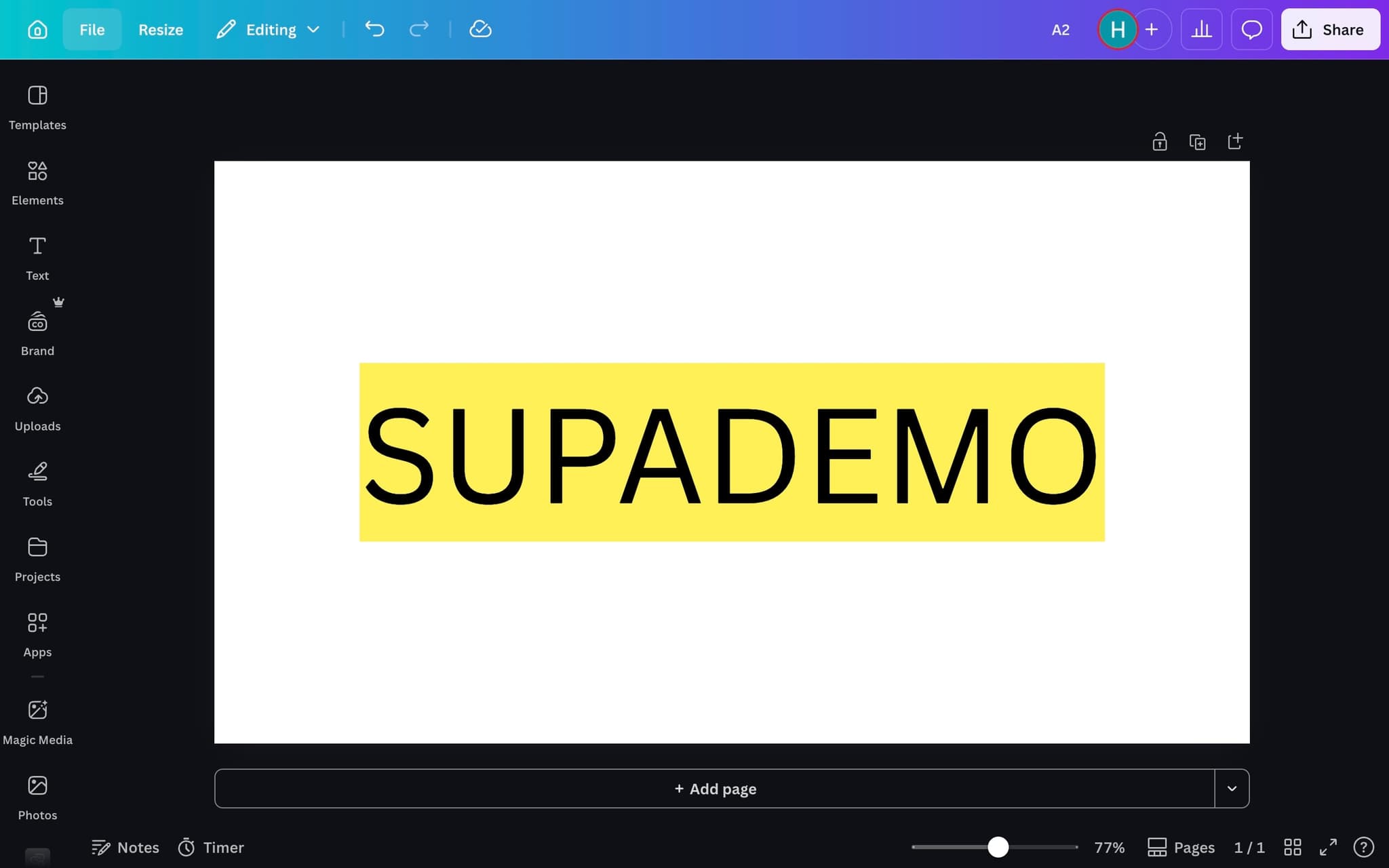
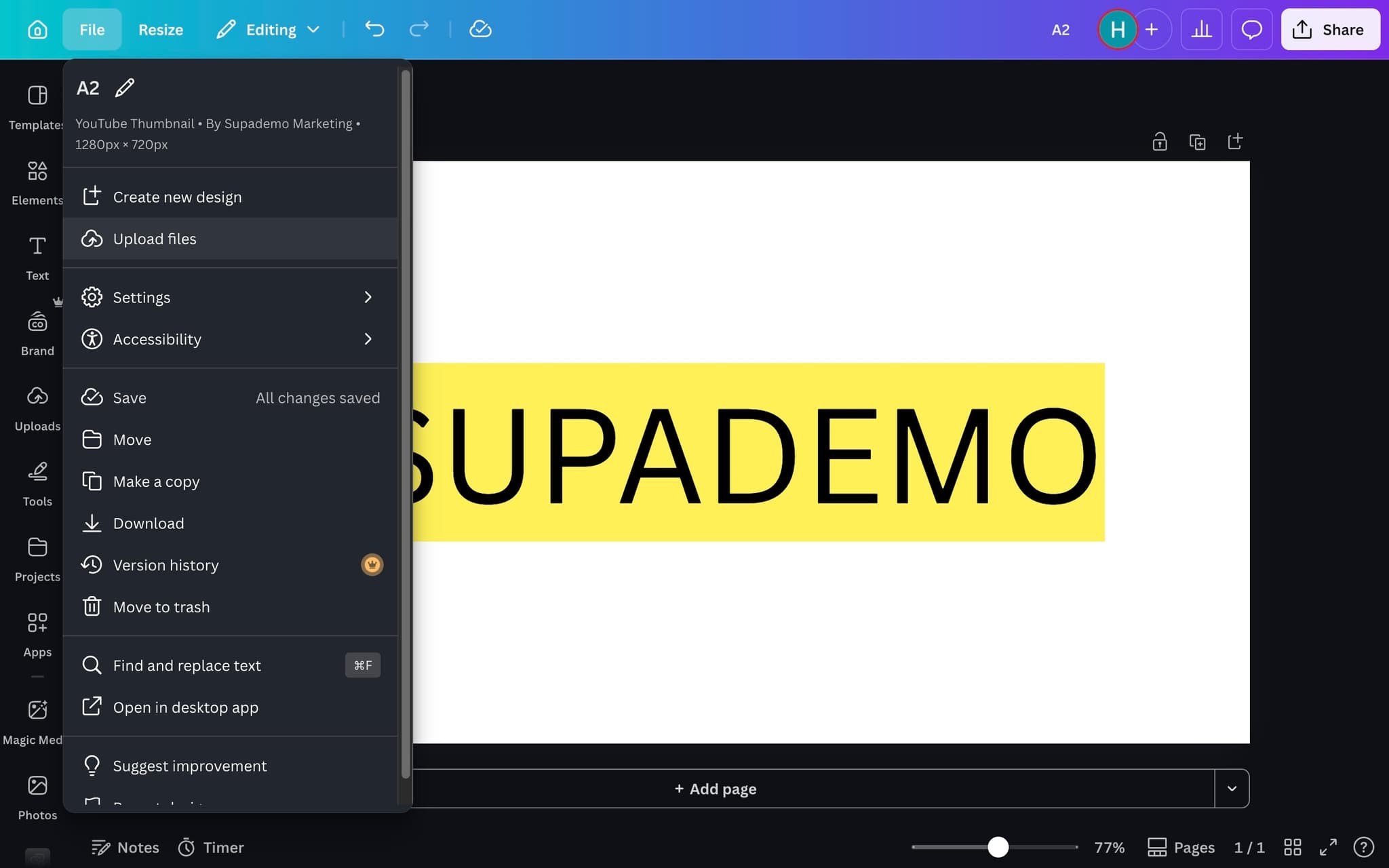
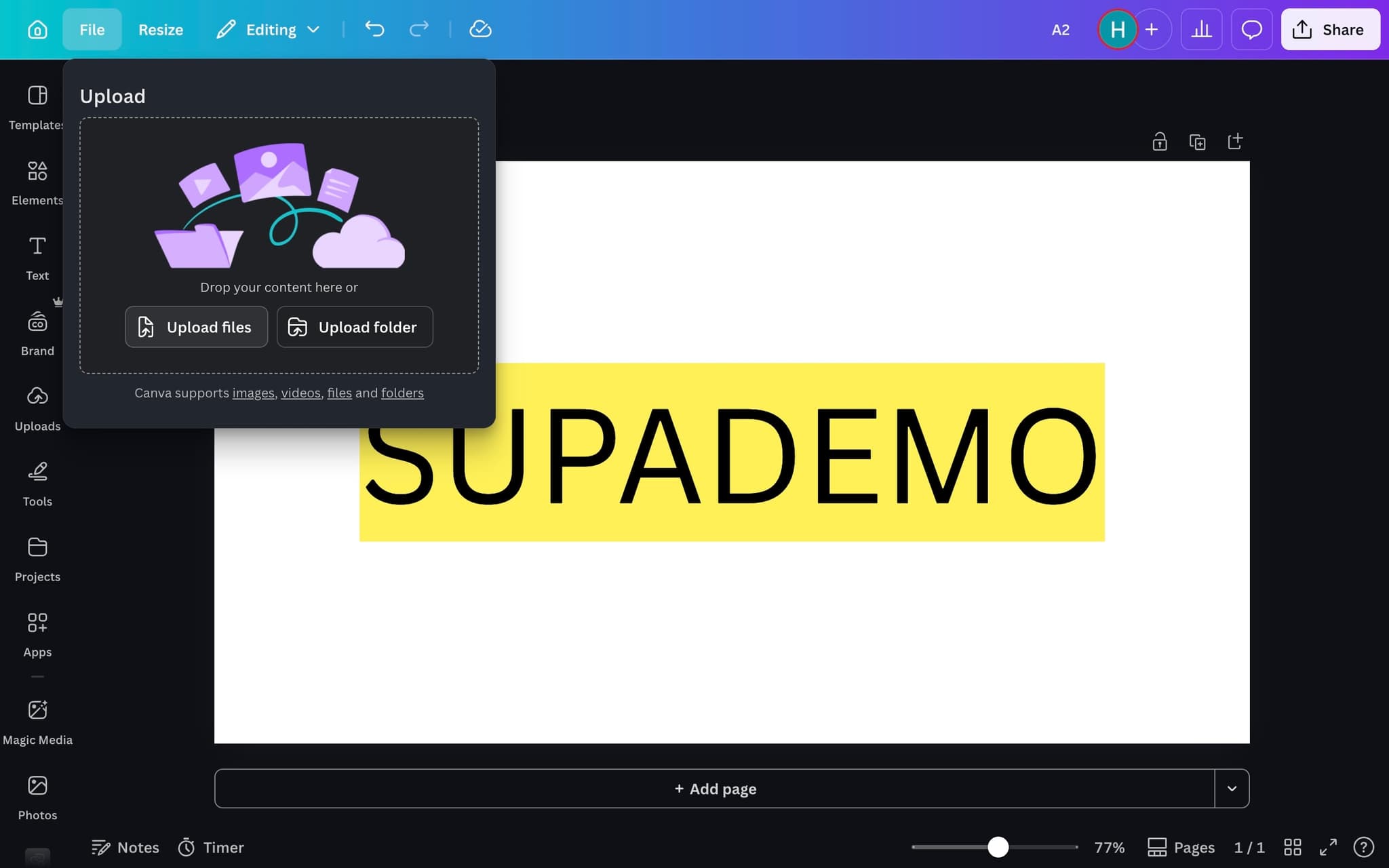
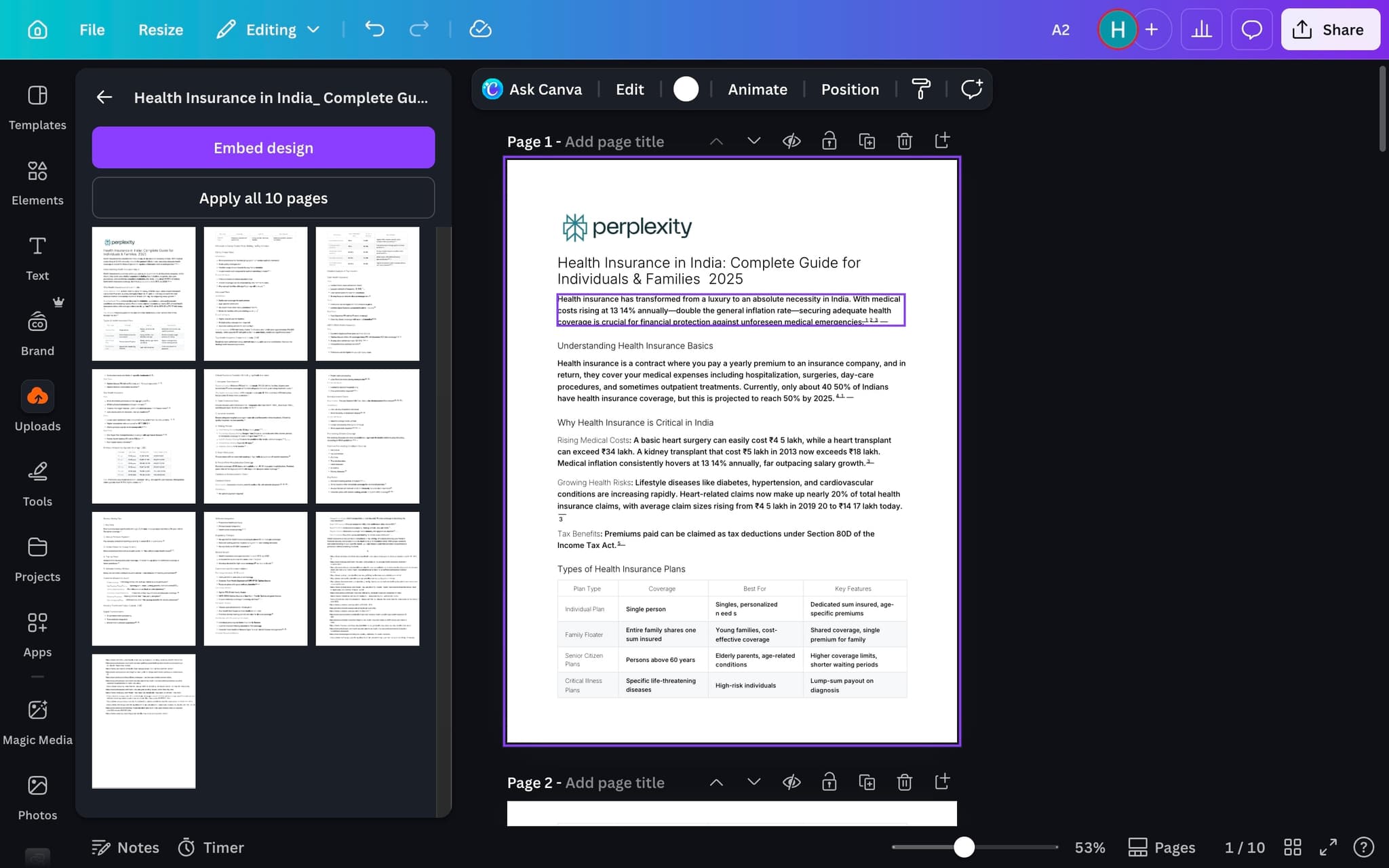
From the Canva home screen, click 'Create a design' and then upload your PDF file. Canva will convert each page into editable elements.
- 2
Review the imported content
Check how Canva has interpreted your PDF. Text, images, and shapes should be individually editable.
- 3
Edit text and images
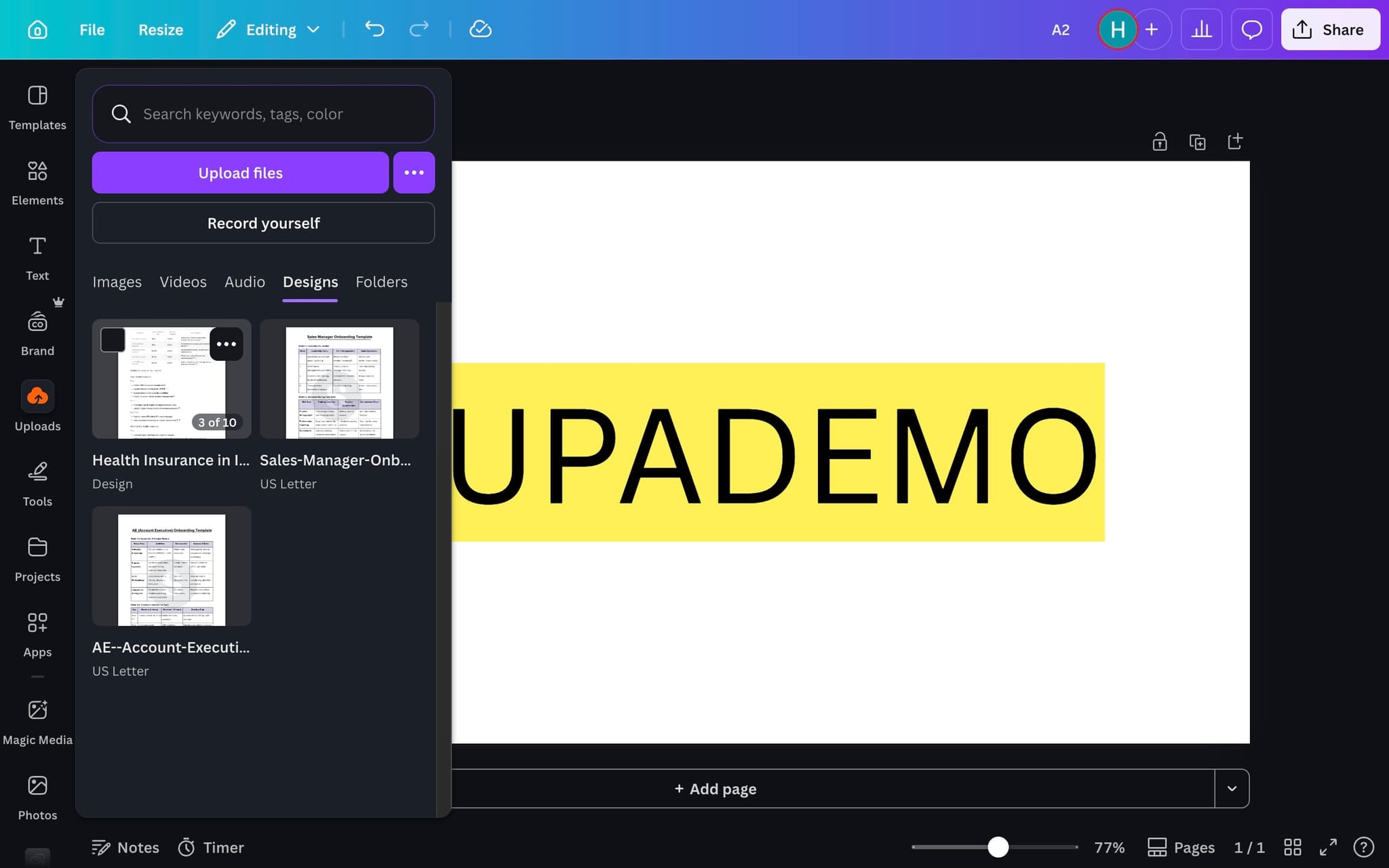
Click on any element to modify it. Change text, swap images, adjust colors, and reposition elements as needed.
- 4
Add new elements
Use Canva's element library to add new graphics, text boxes, or images to enhance the document.
- 5
Export the updated PDF
When finished, click 'Share' and then 'Download' to export your edited design as a PDF or other format.
Frequently asked questions
Common questions about how to edit a pdf in canva.
Canva can import most standard PDFs and convert them to editable layers with text, images, and shapes. Complex PDFs with embedded fonts, forms, or flattened vector artwork may lose some fidelity during the import. Single page PDFs import more cleanly than multi page files with heavy design elements.
If the original PDF was created from a scanned image or with outlined fonts, the text exists as graphics rather than characters. Canva cannot turn pixels or outlines back into editable text, so you will need the original source file or a fresh OCR pass. Recreating the text layer manually is often faster than troubleshooting the import.
Canva substitutes fonts it does not recognise with its closest available match. Upload the original font file to your Canva Brand Kit before importing the PDF so the text keeps its intended appearance. Only premium plans allow custom font uploads, so on free plans you may need to pick the closest Canva equivalent. Brand fidelity matters more than most teams realise: per Supademo's State of Interactive Demos 2026 report, 96.8% of top performing demos use custom branding.
Canva is not a full PDF form editor and does not support interactive fields like Adobe Acrobat. You can add a drawn signature or an image of one, but there is no way to create fillable form fields. For true form workflows, use a dedicated PDF tool after finishing the visual edits in Canva.
Static brand PDFs are hard to update and impossible to click through, so marketing teams rebuild them with a manual maker that captures each template step inside the live Canva editor, which means every freelancer follows the current brand rules. As Vimal Kumar, Product Operations Associate at Supademo, puts it: "We see the same pattern across design customers. The more interactive the freelancer onboarding, the less time senior designers spend reviewing off-brand work."
Clickable guides let users try each step themselves, which reinforces memory far better than reading alone. Teams that replaced PDF manuals with interactive user guides saw measurable jumps in both completion and comprehension, especially among users who had skipped the original PDF entirely.