How to create a resume using templates in Google Docs

Creating a professional resume from scratch can be time-consuming, but Google Docs templates make the process fast and effortless. This guide walks you through accessing and using resume templates in Google Docs to build a polished, job-ready resume in minutes.
Quick summary
In this tutorial, you'll learn how to navigate Google Docs, access the template gallery, select a resume template, and begin customizing it for your needs. By following these straightforward steps, you'll have a professionally formatted resume ready to personalize with your own information.
Why this matters
Using a pre-designed template saves hours of formatting work and ensures your resume meets modern professional standards. Templates provide proven layouts that highlight your qualifications effectively, helping you focus on content rather than design. Starting with a template also reduces the risk of formatting errors that could distract hiring managers from your experience.
Step-by-step guide
- 1
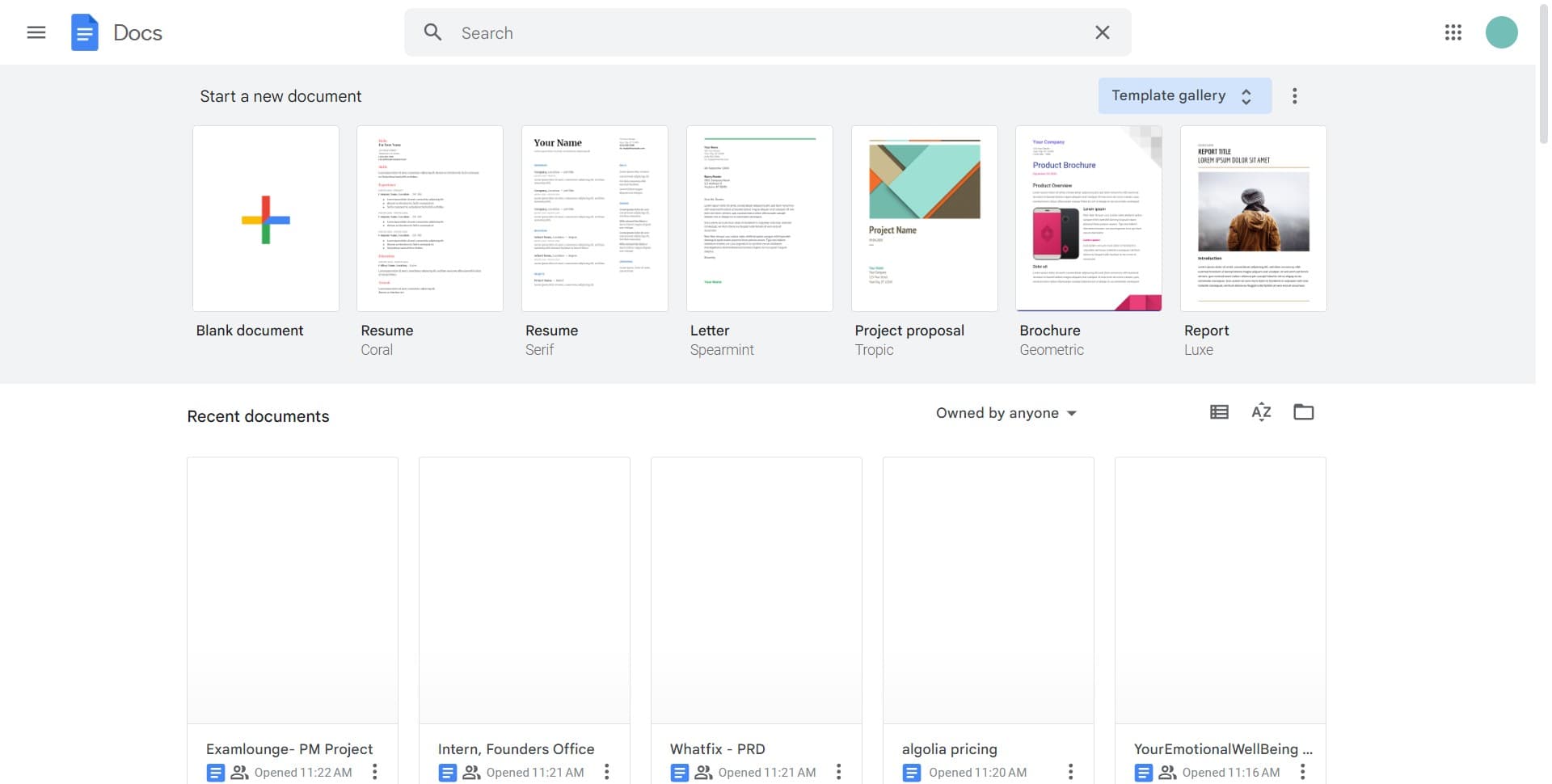
Open Google Docs home
Navigate to Google Docs and ensure you're on the home page where you can see all available options. This is your starting point for accessing templates and creating new documents.
- 2
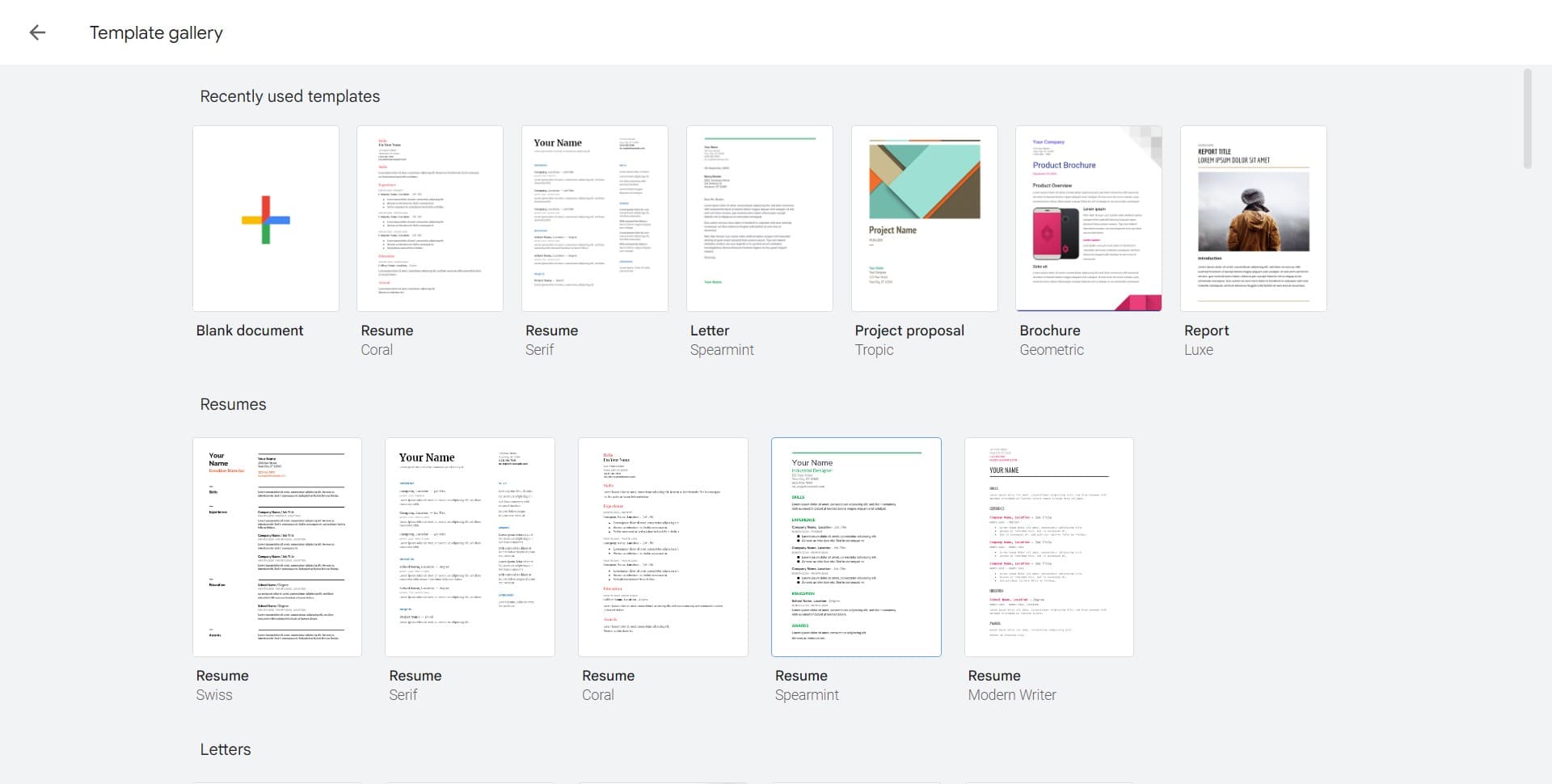
Navigate to template options
Look for the template gallery or browse section on the home page. You'll see various categories and featured templates displayed here.
- 3
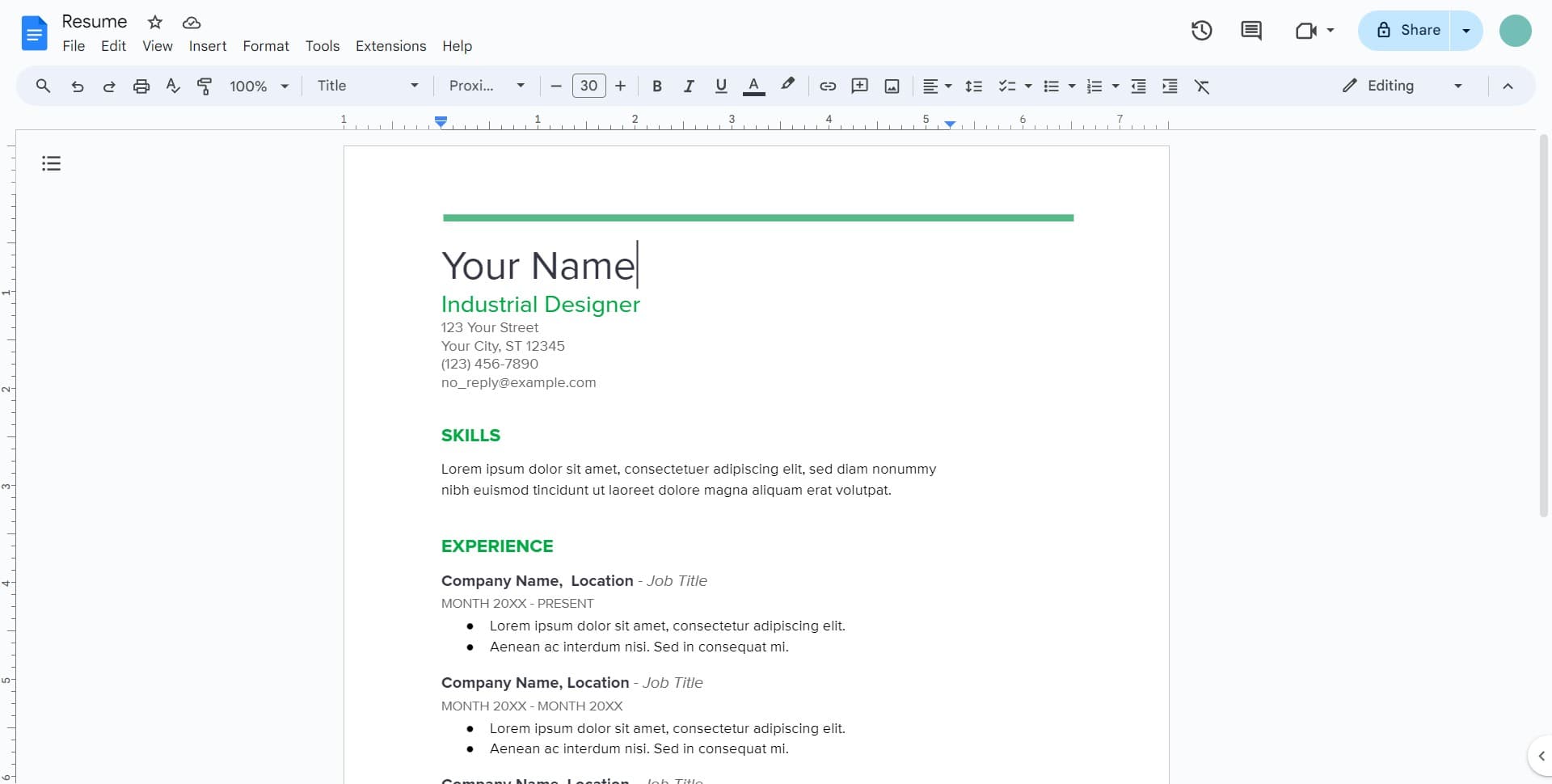
Select a resume template
Click on the Image or template preview that matches your preferred resume style. Google Docs offers multiple resume designs ranging from modern to traditional formats.
- 4
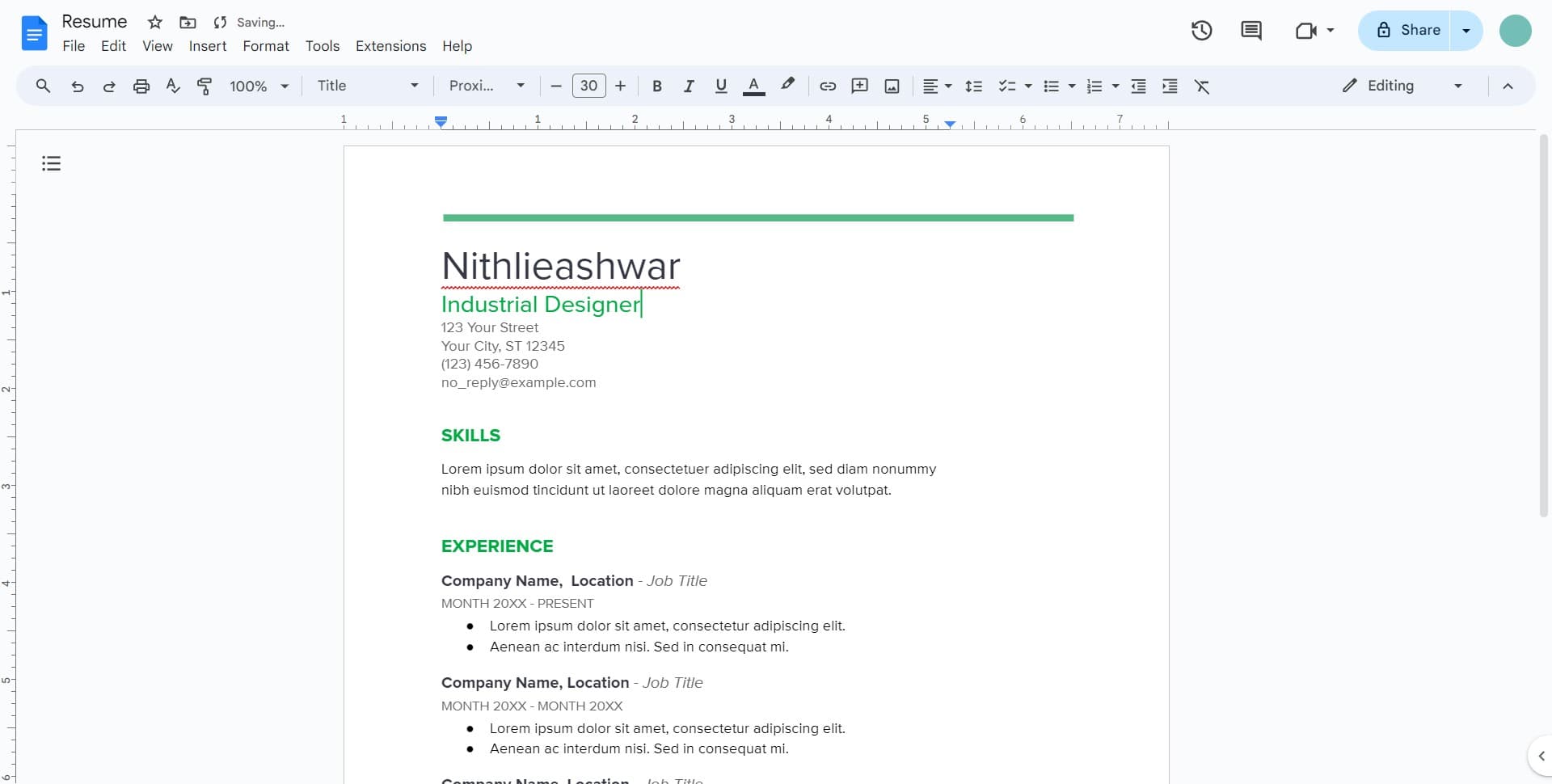
Create document from template
Confirm your selection to generate a new document based on the chosen template. Google Docs will open the template in edit mode, ready for you to customize with your personal information.
Frequently asked questions
Common questions about how to create a resume using templates in google docs.
Yes, absolutely. Once you've created a document from a template, you can edit every element including text, fonts, colors, and layout. Google Docs templates are fully customizable to match your preferences and professional branding.
Yes, all Google Docs templates, including resume templates, are completely free. You only need a Google account to access them. There are no hidden fees or premium versions required.
Once you've finished editing your resume, go to File menu and select Download. You can save it as a PDF, Word document, or other formats depending on the requirements of the job application.
You can access Google Docs on mobile devices through the Google Docs app, but creating and heavily editing a resume is best done on a desktop or laptop for better control and visibility of formatting details.
Google Docs offers multiple resume templates across different styles. If one doesn't suit your needs, go back to the template gallery and try another design. You can also create a blank document and build a custom resume from scratch if needed.