How to reduce margins in Google Docs

Adjusting margins in Google Docs is essential for formatting documents to meet specific requirements, whether for academic papers, professional reports, or personal projects. Reducing margins allows you to fit more content on each page while maintaining readability. This guide walks you through the process step by step.
Quick summary
In this tutorial, you'll learn how to access Google Docs' page setup settings and reduce your document margins to customize your layout. By following these straightforward steps, you'll be able to modify margin sizes quickly and apply them to your entire document.
Why this matters
Proper margin management is critical for document formatting, allowing you to optimize space usage and ensure your content aligns with formatting guidelines. Whether you're working within strict page limits or simply want to maximize your writing space, controlling margins gives you precise control over your document's appearance. This skill is particularly valuable when preparing documents for printing or submission.
Step-by-step guide
- 1
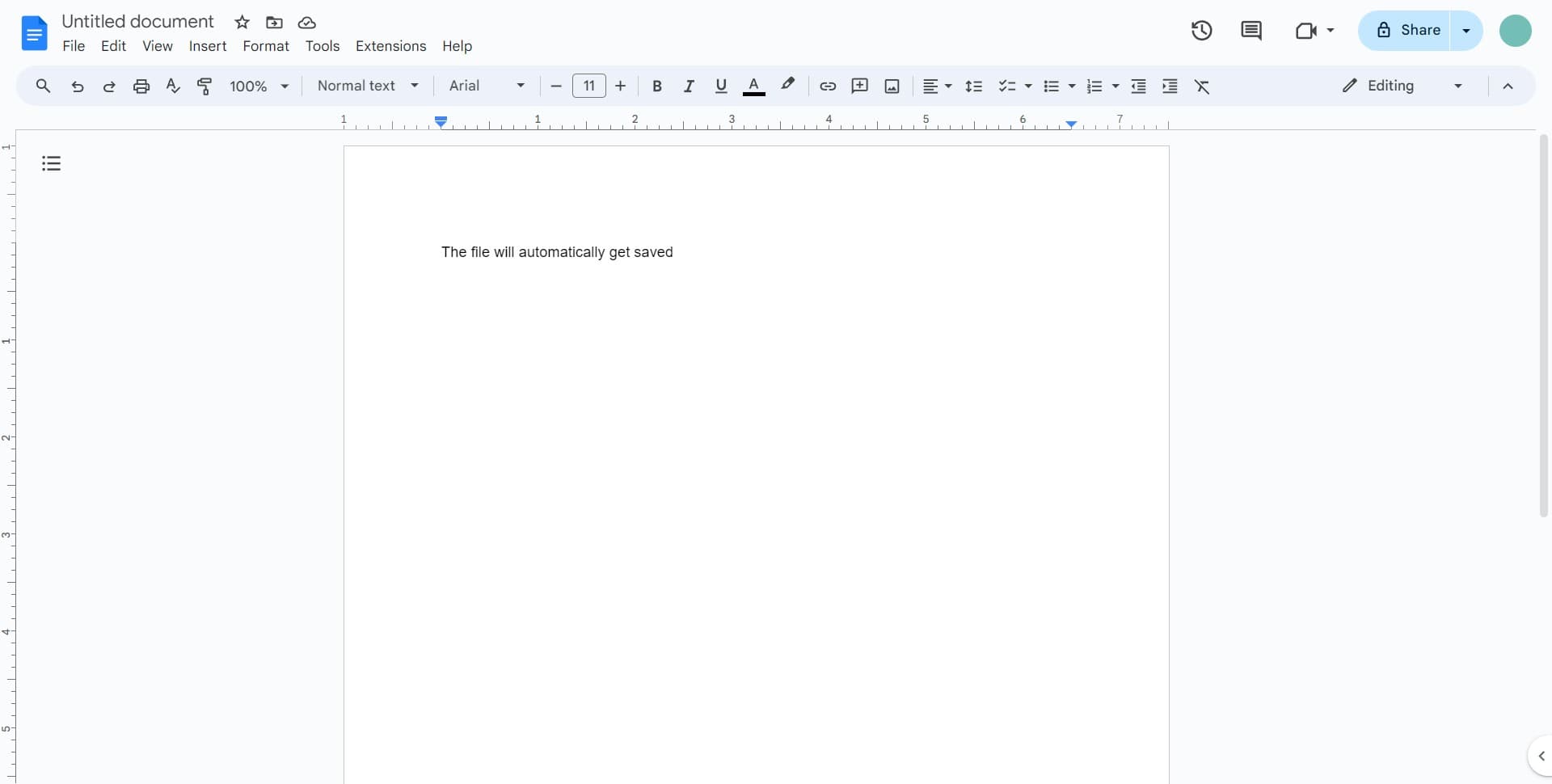
Open the File menu
Start by clicking on the 'File' option in the top menu bar of your Google Docs document. This action opens a dropdown menu with various document options and settings.
- 2
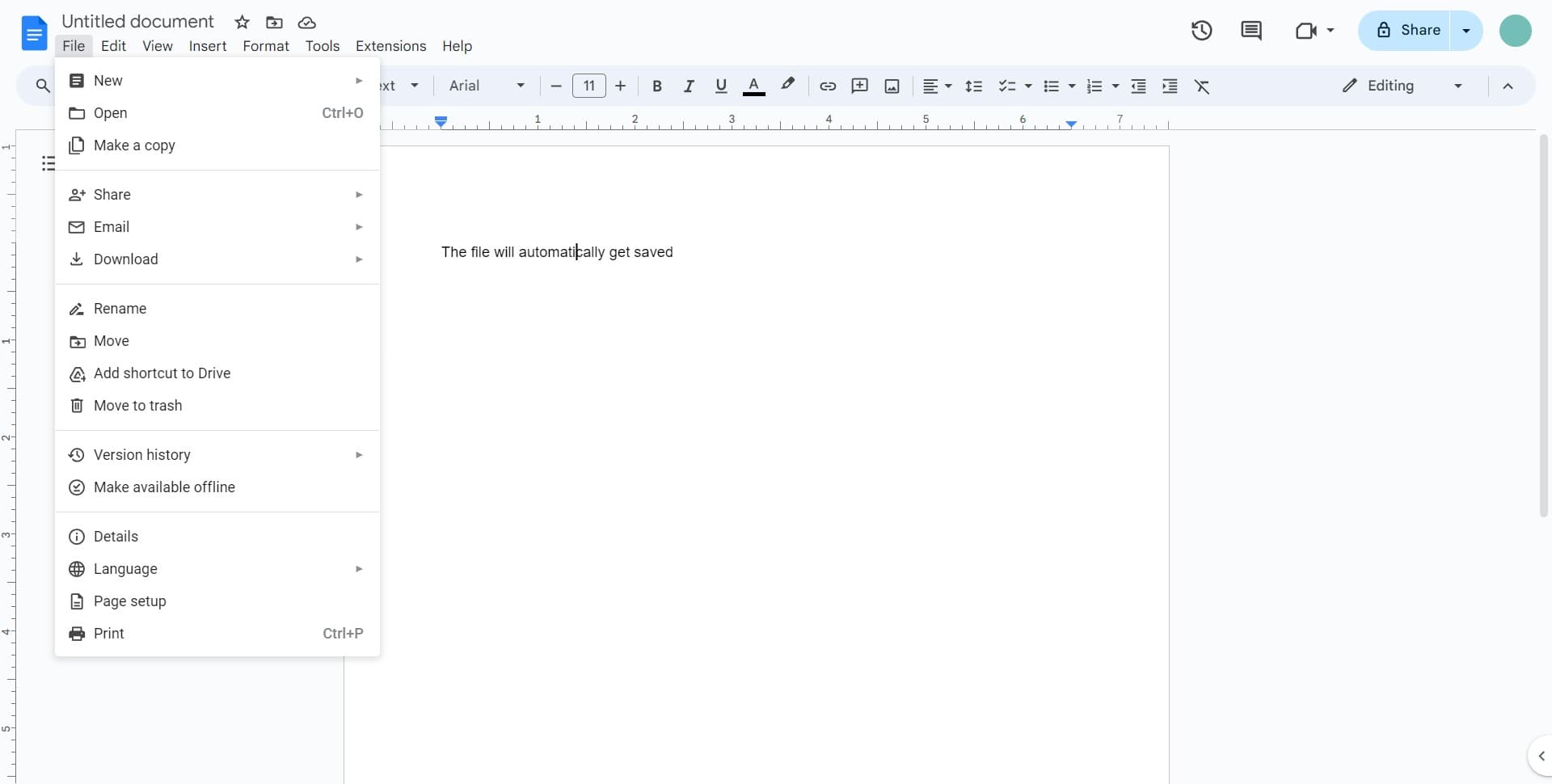
Navigate to File options
Look for and click on 'File' from the menu that appears. This gives you access to document-level settings including page configuration options.
- 3
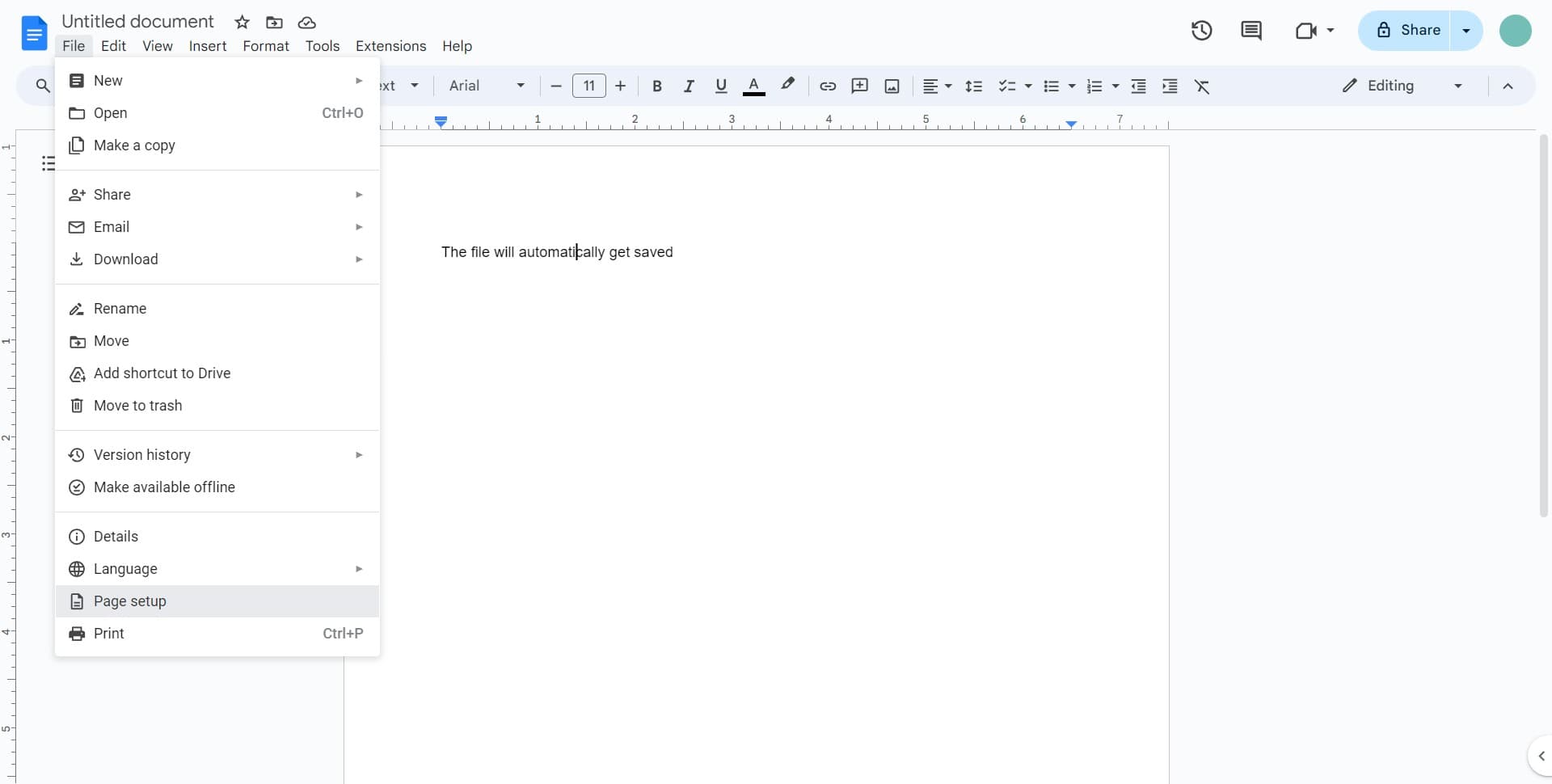
Select Page setup
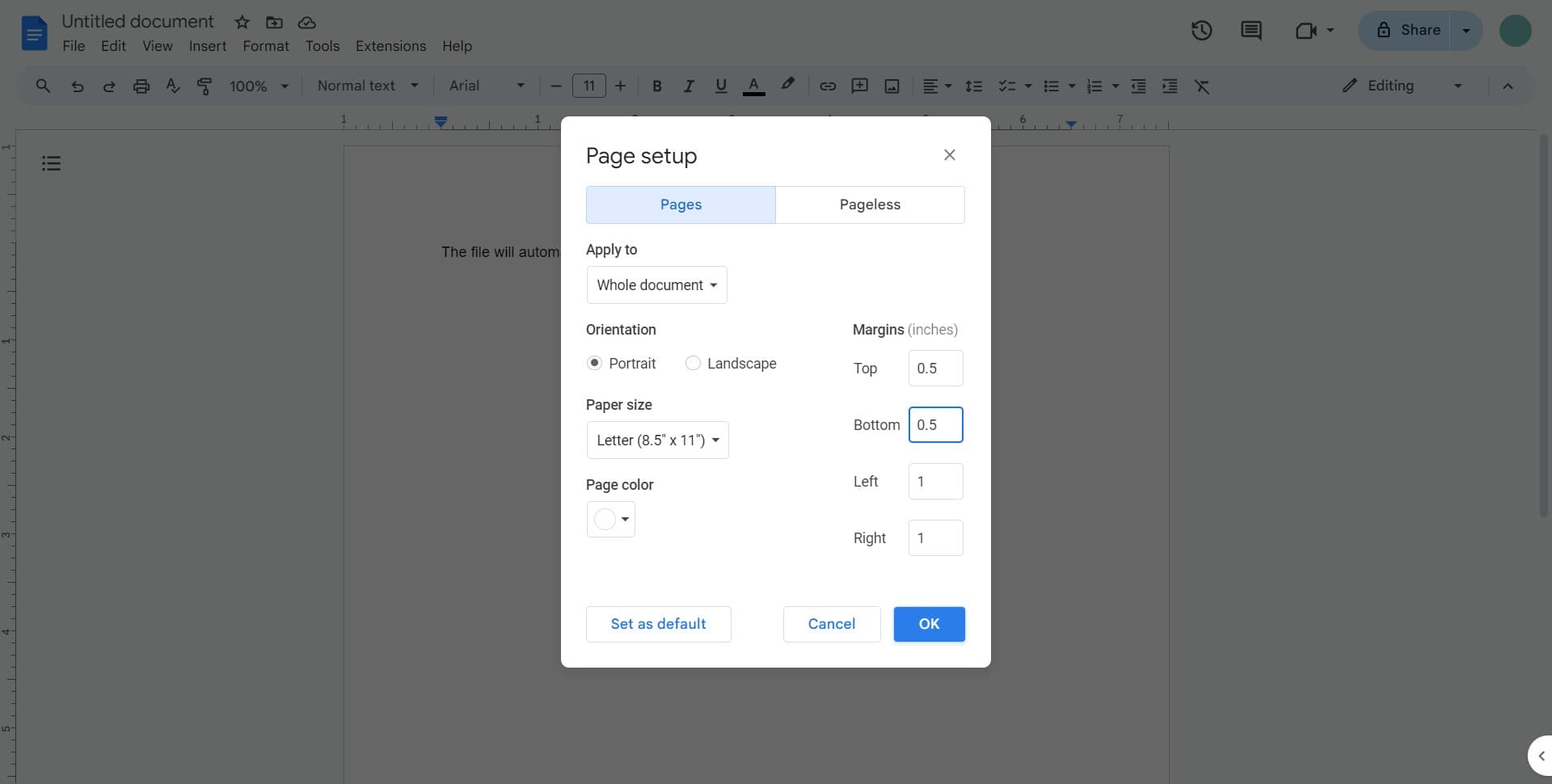
From the File menu, locate and click on 'Page setup.' This opens a dialog box where you can adjust all margin settings for your document.
- 4
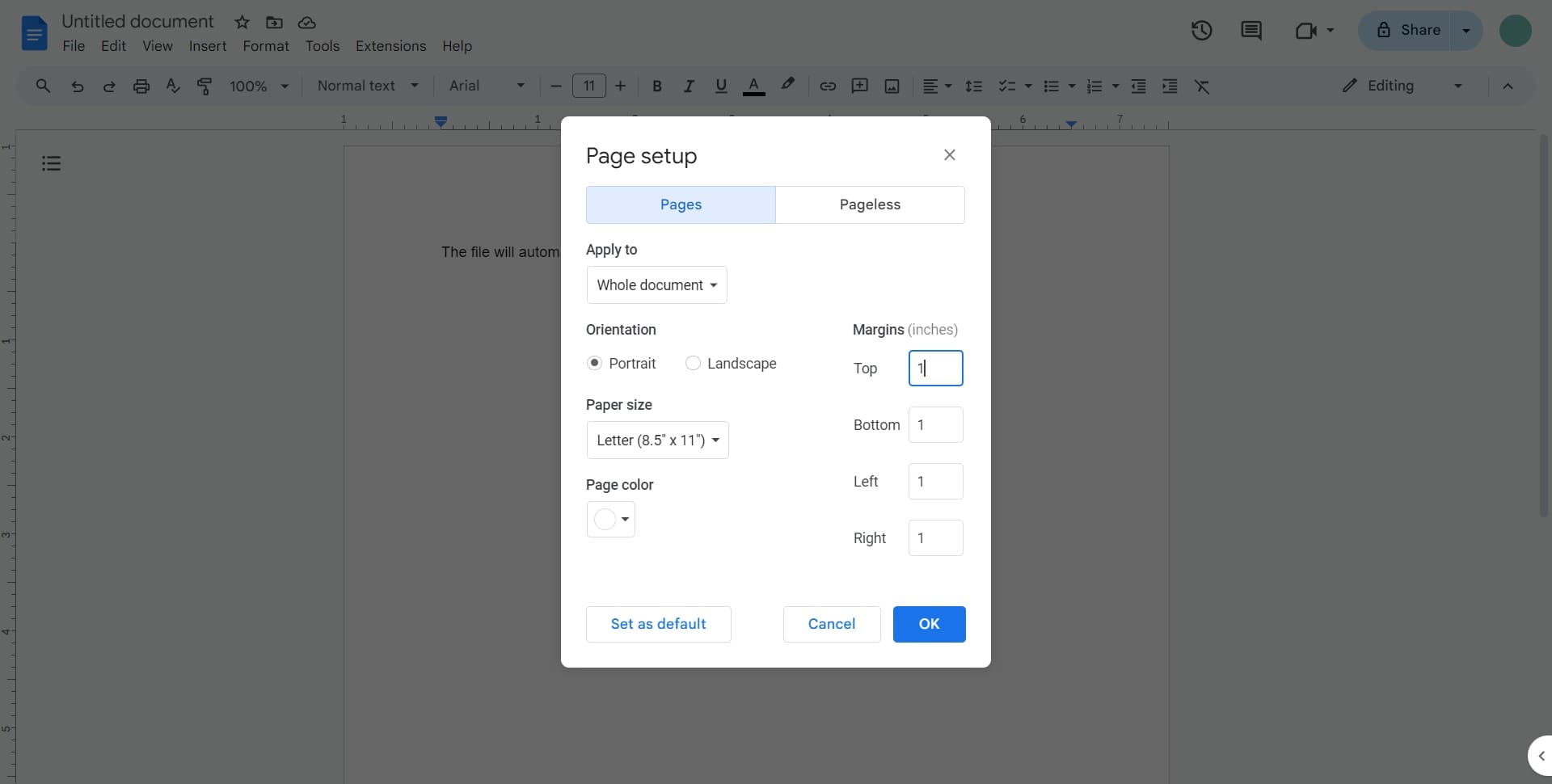
Adjust the margin values
In the Page setup dialog, you'll see fields for top, bottom, left, and right margins. Enter your desired margin measurements in inches or centimeters to reduce the default spacing around your document.
- 5
Apply changes with OK
Click the 'OK' button to save and apply your new margin settings to your document. Your document will immediately reflect the updated margins across all pages.
Frequently asked questions
Common questions about how to reduce margins in google docs.
Google Docs uses 1-inch margins by default on all sides (top, bottom, left, and right). These standard margins are suitable for most general documents, but you can adjust them at any time through the Page setup menu to meet specific formatting requirements.
Google Docs applies margin changes to the entire document by default. However, if you need different margins for specific sections, you can use page breaks with different sections and adjust margins accordingly within each section's page setup.
Google Docs typically allows margins as small as 0.5 inches, though this can vary depending on your printer capabilities. Most printers have a minimum printable margin area, so extremely small margins may not print as expected.
To return to Google Docs' default 1-inch margins, simply open File > Page setup and change all margin values back to 1 inch, then click OK. This will reset your document to the standard margin configuration.
Yes, margin adjustments affect both the digital appearance and printed output of your document. When you share a document with others or print it, the margin settings you've configured will be maintained, ensuring consistent formatting across all versions.