How to strikethrough text in Google Docs

Strikethrough text is a useful formatting option in Google Docs for marking content as deleted, completed, or no longer relevant without removing it entirely. Whether you're tracking changes, managing to-do lists, or editing documents collaboratively, this guide shows you exactly how to apply strikethrough formatting in just a few clicks.
Quick summary
In this tutorial, you'll learn how to apply strikethrough formatting to text in Google Docs using the Format menu. You'll discover the quickest path to the text formatting options and understand when this feature is most useful for your document editing needs.
Why this matters
Strikethrough formatting preserves content visibility while indicating that text should be disregarded or has been completed. This is particularly valuable in collaborative documents, project tracking sheets, and editorial workflows where you need to show revisions without permanently deleting information.
Step-by-step guide
- 1
Select your text
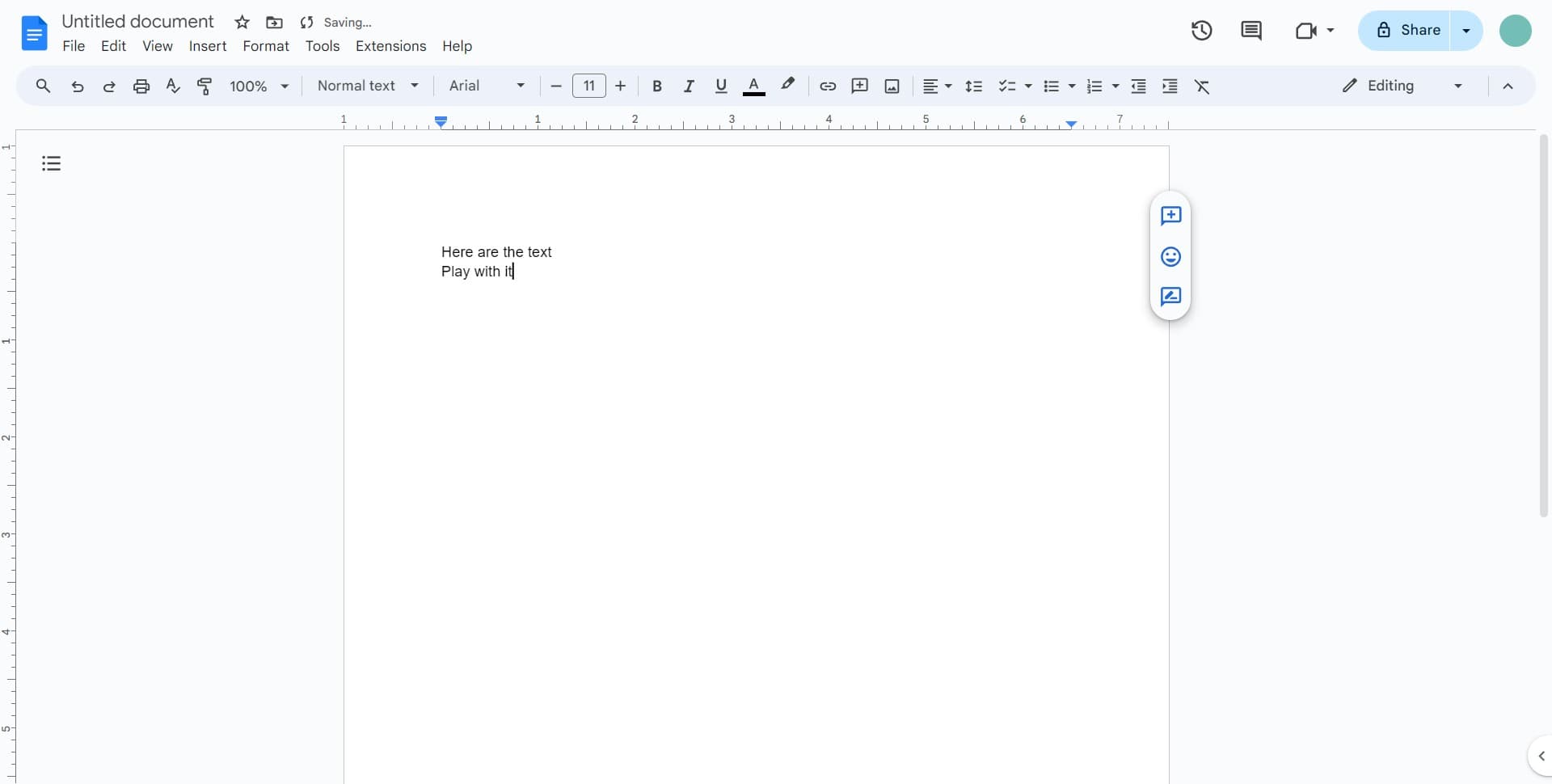
Click and drag to highlight the text you want to apply strikethrough formatting to. Make sure the entire word or phrase you want to strike through is selected before proceeding to the next step.
- 2
Open the Format menu
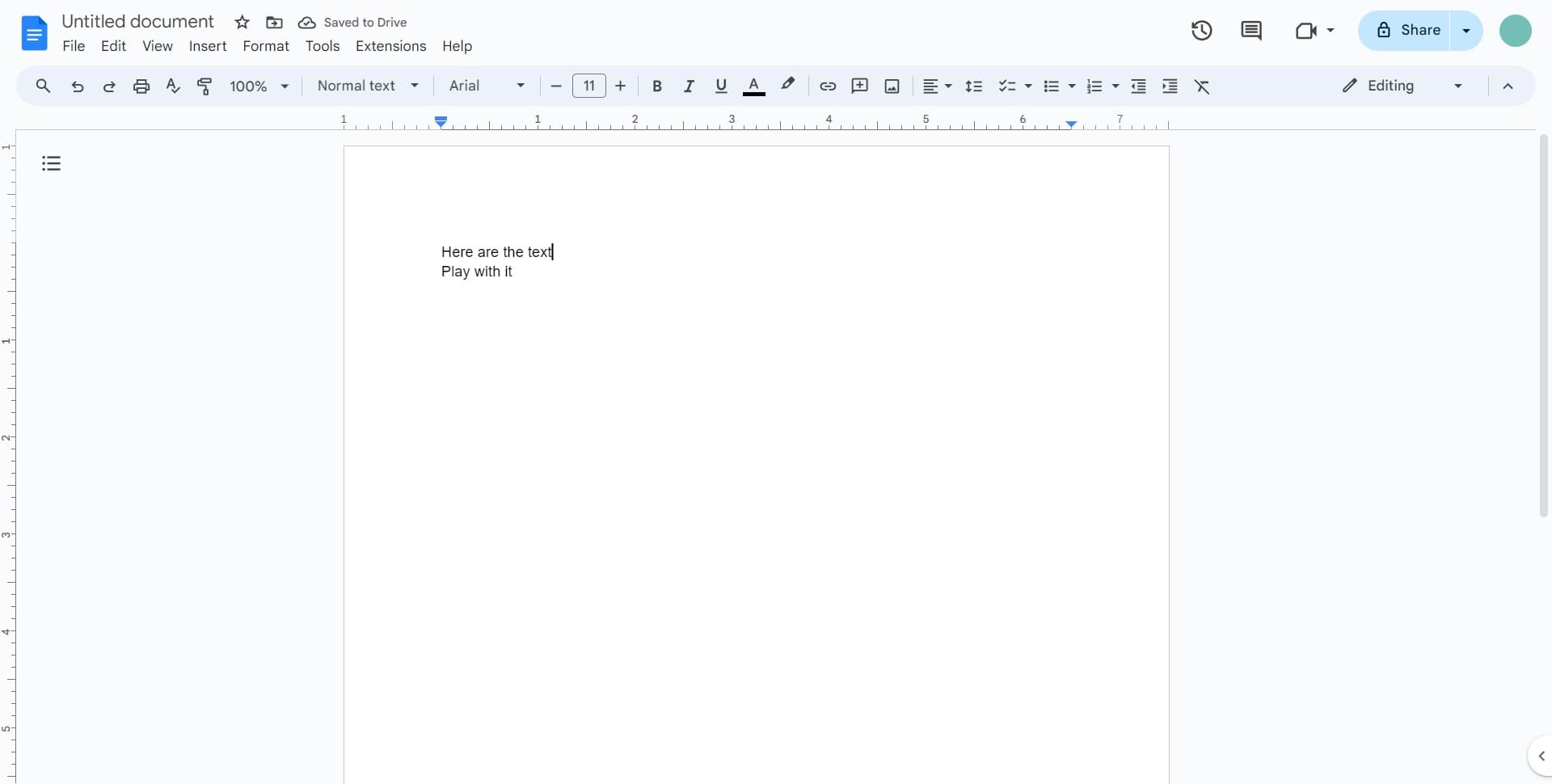
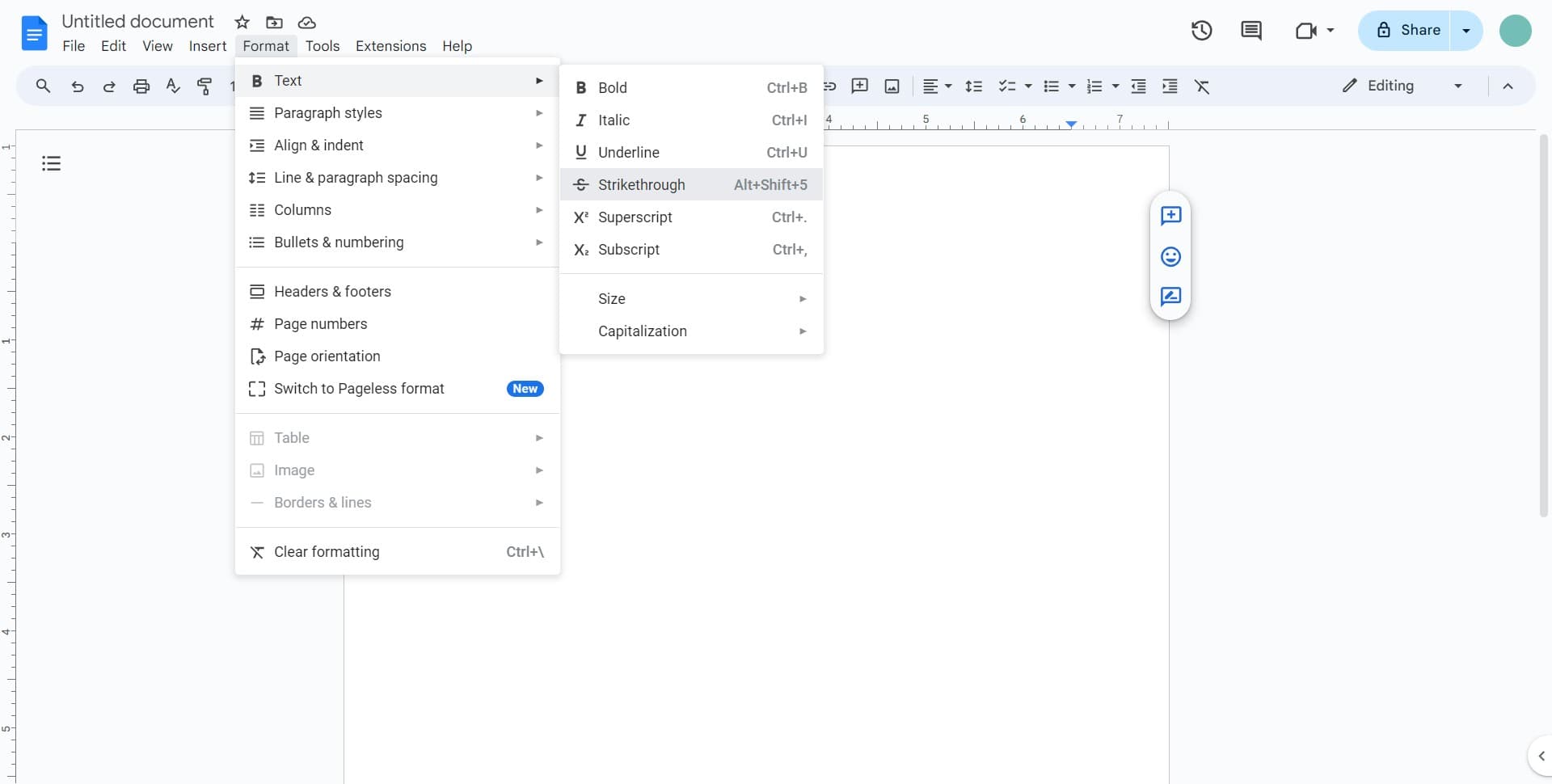
Click on 'Format' in the top menu bar to access Google Docs' formatting options. This menu contains all text styling tools including strikethrough.
- 3
Navigate to Text options
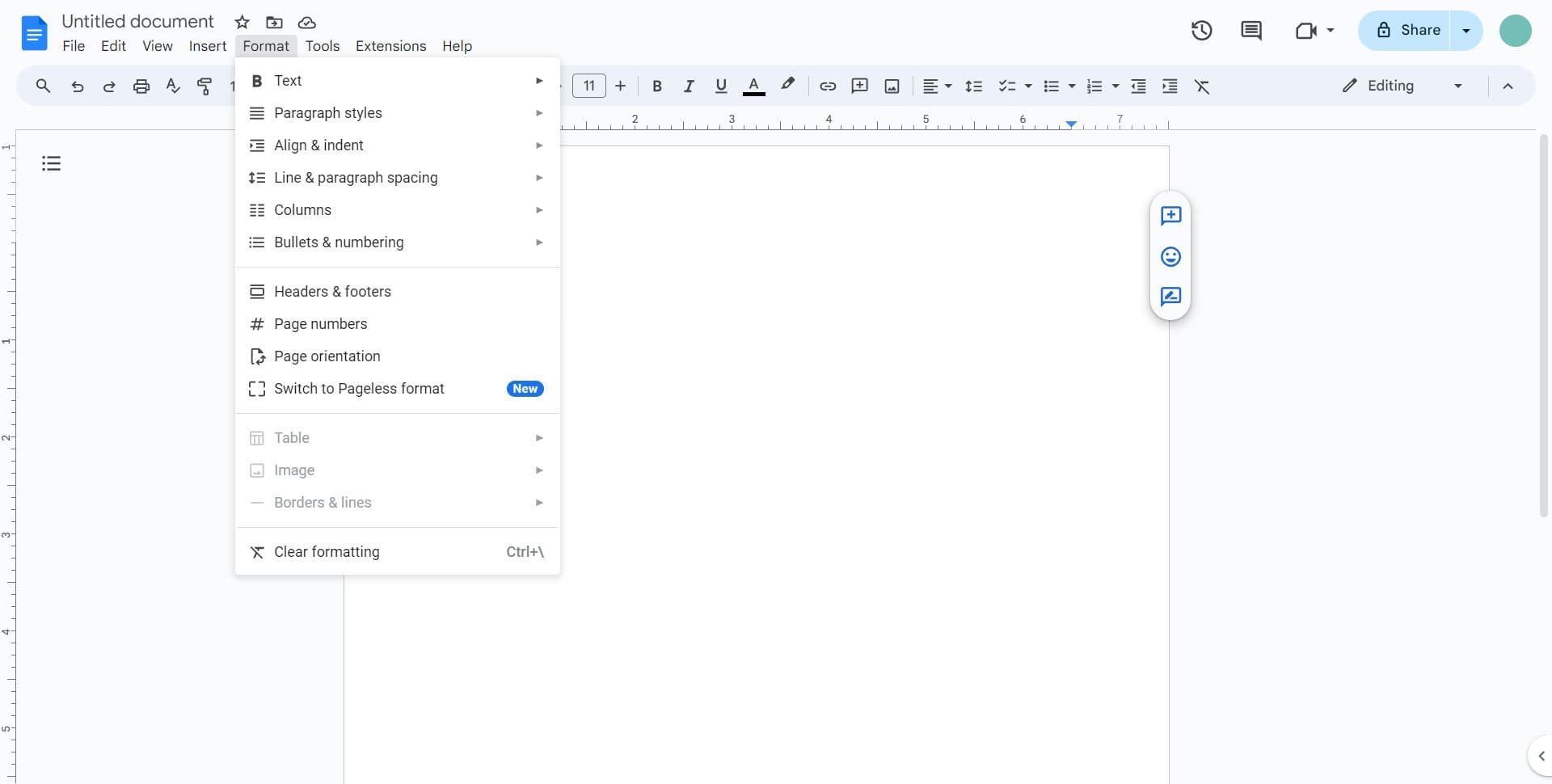
Click on 'Text' followed by the arrow indicator to expand a submenu with additional text formatting choices. This submenu contains the strikethrough option you need.
- 4
Apply strikethrough formatting
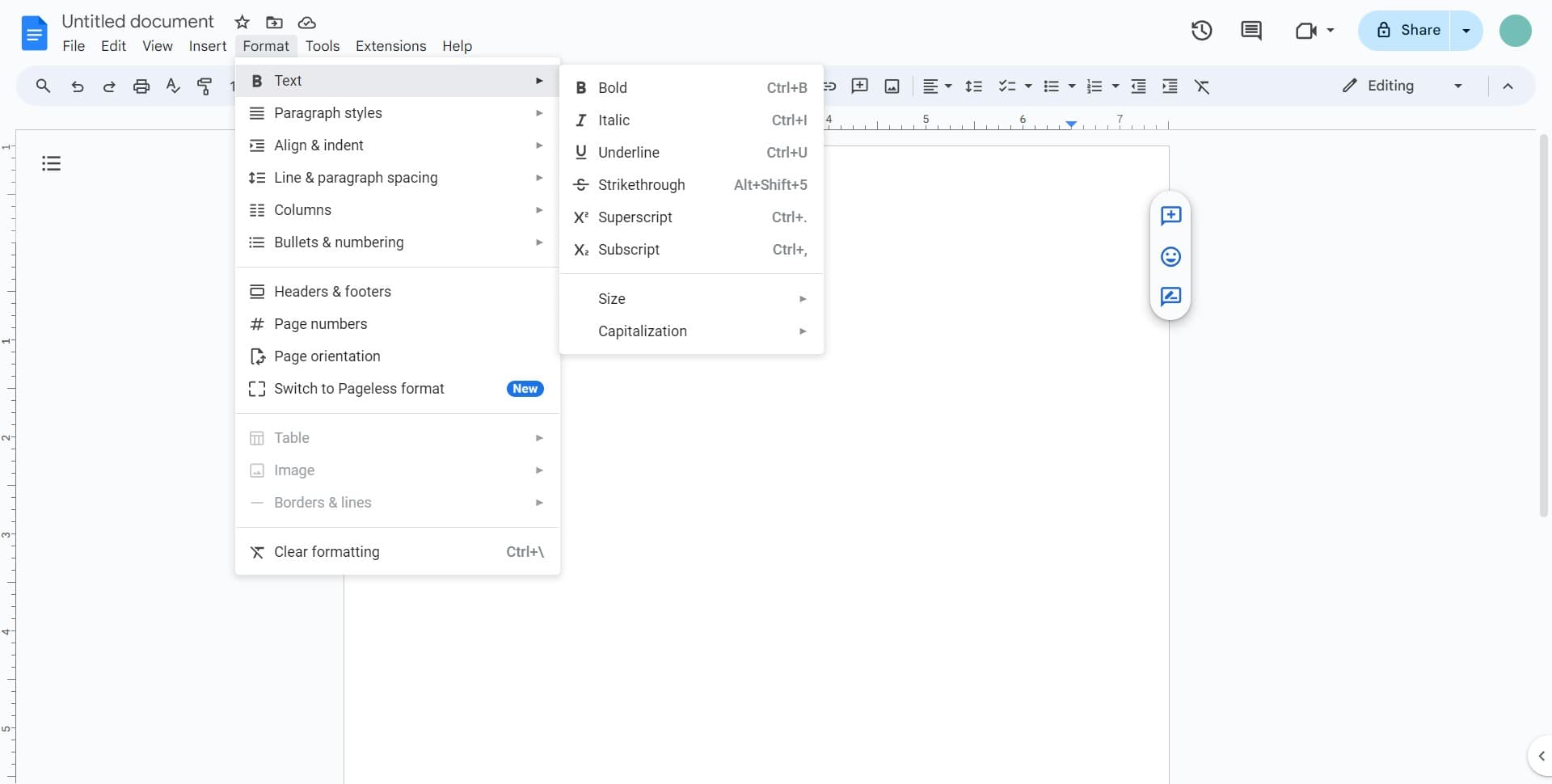
Click on the strikethrough option in the Text submenu to apply the formatting immediately to your selected text. You'll see a line appear through the middle of your text, indicating the formatting has been applied successfully.
- 5
Confirm the formatting
Review your document to ensure the strikethrough has been applied to the correct text. You can now continue editing or apply the same formatting to other text selections in your document.
Frequently asked questions
Common questions about how to strikethrough text in google docs.
Yes, simply select the text with strikethrough formatting and follow the same steps through Format > Text > Strikethrough. Clicking the option again will toggle off the formatting and remove the line through your text.
Google Docs supports the keyboard shortcut Alt+Shift+5 on Windows or Command+Shift+X on Mac to quickly apply or remove strikethrough formatting to selected text. This is faster than using the menu if you format frequently.
Yes, strikethrough formatting will be visible in printed copies and when you export your document to PDF or other formats. The visual appearance remains consistent across different output methods.
You'll need to apply strikethrough formatting to each text selection individually. Select the first text, apply strikethrough, then select the next text and repeat the process through the Format menu.
The strikethrough formatting feature is available in all Google products including Sheets and Slides, and the process is similar. You access it through the Format menu, though the exact menu structure may vary slightly between applications.