How to share a Google Doc to ClickUp

Embedding a Google Doc directly into ClickUp allows you to keep your documentation and project management in one centralized location. This workflow eliminates the need to switch between tools, streamlining collaboration and keeping your team aligned.
Quick summary
In this tutorial, you'll learn how to share a Google Doc and embed it into ClickUp's task management interface. By the end, you'll be able to link documents seamlessly so your team can access them without leaving ClickUp.
Why this matters
Embedding Google Docs in ClickUp reduces context switching and keeps all project-related information accessible in one place. This integration ensures that documentation stays synchronized with task progress and improves team efficiency.
Step-by-step guide
- 1
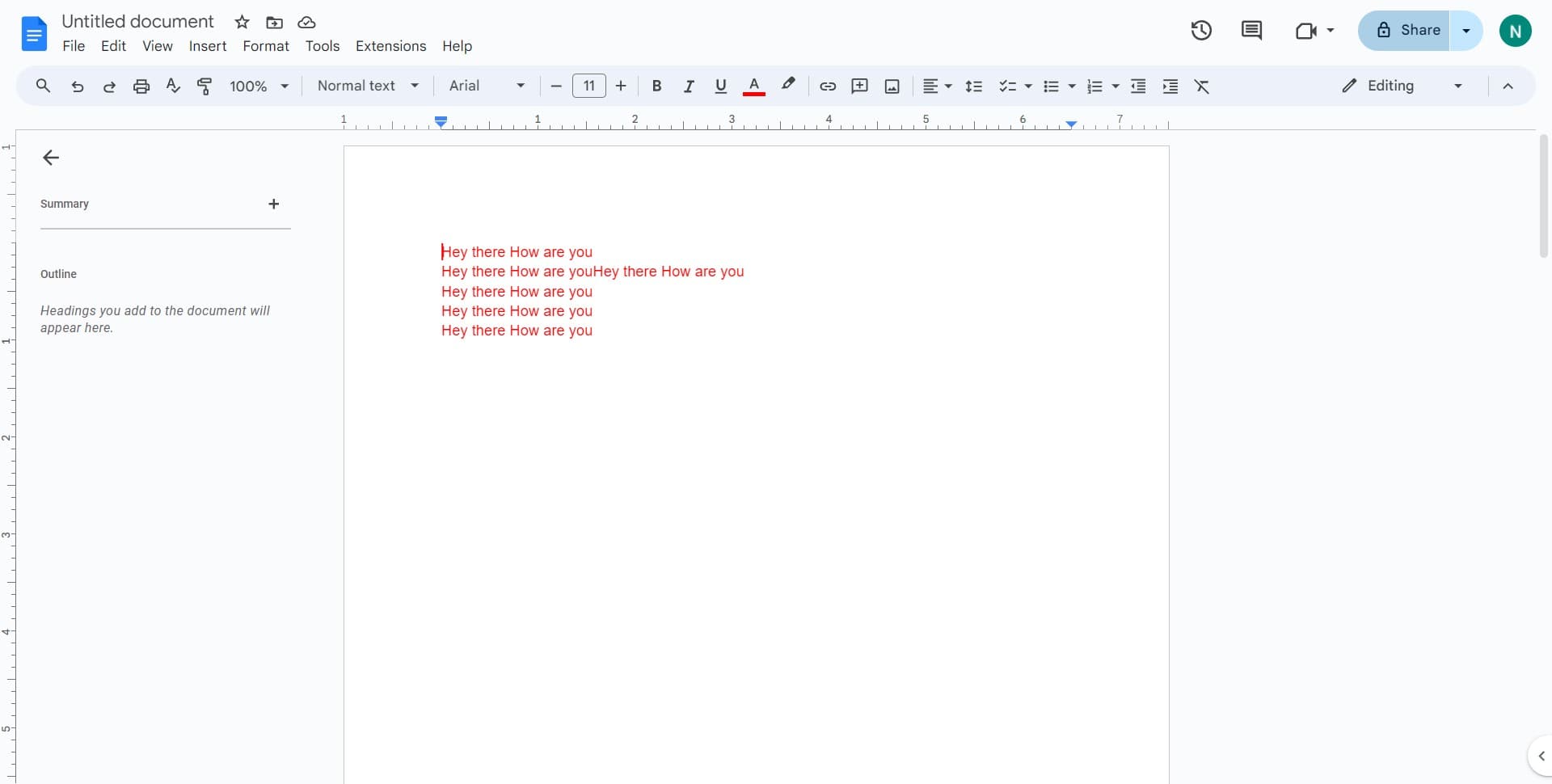
Click on Share
Open your Google Doc and locate the Share button in the top-right corner of the interface. Click it to access the sharing options where you can generate a link for embedding.
- 2
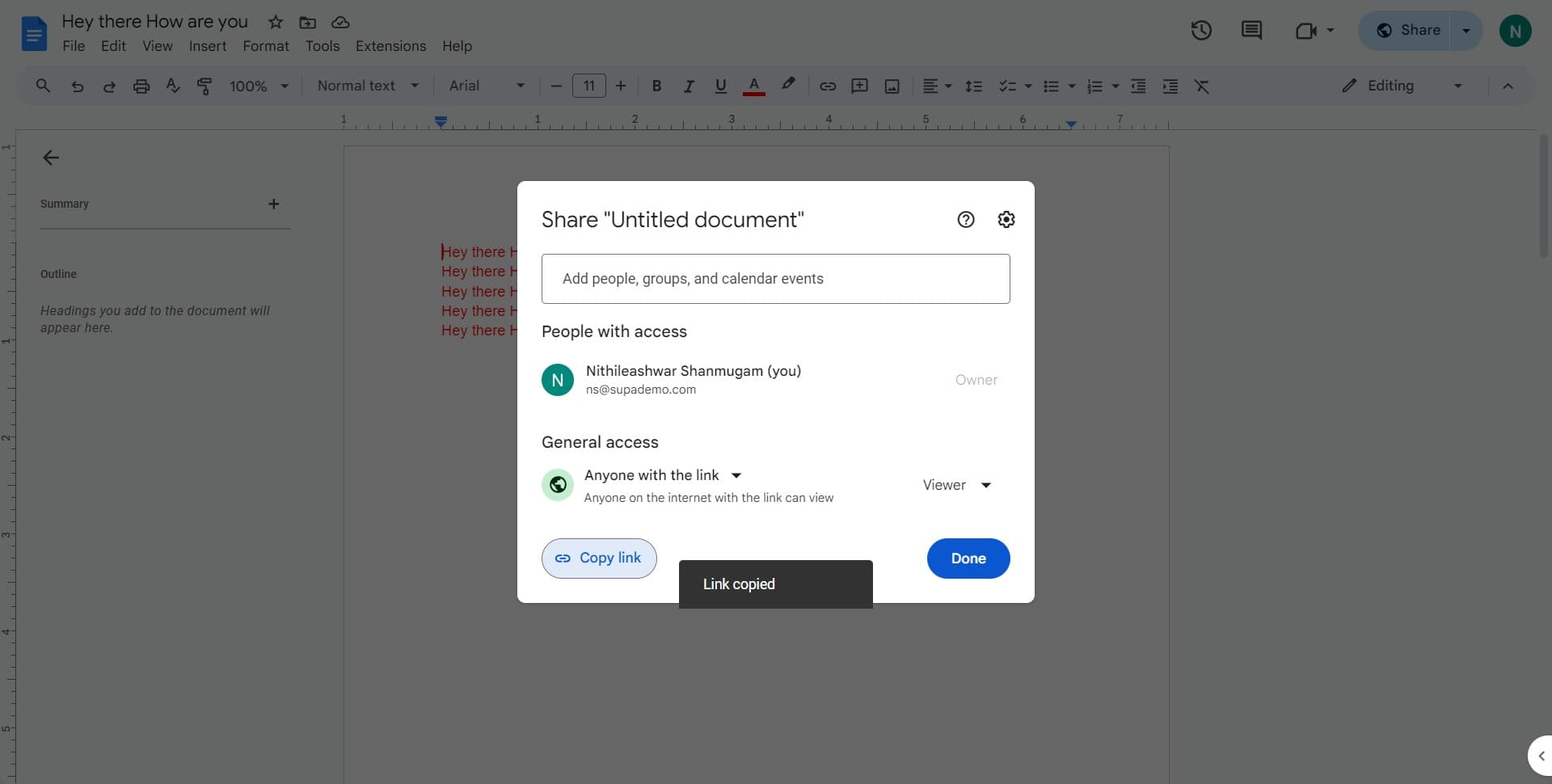
Click on Copy link
In the Share menu, select Copy link to generate a shareable URL for your Google Doc. This link will be used to embed the document into ClickUp.
- 3
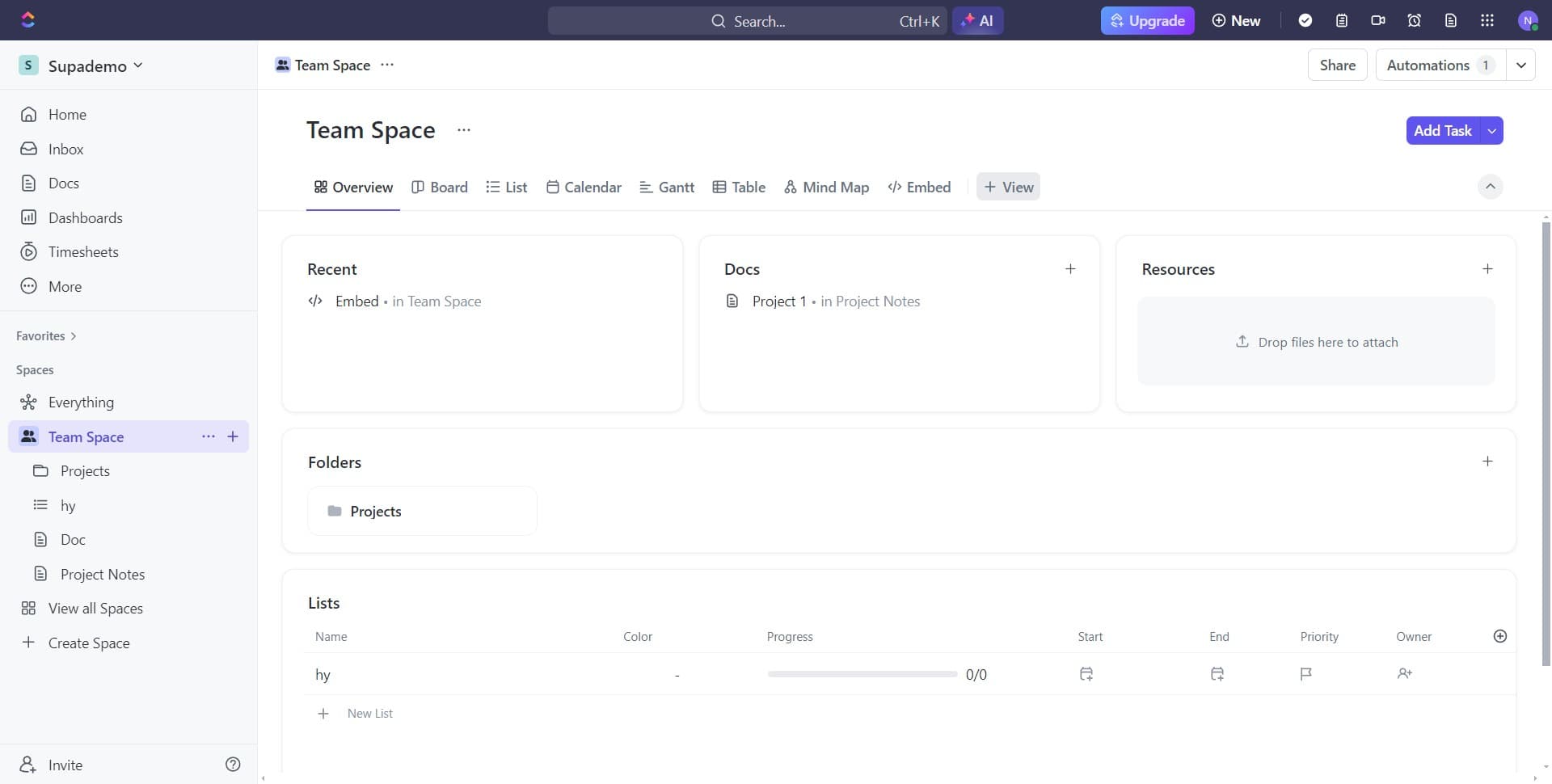
Click on View
In the sharing dialog, click on the View option to set the appropriate permission level for the link. This ensures the document can be properly embedded and accessed by your team.
- 4
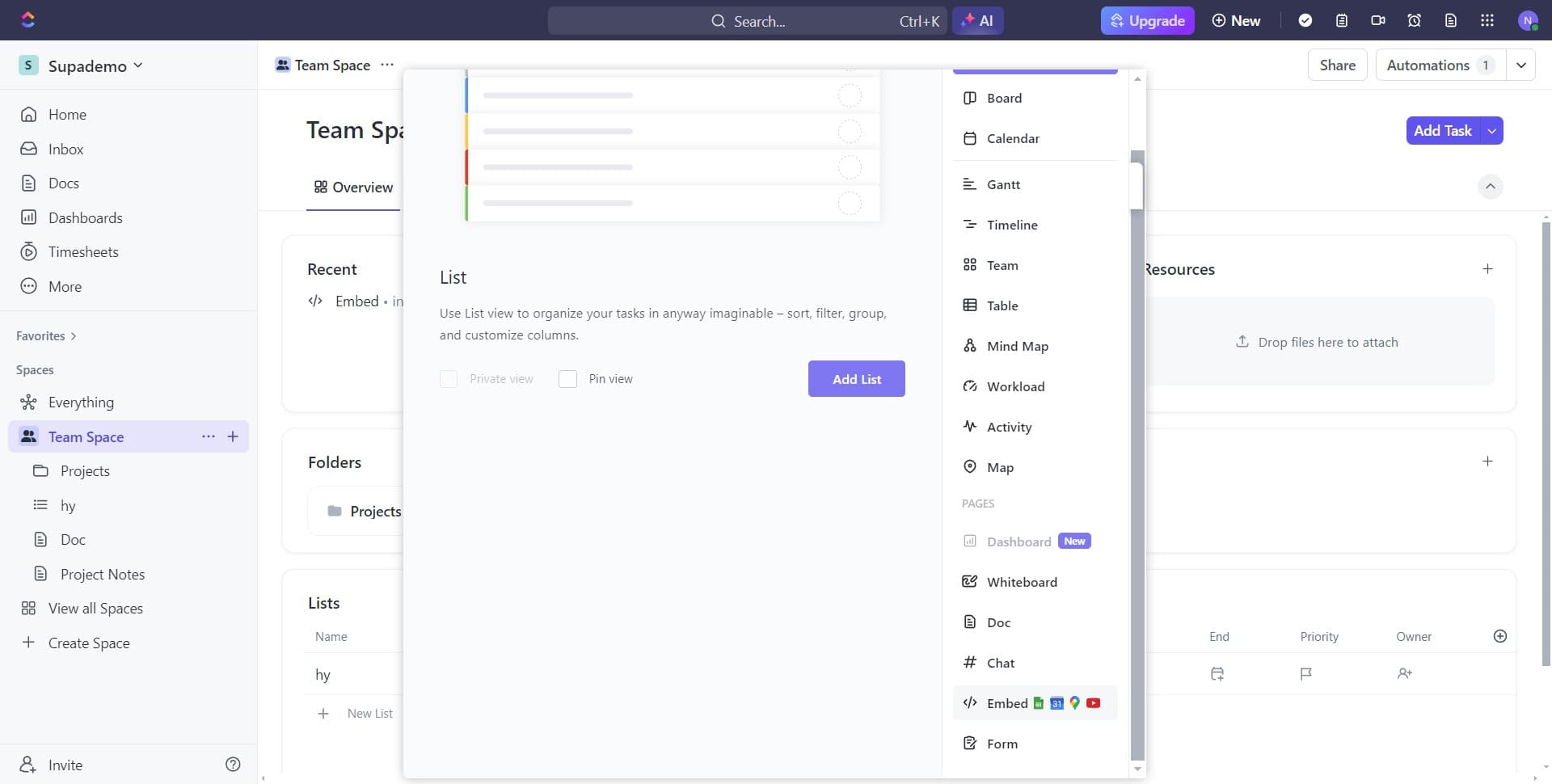
Click on Embed
From the sharing options, select Embed to prepare the document for integration into ClickUp. This will provide you with the embedding code or confirm the embed-ready format.
- 5
Navigate to ClickUp task
Open ClickUp and go to the specific task or project where you want to embed the Google Doc. This is the destination where the document will be displayed.
- 6
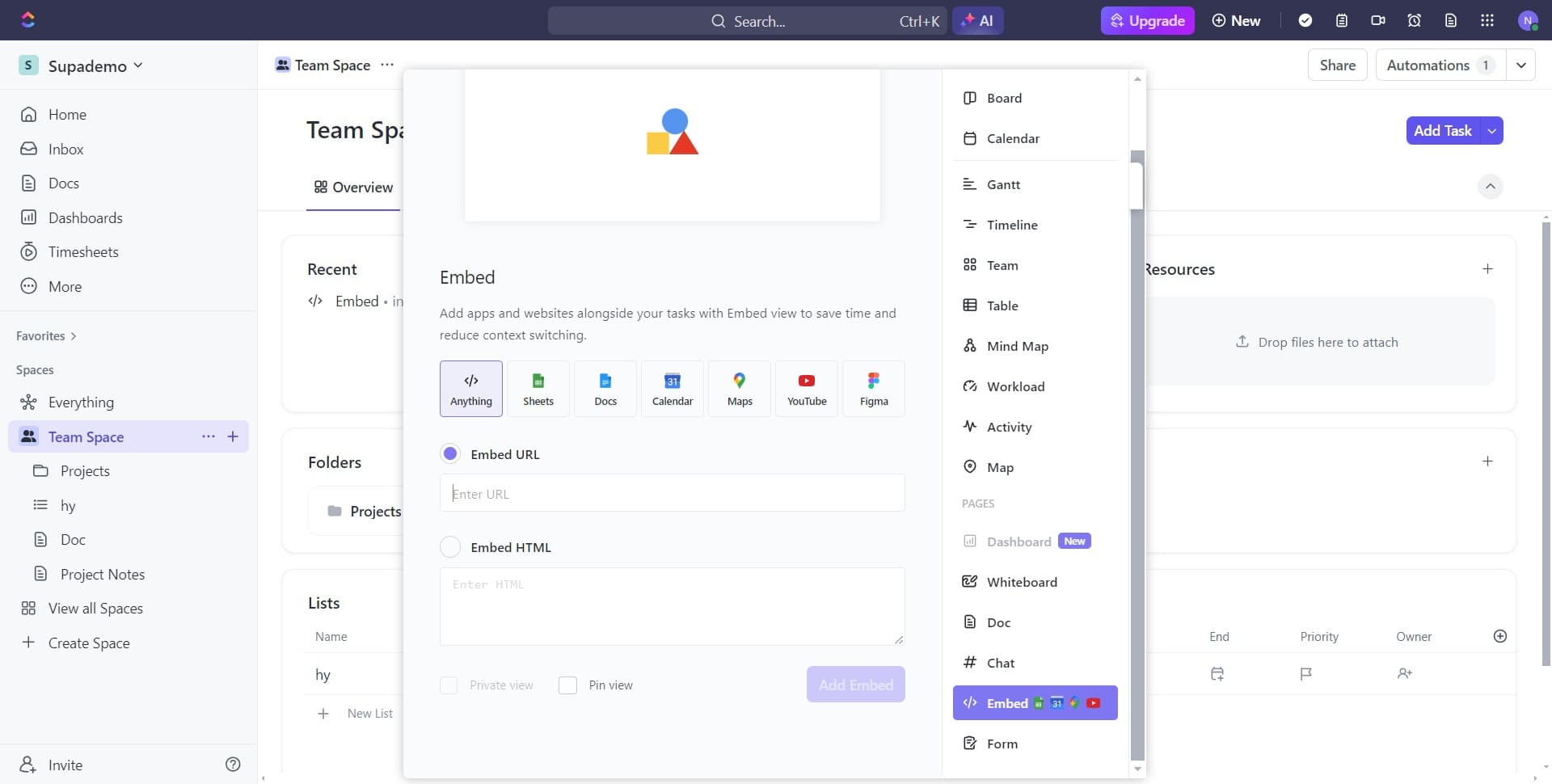
Click on Add Embed
In the task details panel, locate and click the Add Embed button to initiate the embedding process. This opens a dialog where you can select the type of content to embed.
- 7
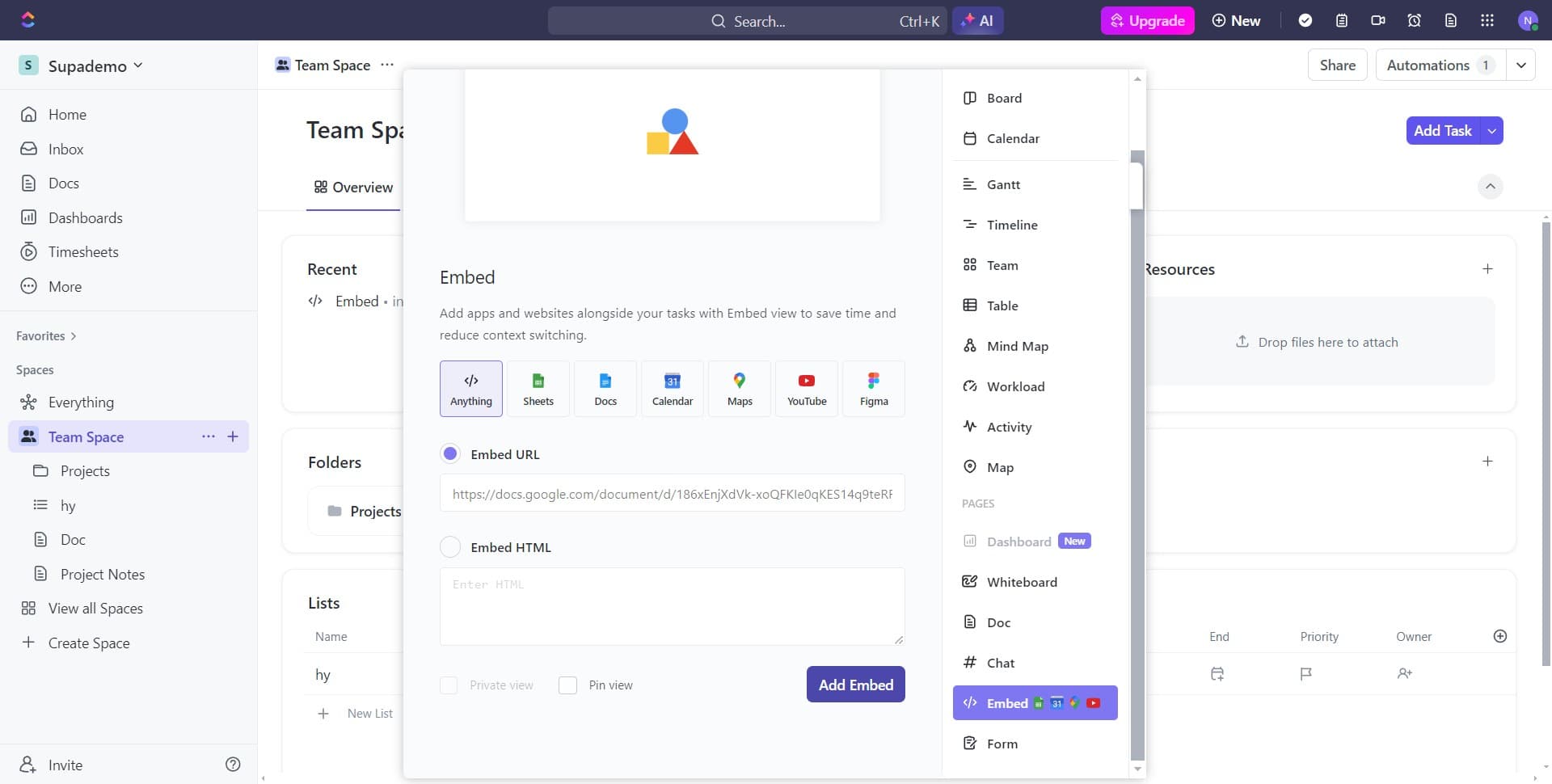
Select Overview and Board options
From the embed menu, choose Overview, Board, or the relevant section where you want the document to appear. This determines the placement of the embedded content within your ClickUp task.
- 8
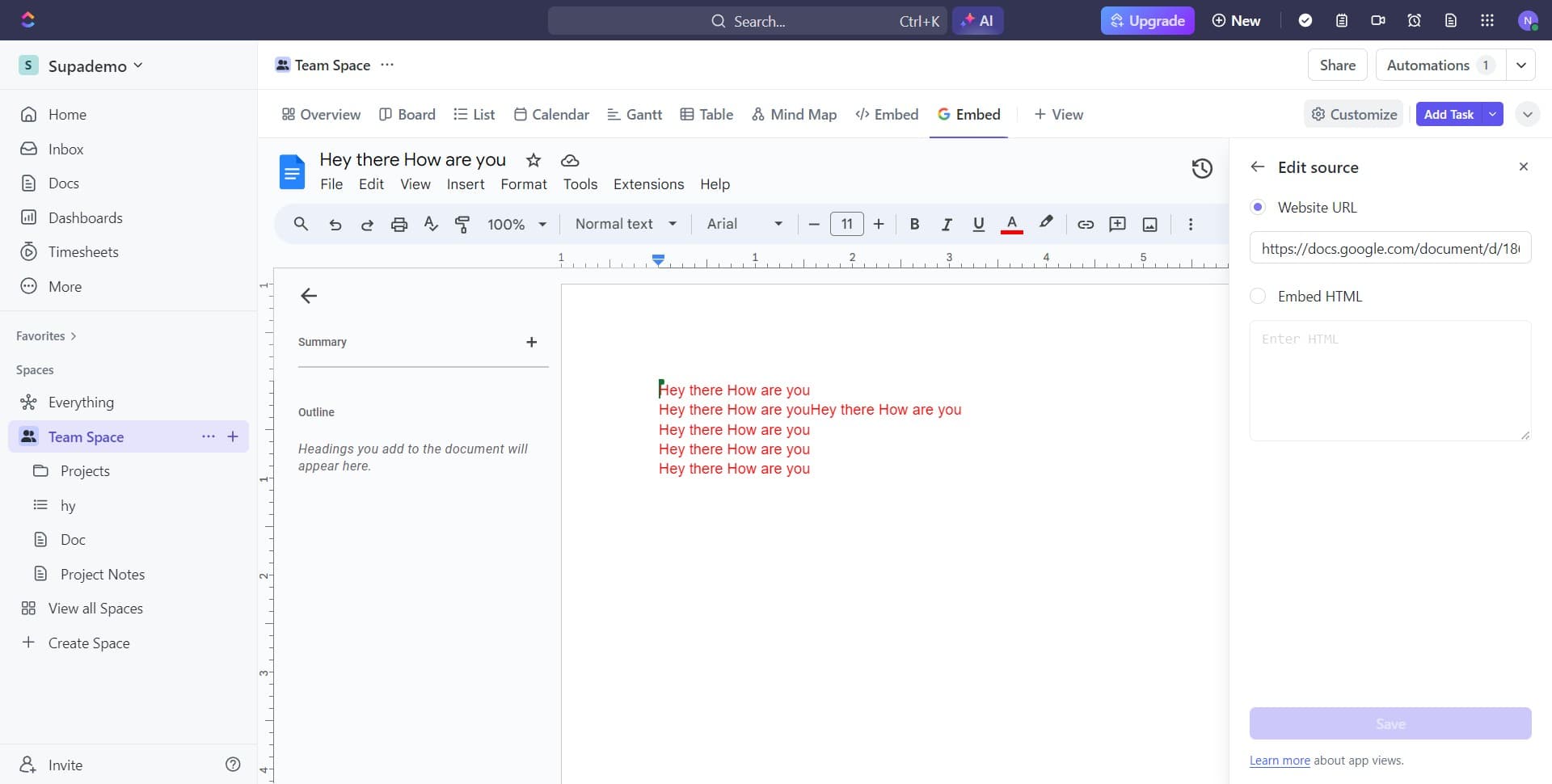
Upload or select content
Complete the upload or selection process for your content. This step finalizes the preparation for embedding your Google Doc into ClickUp.
- 9
Confirm the embed destination
Verify that you've selected the correct location within ClickUp where the embed should appear. This ensures the document will be visible to all team members accessing that task.
- 10
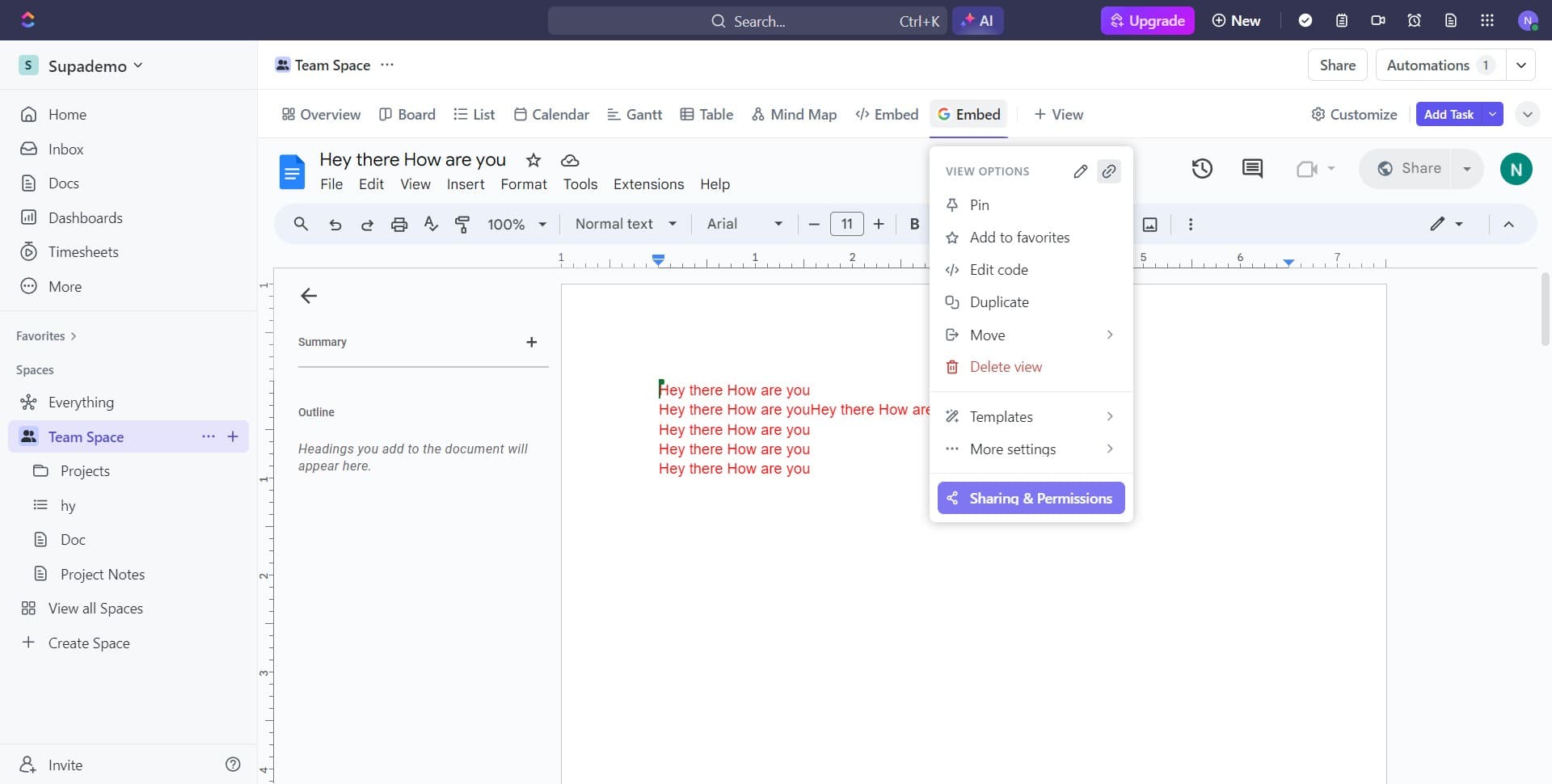
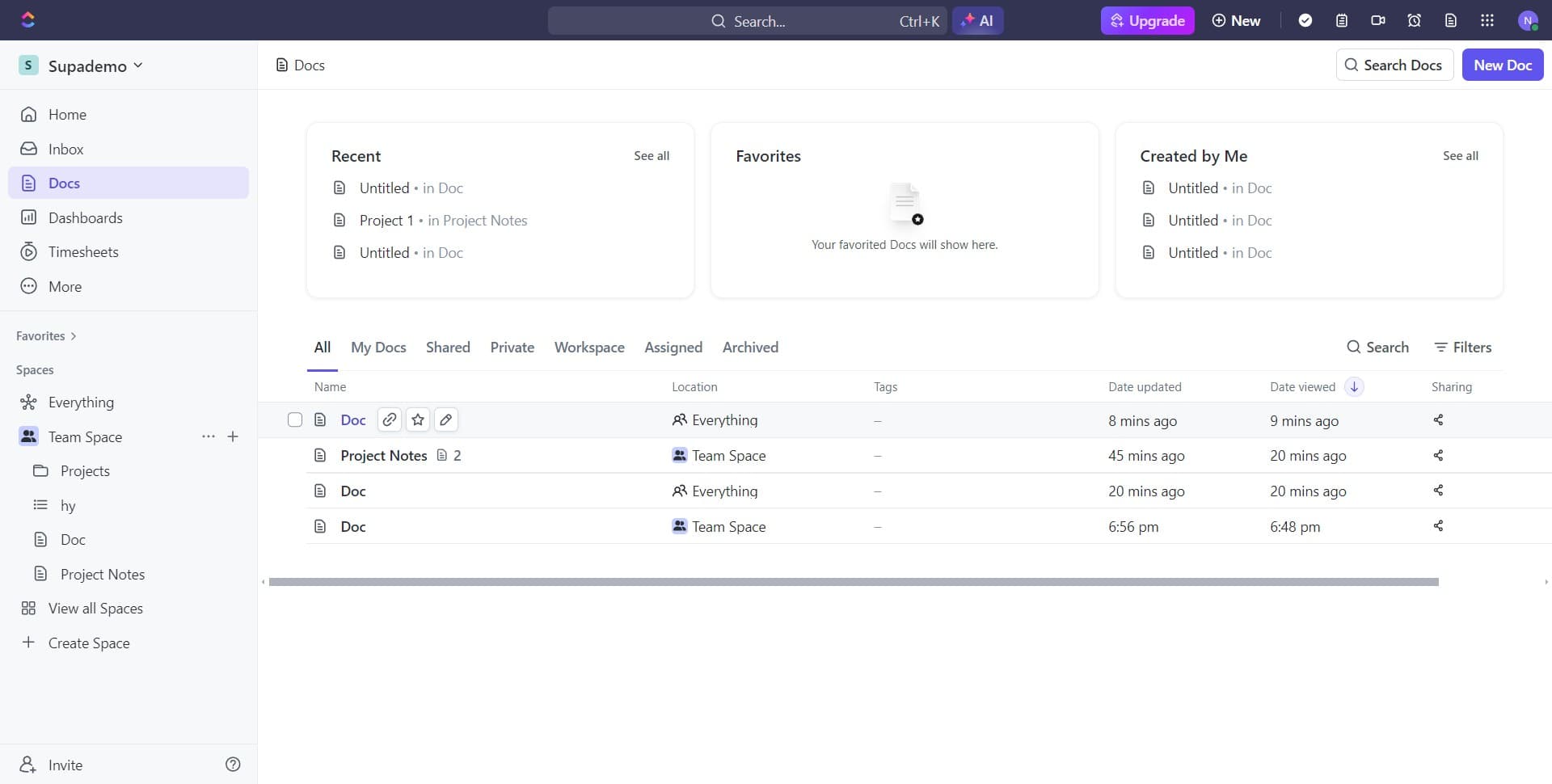
Click on Doc
From the available embed types, select Doc to specify that you're embedding a document. This tells ClickUp to format the embed appropriately for document content.
- 11
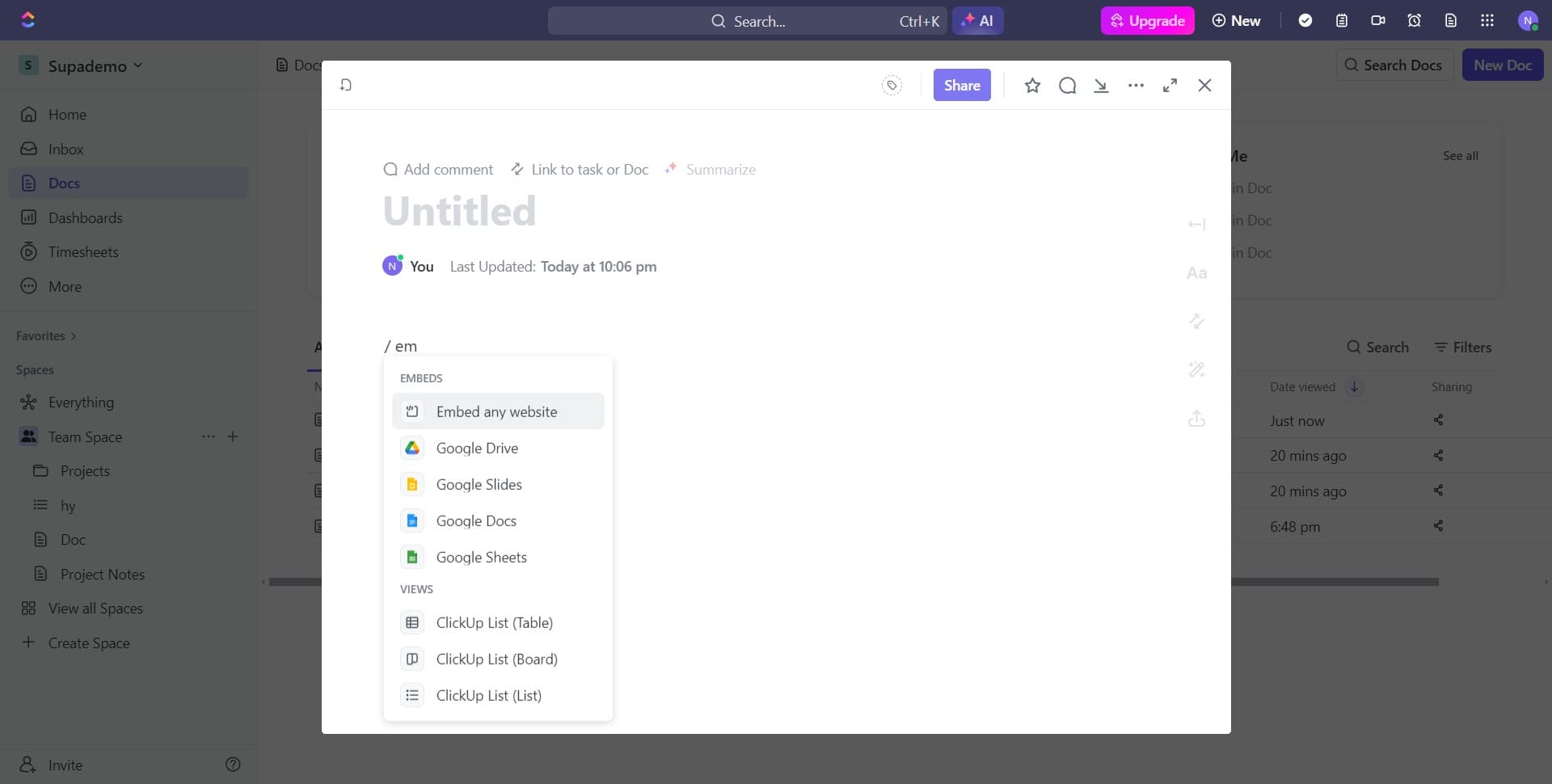
Click on Embed any website
Choose the option to embed any website or external content, which allows you to input your Google Doc link. This flexible option works with the shareable link you copied earlier.
- 12
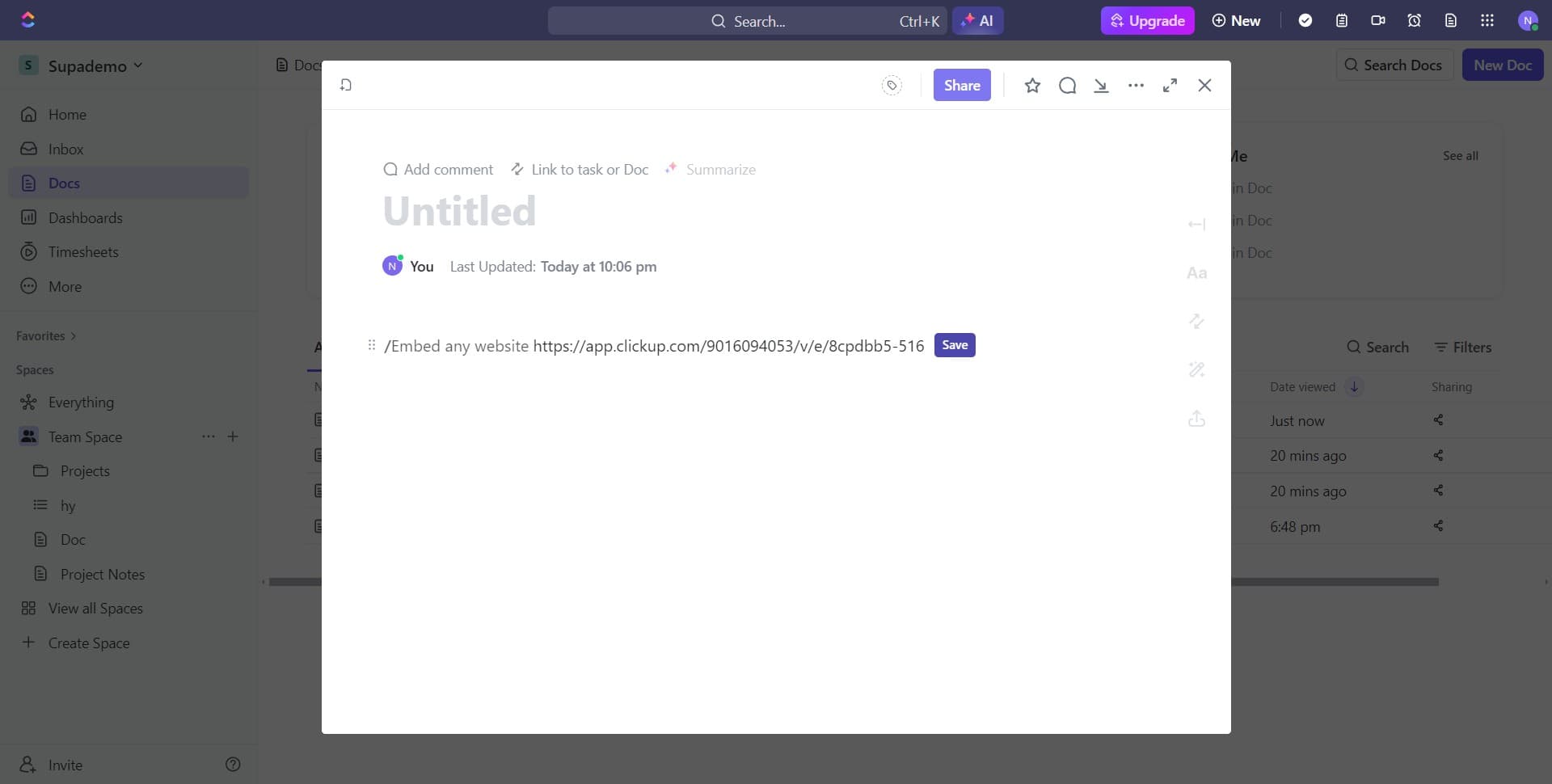
Click on Save
After configuring the embed settings, click Save to finalize the embedding of your Google Doc. The document will now be accessible directly within your ClickUp task.
- 13
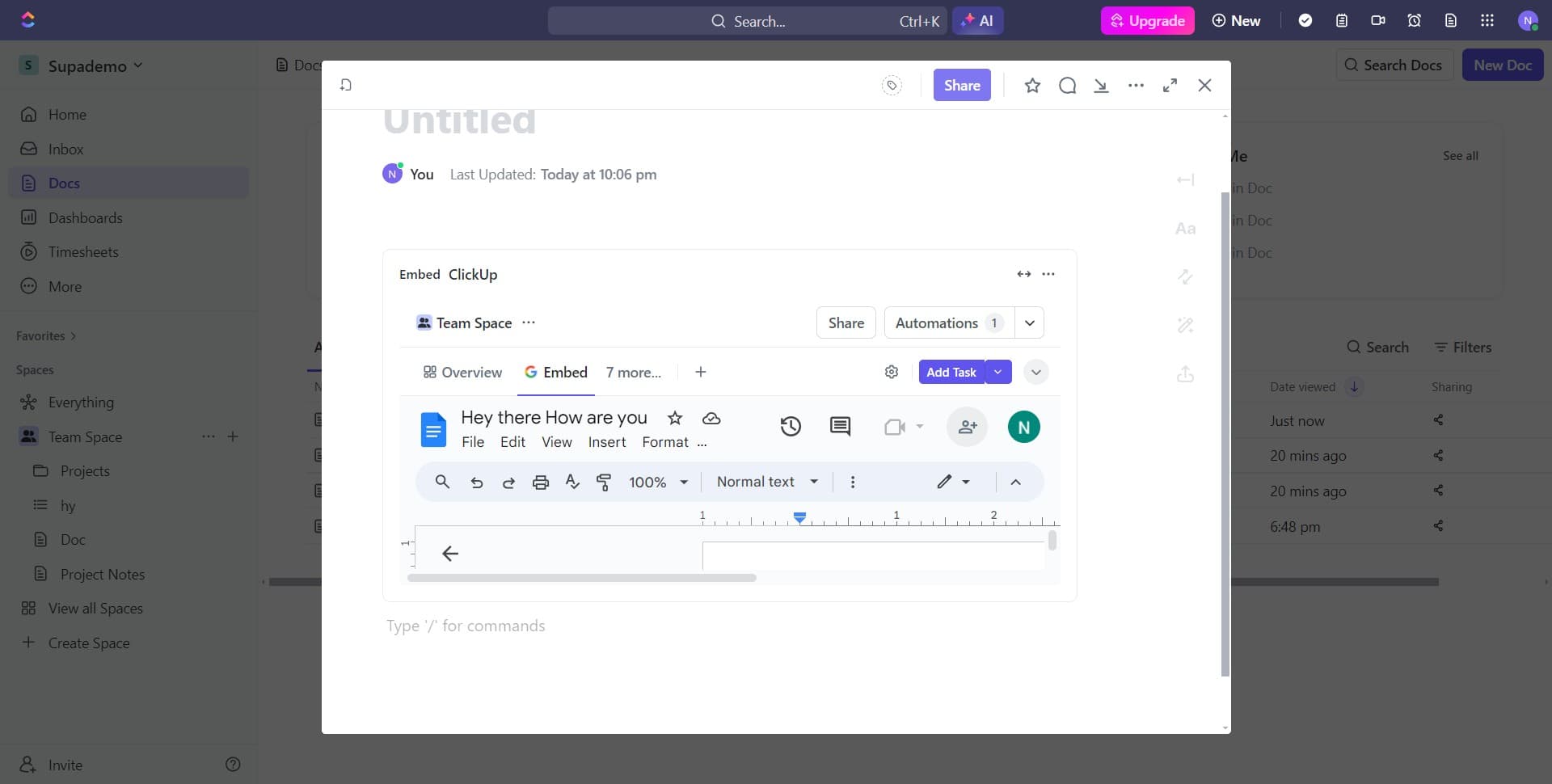
Confirm the ClickUp embed
Complete the final embedding step by confirming the ClickUp embed dialog. Your Google Doc is now embedded and ready for your team to view and collaborate on within ClickUp.
Frequently asked questions
Common questions about how to share a google doc to clickup.
The Google Doc must be set to at least Viewer access for anyone with the link. If you want collaborators to edit, set it to Editor. In ClickUp, you need at least Edit permissions for the task where you're adding the embed.
No, the embedded view in ClickUp is typically read-only. However, you can click through to the full Google Doc to make edits. Changes made in Google Docs will automatically reflect in the embedded preview.
Yes, since you're embedding a live link to the Google Doc, any updates made in Google Docs will appear in the ClickUp embed. This ensures your team always sees the most current version.
Check that the Google Doc link is set to shareable and that the View permissions are correct. Clear your browser cache and refresh the ClickUp page. If issues persist, try removing and re-adding the embed using the same process.
Yes, you can add multiple embeds to a single ClickUp task. Simply repeat the embedding process for each Google Doc you want to include. This is useful for organizing related documentation within one task.