How to apply hanging indent to your Google doc

A hanging indent is a professional formatting technique where the first line of a paragraph extends to the left while all subsequent lines are indented. This style is commonly used in bibliographies, reference lists, and formal documents to improve readability and create a polished appearance.
Quick summary
In this tutorial, you'll learn how to apply a hanging indent to your Google Docs by accessing the indentation options through the Format menu. You'll discover how to select the hanging indent style and apply it to your selected text in just a few clicks.
Why this matters
Hanging indents are essential for academic papers, legal documents, and professional correspondence where proper formatting is required. Using this feature ensures your document meets style guide requirements and maintains a consistent, professional appearance without manual formatting.
Step-by-step guide
- 1
Click to begin
Start by selecting the text or paragraph where you want to apply the hanging indent. Make sure the relevant content is highlighted before proceeding to the formatting menu.
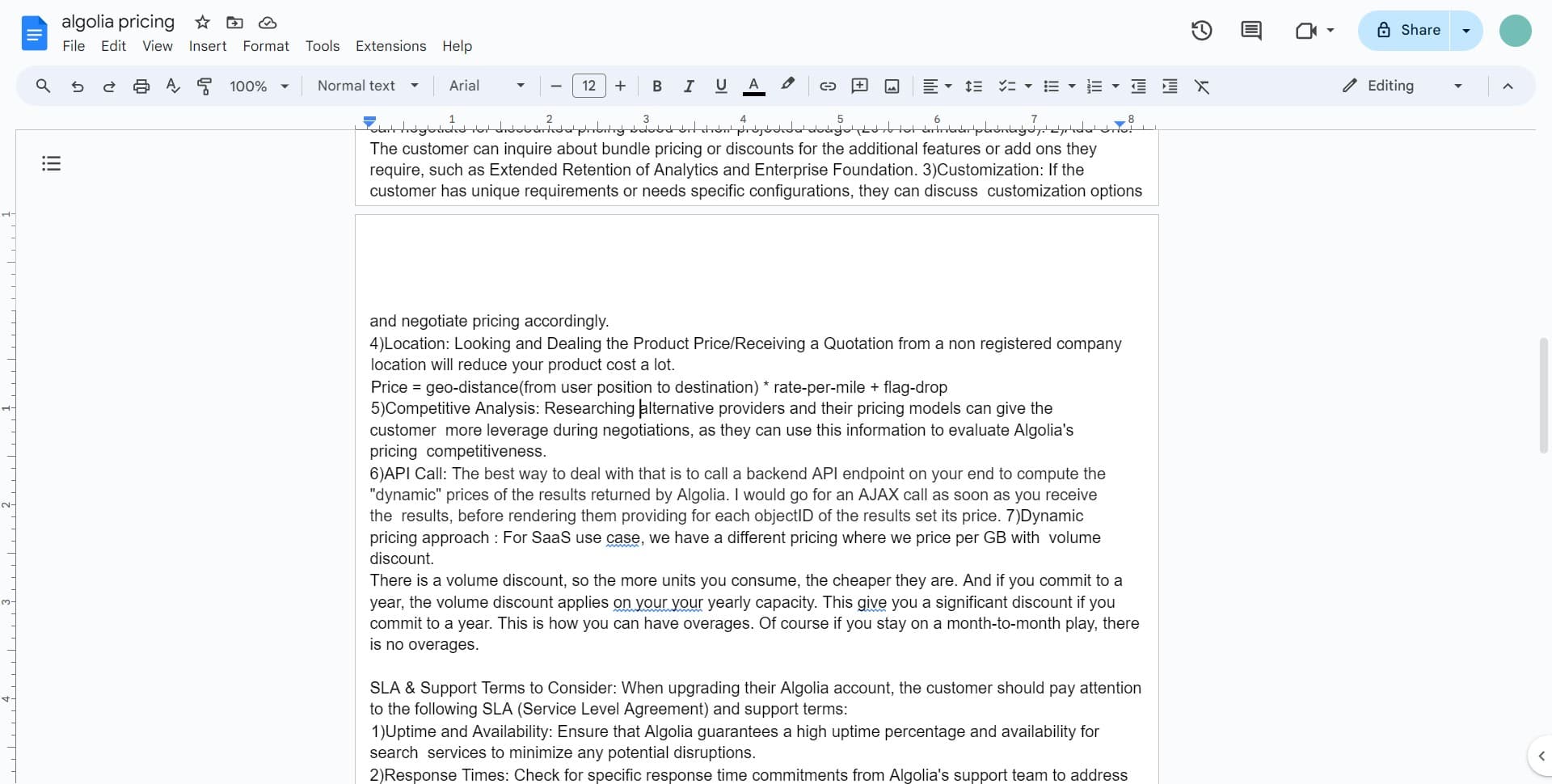
- 2
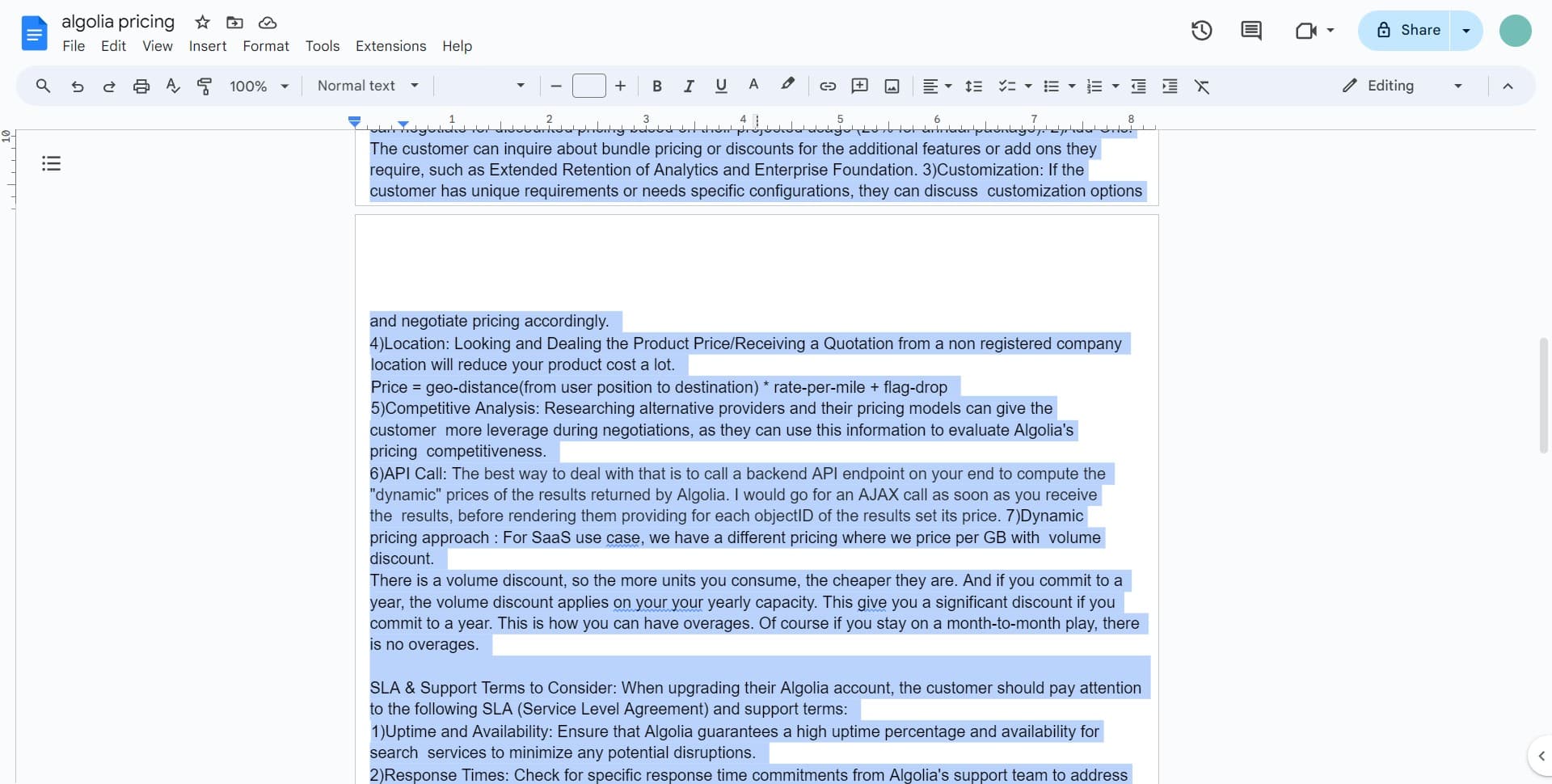
Click to continue
Navigate to the next step in the formatting process. You're on your way to accessing the indent options.
- 3
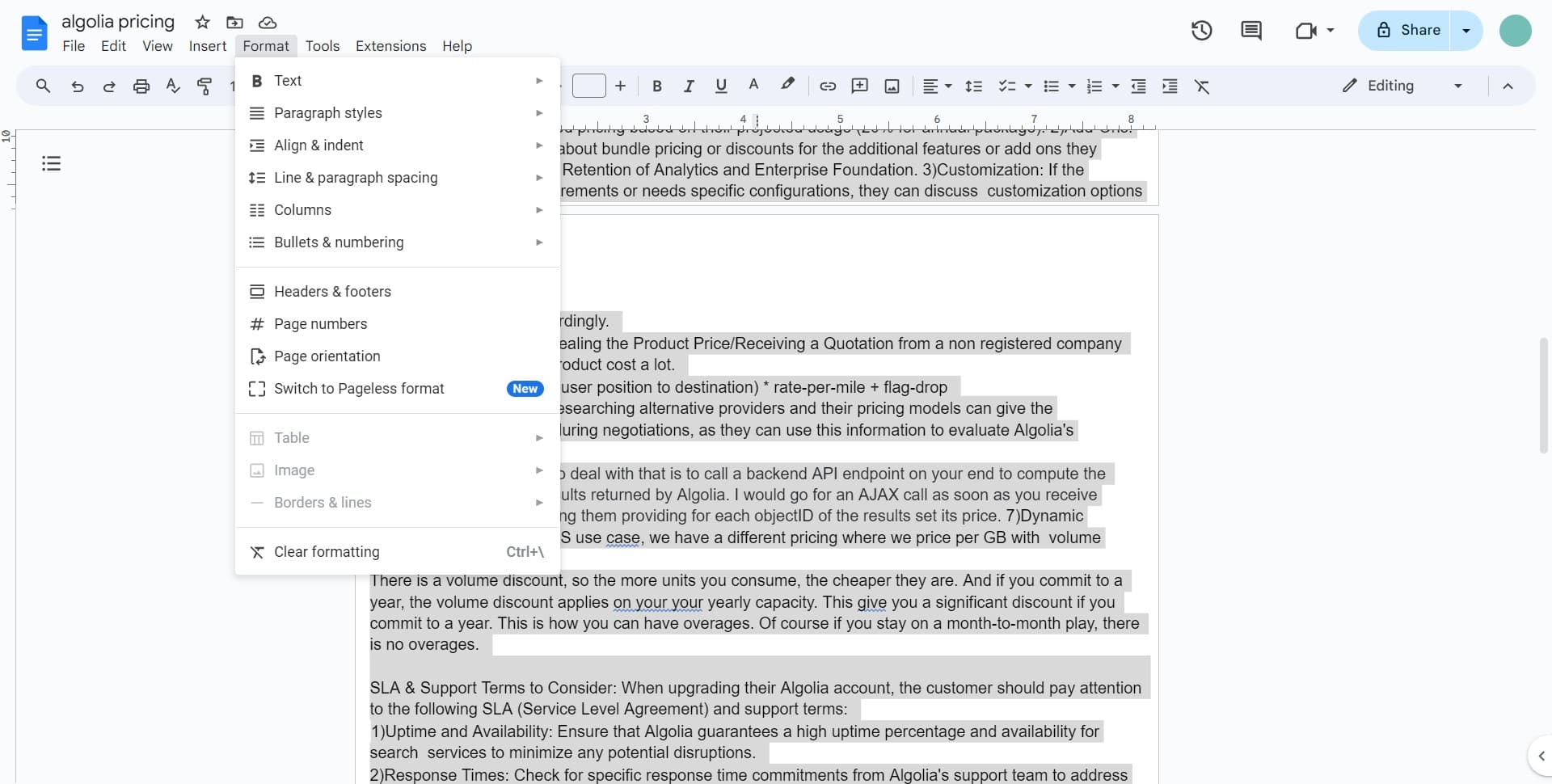
Click on Format
Open the Format menu at the top of your Google Docs window. This menu contains all the document formatting options you'll need.
- 4
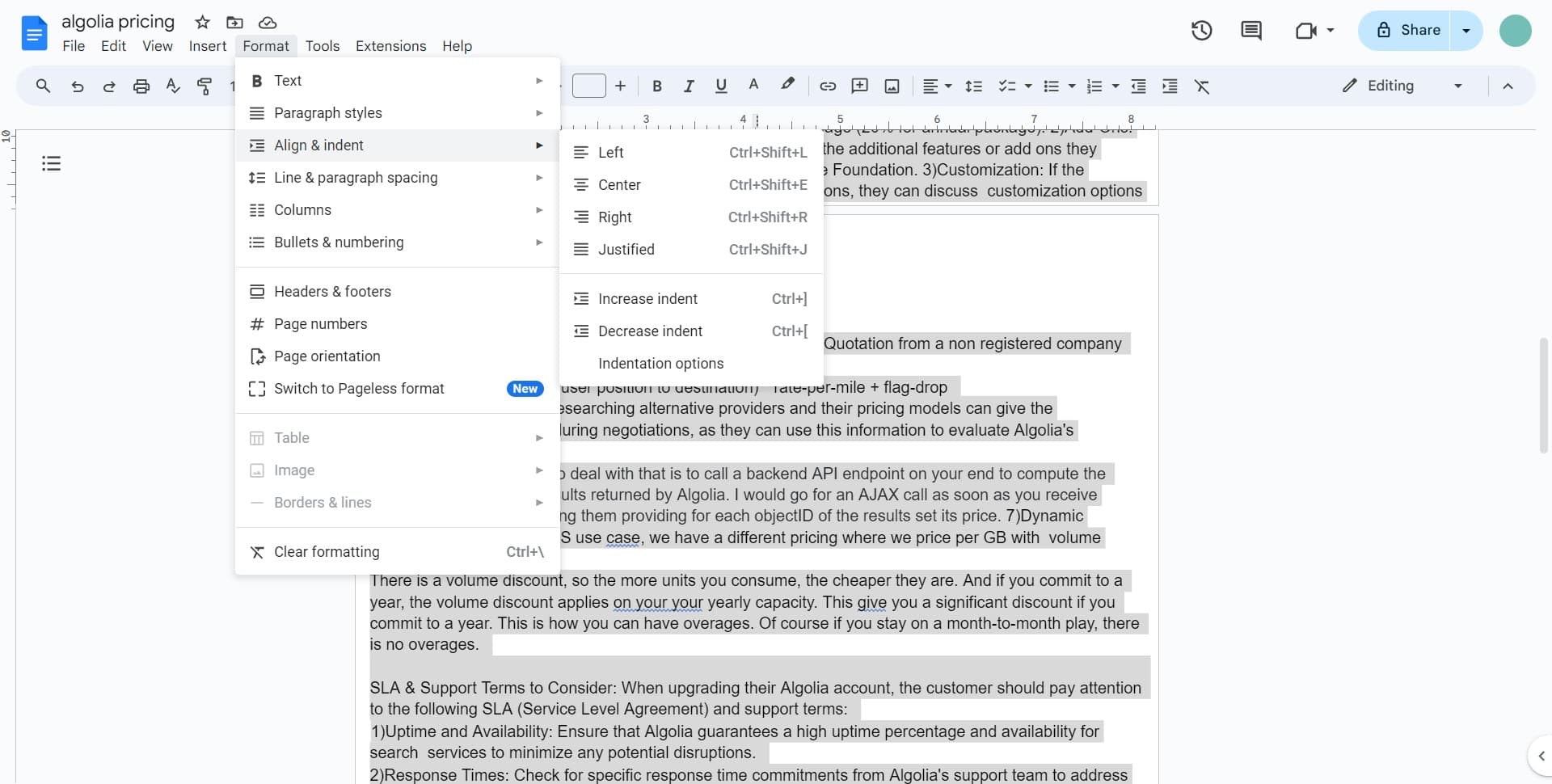
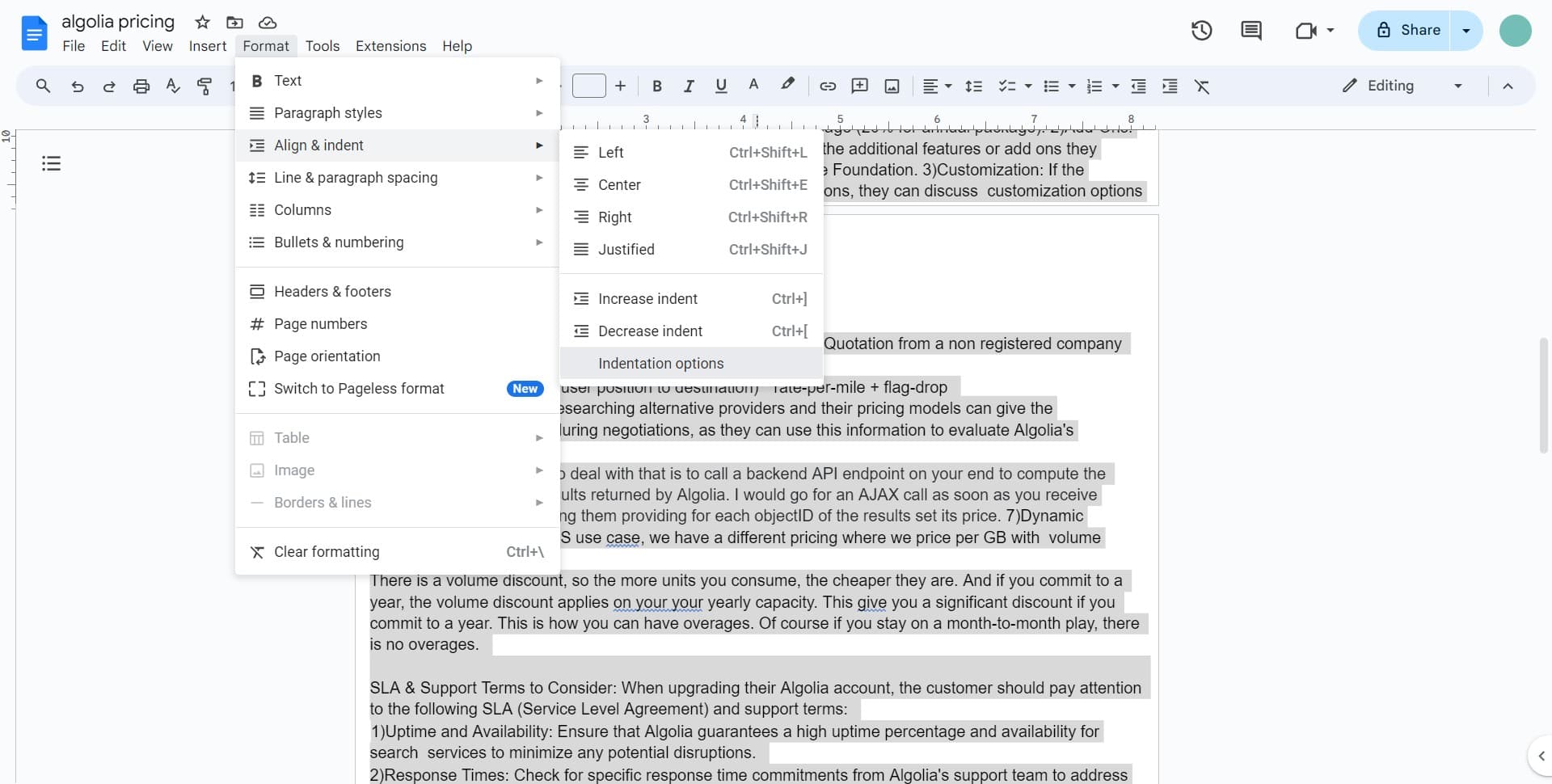
Click on Align & indent
Select the Align & indent option from the Format dropdown menu. This will reveal alignment and indentation settings for your selected text.
- 5
Click on Indentation options
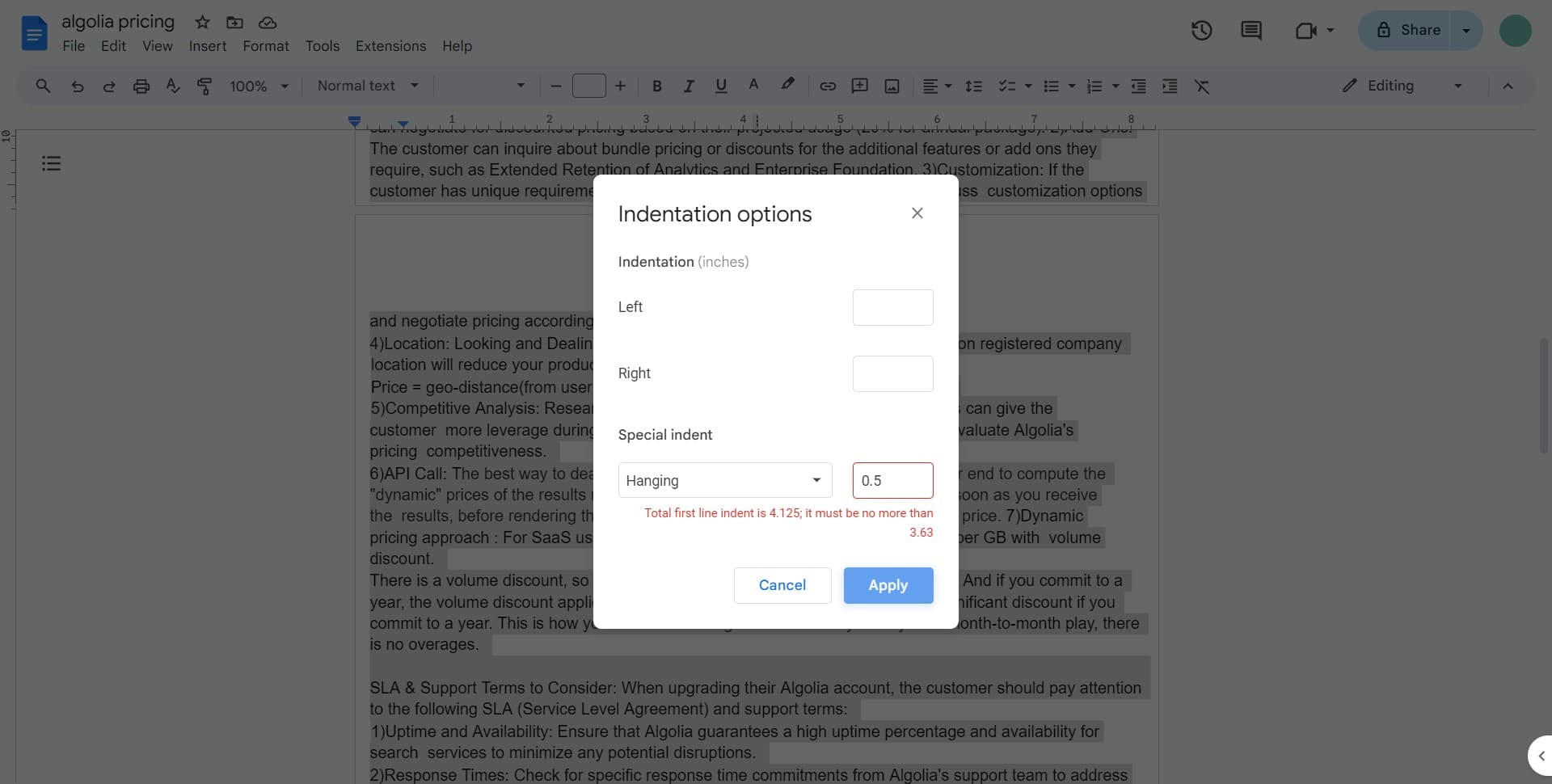
Choose Indentation options to open the detailed indent dialog box. This panel gives you precise control over how your text is indented.
- 6
Click to proceed
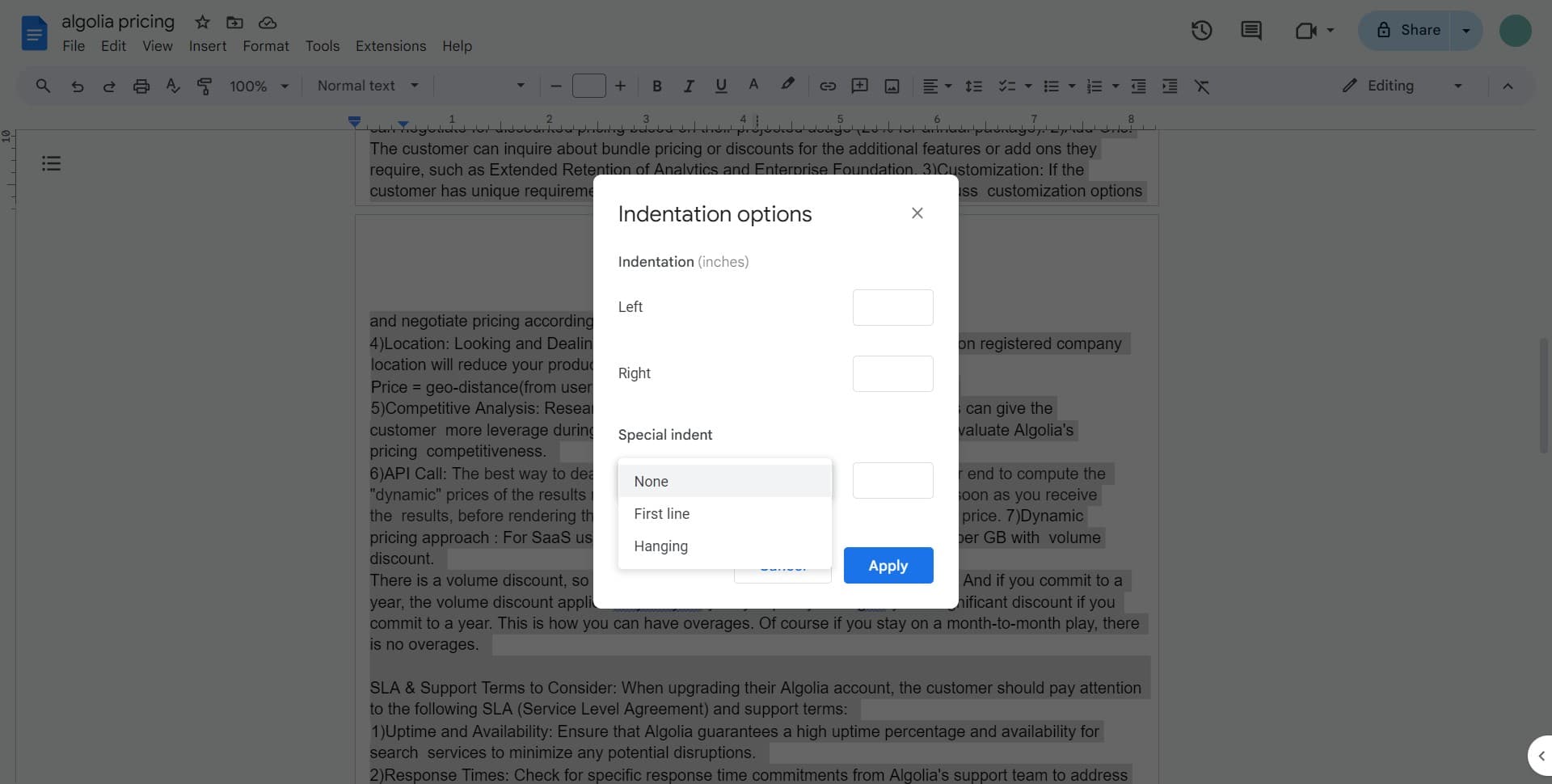
Continue through the indentation dialog box settings. You're approaching the hanging indent selection.
- 7
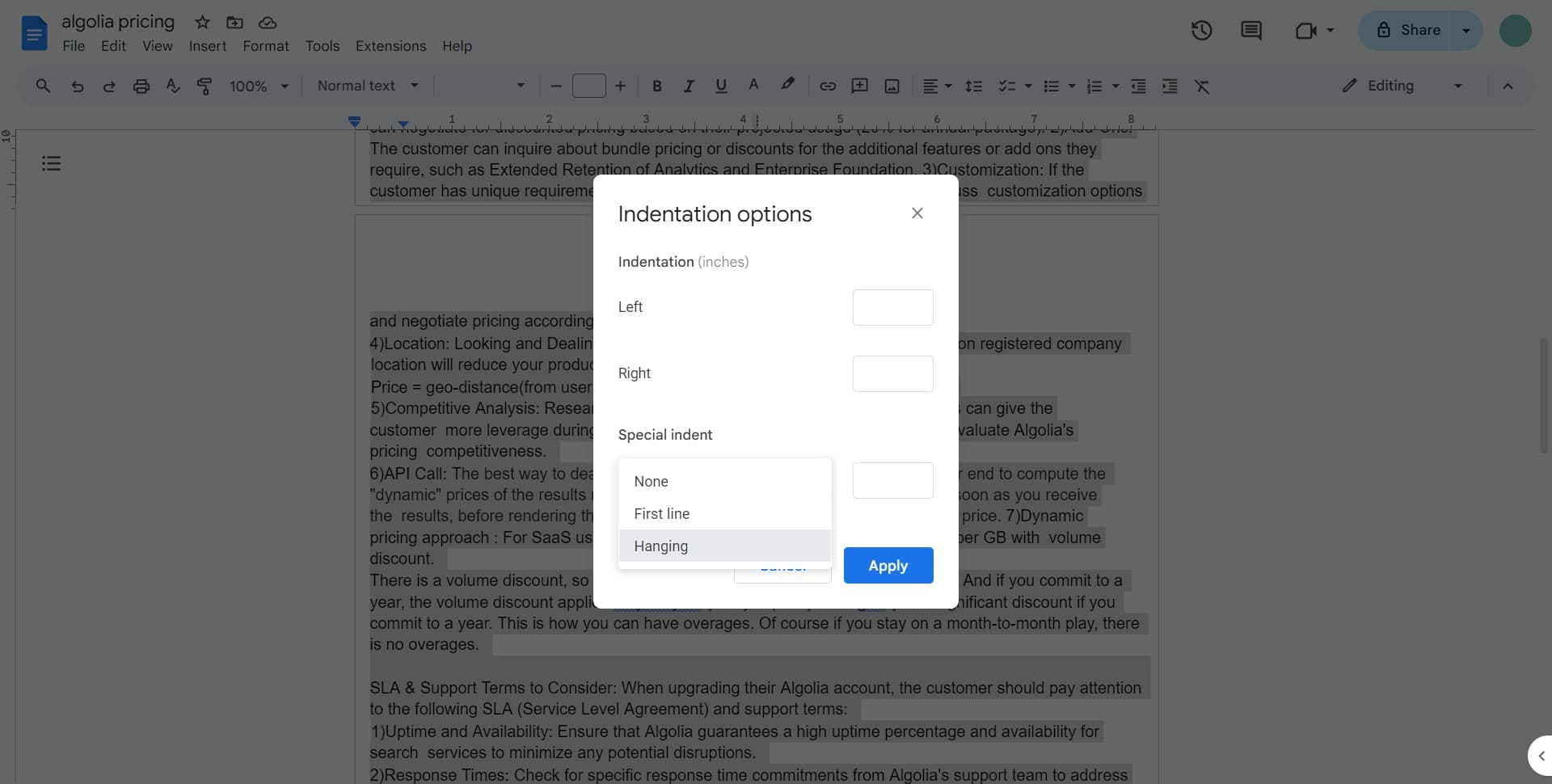
Click on Hanging
Select the Hanging option from the available indent styles. This will set your first line to extend left while all other lines indent to the right.
- 8
Click to finalize settings
Confirm your hanging indent selection in the dialog box. You're ready to apply these changes to your document.
- 9
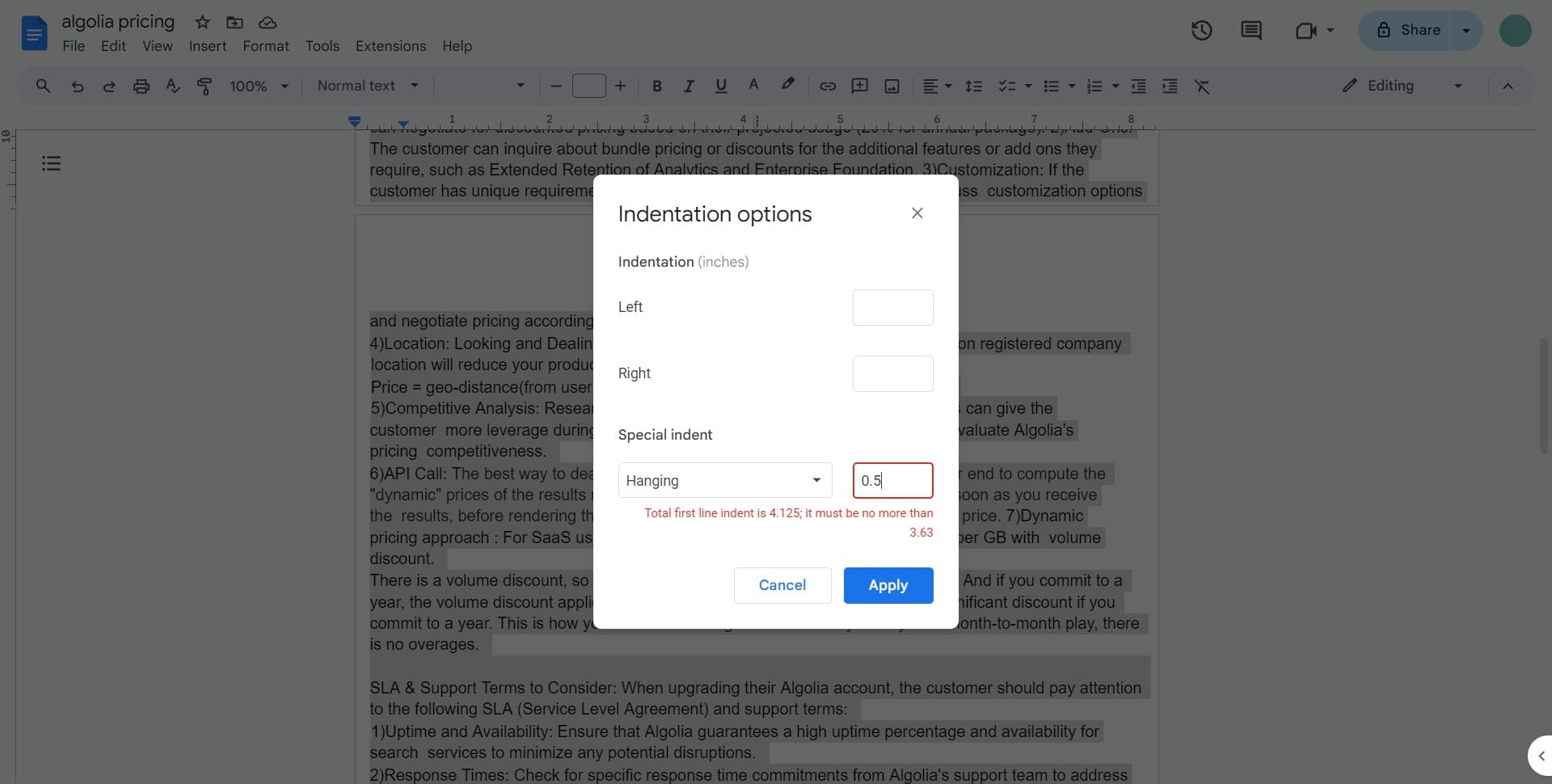
Click on Apply
Click the Apply button to implement the hanging indent to your selected text. Your document will now display the hanging indent formatting throughout the selected paragraphs.
Frequently asked questions
Common questions about how to apply hanging indent to your google doc.
A hanging indent is a formatting style where the first line of a paragraph extends to the left margin while subsequent lines are indented. It's essential for bibliographies, reference lists, and professional documents that require specific formatting standards. It improves readability and creates a polished, professional appearance.
Yes, you can select multiple paragraphs and apply hanging indents to all of them simultaneously. Simply highlight all the paragraphs you want to format before accessing the Format menu and following the indentation steps.
In the Indentation options dialog box, you can specify custom measurements for how far the hanging indent extends. You can set the exact distance in inches or centimeters depending on your document's needs and style guide requirements.
Yes, you can easily undo a hanging indent by using Ctrl+Z on Windows or Command+Z on Mac immediately after applying it. Alternatively, you can select the text again and change the indentation style back to None in the indentation options.
While the basic concept is the same, the steps to apply hanging indents differ slightly between Google Docs and Word. Google Docs uses the Format menu and Indentation options dialog, while Word may have different menu locations. The visual result on the page will be consistent across both platforms.