How to Add Conditional Logic to Google Forms

Conditional logic in Google Forms allows you to create dynamic forms that adapt based on respondent answers, showing or hiding questions based on specific conditions. This feature is essential for creating personalized surveys, quizzes, and data collection forms that guide users through relevant questions only.
Quick summary
In this tutorial, you'll learn how to set up conditional logic in Google Forms to control question flow based on user responses. You'll discover how to create branching paths that make your forms more efficient and user-friendly by displaying only the most relevant questions to each respondent.
Why this matters
Conditional logic significantly improves form completion rates by reducing respondent fatigue—users only answer questions that apply to them. This technique is invaluable for customer feedback forms, support ticketing systems, and surveys where different respondents need different question paths based on their initial answers.
Step-by-step guide
- 1
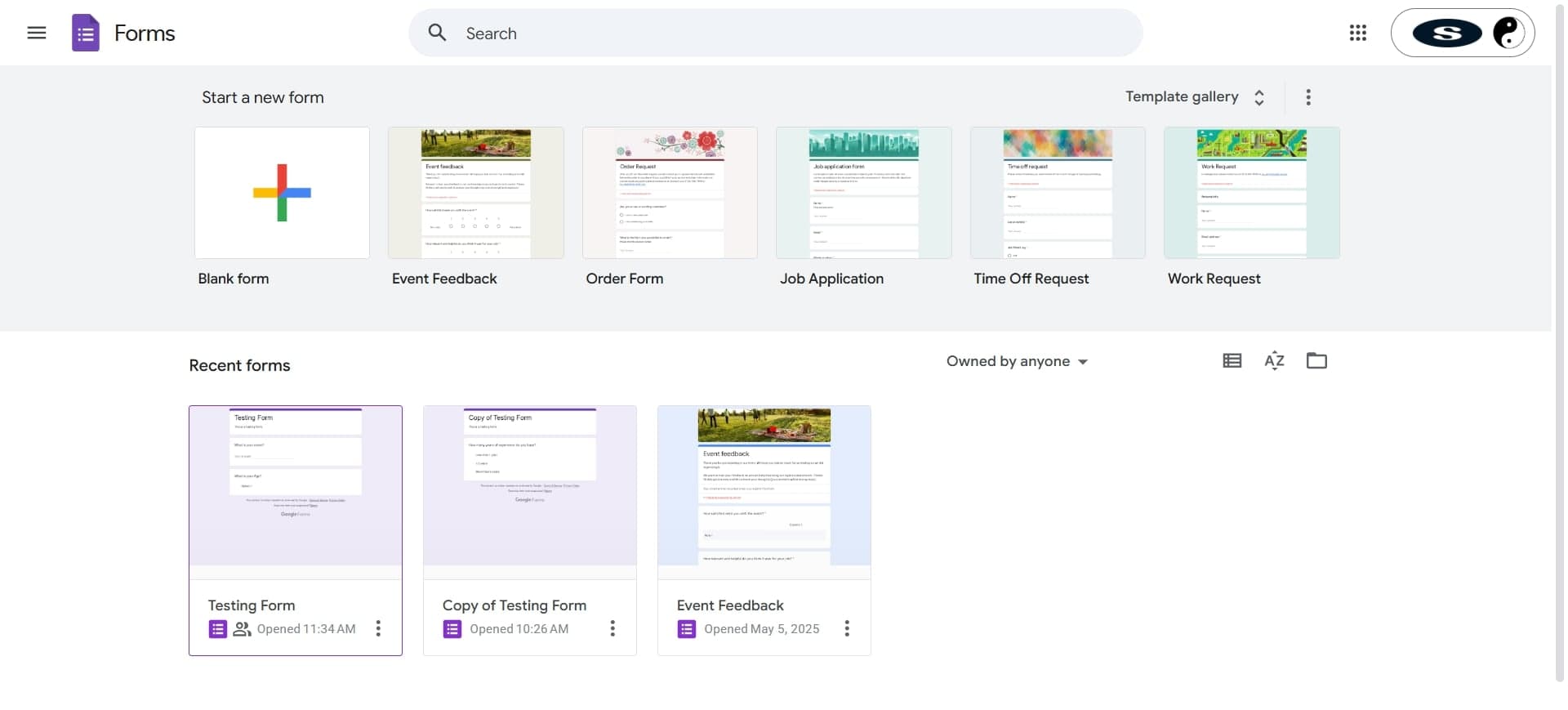
Open your Google Form
Navigate to forms.google.com and either create a new form or open an existing one. You'll need a form with at least two questions already created before you can add conditional logic.
- 2
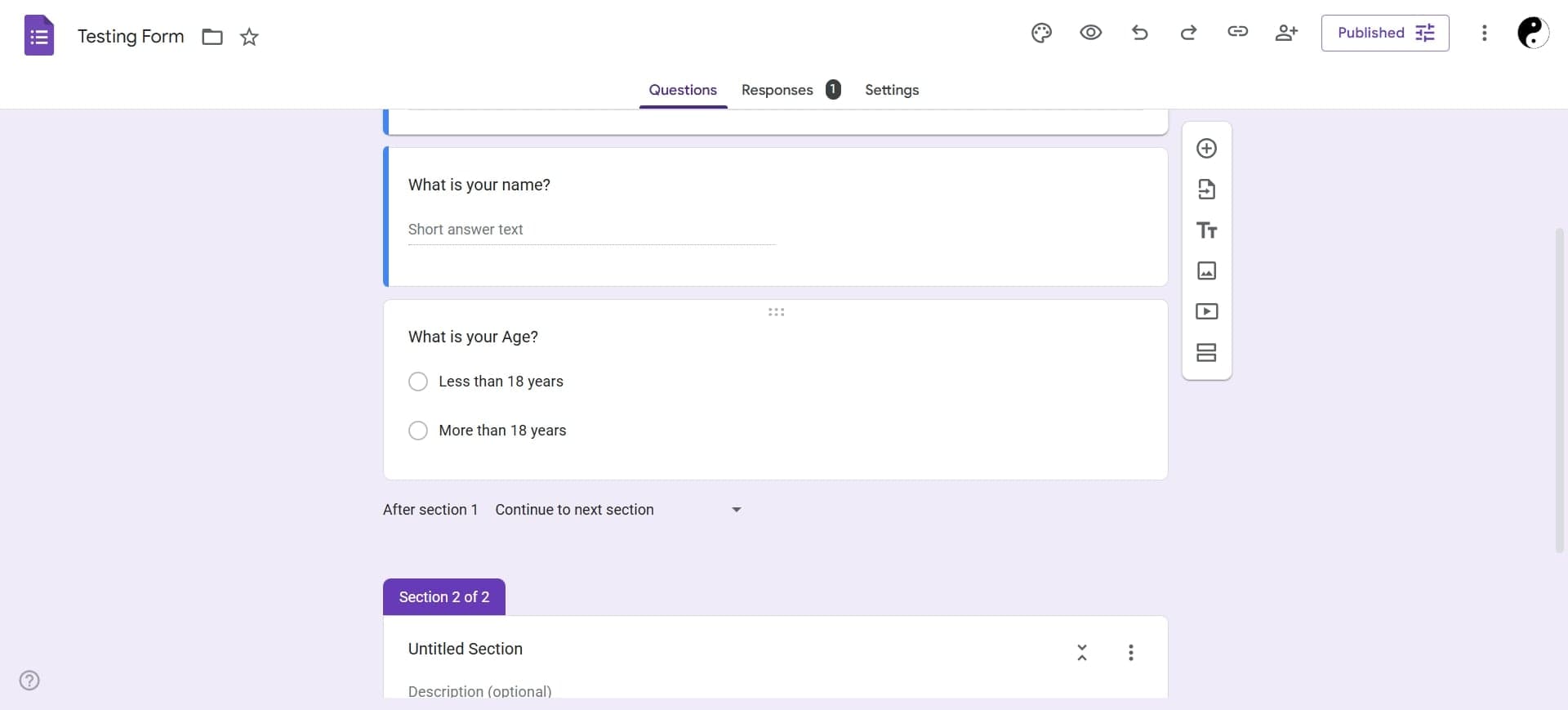
Add a multiple choice question
Click the plus icon to add a question and select 'Multiple choice' as the question type. This will be your trigger question—respondents' answers to this question will determine which subsequent questions they see.
- 3
Add follow-up questions
Create the questions you want to display conditionally. You can add multiple questions that will appear or hide based on different answer selections from your trigger question.
- 4
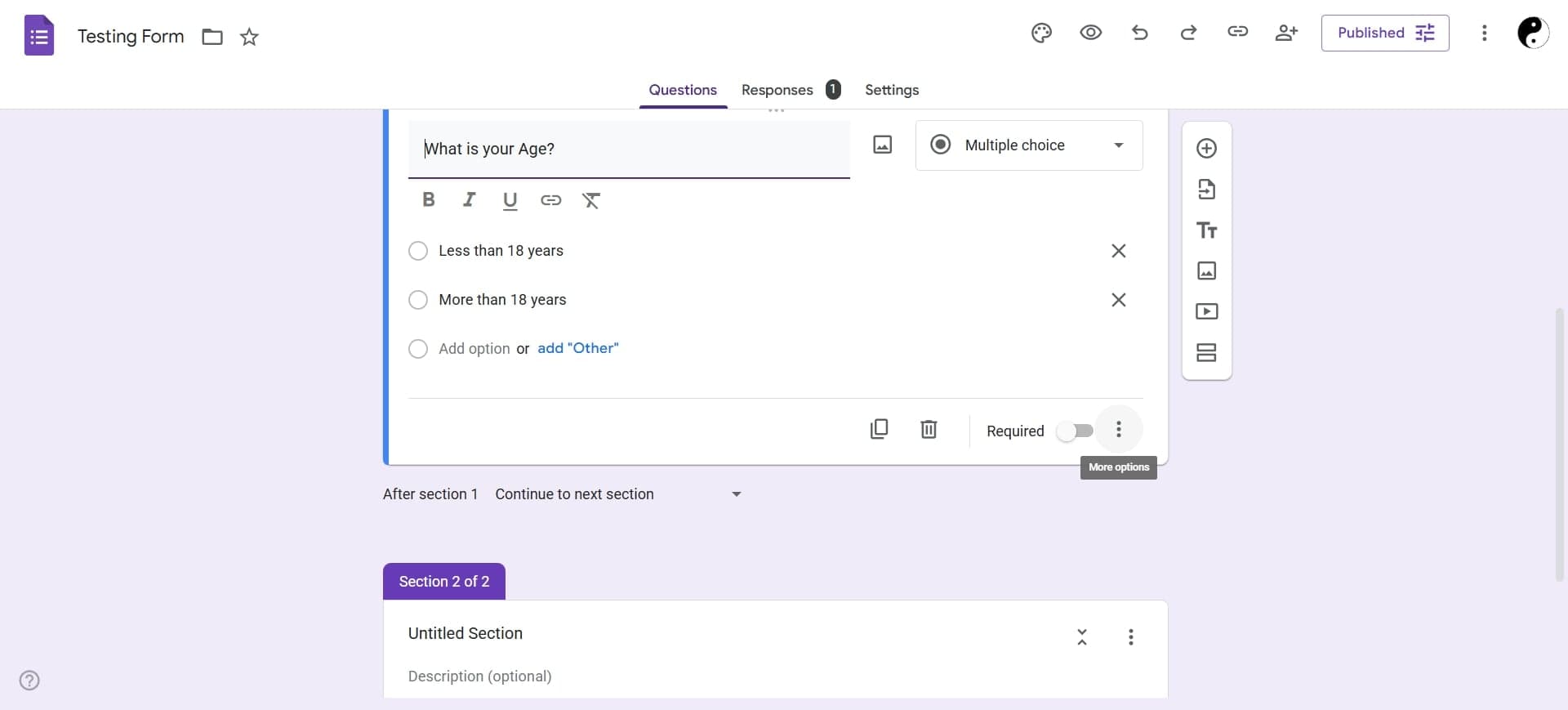
Click the three-dot menu on a question
Locate the question you want to show conditionally, then click the three vertical dots in the top-right corner of that question card to access additional options.
- 5
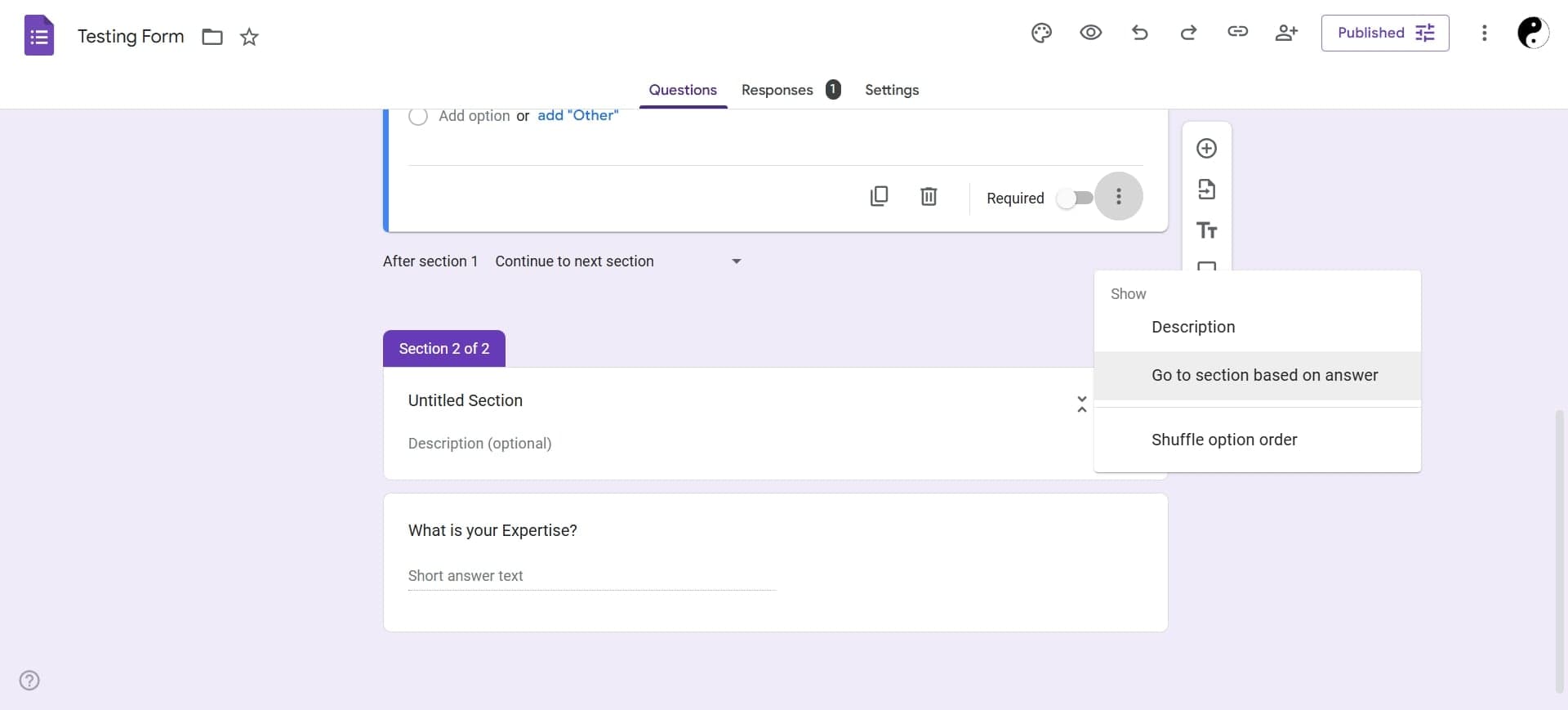
Select 'Go to section based on answer'
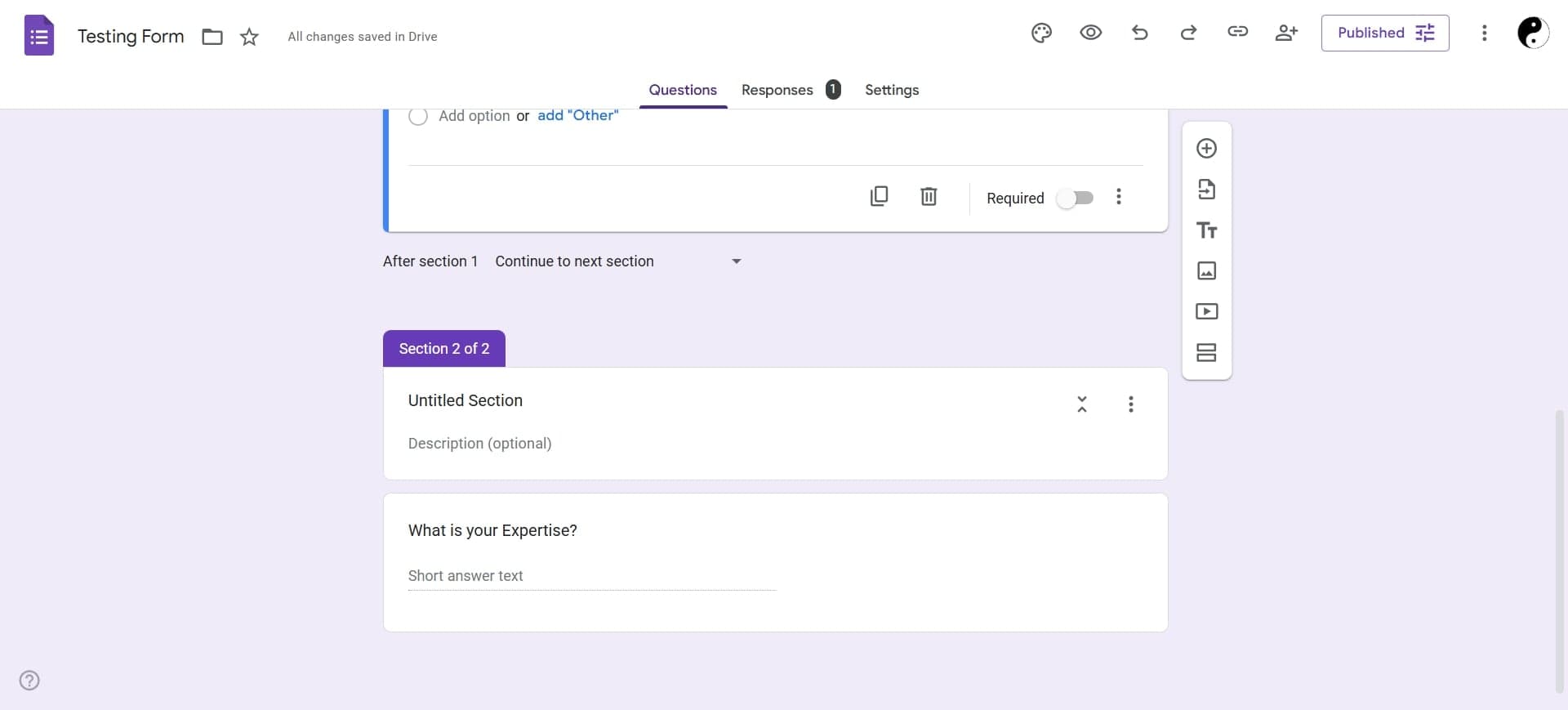
Choose this option to set up conditional logic. You'll see a dropdown menu appear next to each answer option of your multiple-choice question, allowing you to specify which section or question should appear next.
- 6
Map answer options to destinations
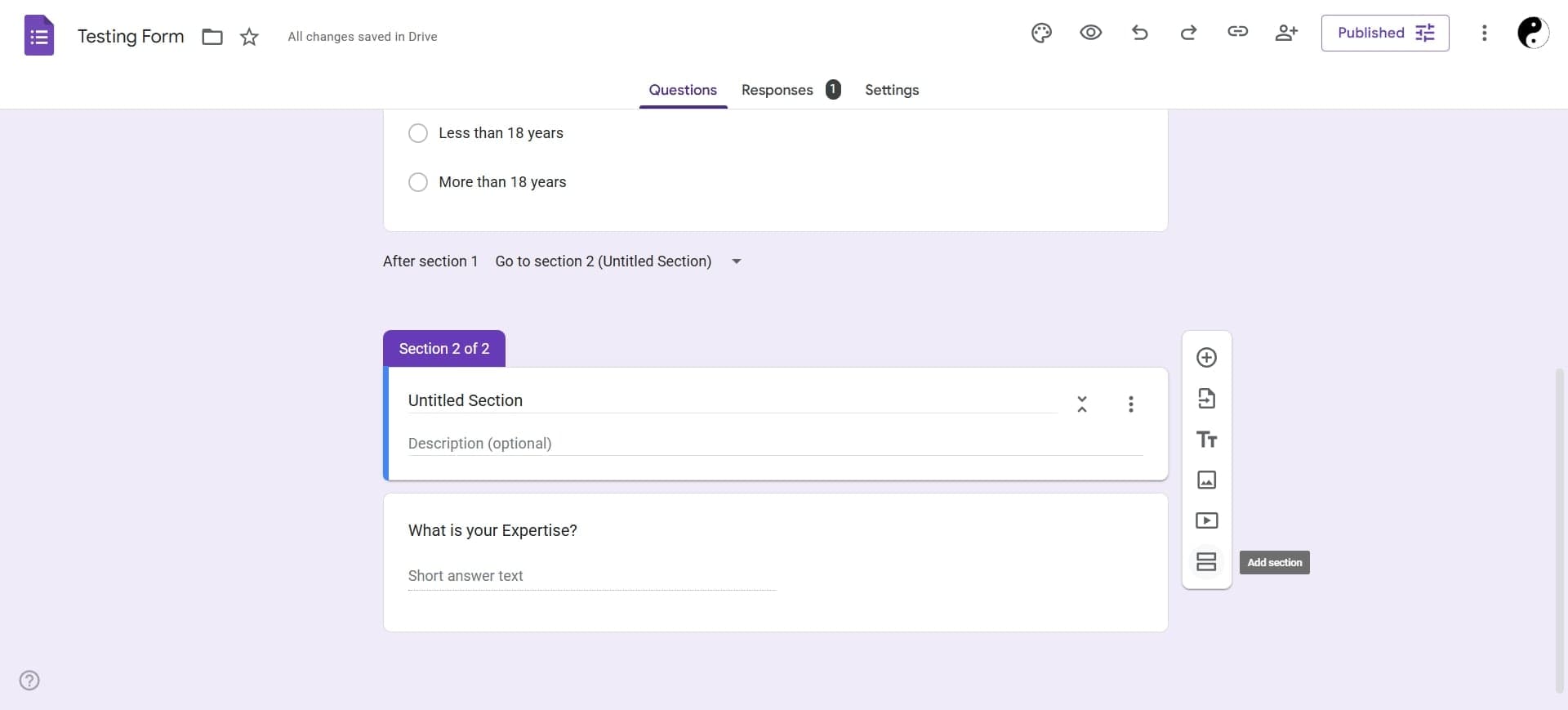
For each answer choice, select which question or section should appear next from the dropdown menu. You can direct different answers to different follow-up questions, create loops, or skip entire sections based on responses.
Frequently asked questions
Common questions about how to add conditional logic to google forms.
Conditional logic in Google Forms works primarily with multiple-choice, dropdown, and checkbox questions as triggers. Other question types like short answer or linear scale don't currently support conditional branching in the same way. For most workflows, multiple-choice questions work best as your trigger questions.
If you haven't set up a conditional path for a particular answer, the form will continue to the next question in sequence. It's important to map all answer options to ensure your respondents follow the intended question flow without gaps or confusion.
Yes, you can nest conditional logic by creating branches from follow-up questions. For example, a response to a follow-up question can trigger its own set of conditional paths, allowing you to create complex, multi-level question trees. This approach works well for detailed surveys and decision trees.
You can organize your form into sections and use conditional logic to direct respondents to different sections based on their answers. Click 'Go to section' in the conditional logic dropdown to route users to a specific section instead of just the next question, which helps organize longer forms more clearly.
No, respondents only see questions that are relevant to their answers as they progress through the form. The conditional logic is invisible to them—they simply experience a personalized question flow that adapts in real-time based on their responses.