How to code in Google Sheets

Google Sheets formulas and functions enable you to automate calculations, manipulate data, and build dynamic spreadsheets without manual entry. Learning to code in Google Sheets empowers you to work more efficiently and unlock advanced data analysis capabilities.
Quick summary
In this tutorial, you'll learn how to write and execute formulas in Google Sheets, starting with selecting cells and entering formula syntax. By the end, you'll understand how to reference cells, use the equals sign to initiate formulas, and apply them to your data.
Why this matters
Mastering formulas in Google Sheets transforms you from manually entering data to building intelligent spreadsheets that calculate, sort, and organize information automatically. This skill is essential for financial analysis, project tracking, data management, and any workflow that requires dynamic calculations and data manipulation.
Step-by-step guide
- 1
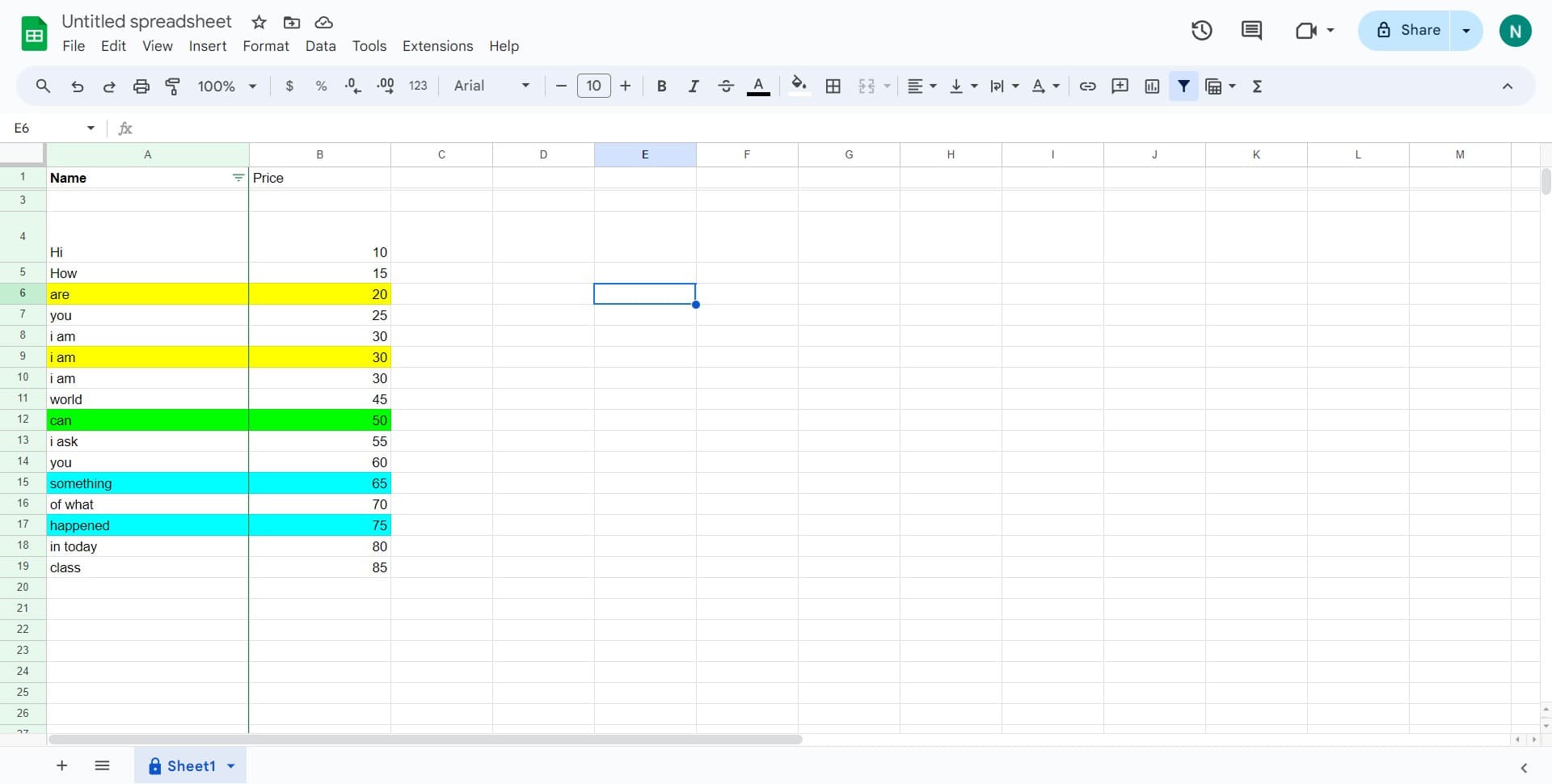
Select your target cell
Click on the cell where you want to enter your formula. This is typically where you want the result of your calculation to appear in your spreadsheet.
- 2
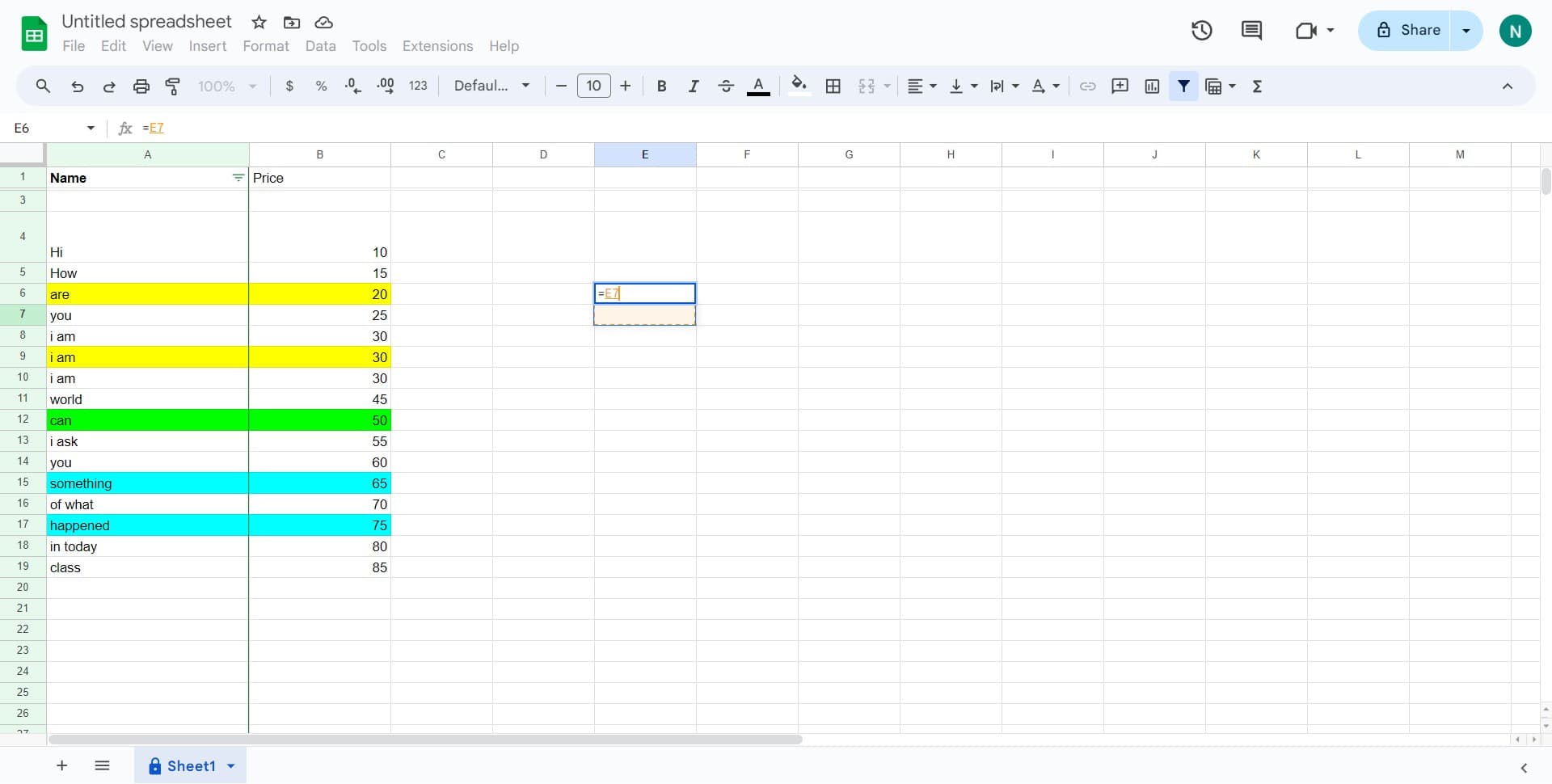
Access the formula input area
Click on the formula bar at the top of the spreadsheet. This is where you'll type your formula syntax and Google Sheets will display the formula you're building.
- 3
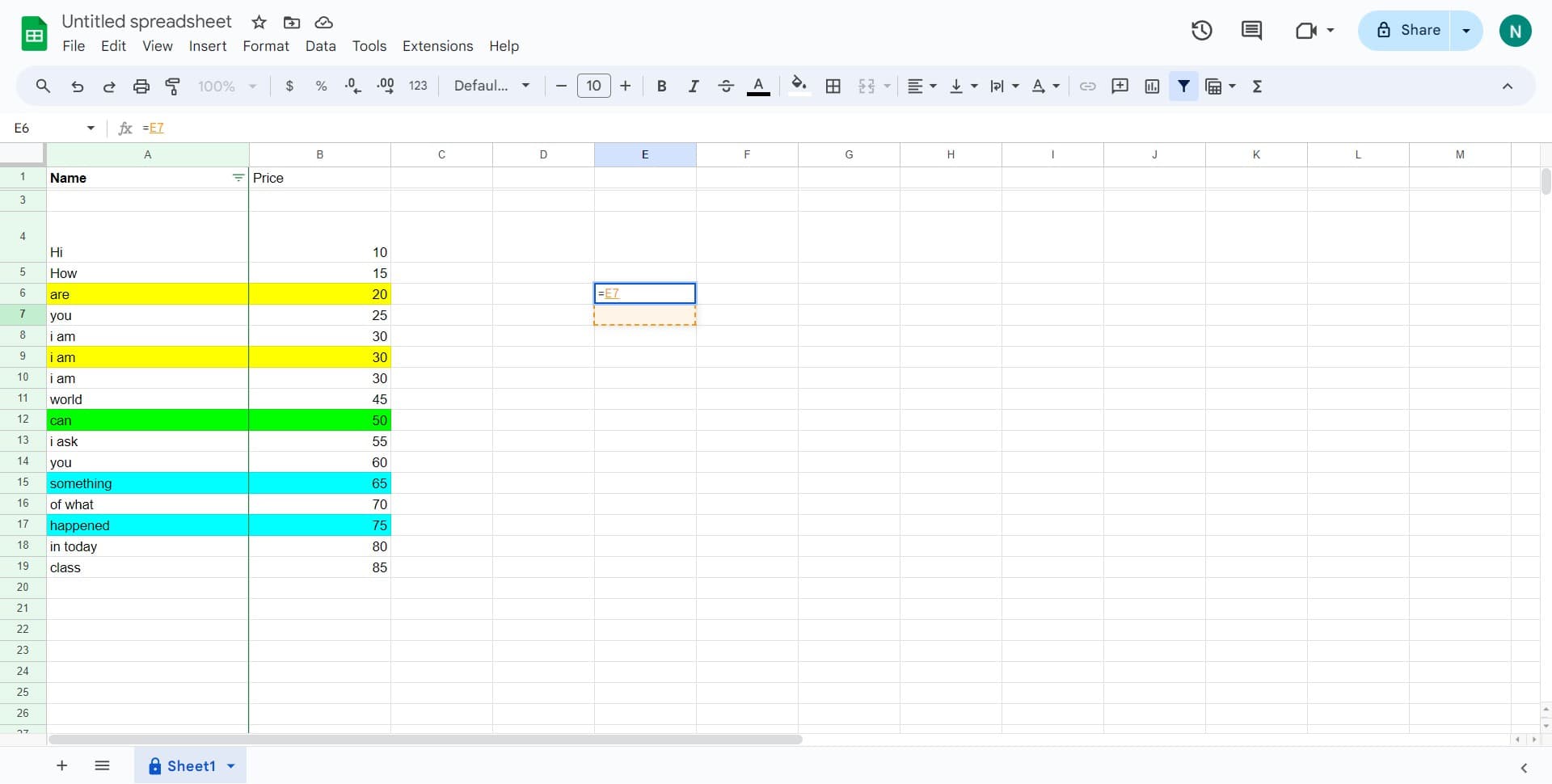
Enter your formula
Type your formula starting with the equals sign (=), followed by the function or cell references you need. For example, =E7 references cell E7, or you can use functions like =SUM(A1:A10) to add a range of cells.
- 4
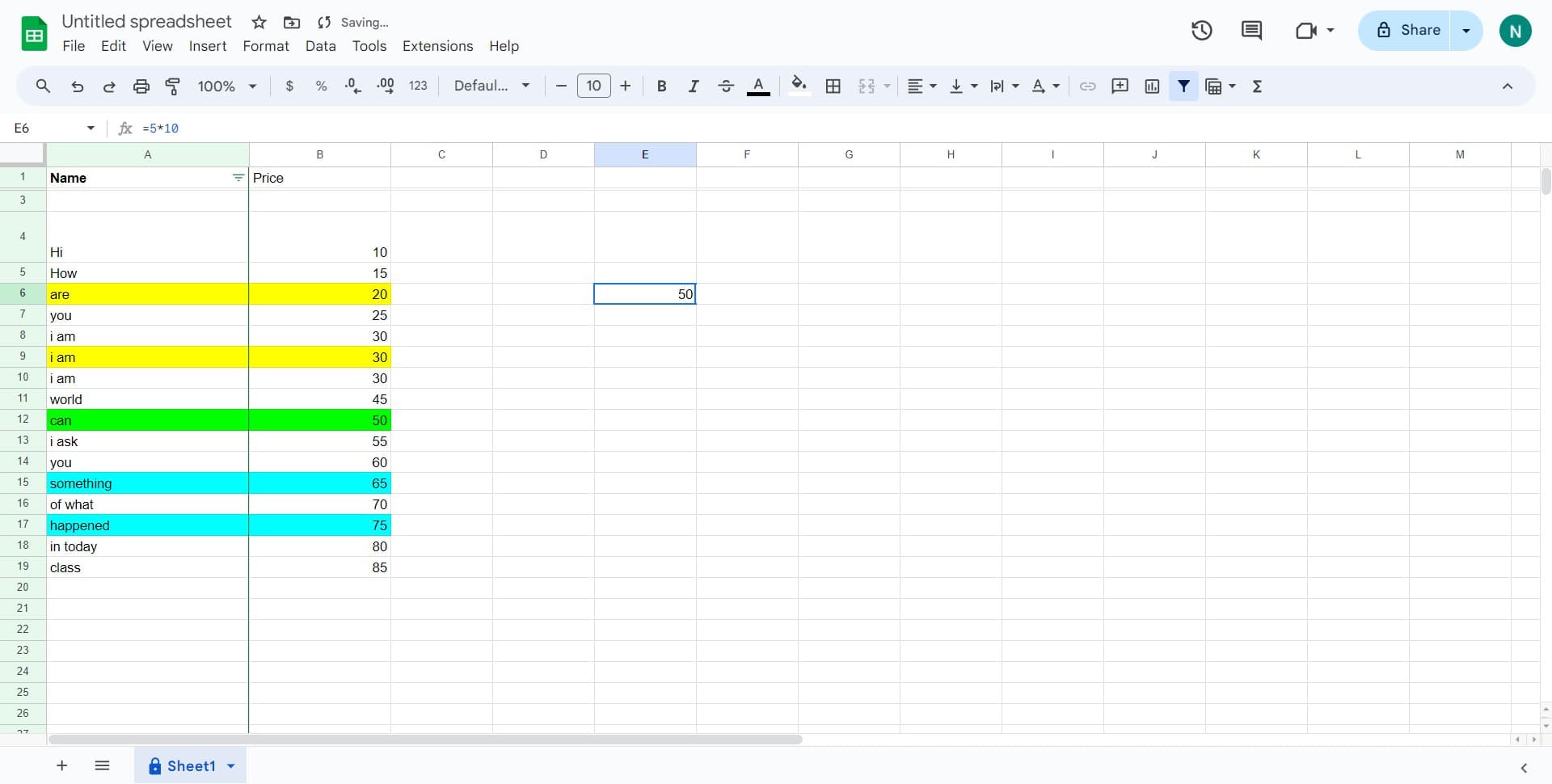
Apply your formula
Press Enter to execute the formula and see the result in your selected cell. Google Sheets will automatically calculate the formula and display the output.
Frequently asked questions
Common questions about how to code in google sheets.
The equals sign tells Google Sheets that you're entering a formula rather than plain text. Without it, the application treats your entry as a text value and won't perform any calculations. This is the universal standard across all spreadsheet applications.
Yes, you can reference cells from other sheets in your Google Sheets file. Use the syntax SheetName!CellReference, such as =Sheet2!A1. This is useful for organizing large datasets across multiple sheets and consolidating data from different sources.
Relative references (like A1) change when you copy a formula to other cells, while absolute references (like $A$1) stay fixed. Use absolute references when you want a formula to always reference the same cell, regardless of where you copy it.
After entering your formula, select the cell containing it, then click and drag the small square at the bottom-right corner of the cell across the range where you want to apply it. Alternatively, copy the cell and paste it to your desired range.
These errors typically indicate syntax problems or invalid cell references. Double-check that all referenced cells exist and contain the correct data type, and verify that your formula syntax is correct for the function you're using. The formula bar will help you identify where the issue lies.