How to count cells with text in Google Sheets

Counting cells that contain text is a common task in Google Sheets, whether you're analyzing survey responses, tracking filled form fields, or managing data quality. This tutorial walks you through using formulas to accurately count text entries across your spreadsheet.
Quick summary
In this tutorial, you'll learn how to use Google Sheets formulas to count cells containing text. You'll explore the COUNTIF function and how to apply it to specific ranges to get reliable text counts from your data.
Why this matters
Counting text cells is essential for data validation, reporting, and understanding dataset completeness. Rather than manually tallying entries, using formulas ensures accuracy and lets you update counts automatically as your data changes.
Step-by-step guide
- 1
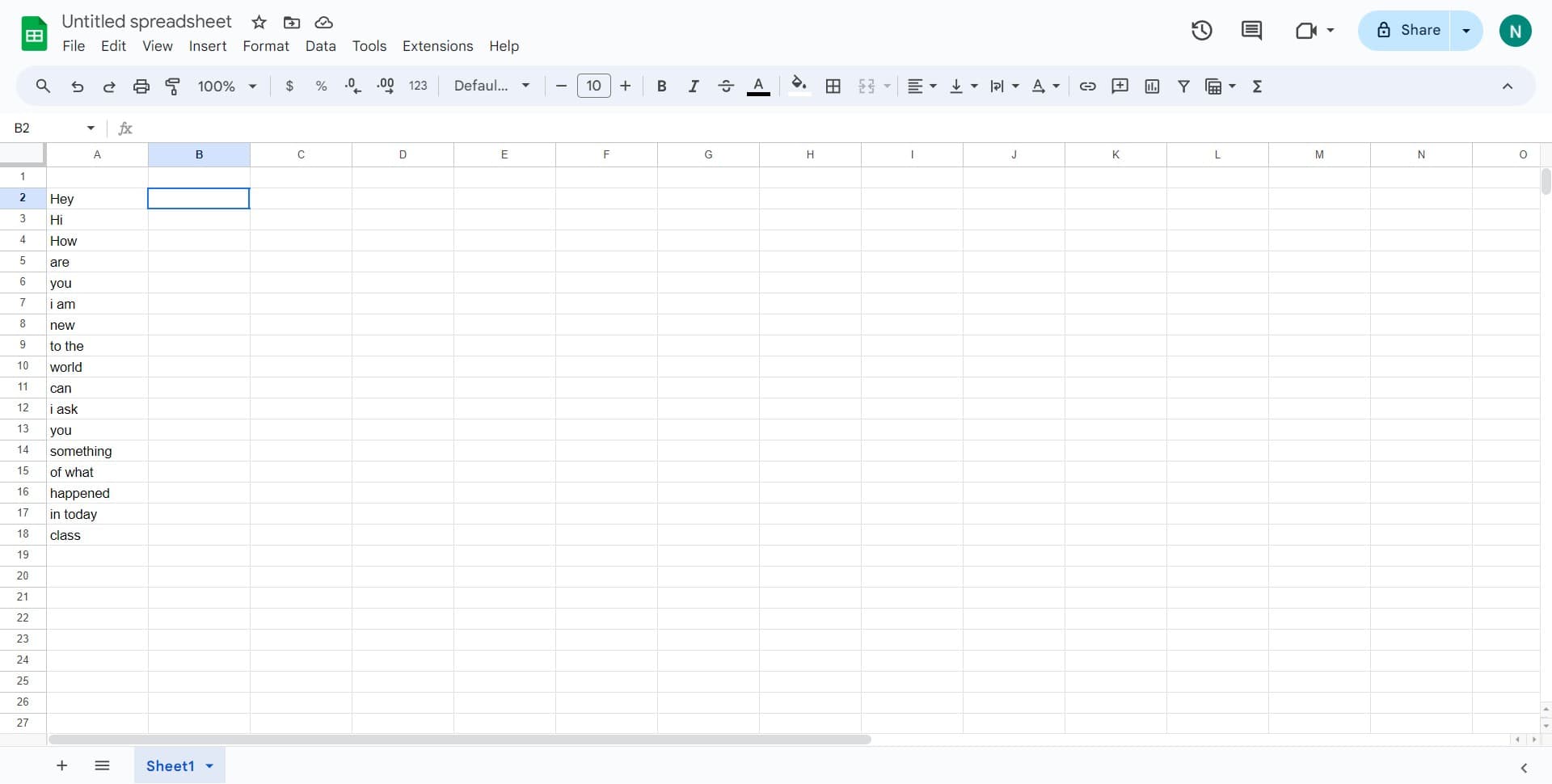
Open your Google Sheets document
Navigate to the spreadsheet containing the data you want to analyze. Ensure the data is organized in columns or rows so you can easily reference the range you'll count.
- 2
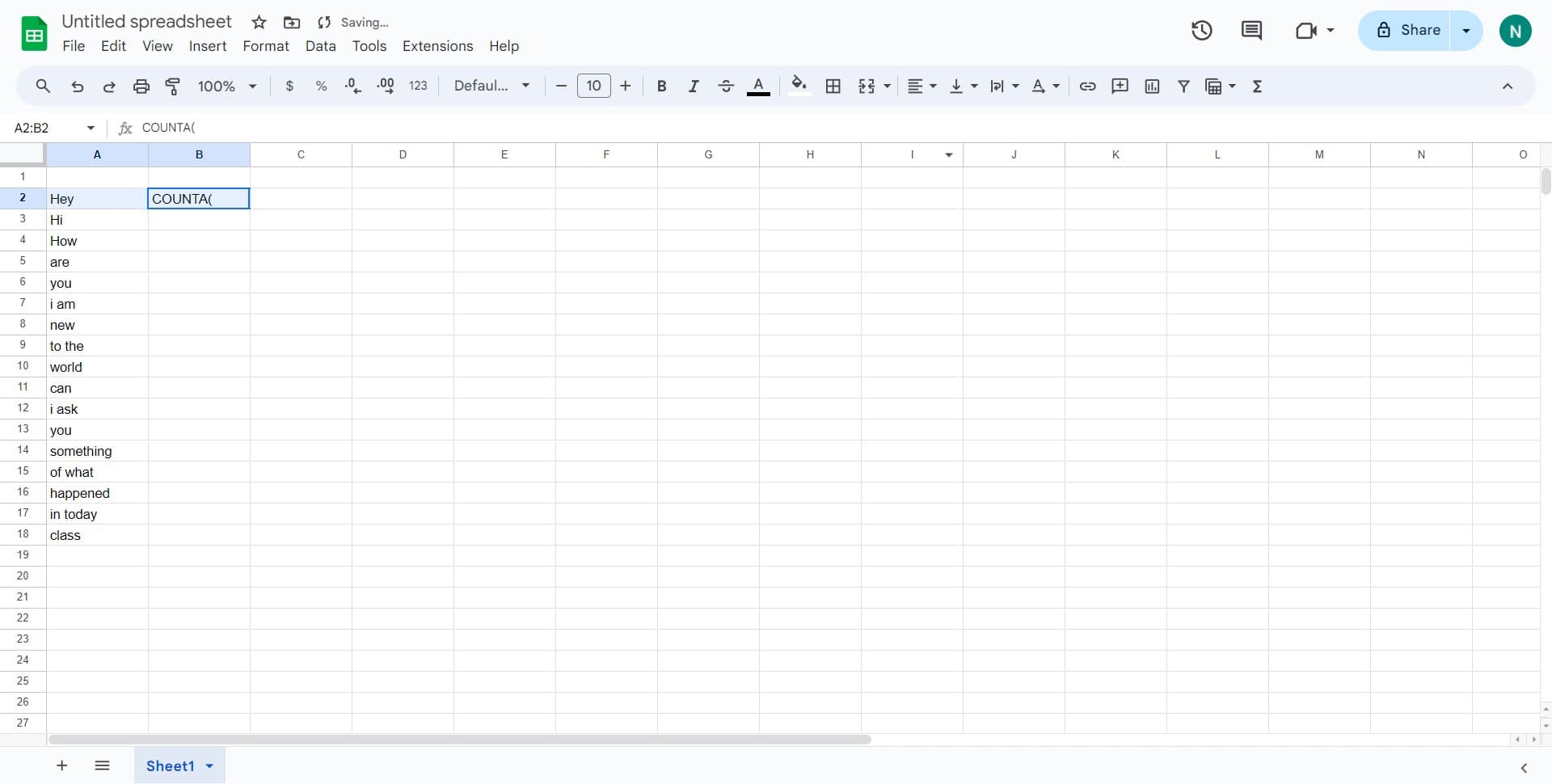
Select a cell for your formula
Click on an empty cell where you want the count result to appear. This cell will display the total number of text entries from your selected range.
- 3
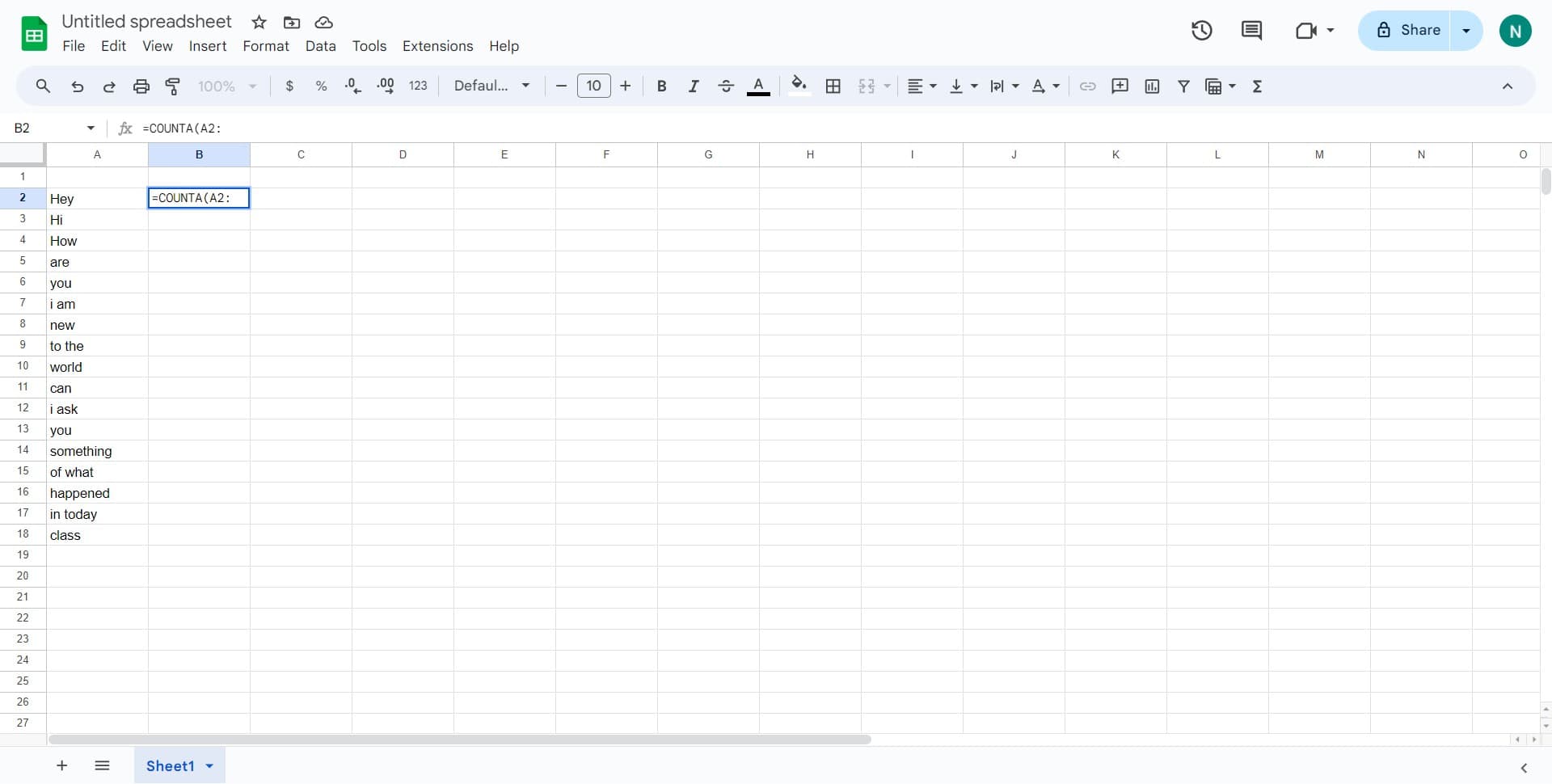
Define your data range
Click on the starting cell of your range (for example, A2:) to begin selecting the cells you want to count. Google Sheets will highlight the range as you select it.
- 4
Enter the COUNTIF formula
Type a COUNTIF formula that counts non-empty text cells, such as =COUNTIF(A2:A100,"<>") or =COUNTA(A2:A100). The formula will count all cells in your range that contain any text value.
- 5
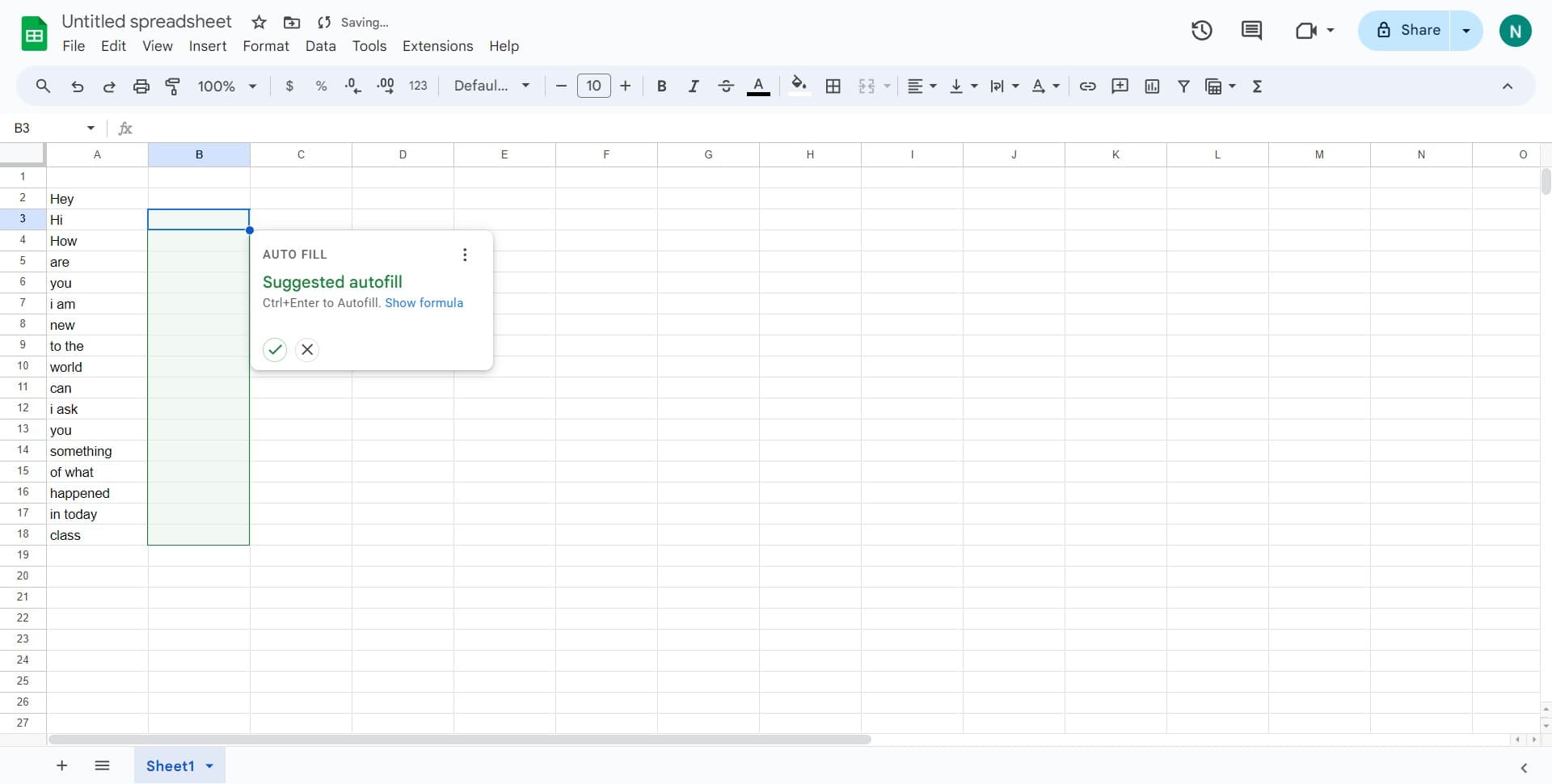
Execute the formula
Press Enter to run the formula and calculate the total count. Google Sheets will display the number of text-containing cells in your selected range.
Frequently asked questions
Common questions about how to count cells with text in google sheets.
COUNTA counts all non-empty cells, including numbers and text, while COUNTIF is more flexible and allows you to specify criteria. For counting only text entries, COUNTIF with criteria like "<>" (not empty) or a wildcard pattern is often more precise.
Yes, you can use multiple COUNTIF functions added together, such as =COUNTIF(A2:A10,"<>")+COUNTIF(C2:C10,"<>"). This allows you to count text cells across different areas of your spreadsheet in a single formula.
Use COUNTIF with a text criterion, like =COUNTIF(A2:A100,"keyword") to count cells containing exact matches. You can also use wildcards: =COUNTIF(A2:A100,"*keyword*") counts cells containing the keyword anywhere in the text.
Yes, if you use a formula, the count will automatically recalculate when new entries are added to your range. Make sure your formula range is large enough to encompass future data, or adjust it as needed.
Use COUNTA to count all non-empty cells, or use COUNTIF with specific criteria to count only text. For example, =COUNTIF(A2:A100,">0") counts only numeric values, while COUNTA minus this count gives you text-only entries.