How to Export Airtable to Google Sheets

Exporting data from Airtable to Google Sheets enables you to leverage Google's collaboration and analysis tools while keeping your data synchronized across platforms. This tutorial walks you through the complete process of downloading your Airtable data as a CSV file and importing it into Google Sheets.
Quick summary
In this tutorial, you'll learn how to export a table from Airtable in CSV format and upload it directly into Google Sheets. By following these step-by-step instructions, you'll be able to seamlessly transfer your Airtable data and continue working in Google Sheets without manual data entry.
Why this matters
Exporting Airtable to Google Sheets is essential when you need to share data with team members who prefer Google's interface, perform advanced analysis, or create automated workflows using Google's native integrations. This workflow saves time and reduces the risk of data entry errors when moving information between platforms.
Step-by-step guide
- 1
Access your Airtable base
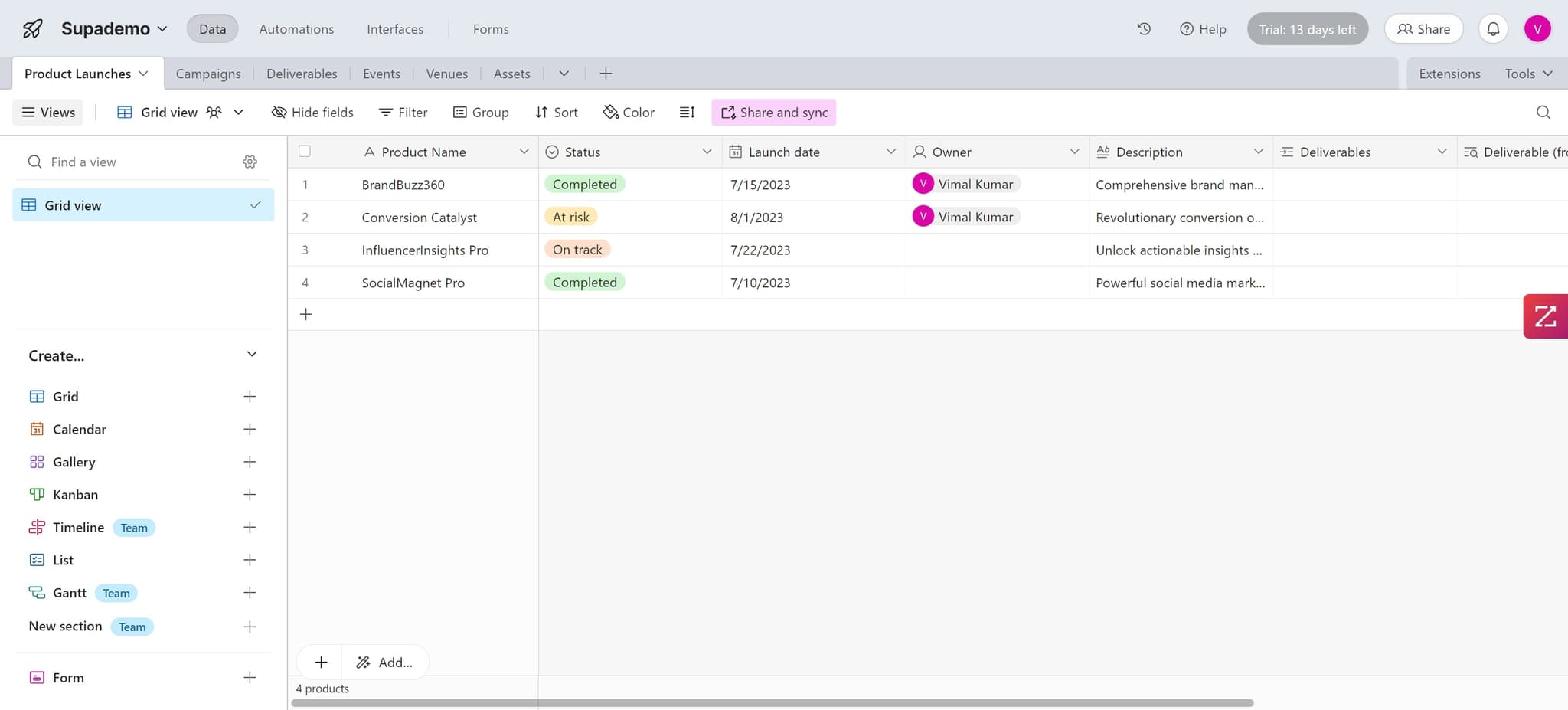
Begin by opening your Airtable base and locating the table you want to export. This will be your starting point for the data transfer process.
- 2
Switch to Grid view
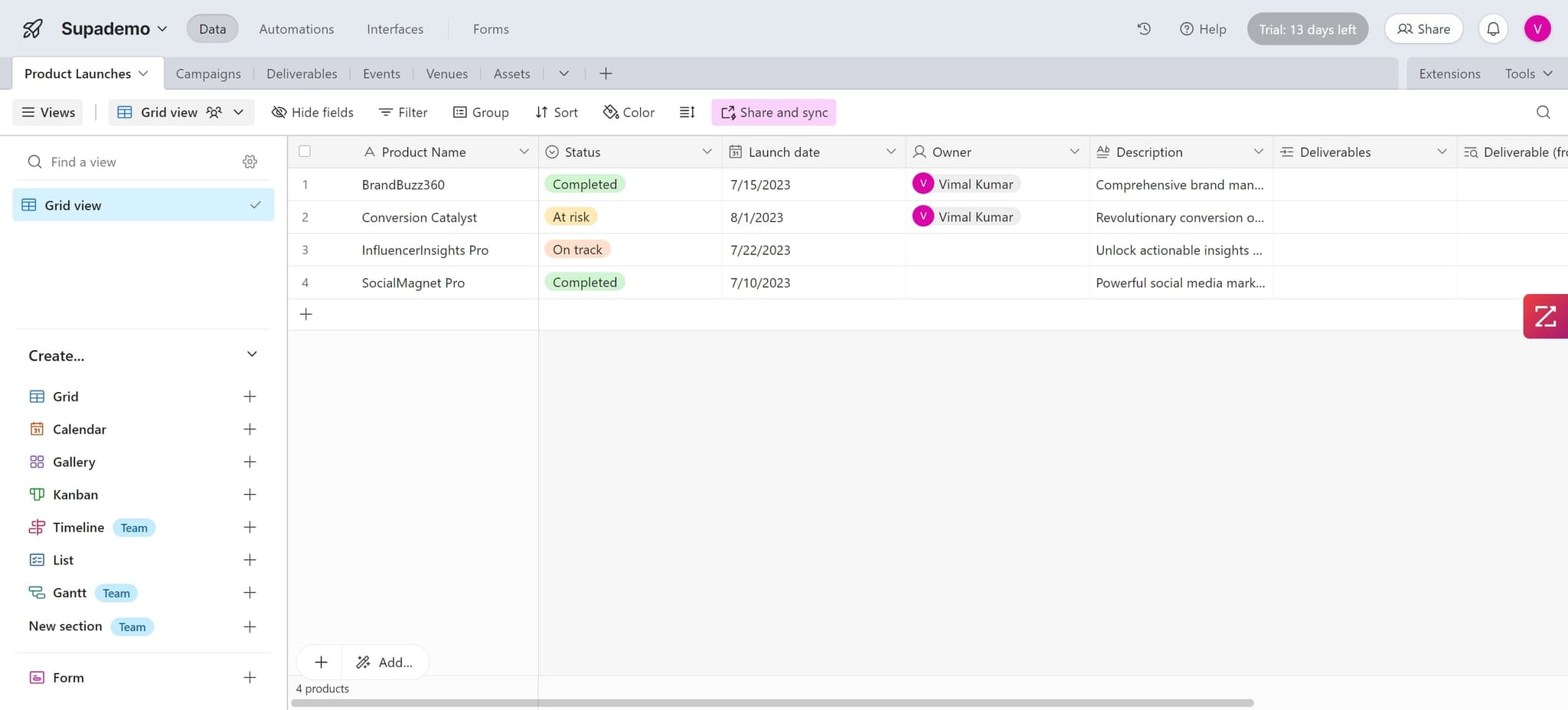
Click on Grid view to ensure you're viewing your data in the standard table format. This view displays all records in columns and rows, making it ideal for export.
- 3
Download the CSV file
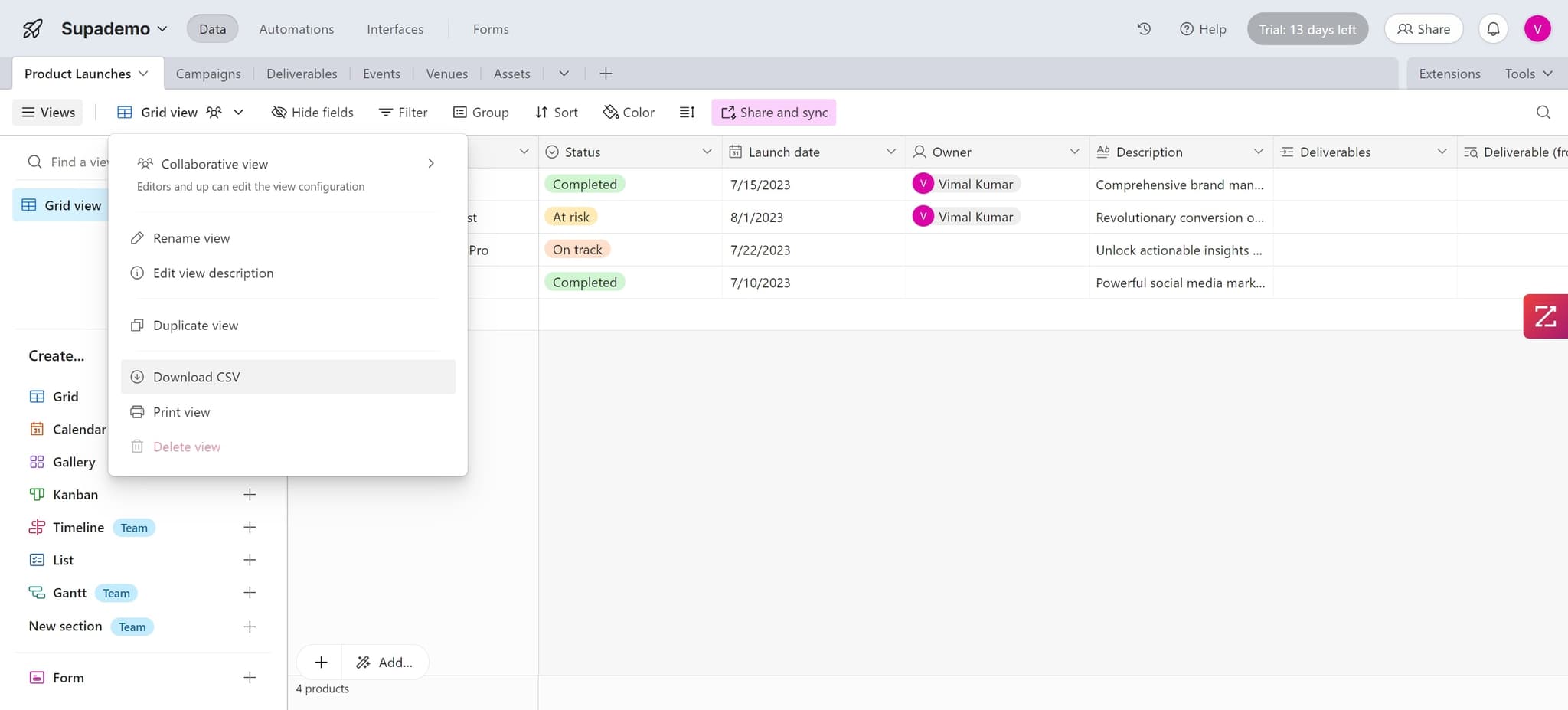
Click on Download CSV to export your Airtable data. Your browser will download the file as a CSV (comma-separated values) file, which is compatible with Google Sheets.
- 4
Prepare for Google Sheets upload
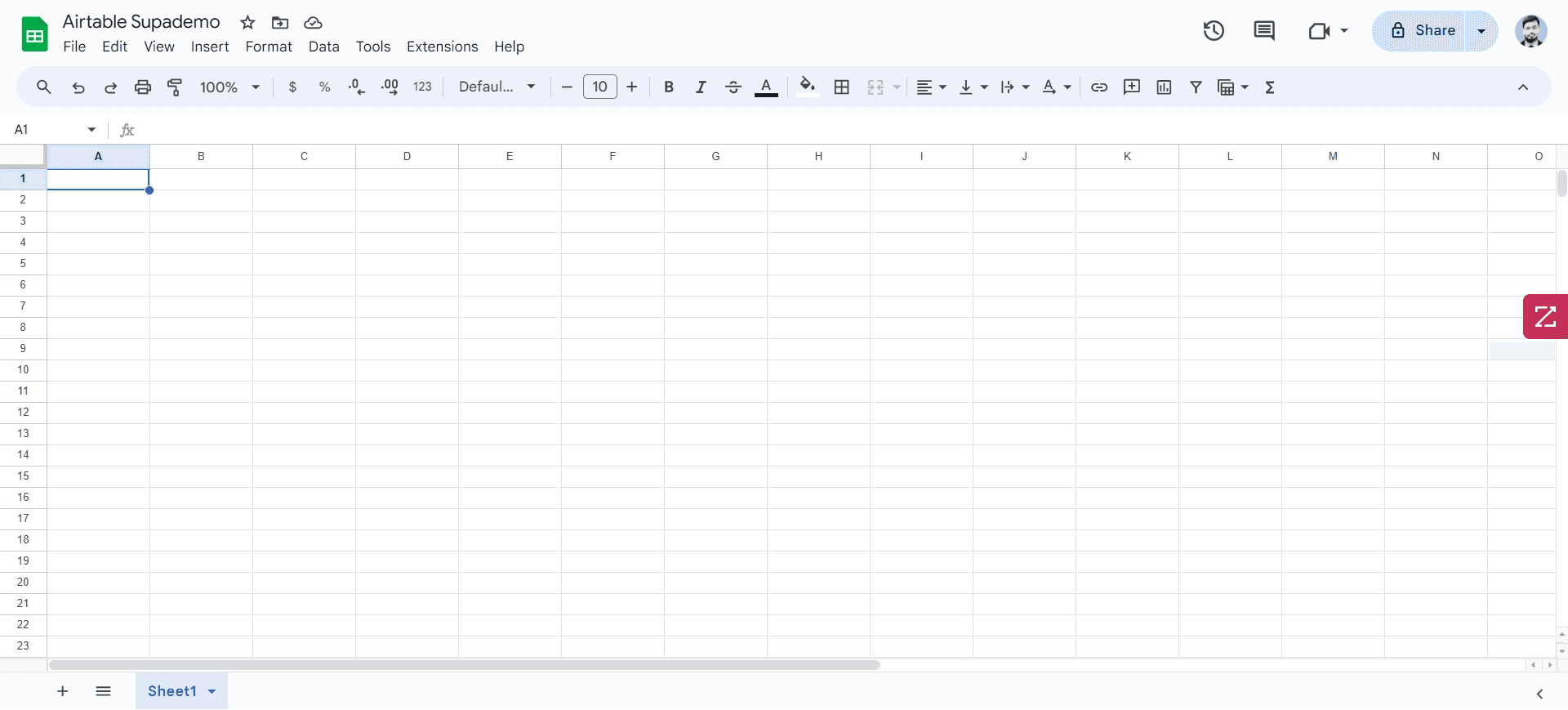
Once the CSV file is downloaded, navigate to Google Sheets and open a new spreadsheet. You'll now import the downloaded file into this sheet.
- 5
Begin the import process
Access the import function in Google Sheets to prepare for uploading your Airtable data. This will open the import dialog where you can select your CSV file.
- 6
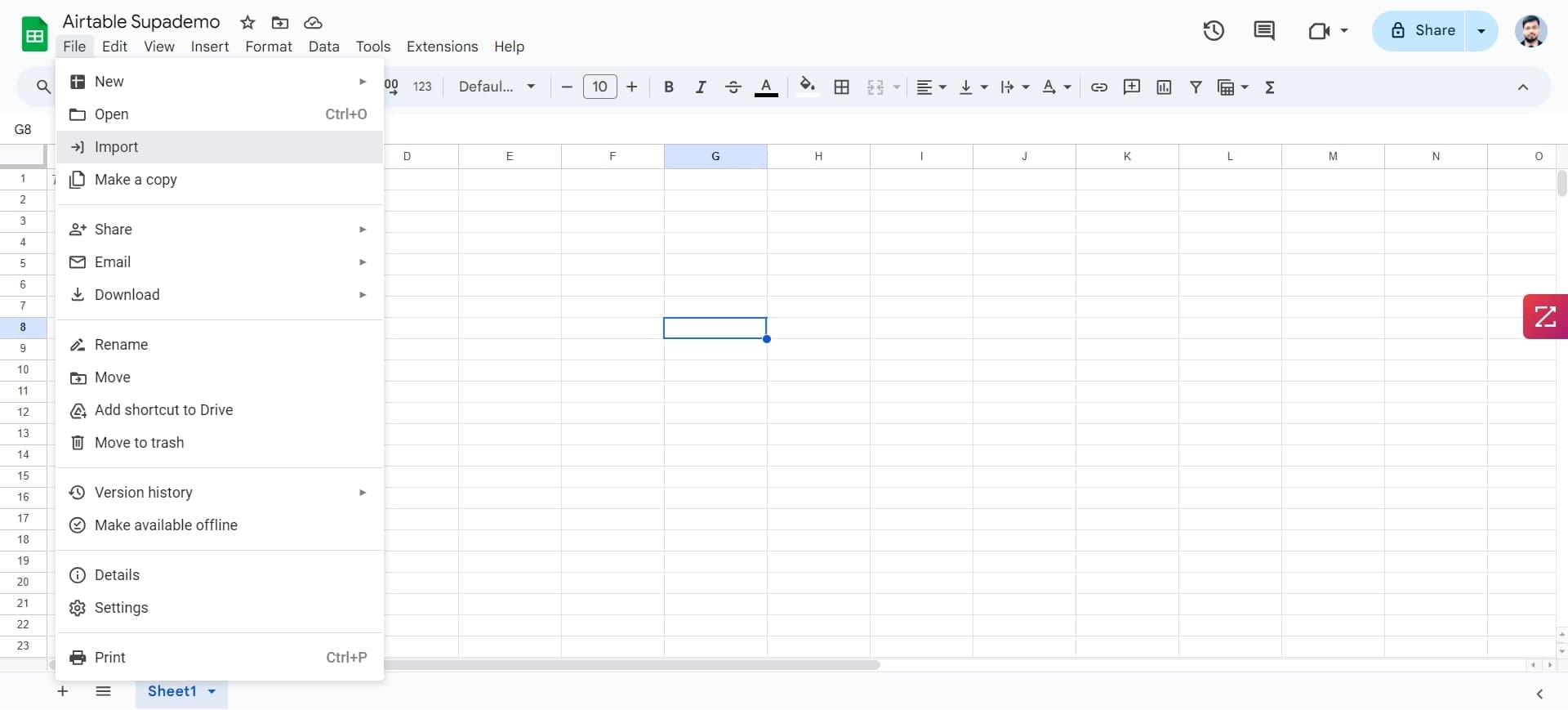
Click the Import option
Click on the Import button to activate the file selection interface. This will allow you to browse your computer for the CSV file you just downloaded.
- 7
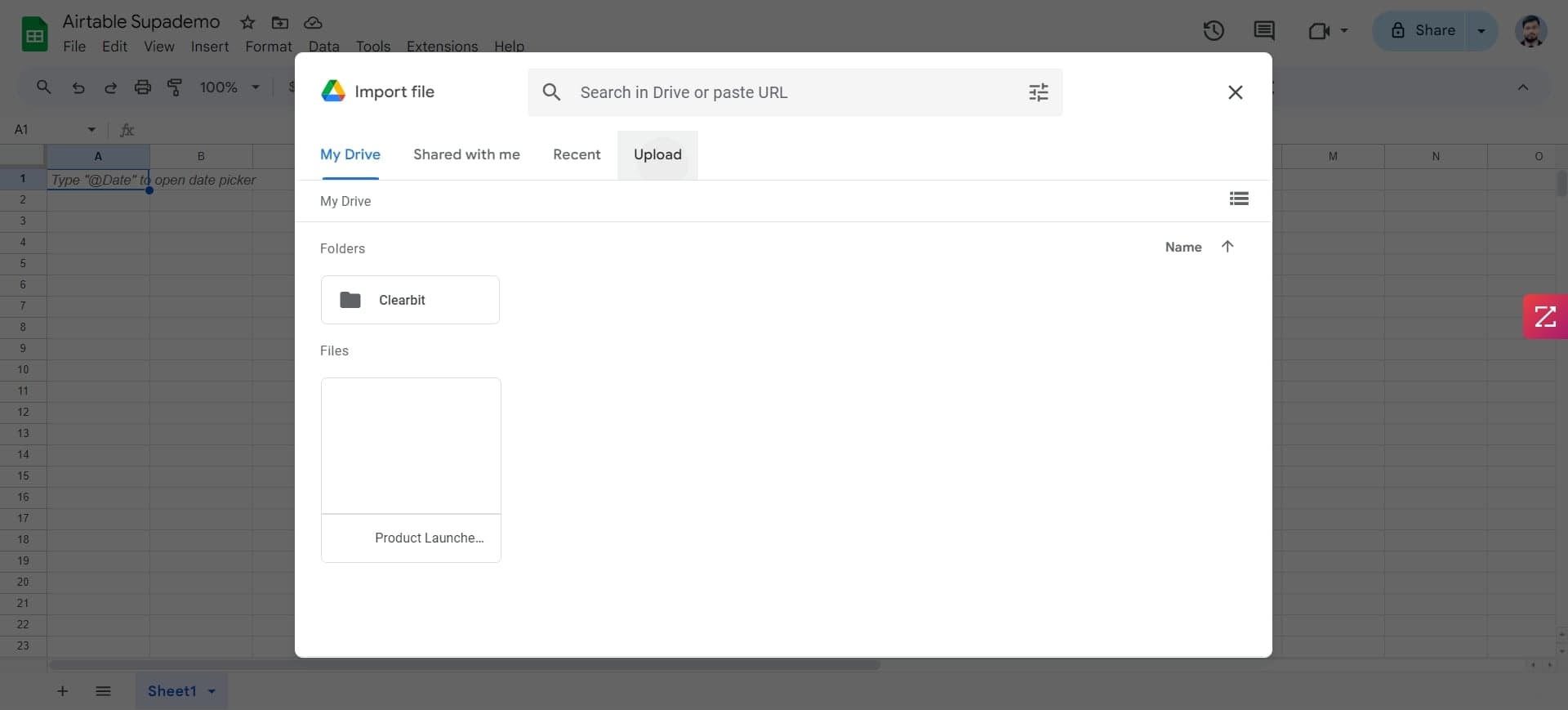
Select upload method
Choose your preferred method to upload the file. You can either browse your computer to locate the CSV file or drag and drop it directly into the designated area.
- 8
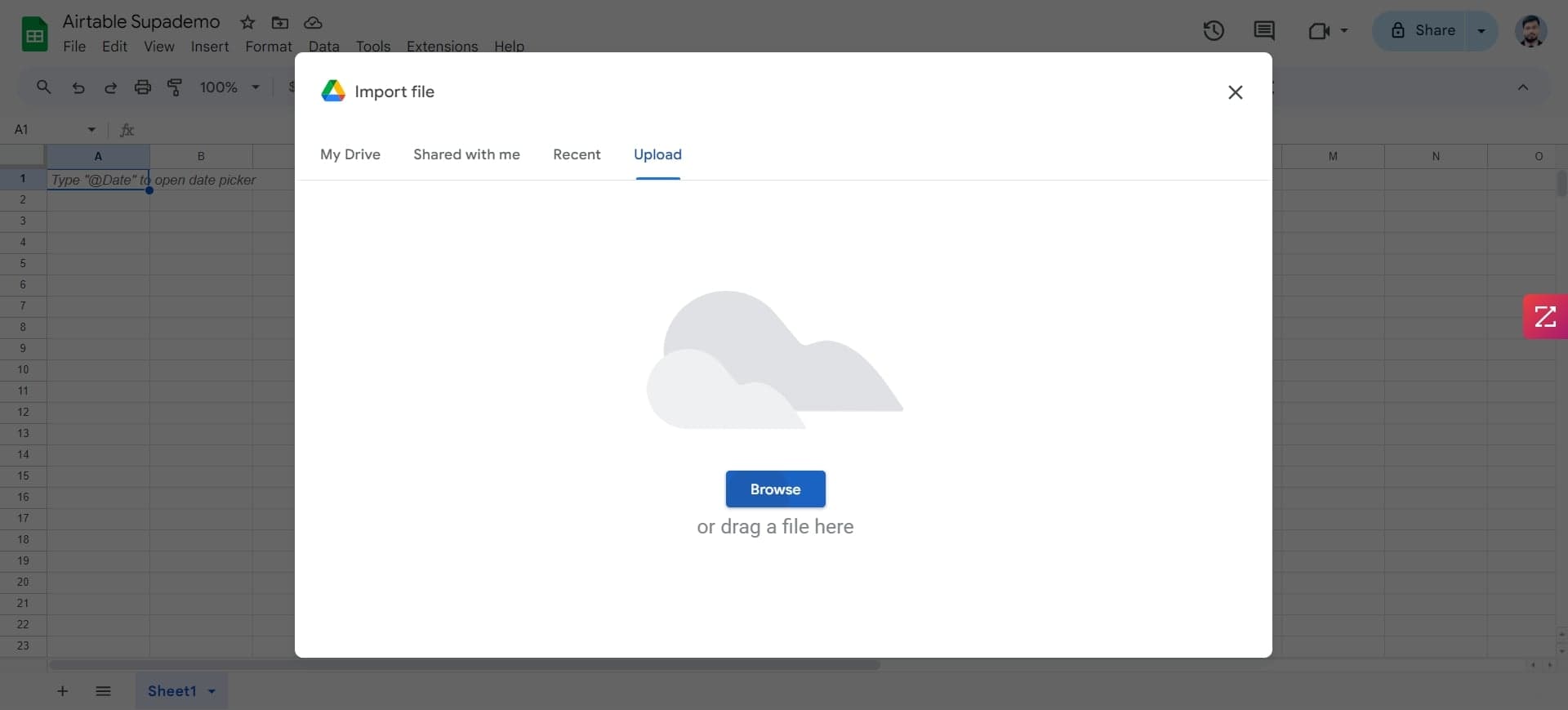
Upload your CSV file
Click on Browse to locate your downloaded Airtable CSV file on your computer. Select the file to prepare it for import into Google Sheets.
- 9
Confirm file selection
After selecting your file, click to confirm your choice and proceed to the next step. Google Sheets will begin processing your file.
- 10
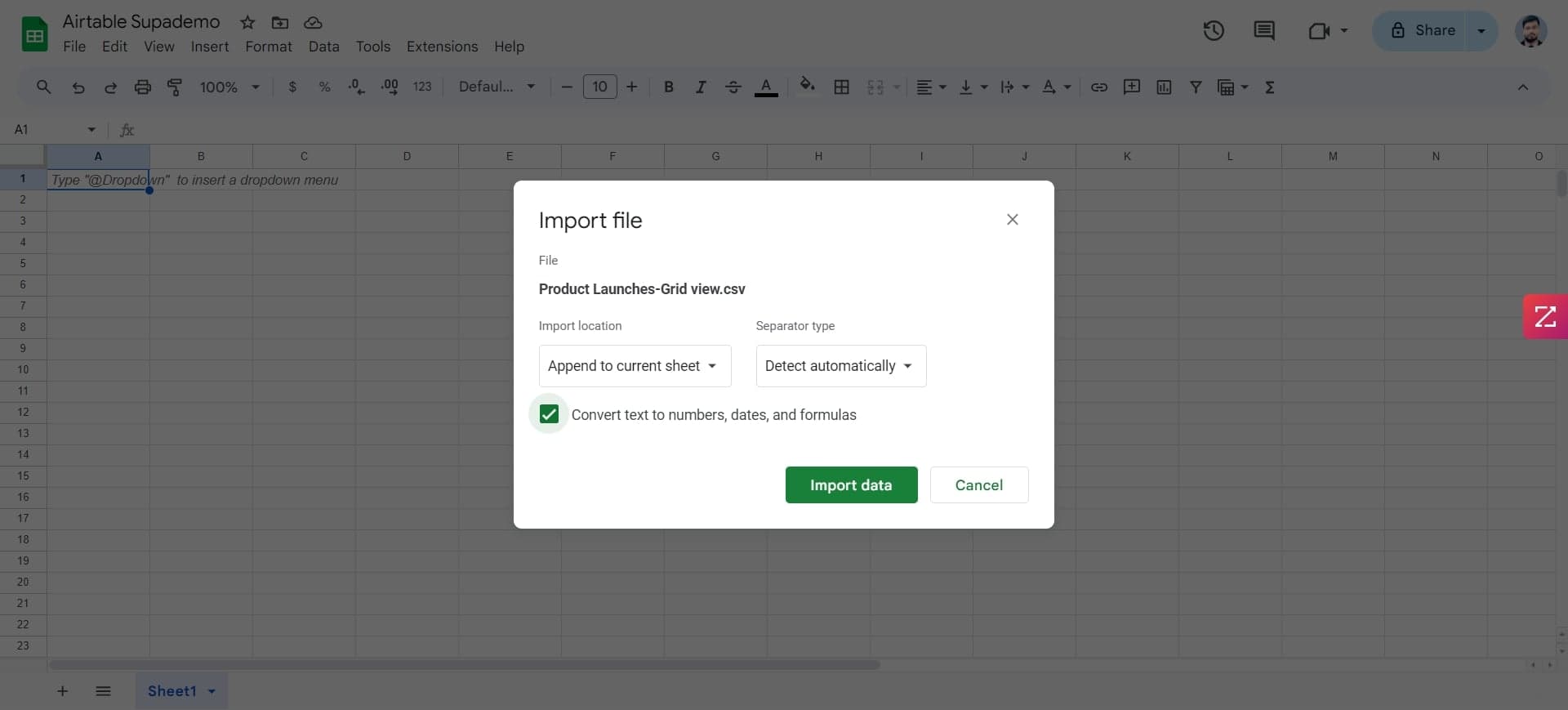
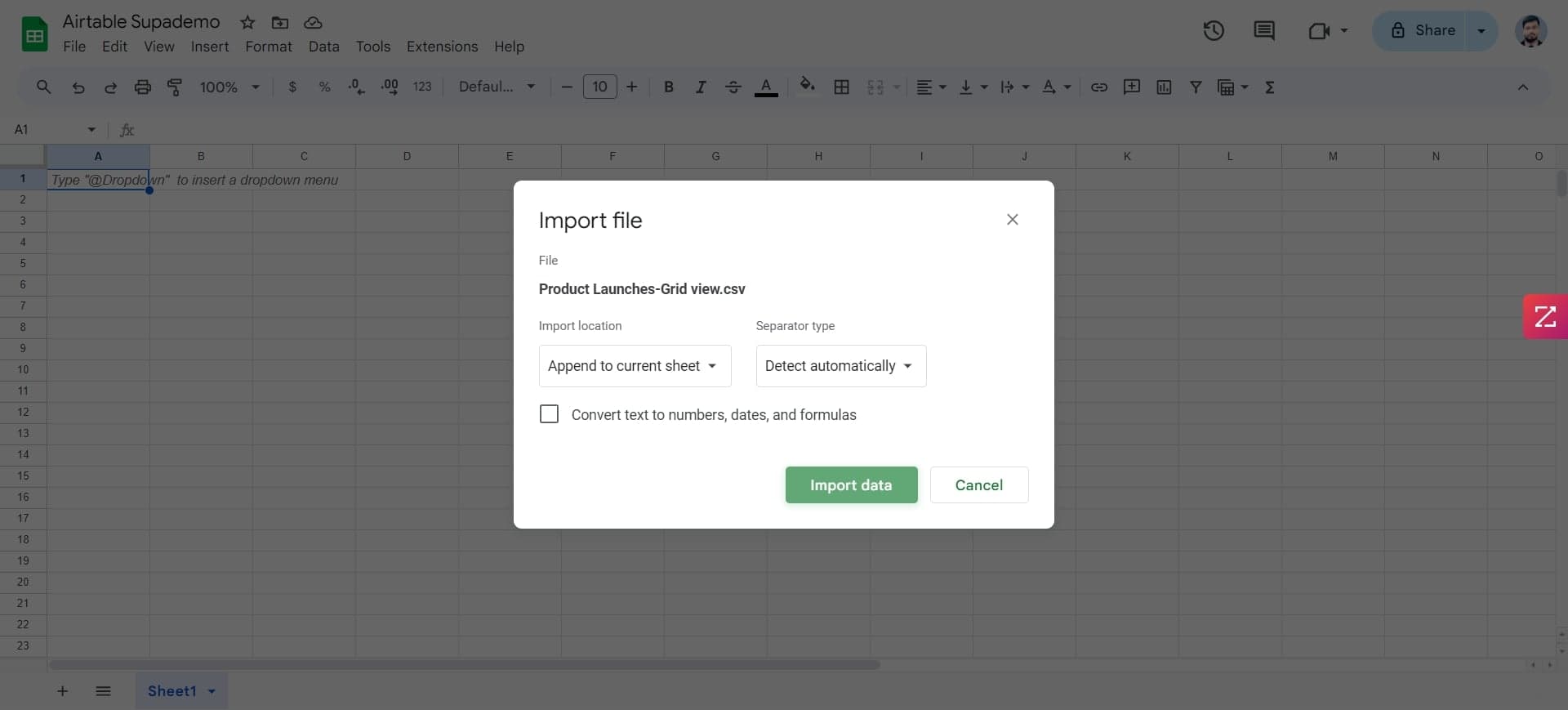
Complete the data import
Click on Import data to finalize the transfer of your Airtable records into Google Sheets. Your data will now appear in the spreadsheet, ready for use and collaboration.
- 11
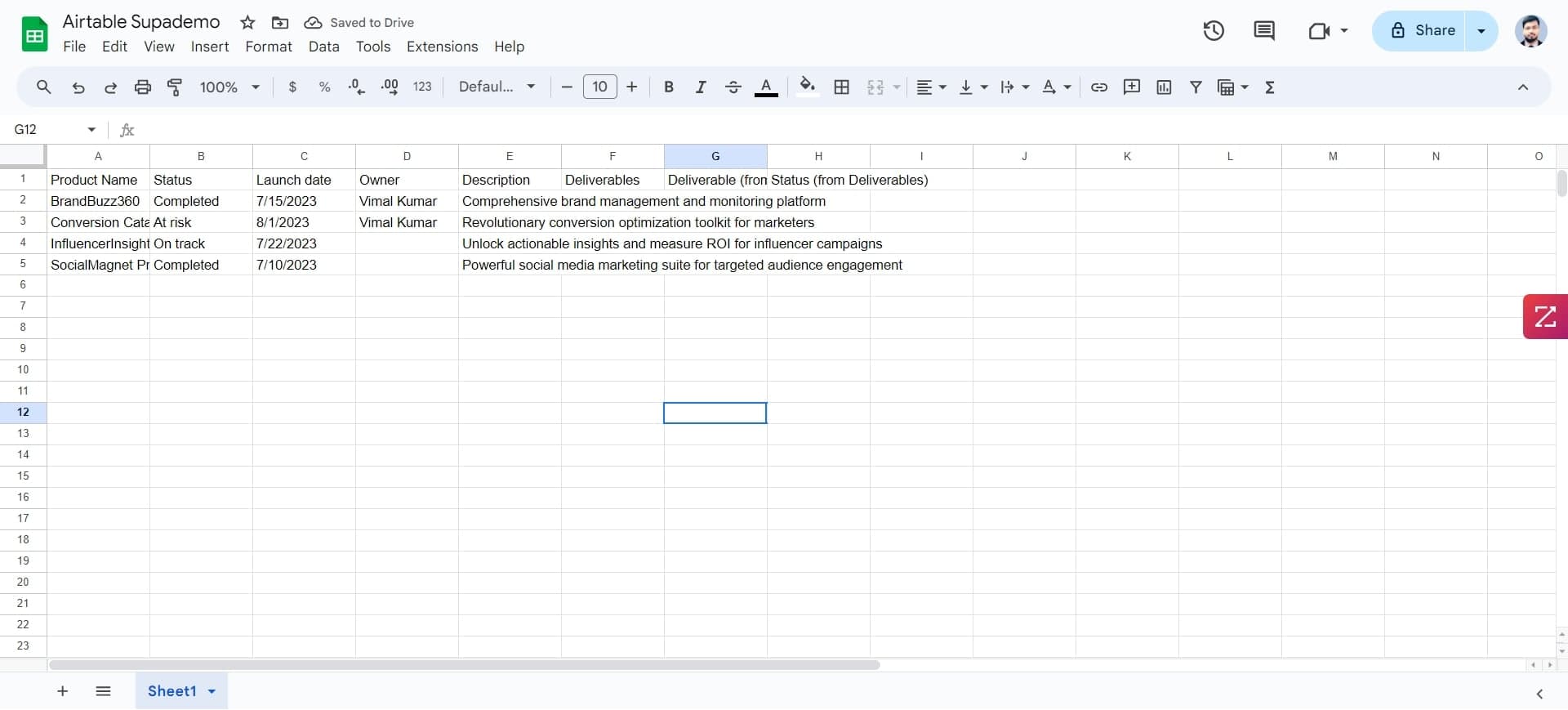
Verify imported data
Review the newly imported data in Google Sheets to ensure all records, columns, and values have been transferred correctly from Airtable. Make any necessary adjustments to formatting or structure as needed.
Frequently asked questions
Common questions about how to export airtable to google sheets.
When you export Airtable as CSV, formulas are converted to their calculated values only, not the formulas themselves. You'll need to rebuild any complex formulas in Google Sheets after import. This is a standard limitation of CSV exports across most platforms.
CSV export works for one table at a time in Airtable. If you need to export multiple tables, you'll need to repeat the download and import process for each table individually, or combine them manually in Google Sheets afterward.
Attachments and linked record fields are handled differently in CSV exports. Attachment URLs may be included as text, while linked records typically show only the record IDs or names. You may need to manually adjust these fields in Google Sheets depending on your use case.
You can export and import as many times as needed, but each import creates a fresh copy of the data. If you need live data synchronization, consider using Google Sheets API integrations or third-party automation tools instead of manual CSV imports.
CSV files are transmitted directly from Airtable to your computer and then to Google Sheets without going through external servers. Both Airtable and Google Sheets use encryption for data in transit and at rest, making this process secure for most use cases.