How to add a contact to a List in HubSpot

Adding a contact to a List in HubSpot is a fundamental workflow for organizing and segmenting your contacts for targeted campaigns and follow-ups. This tutorial walks you through the process of selecting a contact and adding them to a specific list using HubSpot's CRM interface.
Quick summary
In this tutorial, you'll learn how to navigate to a contact record in HubSpot and add that contact to a list. By following these steps, you'll be able to organize your contacts into lists for better segmentation and marketing efficiency.
Why this matters
Lists in HubSpot are essential for creating targeted marketing campaigns, automating workflows, and organizing contacts by characteristics or behaviors. Adding contacts to lists allows you to segment your audience and deliver more personalized communication, ultimately improving engagement and conversion rates.
Step-by-step guide
- 1
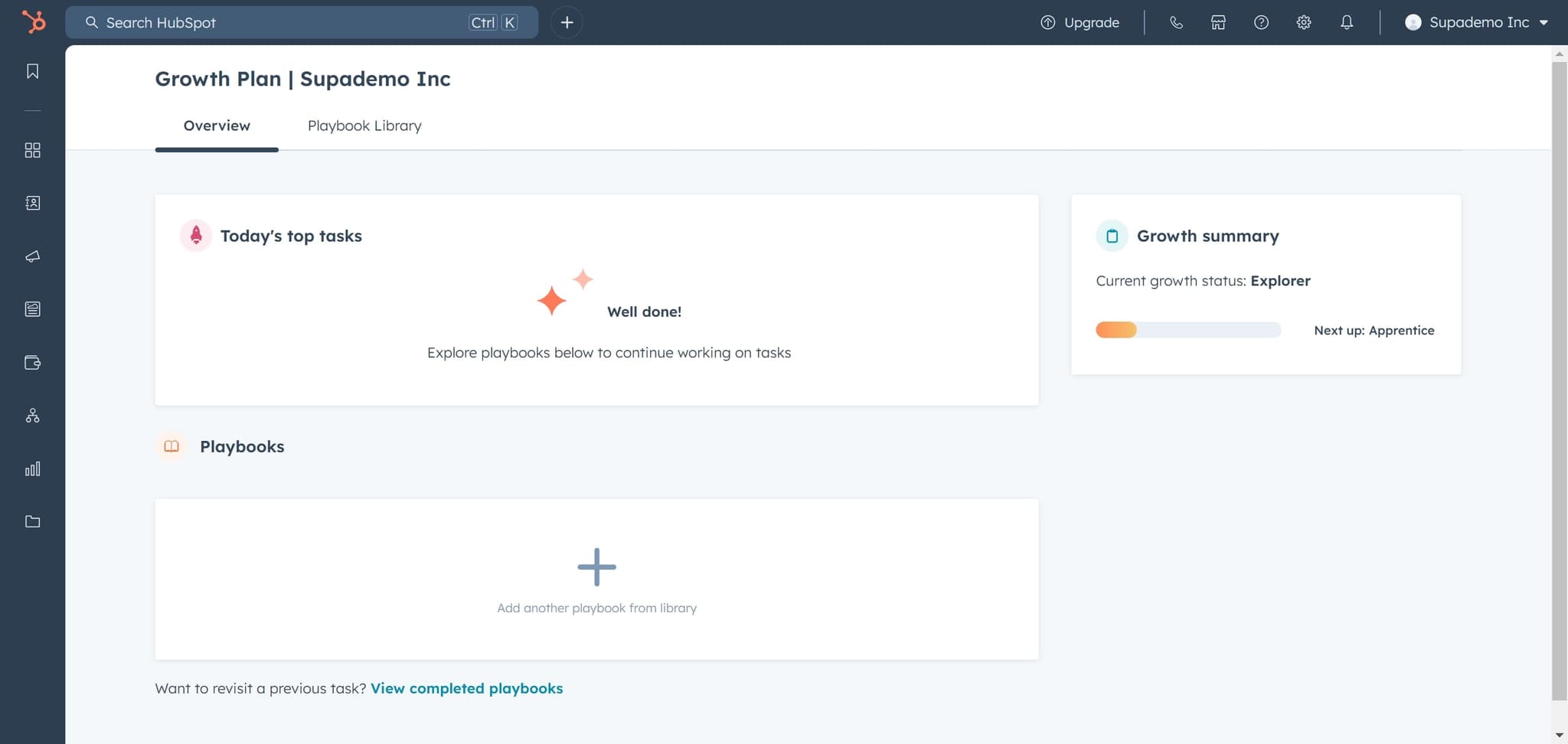
Access the HubSpot menu
Click on the menu element in your HubSpot interface to reveal the main navigation options. This will open the sidebar where you can access different modules.
- 2
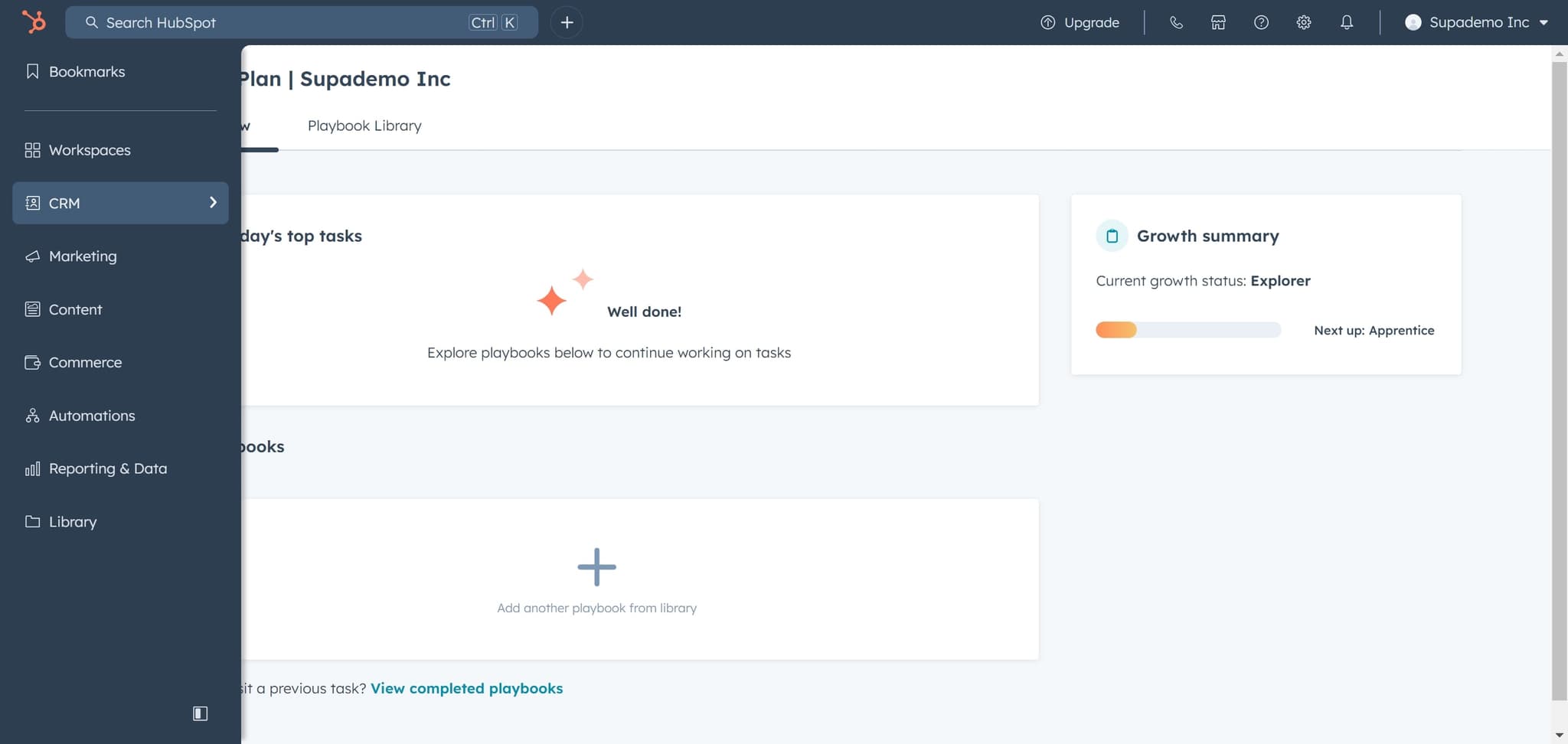
Navigate to CRM
Click on the CRM option from the menu to access HubSpot's Customer Relationship Management module. This section contains all your contacts, companies, deals, and other customer data.
- 3
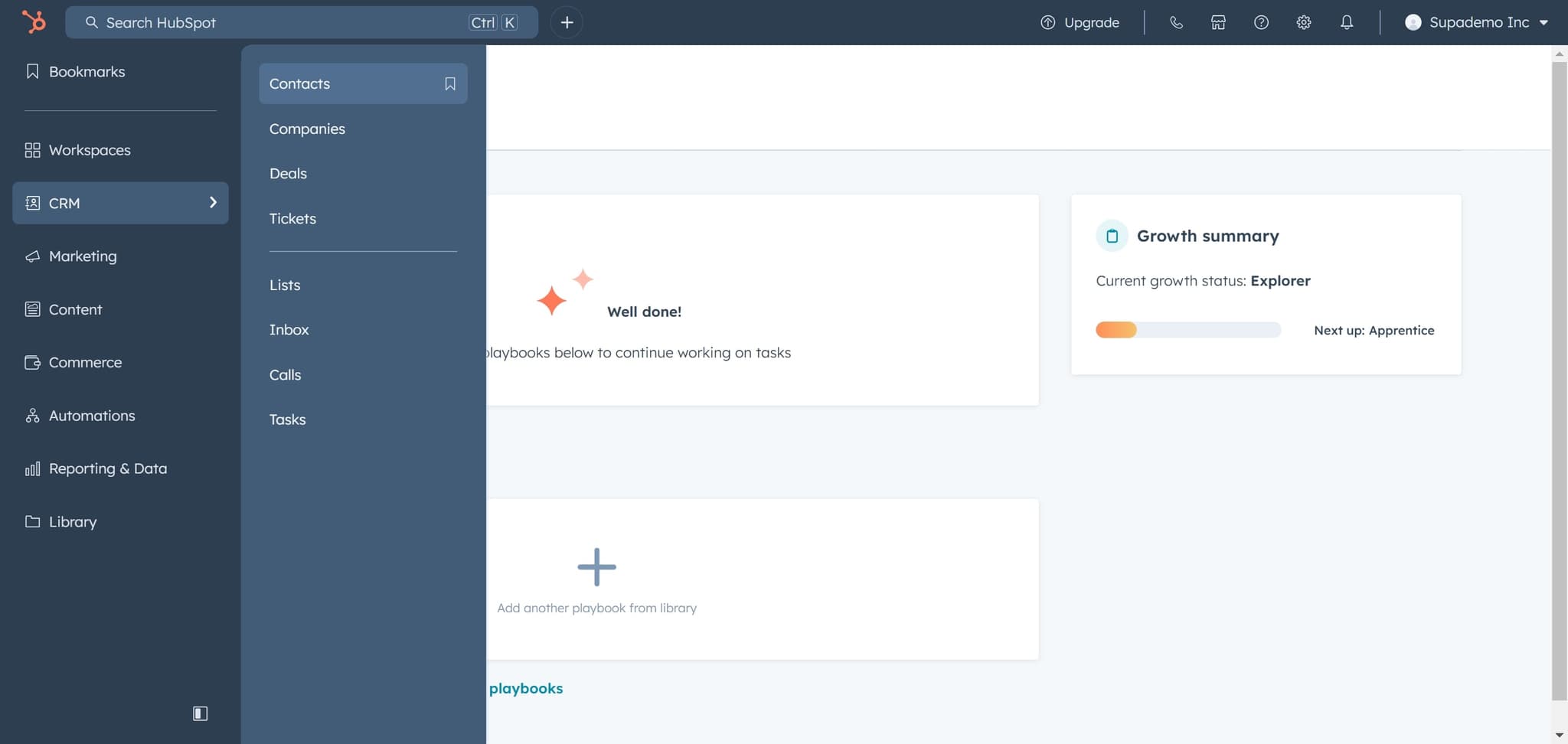
Open the Contacts section
Click on Contacts to view your contact database. You'll see a list of all your contacts organized in a table format.
- 4
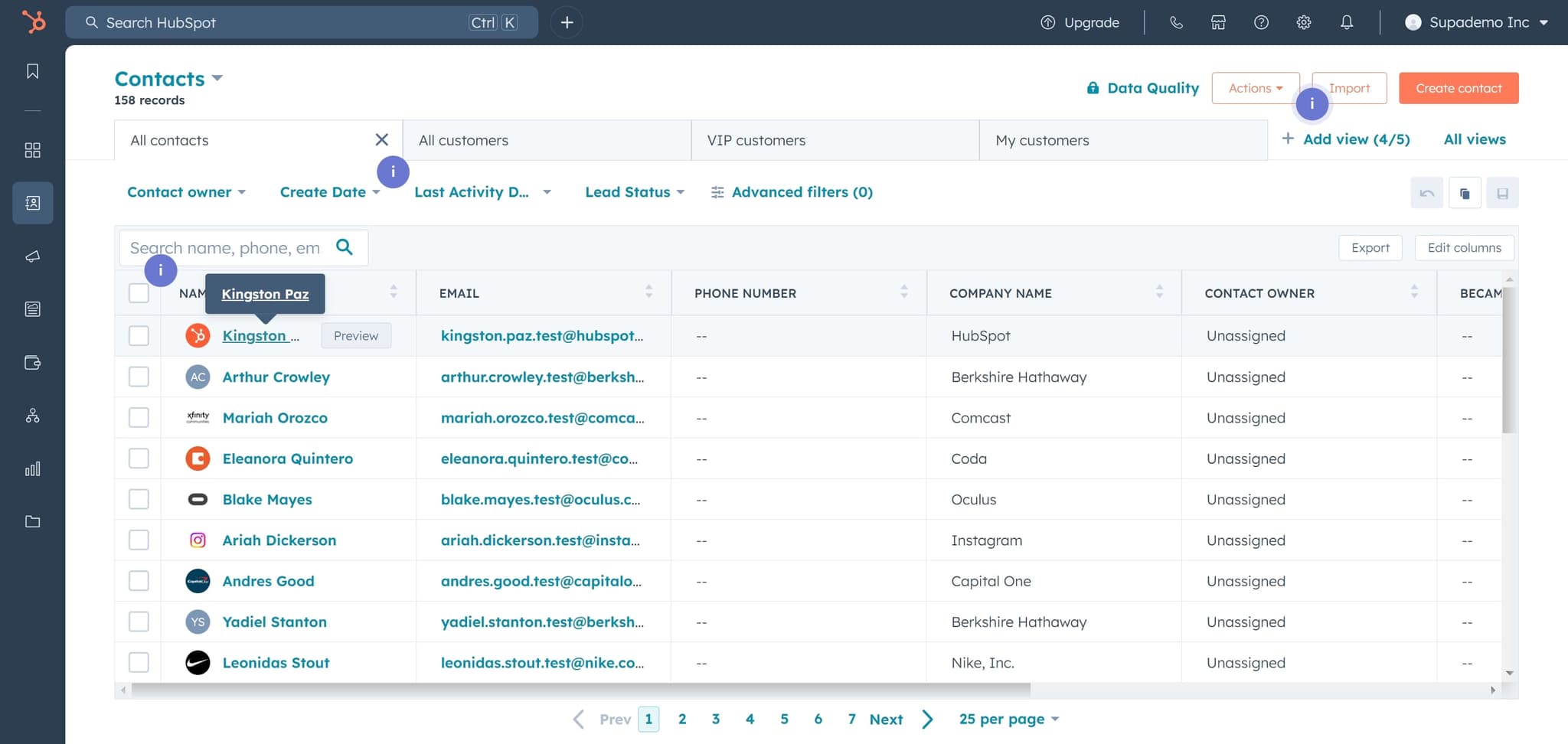
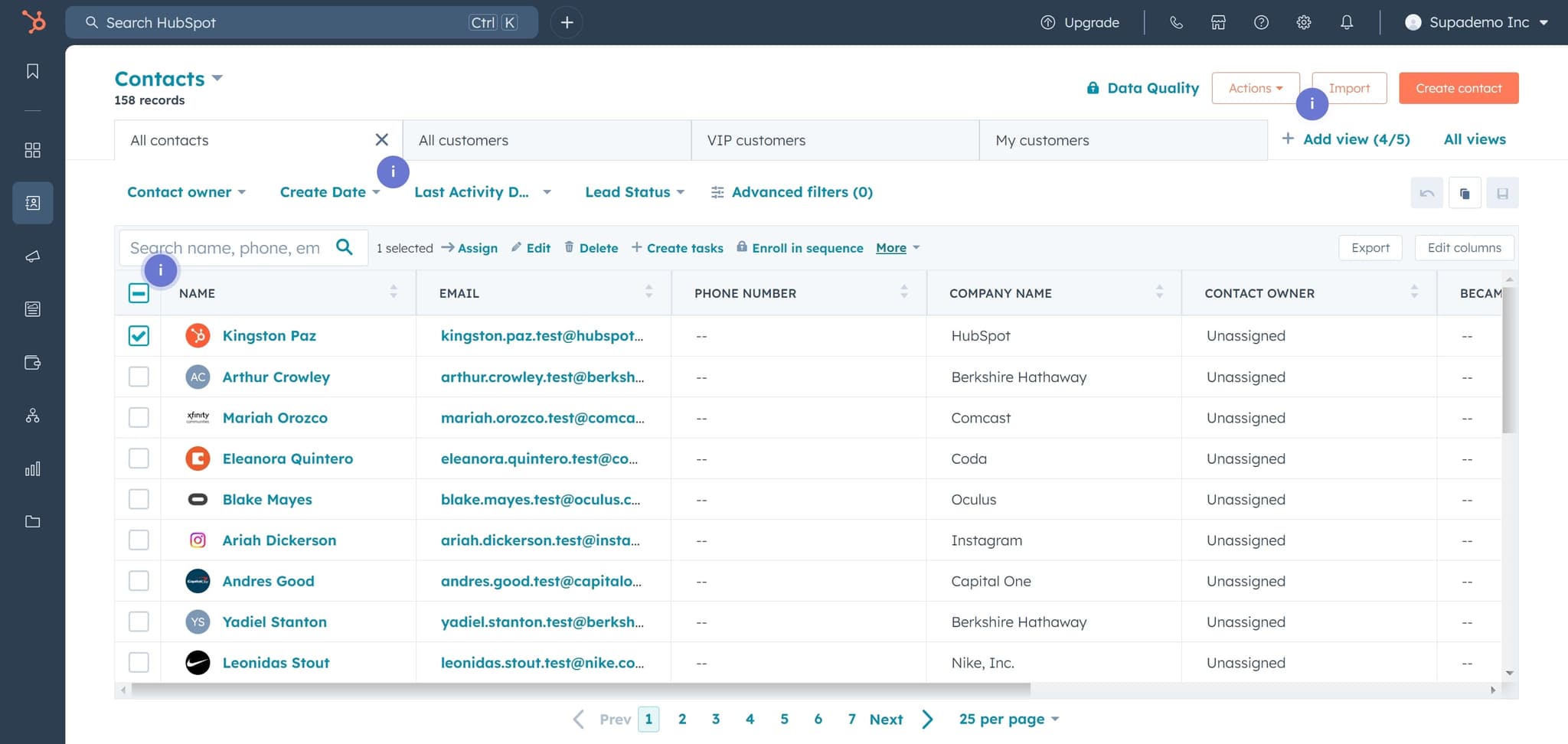
Select the contact
Click on the specific contact you want to add to a list, in this case Kingston Paz. This opens the contact's detailed profile page with all their information and history.
- 5
Access additional options
Click on the More button to reveal additional actions available for this contact. This dropdown menu contains options that aren't visible in the default contact view.
- 6
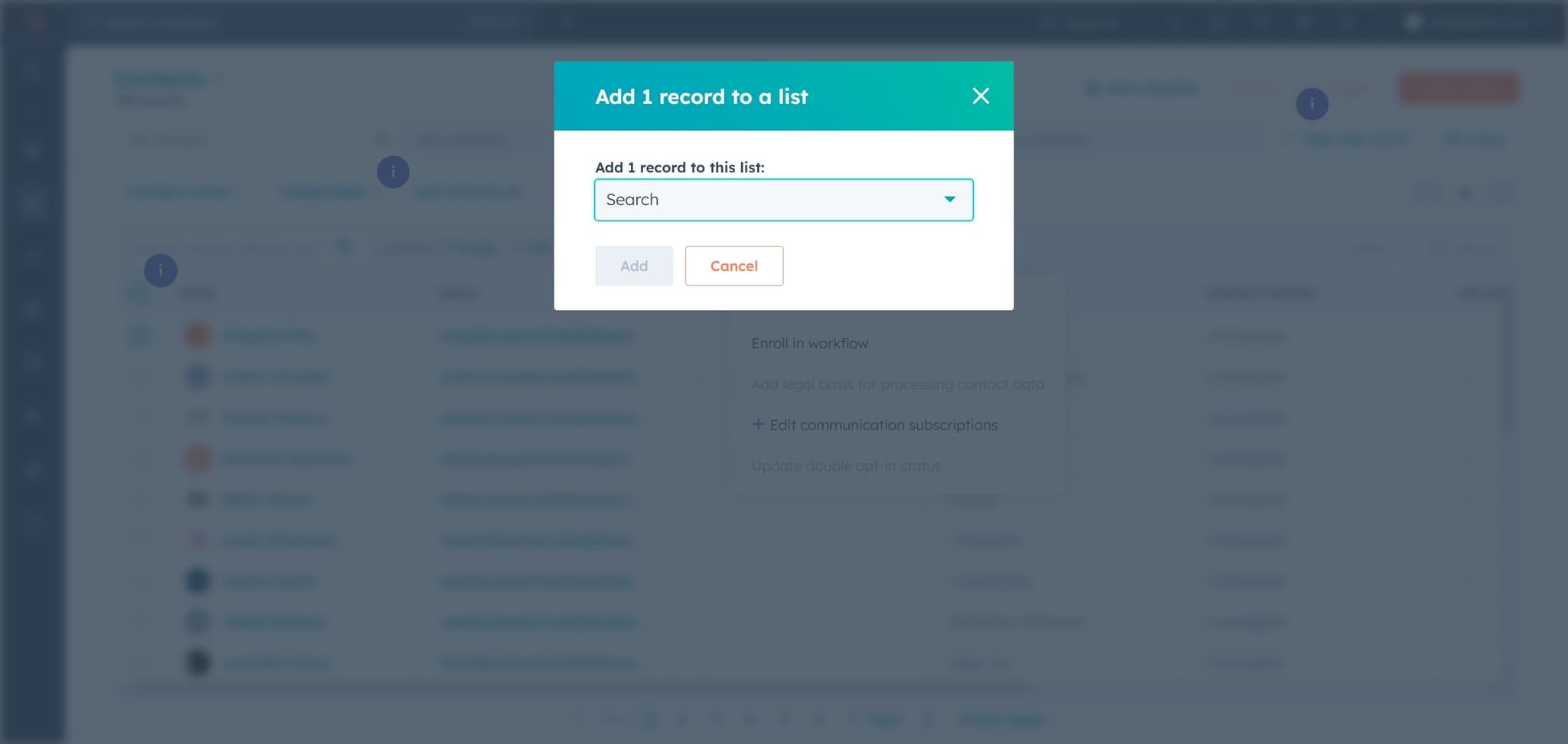
Search for the list option
Click on Search to find the option to add the contact to a list. This allows you to quickly locate the list management feature from the available options.
- 7
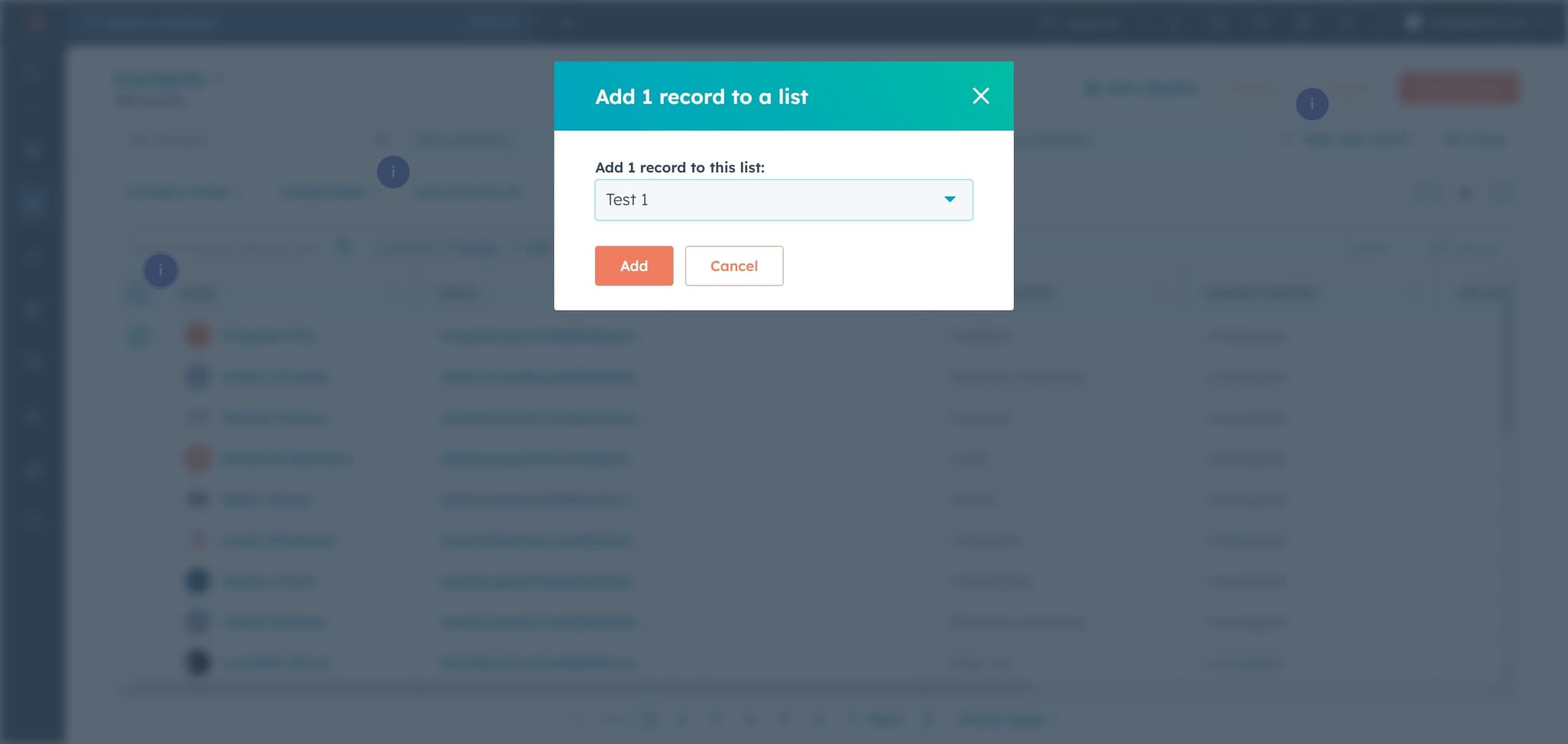
Add contact to list
Click on Add to complete adding the contact to your selected list. The contact will now be included in that list and can be used for targeted campaigns or workflows.
Frequently asked questions
Common questions about how to add a contact to a list in hubspot.
Yes, you can add a contact to multiple lists in HubSpot. After adding a contact to the first list using this process, you can repeat the steps to add the same contact to additional lists. Alternatively, some users manage bulk list assignments through list settings or workflows for efficiency.
Lists are static groups of contacts that you manually add to or remove from, while segments are dynamic and automatically update based on criteria you define. Use lists for manual curation and segments for automated, criteria-based grouping of your contacts.
Yes, you can remove a contact from a list at any time through the contact's profile using the same More menu options. Navigate to the contact, open More, and select the remove or delete option for that specific list.
Adding a contact to a list can trigger workflows if you've set up list-based enrollment triggers in HubSpot's Workflows tool. Check your workflow settings to see if any automations are tied to list membership.
HubSpot doesn't impose a hard limit on the number of contacts you can add to a list, but performance may vary with extremely large lists. For optimal performance and organization, consider breaking very large groups into multiple, more targeted lists.