How to Merge Contacts in HubSpot

Merging duplicate contacts in HubSpot helps maintain data quality and ensures you have a single, unified customer record. This process consolidates contact information, activity history, and associations into one primary contact, eliminating confusion and improving reporting accuracy.
Quick summary
In this tutorial, you'll learn how to merge duplicate contacts in HubSpot by navigating to your contact list, selecting a contact, and using the merge function to combine records. You'll discover how to search for duplicate contacts and complete the merge process to keep your CRM clean and organized.
Why this matters
Duplicate contacts can skew your reporting, fragment customer history across multiple records, and create inefficiencies in your sales and support workflows. By merging contacts strategically, you ensure accurate data analysis, better customer insights, and more effective communication with prospects and customers.
Step-by-step guide
- 1
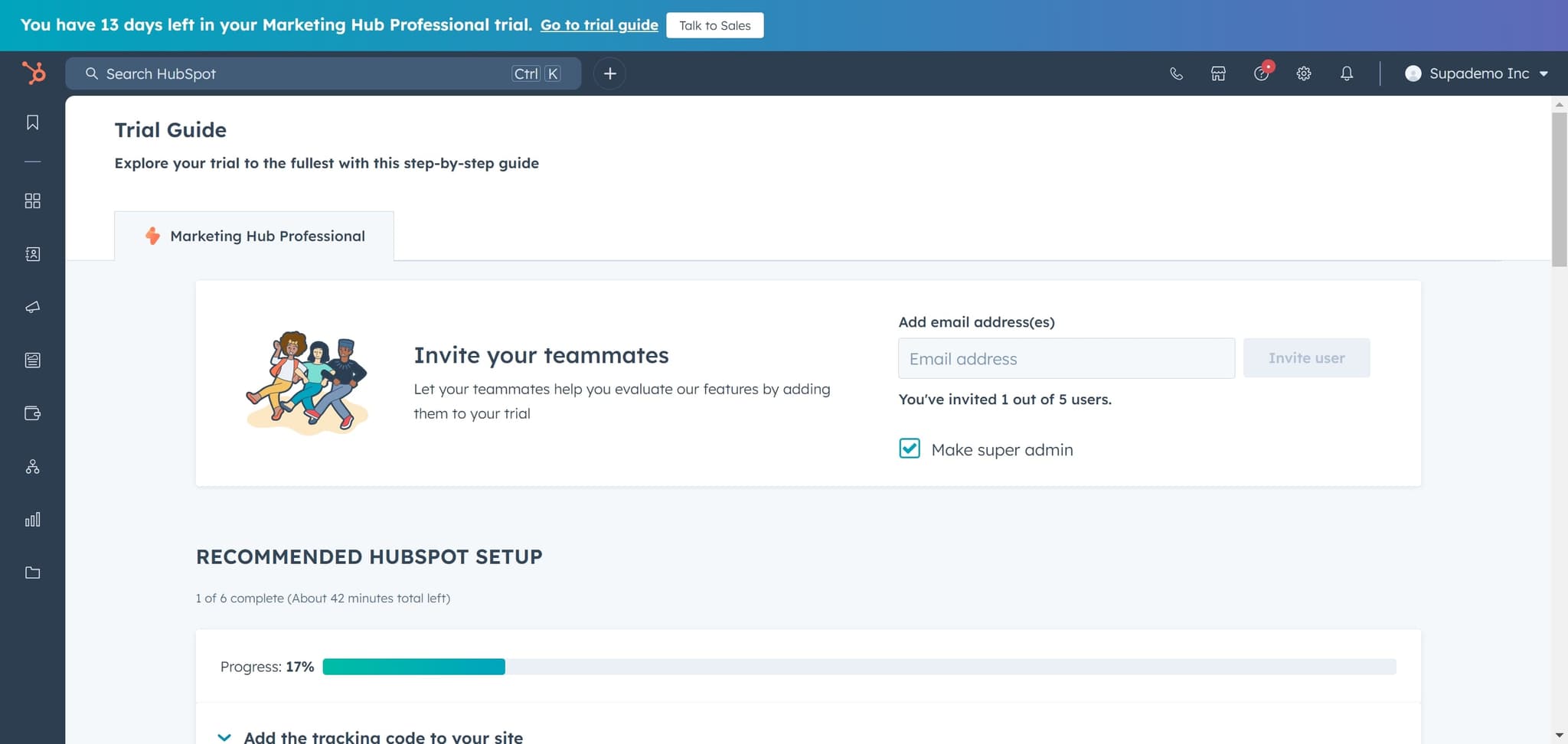
Click on Trial Guide
Start by clicking the 'Trial Guide' option to access the HubSpot interface. This will load the demo environment where you can practice the contact merge workflow.
- 2
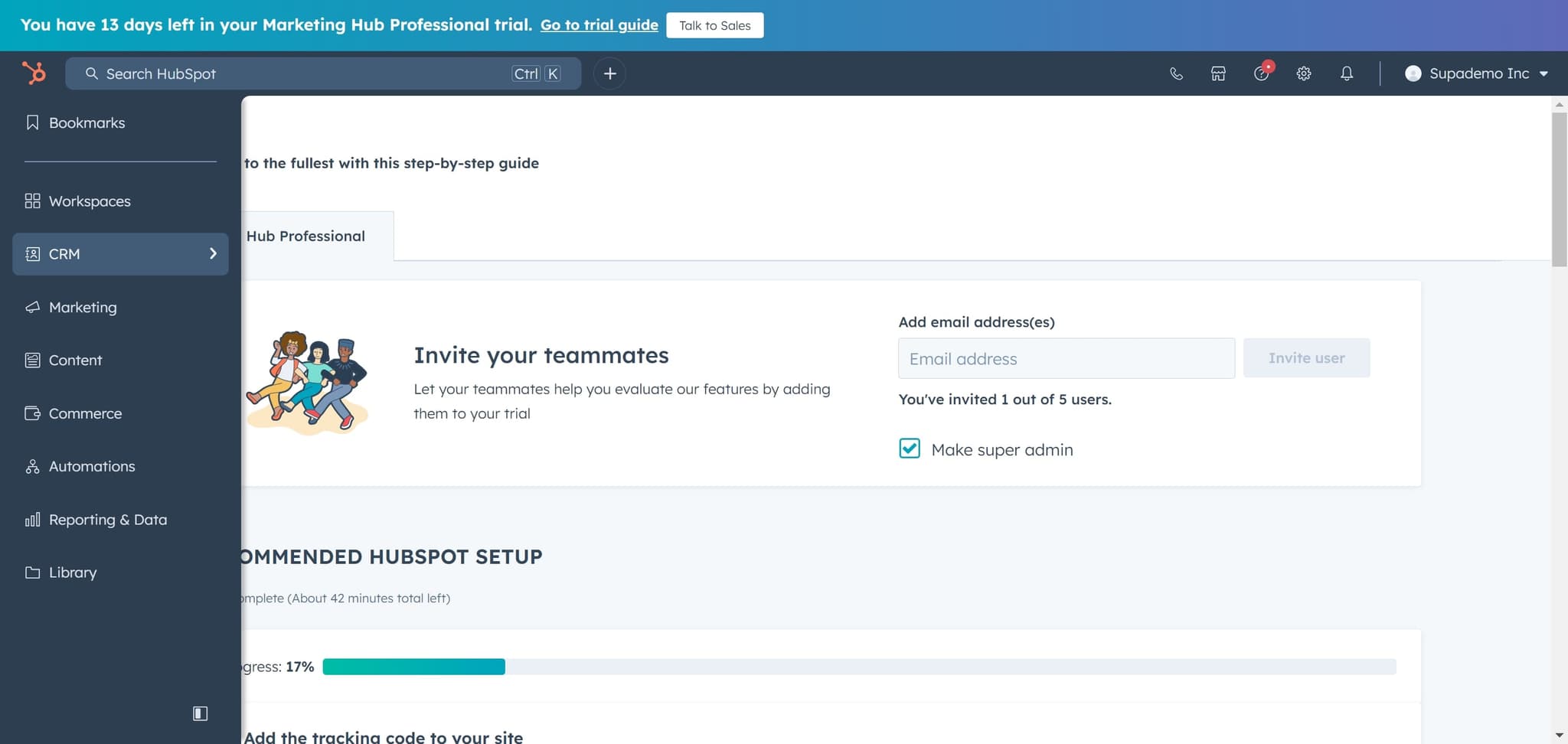
Click on CRM
Navigate to the CRM section by clicking on 'CRM' in the main menu. This opens the core customer relationship management tools in HubSpot.
- 3
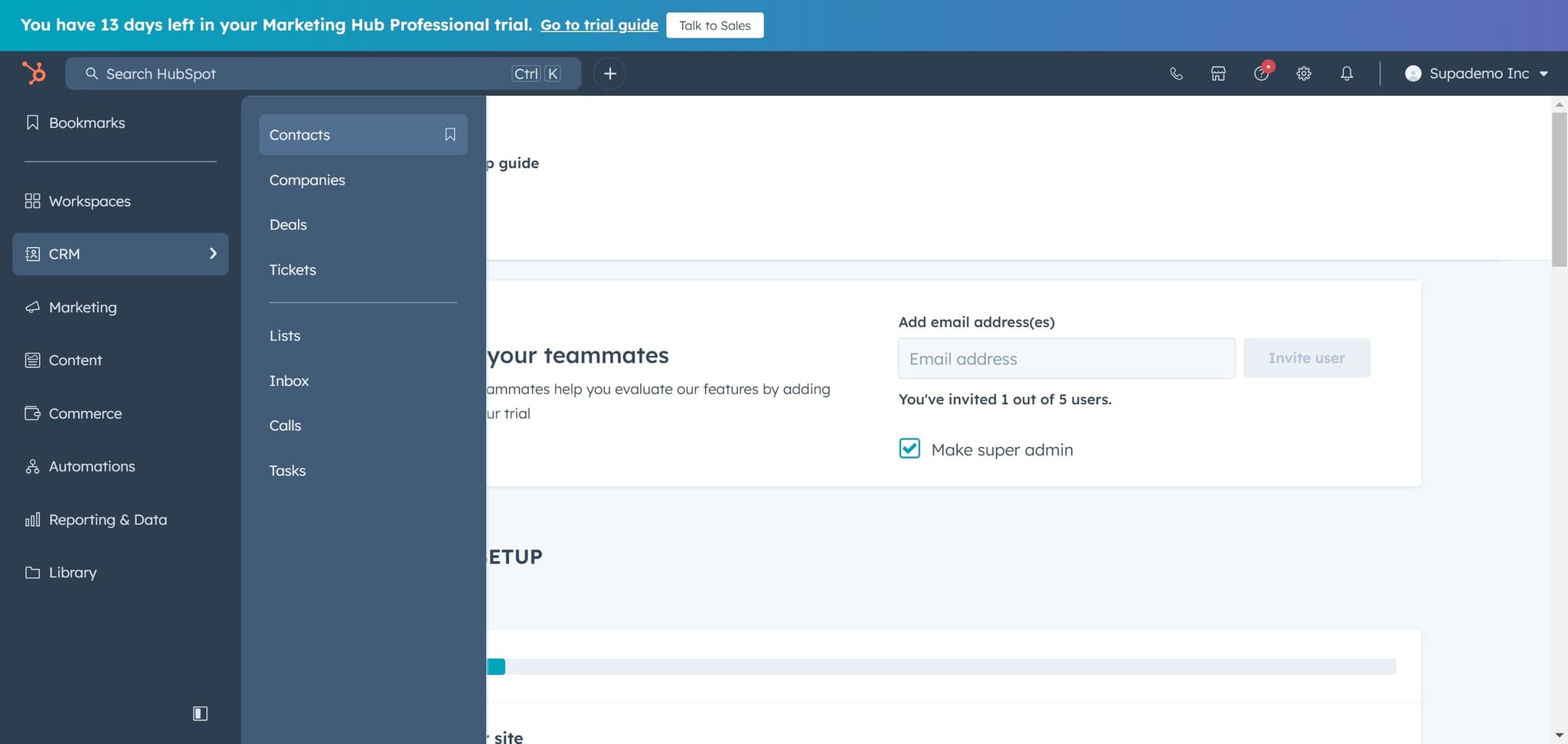
Click on Contacts
Select 'Contacts' to view your complete contact database. You'll see a list of all contacts stored in your HubSpot account.
- 4
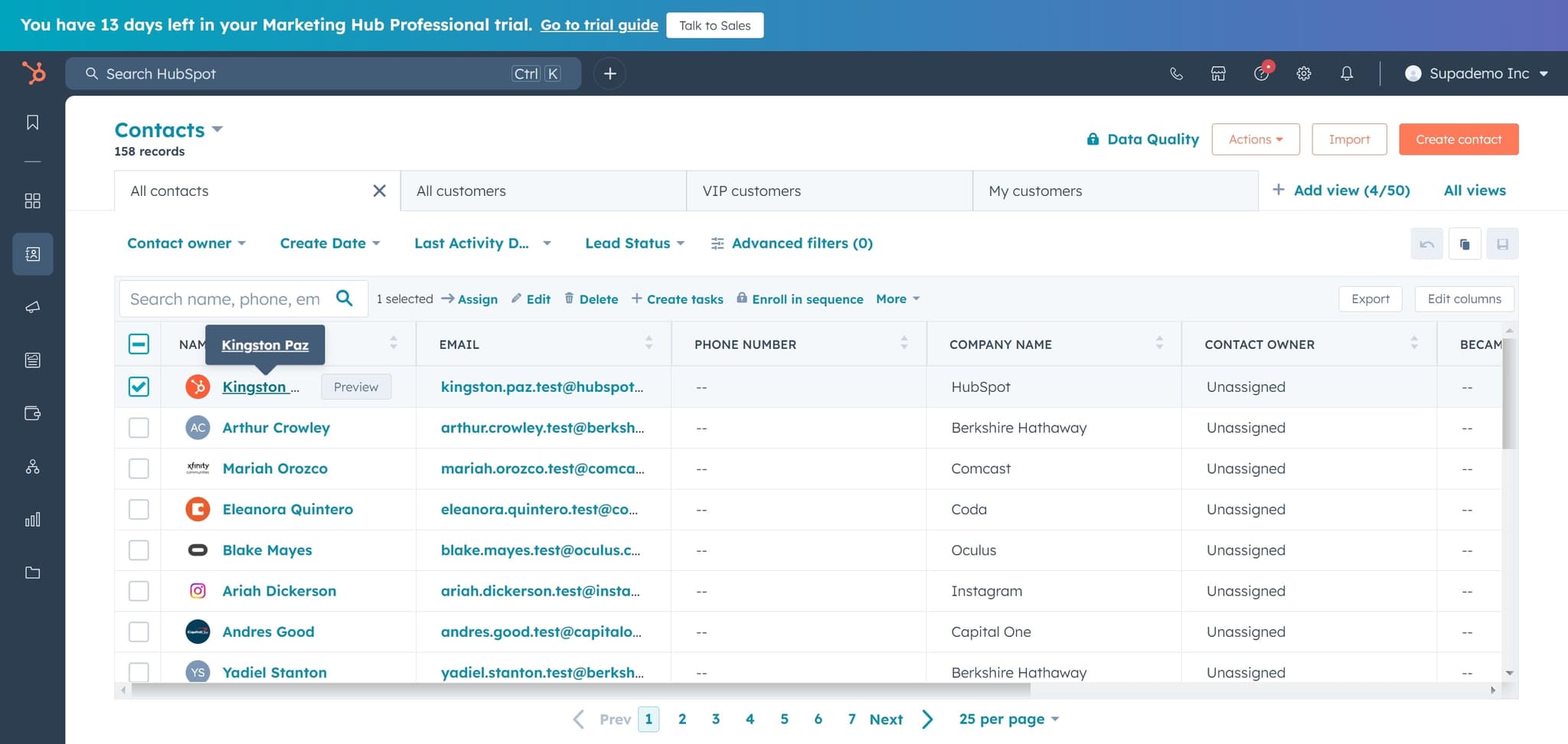
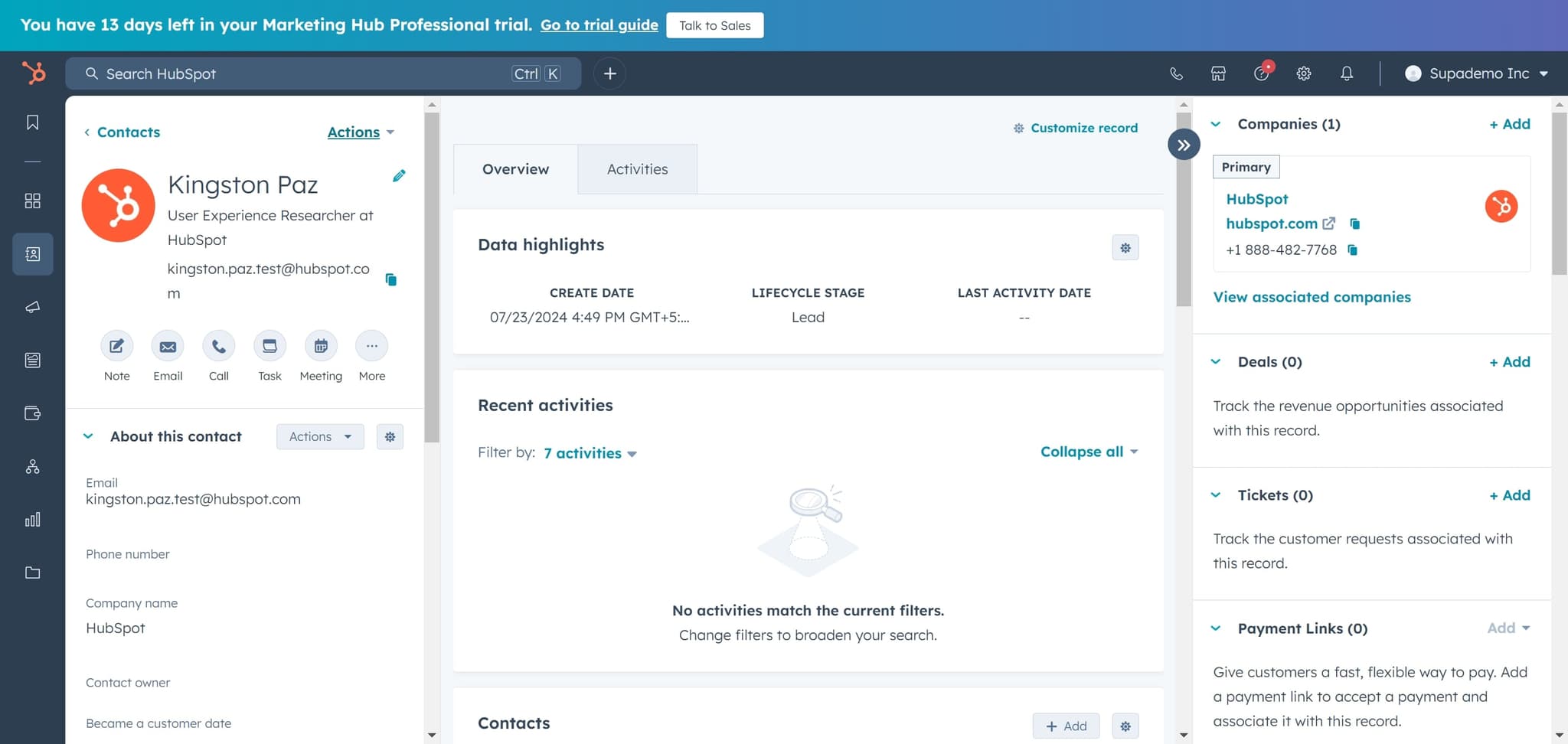
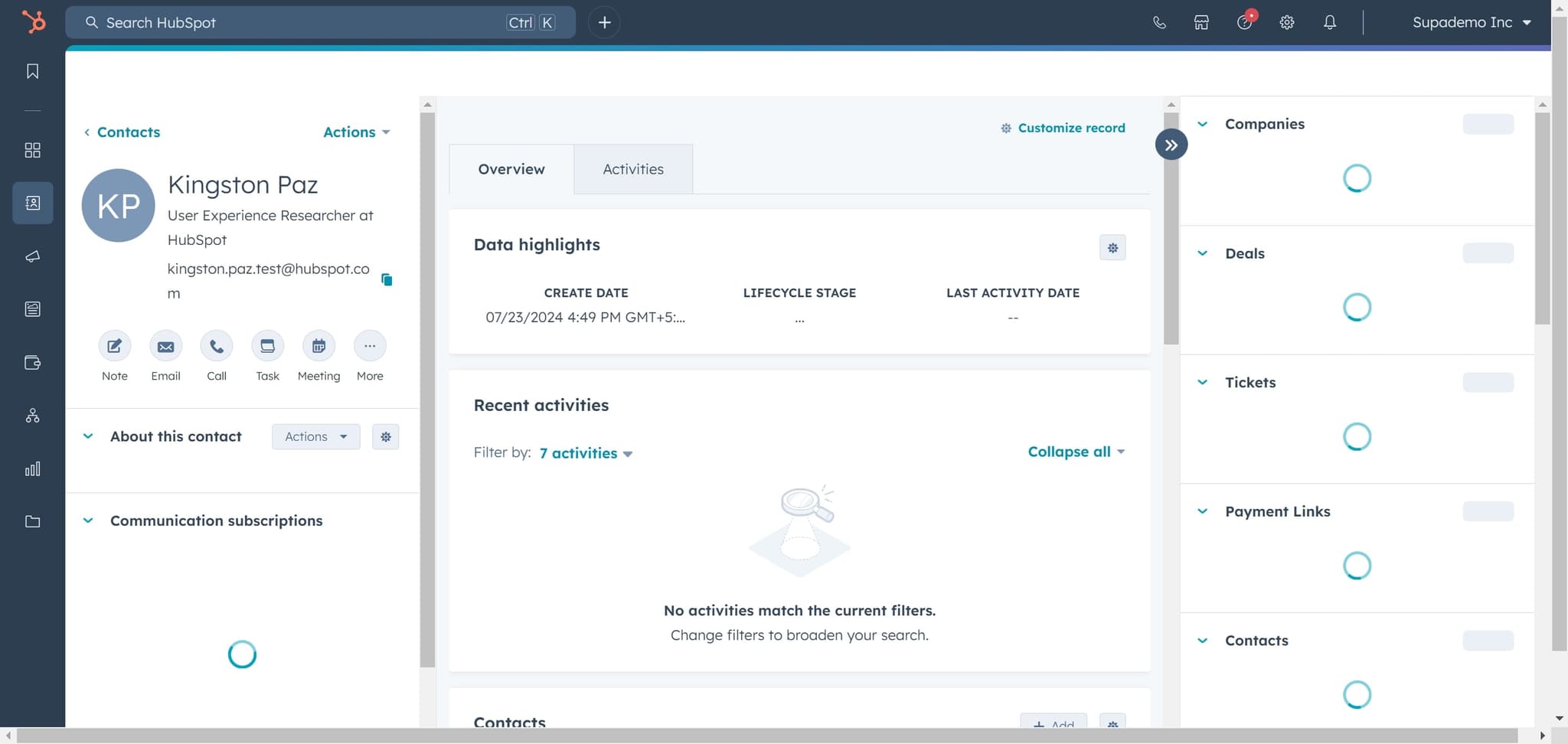
Click on Kingston Paz
Click on the contact 'Kingston Paz' to open their detailed contact record. This displays all associated information, activity history, and properties for this contact.
- 5
Click on Actions
Click the 'Actions' button to reveal a dropdown menu of available operations you can perform on this contact. This menu contains options for editing, managing, and modifying the contact record.
- 6
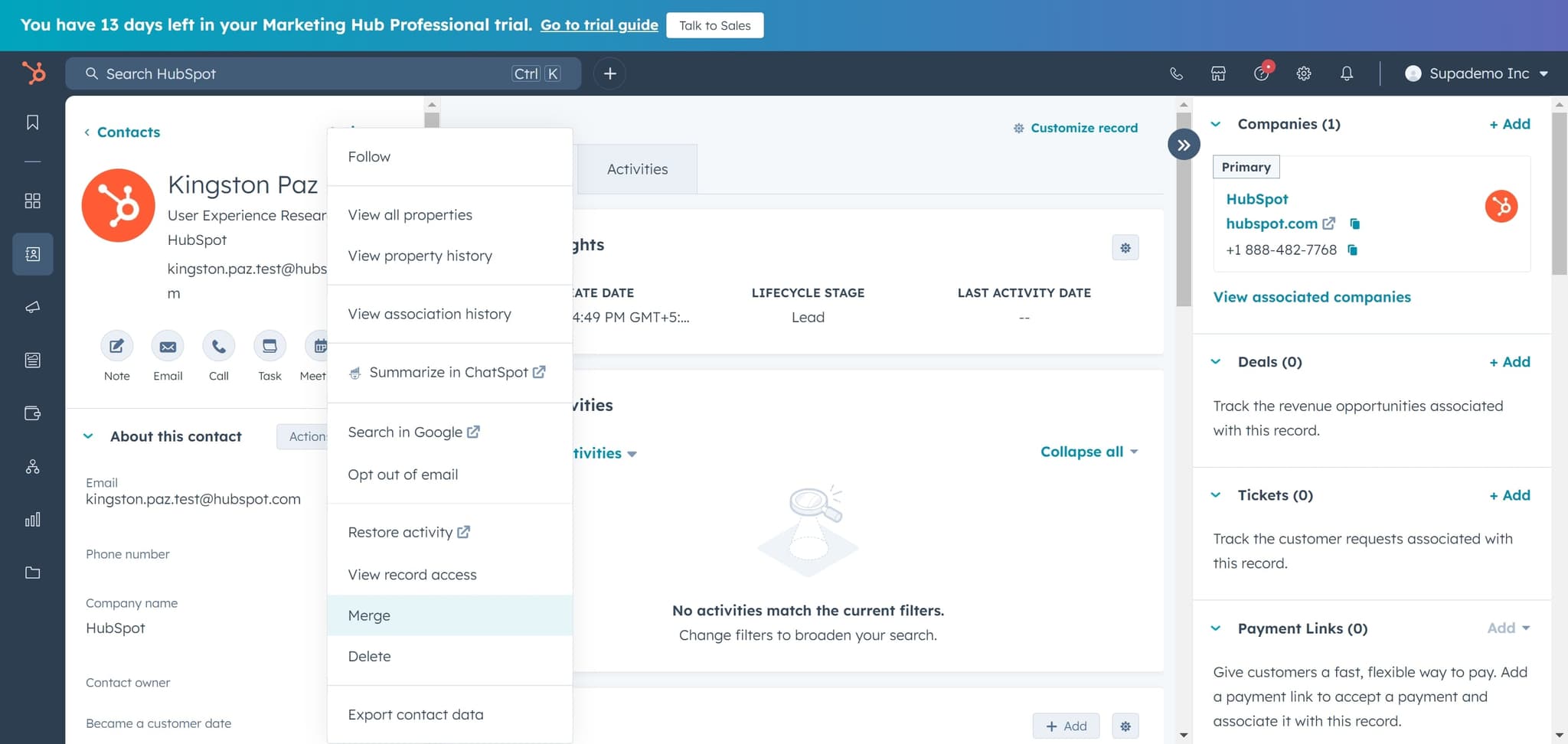
Click on Merge
Select 'Merge' from the Actions dropdown to initiate the merge process. HubSpot will prepare to combine this contact with another duplicate record.
- 7
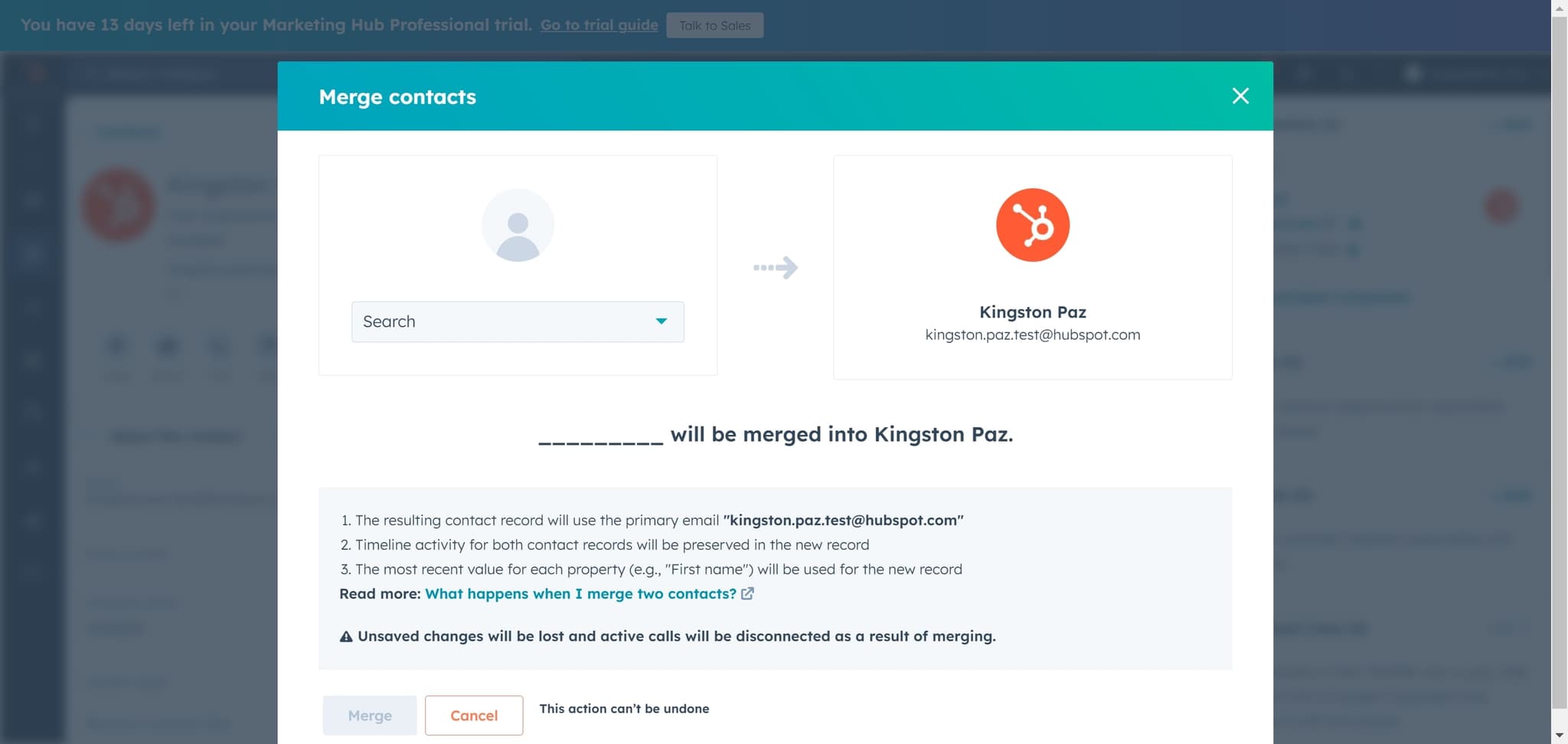
Click on Search
Click the 'Search' field to find the duplicate contact you want to merge with Kingston Paz. Enter relevant information such as the contact's name or email address to locate the matching record.
- 8
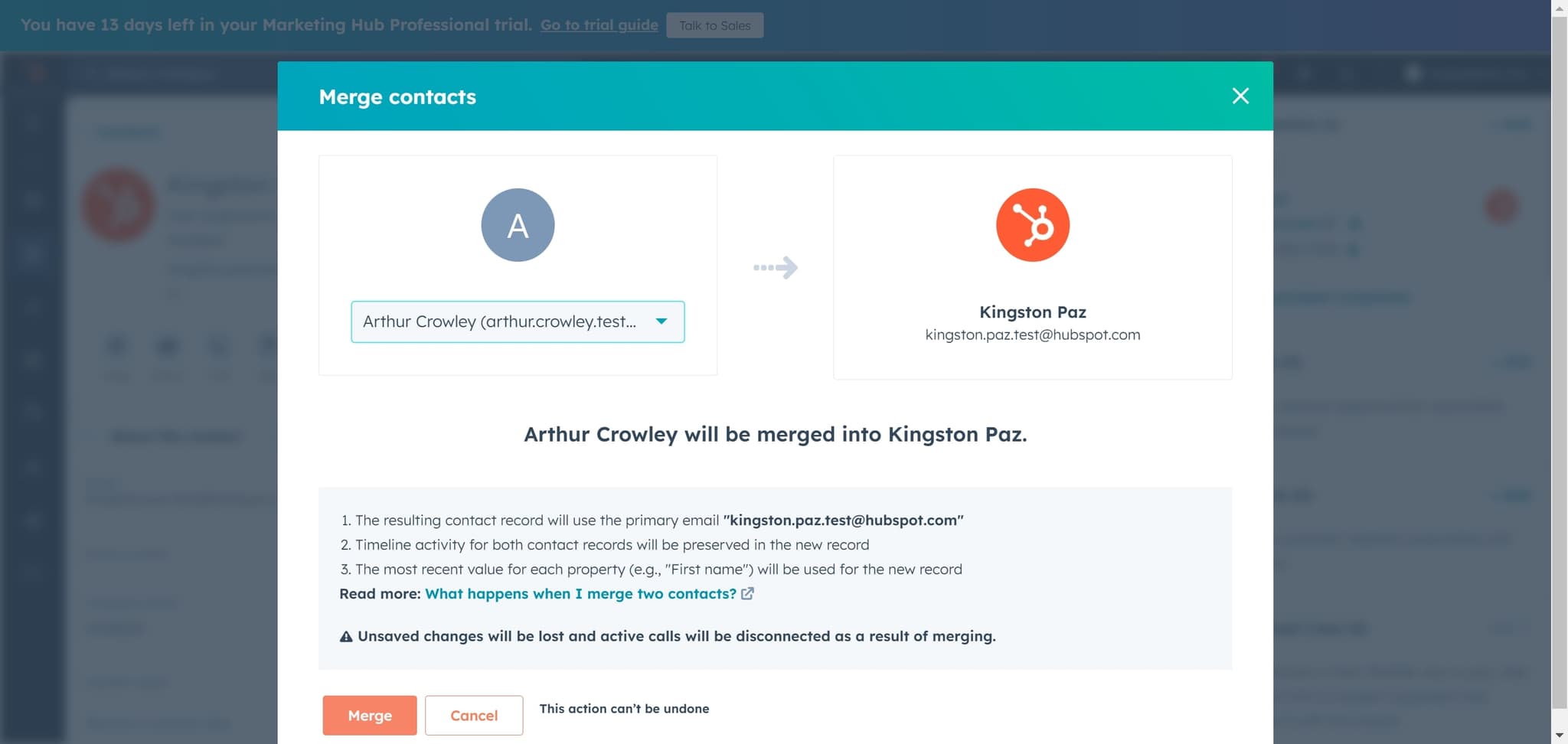
Click on Merge to confirm
Click 'Merge' again to complete the merging of the two contact records. HubSpot will consolidate all data, activity, and associations into the primary contact record.
- 9
Review Activity Display Settings
Click on 'Activity Display Settings' to customize how merged contact activity is displayed and organized. This allows you to control which information is prioritized in the unified contact record.
Frequently asked questions
Common questions about how to merge contacts in hubspot.
HubSpot does not provide a built-in undo feature for merged contacts. However, you can contact HubSpot support within a limited timeframe to request a manual reversal of recent merges. It's important to verify you're merging the correct contacts before confirming the action to avoid this issue.
When you merge contacts, HubSpot preserves data from both records. The system intelligently combines properties, activity history, email addresses, phone numbers, and all associated deals, tickets, and companies into a single unified contact record.
During the merge process, you can choose which contact serves as the primary record. The primary contact retains its contact ID and becomes the master record, while the secondary contact's information is merged into it.
Yes, merging contacts can impact historical reports since activity is consolidated under the primary contact. Going forward, reports will reflect the unified contact record, which typically improves data accuracy and provides cleaner analytics moving forward.
It's best to merge duplicates as you discover them or schedule regular audits of your contact database to identify and merge duplicates. Proactive maintenance prevents data fragmentation and keeps your CRM clean, accurate, and reliable for sales and marketing efforts.