How to Sync Fathom with HubSpot

Syncing Fathom analytics data with HubSpot enables you to centralize customer insights and track website behavior directly within your CRM. This integration streamlines your workflow by eliminating manual data transfers and creating a unified view of your prospects and customers.
Quick summary
In this tutorial, you'll learn how to connect Fathom to HubSpot and configure the sync to automatically send analytics data to your CRM. By the end, your website visitor data will flow seamlessly into HubSpot, allowing your sales and marketing teams to leverage real-time behavioral insights.
Why this matters
Connecting Fathom to HubSpot closes the gap between analytics and CRM, enabling your team to make data-driven decisions faster. When your sales team sees website engagement data alongside contact records, they can prioritize leads more effectively and personalize outreach based on actual user behavior.
Step-by-step guide
- 1
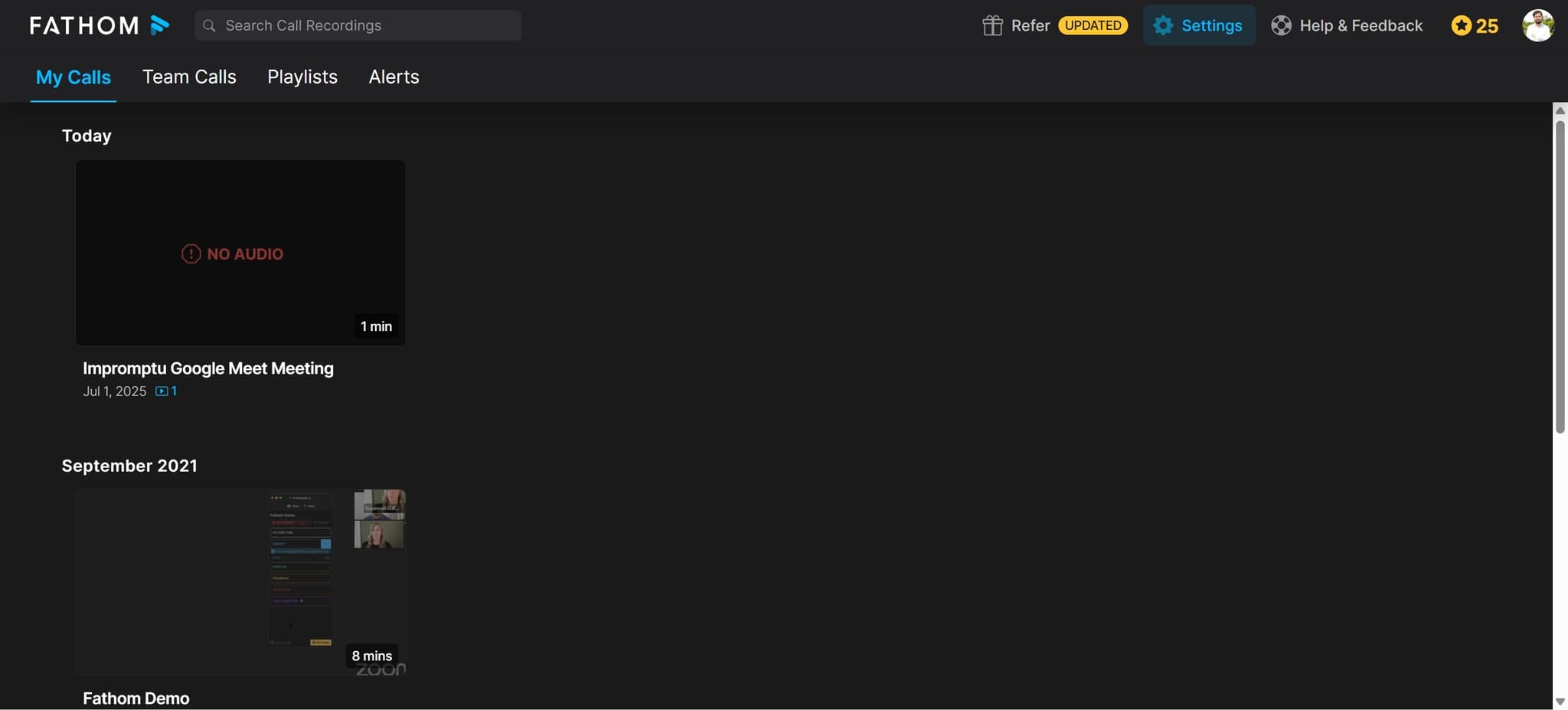
Access Fathom integrations settings
Log into your Fathom account and navigate to the integrations or settings section. Look for the integrations menu where you'll find a list of available third-party app connections.
- 2
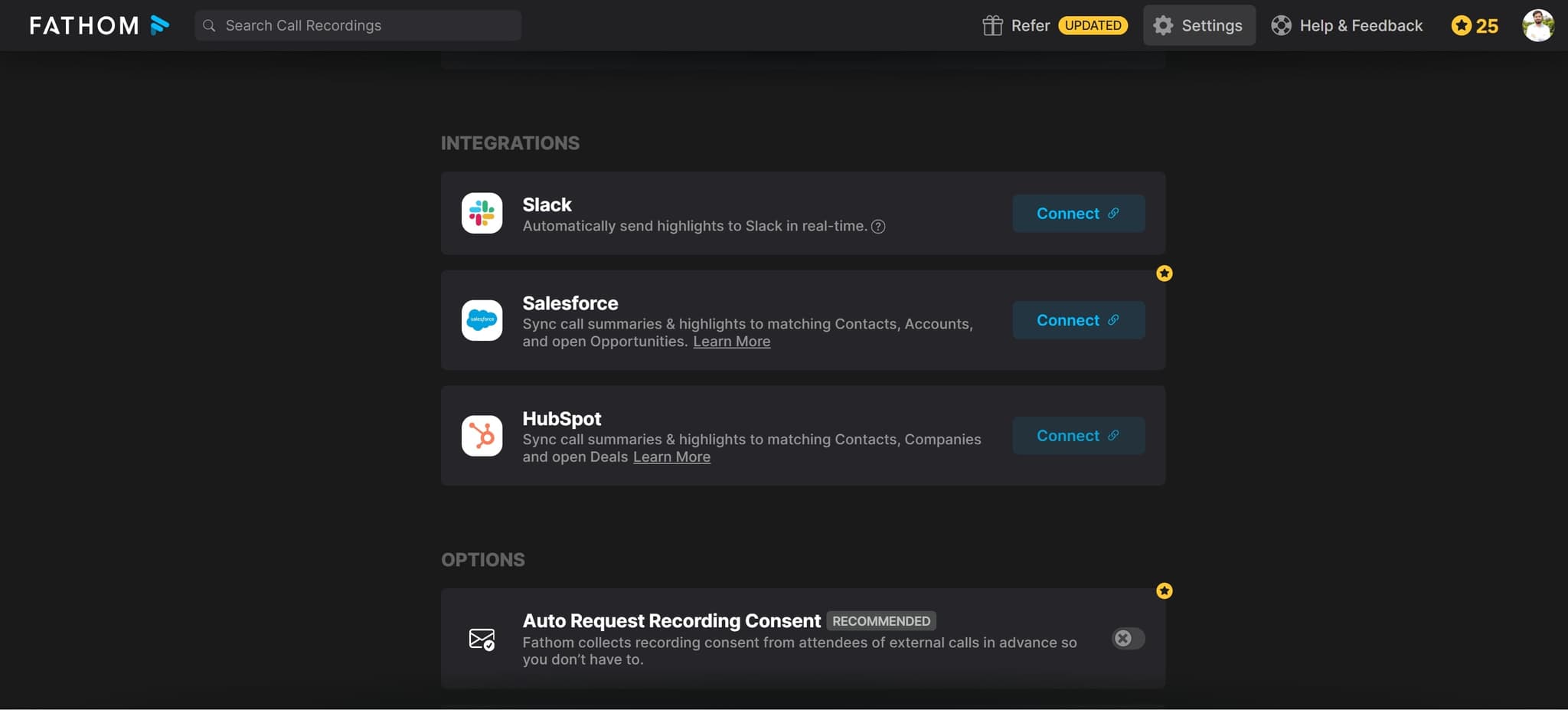
Locate the HubSpot integration
Find HubSpot in the available integrations list and click on it to begin the setup process. You may see a description of what the integration does and what permissions it requires.
- 3
Click connect or authorize
Select the button to connect Fathom to HubSpot, typically labeled 'Connect' or 'Authorize'. This will redirect you to HubSpot's authentication page.
- 4
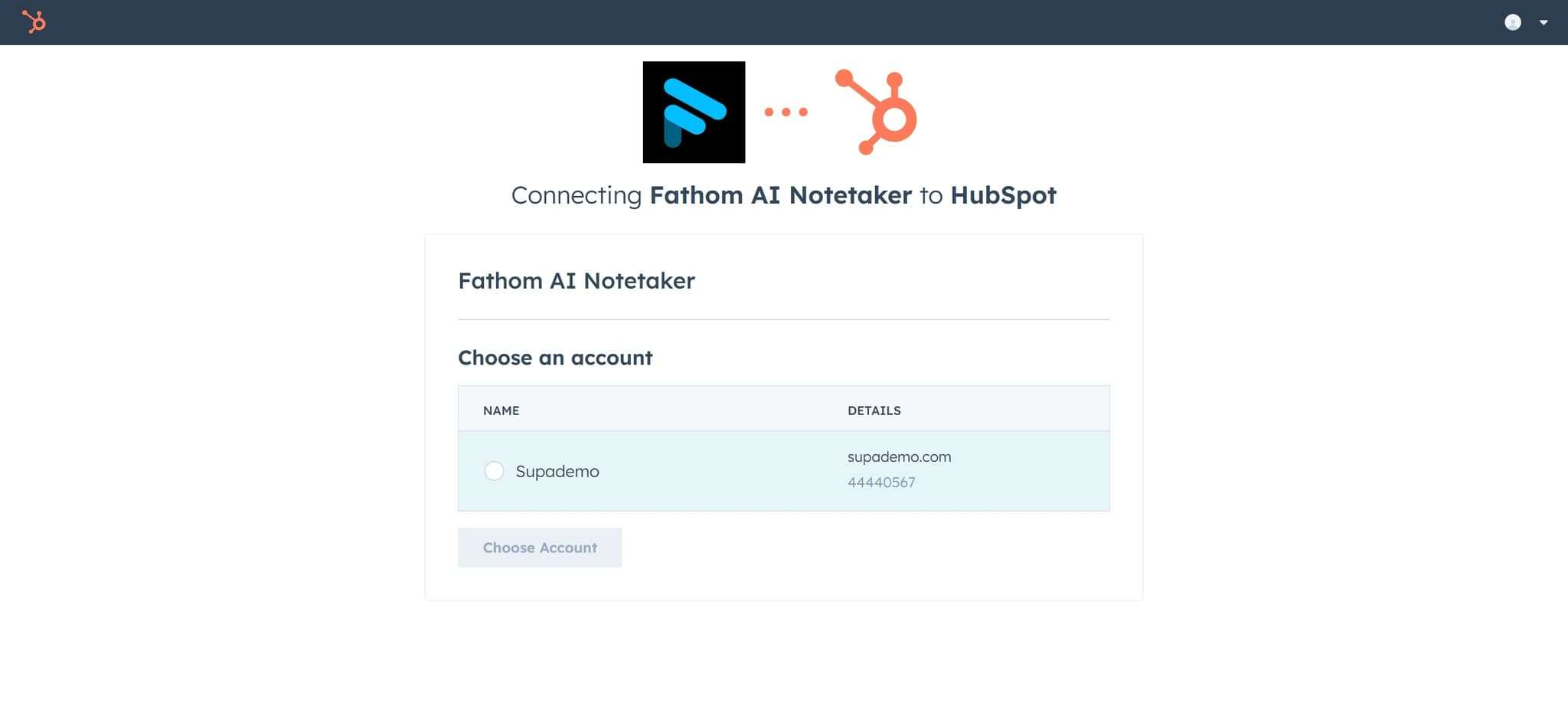
Log in to your HubSpot account
Enter your HubSpot credentials on the authentication screen to grant Fathom permission to access your account. Make sure you're logged into the correct HubSpot workspace if you have multiple accounts.
- 5
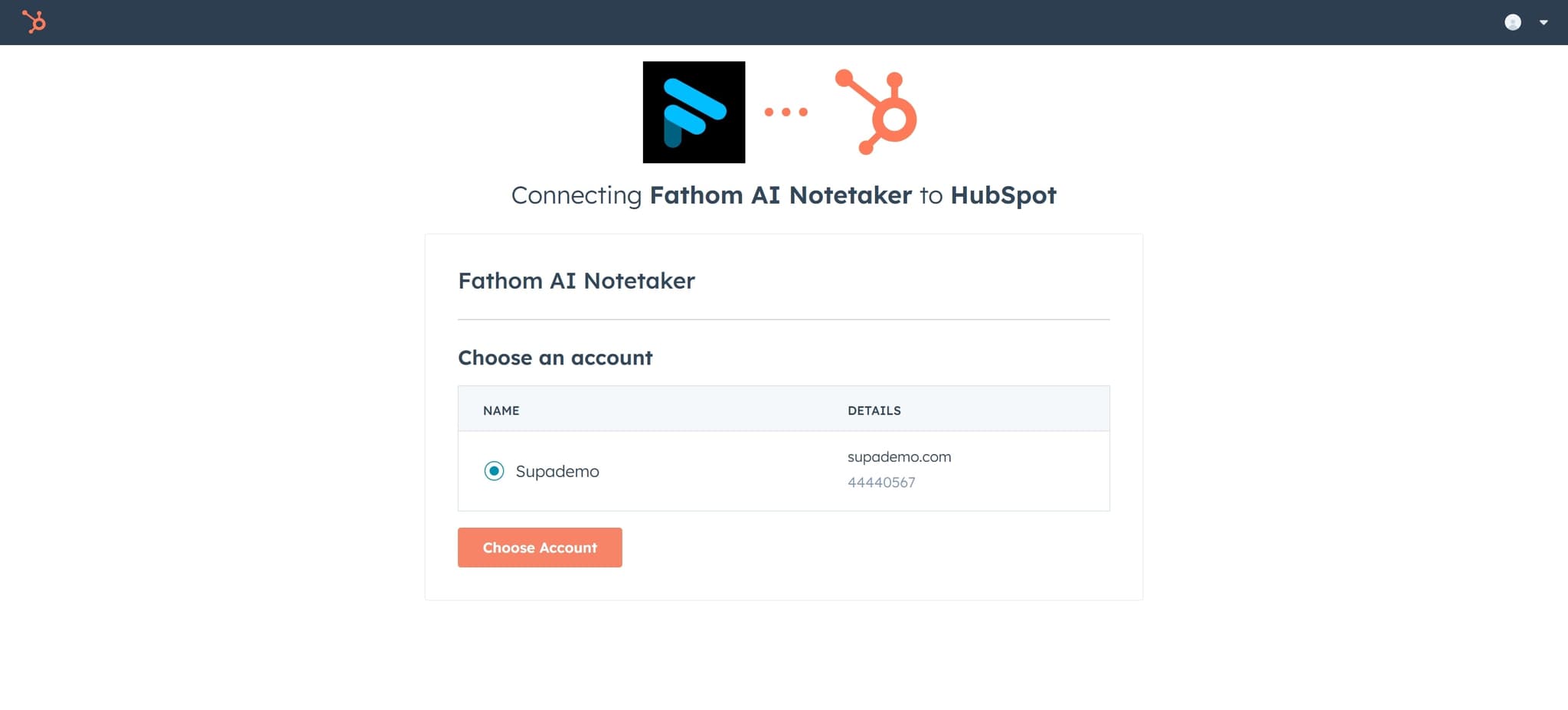
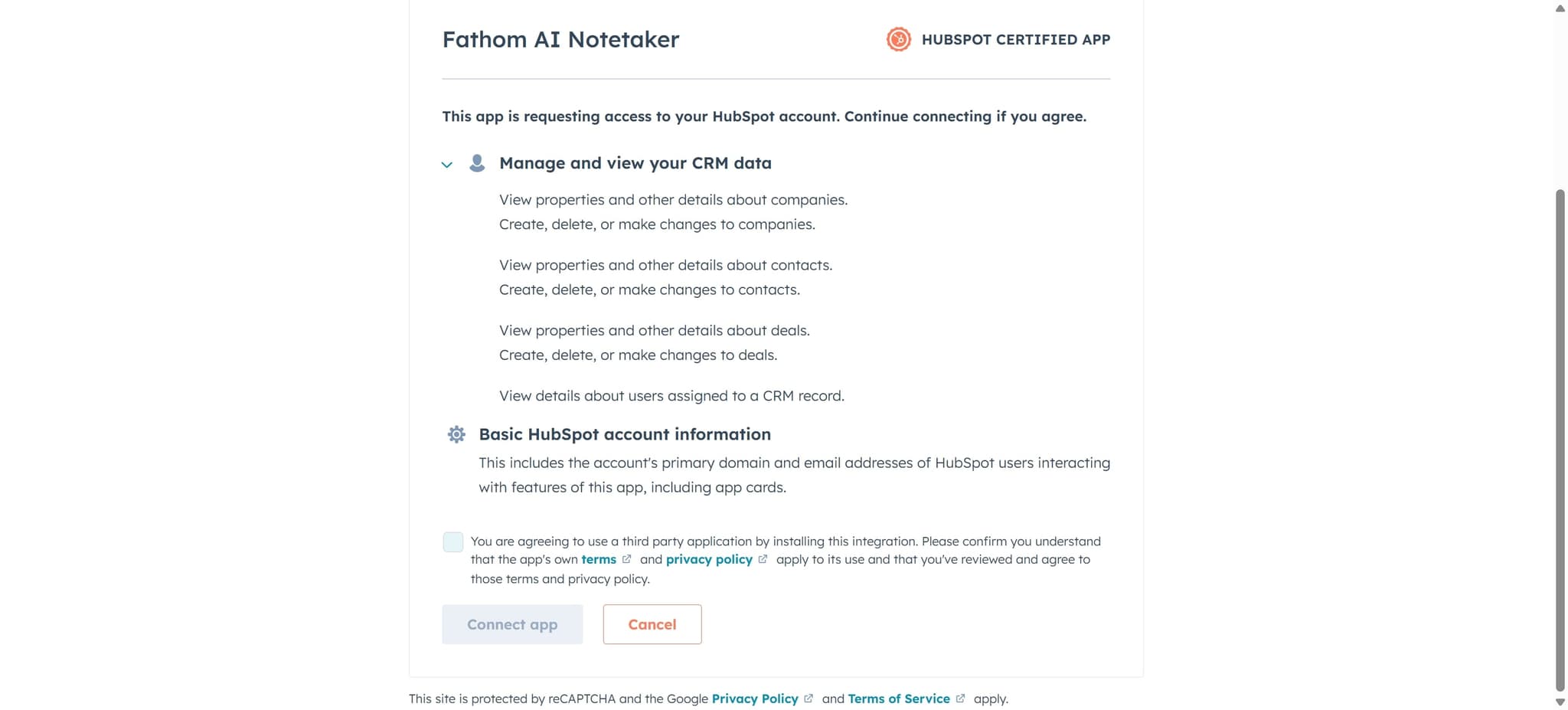
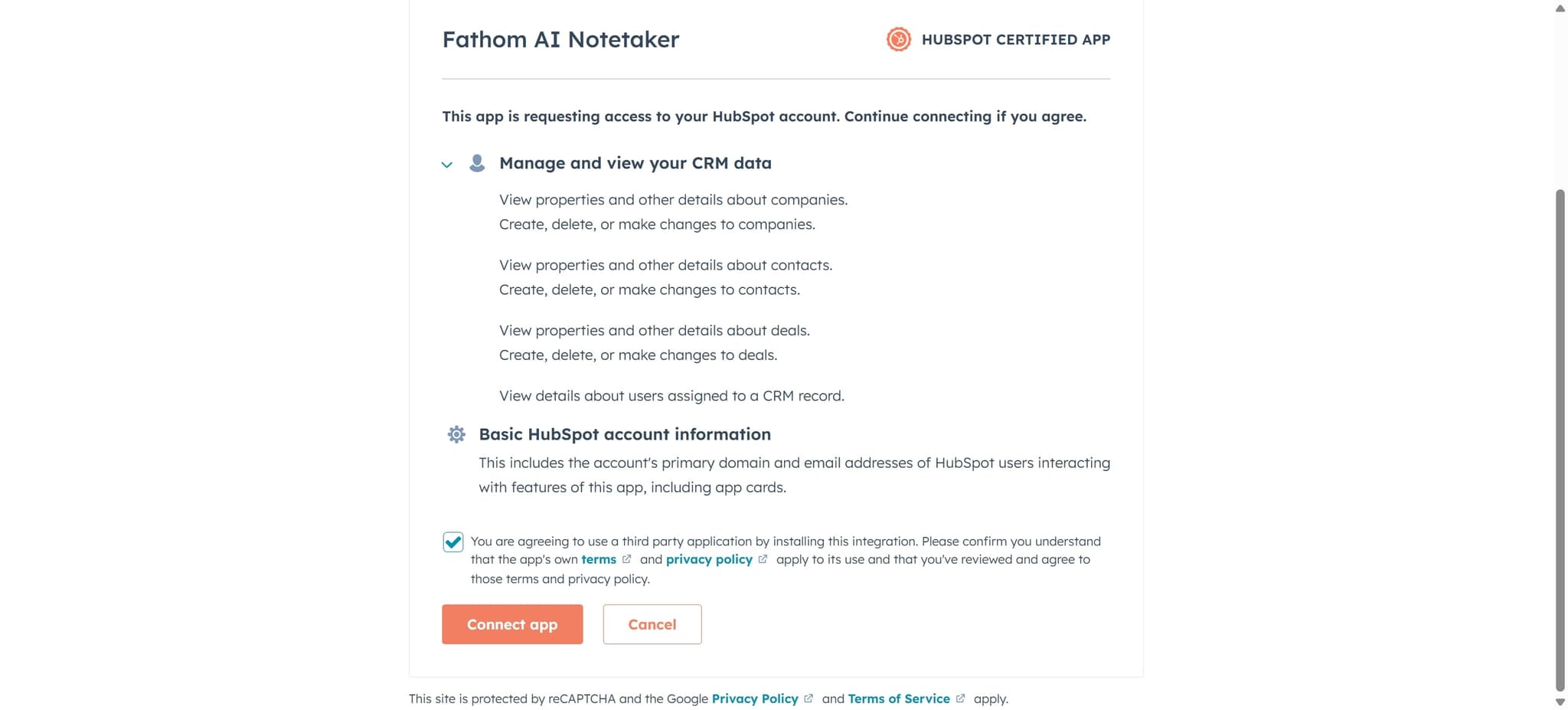
Grant permissions to Fathom
Review the permissions Fathom is requesting and click 'Allow' or 'Authorize' to proceed. These permissions typically include the ability to create and update contacts or custom properties in HubSpot.
- 6
Configure sync settings
Select which Fathom data you want to sync to HubSpot, such as visitor information, page views, or conversion events. Choose how frequently you want data to sync and map Fathom fields to corresponding HubSpot properties.
- 7
Complete and verify the integration
Save your settings and wait for the initial sync to complete. Check both Fathom and HubSpot to confirm that data is flowing correctly between the platforms.
Frequently asked questions
Common questions about how to sync fathom with hubspot.
You can sync visitor identification data, page views, custom events, conversion data, and other behavioral metrics. The specific data available depends on your Fathom plan and the fields you choose to map in HubSpot.
Sync frequency depends on your configuration, but most integrations offer real-time or hourly syncing options. Check your integration settings to verify the sync schedule and adjust it based on your needs.
Yes, you need admin-level permissions in both Fathom and HubSpot to authorize the integration and configure sync settings. Non-admin users may not have the ability to access integrations or grant third-party permissions.
First, verify that both your Fathom and HubSpot accounts are active and that the integration hasn't been disconnected. Check the integration logs or settings for error messages, and if needed, disconnect and reconnect the integration to re-authorize it.
Yes, during the configuration step, you can map Fathom data points to specific HubSpot custom properties or standard fields. This allows you to organize the data according to your CRM structure and naming conventions.