How to Create a List in HubSpot

HubSpot lists are powerful tools for segmenting and organizing your contacts based on specific criteria. This guide walks you through the process of creating a list from start to finish, enabling you to target and manage your audience more effectively.
Quick summary
In this tutorial, you'll learn how to create a list in HubSpot by navigating to the Lists section, setting up your list parameters, and saving it for future use. By the end, you'll be able to build custom lists that help you organize and segment your contacts based on your business needs.
Why this matters
Creating lists in HubSpot allows you to segment your audience for targeted marketing campaigns, personalized communication, and better data organization. Well-structured lists improve your ability to reach the right people with the right message at the right time, ultimately boosting engagement and conversion rates.
Step-by-step guide
- 1
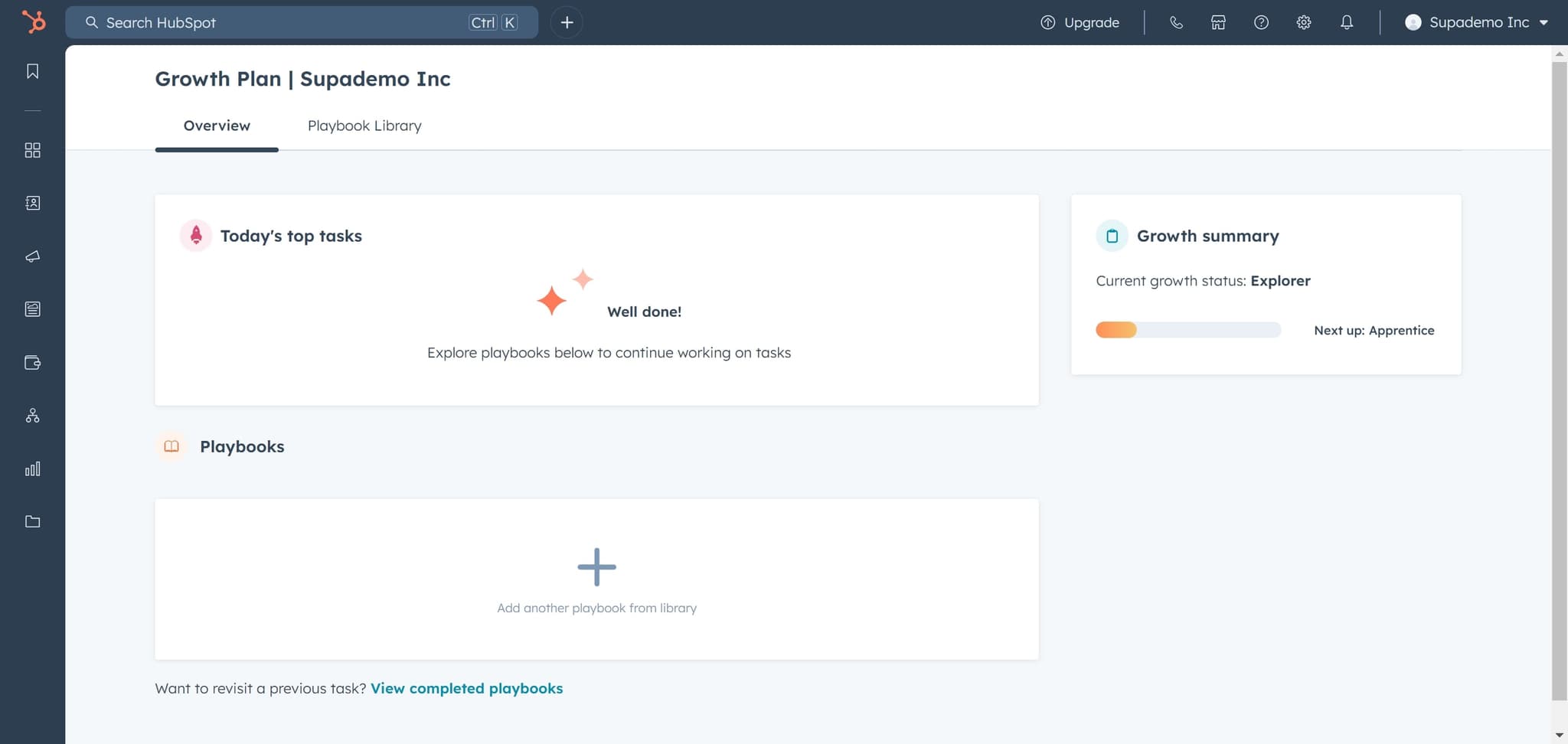
Navigate to the main menu
Click on the primary navigation element to access HubSpot's main menu. This will open the dropdown or sidebar where you can find various tools and features.
- 2
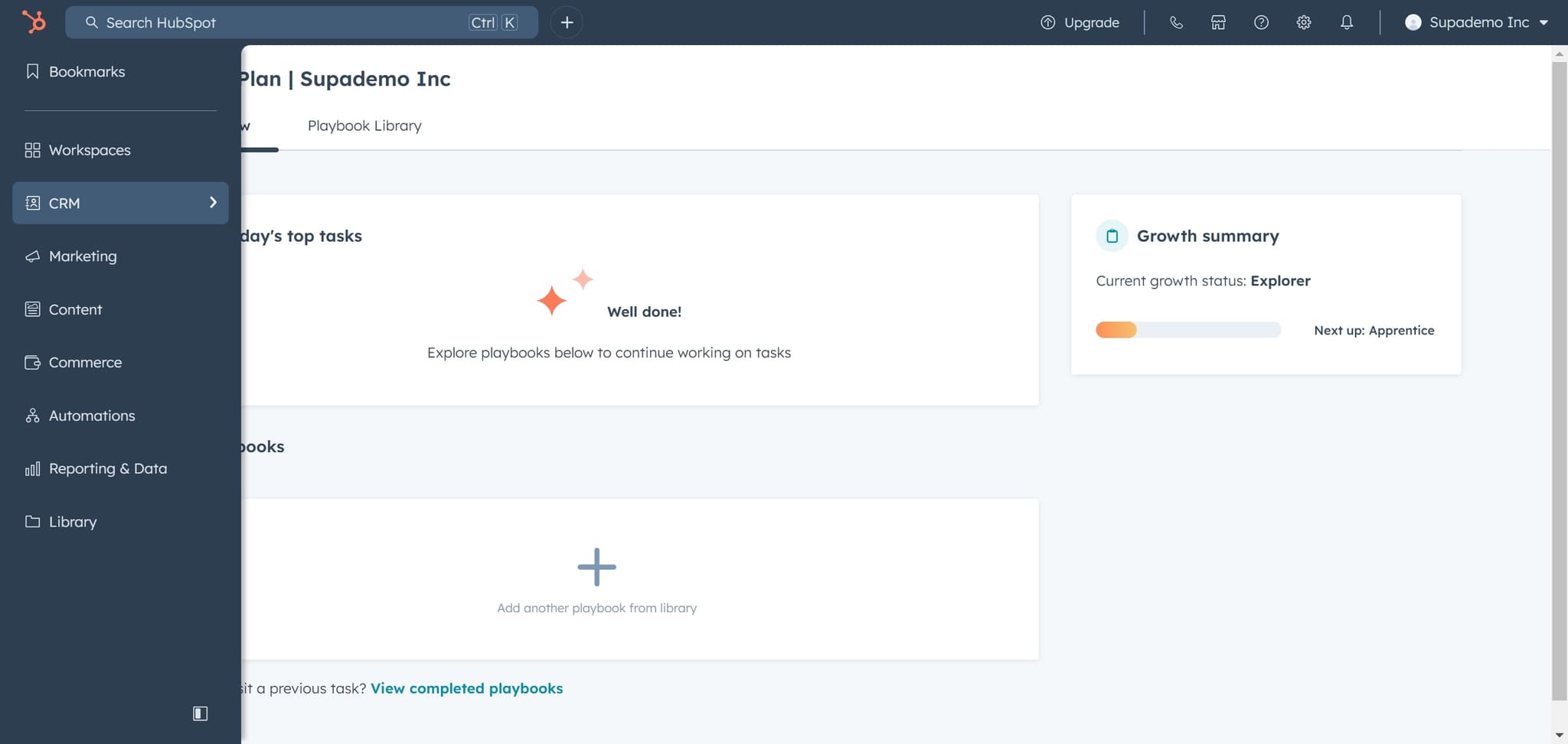
Access the contacts section
Click on the designated contacts or CRM area within the menu. This takes you to the hub where you can manage and organize your contact data.
- 3
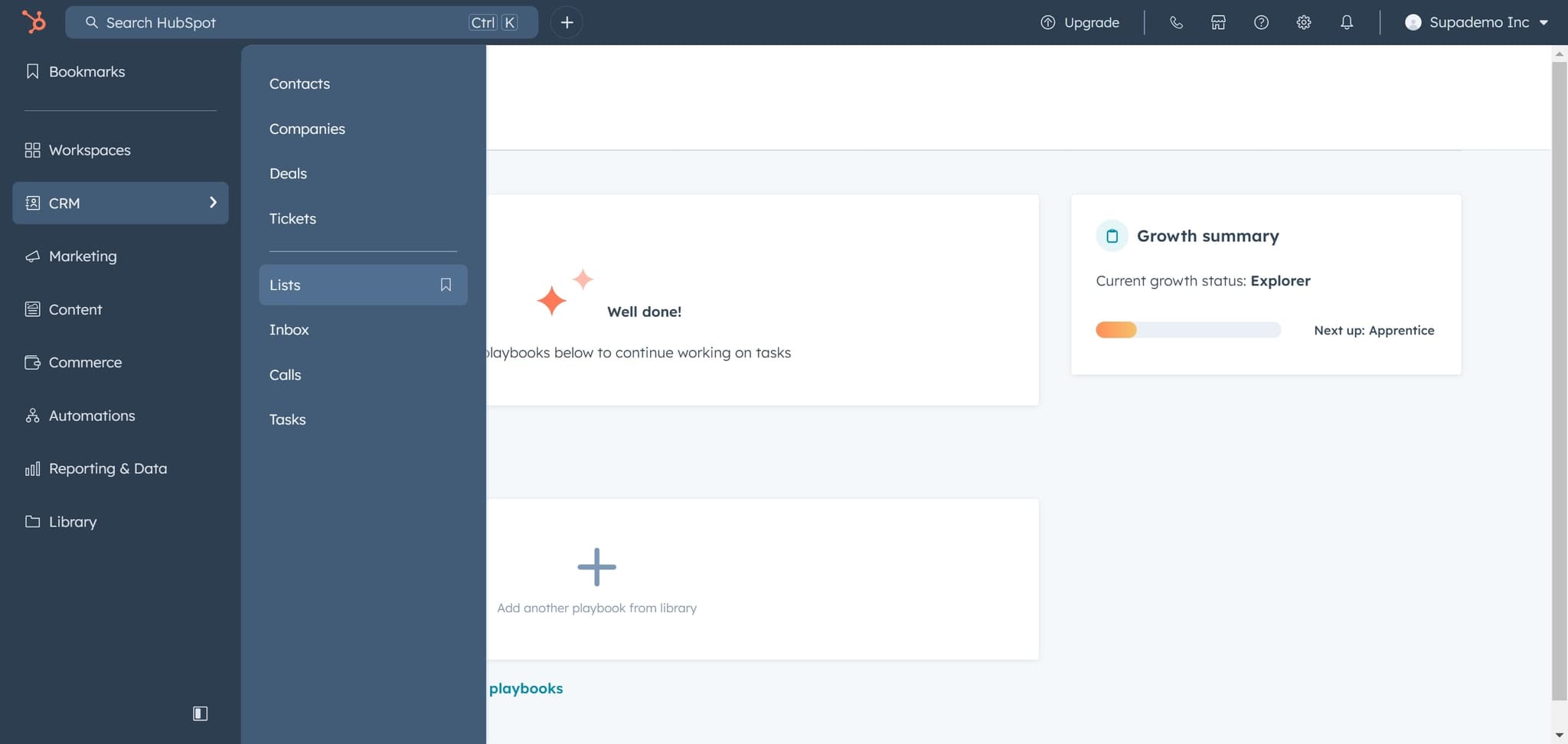
Click on Lists
Select the Lists option from the available menu items. You'll now see an overview of your existing lists and options to create new ones.
- 4
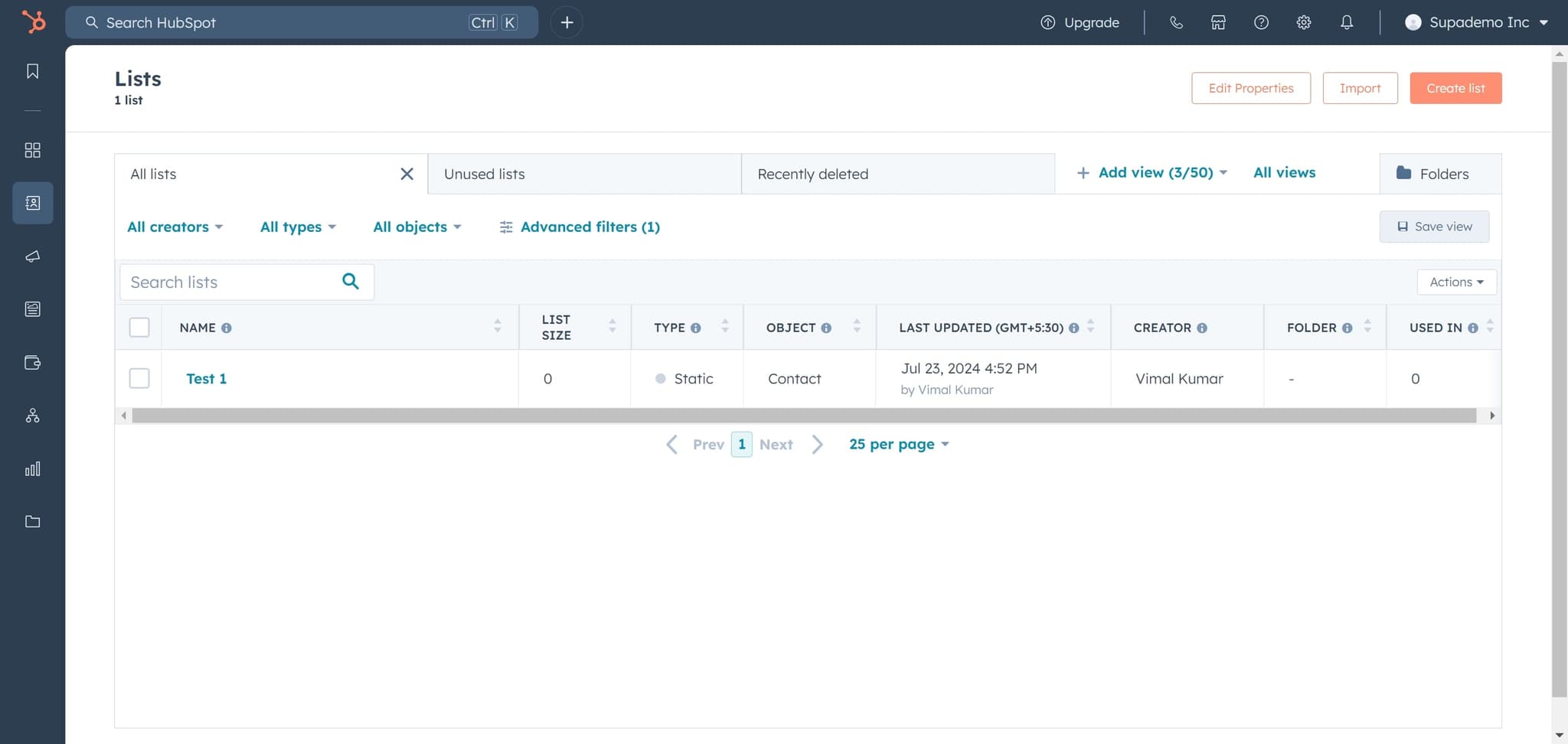
Click Create list
Click the Create list button to begin setting up a new list. This will open a form or dialog where you can define your list's parameters and criteria.
- 5
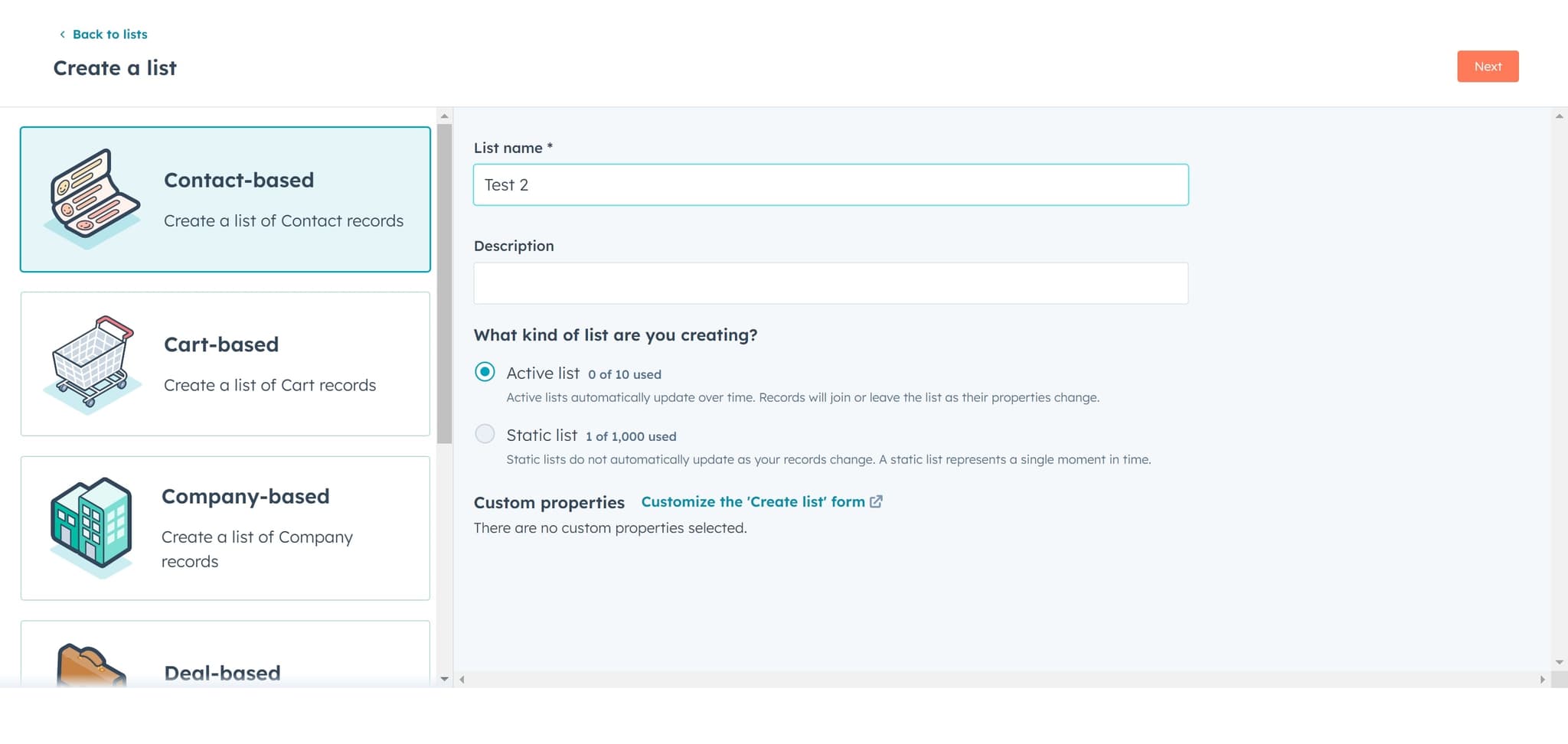
Configure list settings
Click the next field or settings area to define the criteria for your list. This may include selecting contact properties, conditions, or filters that will determine which contacts belong to this list.
- 6
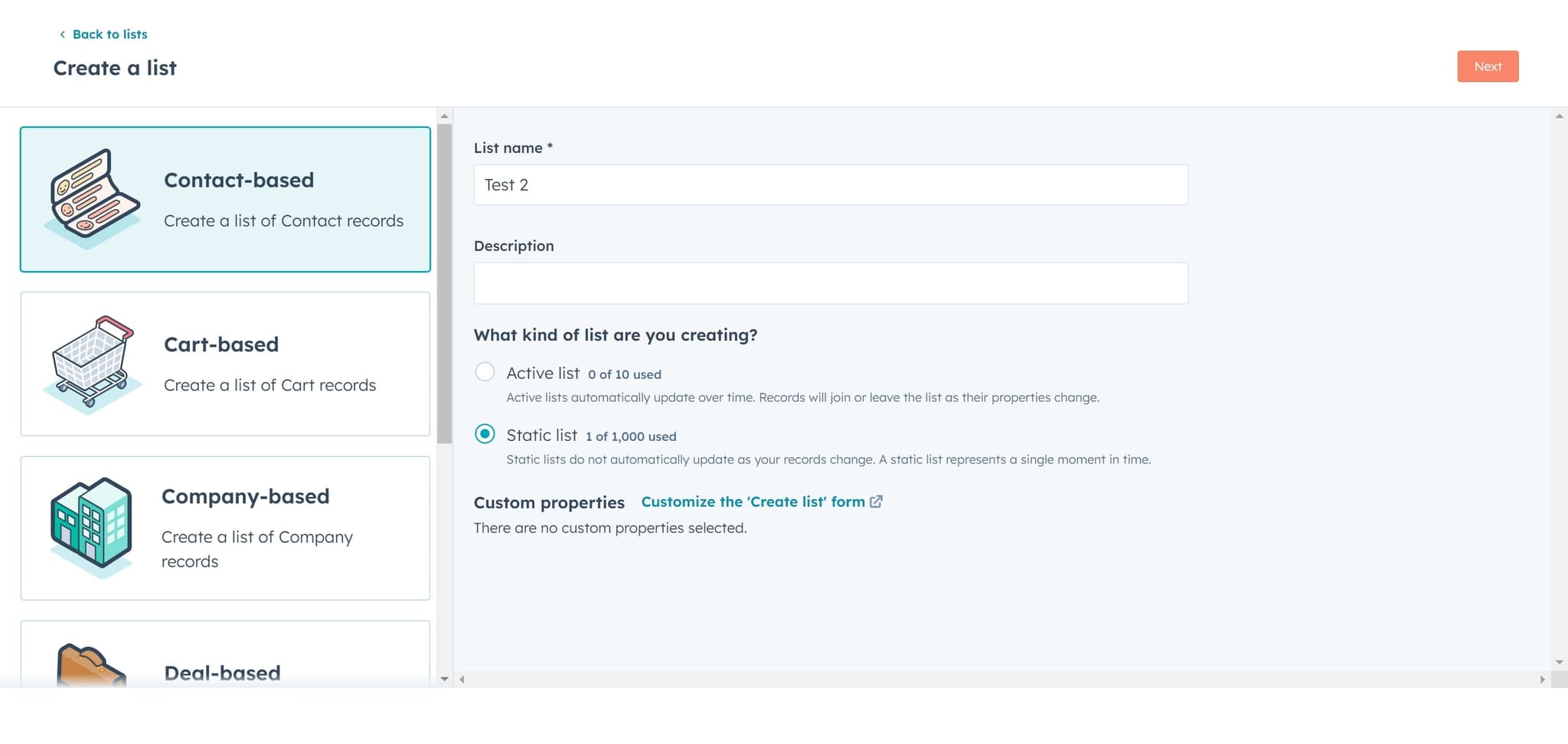
Proceed to the next step
Click Next to move forward in the list creation process. This advances you to the final configuration or review stage.
- 7
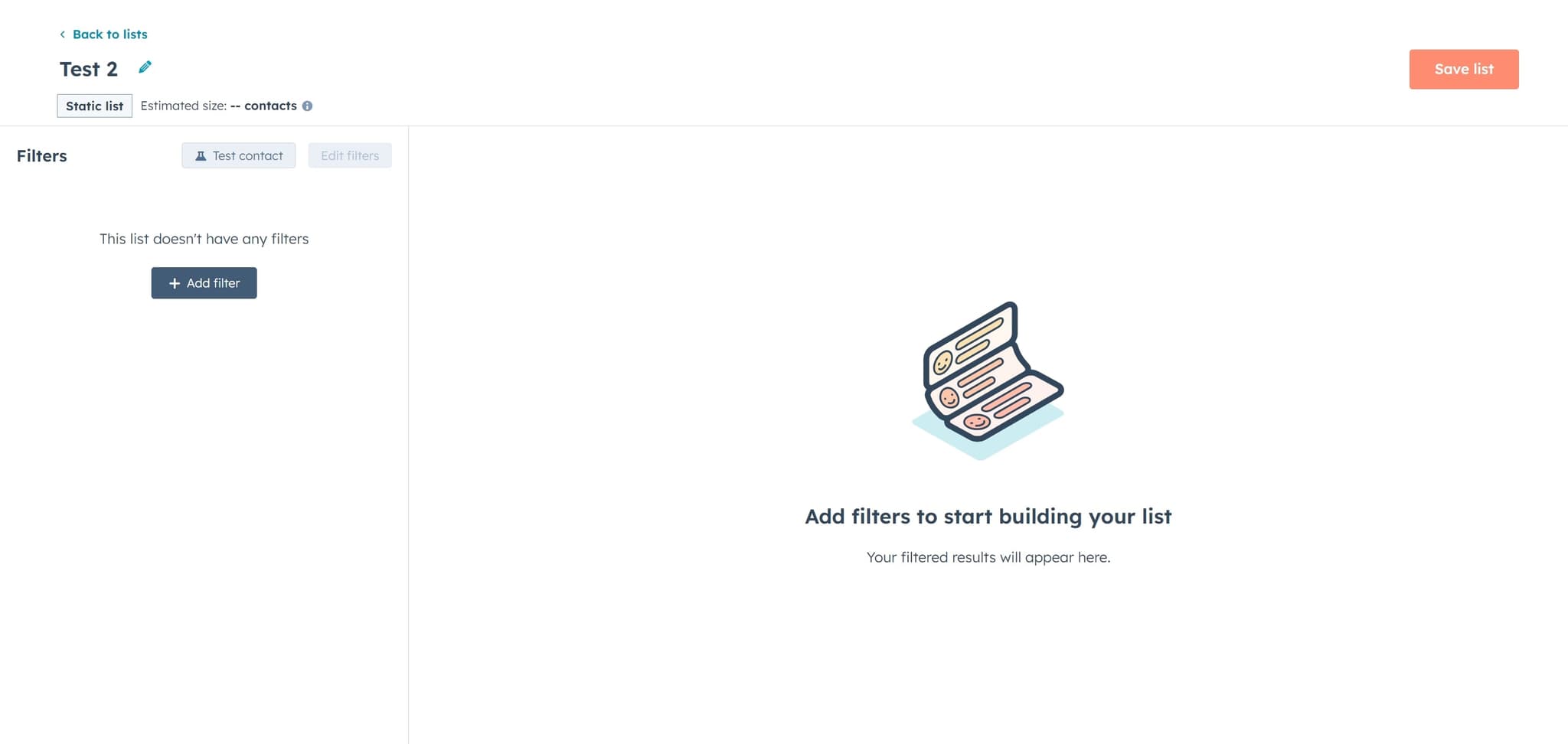
Save your list
Click Save list to finalize and create your list. HubSpot will process your criteria and make the list available for use in campaigns and workflows.
- 8
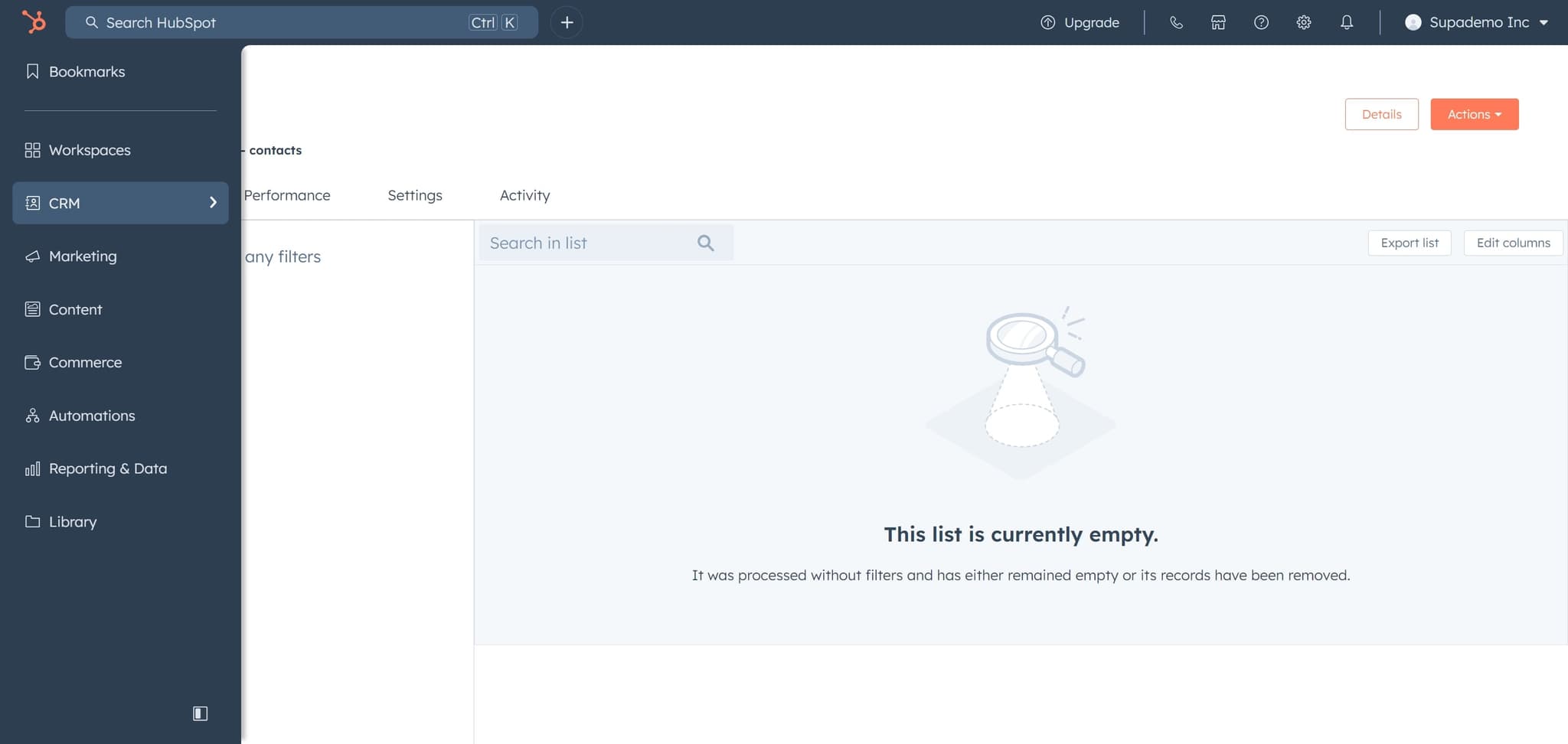
Verify the list creation
Click on the element to confirm the list has been created successfully. This may display a confirmation message or redirect you to view your new list.
- 9
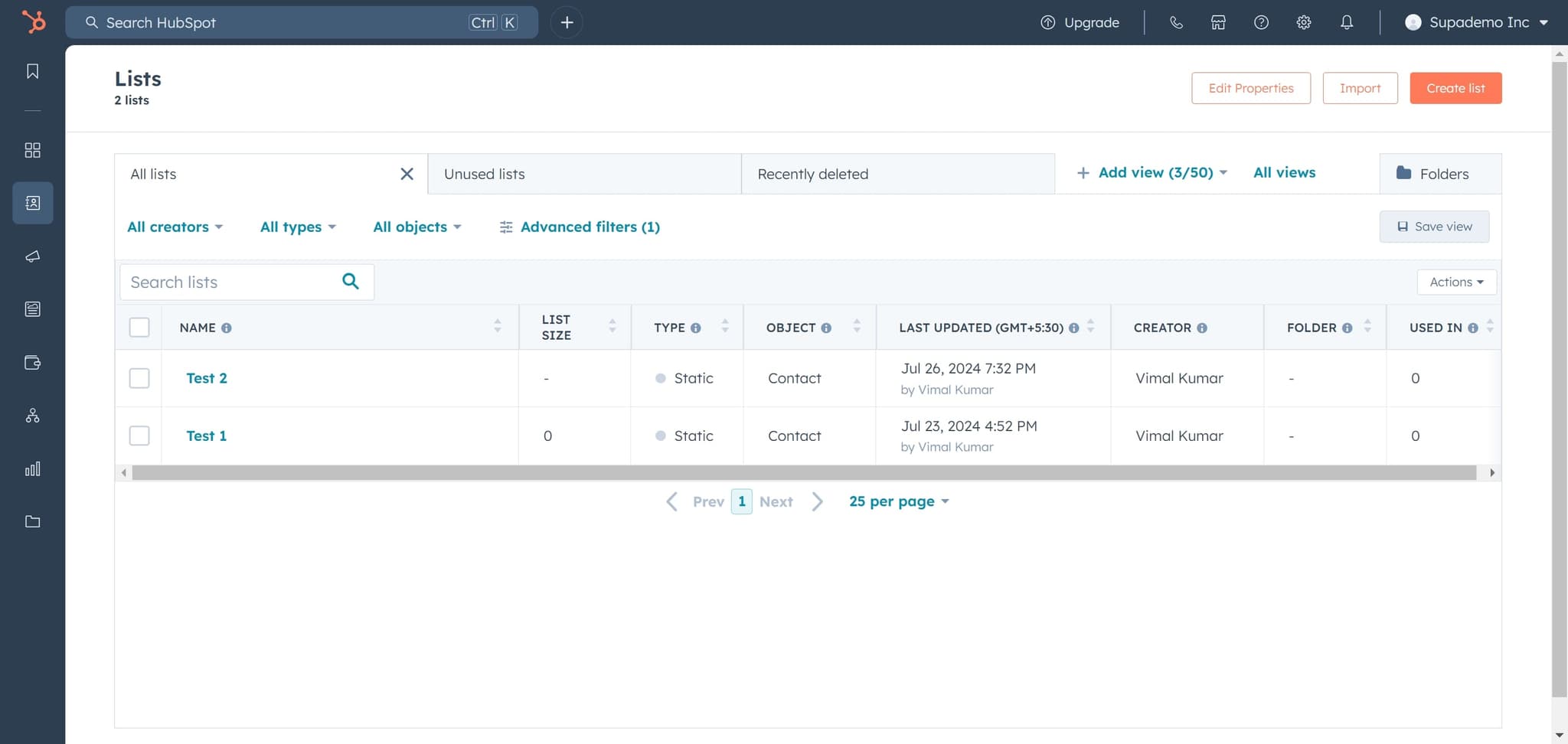
Return to Lists view
Click on Lists again to see all your available lists. Your newly created list should now appear in the list overview.
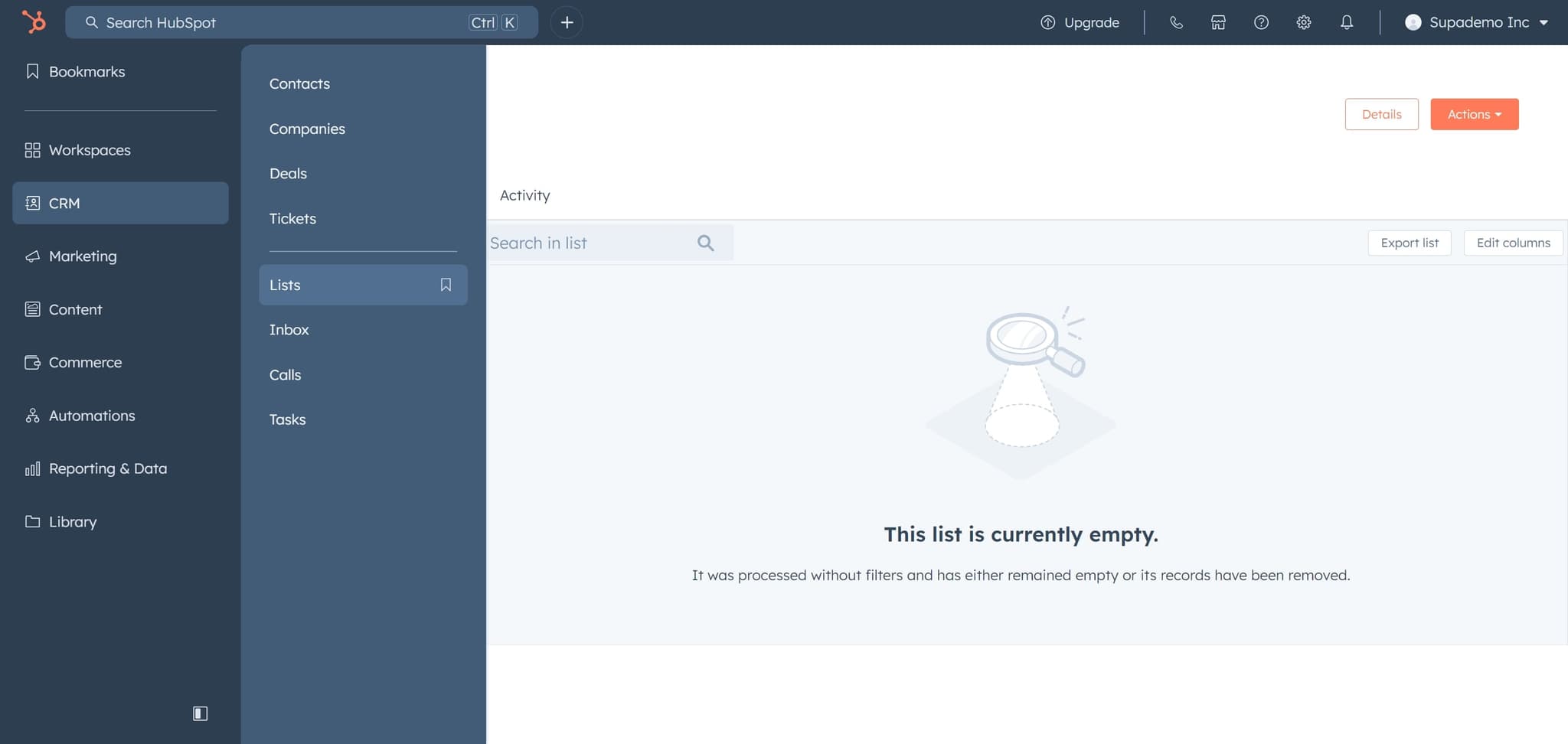
- 10
Access your new list
Click on the list element to open and view your newly created list. You can now use this list for segmentation, campaigns, and audience targeting.
Frequently asked questions
Common questions about how to create a list in hubspot.
You can create lists based on contact properties such as email, company, location, lifecycle stage, and custom fields. HubSpot also allows you to filter by engagement metrics, form submissions, and behavioral data. The specific criteria available depend on your HubSpot plan and the properties you've set up in your account.
Yes, you can edit your lists at any time by returning to the Lists section and selecting the list you want to modify. You can change the criteria, add or remove filters, and update the list settings. Changes to a list's criteria will automatically update the contacts included in that list.
There is no fixed limit to the number of contacts a list can contain. HubSpot lists can scale to accommodate all contacts that meet your specified criteria. However, the size of your list will depend on your total number of contacts and how you've defined your filtering criteria.
Dynamic lists automatically update based on your defined criteria as new contacts meet those conditions or existing contacts change. Static lists are created manually and don't automatically update. HubSpot allows you to create both types depending on your use case and audience management needs.
Yes, once you've created a list, you can use it to target audiences in email campaigns, workflows, and other marketing activities. Lists are a key tool for audience segmentation and enable you to send targeted messages to specific groups of contacts. This helps improve relevance and engagement rates.