How to Create and Edit Sequences in HubSpot

HubSpot sequences automate your email outreach and follow-up tasks, saving time while ensuring consistent communication with prospects. This guide walks you through creating and editing sequences from scratch, including setting up personalized email templates and task reminders.
Quick summary
In this tutorial, you'll learn how to navigate HubSpot's automation features, create a new sequence with custom email content, personalize messages with contact data, and add follow-up task reminders. By the end, you'll be able to build a complete automated sequence tailored to your sales process.
Why this matters
Sequences are essential for scaling outreach efforts without manual intervention. By automating emails and task reminders, your team can maintain consistent touchpoints with leads while focusing on high-value activities like closing deals and relationship building.
Step-by-step guide
- 1
Access the Automation menu
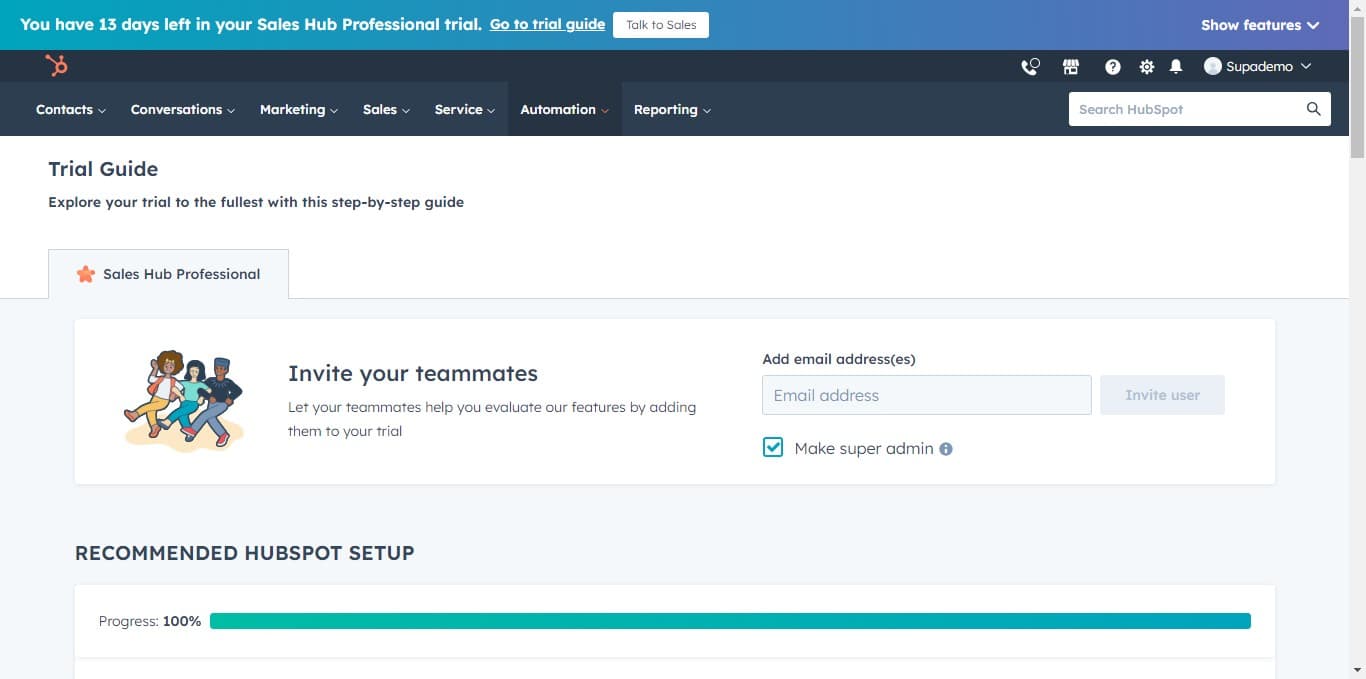
From your HubSpot dashboard, click on "Automation" in the main navigation. This opens the automation hub where you can manage workflows, sequences, and other automated processes.
- 2
Navigate to Sequences
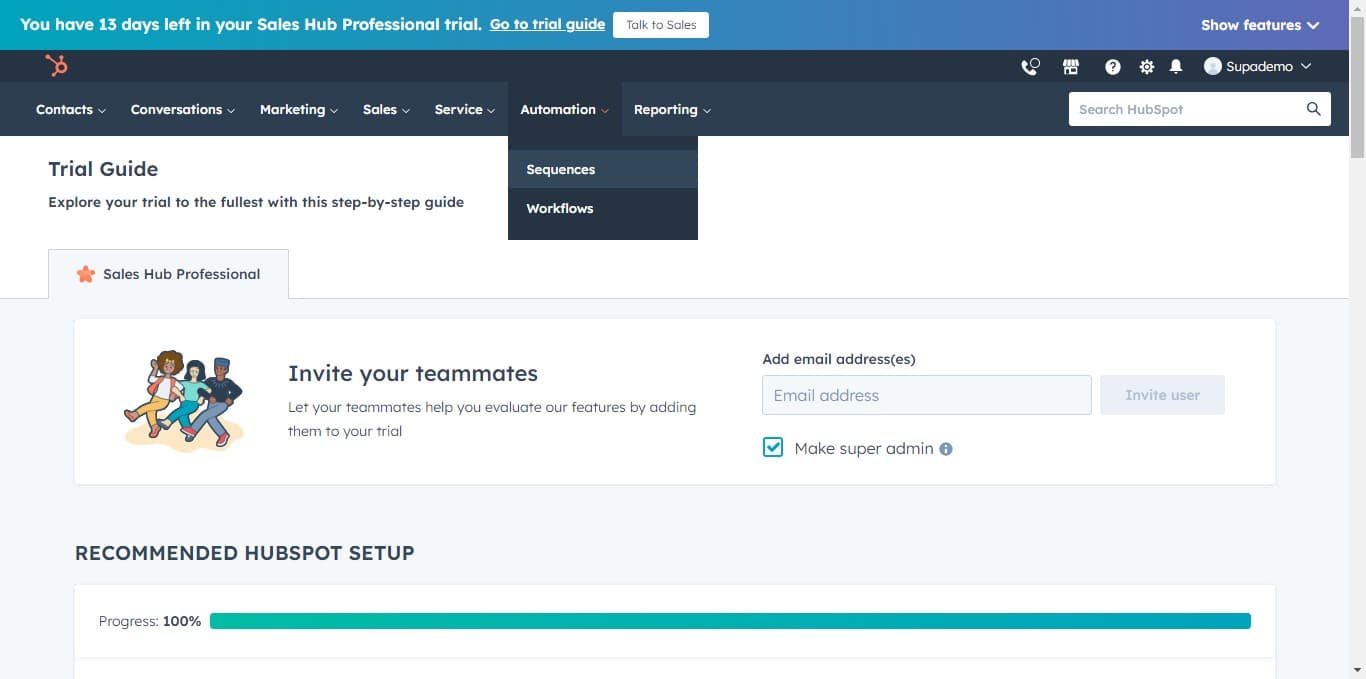
Click on "Sequences" from the automation menu options. You'll see a list of existing sequences and options to create new ones.
- 3
Start creating from scratch
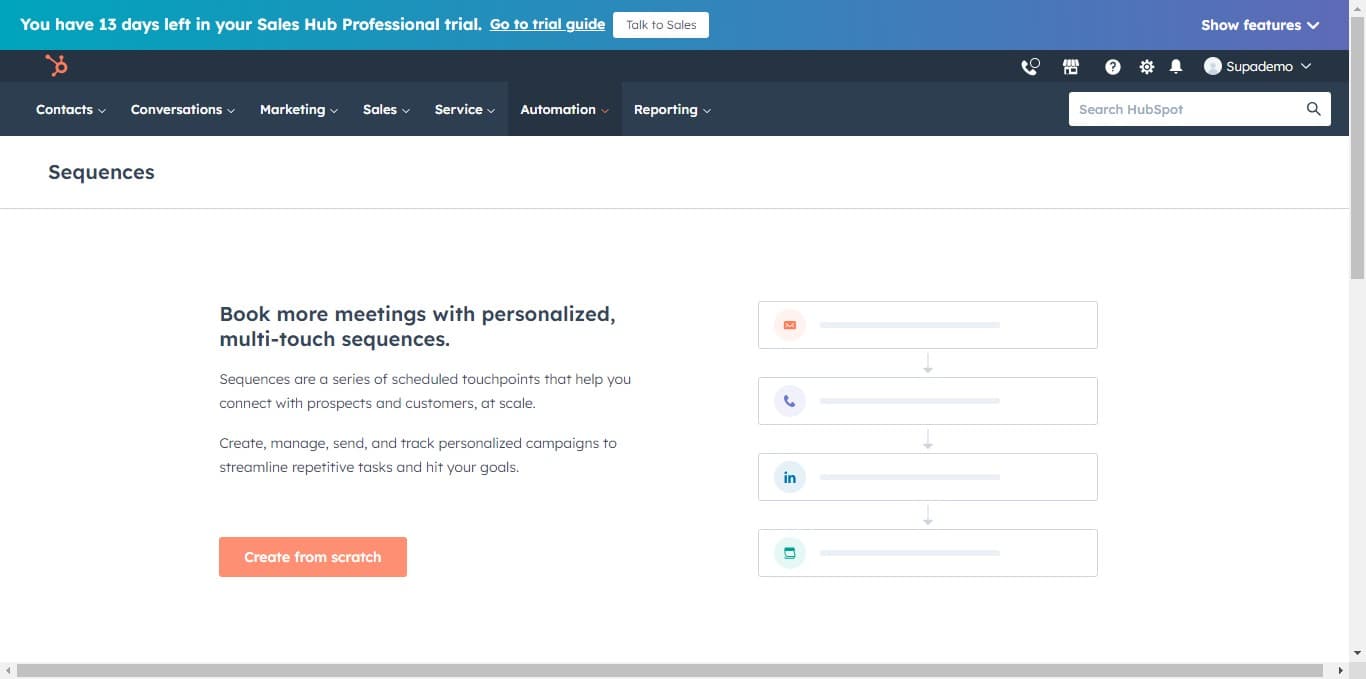
Click on "Create from scratch" to begin building a new sequence. This gives you a blank canvas to design your automation workflow without using pre-built templates.
- 4
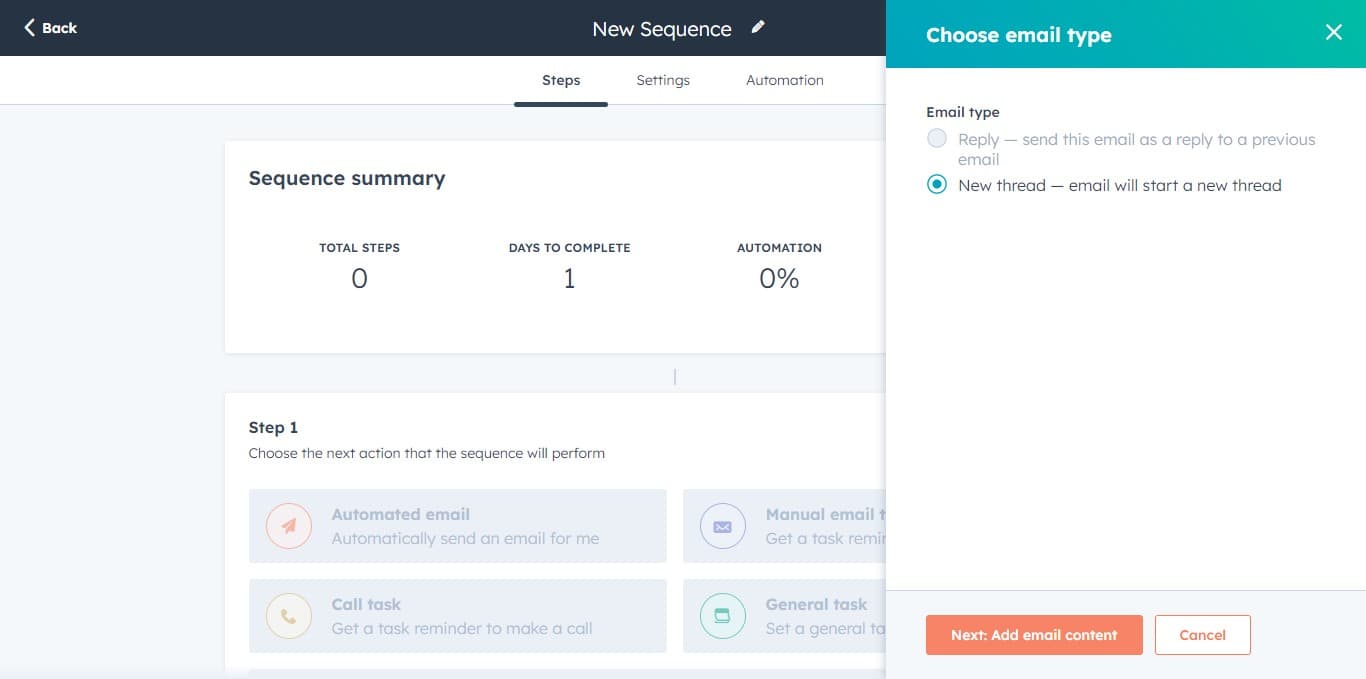
Select Automated email option
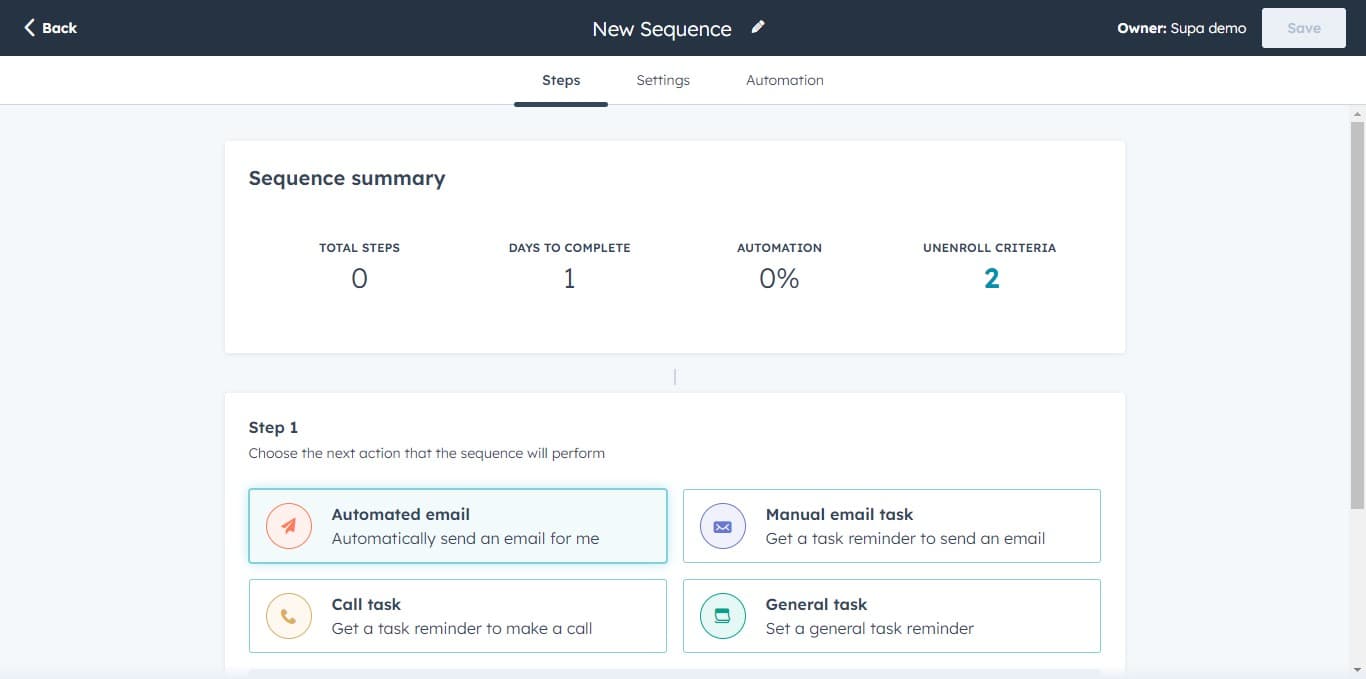
Click on "Automated email" to add the first step of your sequence. This step will send emails to contacts automatically based on your configuration.
- 5
Proceed to email content
Click on "Next: Add email content" to move to the email composition stage. Here you'll define what your automated email will say to recipients.
- 6
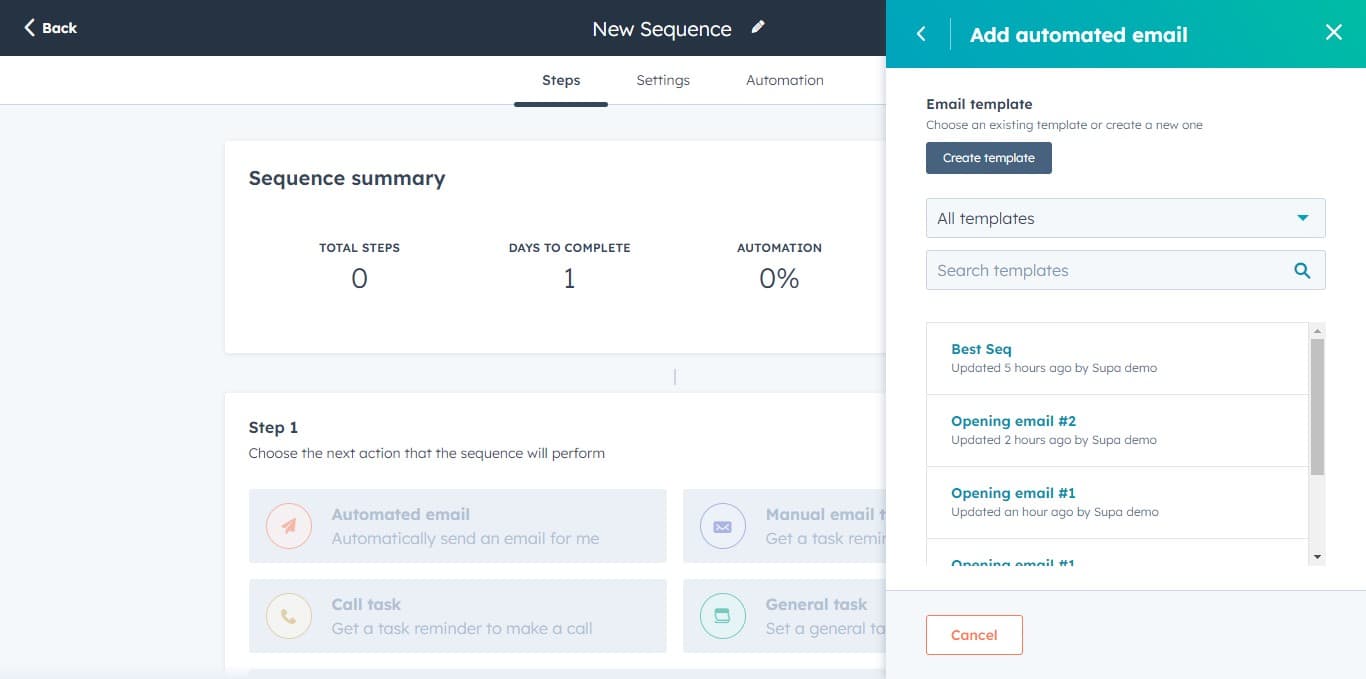
Create a new email template
Click on "Create template" to build a custom email from scratch. This allows you to design personalized content that matches your brand and message.
- 7
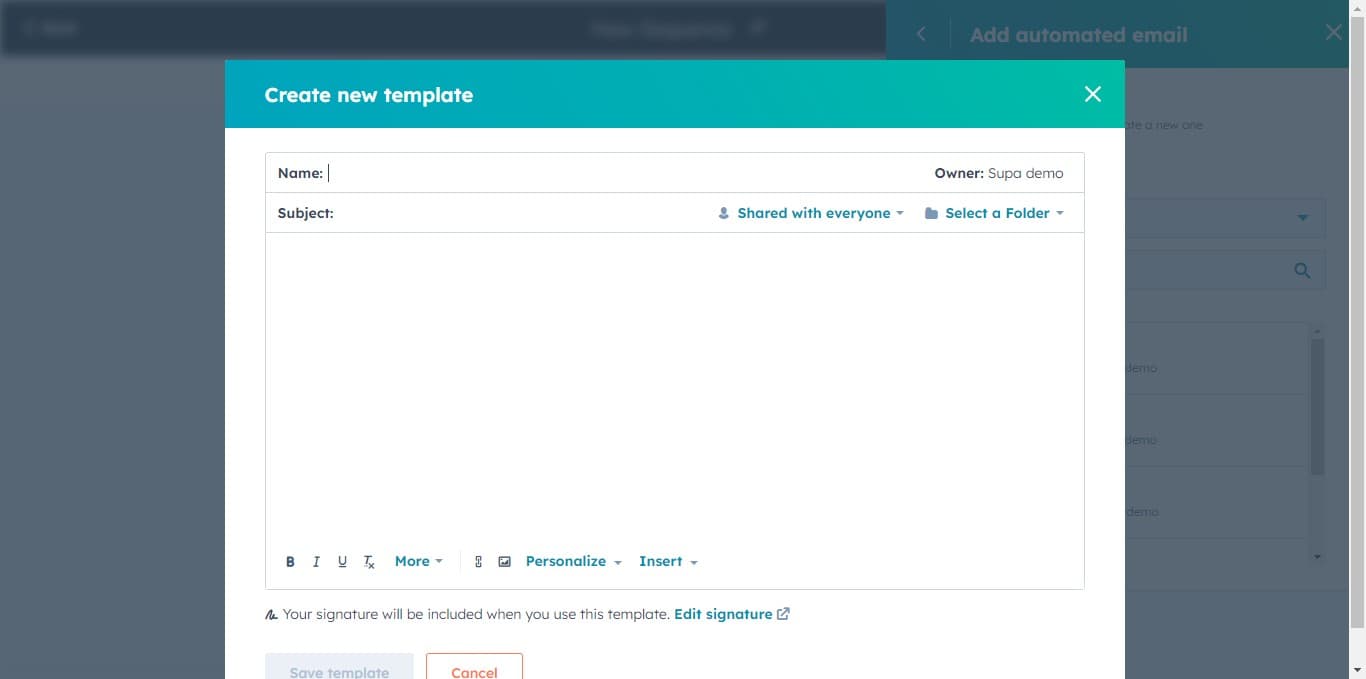
Begin template composition
Click in the editor area to start writing your email content. The template editor is now active and ready for you to input your message.
- 8
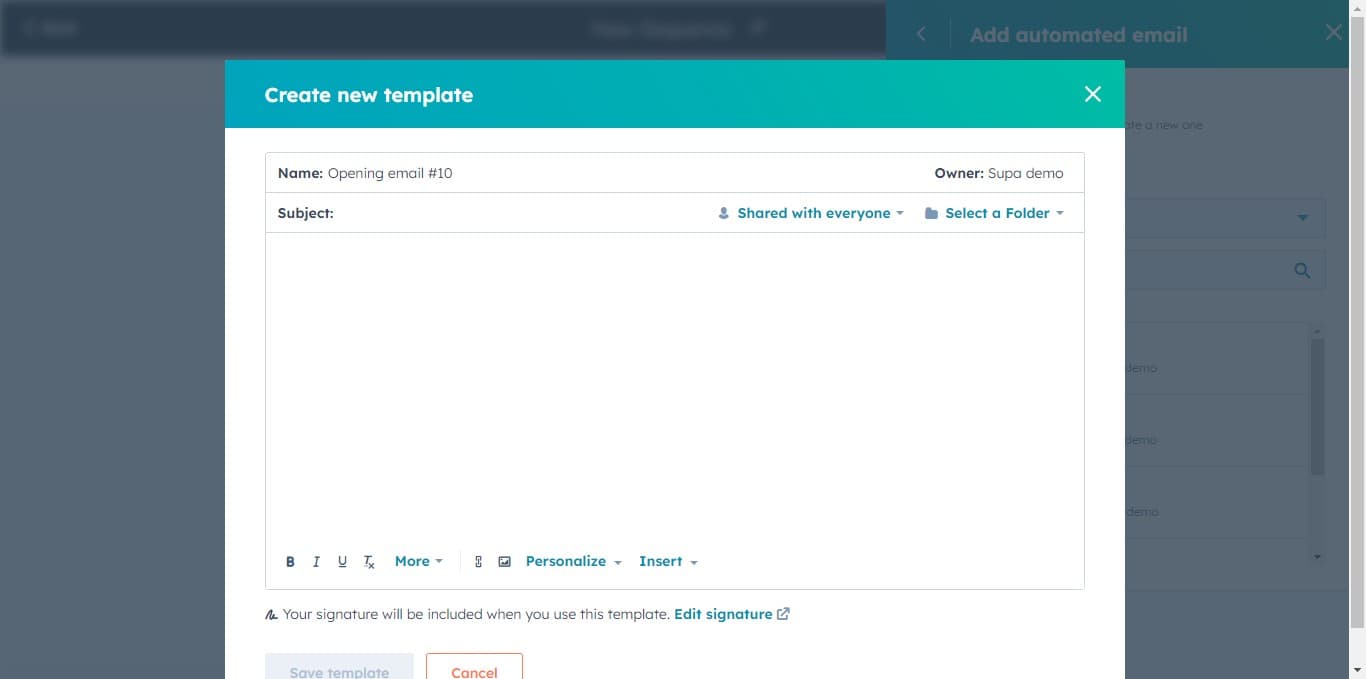
Add email subject line
Click on the subject line field and enter a compelling subject that will encourage opens. A clear, personalized subject line increases engagement rates.
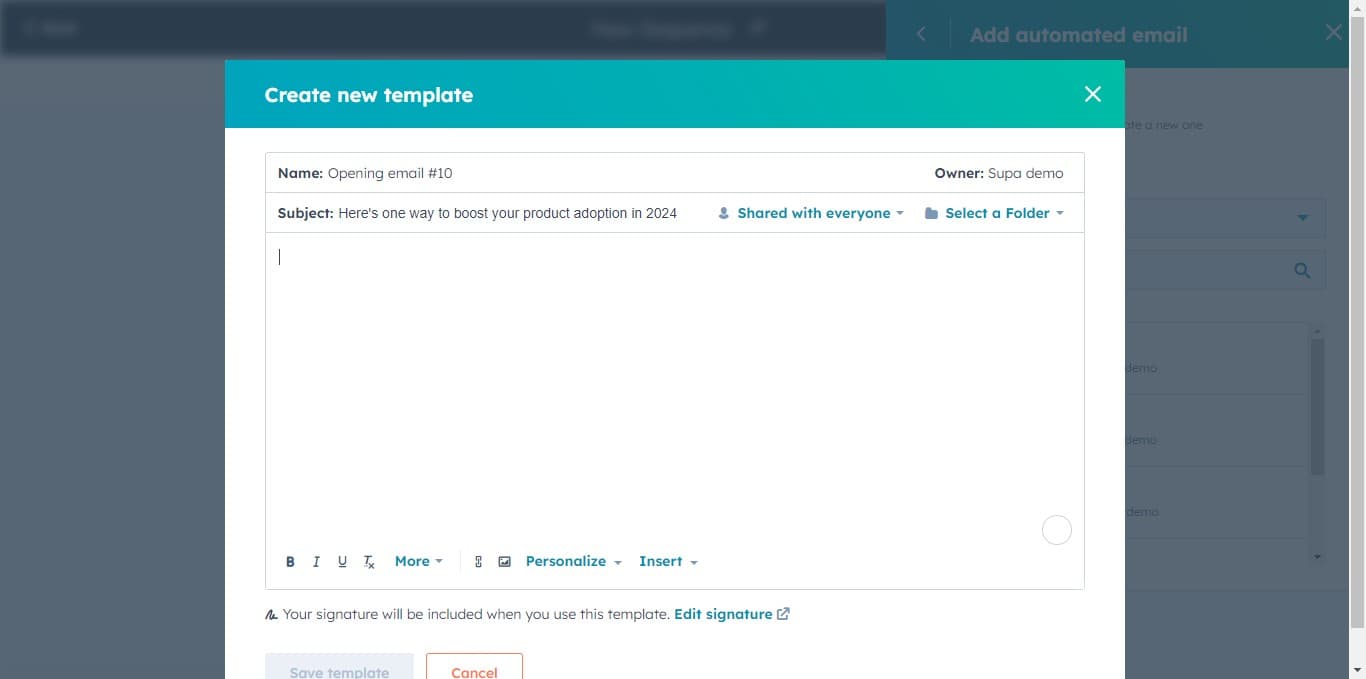
- 9
Enter email body content
Click on the body section and compose your email message. Keep it concise and action-oriented to maintain recipient interest.
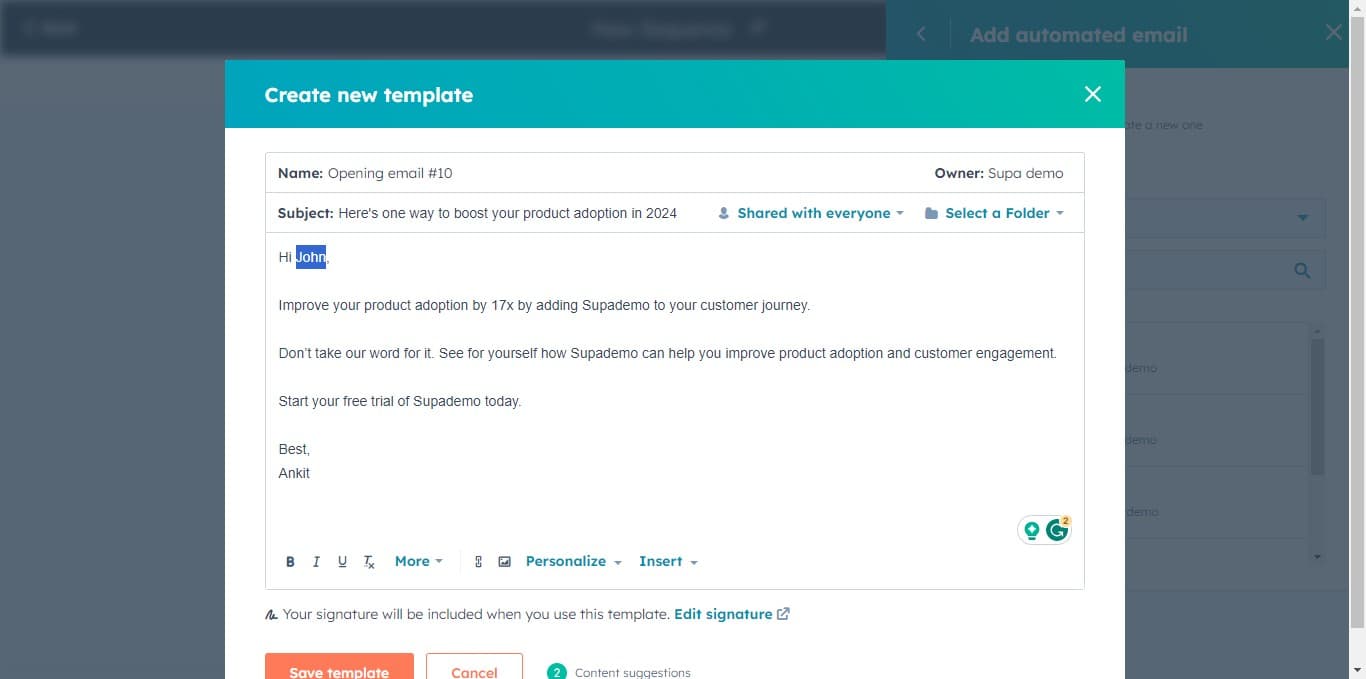
- 10
Select greeting text
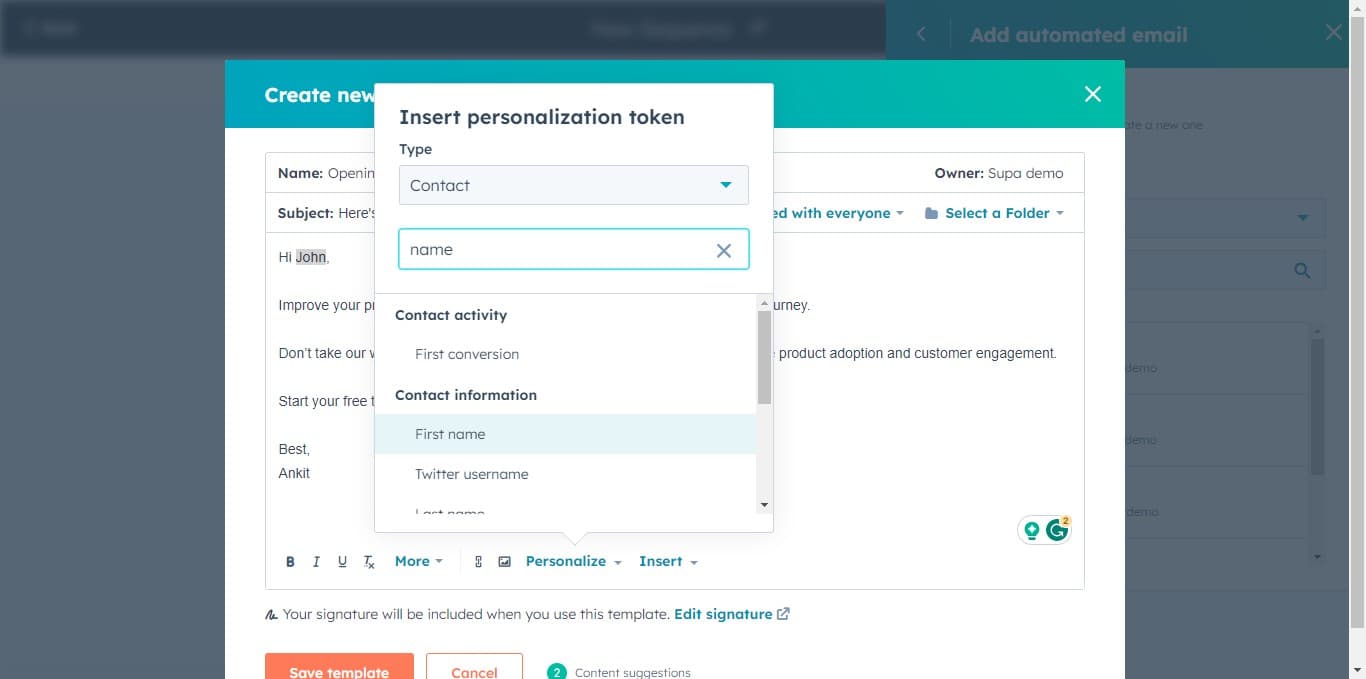
Click on "Hi John," to highlight the greeting section. This part will be personalized for each recipient using HubSpot's dynamic fields.
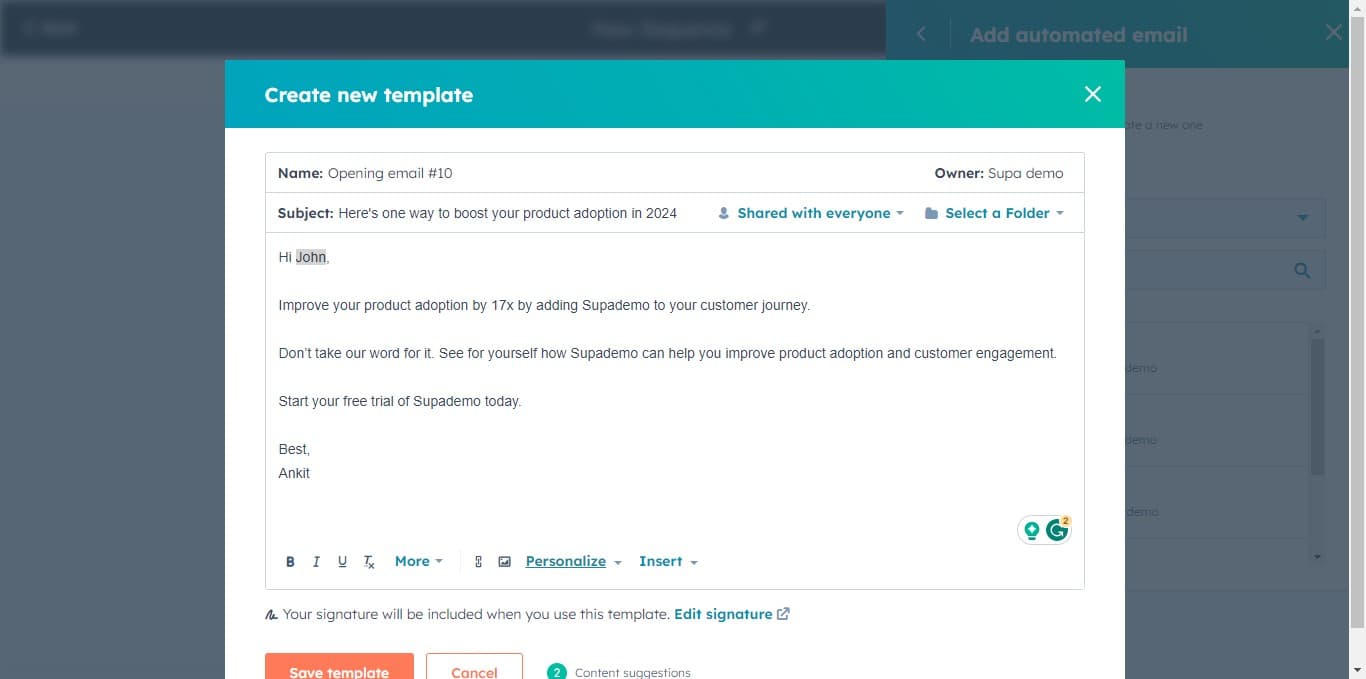
- 11
Personalize the greeting
Click on "Personalize" to open the personalization menu. This allows you to replace static names with dynamic fields that pull from contact records.
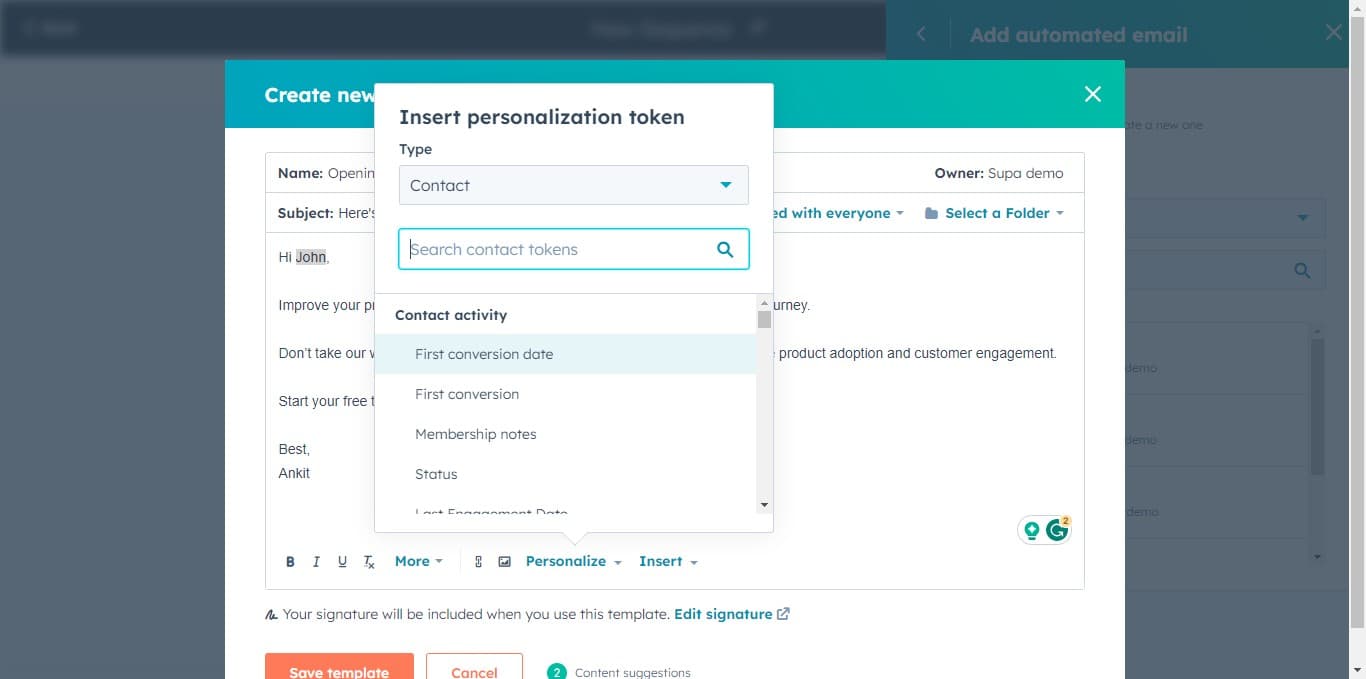
- 12
Insert personalization field
Click in the field insertion area to add dynamic contact data. This will allow you to insert merge tags that automatically populate recipient information.
- 13
Choose first name field
Click on "First name" from the available personalization options. This will insert a merge tag that displays each recipient's first name in the email.
- 14
Save your email template
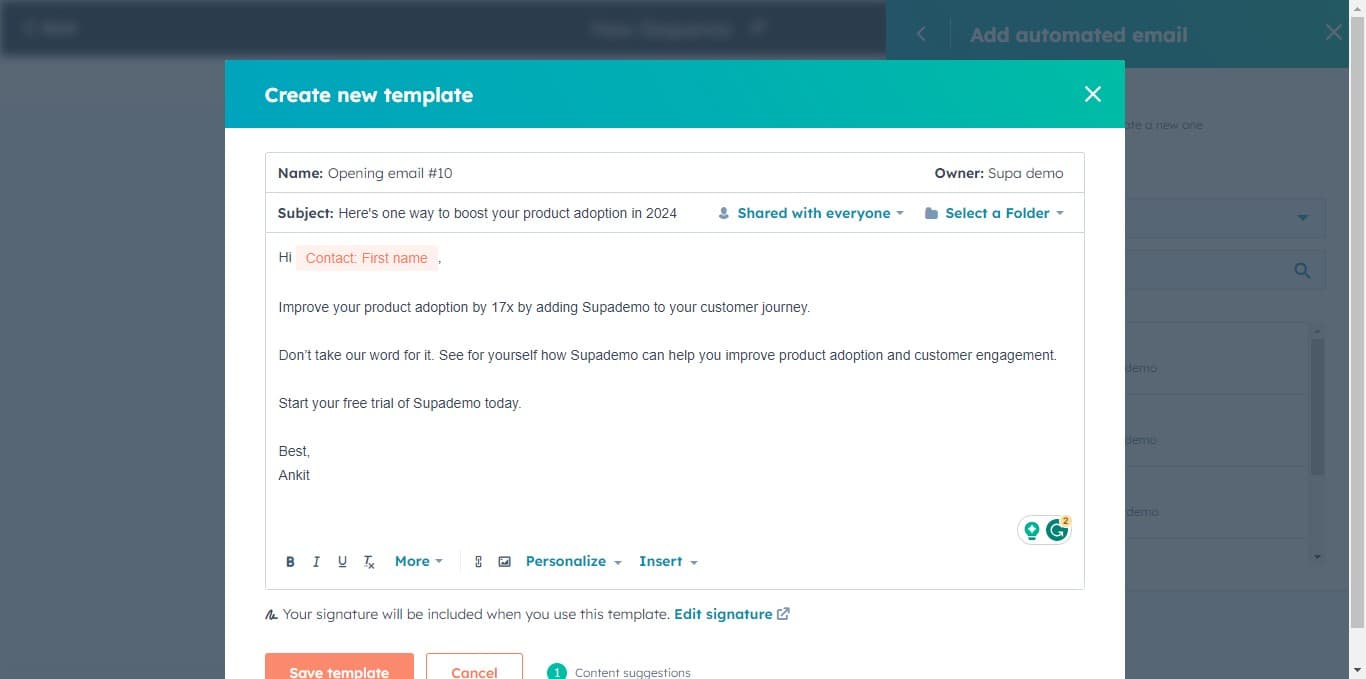
Click on "Save template" to store your personalized email design. Your template is now ready to be used in this sequence.
- 15
Confirm template selection
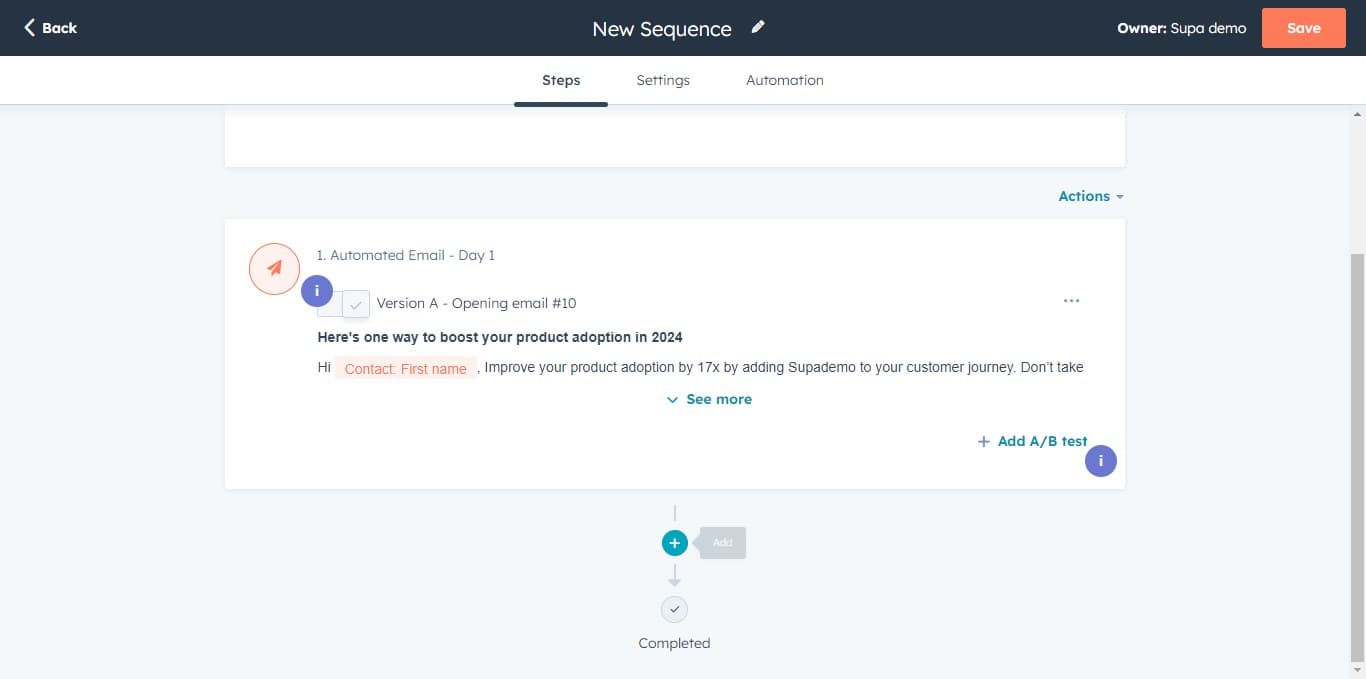
Click to confirm that your saved template is selected for this email step. The template will now be associated with this automated email action.
- 16
Add a follow-up task
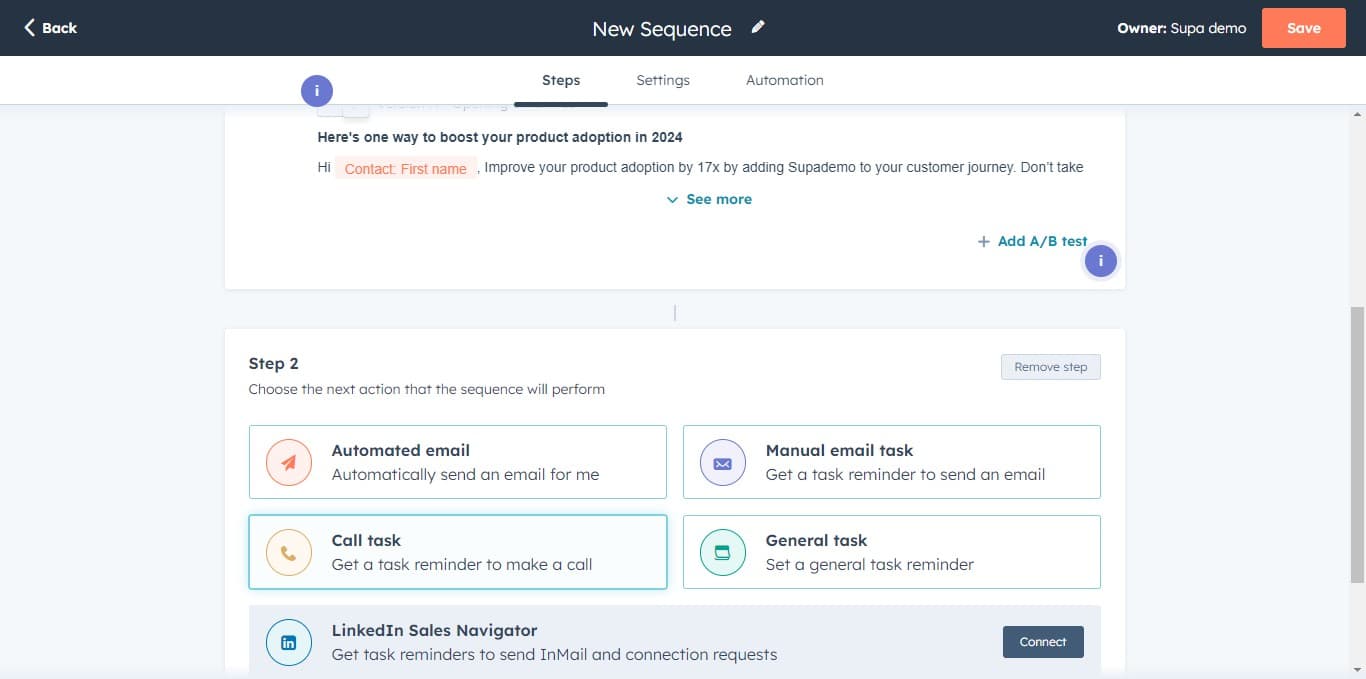
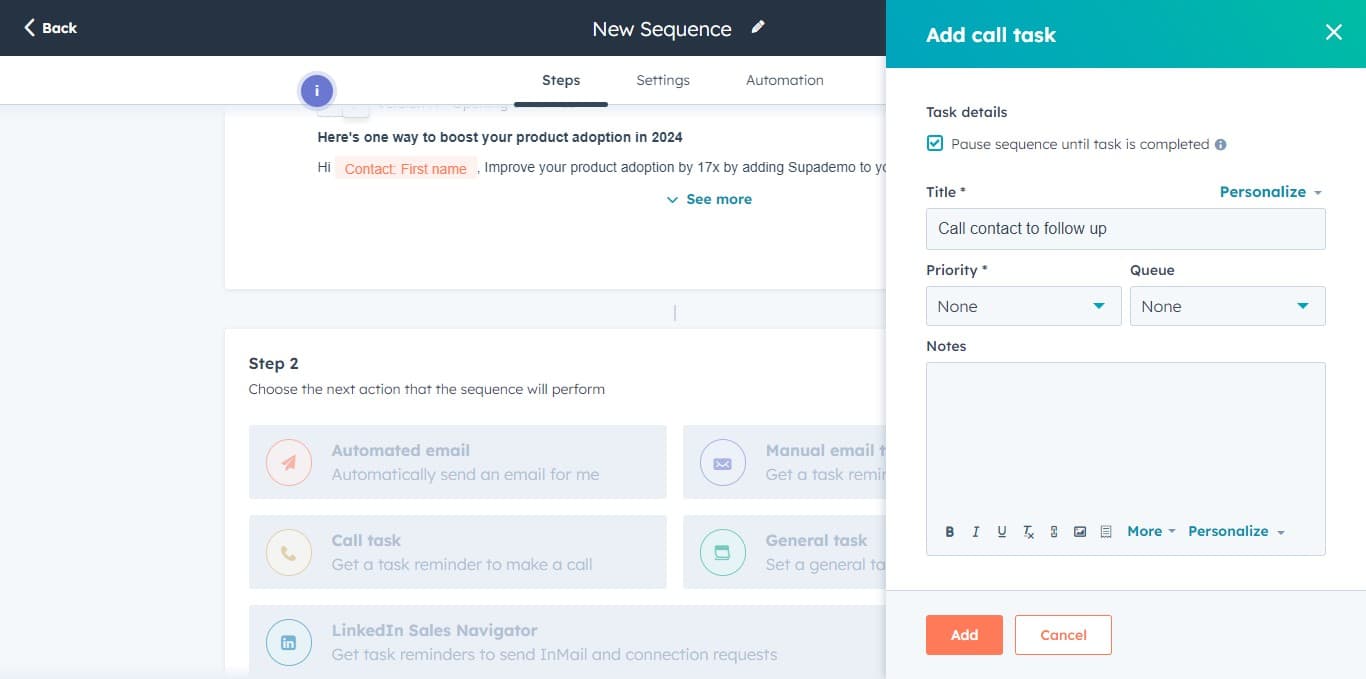
Click on "Get a task reminder to make a call" to add a task step to your sequence. This ensures your sales team follows up with personal outreach after the email.
- 17
Set task frequency
Click on "None" to specify when the task reminder should be triggered. You can configure this to occur immediately after the email or after a set delay.
- 18
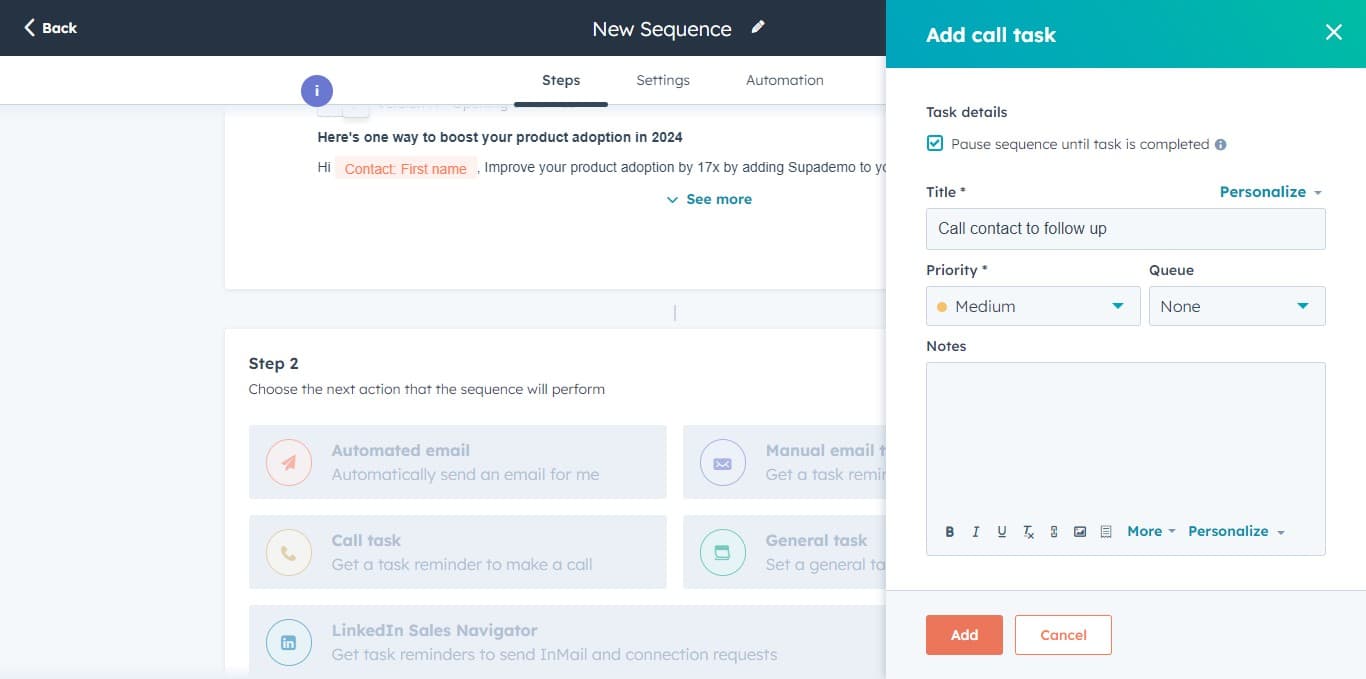
Confirm task addition
Click on "Add" to include this task step in your sequence. The reminder will now appear in your team's task list at the designated time.
- 19
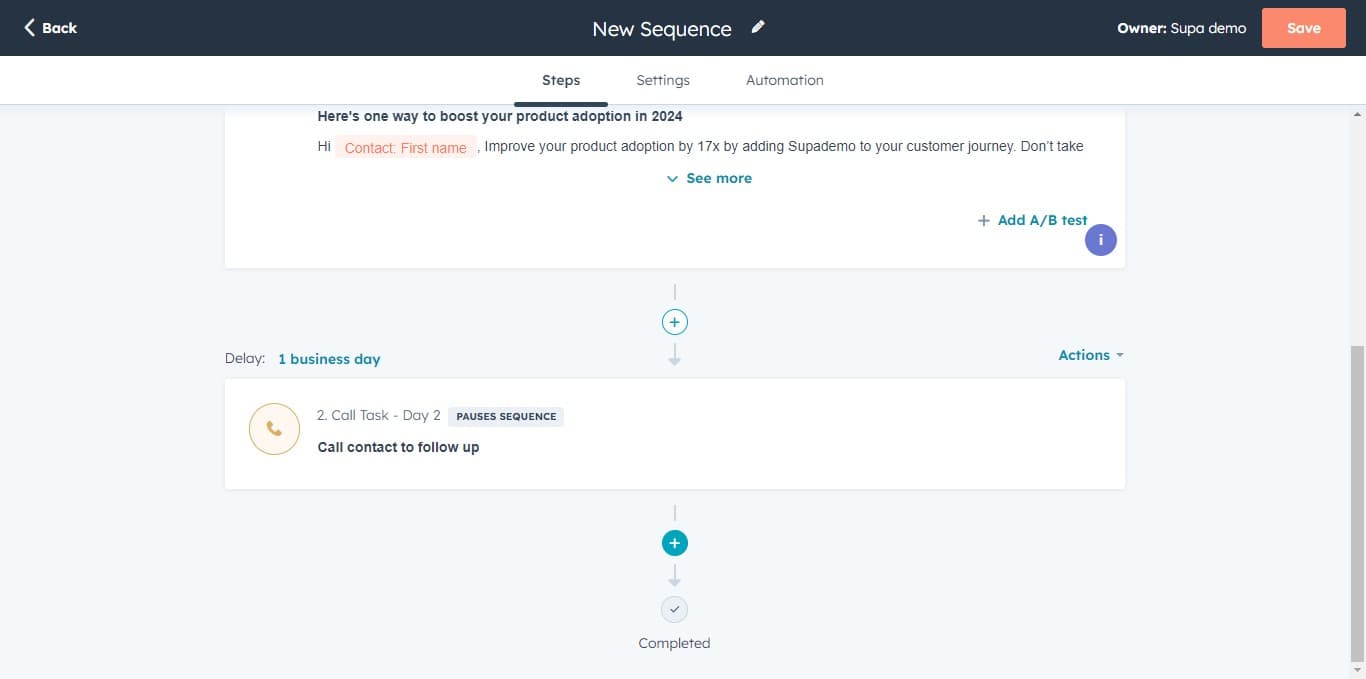
Save your sequence
Click on "Save" to finalize your complete sequence with all email and task steps. Your sequence is now live and ready to be applied to contacts.
Frequently asked questions
Common questions about how to create and edit sequences in hubspot.
Yes, you can edit sequences in HubSpot at any time. Navigate to your sequence, make the desired changes to email templates, timing, or task reminders, and save your updates. Changes typically apply to new enrollments, while existing contacts may continue on the previous version depending on your settings.
Use HubSpot's personalization feature by clicking the Personalize button in your email template. From there, you can insert merge tags for any contact property stored in your CRM, such as first name, company, job title, or custom fields. Each recipient will see their specific information in the email.
Creating from scratch gives you complete control to build a custom workflow tailored to your specific sales process. Using a template provides a pre-designed sequence you can quickly customize. Choose from scratch if you have a unique approach, or use a template to save time with proven structures.
Yes, you can add multiple email steps to a sequence with delays between them. Each email can have different content, timing, and conditions. This allows you to create a multi-touch nurture sequence that gradually engages prospects over time.
Task reminders alert your sales team to take manual action at a specific point in the sequence, such as making a phone call. You can set the reminder to trigger immediately after an email or after a certain delay. Team members will see the task in their HubSpot task list with all relevant contact information.