How to Merge Companies in HubSpot

Merging duplicate company records in HubSpot helps maintain data integrity and prevents confusion when managing contacts and deals. This guide walks you through the process of identifying and consolidating duplicate companies into a single, unified record.
Quick summary
In this tutorial, you'll learn how to merge duplicate companies in HubSpot by navigating to your company records, selecting the duplicate entry, and using the merge function to consolidate them. You'll discover how to search for and confirm the target company before finalizing the merge.
Why this matters
Duplicate company records can skew your reporting, fragment customer relationships, and create inefficiencies in your sales pipeline. Merging companies ensures your database remains clean, your team has a single source of truth, and your analytics reflect accurate business metrics.
Step-by-step guide
- 1
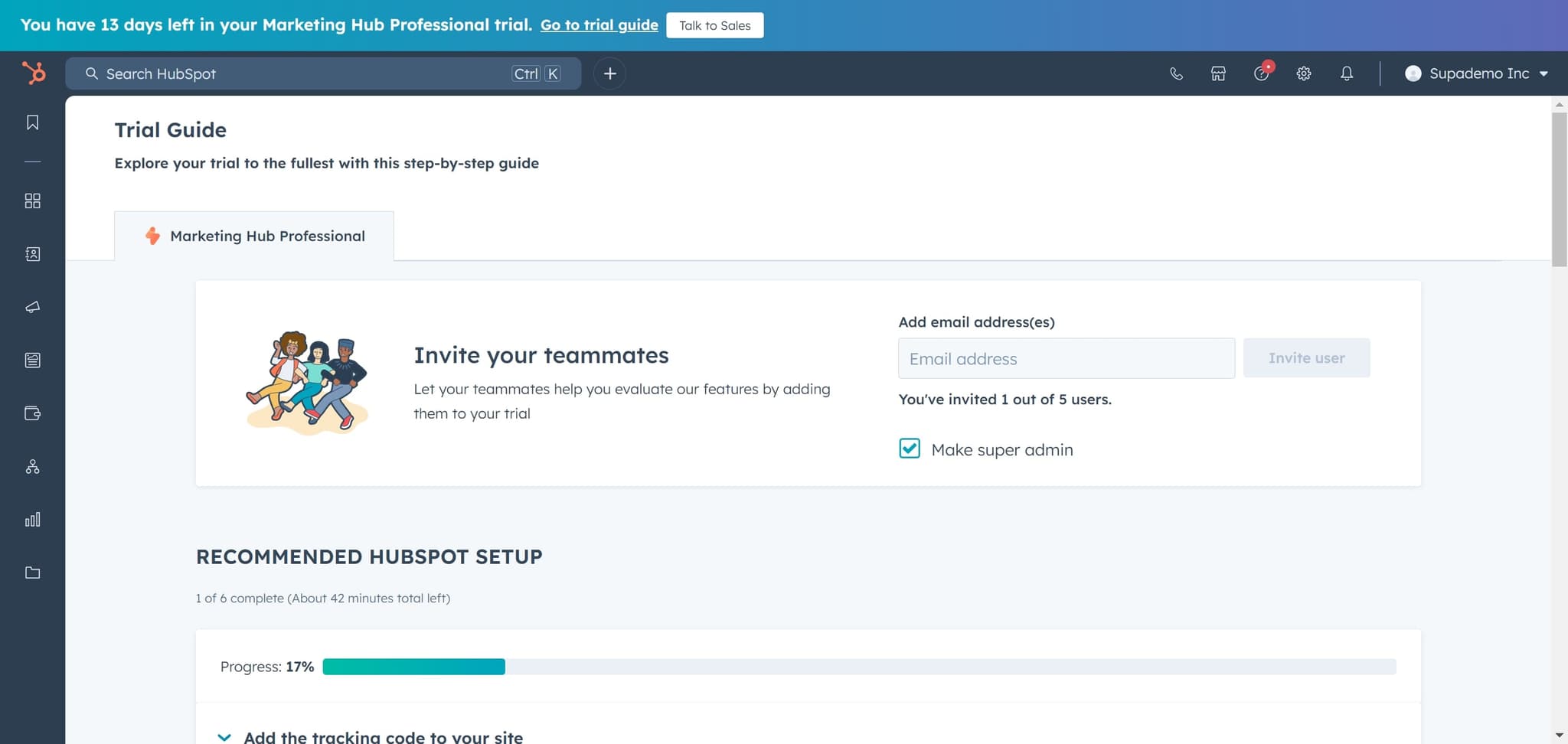
Access the Trial Guide
Click on 'Trial Guide' to begin the walkthrough. This opens the guided interface for managing your HubSpot companies.
- 2
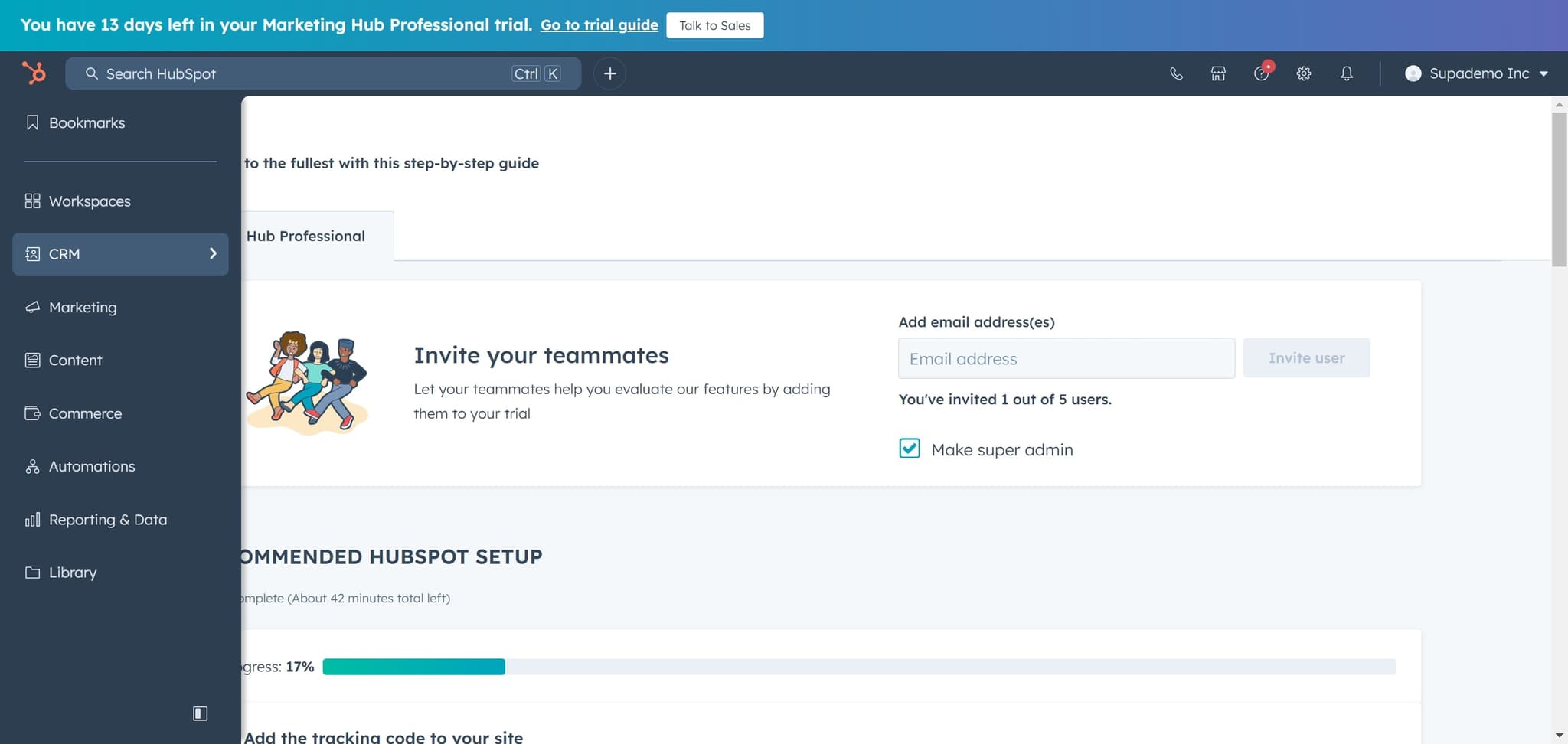
Click on the element
Click on the designated element to proceed to the next stage of the guide. This action will prepare you to access your company list.
- 3
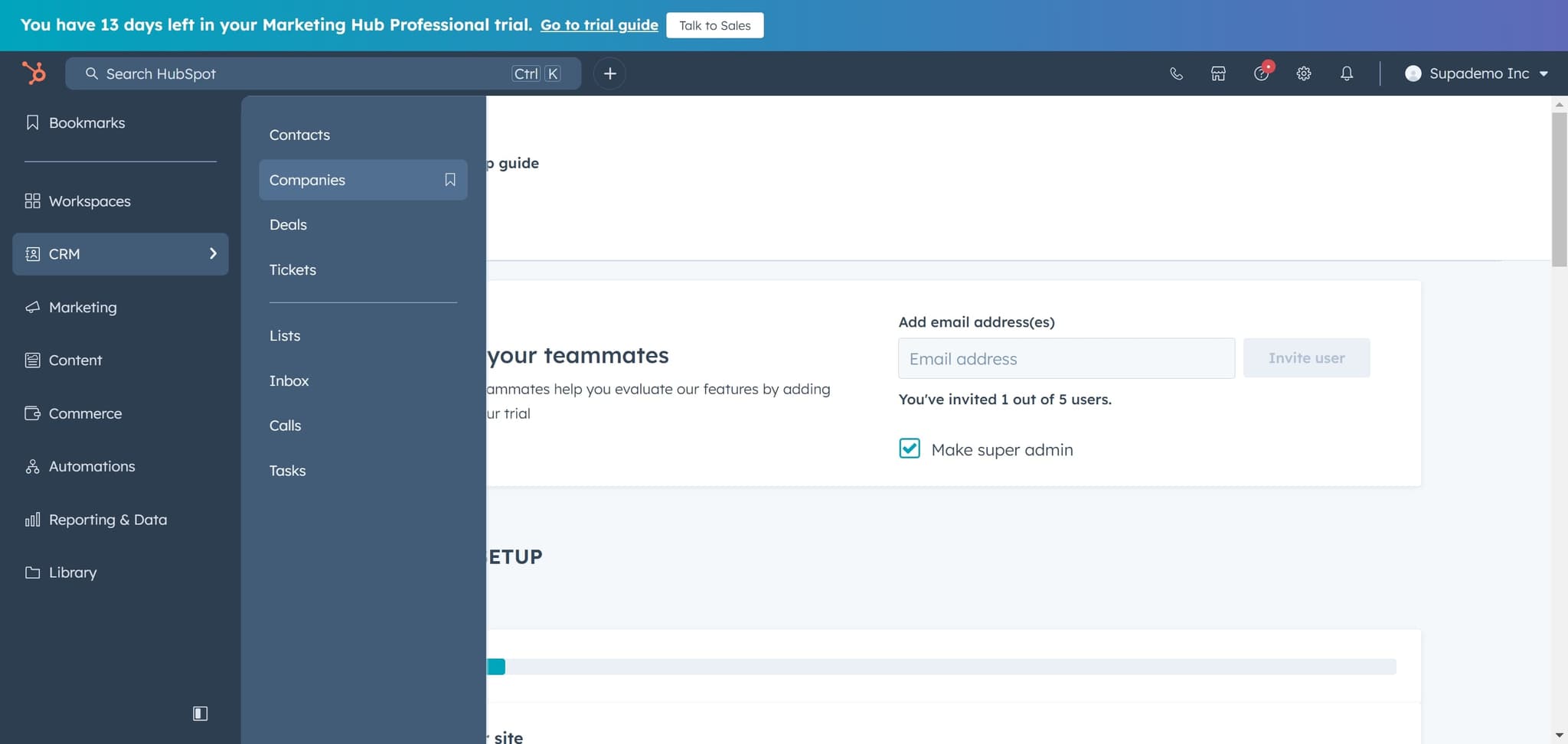
Navigate to Companies
Click on 'Companies' to view your company database. You'll see a list of all companies currently in your HubSpot account.
- 4
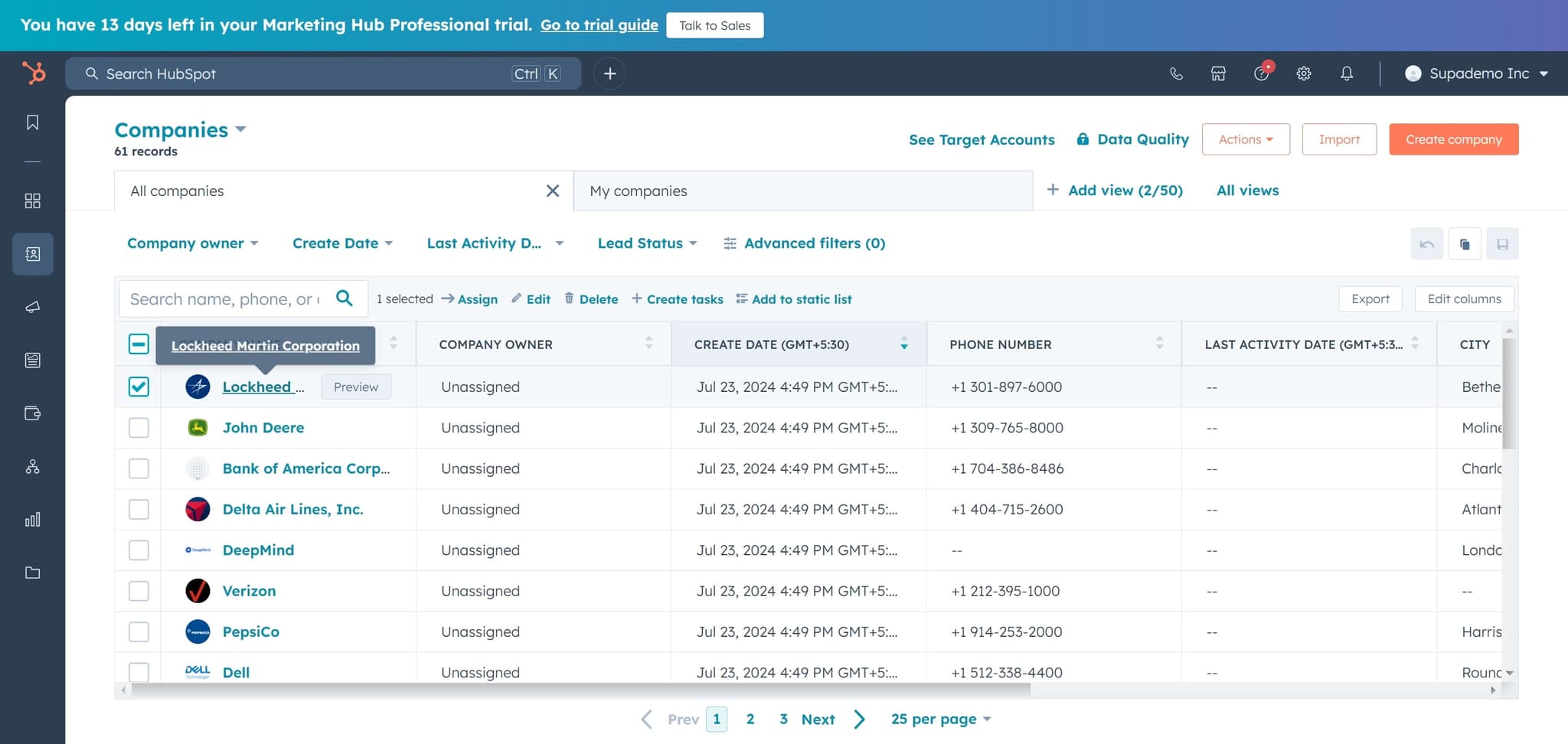
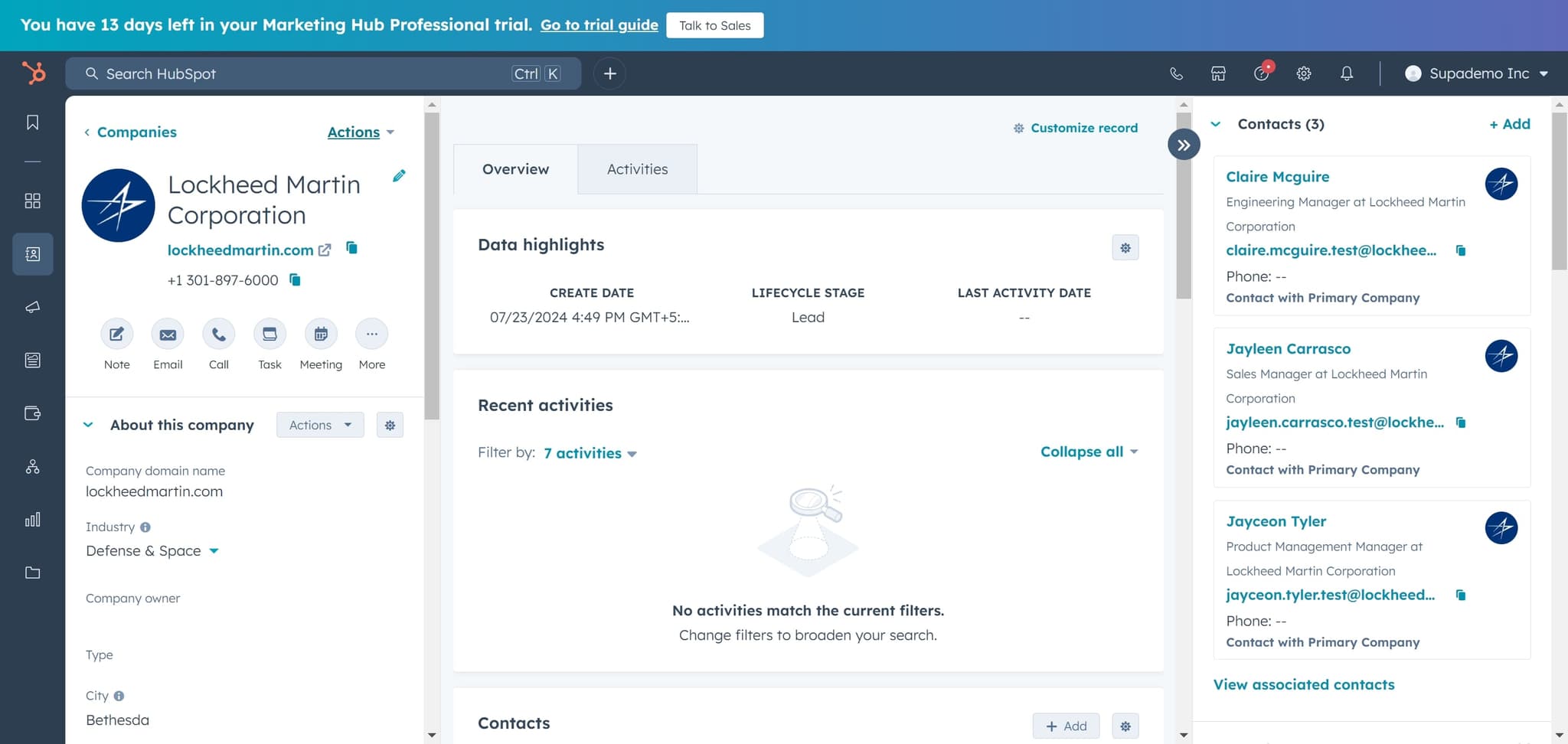
Select the duplicate company
Click on 'Lockheed Martin Corporation' (or the duplicate company record you want to merge). This opens the company detail page where you can initiate the merge action.
- 5
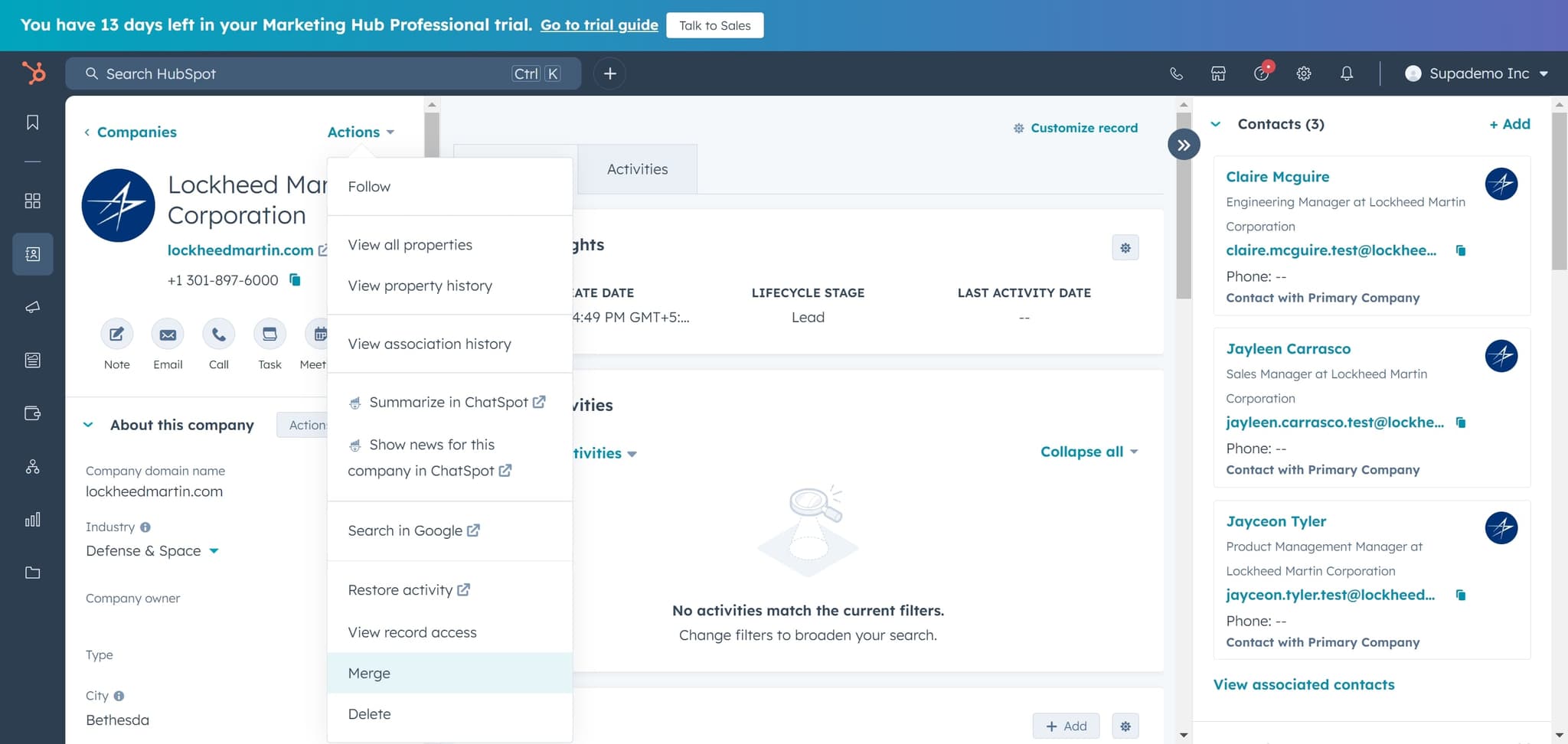
Open the Actions menu
Click on 'Actions' to reveal a dropdown menu of available operations for this company record. This menu contains the merge option.
- 6
Click Merge
Select 'Merge' from the Actions menu to begin the merge process. HubSpot will prepare the interface for you to select which company record to merge this one into.
- 7
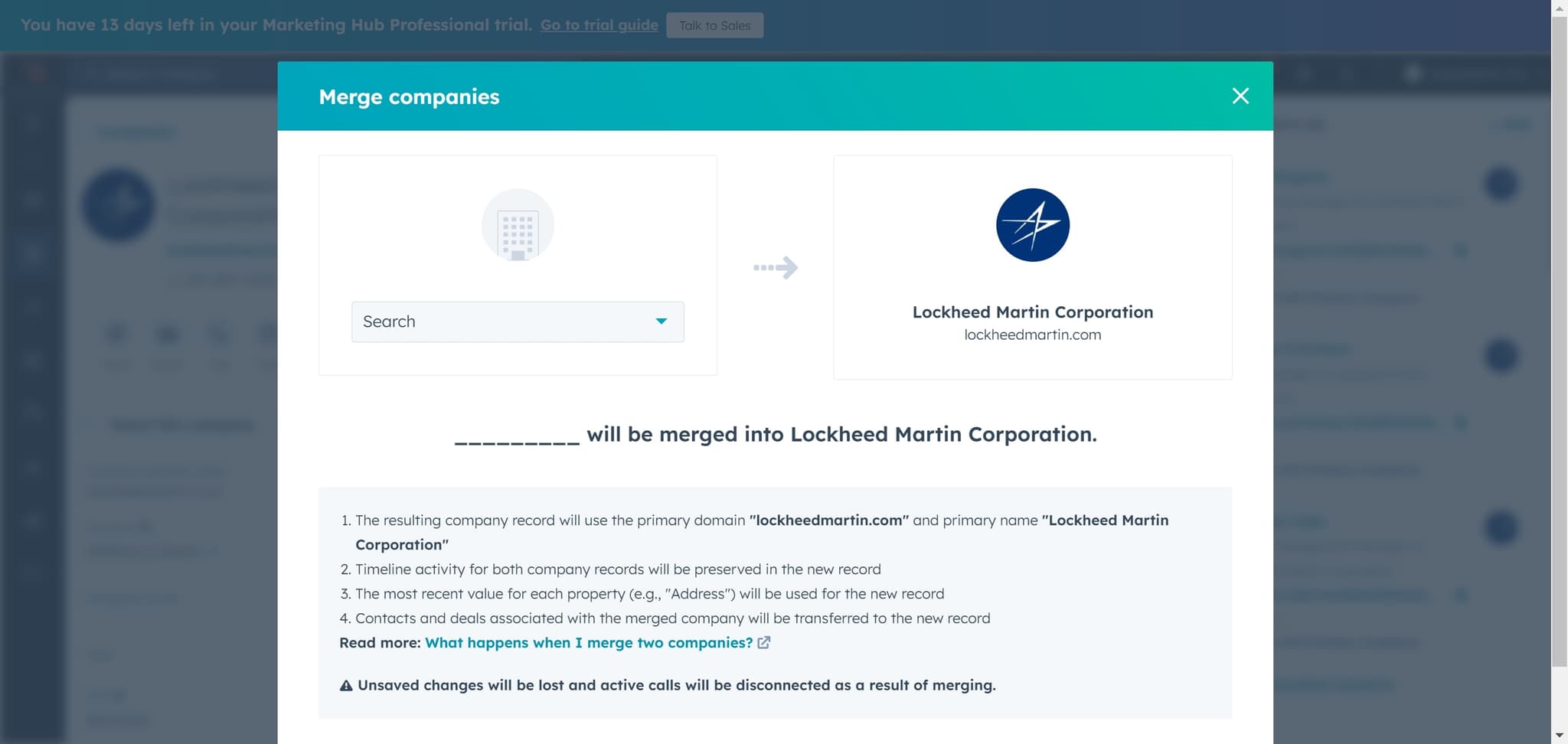
Search for target company
Click on 'Search' to find the company record you want to merge this duplicate into. Enter the company name or details to locate the primary record.
- 8
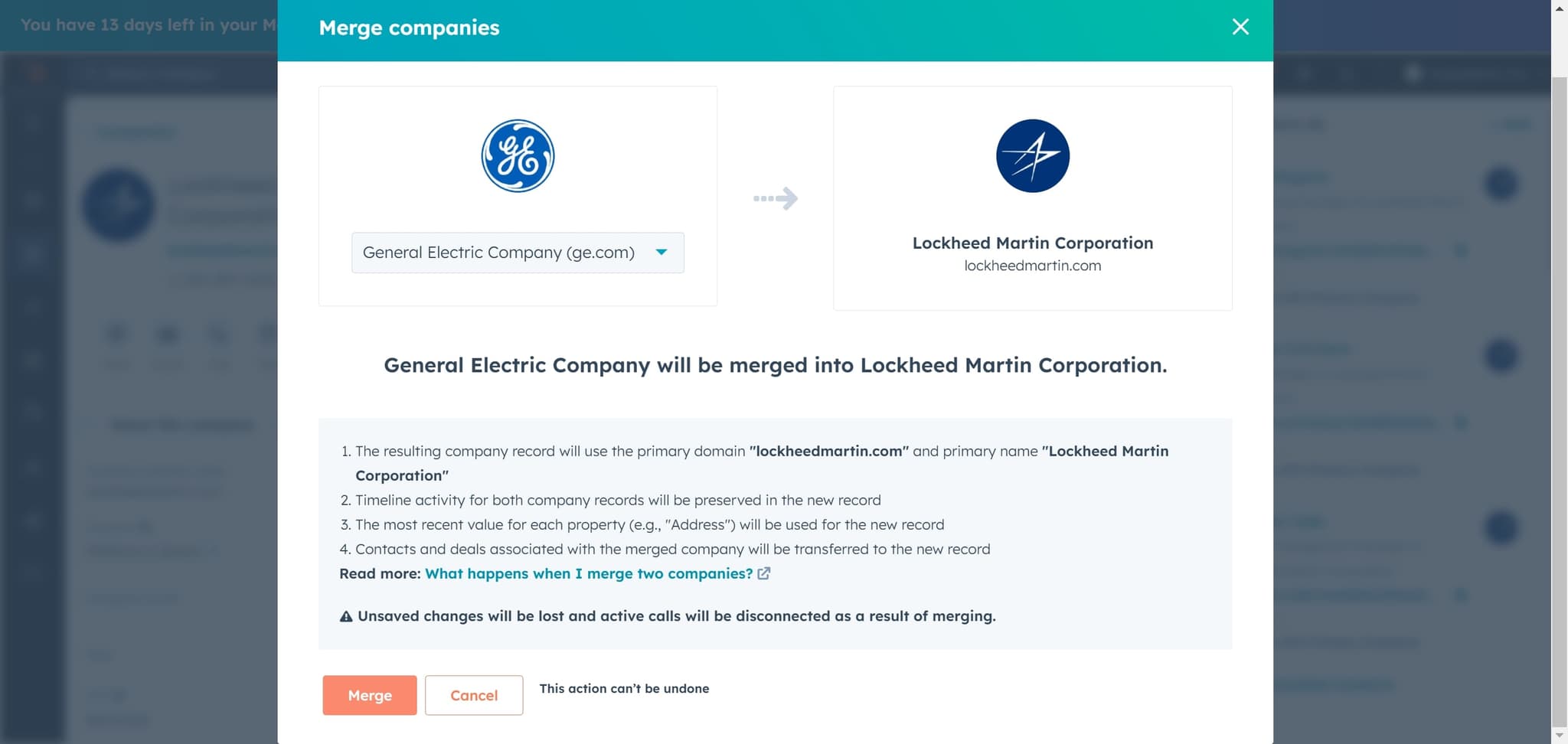
Confirm the merge
Click 'Merge' to finalize the consolidation of the two company records. HubSpot will combine all associated contacts, deals, and activity history into the primary company record.
Frequently asked questions
Common questions about how to merge companies in hubspot.
HubSpot does not provide a built-in undo function for merges, so it's important to verify you're merging the correct records before confirming. If you need to recover data, contact HubSpot support immediately after the merge occurs, as they may be able to assist within a limited timeframe.
When you merge companies, HubSpot combines contact records, deal history, and activity timelines into the primary company record. Custom properties and historical data are preserved, though some properties may be mapped according to HubSpot's merge rules.
Choose the company record with the most complete and up-to-date information as the primary record. Typically, this is the record with more associated contacts, deals, or the most recent activity, as it represents your main relationship with that company.
Use HubSpot's search function to look for similar company names, domains, or account owners. You can also run custom reports or use HubSpot's duplicate detection features if available in your account tier.
Historical data remains intact after a merge, so your past reports and deal records are preserved. However, future reports will consolidate under the primary company record, which may change how data appears in custom dashboards and historical analyses.