How to create a new ticket in Jira

Creating tickets in Jira is fundamental to project management and team collaboration. This guide walks you through the process of creating a new ticket from start to finish, ensuring you capture all necessary information and get your work properly tracked.
Quick summary
In this tutorial, you'll learn how to create a new ticket in Jira by accessing the create function, filling in the summary and description fields, and submitting your ticket for team visibility. By the end, you'll understand the complete workflow and be able to create tickets efficiently for any project.
Why this matters
Creating tickets systematically ensures that all work is documented, assigned, and tracked within your team's workflow. Proper ticket creation reduces miscommunication, prevents tasks from falling through the cracks, and enables better project visibility and prioritization across your organization.
Step-by-step guide
- 1
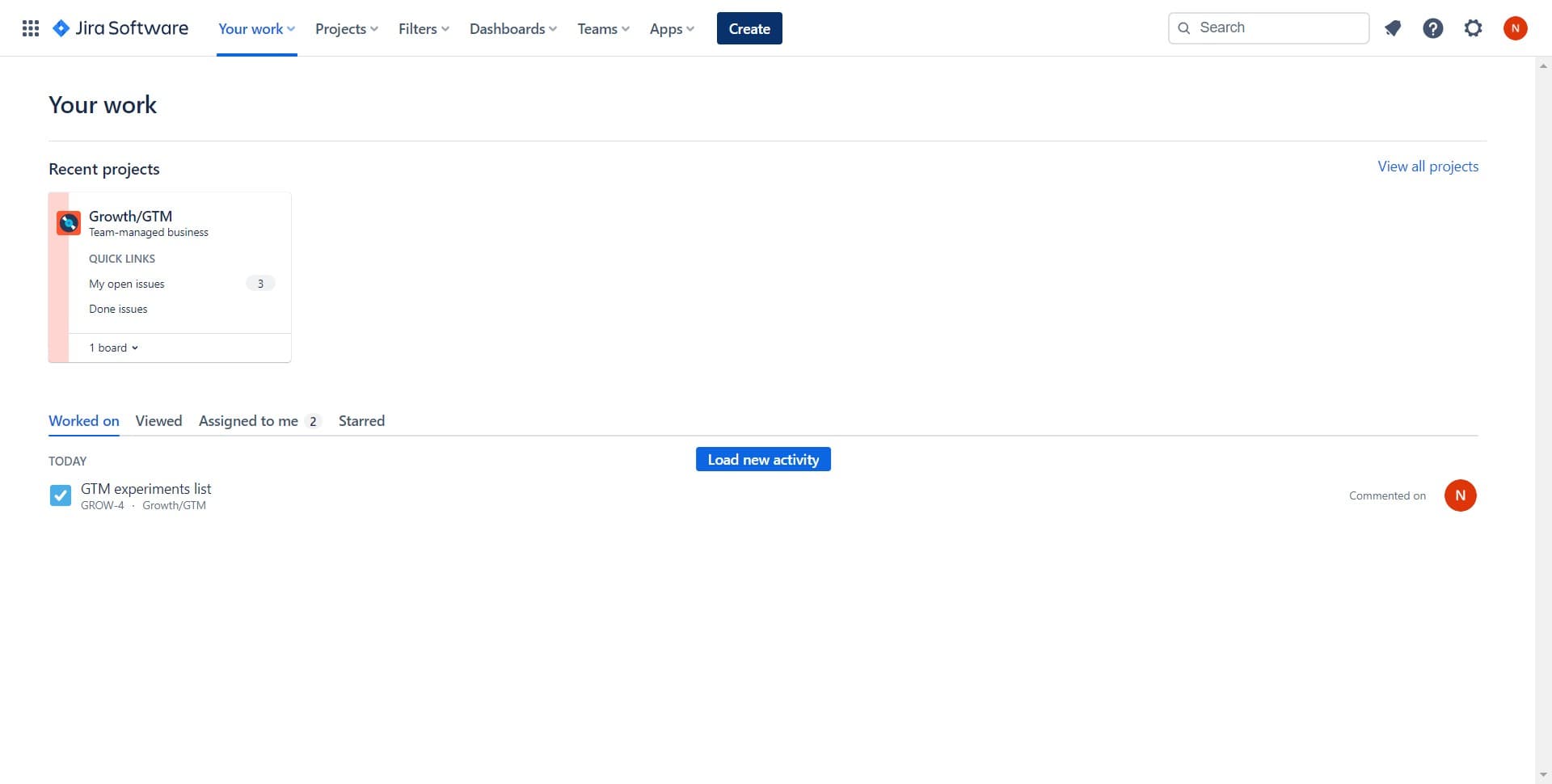
Click on the Create button
Start by locating and clicking the Create button, typically found in the top navigation bar of Jira. This action opens the ticket creation dialog where you'll enter all relevant details for your new issue.
- 2
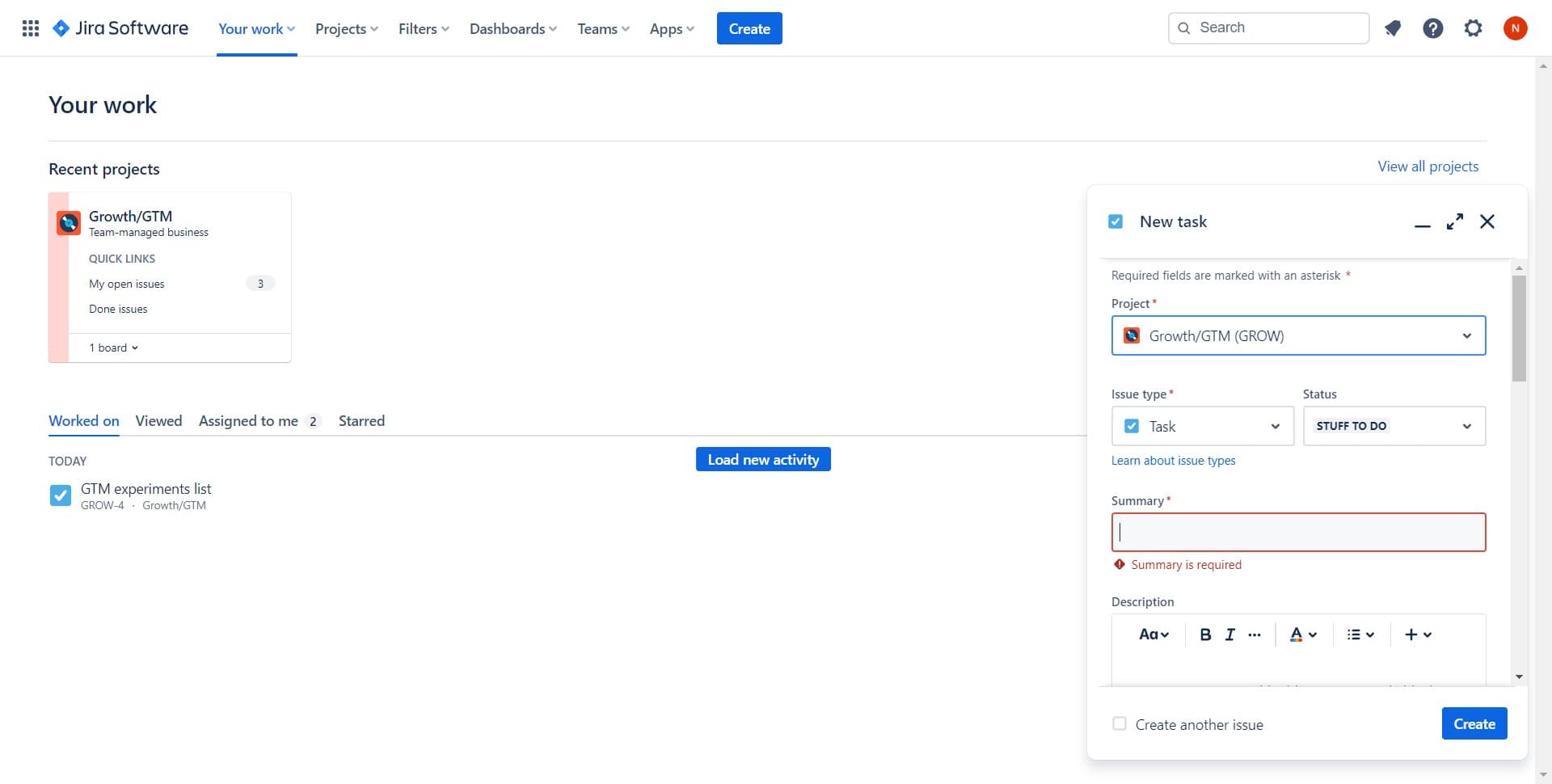
Select the project and issue type
From the creation form, choose the appropriate project where your ticket belongs and select the issue type that best fits your work (such as Bug, Task, Story, or Epic). The interface will guide you to select these before proceeding.
- 3
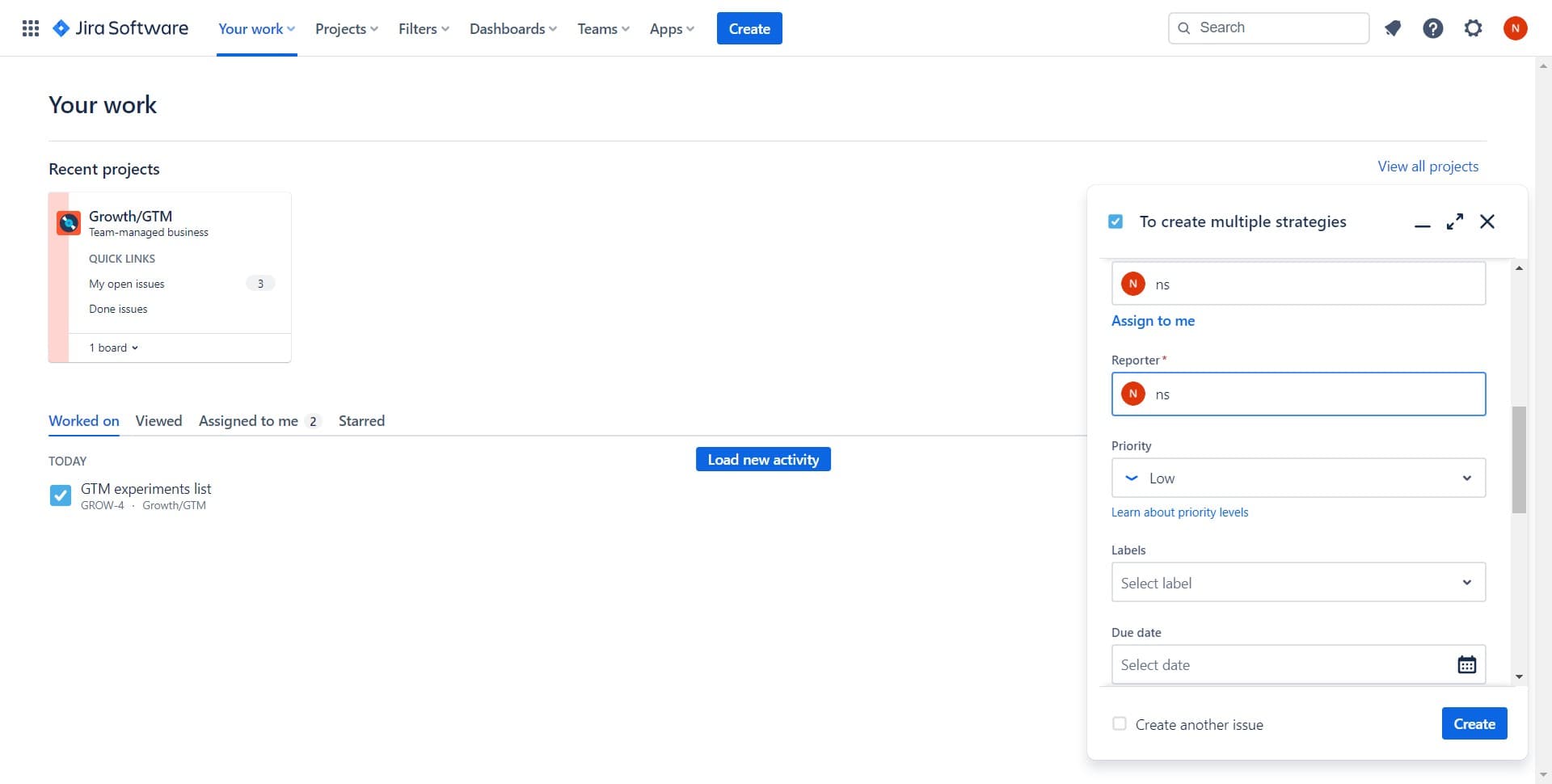
Enter the summary and description
Fill in the Summary field with a clear, concise title for your ticket, and add detailed information in the Description field. The Summary is required and should accurately represent the work to be done, while the Description provides context and acceptance criteria.
- 4
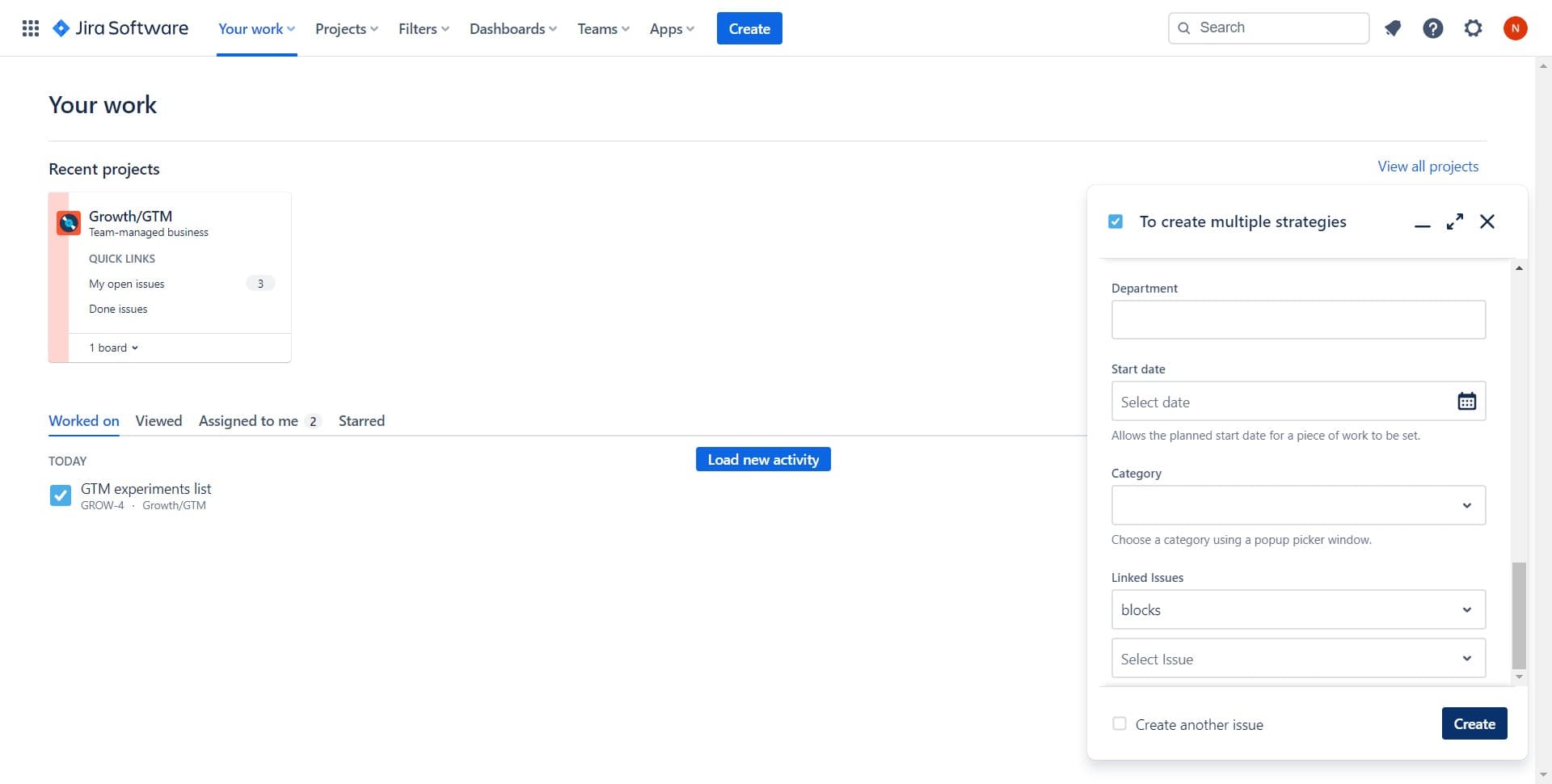
Submit the ticket
Click the Create button to finalize and submit your new ticket. Jira will process the submission and generate a unique ticket ID for tracking and reference.
- 5
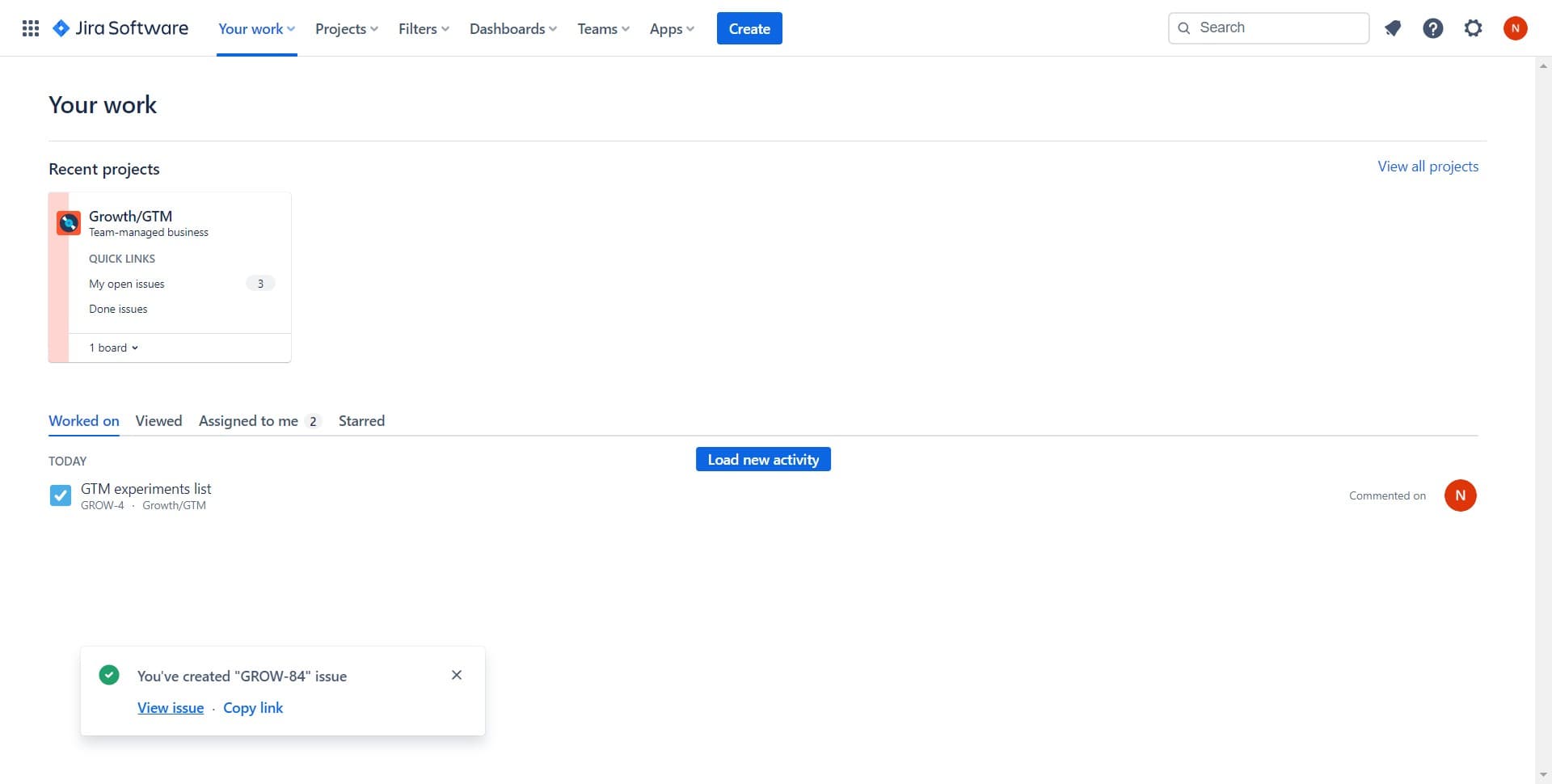
View the created issue
After creation, you'll be presented with an option to view the newly created issue. Click View issue to see the ticket details page, where you can assign it, add labels, set priority, and monitor its progress.
- 6
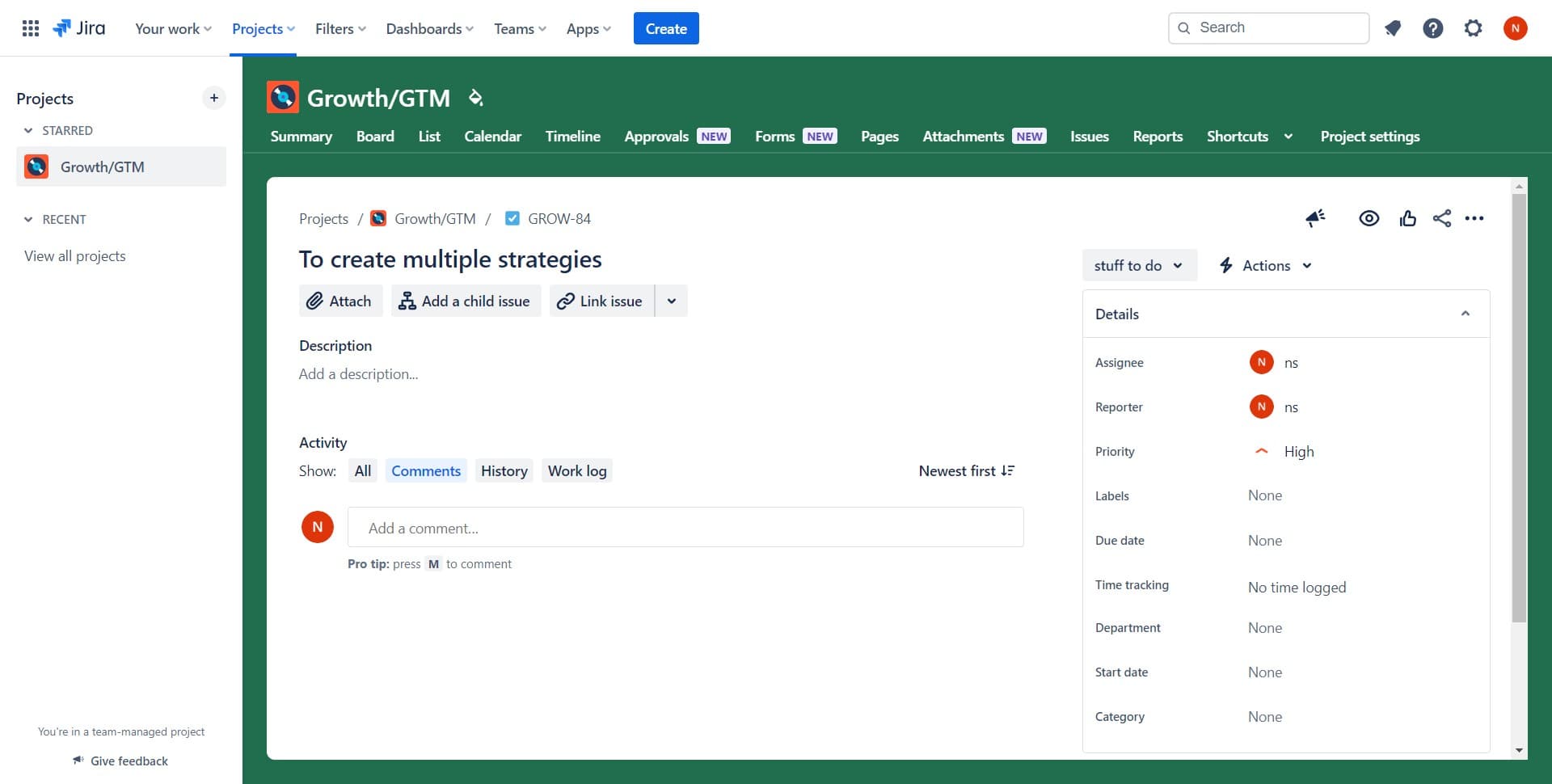
Navigate to your project
Return to your Projects section to see where your new ticket appears in the project backlog or board. This allows you to confirm the ticket is properly categorized and visible to your team.
Frequently asked questions
Common questions about how to create a new ticket in jira.
The Summary field is mandatory, as it provides the title of your ticket. Depending on your Jira configuration and project settings, other fields such as Project, Issue Type, and Description may also be required. Check your project's configuration to see which fields must be filled before submission.
Yes, most Jira instances allow you to assign a ticket during creation by selecting the assignee from the team members list. If the Assignee field is not visible in your creation form, you can add it after the ticket is created by editing the issue details page.
Attachments and links are typically added after ticket creation on the issue details page. Once you create and view your ticket, you'll find options to attach files, link related tickets, or connect external resources in the ticket's full view.
The Summary is a brief, one-line title that appears in lists and searches. The Description provides detailed context, steps to reproduce, acceptance criteria, or any other relevant information that helps your team understand the full scope of the work.
While Jira doesn't have a built-in template system in the basic creation dialog, many teams use issue linking, cloning, or custom workflows to standardize ticket creation. You can also clone an existing ticket to reuse its structure and details for similar work items.