How to Create a Filter in Jira

Jira filters are powerful tools that allow you to save and reuse custom search queries, helping you organize and track issues more efficiently. This guide walks you through creating a filter in Jira so you can quickly access the specific issues that matter most to your team.
Quick summary
In this tutorial, you'll learn how to create and save a filter in Jira by navigating to the Filters section, defining your filter criteria, and saving it for future use. By the end, you'll be able to streamline your issue tracking workflow and access curated issue lists instantly.
Why this matters
Creating filters in Jira saves time by eliminating repetitive searches and helps teams stay focused on relevant work. Filters also enable better collaboration by allowing you to share curated views with teammates, improving visibility across projects.
Step-by-step guide
- 1
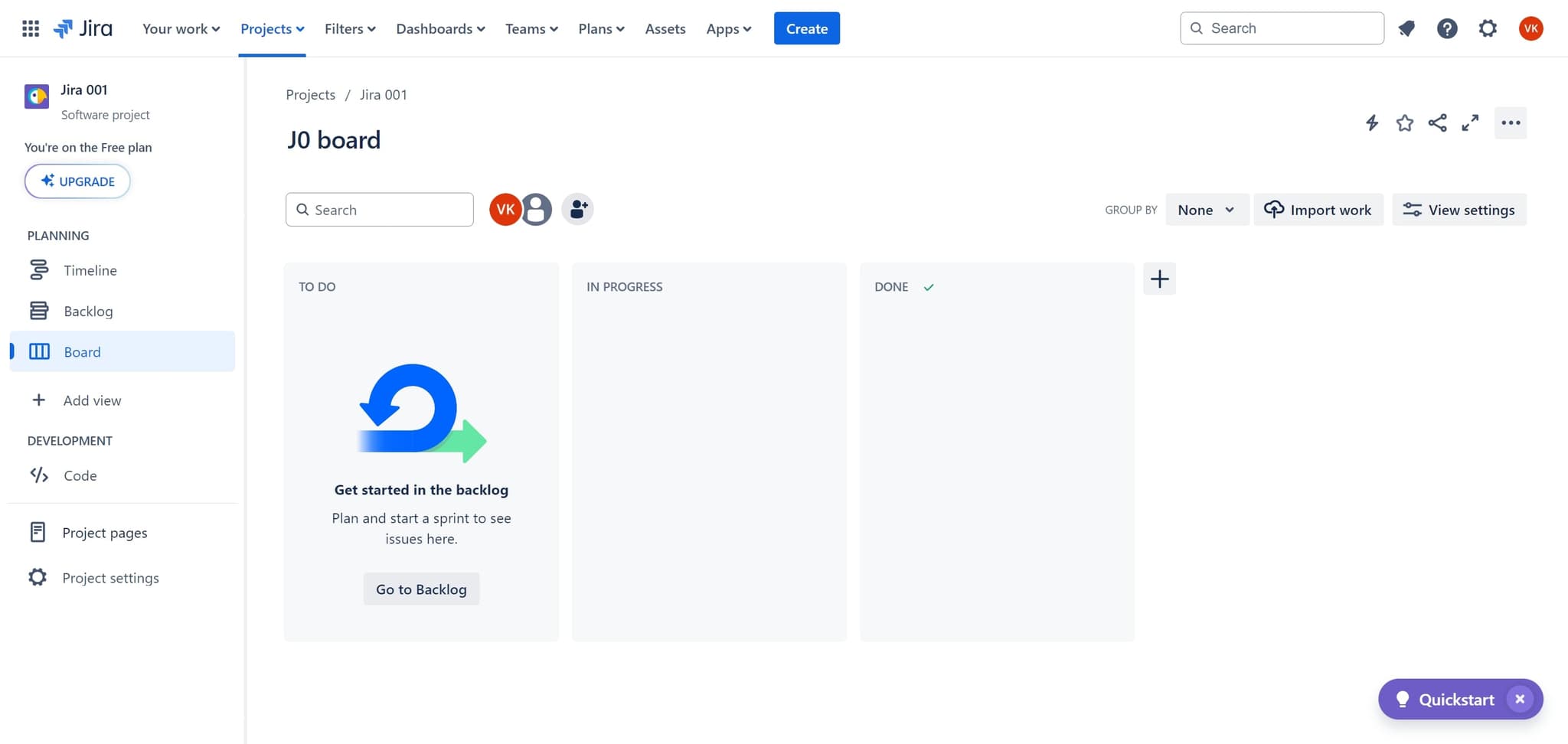
Access the Jira menu
Start by clicking the designated area to open the main Jira navigation menu. This is your entry point to accessing the filters functionality.
- 2
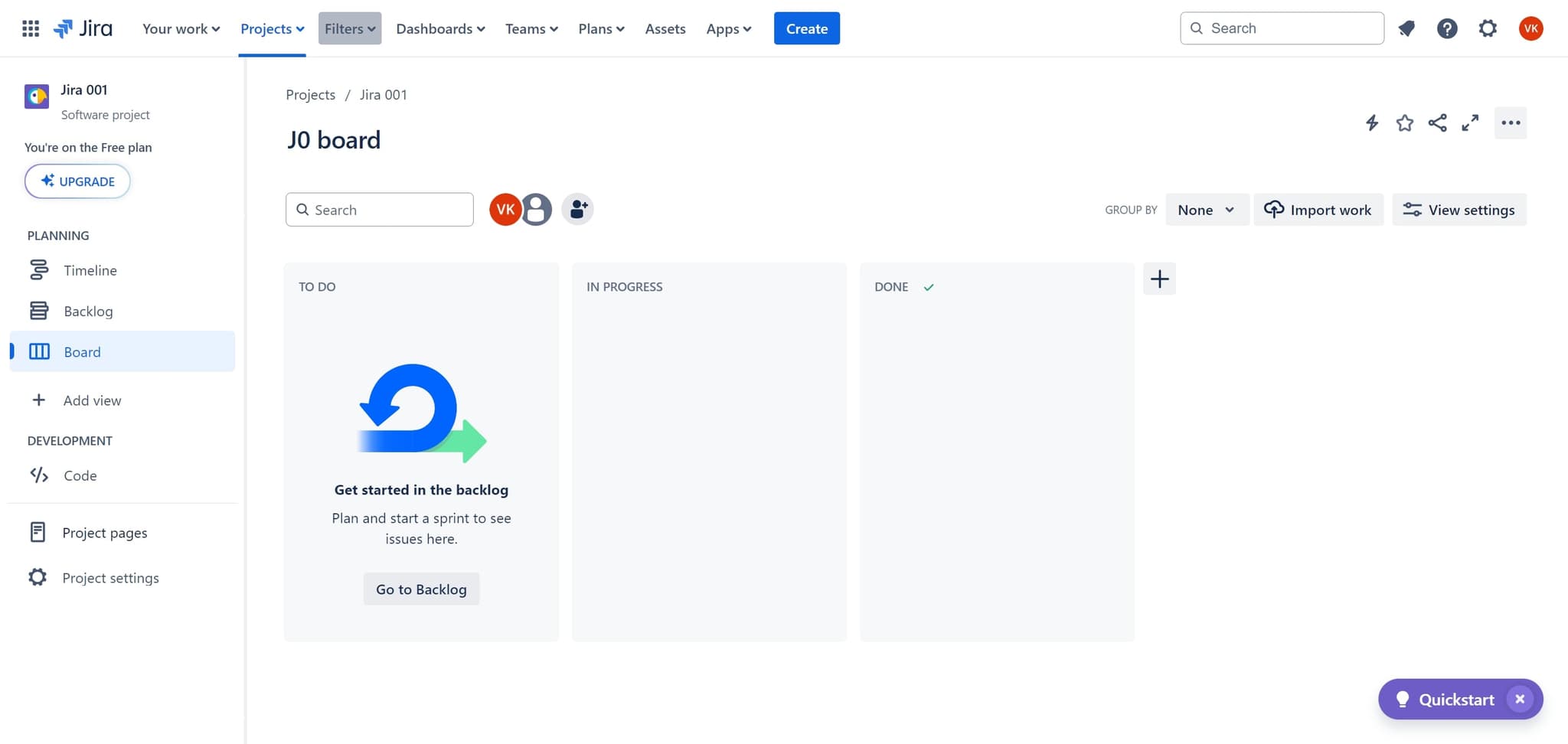
Click on Filters
From the navigation menu, select 'Filters' to access the filters management section. This will display your existing filters and filter-related options.
- 3
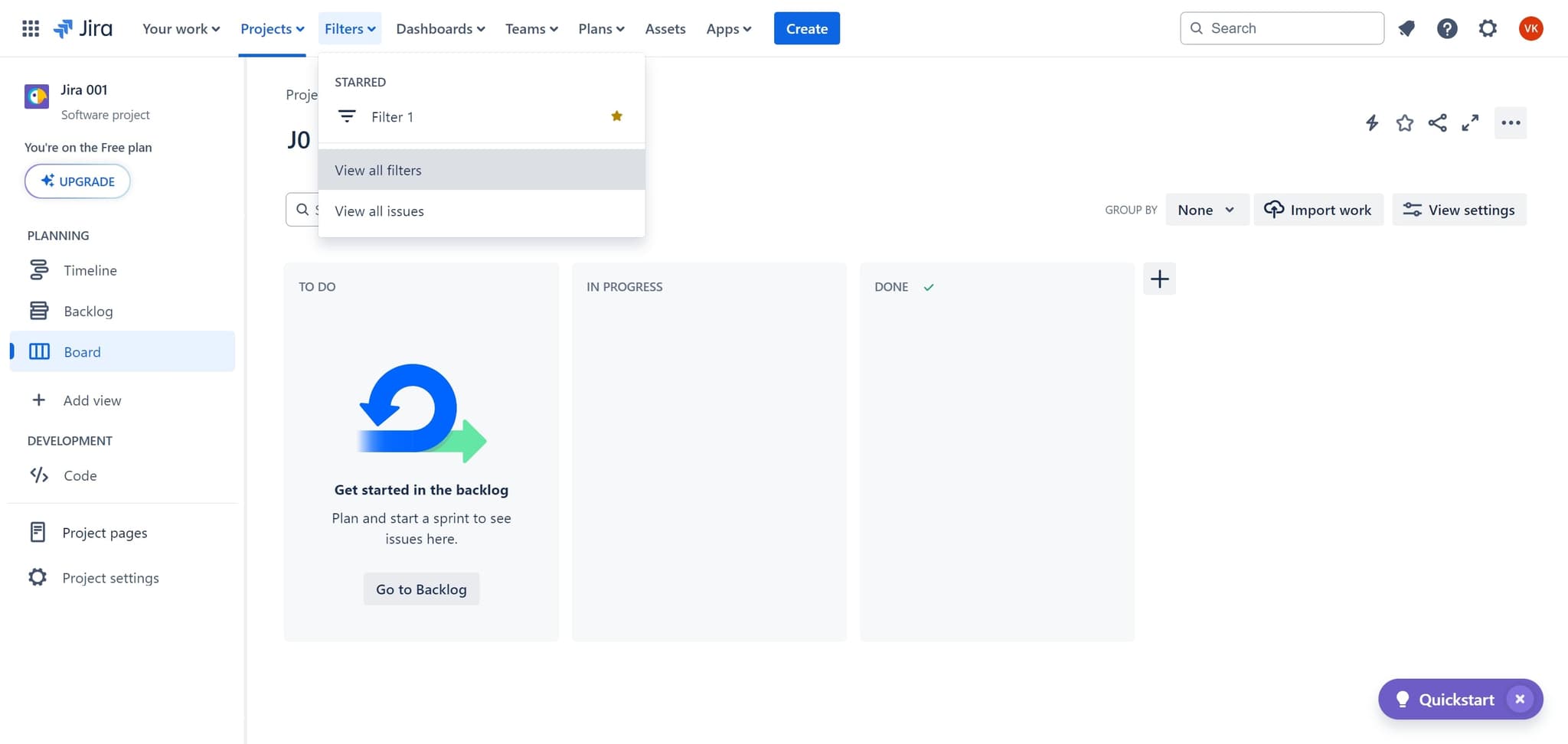
View all available filters
Click on 'View all filters' to see the complete list of filters in your Jira instance. This page shows all saved filters and provides options to create new ones.
- 4
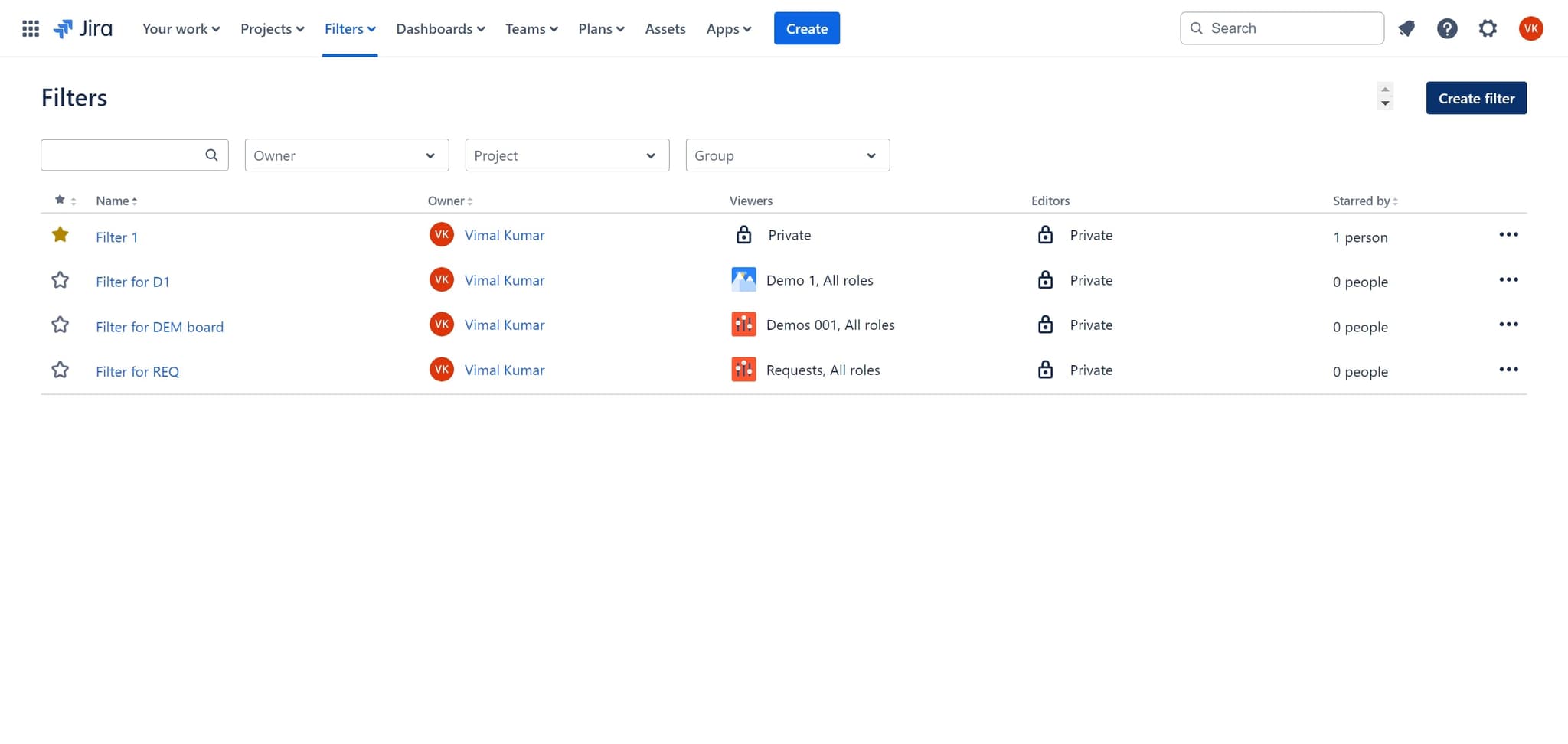
Start creating a new filter
Click on 'Create filter' to begin defining a new filter with custom search criteria. You'll be taken to the filter creation interface.
- 5
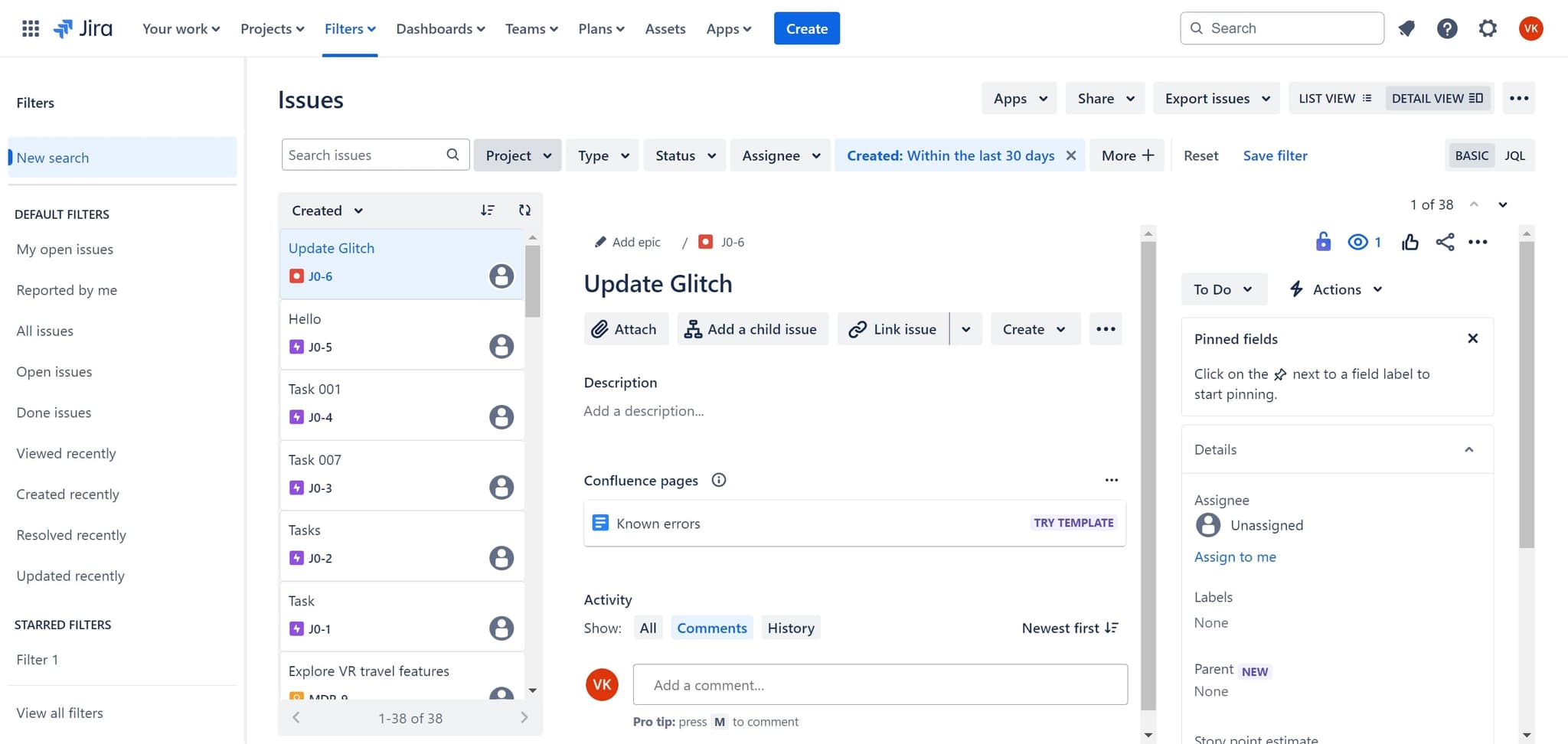
Configure filter criteria
Click in the designated area to set up your filter conditions, such as assignee, status, project, or priority. Define the specific parameters that match the issues you want to track.
- 6
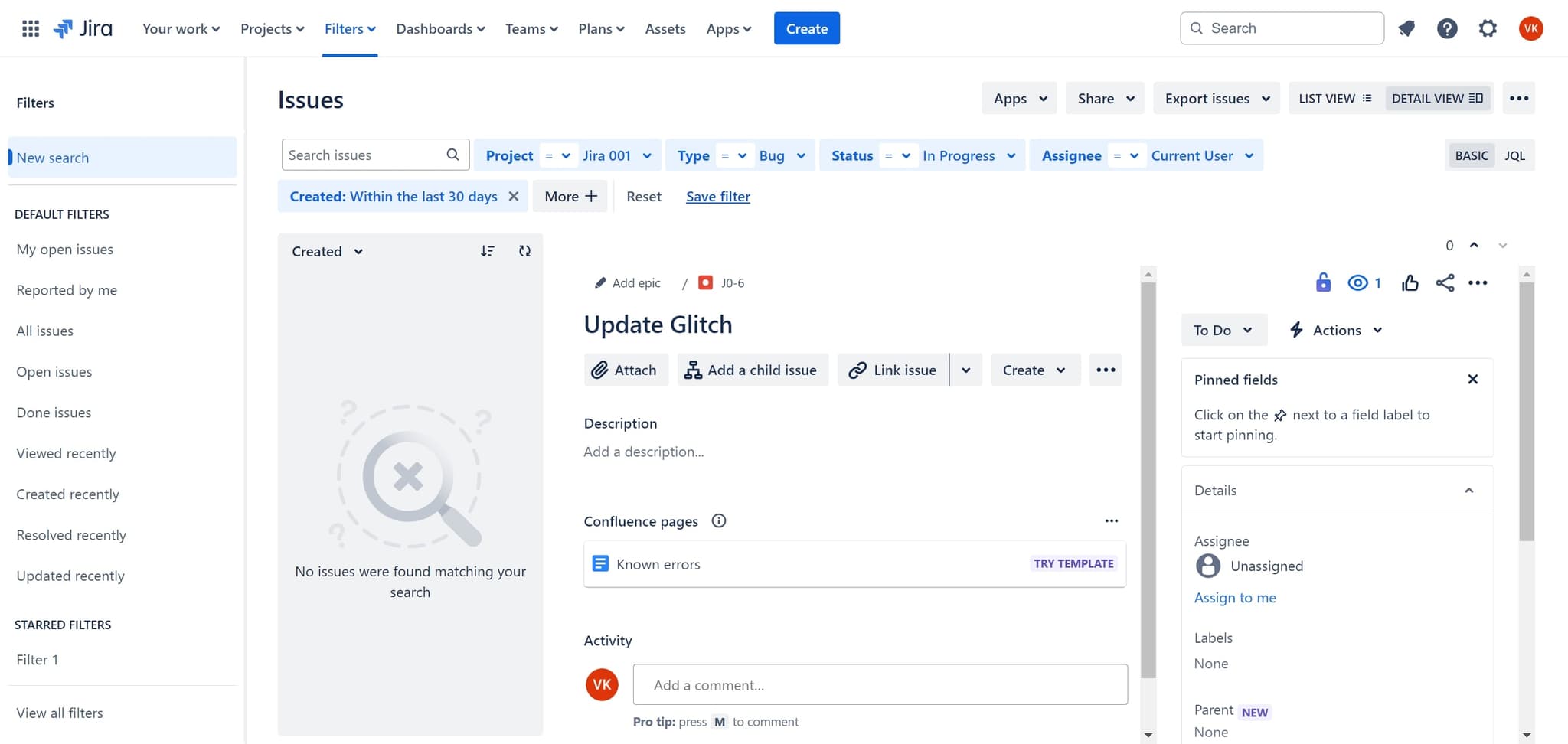
Save your new filter
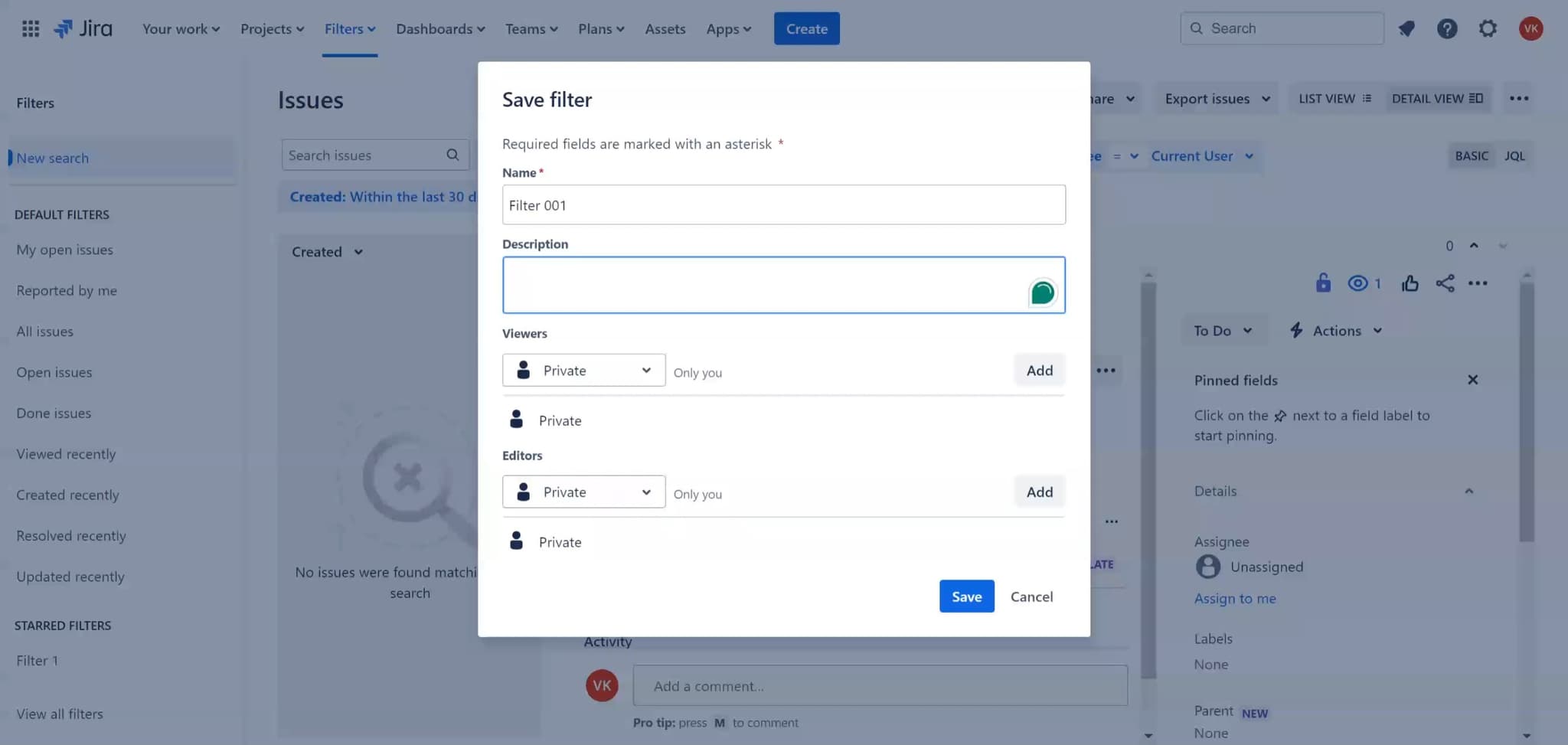
Click on 'Save filter' to store your filter with a custom name and description. Your filter will now appear in your Filters list for quick access.
- 7
Complete the setup
Finalize your filter creation by completing any remaining configuration steps. Your filter is now ready to use.
- 8
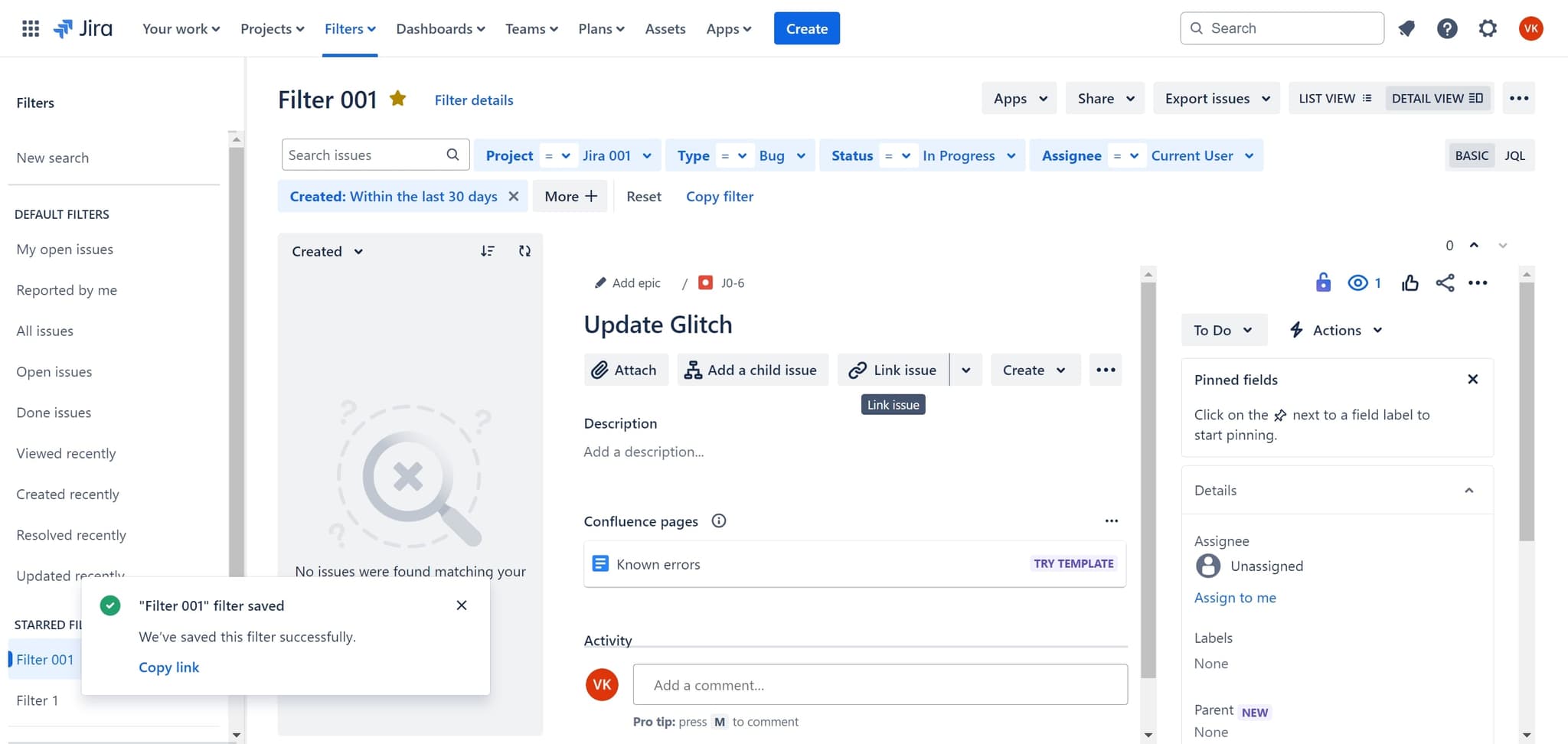
Confirm the filter count
Verify that your filter has been created successfully by checking the updated filter count. You can now access this filter anytime from your Filters menu.
Frequently asked questions
Common questions about how to create a filter in jira.
Yes, in Jira you can share filters with specific users or groups. After creating a filter, look for sharing options in the filter settings to grant access to teammates who need to view the same curated issue list.
You can filter by numerous criteria including assignee, reporter, status, priority, project, issue type, labels, due date, and custom fields. Combine multiple criteria to create highly specific filters tailored to your workflow.
Navigate to your saved filter, click on it to open it, and then select the edit option to modify the filter criteria. Save your changes when you're done updating the filter.
Yes, Jira allows you to configure notifications for issues matching your filter criteria. You can set up email alerts or in-app notifications to stay informed about changes to filtered issues.
A filter is a saved search query that displays issues matching specific criteria, while a board is a visual workspace for managing issues in columns. Filters are more flexible for searches, whereas boards are better for workflow visualization.