How to view past sprints on Jira Software

Viewing past sprints in Jira Software allows you to track completed work, analyze team performance, and identify patterns across iterations. This guide walks you through accessing historical sprint data and reports to review your project's progress.
Quick summary
In this tutorial, you'll learn how to navigate to your project settings, enable the Reports feature, and view detailed sprint reports including burndown charts for past sprints. You'll discover how to select specific completed sprints to analyze their outcomes and metrics.
Why this matters
Reviewing past sprints is essential for continuous improvement in agile teams. By examining historical data, you can identify velocity trends, assess team capacity, and make informed decisions about future sprint planning and resource allocation.
Step-by-step guide
- 1
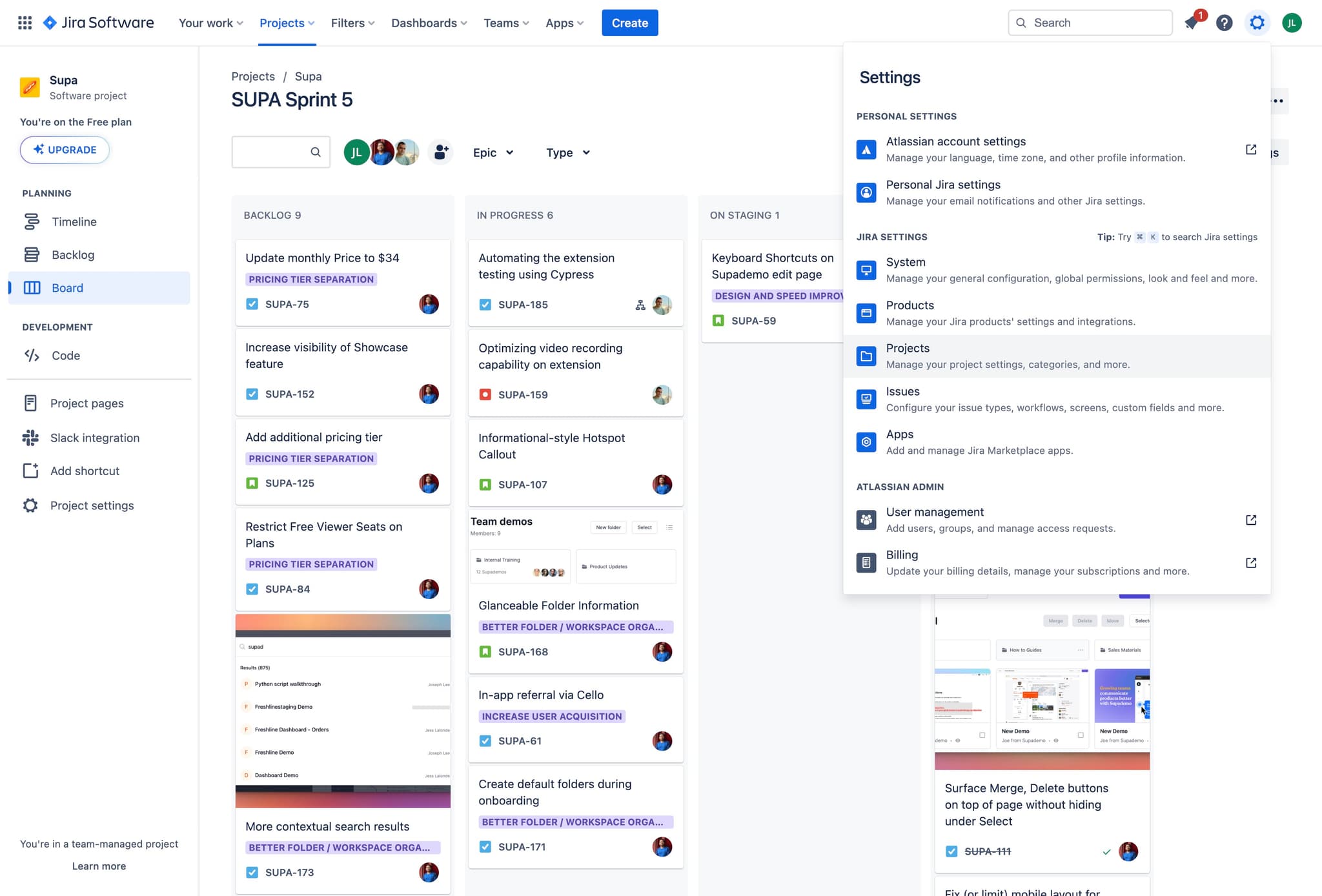
Click on Projects
Start by clicking the Projects section in your Jira navigation. This displays all available projects within your Jira instance.
- 2
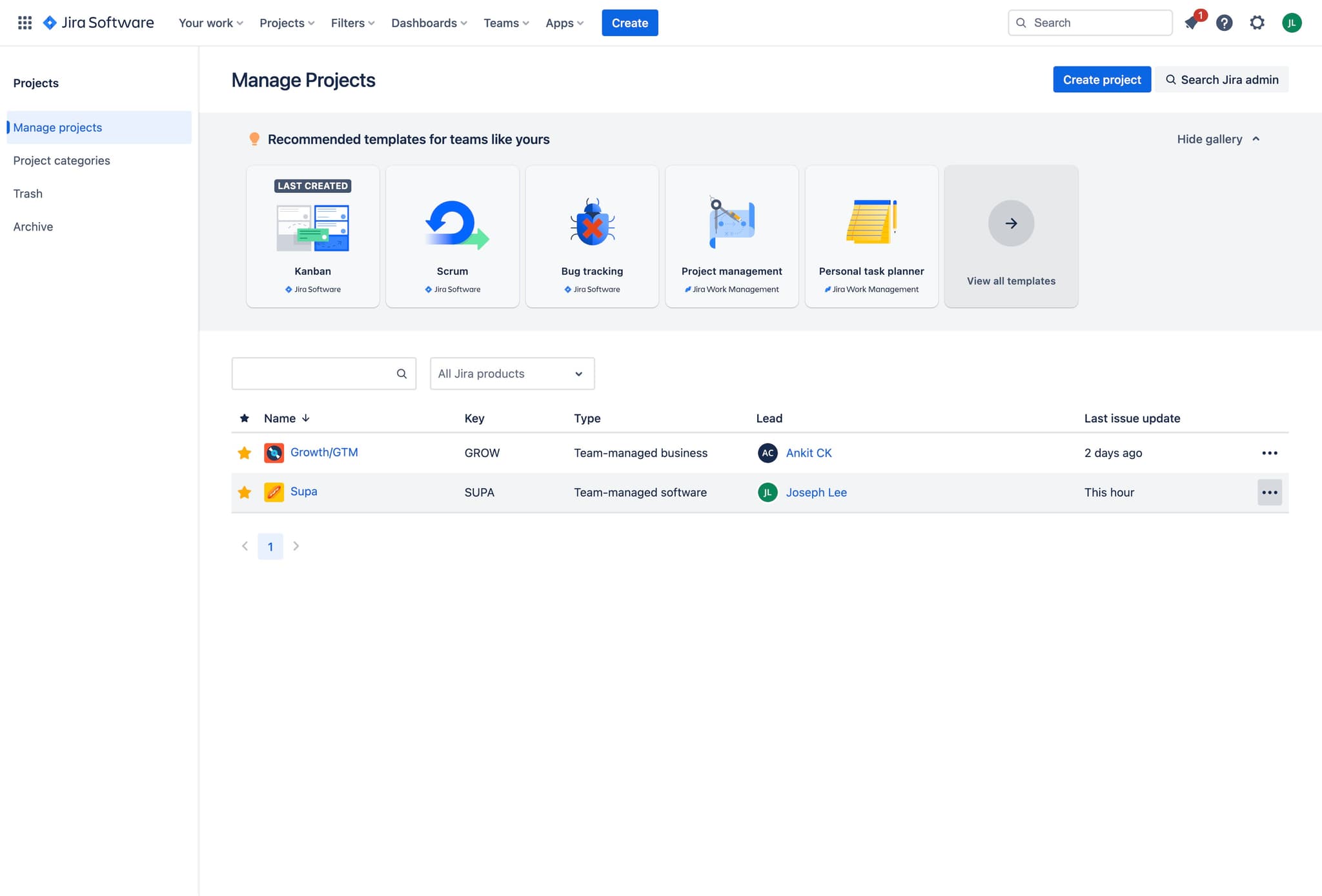
Select your project
Choose the project for which you want to view past sprints. Click on the project name to access its dashboard and settings.
- 3
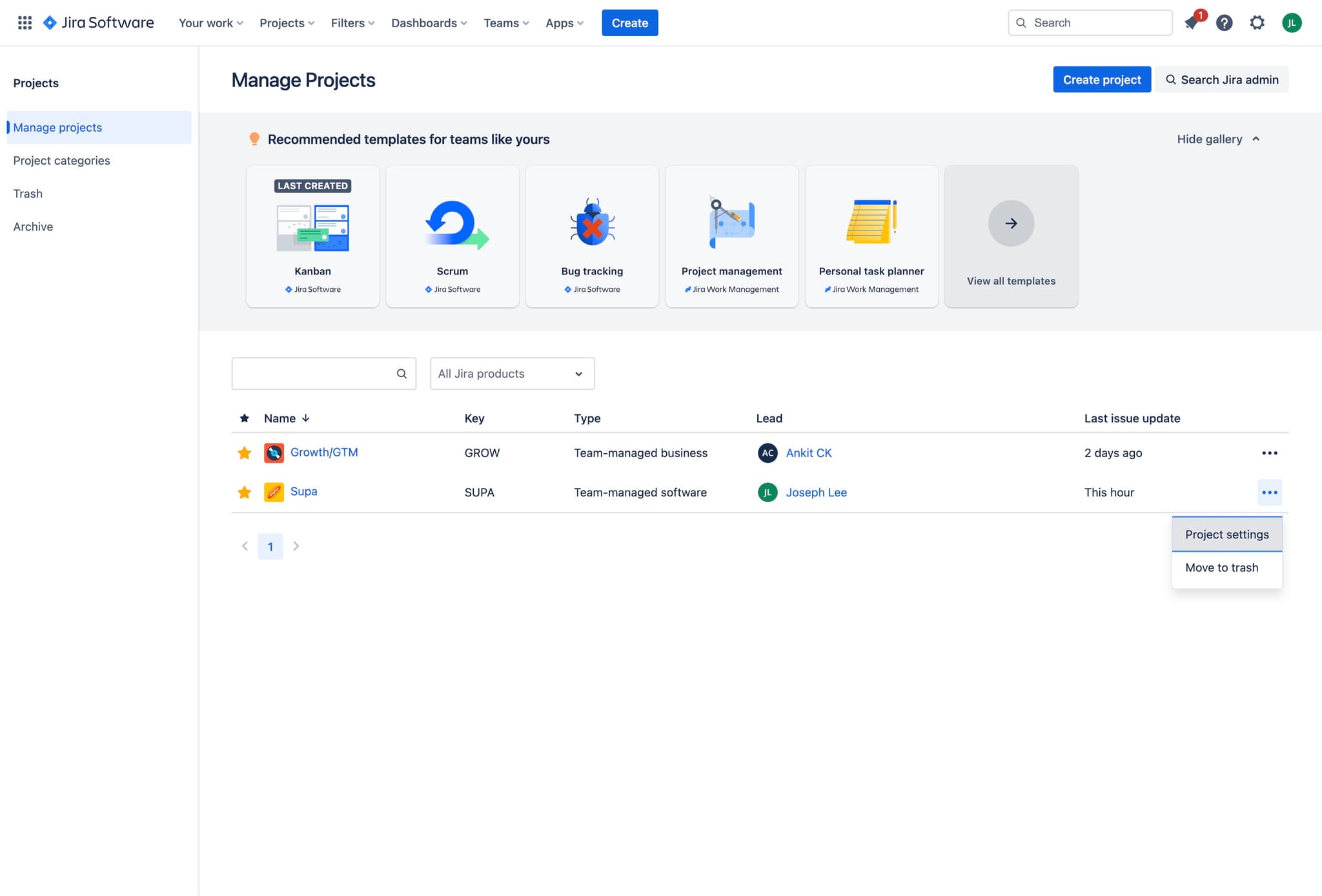
Open Project Settings
Navigate to the Project Settings option, typically found in the left sidebar or project menu. This gives you access to project configuration options.
- 4
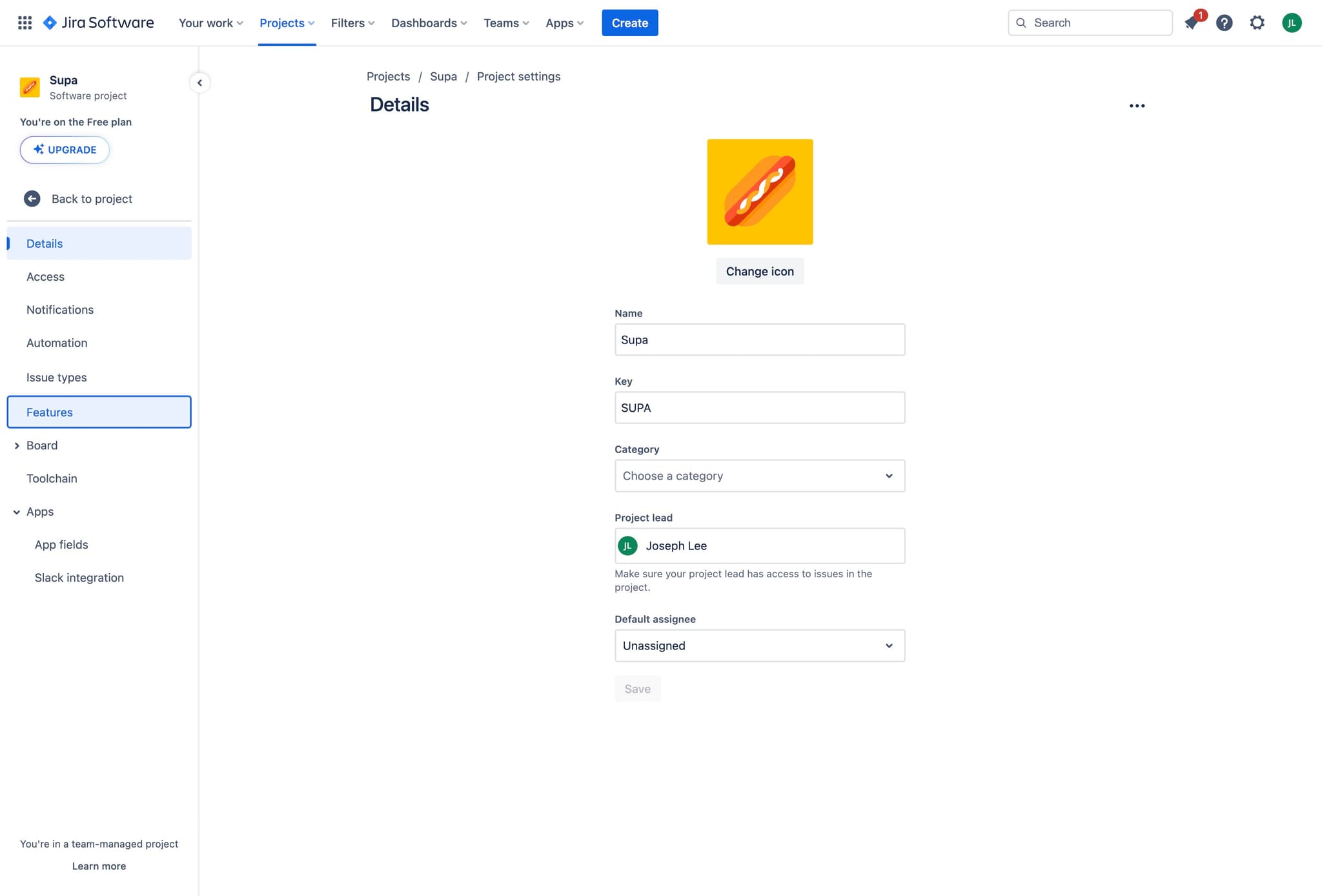
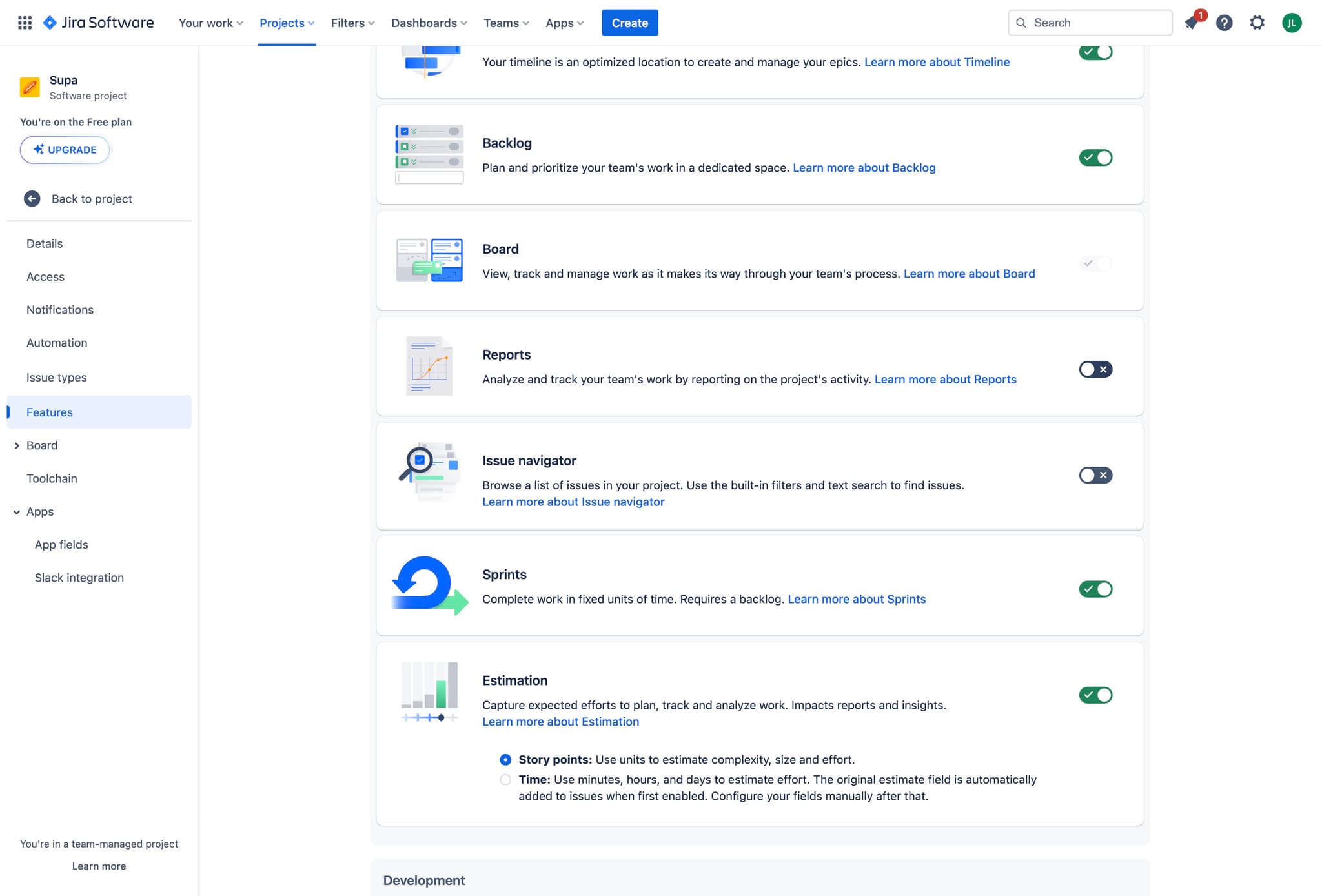
Navigate to Features
Within Project Settings, locate and click on the Features section. This area controls which tools and capabilities are enabled for your project.
- 5
Enable Reports access
Look for the Reports feature and confirm it's enabled. This ensures you have access to sprint analytics and historical data.
- 6
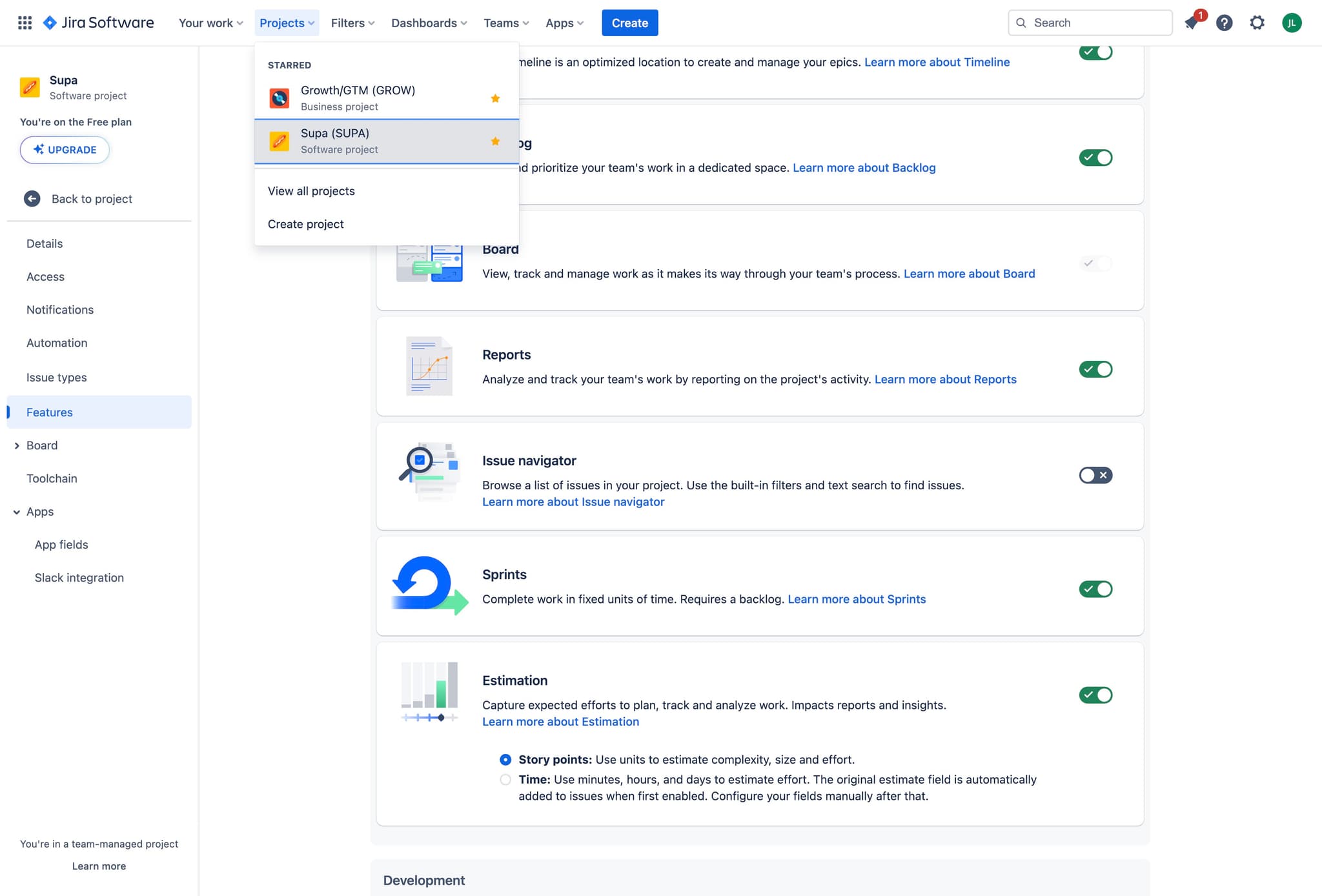
Confirm Software project type
Verify that your project is set up as a Software project, which includes sprint-related features and reporting tools.
- 7
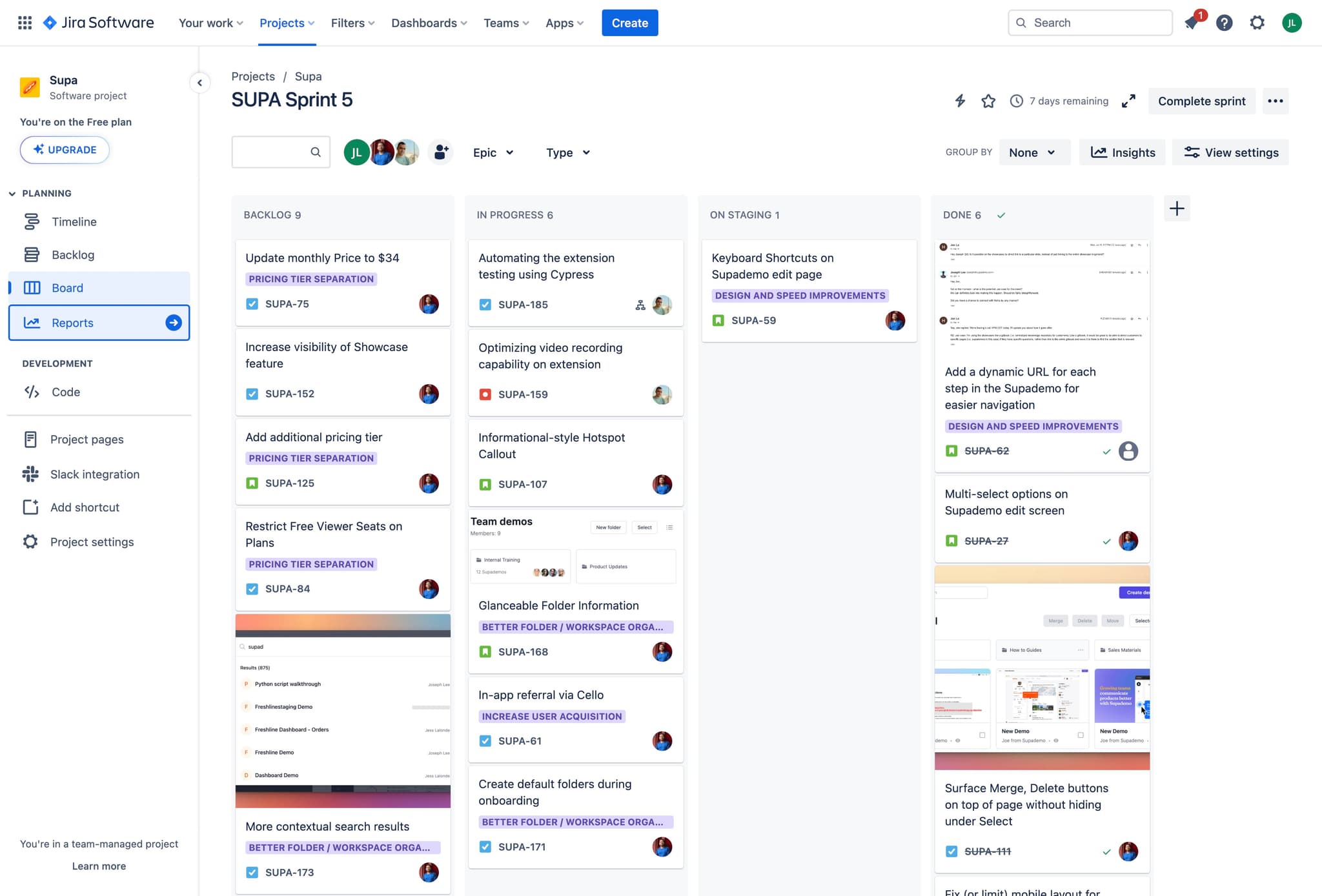
Click on Reports
Return to your project and select the Reports section from the main navigation. This displays all available analytics and sprint reports.
- 8
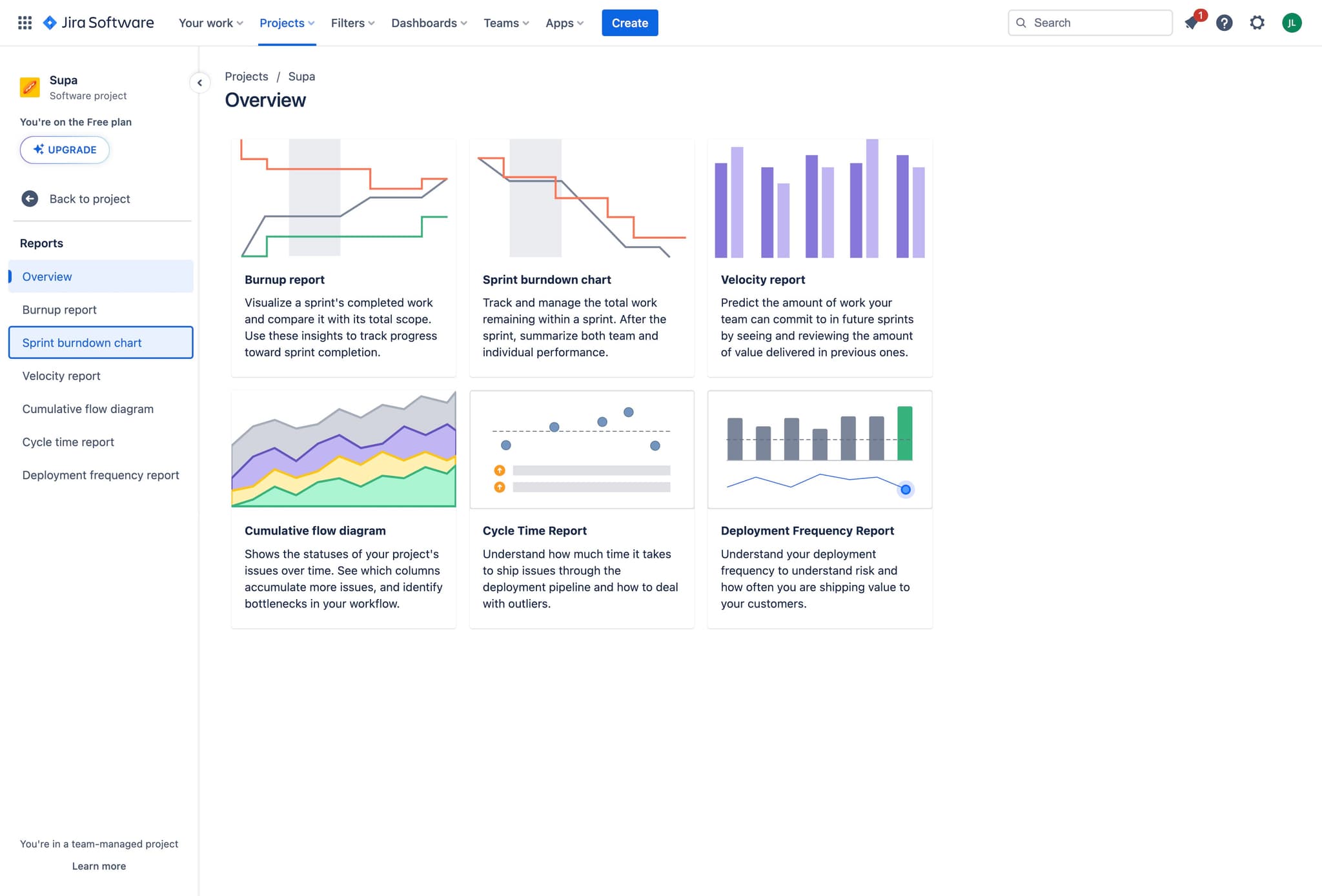
Select Sprint Burndown Chart
Click on the Sprint Burndown Chart report option. This visualizes sprint progress and shows how much work was completed versus planned.
- 9
Access the report view
The burndown chart report page loads, displaying current and past sprint data. You can now select which sprint you'd like to analyze.
- 10
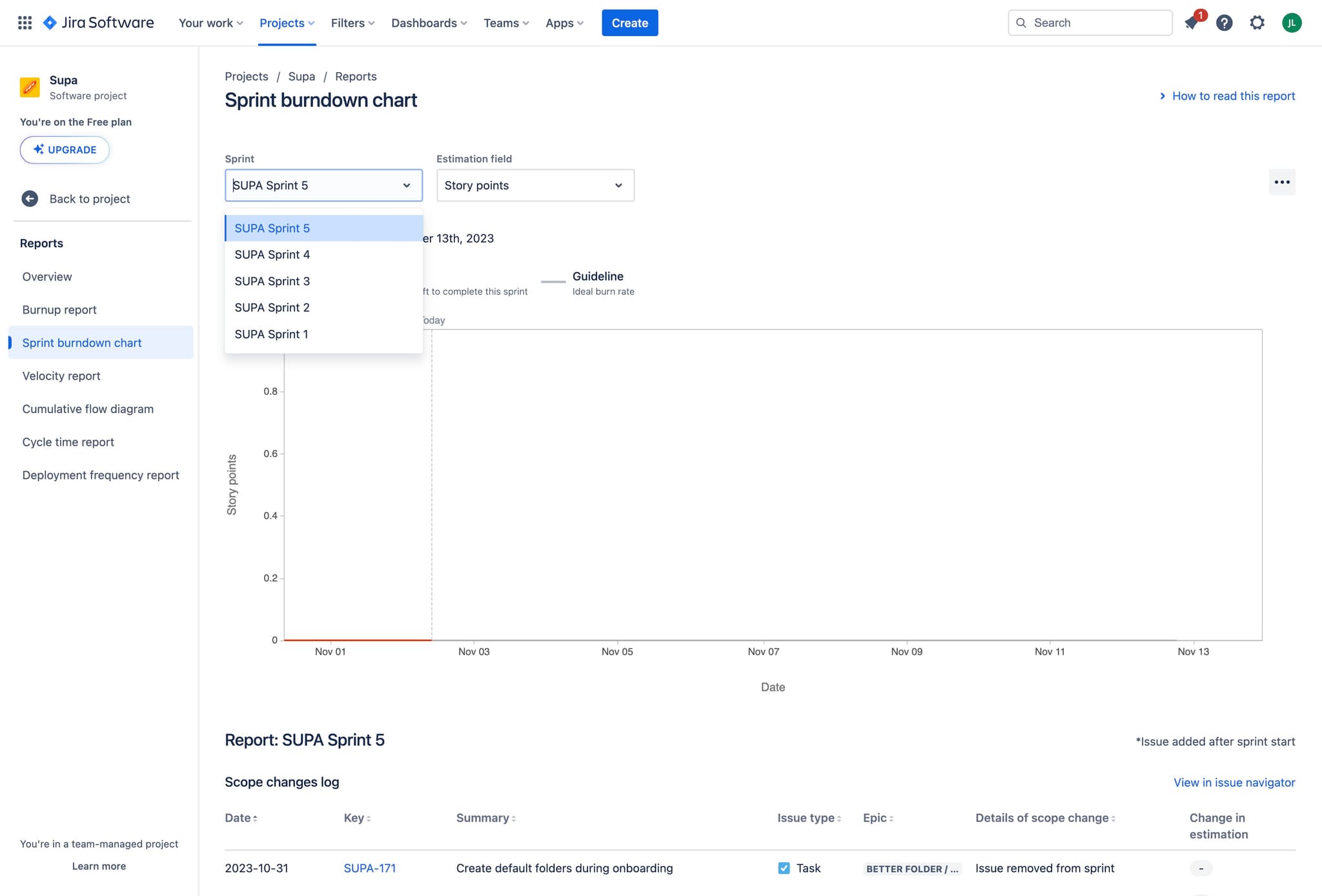
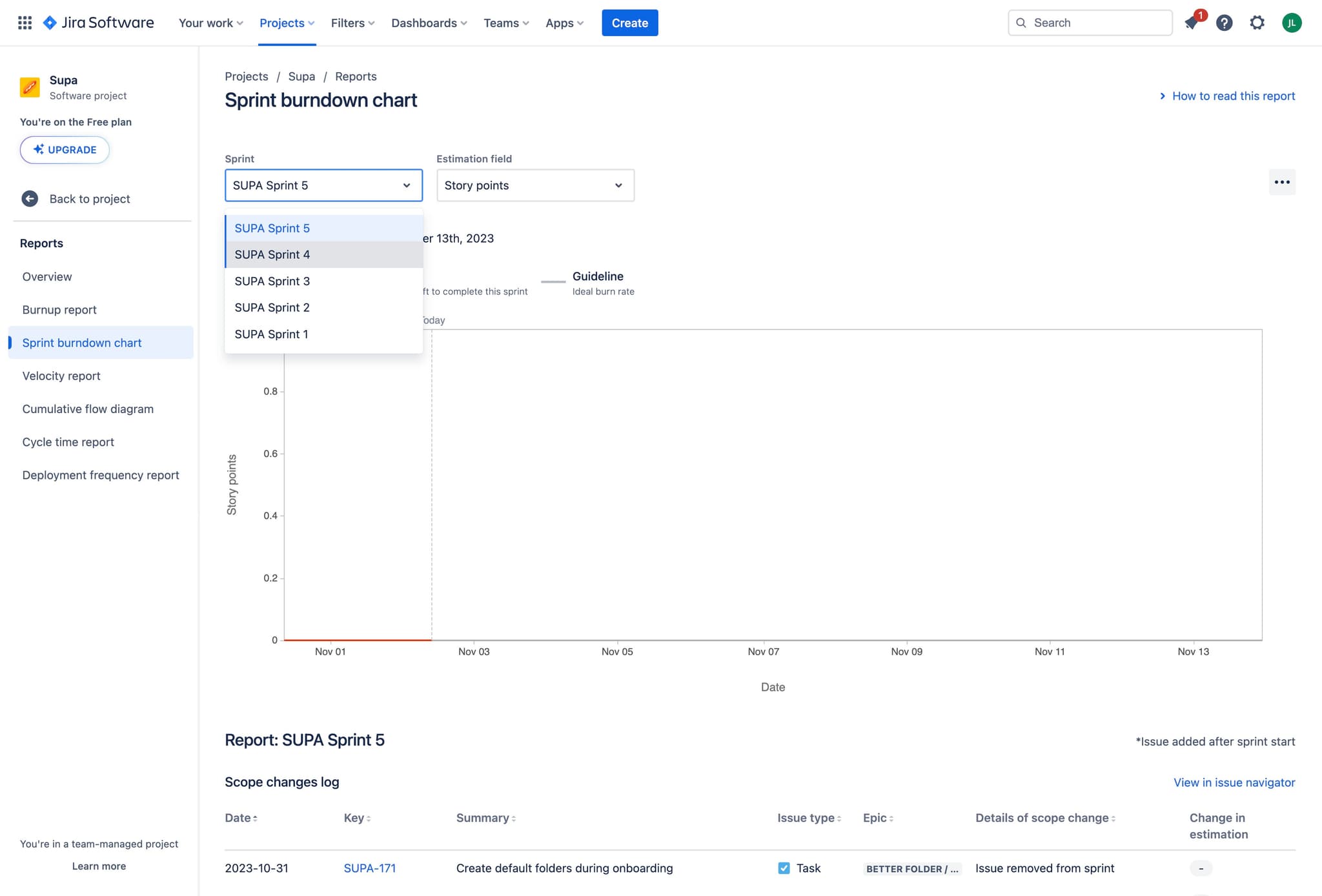
Choose your past sprint
Click on a completed sprint from the list, such as SUPA Sprint 4, to view its specific metrics and burndown data.
- 11
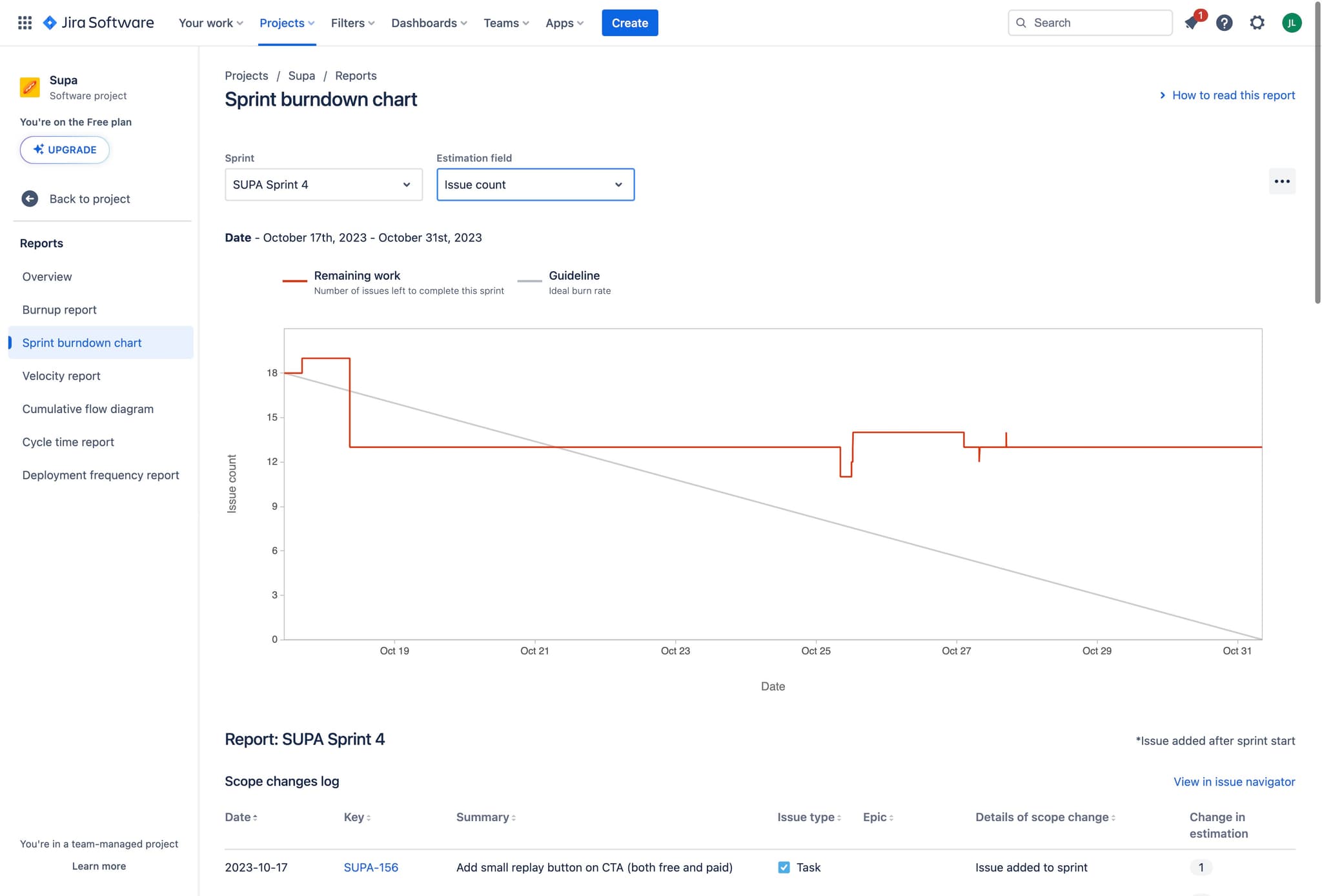
View sprint details
The sprint report loads with detailed information about the selected sprint. You can now examine the burndown chart and other relevant metrics.
- 12
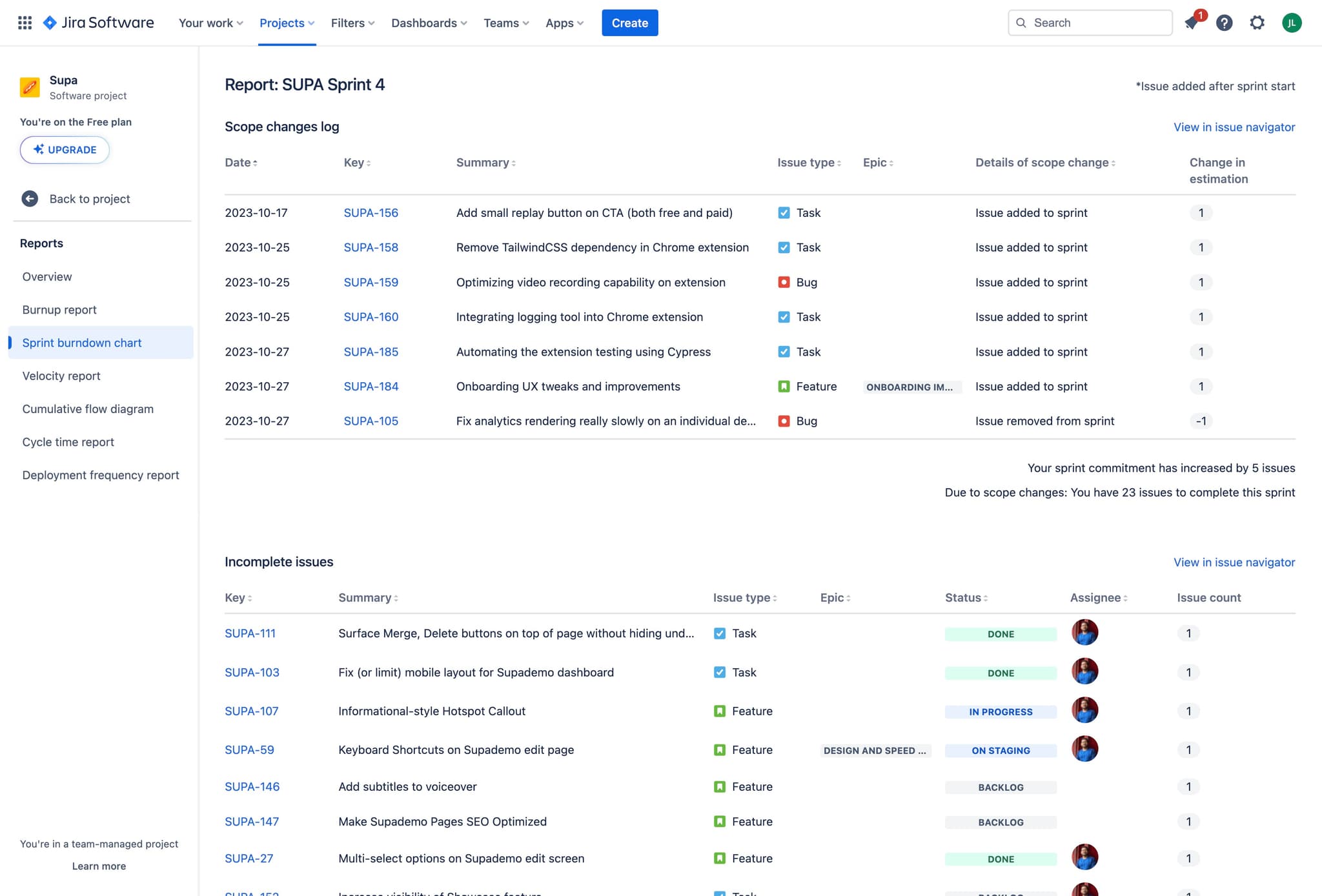
Review the sprint report
The full sprint report displays, including the burndown chart, completed stories, and other analytics for the selected past sprint. Use this data to evaluate team performance and extract insights.
Frequently asked questions
Common questions about how to view past sprints on jira software.
Yes, Jira Software retains historical data for all completed sprints indefinitely. You can access burndown charts and reports for any past sprint within your project, allowing you to review performance across your entire project history.
Ensure that Reports are enabled in your Project Features settings and that your project is configured as a Software project. If the option still doesn't appear, contact your Jira administrator to verify that reporting features are available in your Jira instance.
A sprint burndown chart shows ideal versus actual work completion over time. You can identify team velocity, spot bottlenecks, determine if your sprint scope was realistic, and understand how work was completed relative to the planned timeline.
Most Jira instances allow you to share report links with team members or export reports as PDFs, depending on your Jira configuration and permissions. Check your Jira administration settings or contact your administrator for export and sharing capabilities.
While viewing individual sprint reports, you can document metrics manually or use Jira's built-in reporting dashboards that aggregate data across multiple sprints. Some Jira instances also support advanced reporting tools that enable cross-sprint analysis and trend visualization.