How to Delete a Jira ticket.

Deleting Jira tickets is a common task when managing your project backlog and removing obsolete or duplicate issues. This guide walks you through the straightforward process of permanently removing a ticket from your Jira instance.
Quick summary
In this tutorial, you'll learn how to navigate to your ticket queue, locate a specific ticket, and delete it with confirmation. By following these steps, you'll be able to efficiently remove unwanted tickets from your Jira projects.
Why this matters
Keeping your Jira backlog clean and organized is essential for team productivity and accurate project tracking. Deleting irrelevant tickets reduces noise, prevents confusion, and ensures your team focuses on work that matters. Regularly maintaining your ticket inventory helps keep your project management process streamlined and efficient.
Step-by-step guide
- 1
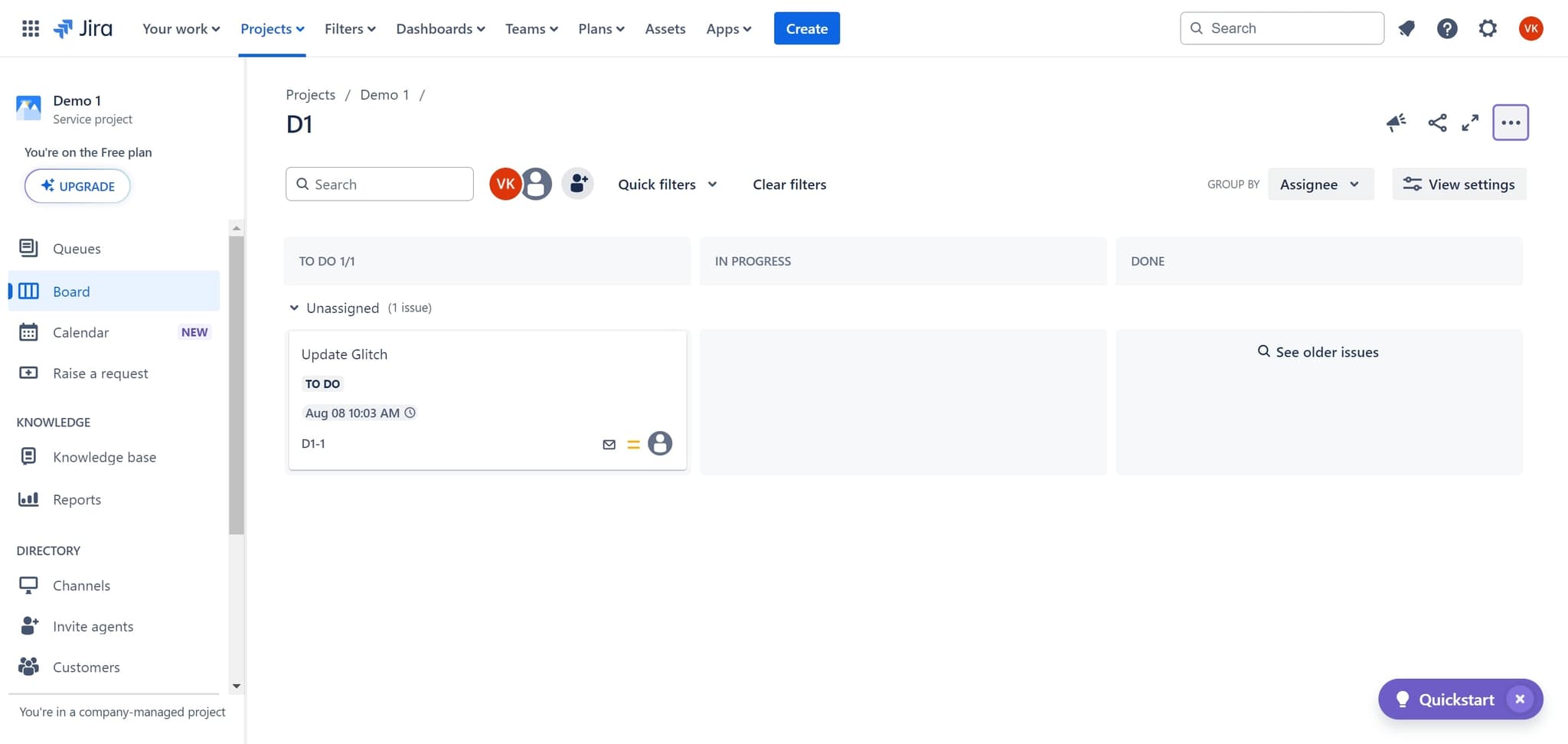
Click on To Do
Start by locating and clicking the 'To Do' section in your Jira interface. This will display tickets that are currently in your to-do queue.
- 2
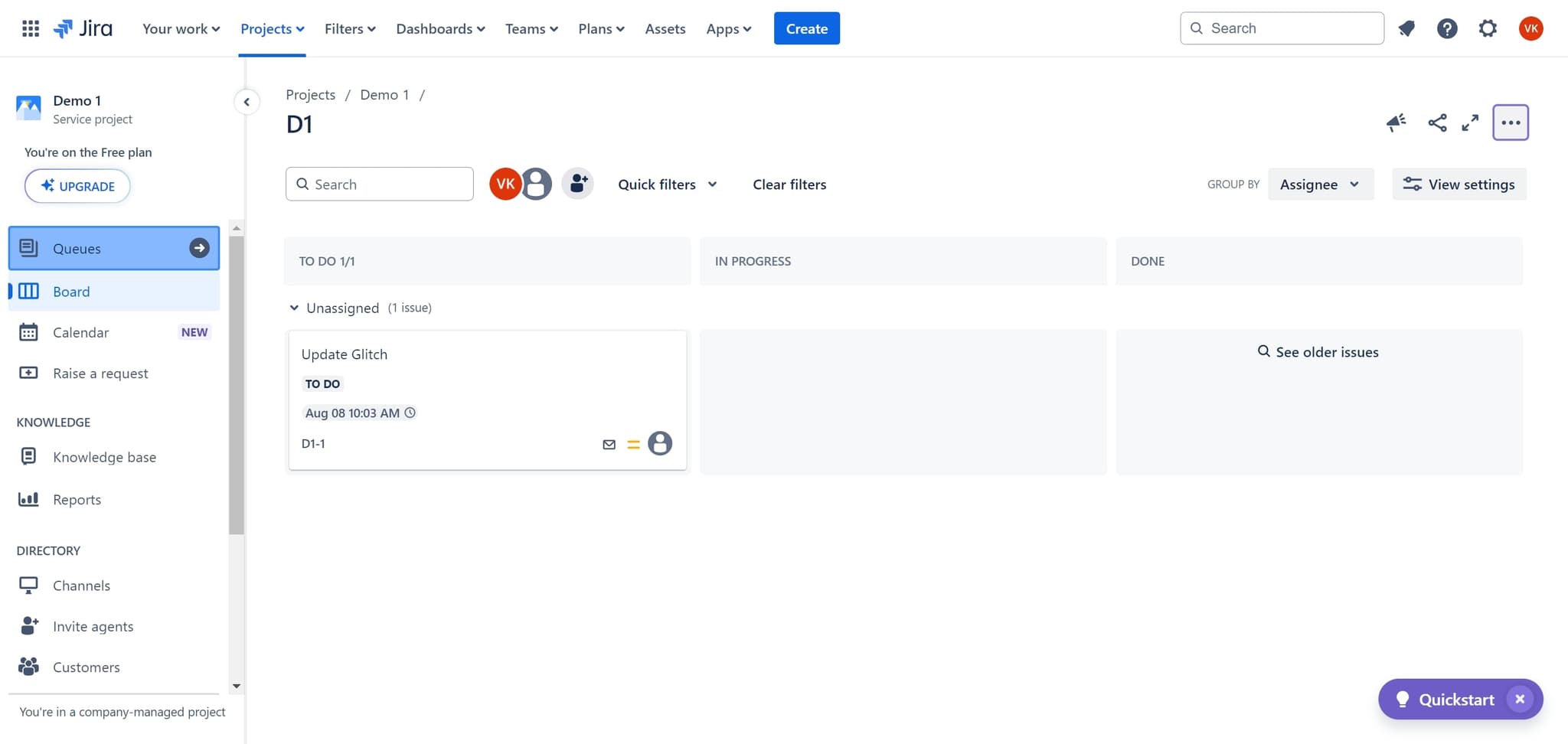
Click on Queues
Navigate to the 'Queues' option to access your organized ticket queues. This allows you to filter and view tickets by their current status and category.
- 3
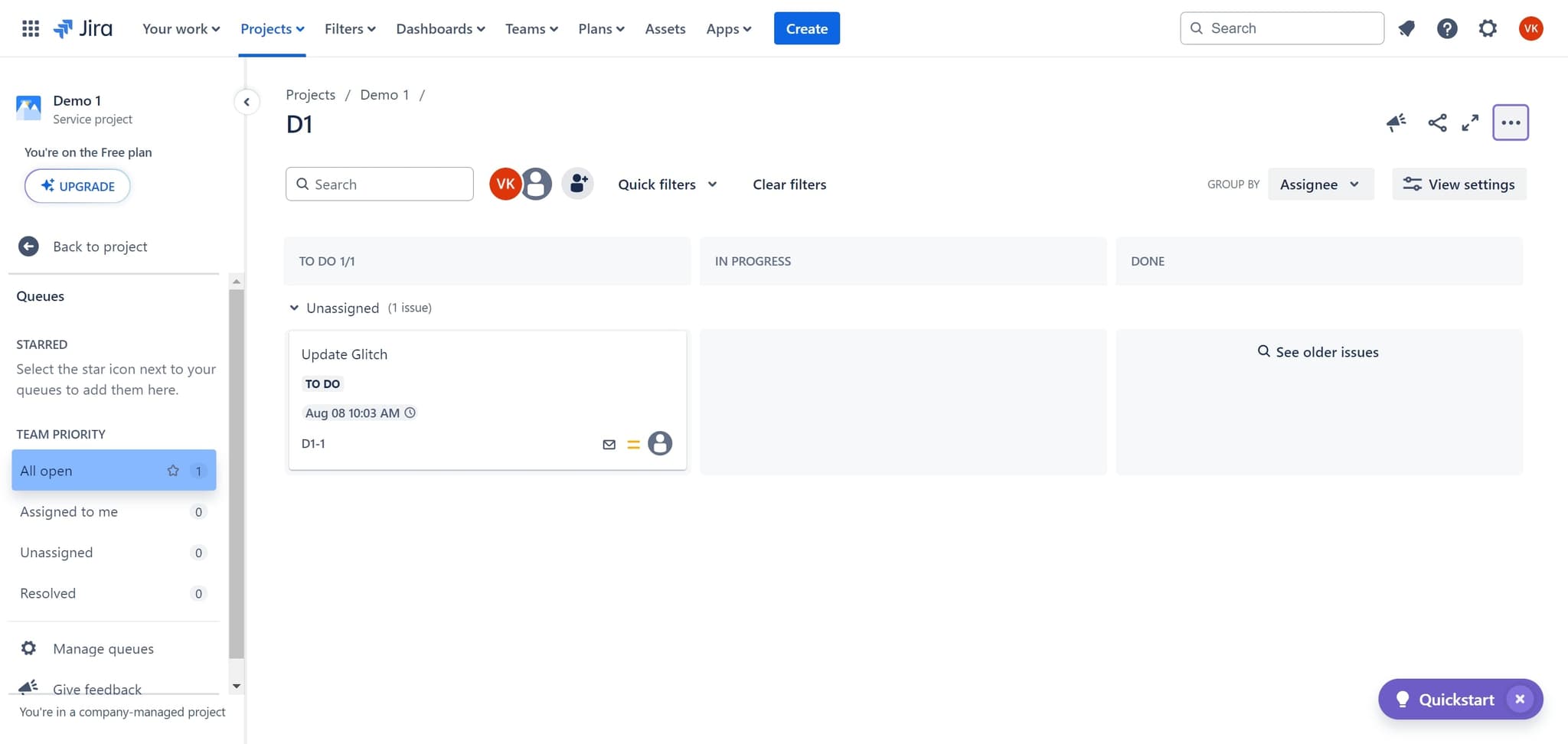
Click on All open
Select 'All open' to display all currently open tickets across your queues. This view gives you a comprehensive look at all active issues in your project.
- 4
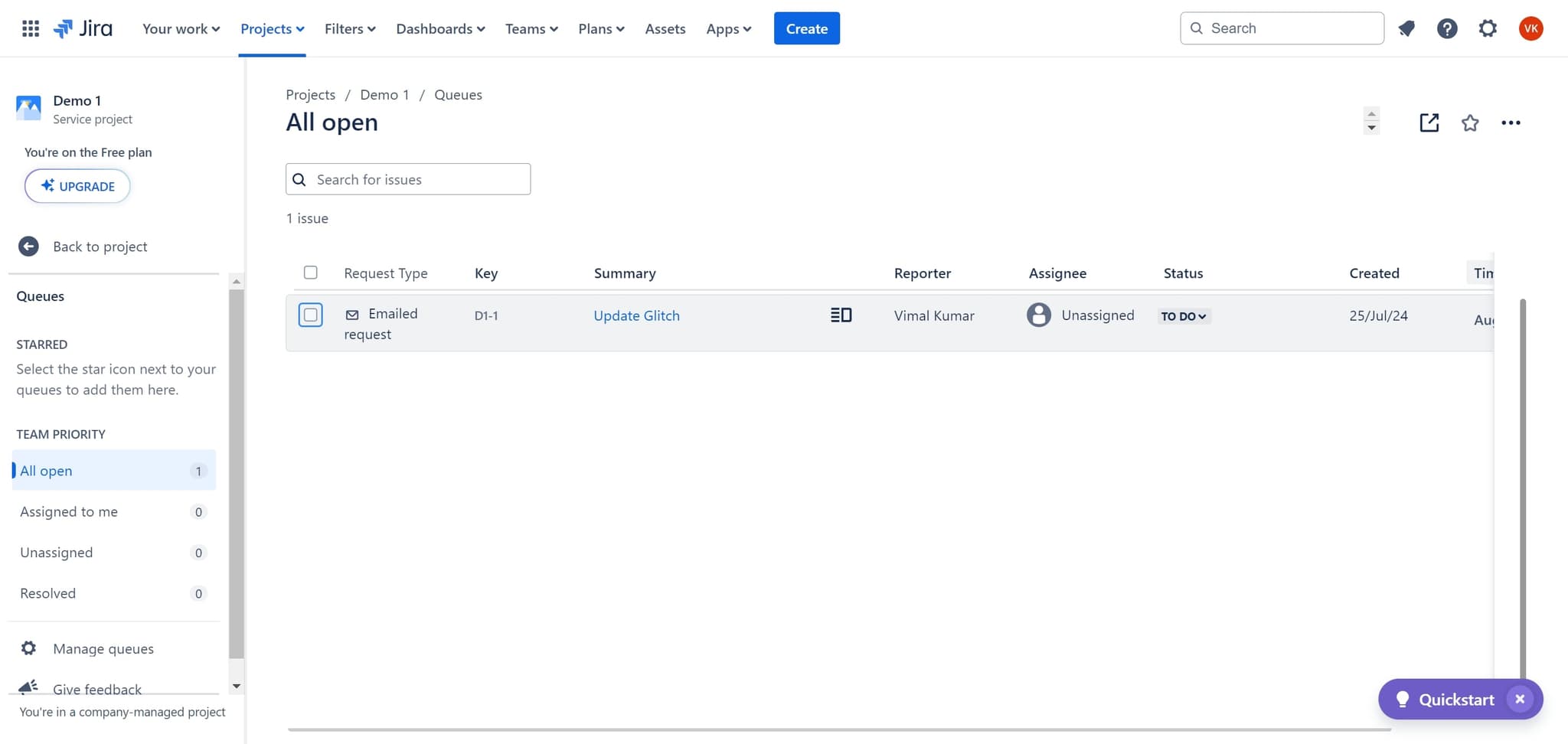
Select the ticket element
Click on the specific ticket you want to delete. The ticket will be highlighted or selected, ready for further action.
- 5
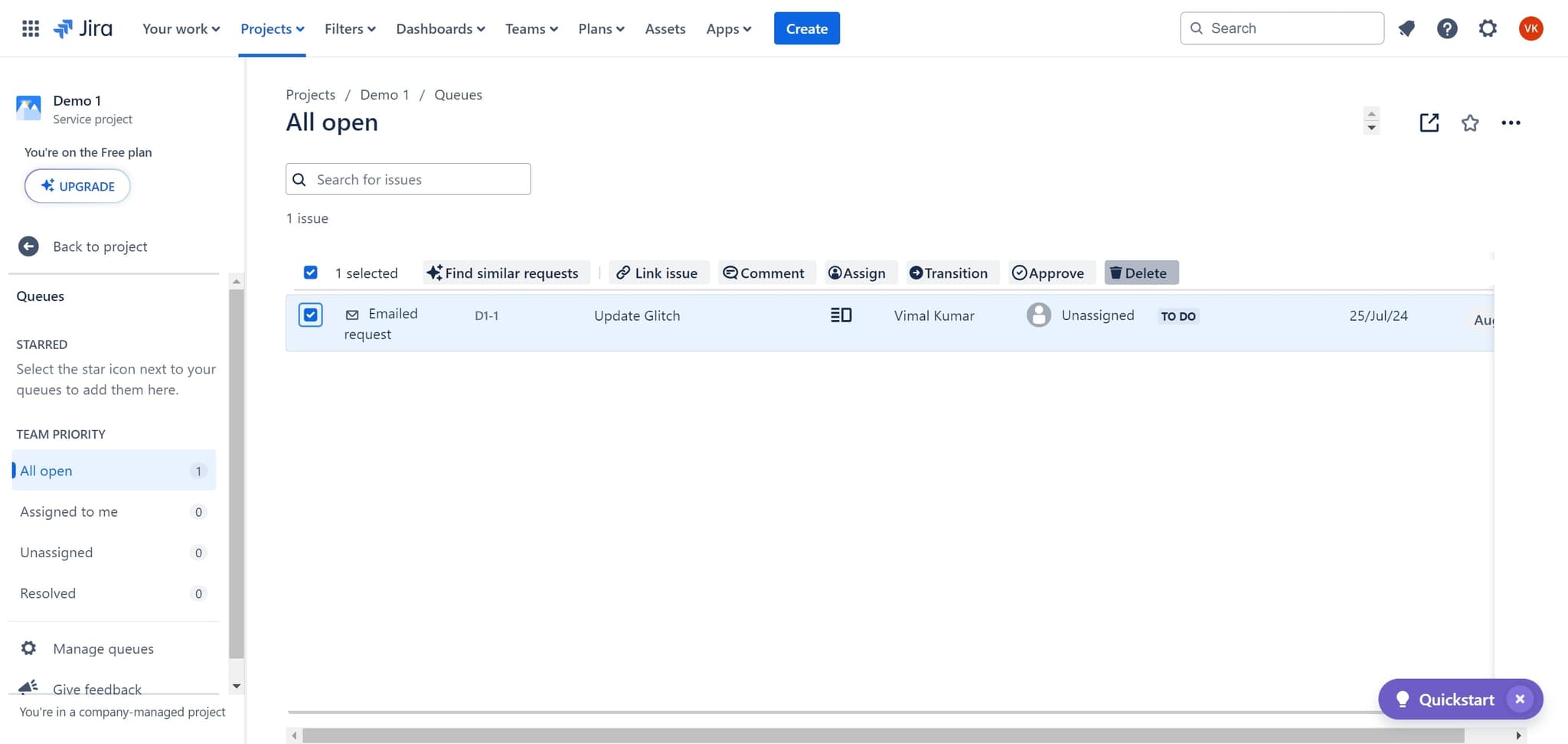
Click on Delete
Once the ticket is selected, click the 'Delete' button to initiate the deletion process. Jira will prompt you to confirm this action to prevent accidental deletions.
- 6
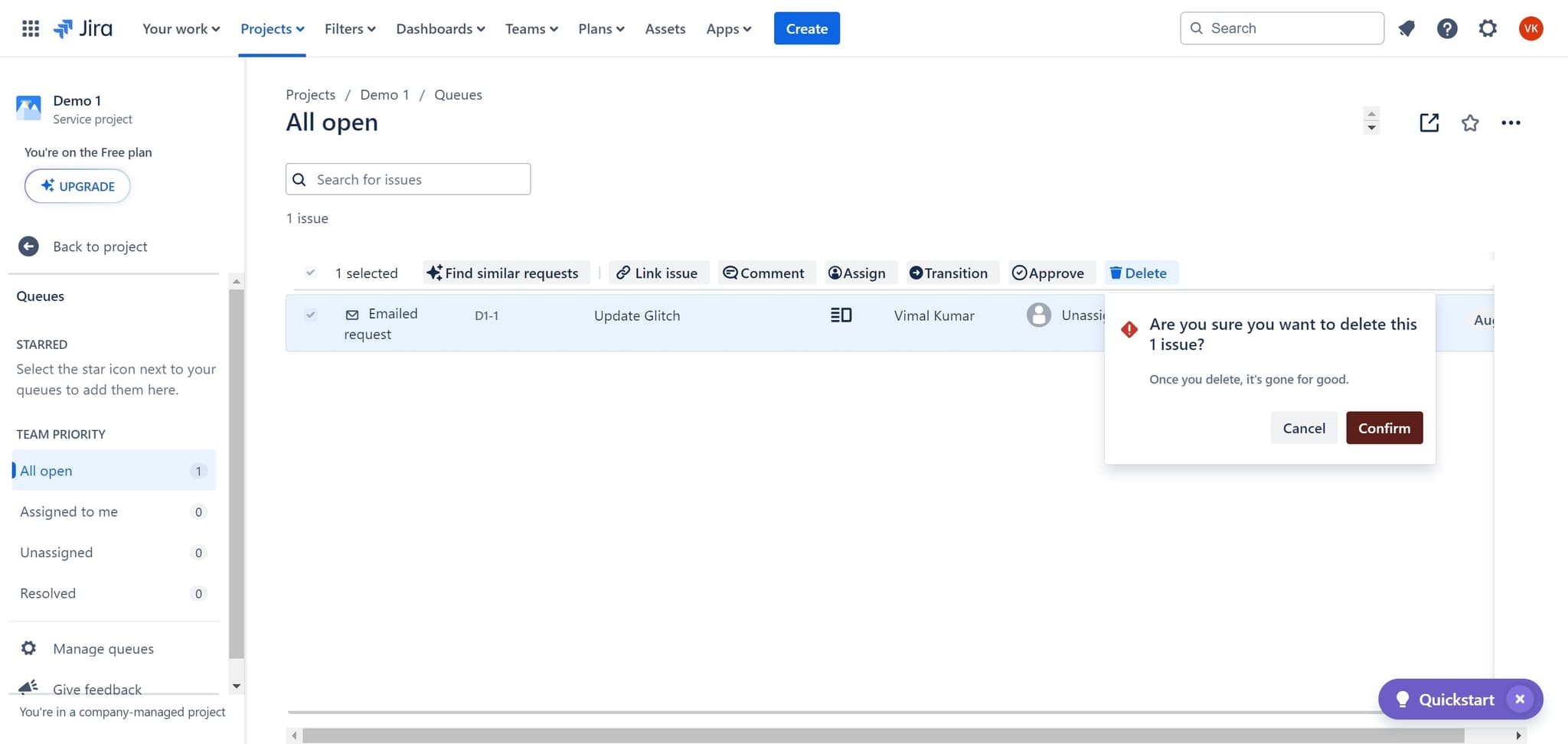
Click Confirm
Click the 'Confirm' button to finalize the deletion. The ticket will be permanently removed from your Jira instance.
- 7
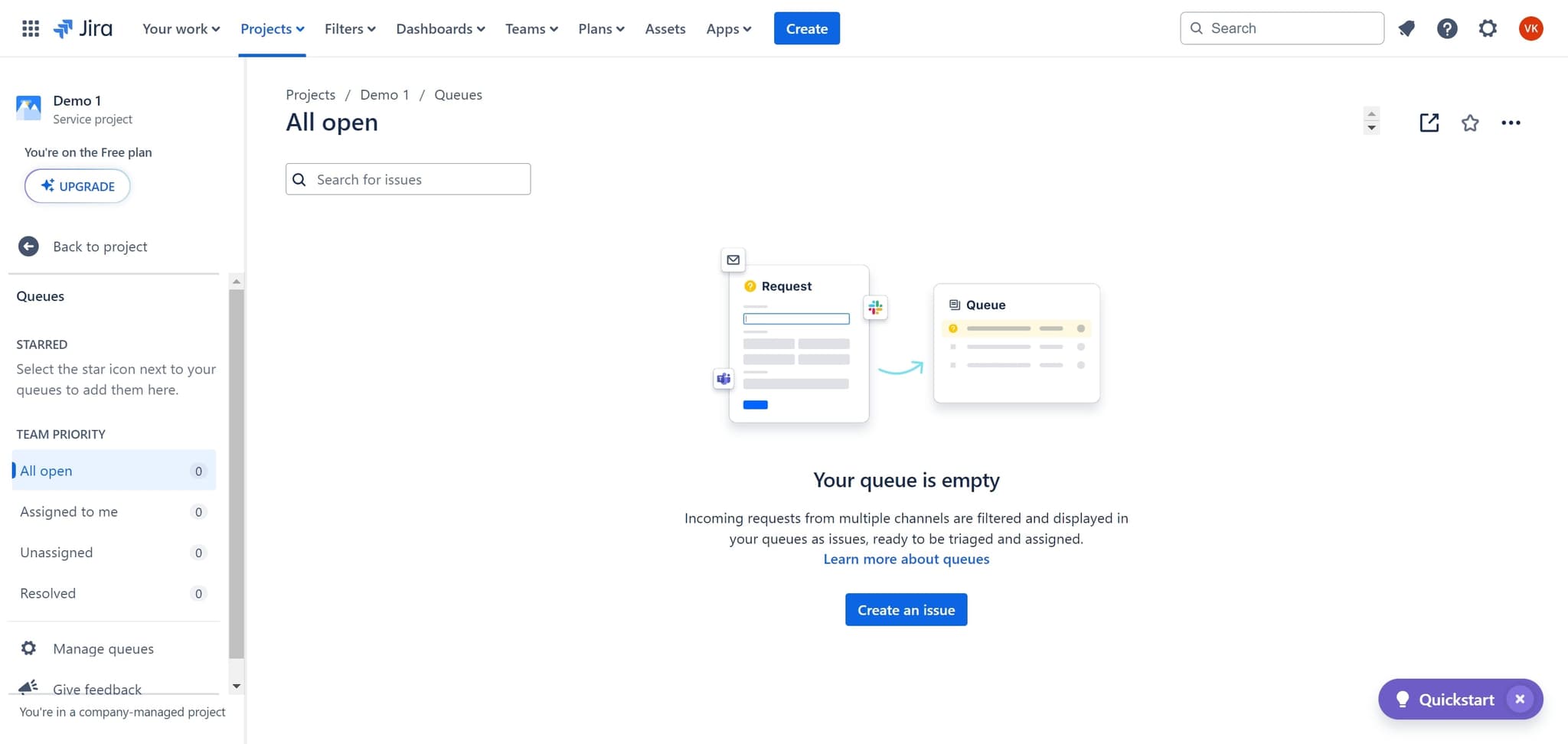
Navigate to Projects
After deletion, click on 'Projects' to return to your main projects view. This completes the workflow and returns you to your standard Jira dashboard.
Frequently asked questions
Common questions about how to delete a jira ticket..
Once a ticket is deleted in Jira, it cannot be recovered through the standard interface. However, your Jira administrator may be able to restore it from backups if the deletion was recent. It's recommended to review tickets carefully before confirming deletion to avoid losing important information.
To delete a Jira ticket, you typically need 'Delete Issue' permission in your project. This permission is usually granted to project administrators and team leads. Contact your Jira administrator if you don't have the necessary permissions to delete tickets.
Yes, you can mark tickets as 'Done' or move them to a closed status instead of permanently deleting them. This preserves the ticket history and allows you to reference completed work. Permanent deletion should only be used for duplicate or erroneous tickets that have no value for future reference.
When you delete a ticket, any links to other issues remain but will reference the deleted ticket. The linked issues won't be deleted, but they may show broken links or references to the deleted item. Review linked issues before deletion to ensure you don't leave broken relationships in your project.
Jira's bulk operations may allow you to delete multiple tickets simultaneously, depending on your project settings and permissions. Check your project's issue navigator for bulk action options, which can save time when cleaning up large numbers of obsolete tickets.