How to create a NPS Survey in Pendo

Net Promoter Score (NPS) surveys are a powerful way to measure customer satisfaction and loyalty directly within your product. Pendo makes it easy to create and deploy NPS surveys to gather valuable feedback from your users. This guide walks you through the complete process of setting up an NPS survey in Pendo.
Quick summary
In this tutorial, you'll learn how to create an NPS survey in Pendo from start to finish. You'll navigate through the Behavior section, configure survey settings, define your audience, set the survey duration, and save your survey for deployment.
Why this matters
NPS surveys provide quantifiable insights into customer sentiment and help identify promoters, passives, and detractors. By collecting this feedback directly in your product, you can make data-driven decisions to improve user experience and retention. Pendo's NPS tool streamlines this process, making it accessible without requiring development resources.
Step-by-step guide
- 1
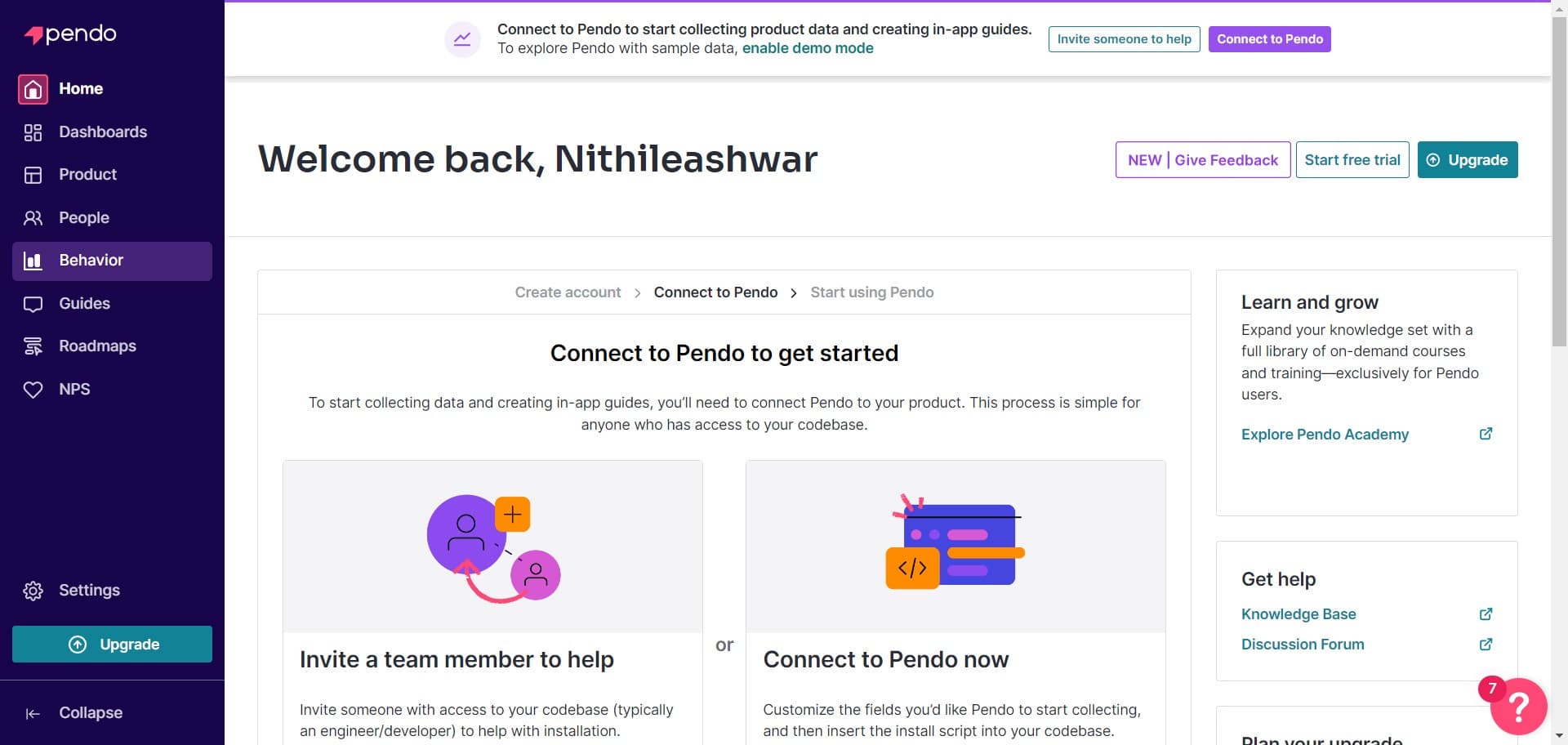
Navigate to Behavior section
Start by clicking on 'Behavior' in the main navigation menu. This section contains all feedback and behavioral analysis tools available in Pendo.
- 2
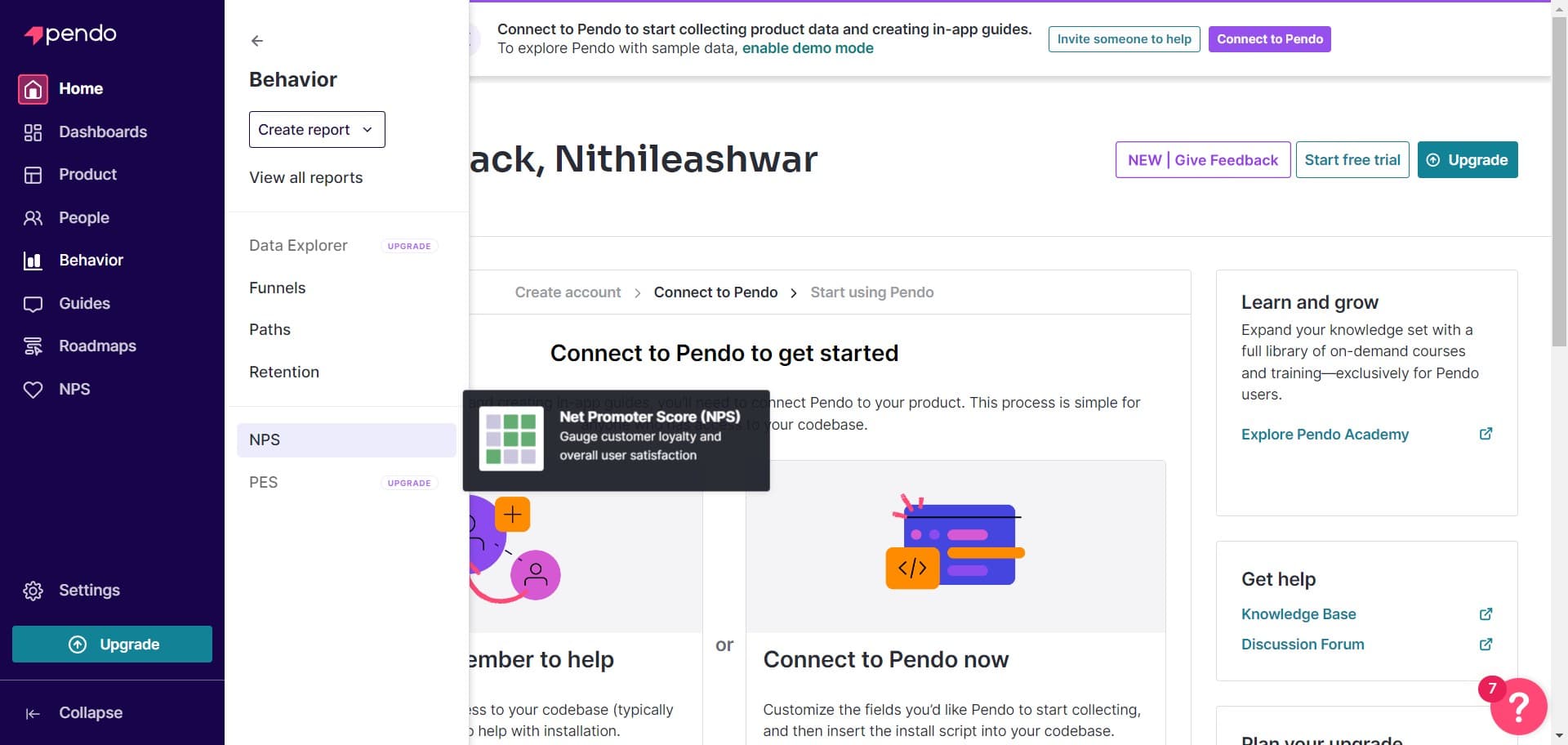
Open the NPS module
Click on 'NPS' to access the Net Promoter Score survey tools. This brings up the NPS management dashboard where you can view and create surveys.
- 3
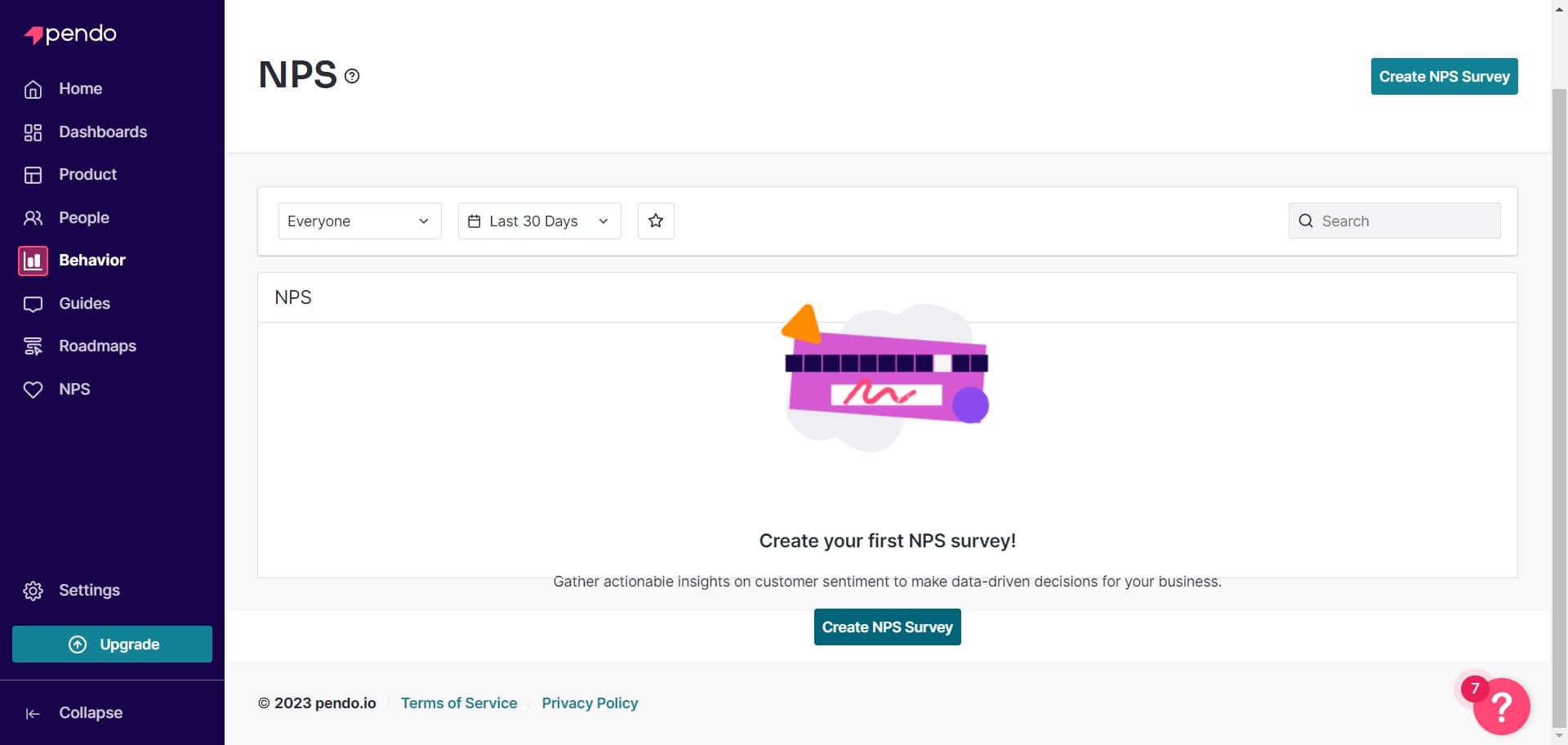
Create a new NPS survey
Click on 'Create NPS Survey' to begin setting up a new survey. This opens a configuration wizard that guides you through all necessary settings.
- 4
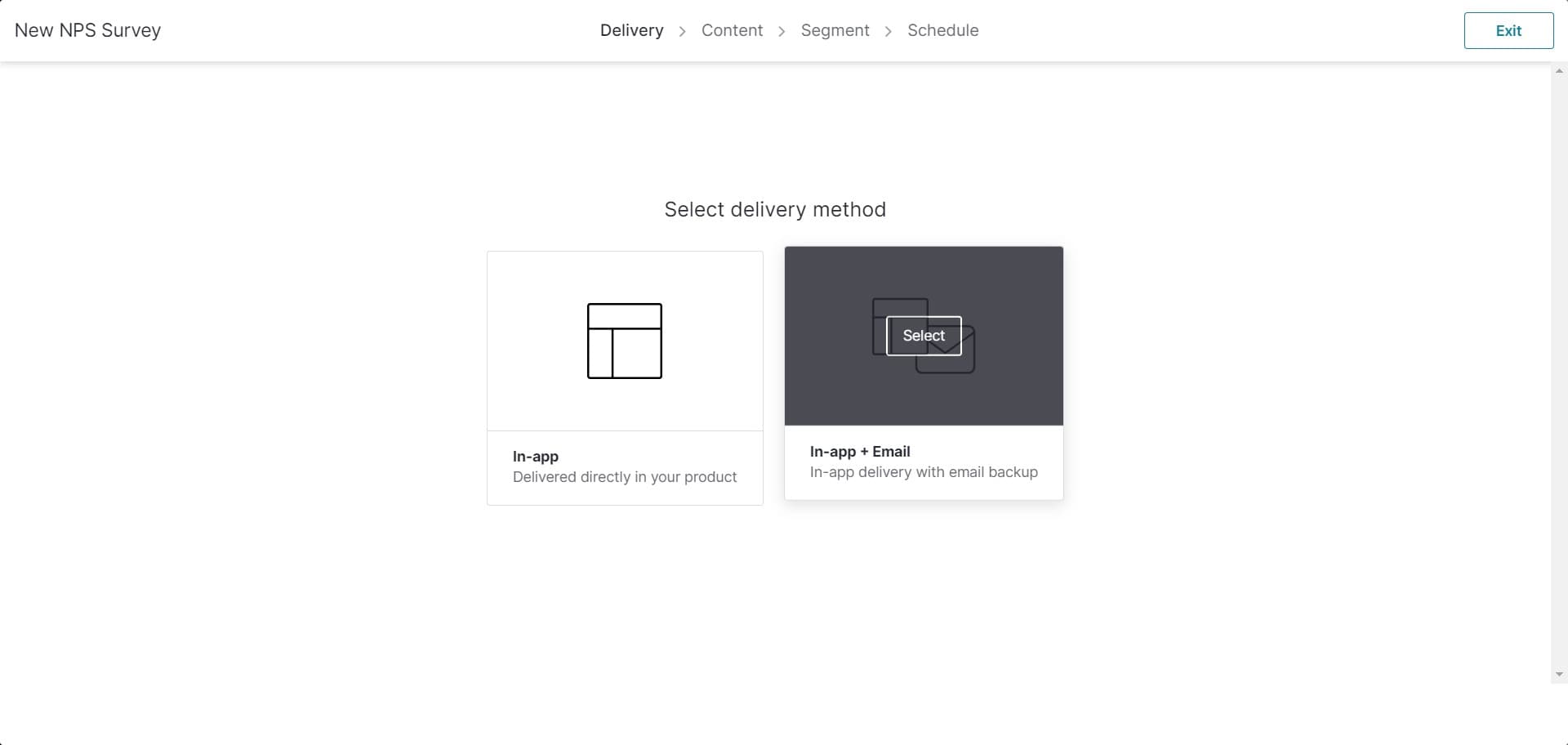
Select survey type or template
Click on 'Select' to choose your survey template or configuration option. Pendo offers preset NPS survey formats that you can customize for your needs.
- 5
Configure first survey setting
Click on the designated area to set up your initial survey parameter. This step prepares the foundation for additional configurations.
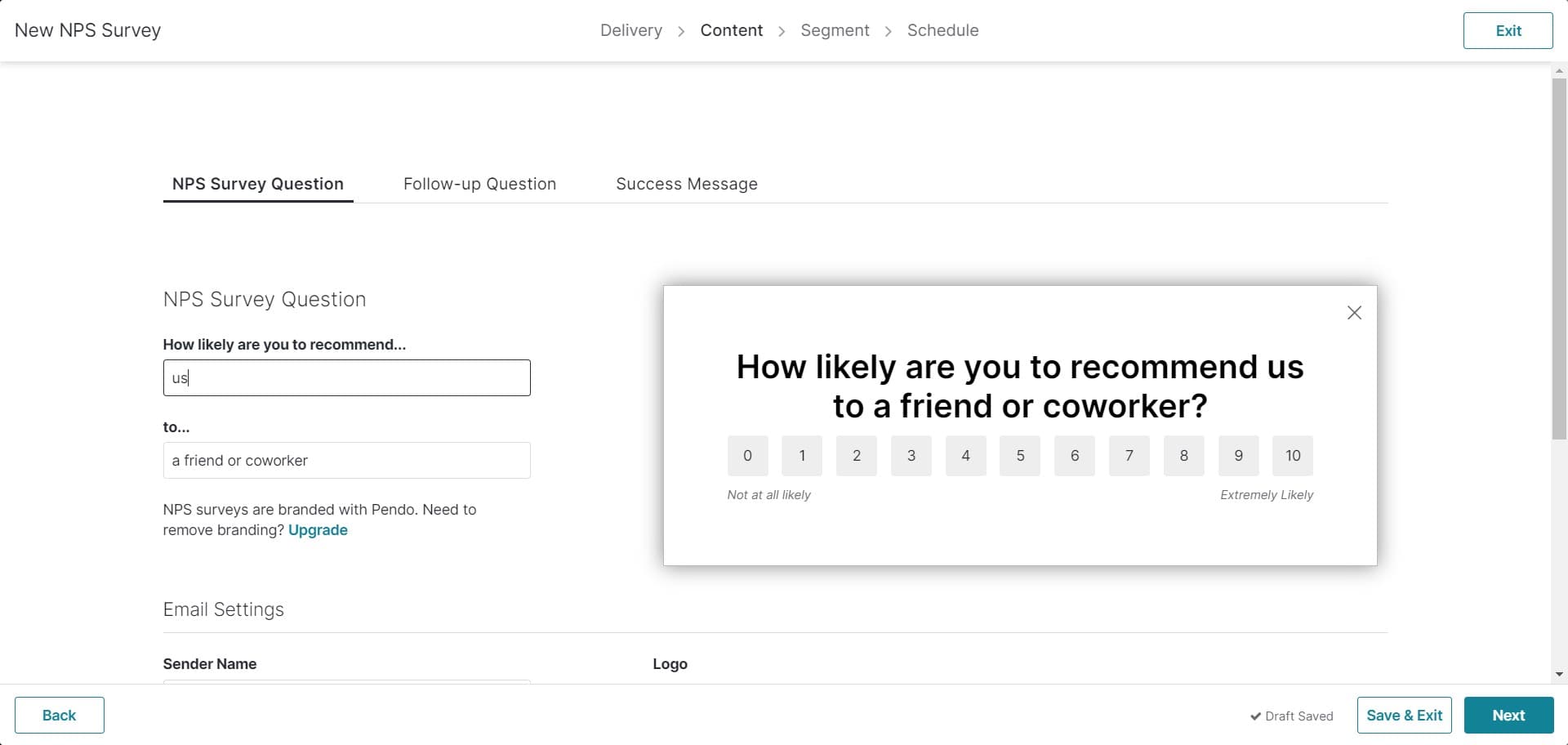
- 6
Configure second survey setting
Click on the next configuration area to add another survey parameter. Continue building out your survey's core settings.
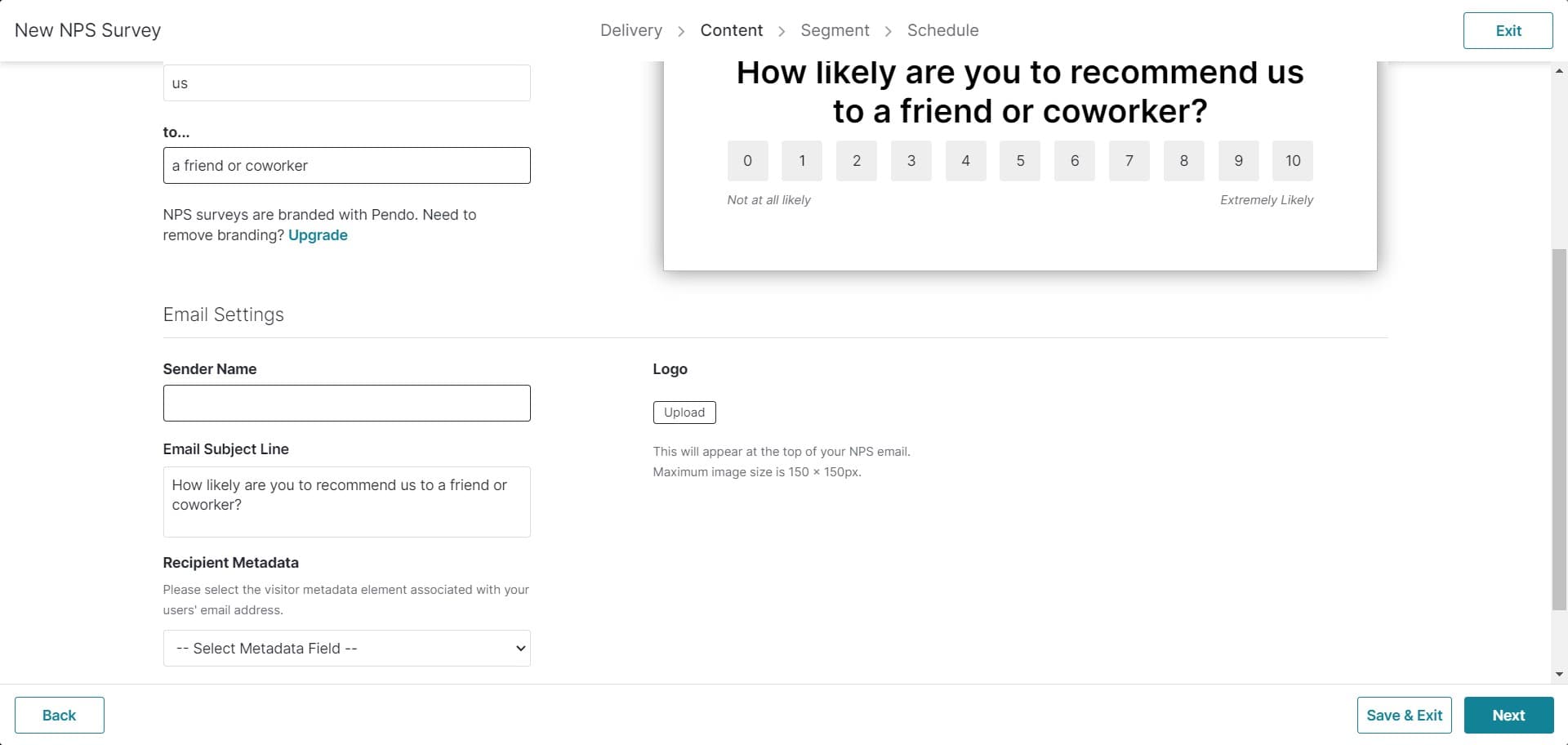
- 7
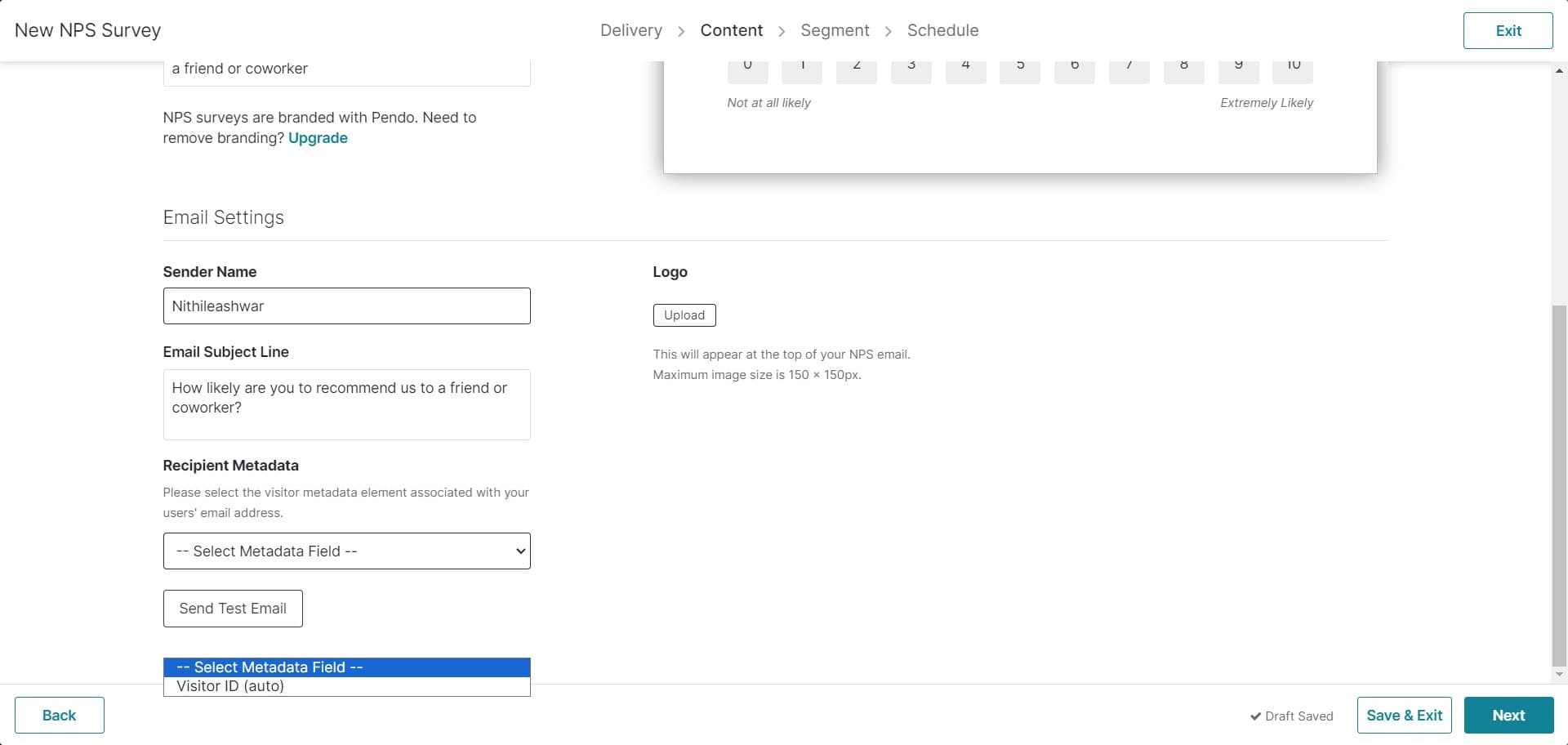
Select metadata field
Click on '-- Select Metad...' to choose a metadata field for your survey. This allows you to segment responses based on user attributes like company, plan type, or custom properties.
- 8
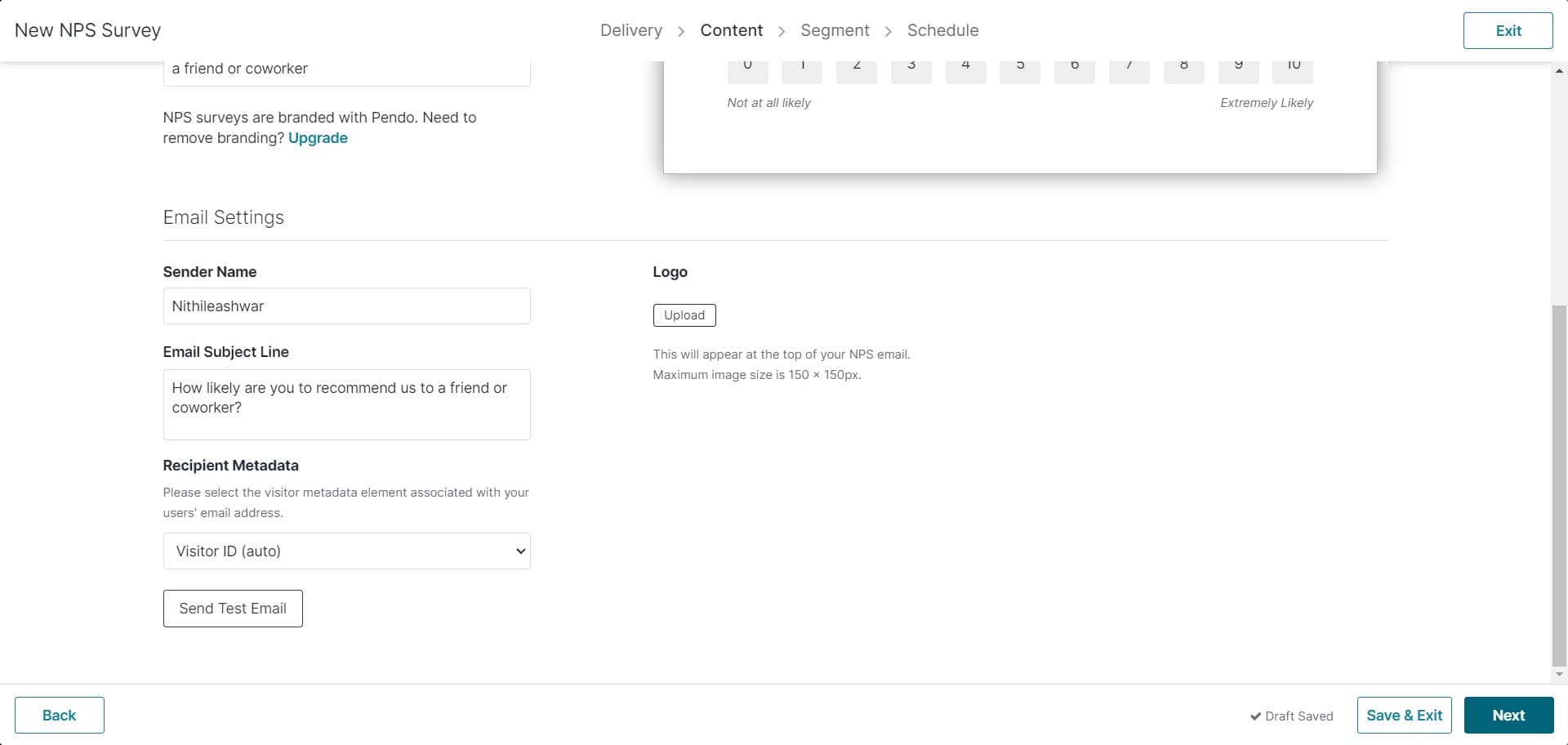
Proceed to audience selection
Click on 'Next' to advance to the audience configuration section. This step determines who will see your NPS survey.
- 9
Set primary audience targeting
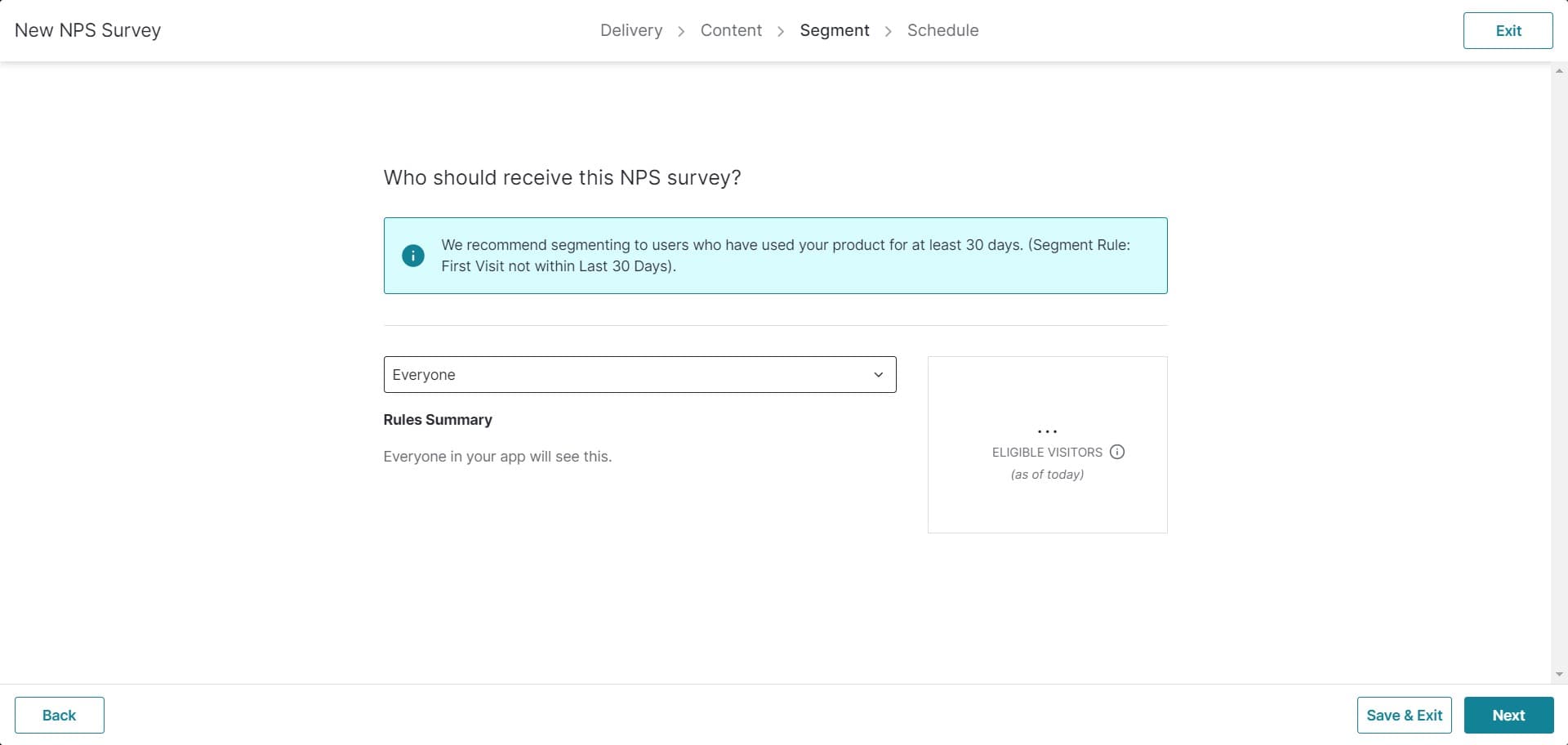
Click on 'Everyone' to define your primary audience segment. This allows you to target all users or specific user groups based on your criteria.
- 10
Confirm audience settings
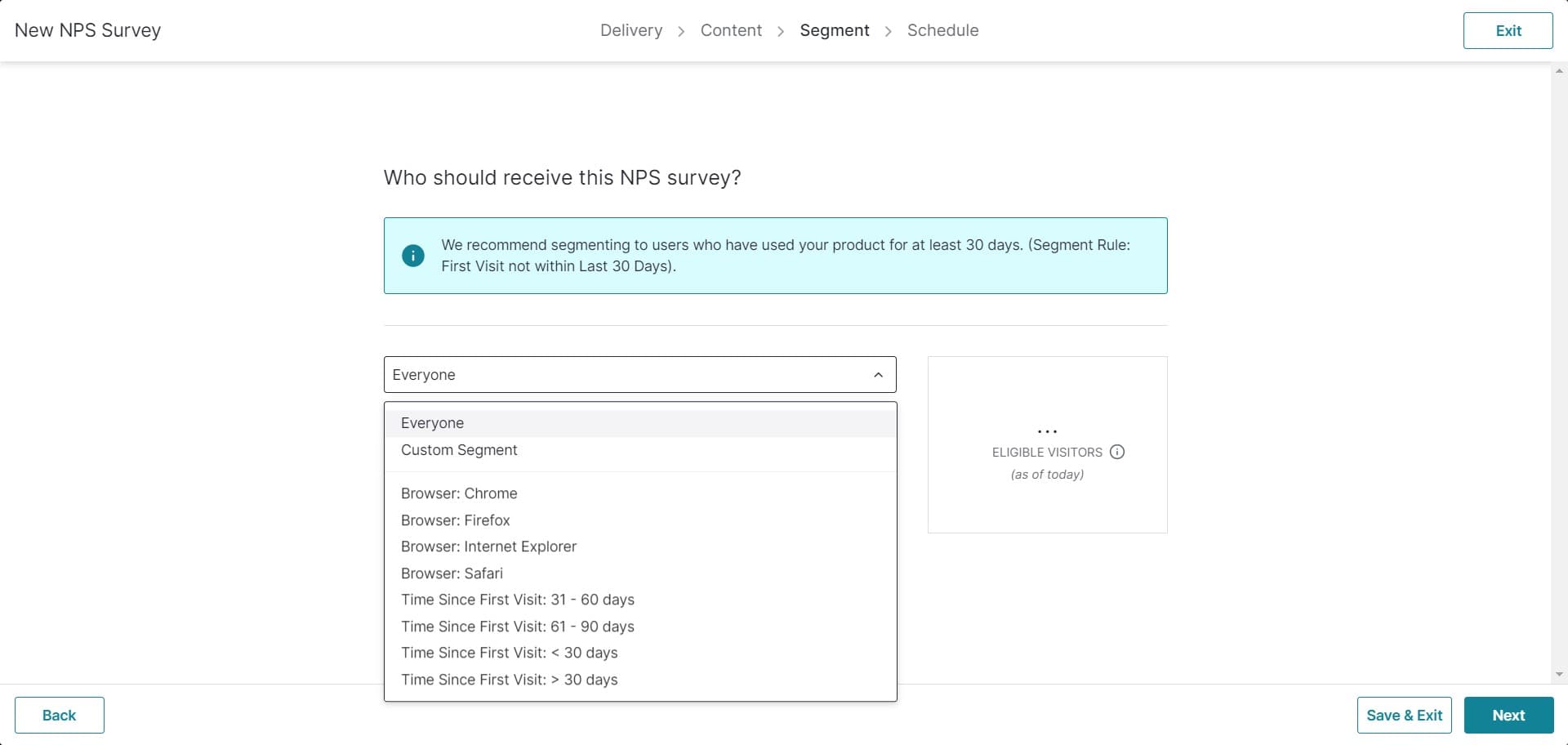
Click on 'Everyone' again to confirm your audience targeting selection. This ensures your survey will be displayed to the correct user population.
- 11
Move to survey duration settings
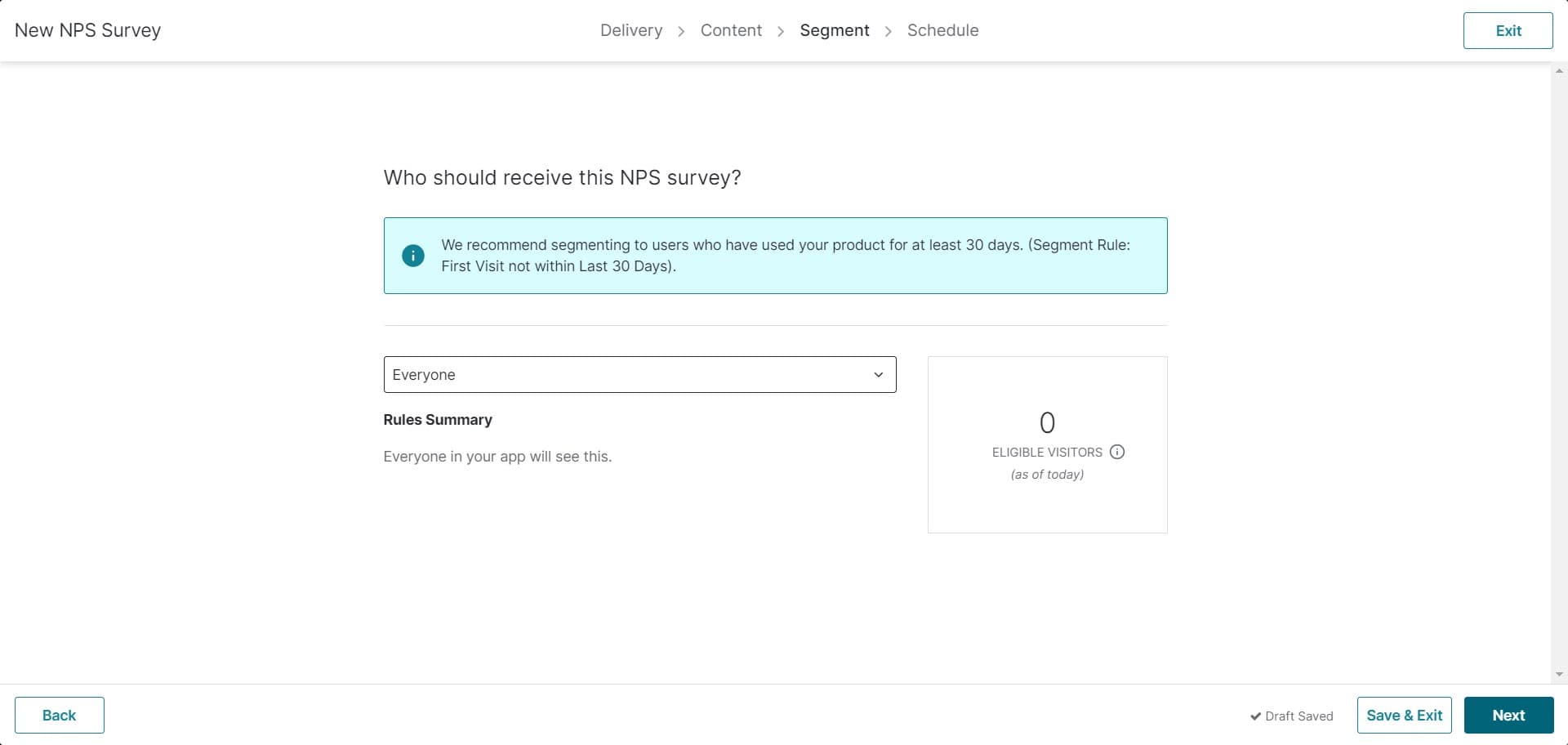
Click on 'Next' to proceed to the survey timing and duration configuration. Here you'll set when the survey starts and how long it remains active.
- 12
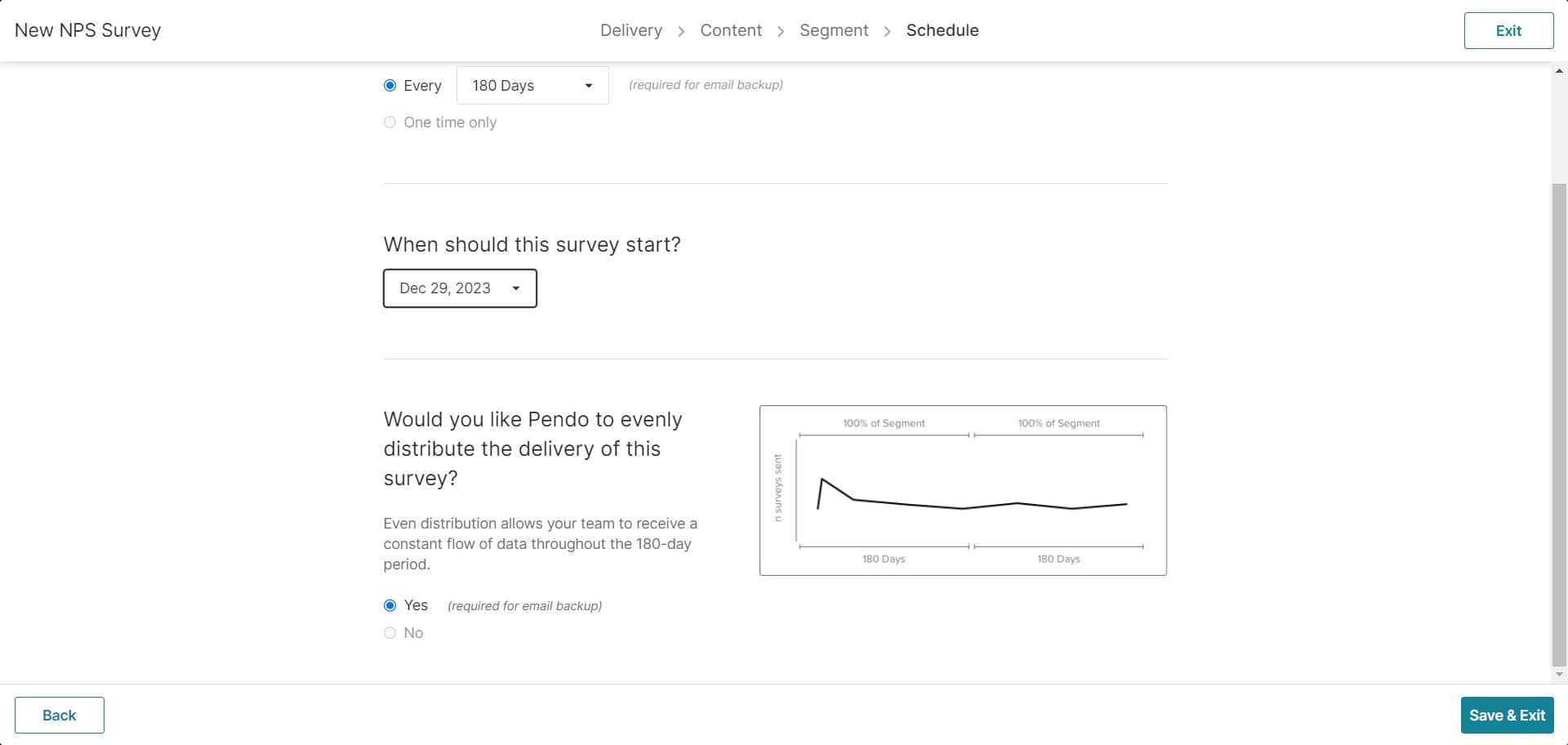
Set survey duration to 180 days
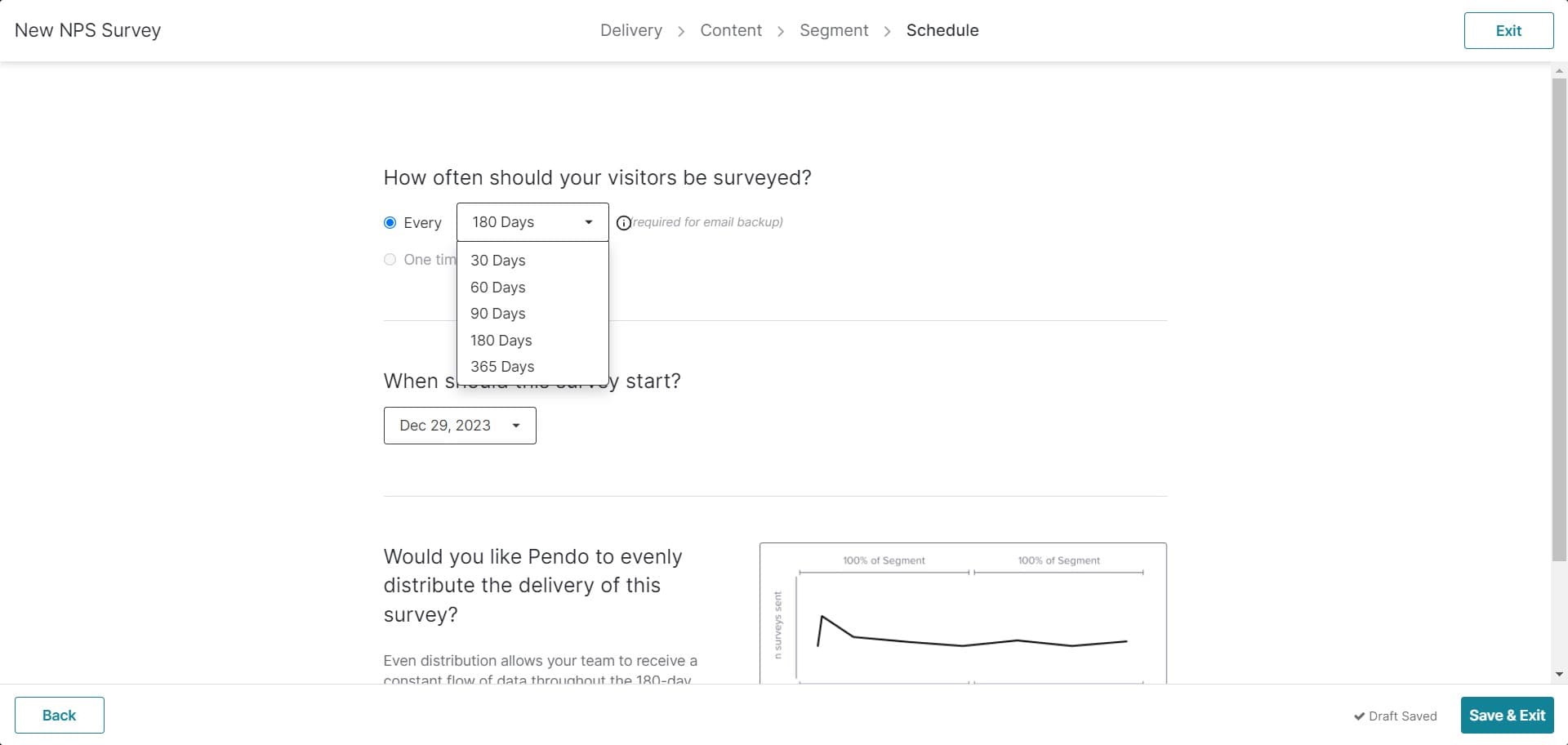
Click on '180 Days' to establish a six-month window for survey collection. This duration allows sufficient time to gather responses from your user base.
- 13
Complete duration configuration
Click on the designated area to finalize your duration settings. This confirms the survey timeline and any related scheduling options.
- 14
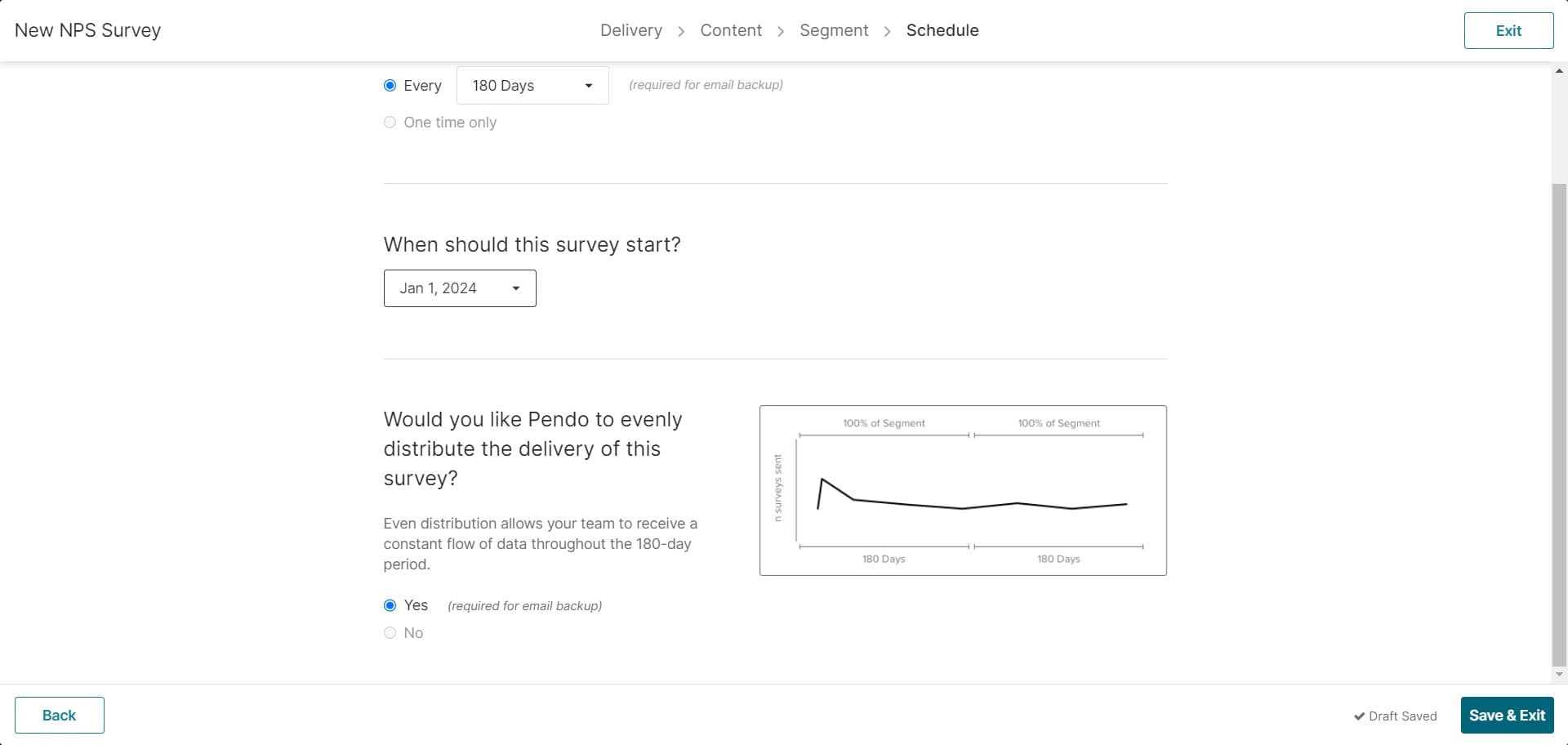
Save and exit survey setup
Click on 'Save & Exit' to finalize and deploy your NPS survey. Your survey is now active and will begin collecting responses from your configured audience.
- 15
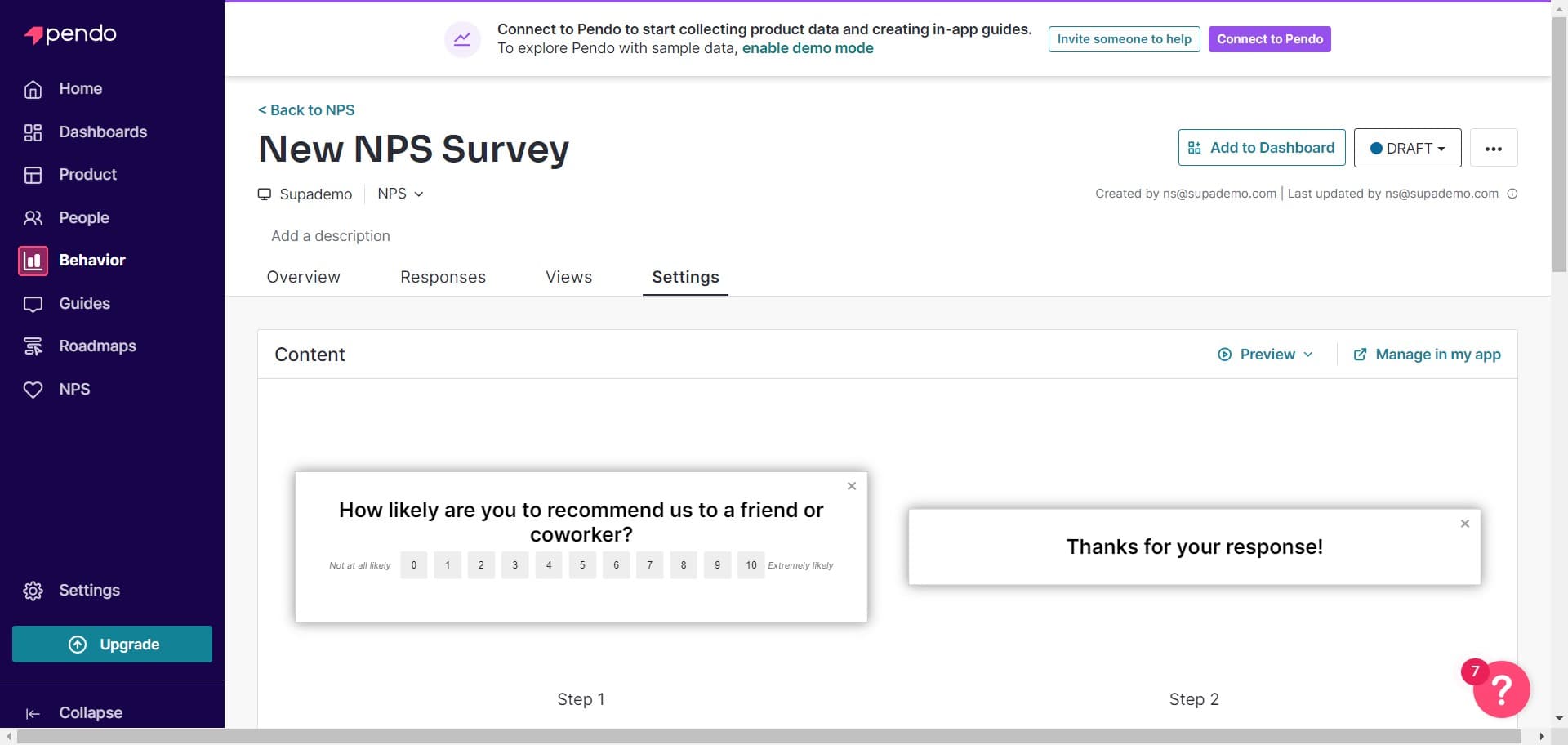
Confirm final survey deployment
Click on the final confirmation area to complete the survey creation process. Your NPS survey is now live in your product.
Frequently asked questions
Common questions about how to create a nps survey in pendo.
An NPS survey measures customer loyalty by asking users how likely they are to recommend your product on a scale of 0-10. It's a simple yet effective metric that correlates with business growth and helps identify areas for improvement. NPS surveys provide actionable feedback that can guide product development and customer success initiatives.
Yes, Pendo allows you to target specific user segments based on metadata fields like company size, subscription plan, or custom user attributes. Instead of showing the survey to everyone, you can narrow your audience to gather feedback from specific user groups. This helps you understand satisfaction levels across different customer segments.
The 180-day duration setting provides a six-month window for collecting responses, which is a common best practice for NPS surveys. This timeframe balances the need for sufficient response volume with the timeliness of feedback. You can adjust the duration based on your specific needs and user base size.
The NPS survey will display in your product to users who match your audience targeting criteria. Pendo typically shows surveys as modal dialogs or sidebar elements that don't interrupt the user experience. The exact placement depends on your Pendo configuration and survey settings.
After collecting NPS responses, use Pendo's analytics dashboard to segment respondents into promoters, passives, and detractors. Analyze comments and feedback to identify common themes and areas for improvement. Share results with your product and customer success teams to inform roadmap decisions and customer engagement strategies.