How to download a Pendo agent

Downloading a Pendo agent is a critical step in deploying Pendo's analytics and feedback capabilities within your application. This guide walks you through the process of accessing your agent settings and retrieving the download file from your Pendo account.
Quick summary
In this tutorial, you will learn how to navigate to your Pendo agent settings and download the agent file needed for integration. By following these steps, you'll access the Applications section, locate your Supademo agent, and complete the download process.
Why this matters
The Pendo agent is essential for collecting user behavior data, enabling product teams to understand how users interact with their applications. Downloading the agent is the foundational step required before you can deploy analytics and user feedback tools to your product environment.
Step-by-step guide
- 1
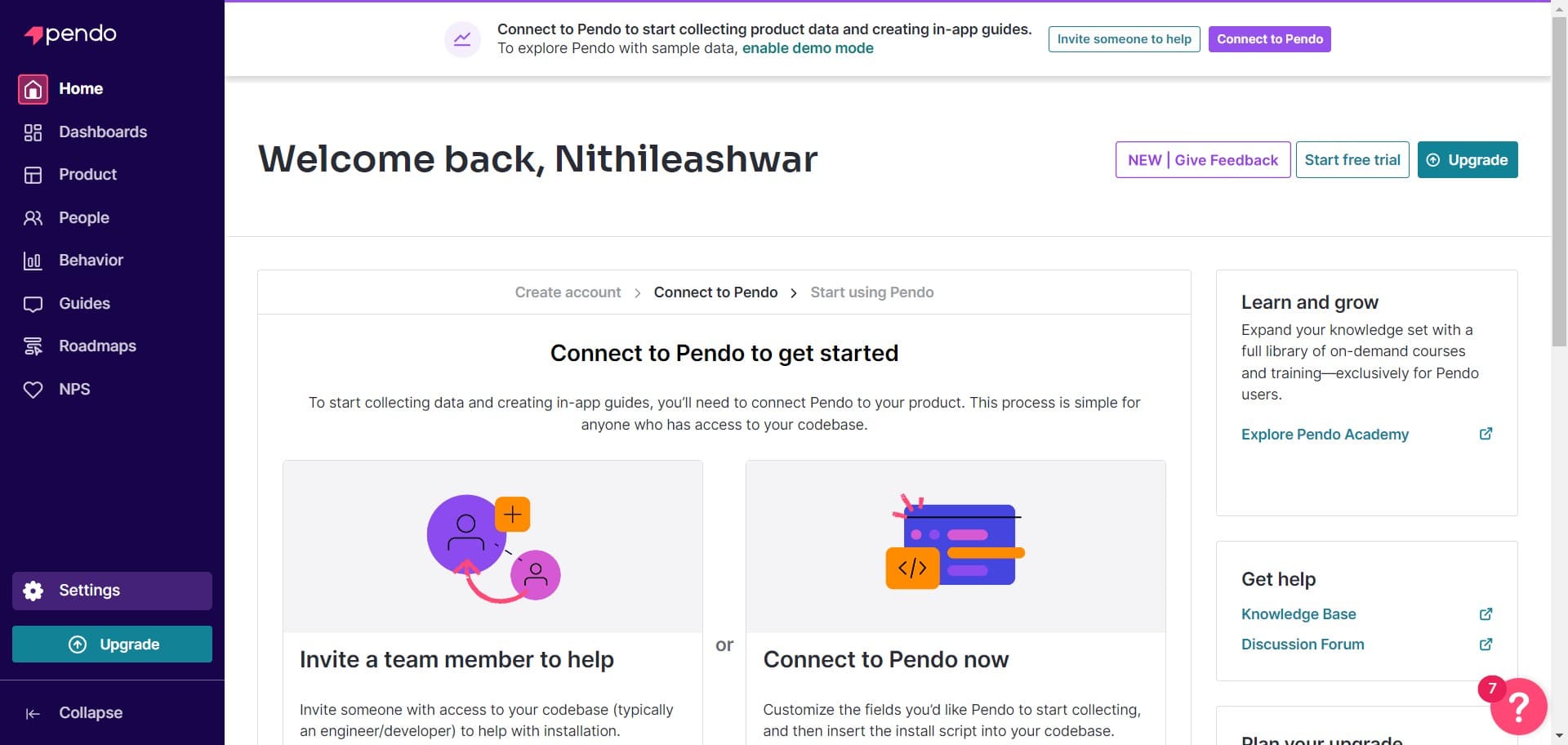
Click on Settings
Start by locating and clicking the Settings option in your Pendo account navigation. This will open the main settings dashboard where you can manage your account configuration.
- 2
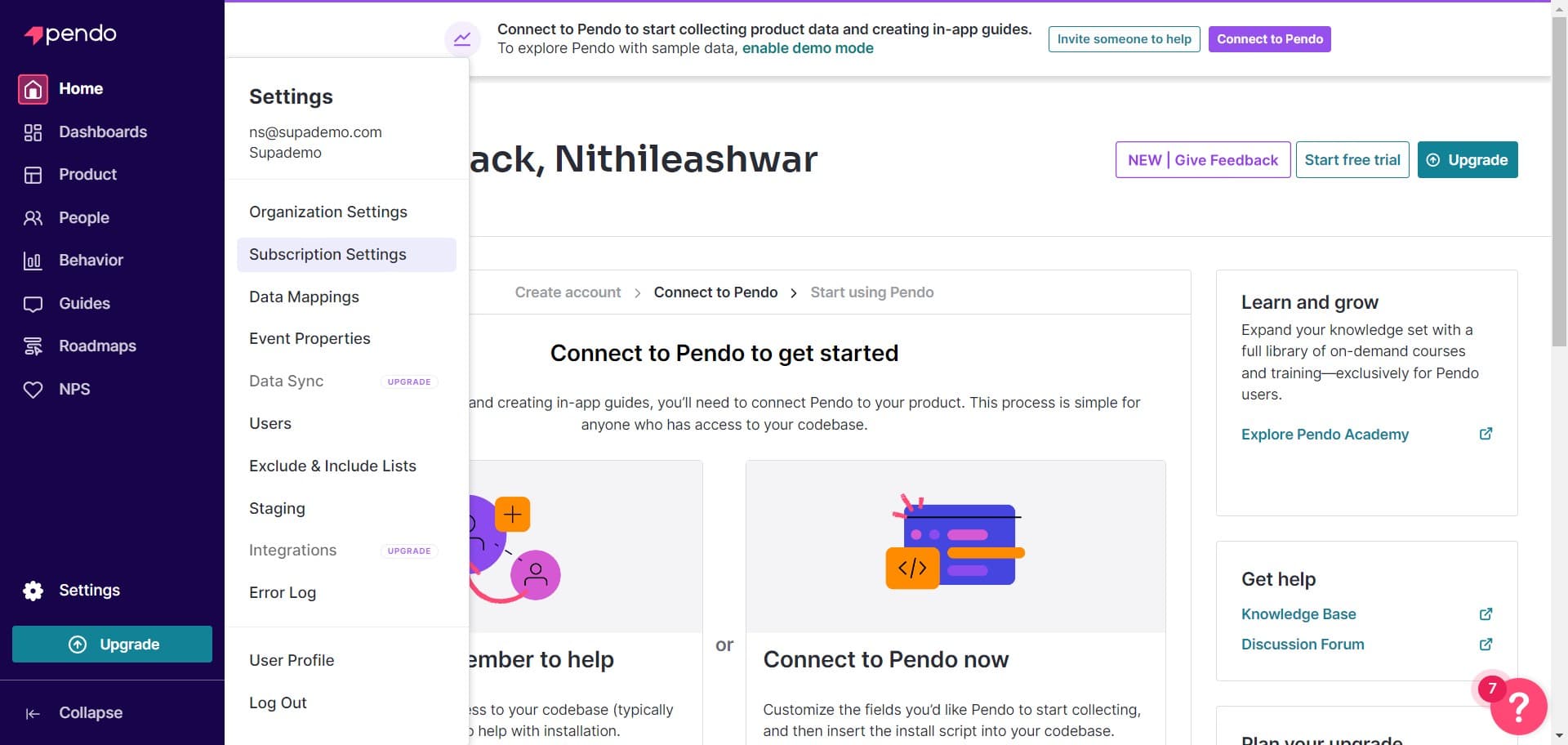
Click on Subscription Settings
From the Settings menu, select Subscription Settings to access your subscription and application management options. This section controls which applications and features are available in your account.
- 3
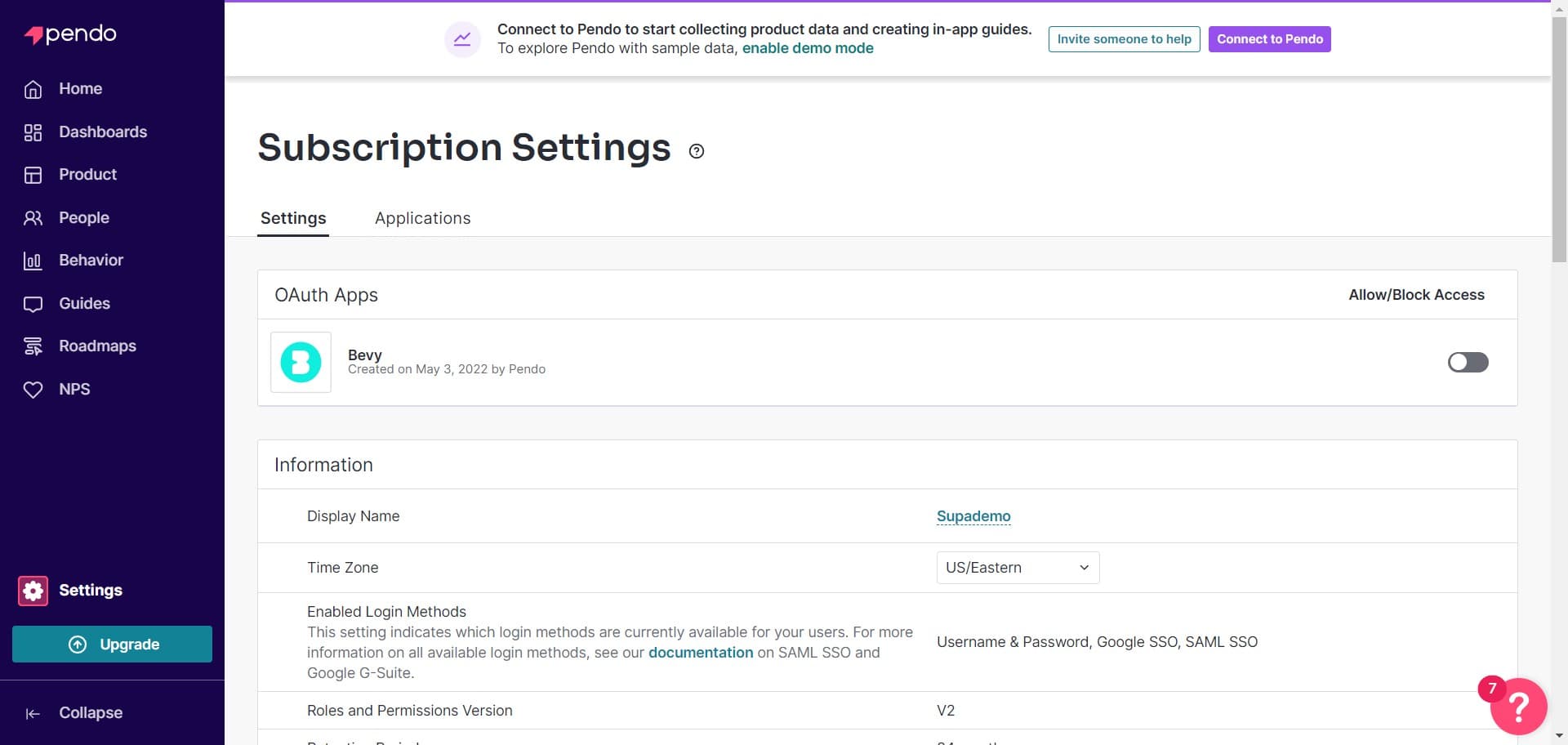
Click on Applications
Navigate to the Applications section within Subscription Settings. Here you'll see a list of all applications associated with your Pendo subscription.
- 4
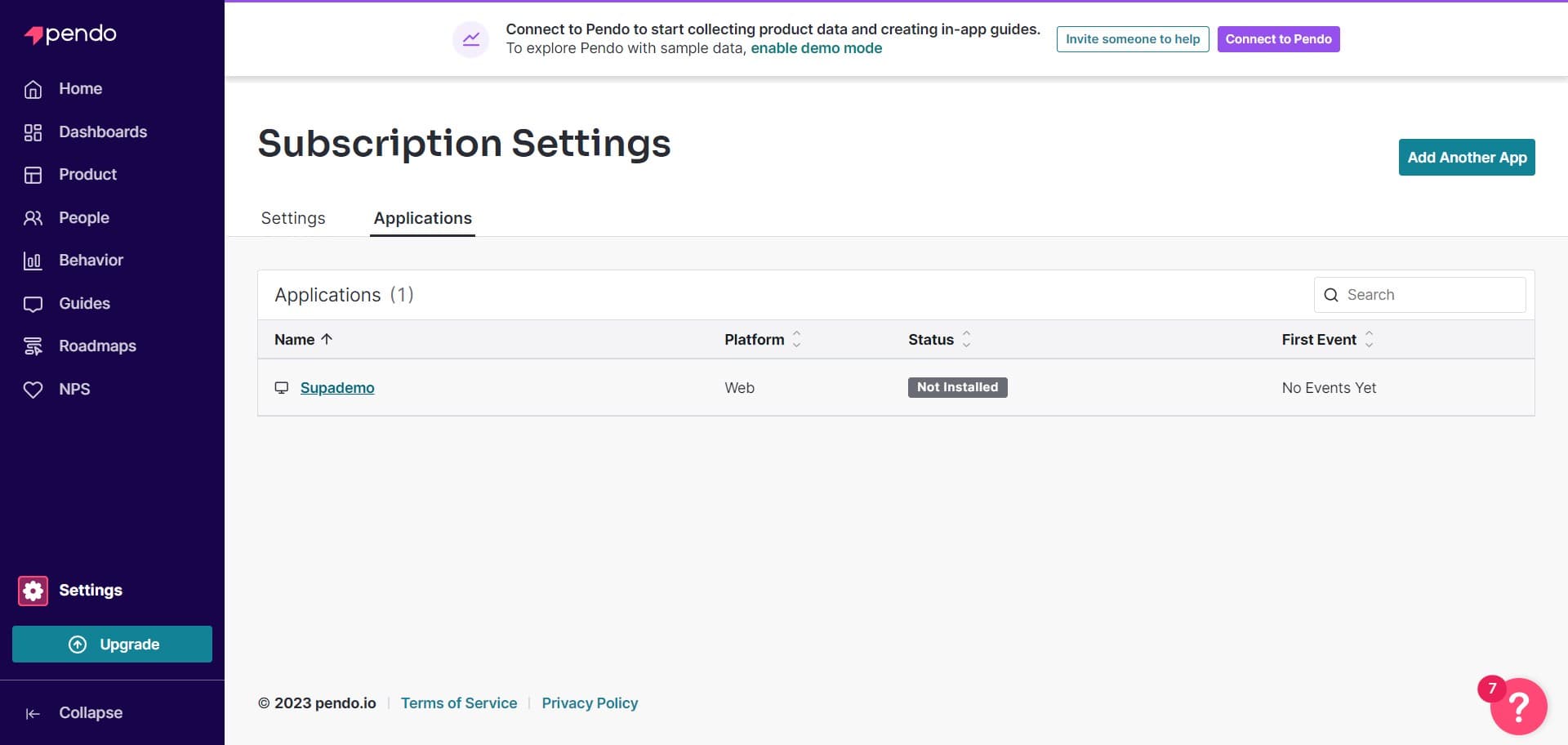
Click on Supademo
Locate and click on the Supademo application from your applications list. This will open the application-specific settings and configuration options.
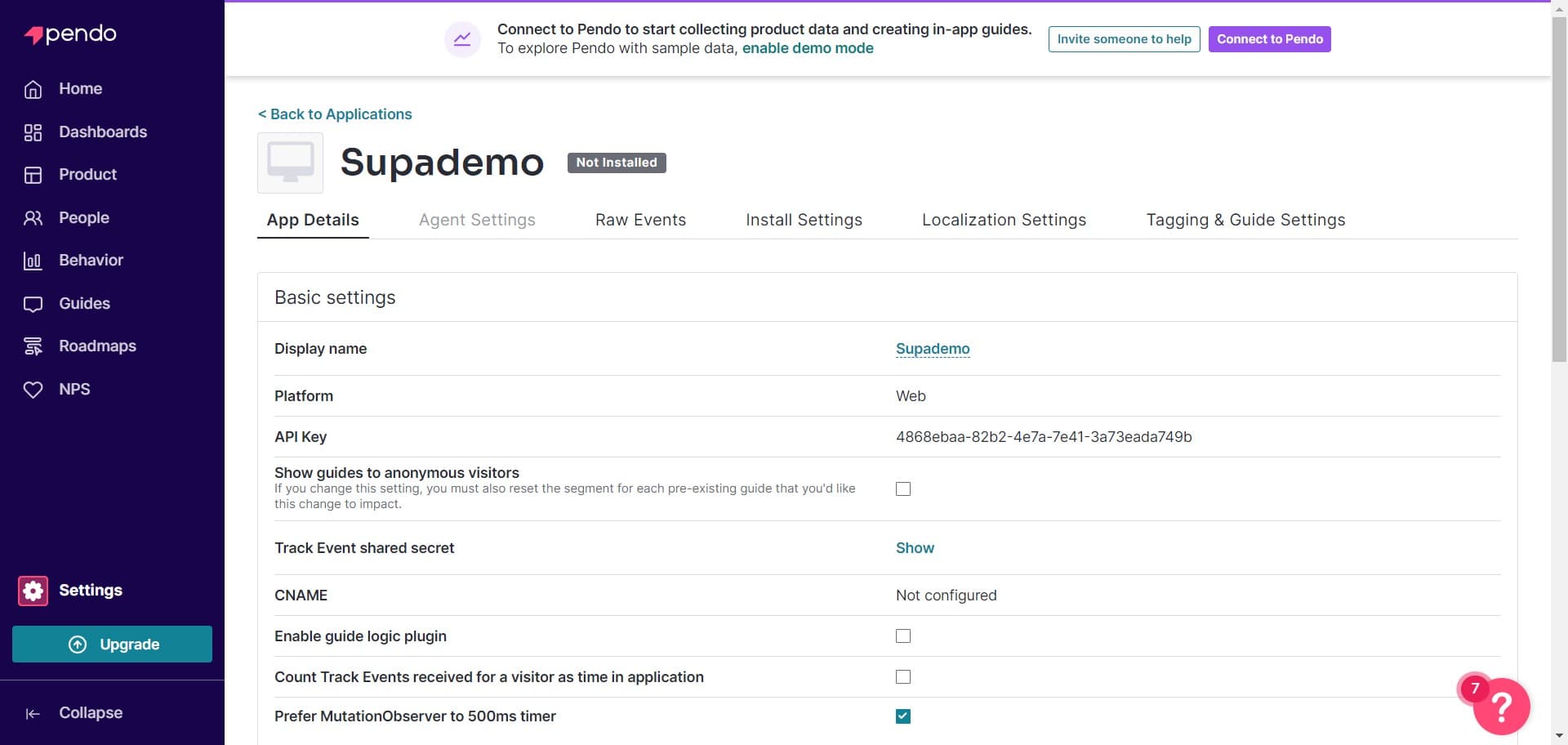
- 5
Click on Agent Settings
Select Agent Settings to access the configuration and download options for your Pendo agent. This section displays agent-specific information and tools.
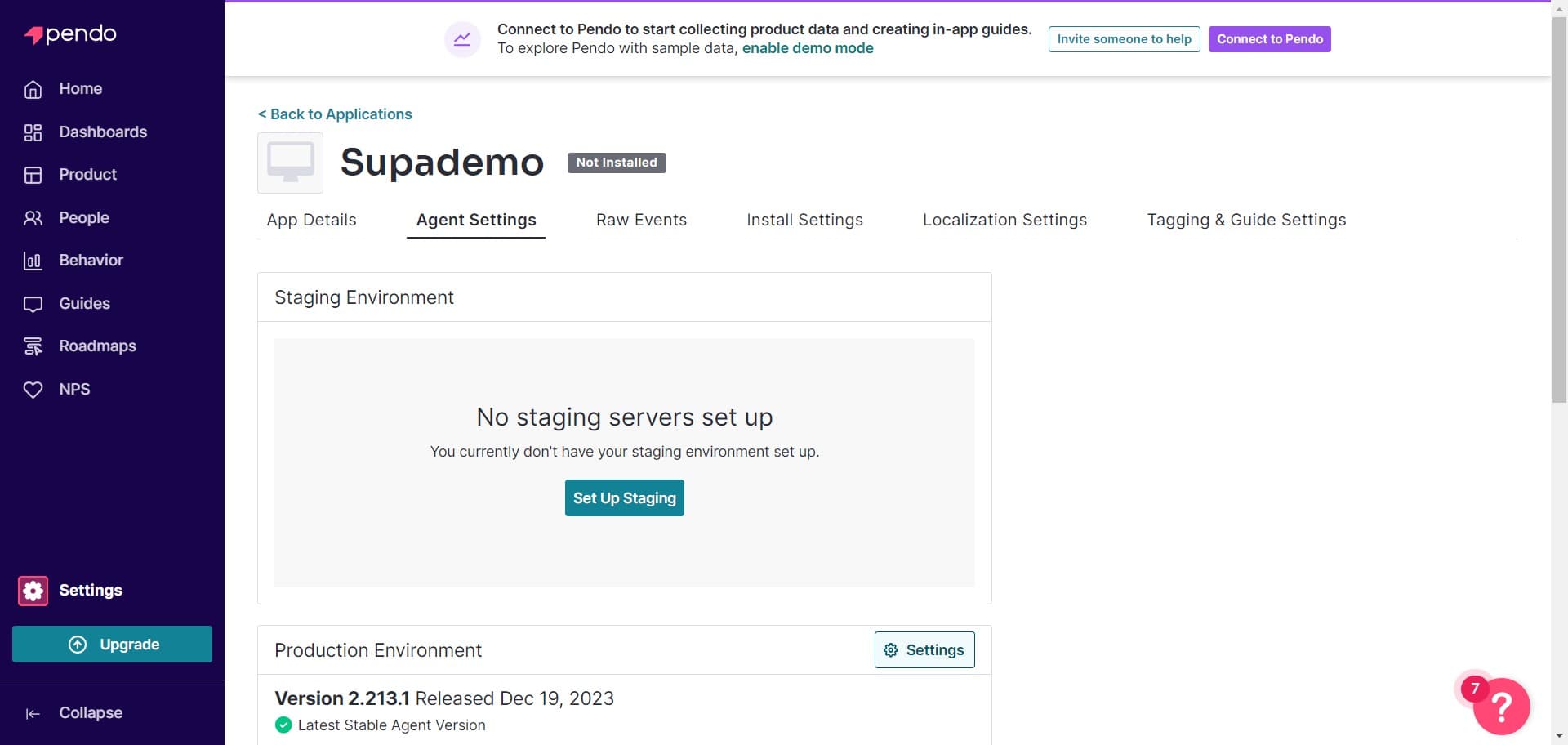
- 6
Click on Settings
Click the Settings option within the Agent Settings panel to access additional agent configuration options. This will reveal more detailed agent management tools.
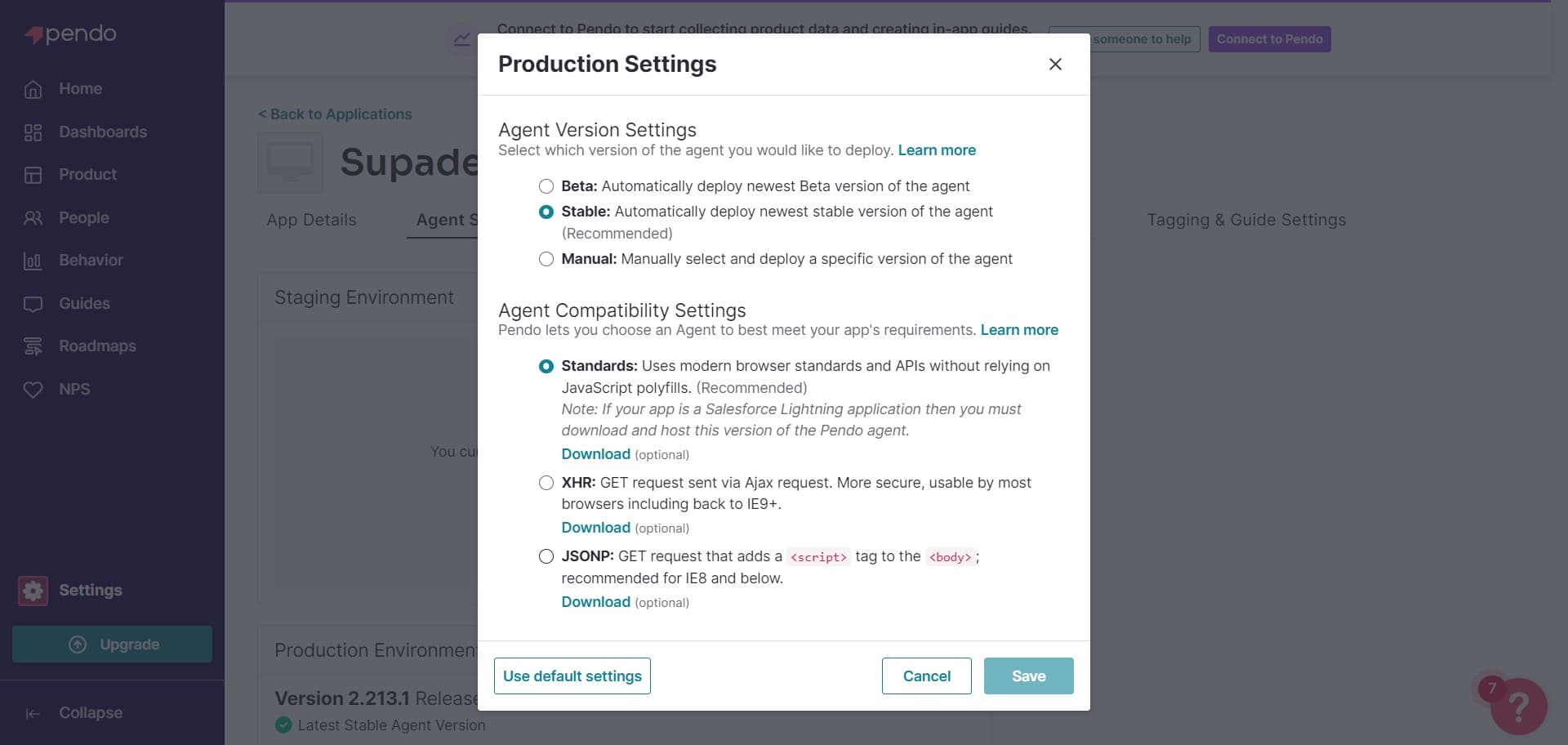
- 7
Locate the download option
Look for the download link or button that appears in the agent settings interface. This element will be clearly visible in the current settings view.
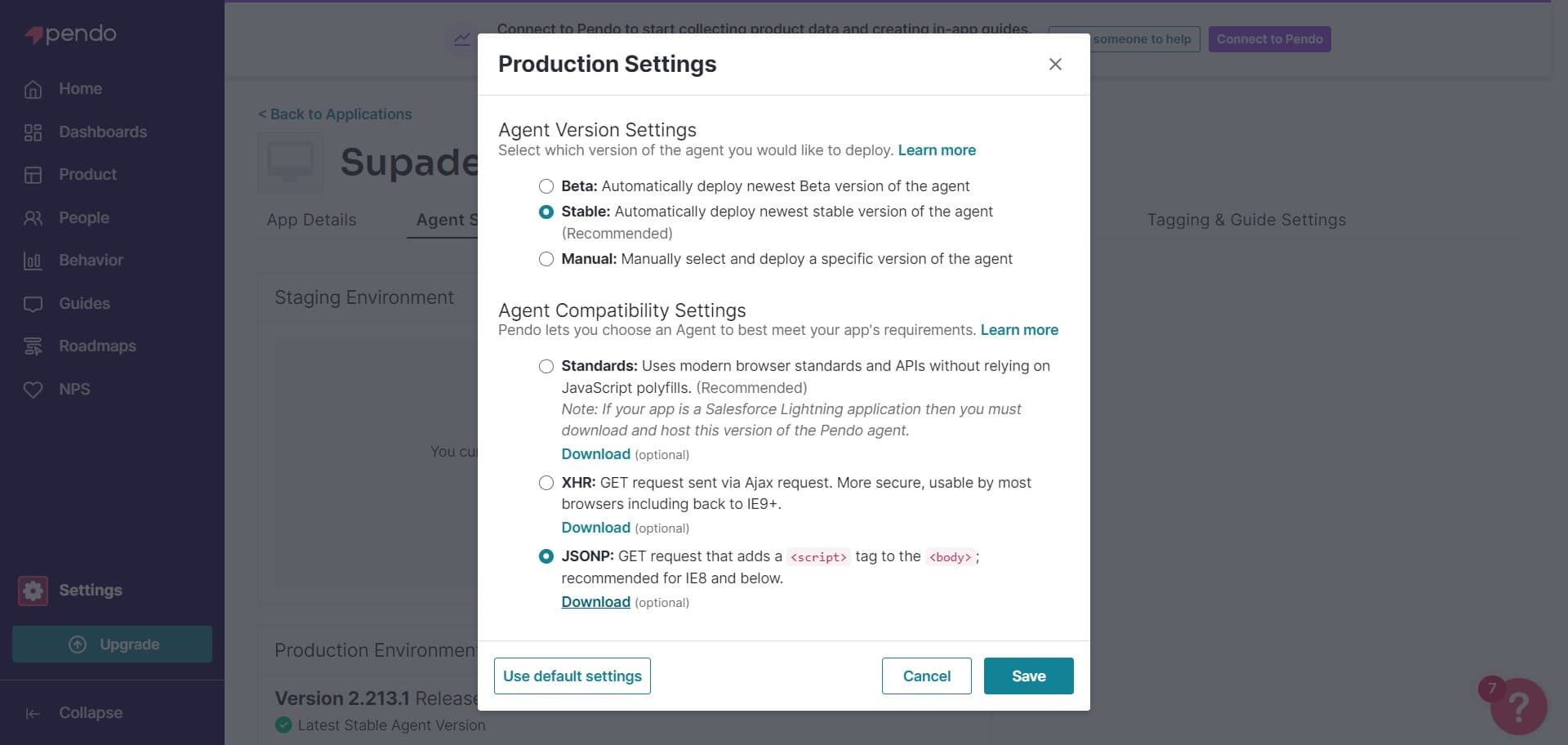
- 8
Click on Download
Click the Download button to retrieve your Pendo agent file. The agent file will begin downloading to your computer and is ready for integration into your application.
Frequently asked questions
Common questions about how to download a pendo agent.
The agent download is located in Settings > Subscription Settings > Applications > Your Application > Agent Settings. From there, navigate through the Settings option and click Download to retrieve your agent file. The exact path ensures you access the correct agent version for your application.
After downloading the agent file, you'll need to integrate it into your application's codebase. Refer to Pendo's integration documentation for your specific platform or framework to complete the deployment process. The agent file contains the necessary code to begin collecting analytics and feedback data.
Yes, you can download the agent file as many times as needed from the same Agent Settings location. This is useful if you need to deploy to multiple environments or replace an existing agent installation.
If your application isn't listed, you may need to add it first within Subscription Settings. Check with your Pendo account administrator to ensure your application has been properly registered and provisioned in your subscription.
The agent file downloaded from your Pendo account corresponds to your current subscription and application configuration. If you need a different version or configuration, you can download it again from the same location, and it will reflect your current settings.