How to create a dashboard in Pendo

Dashboards in Pendo provide a centralized view of your product analytics and user insights. This guide walks you through creating a custom dashboard from scratch, allowing you to visualize the metrics that matter most to your business.
Quick summary
In this tutorial, you'll learn how to create a new dashboard in Pendo by setting up the basics, adding descriptions, and configuring widgets to display your data. By the end, you'll have a fully functional dashboard tailored to your analytics needs.
Why this matters
Custom dashboards enable product teams to monitor key performance indicators and user behavior patterns in one place. Creating well-organized dashboards helps stakeholders make data-driven decisions faster and identify trends without navigating multiple reports.
Step-by-step guide
- 1
Create a new dashboard
Click on the 'New Dashboard' button to start the dashboard creation process. This will open a new dashboard workspace where you can begin customizing your analytics view.
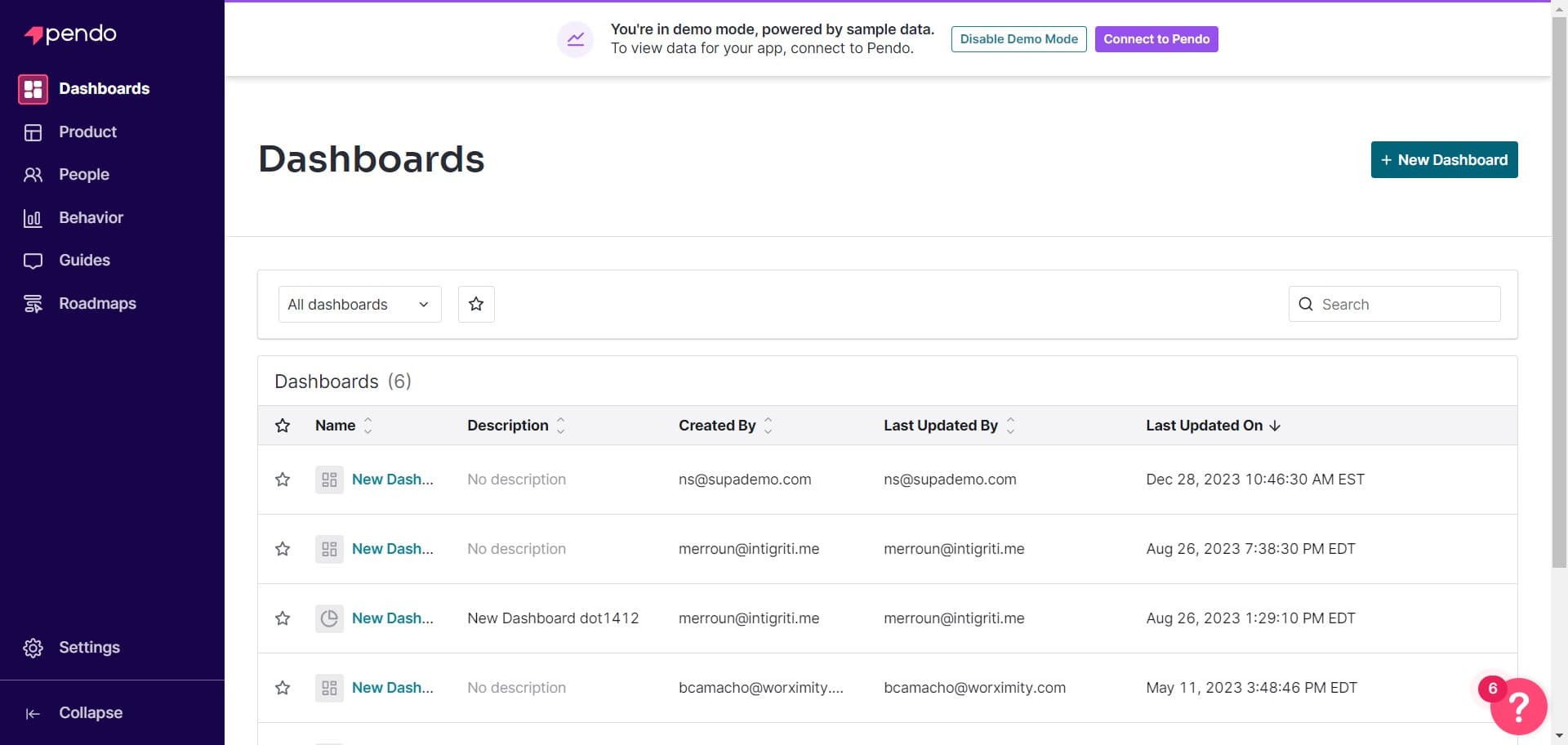
- 2
Select dashboard location
Click on the designated area to choose where your dashboard will be stored or organized. This ensures your dashboard is placed in the correct project or folder for easy access.
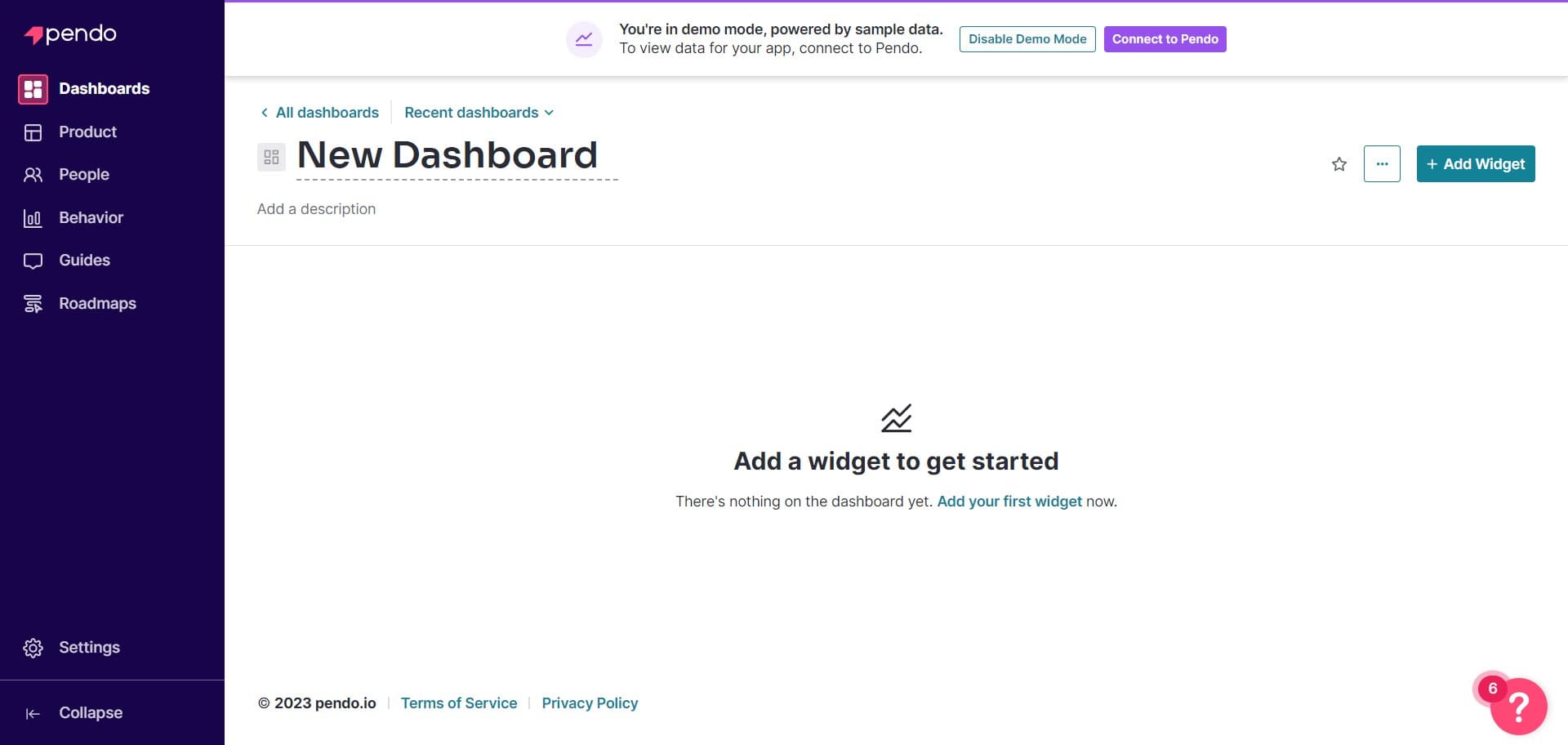
- 3
Add a dashboard description
Click on 'Add a description' to document the purpose and contents of your dashboard. A clear description helps you and your team understand the dashboard's intended use at a glance.
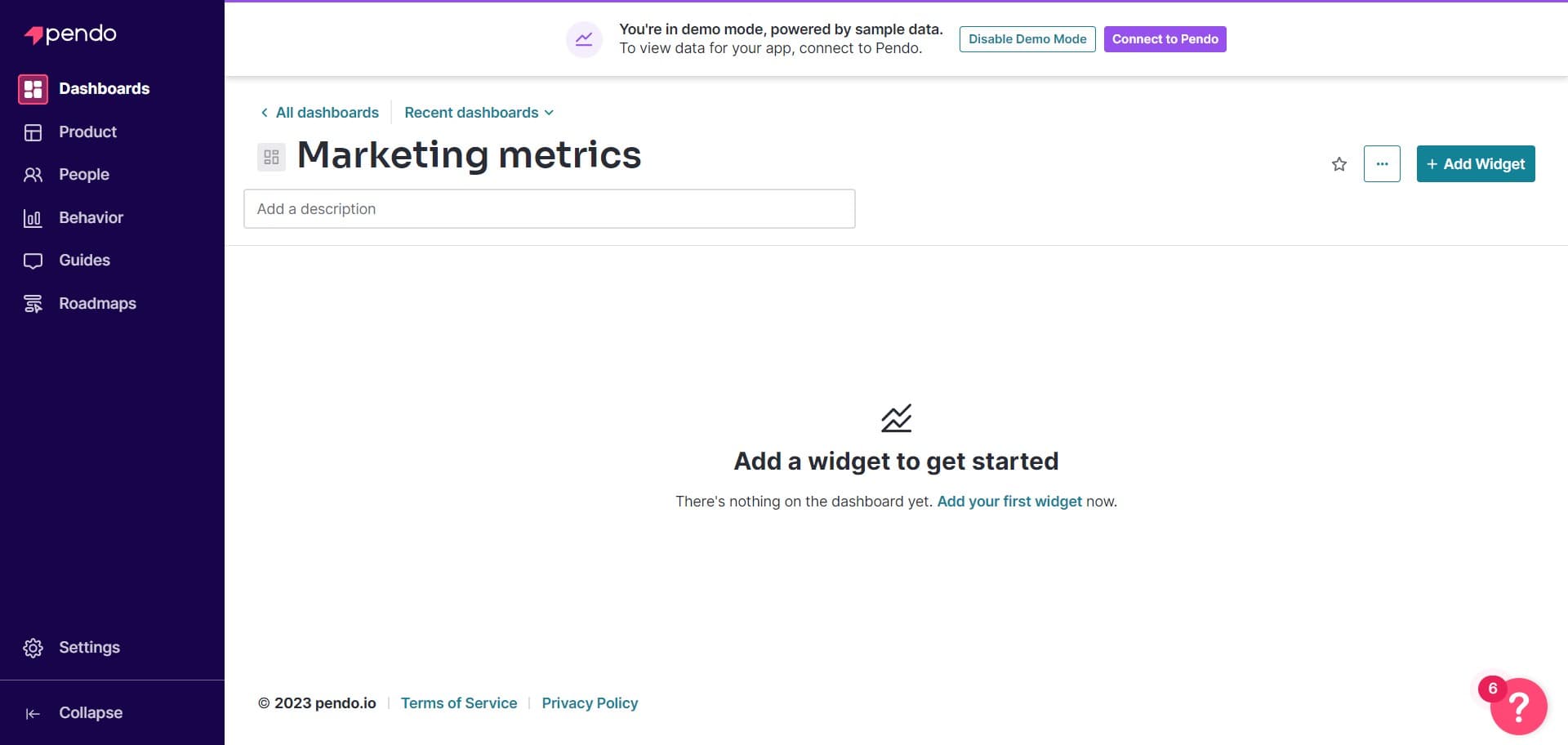
- 4
Add a widget to dashboard
Click on 'Add Widget' to insert a new visualization or metric card into your dashboard. This allows you to start populating your dashboard with the data you want to track.
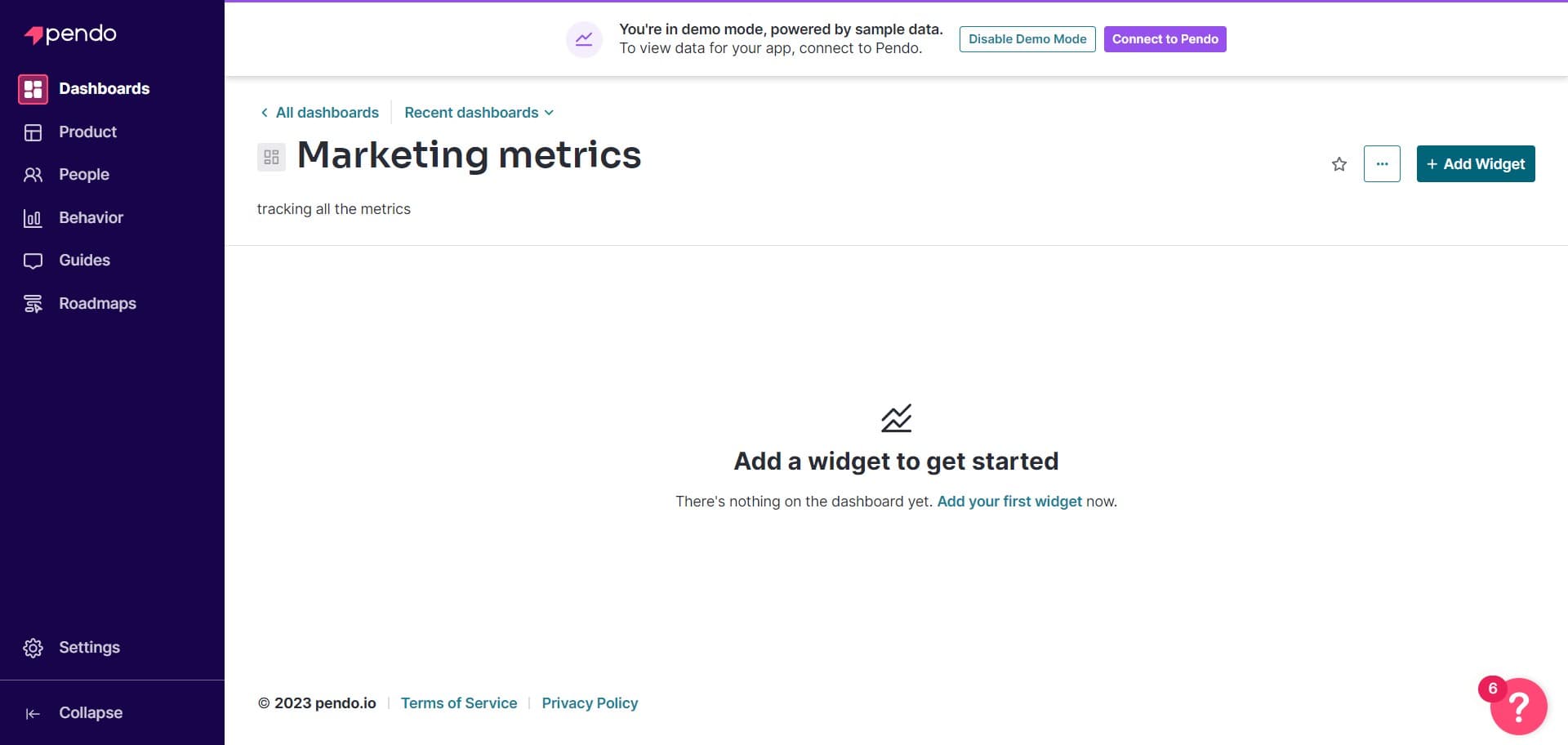
- 5
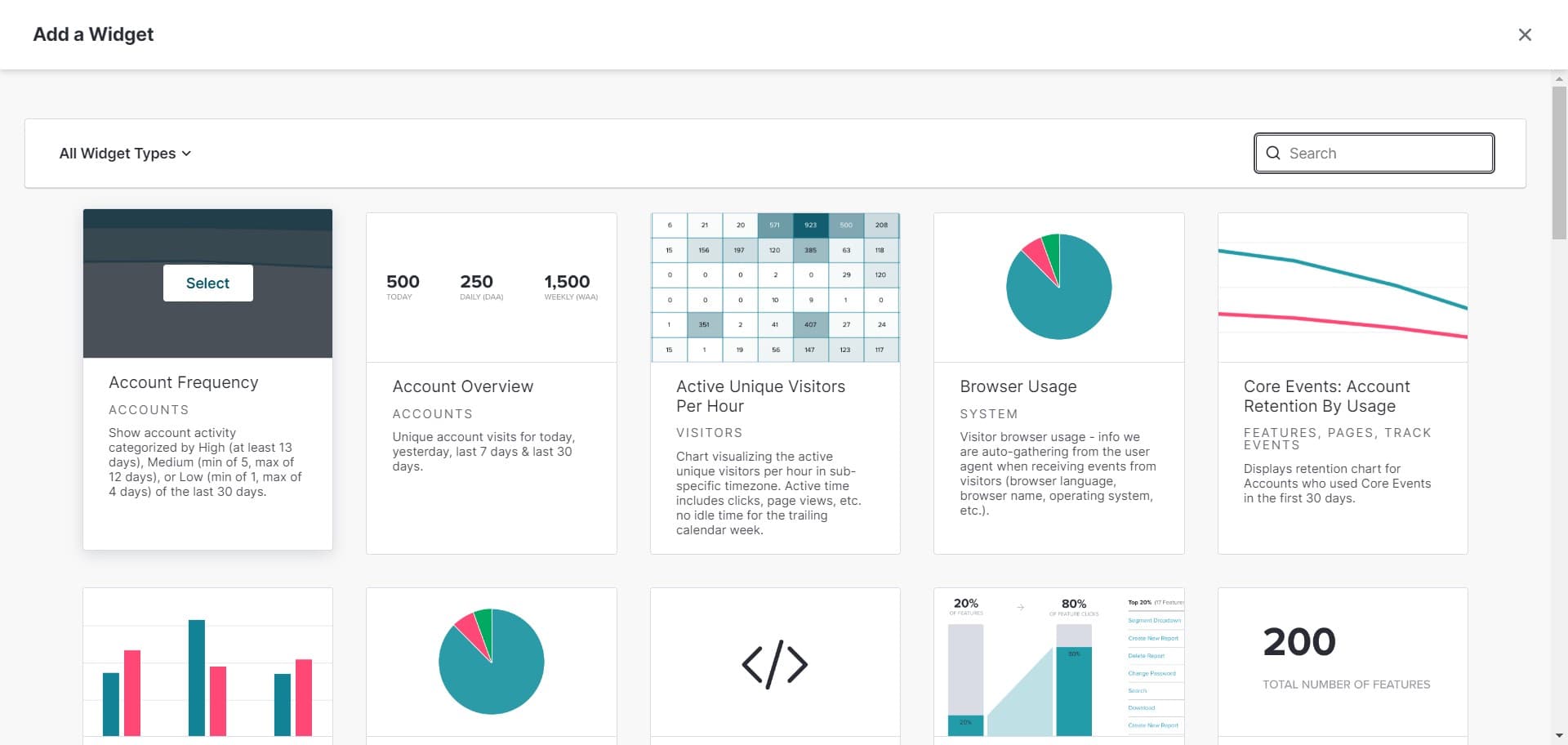
Choose widget type
Click on 'Select' to pick the type of widget you want to add, such as a chart, table, or metric display. Different widget types let you visualize your data in the format that's most meaningful.
- 6
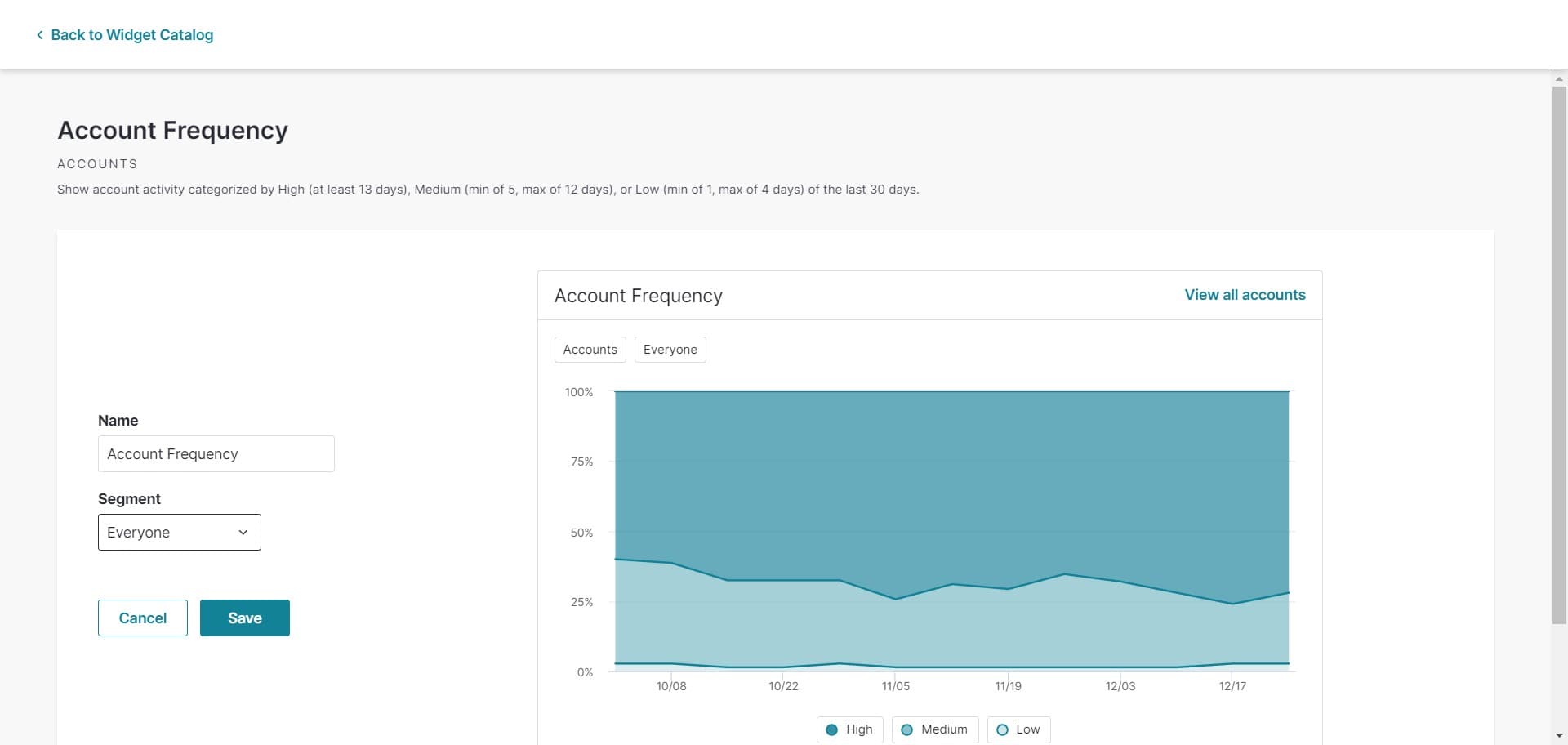
Configure widget settings
Click in this area to access widget configuration options where you can define the data source and metrics. This step customizes what information your widget will display.
- 7
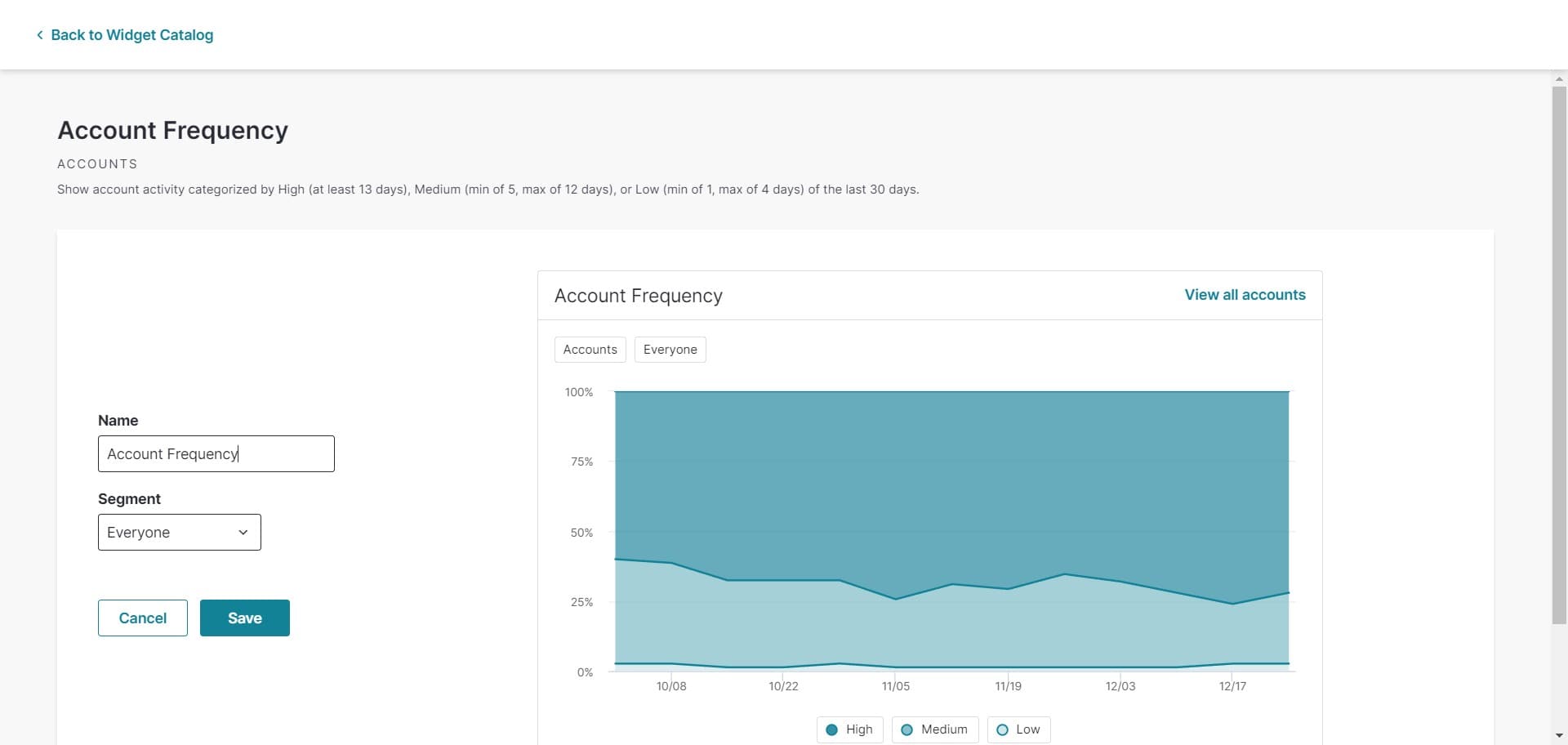
Finalize widget settings
Click here to confirm your widget configuration and apply your selections. Your widget will now be ready to display on the dashboard.
- 8
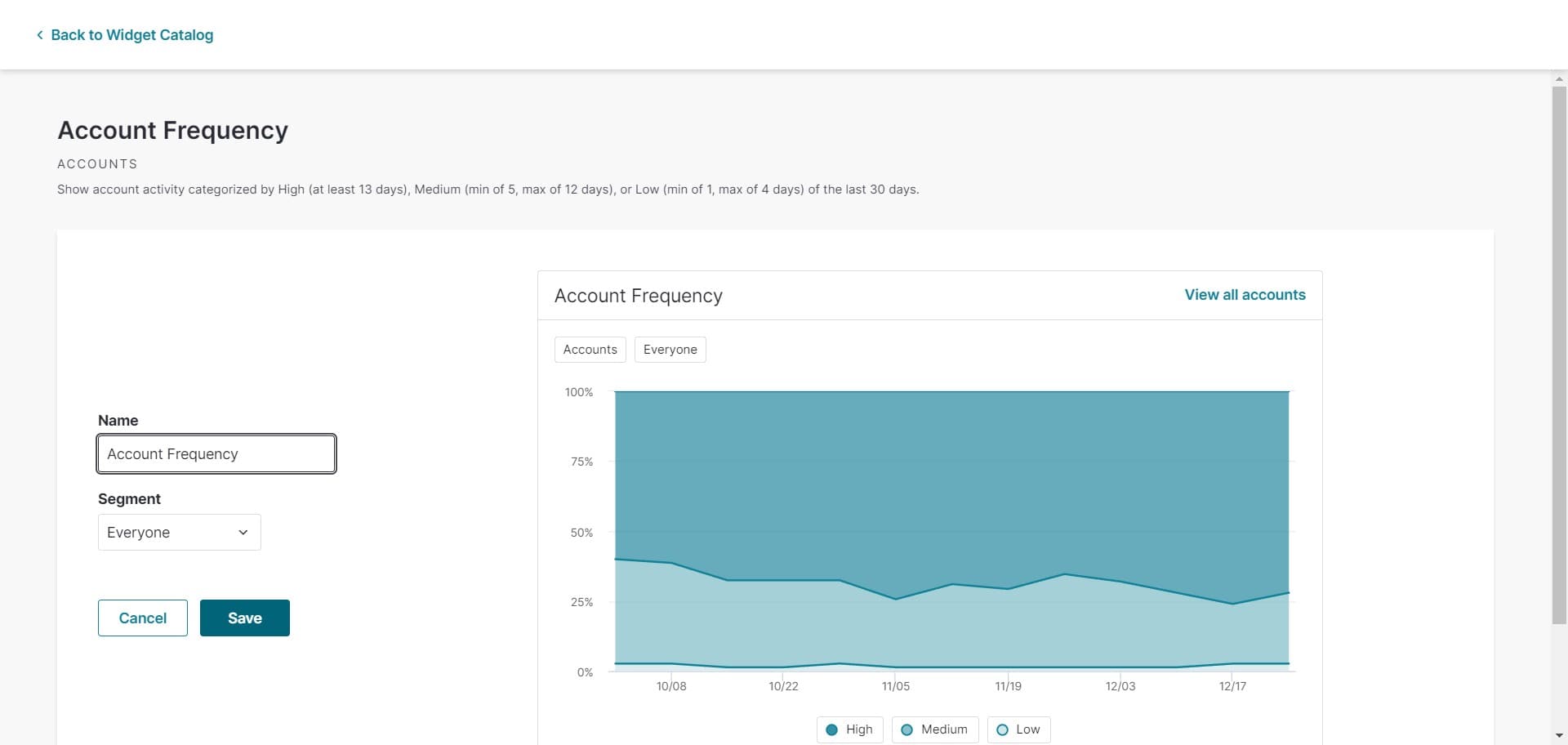
Save your dashboard
Click on 'Save' to store all your dashboard changes and configurations. Your dashboard is now live and ready to use for monitoring analytics.
- 9
Verify dashboard creation
Click in this area to confirm that your dashboard has been created successfully. You can now access and view your new dashboard from the dashboards list.
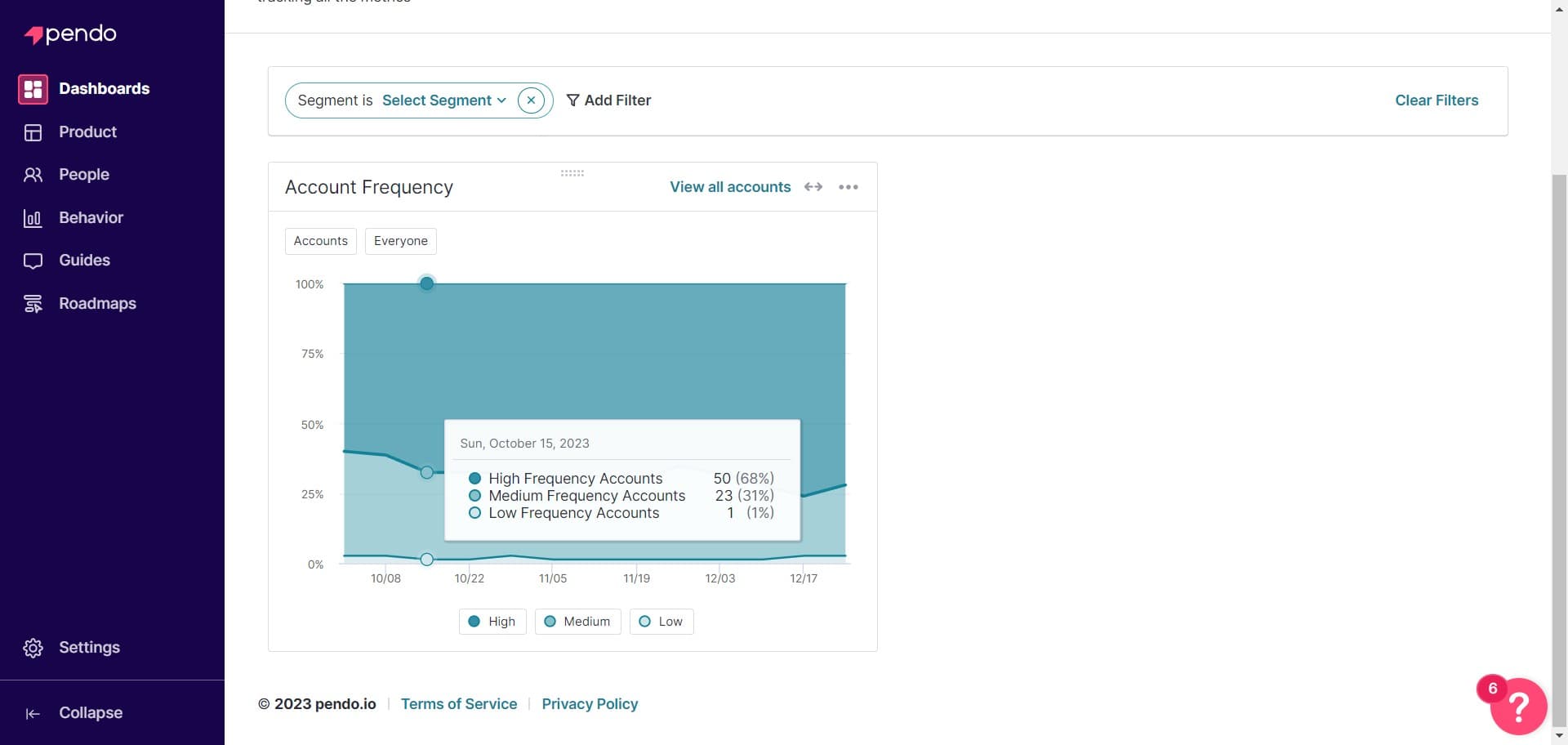
- 10
Access dashboard features
Click here to explore additional dashboard features and options available for customization. You can continue refining your dashboard based on your team's evolving needs.
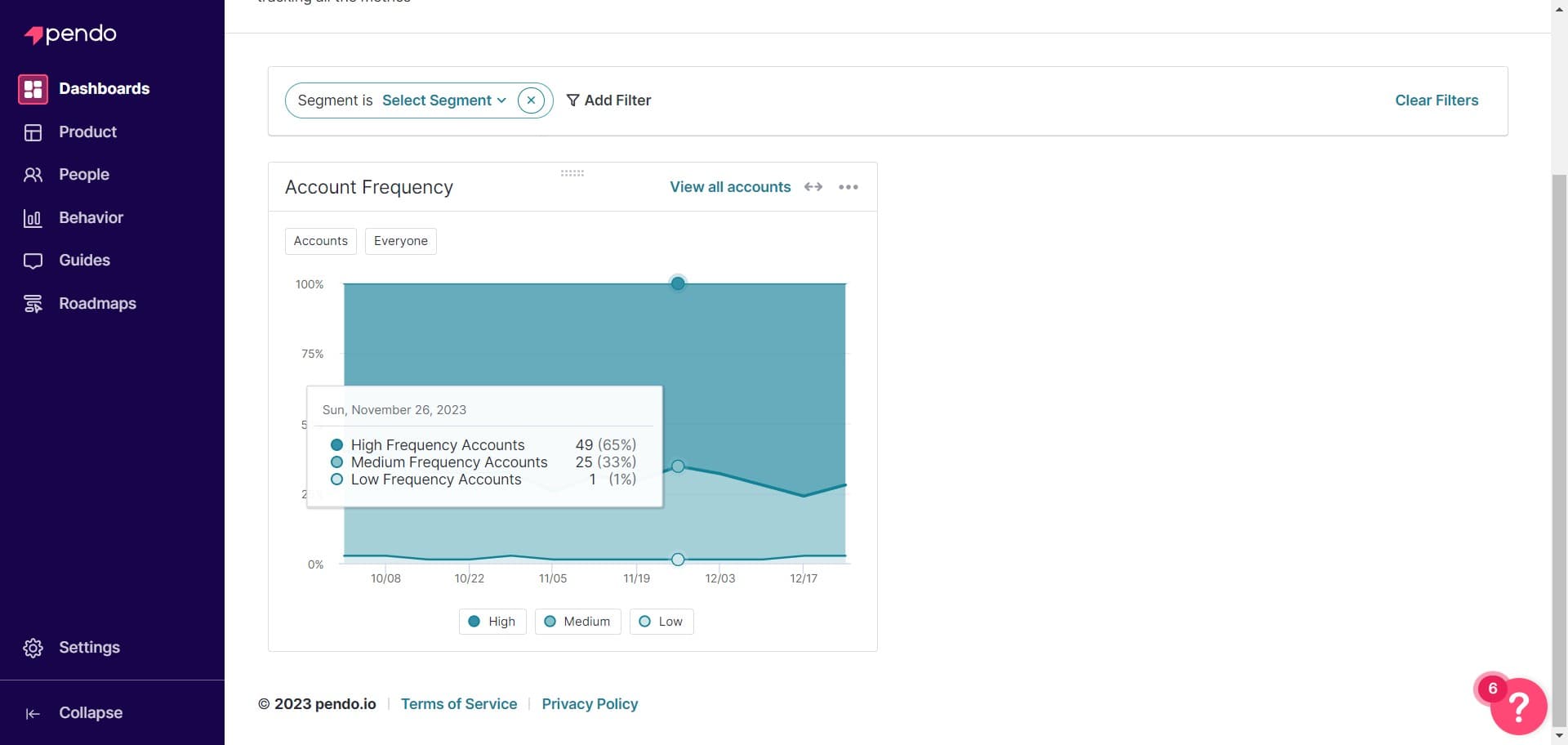
Frequently asked questions
Common questions about how to create a dashboard in pendo.
Yes, you can edit your dashboard at any time by opening it and making changes to widgets, descriptions, or layout. Simply save your changes when you're done to update the dashboard.
Pendo offers various widget types including charts, tables, metric cards, and custom visualizations. The available widget types depend on your data sources and Pendo subscription plan.
There's no hard limit on the number of widgets you can add, but performance and usability are best maintained with a reasonable number. It's recommended to keep dashboards focused with only the most important metrics to avoid clutter.
Yes, dashboards can be shared with team members based on permission settings in Pendo. You can control who can view, edit, or manage the dashboard through role-based access controls.
Include the dashboard's purpose, the metrics it tracks, the intended audience, and any key business goals it supports. A good description helps team members quickly understand if this is the right dashboard for their needs.