How to create a segment in Pendo

Segments in Pendo allow you to target specific groups of users based on defined criteria, enabling more precise analytics and feature rollouts. This guide walks you through the complete process of creating a segment from scratch, including setting visibility rules and configuring logical operators.
Quick summary
In this tutorial, you'll learn how to navigate to Pendo's segmentation feature, create a new segment, set visibility parameters, and apply rules using AND/OR logic to isolate your target user groups.
Why this matters
Creating well-defined segments is essential for understanding user behavior patterns, targeting specific feature announcements, and personalizing the user experience. By mastering segment creation, you can make data-driven decisions about feature adoption and user engagement across your product.
Step-by-step guide
- 1
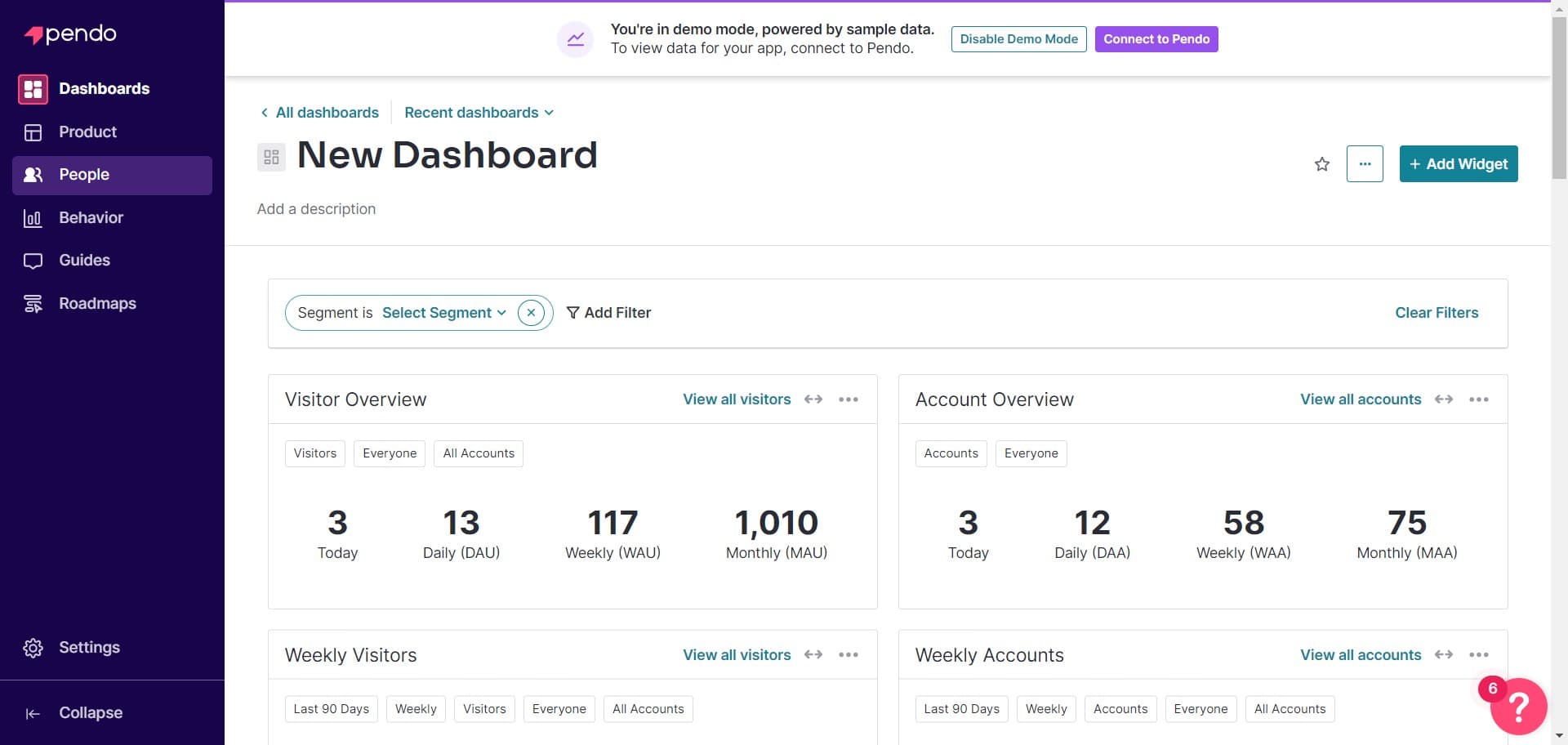
Click on People
Navigate to the main menu and select the People section. This is where you'll access all user-related features including segmentation tools.
- 2
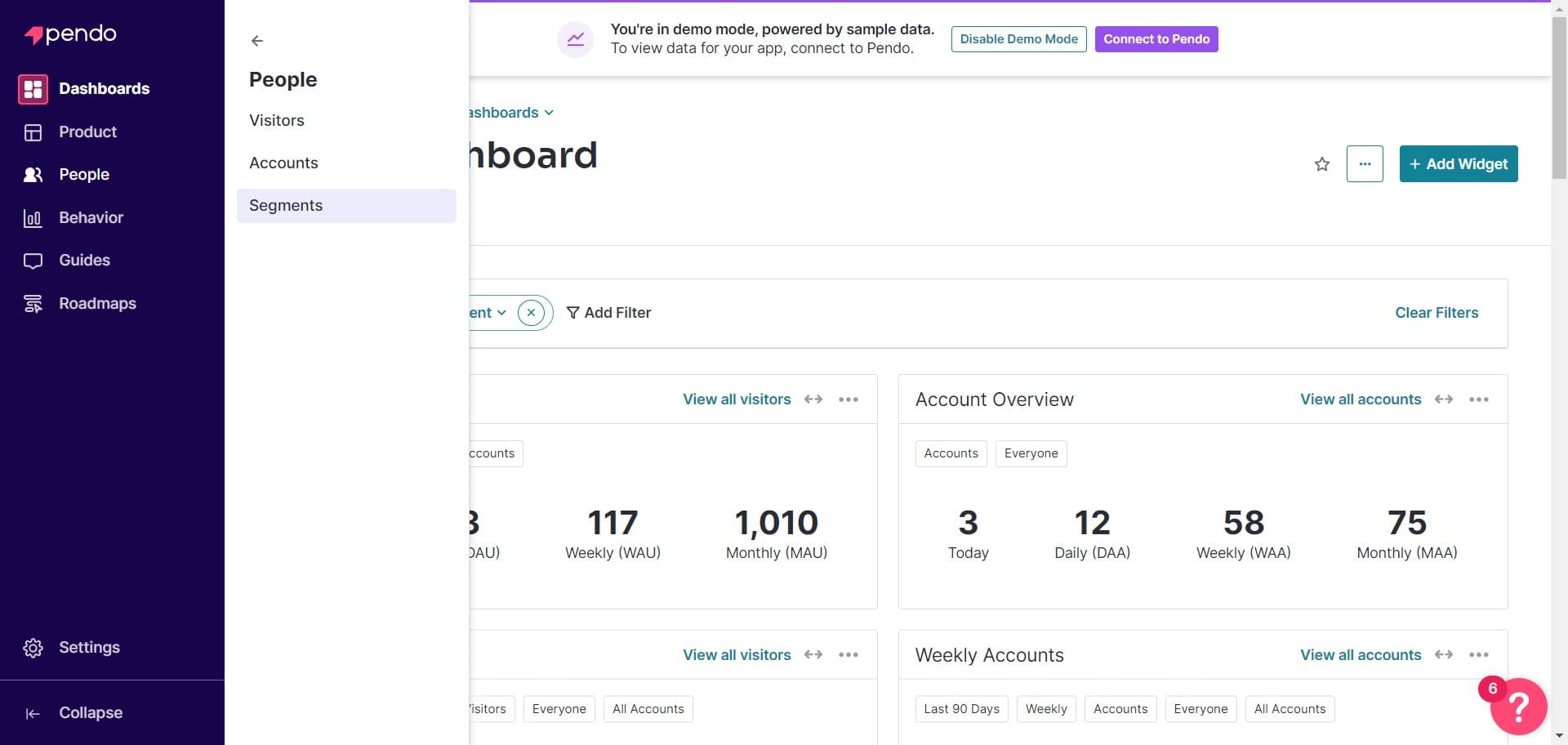
Click on Segments
Within the People section, click on Segments to view all existing segments and access segment management options.
- 3
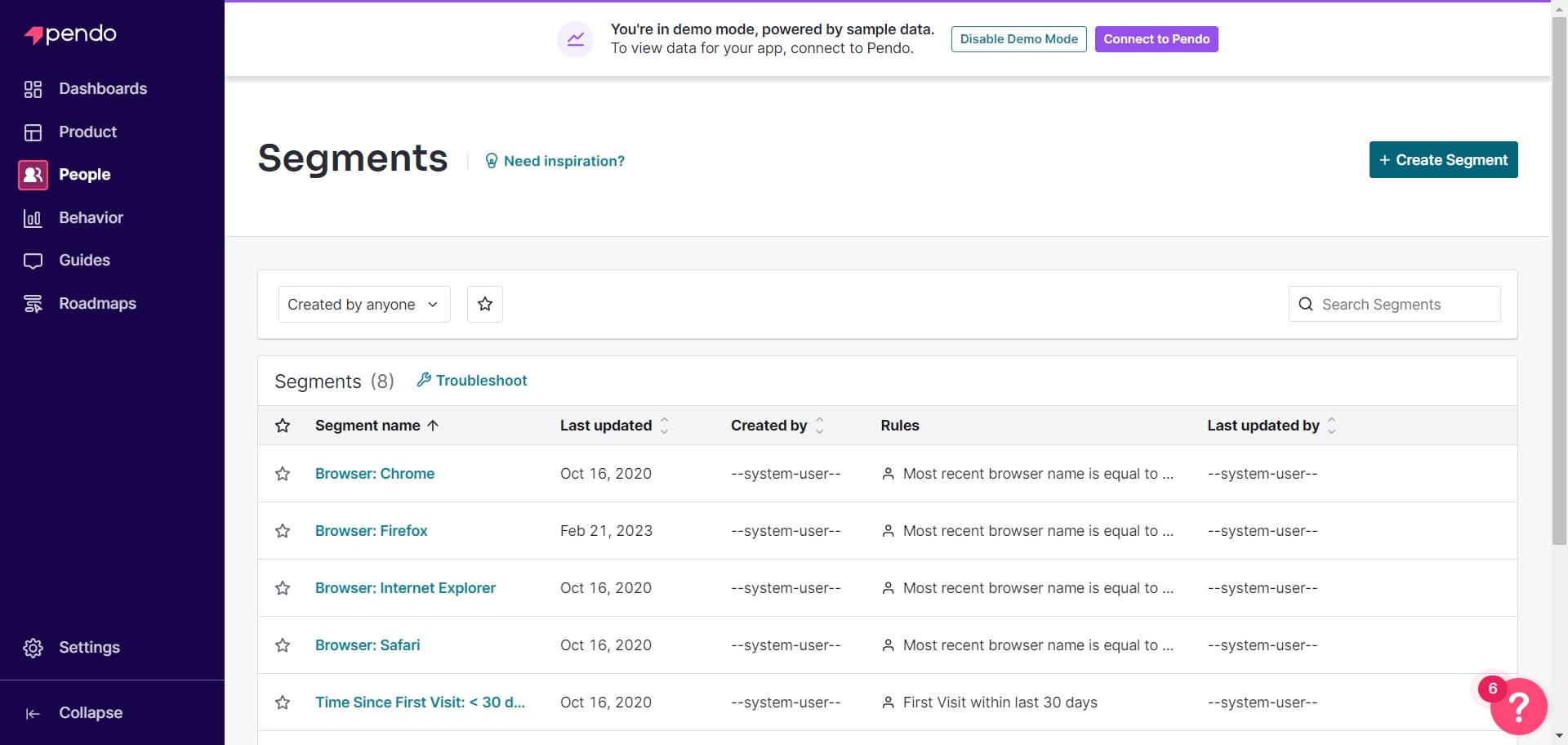
Click Create Segment
Select the Create Segment button to begin building your new user segment. This will open the segment creation interface.
- 4
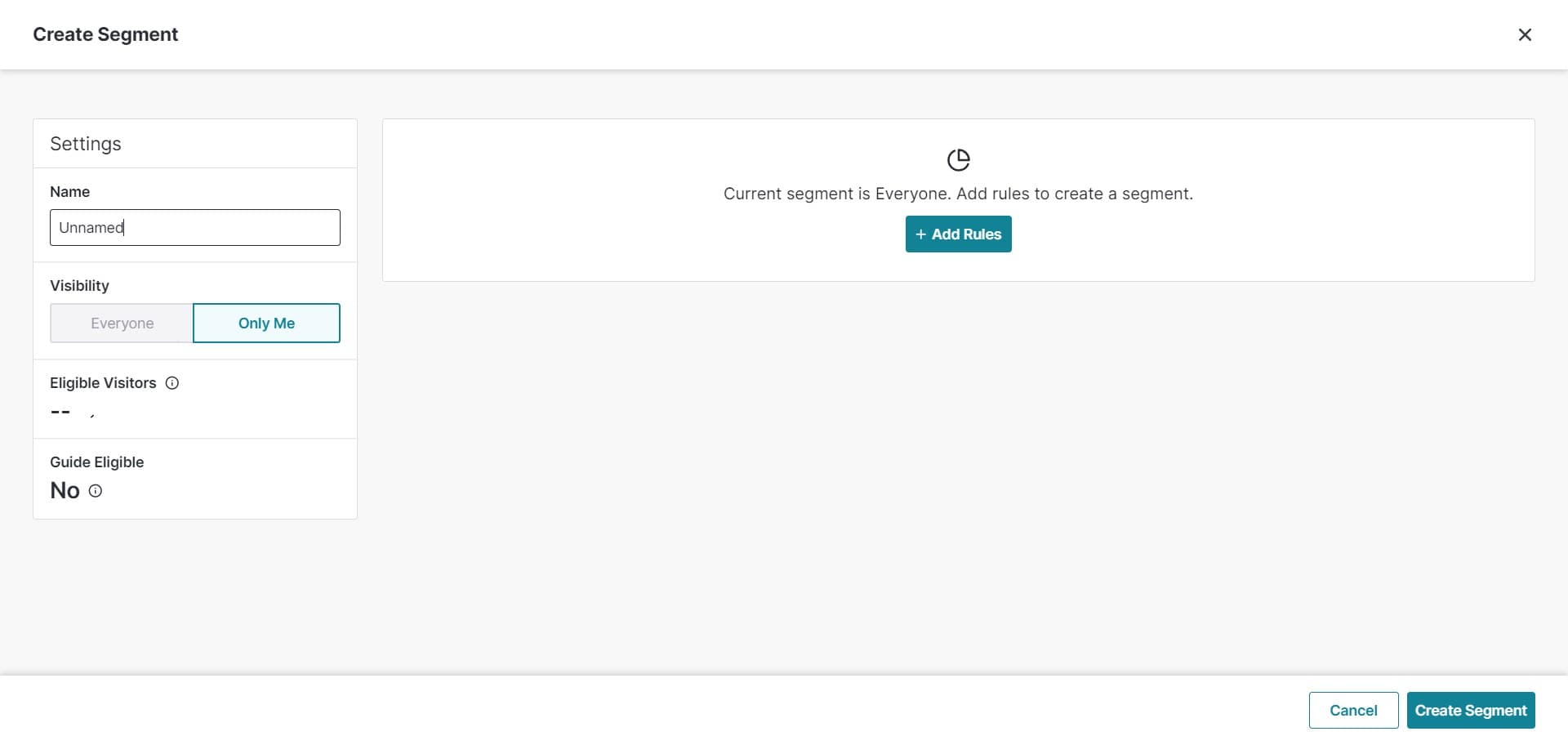
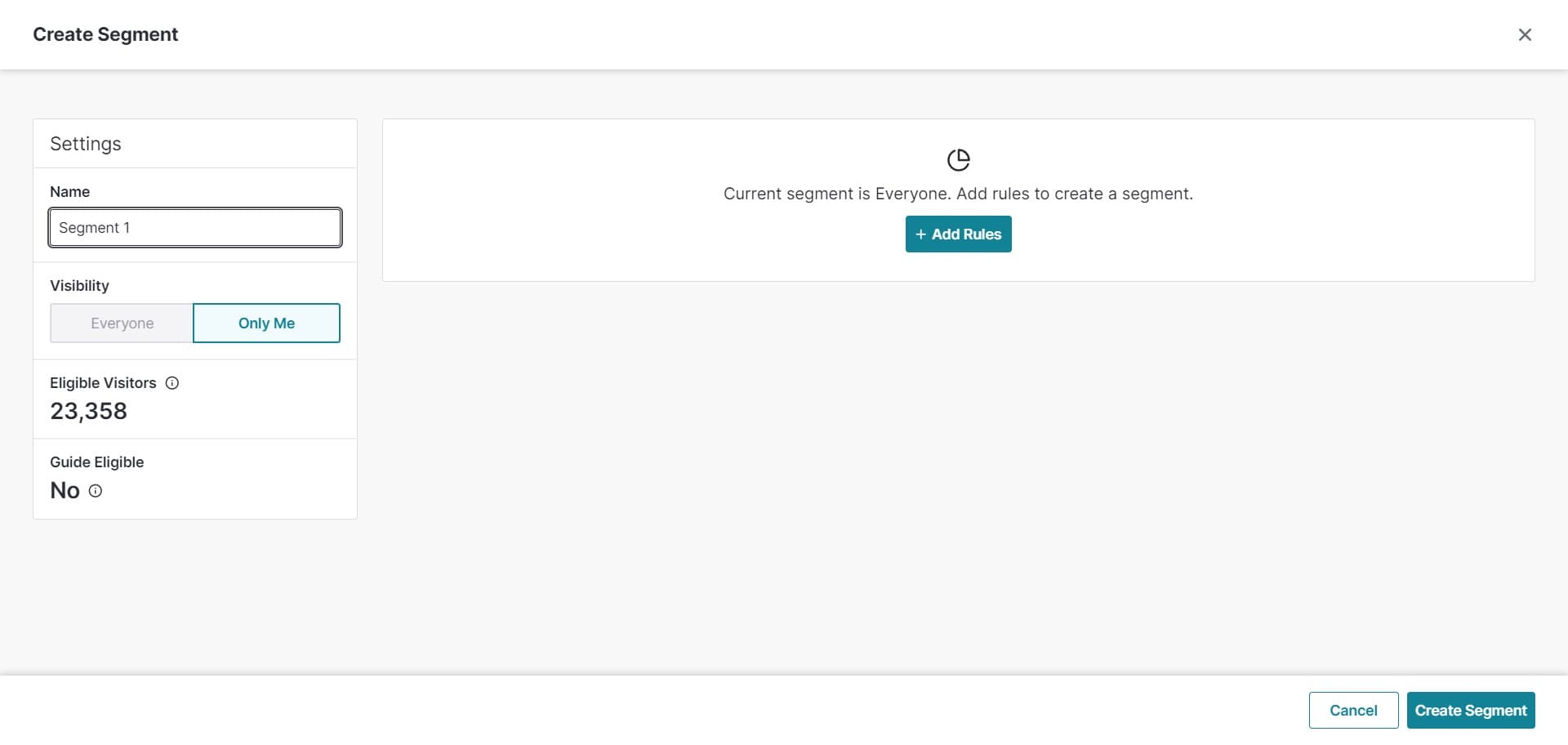
Configure initial settings
Set up the basic configuration for your segment by clicking on the provided field and entering your segment details.
- 5
Click on Visibility
Access the Visibility section to define which users or accounts can see this segment within your Pendo workspace.
- 6
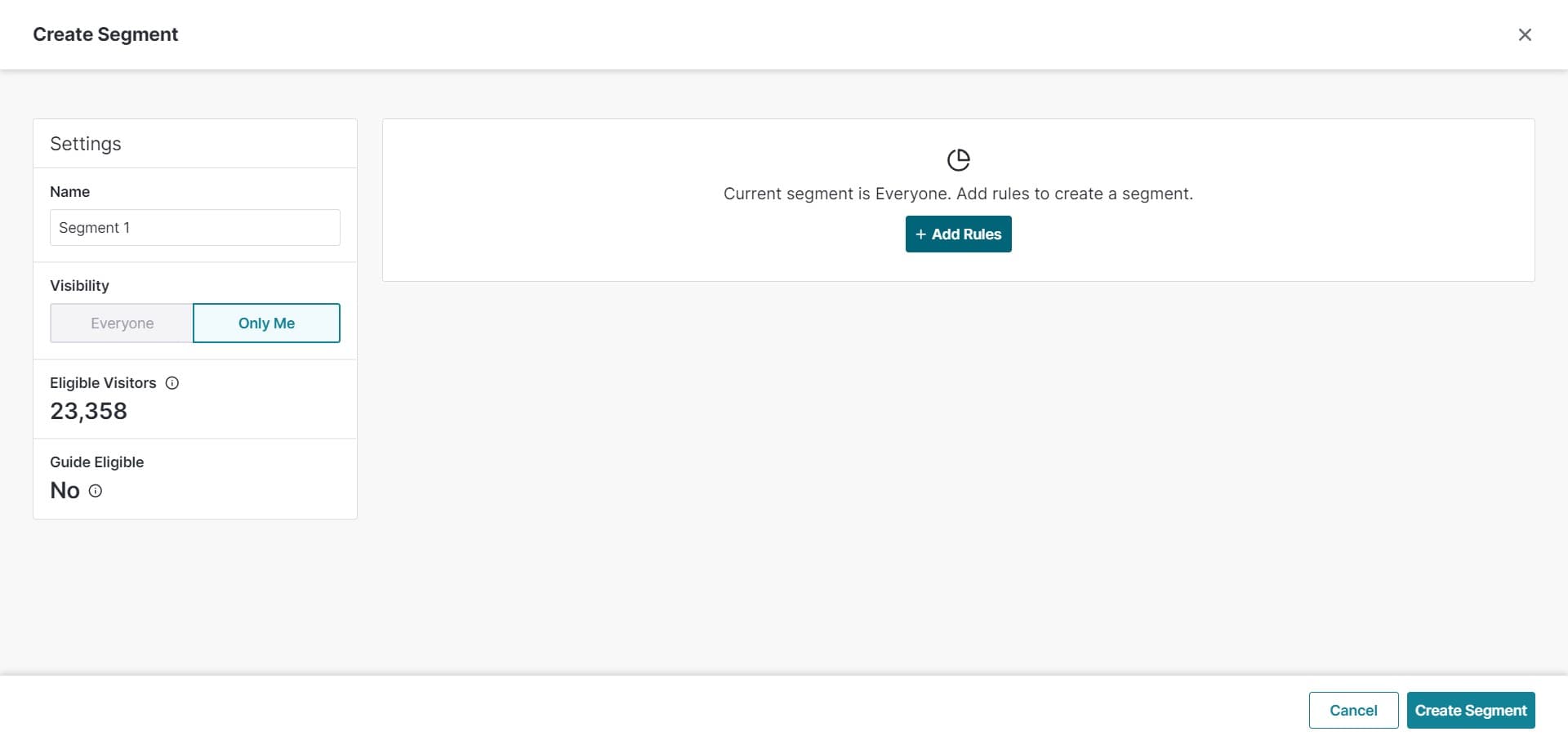
Click on Add Rules
Select Add Rules to begin defining the criteria that will determine which users belong to this segment.
- 7
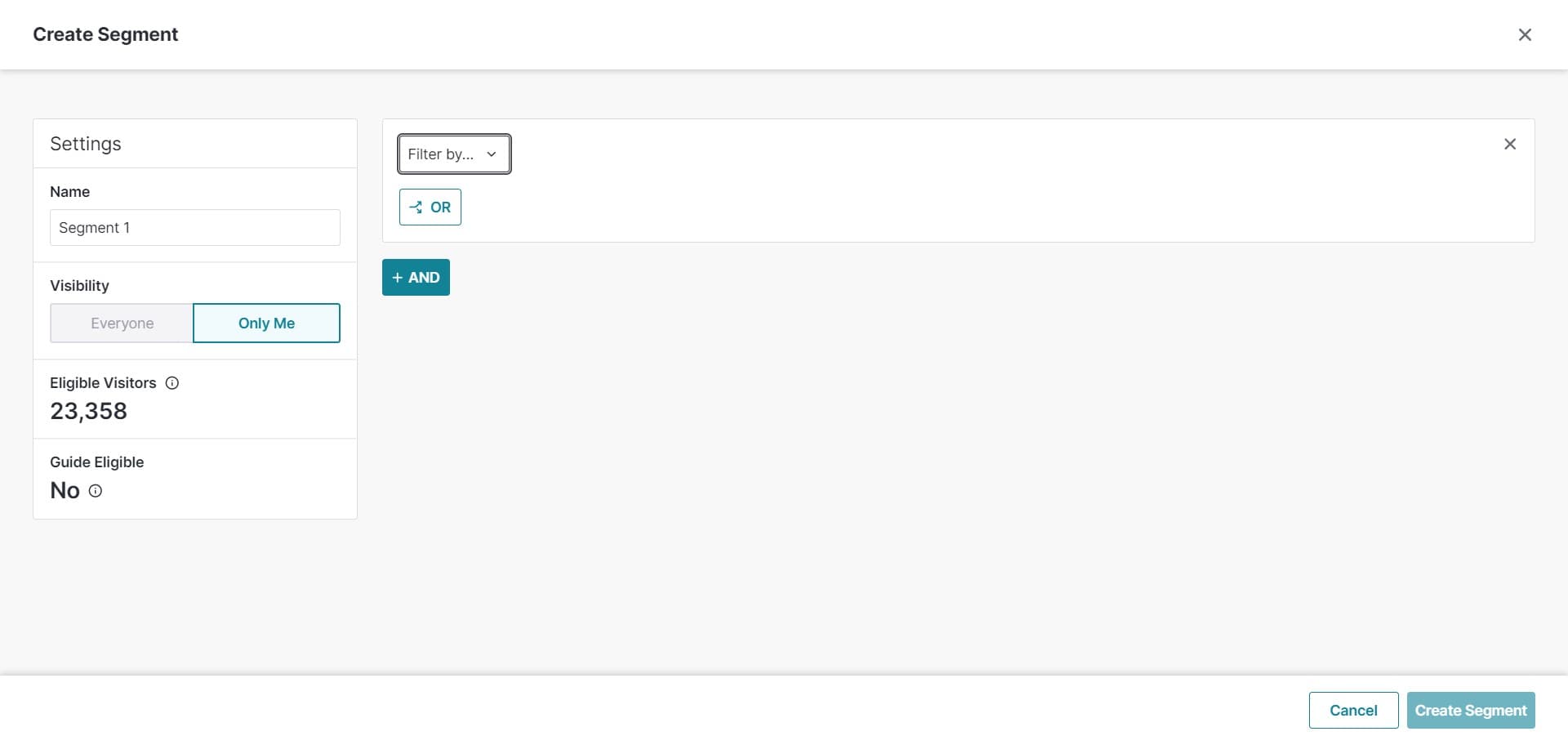
Select your first criteria
Click on the field to choose the first rule or attribute that will be used to filter your user segment.
- 8
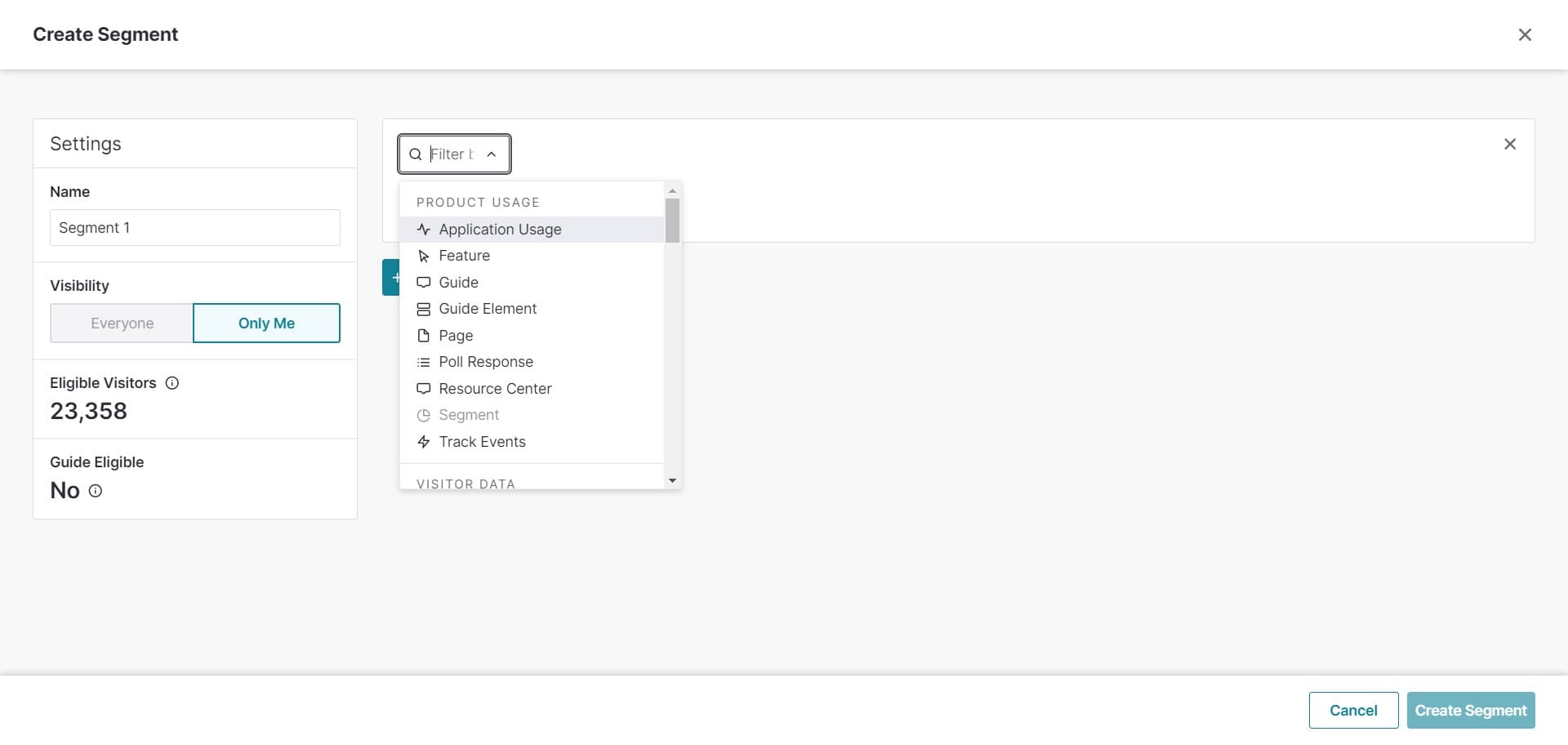
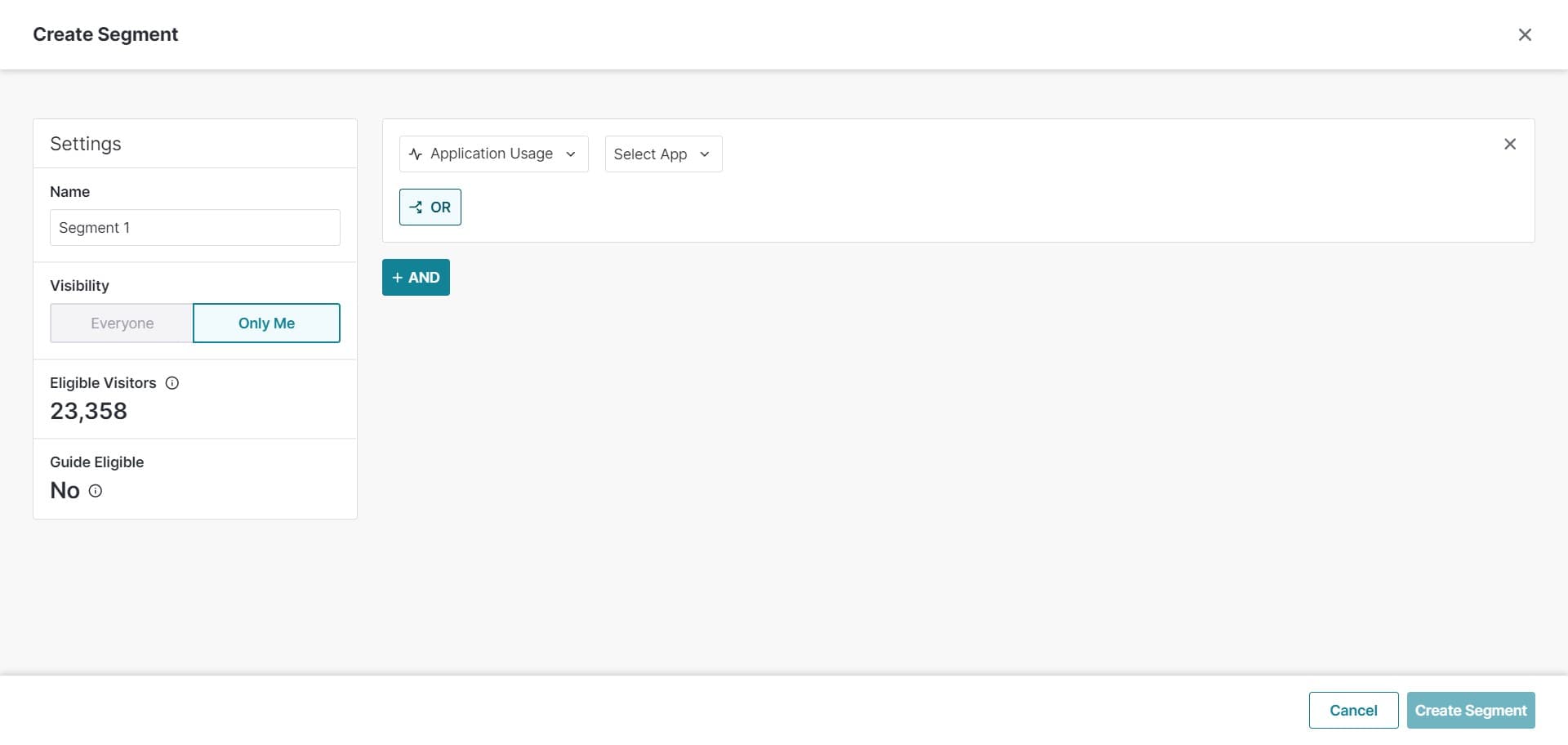
Click on Application Usage
Select Application Usage as your rule type to segment users based on how they interact with your product.
- 9
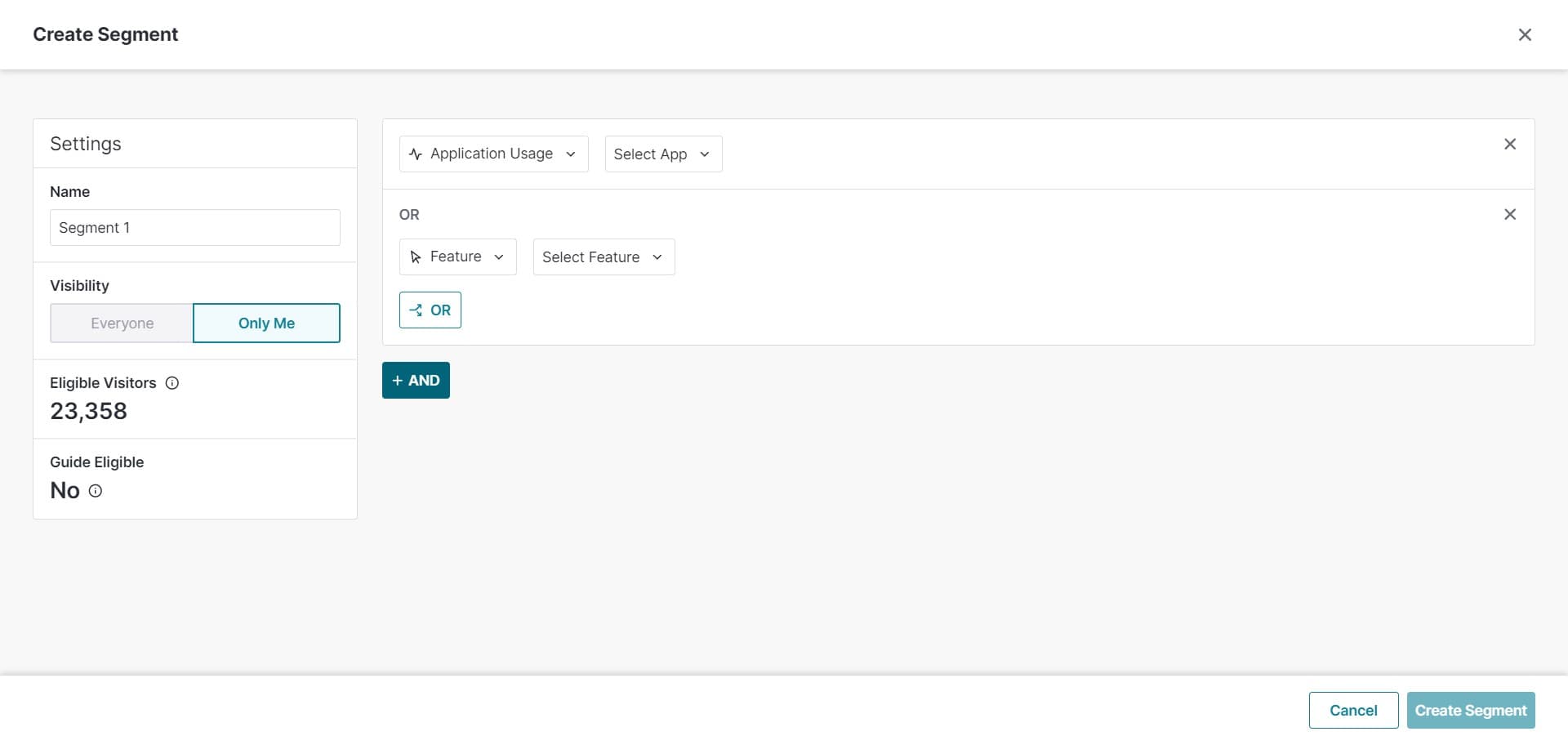
Click on OR
Select OR to create a logical condition where users matching either this rule or previous rules will be included in the segment.
- 10
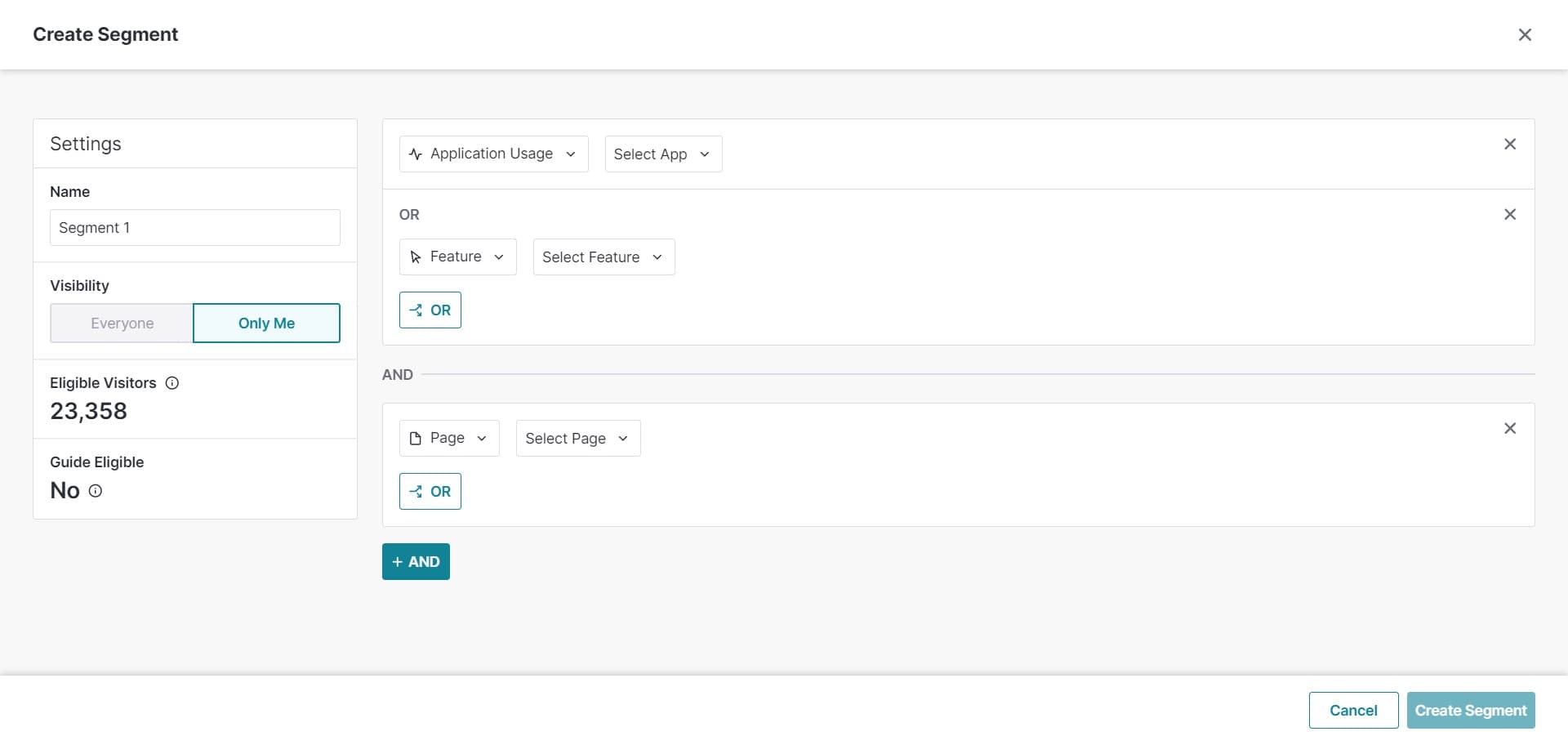
Click on AND
Select AND to create a more restrictive logical condition where users must match all specified rules to be included in the segment.
- 11
Click Cancel Create Segment
If you need to stop the segment creation process, click Cancel Create Segment to exit without saving your changes.
Frequently asked questions
Common questions about how to create a segment in pendo.
AND requires users to meet all conditions you specify, creating a more restrictive segment. OR includes users who meet any of the conditions, creating a broader segment. Use AND when you need precise targeting and OR when you want to capture multiple user types.
Yes, Pendo allows you to edit segments after creation. You can modify rules, visibility settings, and other parameters as your targeting needs change.
Pendo supports multiple rules per segment, allowing you to build complex user targeting criteria. You can combine rules using AND/OR logic to achieve precise segmentation.
The Visibility setting determines who in your Pendo workspace can see and use this segment. You can restrict visibility to specific team members or roles for better access control.
Yes, Application Usage is one of the available rule types in Pendo segments. This allows you to segment users based on their product interaction patterns and feature adoption.