How to Add Notes to PowerPoint

Adding notes to PowerPoint slides helps you capture speaker talking points, reminders, and additional context that won't appear in the presentation itself. Notes are essential for presenters who want to deliver polished talks without relying on visible cue cards. This guide walks you through the process of adding and managing notes in Microsoft PowerPoint.
Quick summary
In this tutorial, you'll learn how to add notes to your PowerPoint slides using the Notes pane. You'll discover how to access the notes feature, upload or input your notes content, and view them during presentation preparation. By the end, you'll be able to enhance your presentations with speaker notes that support a more confident delivery.
Why this matters
Speaker notes transform your presentation experience by providing reference material that keeps you on track without distracting your audience. Whether you're presenting to a large conference audience or leading a team meeting, notes ensure you don't miss key points or time your segments correctly. Having well-organized notes also makes it easier to repurpose your presentation or hand it off to another presenter.
Step-by-step guide
- 1
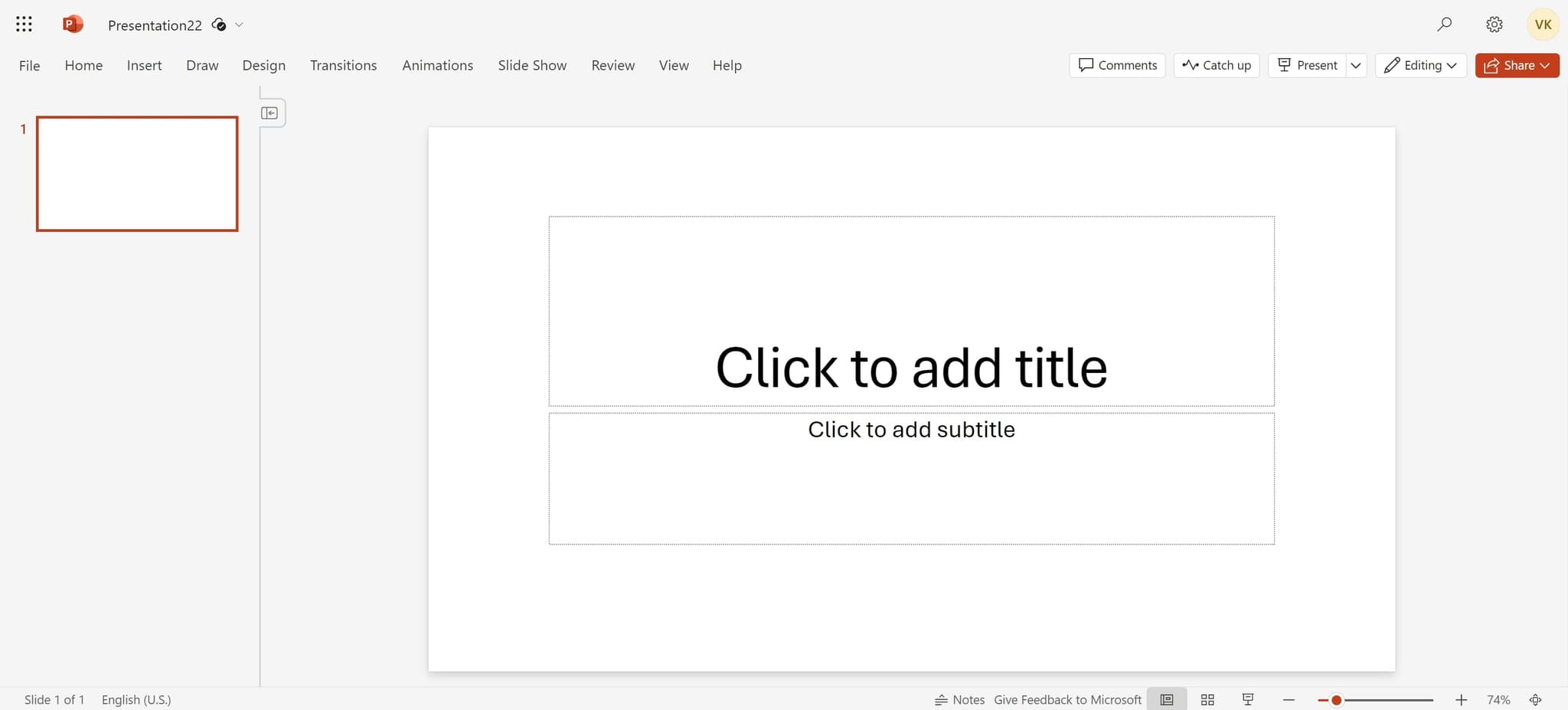
Click the designated notes area
Locate and click on the notes section at the bottom of your PowerPoint slide. This action activates the Notes pane where you can begin entering or editing speaker notes for the current slide.
- 2
Upload your notes content
Select the upload option to import notes from an external document or file. PowerPoint will process your uploaded content and integrate it into the Notes section of your slide.
- 3
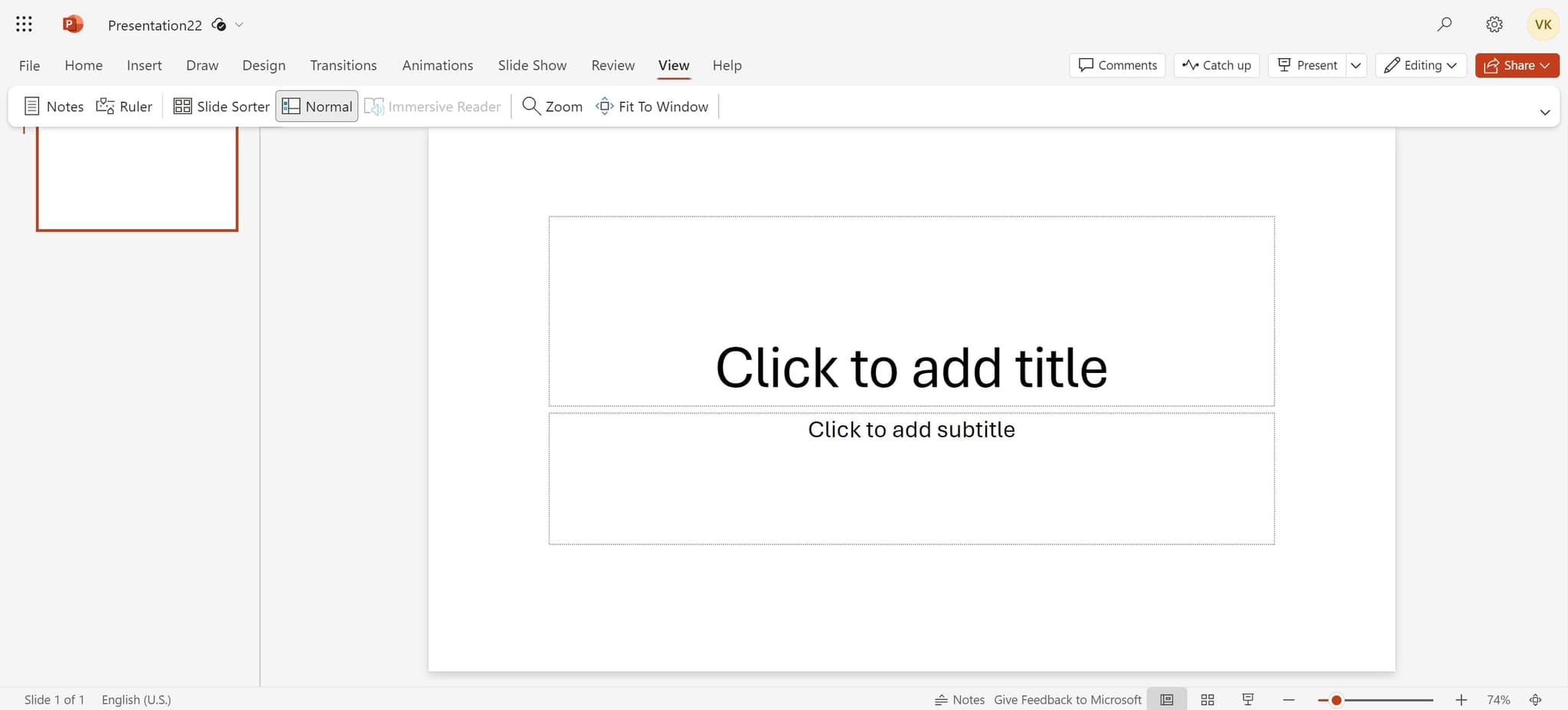
Click on View to display notes
Navigate to the View menu and select the appropriate notes view option. This will display your notes in a format optimized for review and editing before your presentation.
Frequently asked questions
Common questions about how to add notes to powerpoint.
No, speaker notes are only visible to you on your computer screen or presenter view during the presentation. Your audience will not see them on the projected slides, making them ideal for personal reference and talking points.
PowerPoint requires you to add notes slide by slide. However, you can copy and paste notes between slides if they contain similar information, which saves time when working with many slides.
Go to File, select Print, and then choose 'Notes' from the Print Layout options. This will generate a printable version of your slides with speaker notes displayed below each slide.
Yes, you can apply basic formatting such as bold, italic, and underline to text in the Notes pane. Simply select the text and use the formatting tools in the toolbar or keyboard shortcuts.
Use clear headings, bullet points, and short paragraphs to keep notes scannable during your presentation. Include key statistics, transition phrases, and timing cues to help you deliver smoothly and stay within your allocated time.