How to Make a Copy of a PowerPoint

Creating a copy of a PowerPoint presentation is a useful way to preserve your original work while experimenting with edits or sharing a version with specific modifications. This guide walks you through the process of saving a copy of your presentation directly to your computer using PowerPoint's built-in features.
Quick summary
In this tutorial, you'll learn how to create a local copy of your PowerPoint presentation by using the File menu and the Save As function. By following these straightforward steps, you'll be able to download and store a duplicate of your presentation on your computer for backup, sharing, or further editing purposes.
Why this matters
Saving a copy of your PowerPoint ensures you have multiple versions to fall back on if you need to revert changes or maintain separate iterations for different audiences. This practice is essential for protecting your work, collaborating safely without risking the original file, and managing different versions of presentations throughout a project's lifecycle.
Step-by-step guide
- 1
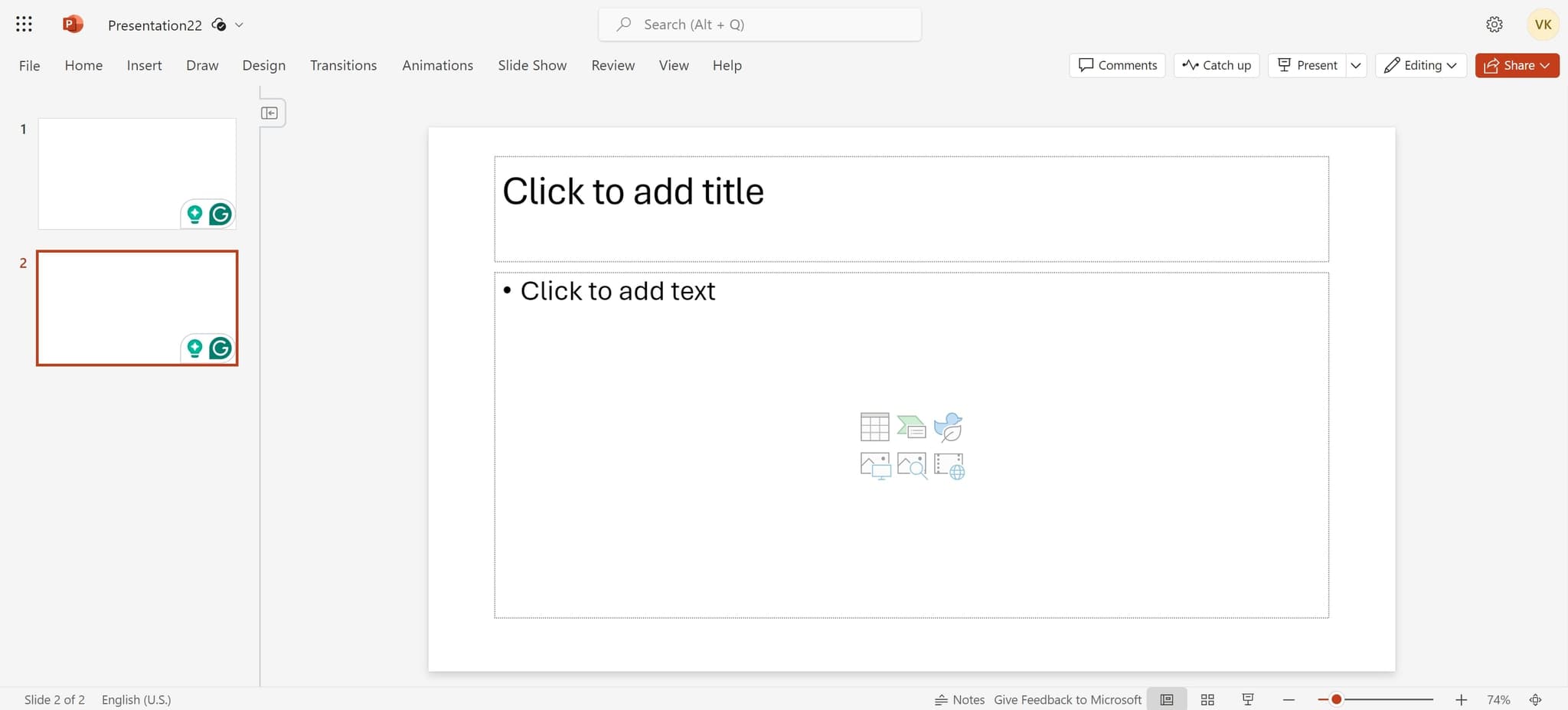
Click on the element to begin
Start by selecting the element that will trigger the File menu. This is typically located at the top of your PowerPoint window and serves as your entry point to file management options.
- 2
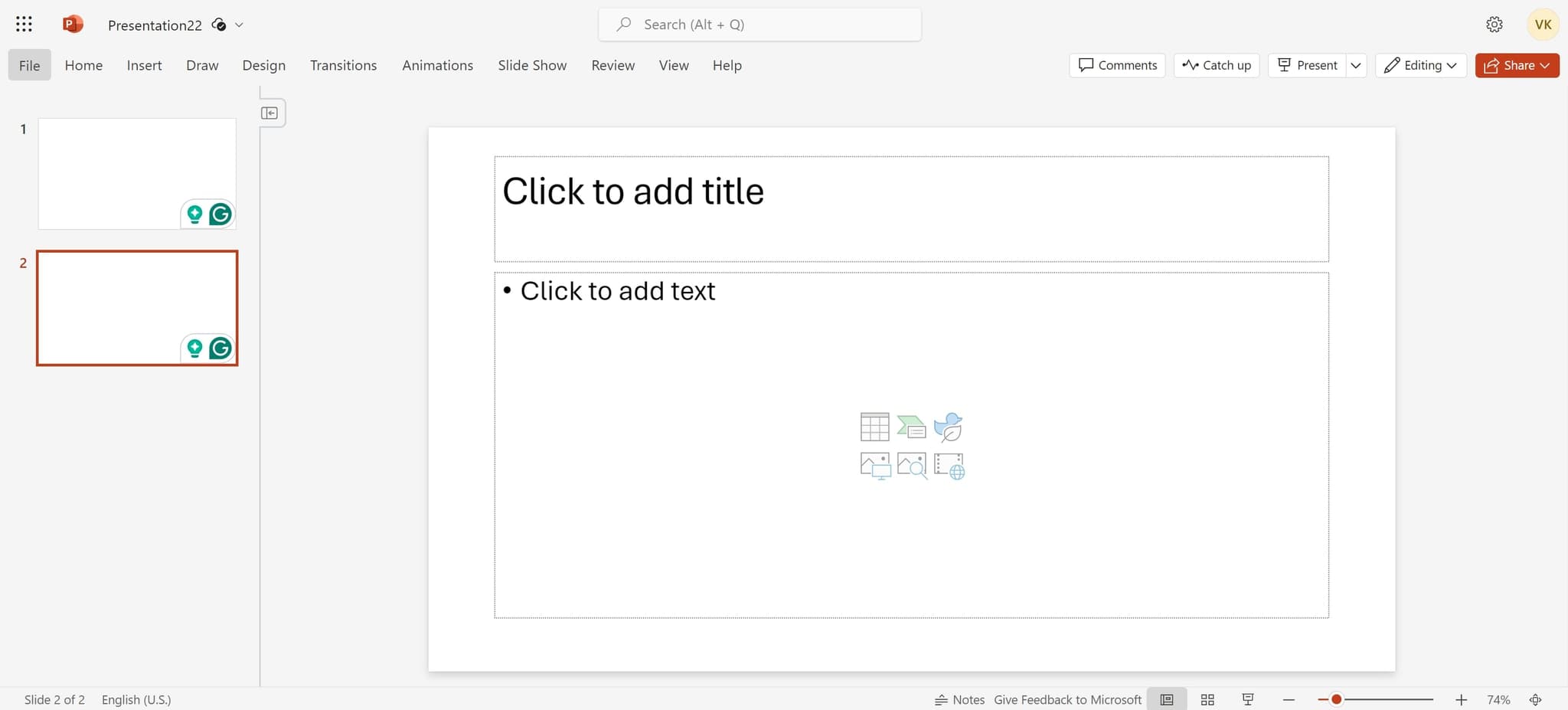
Click on File
Select the File menu from the top navigation. This will open a dropdown menu containing all file-related operations, including save and download options.
- 3
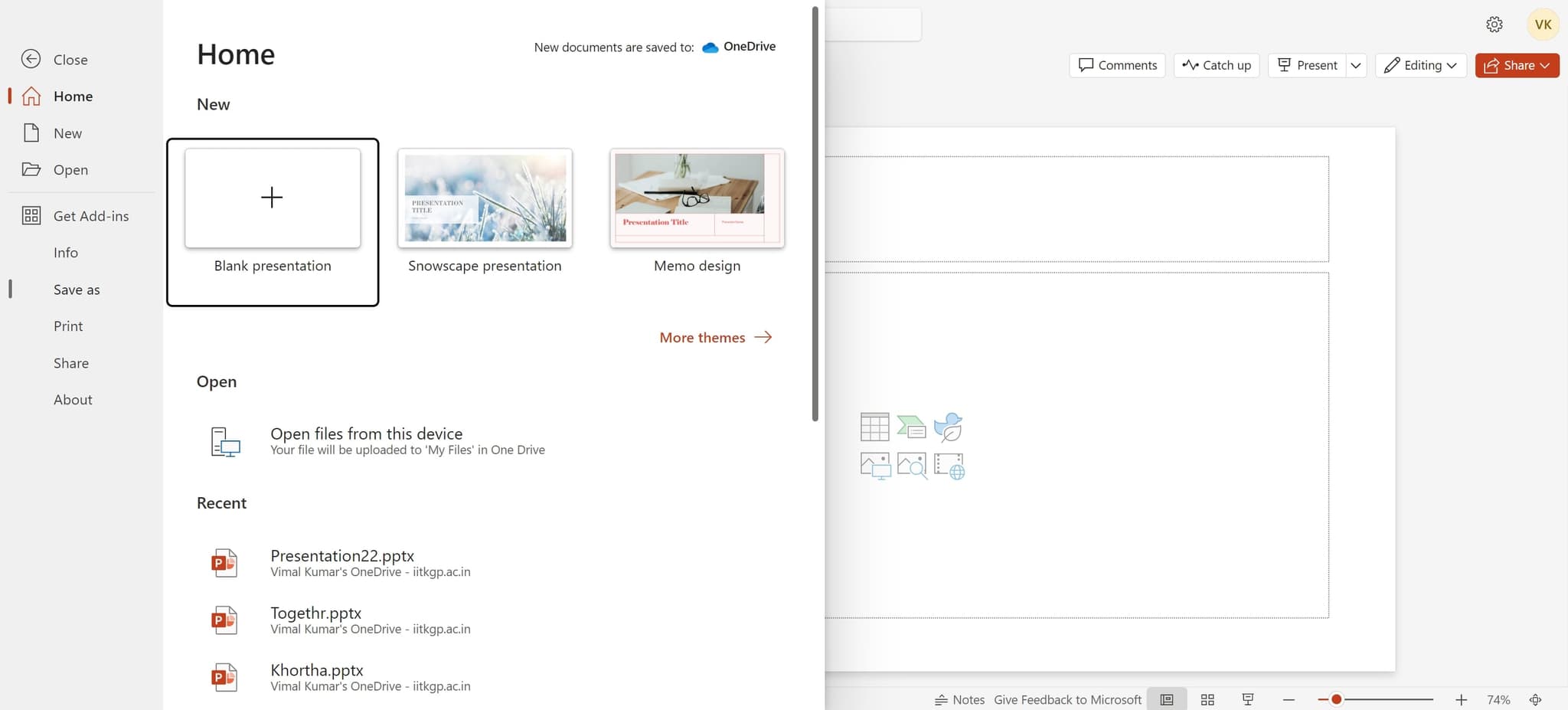
Click on Save As
From the File menu, choose Save As. This option allows you to save your presentation under a new name or in a different location, creating a separate copy of your file.
- 4
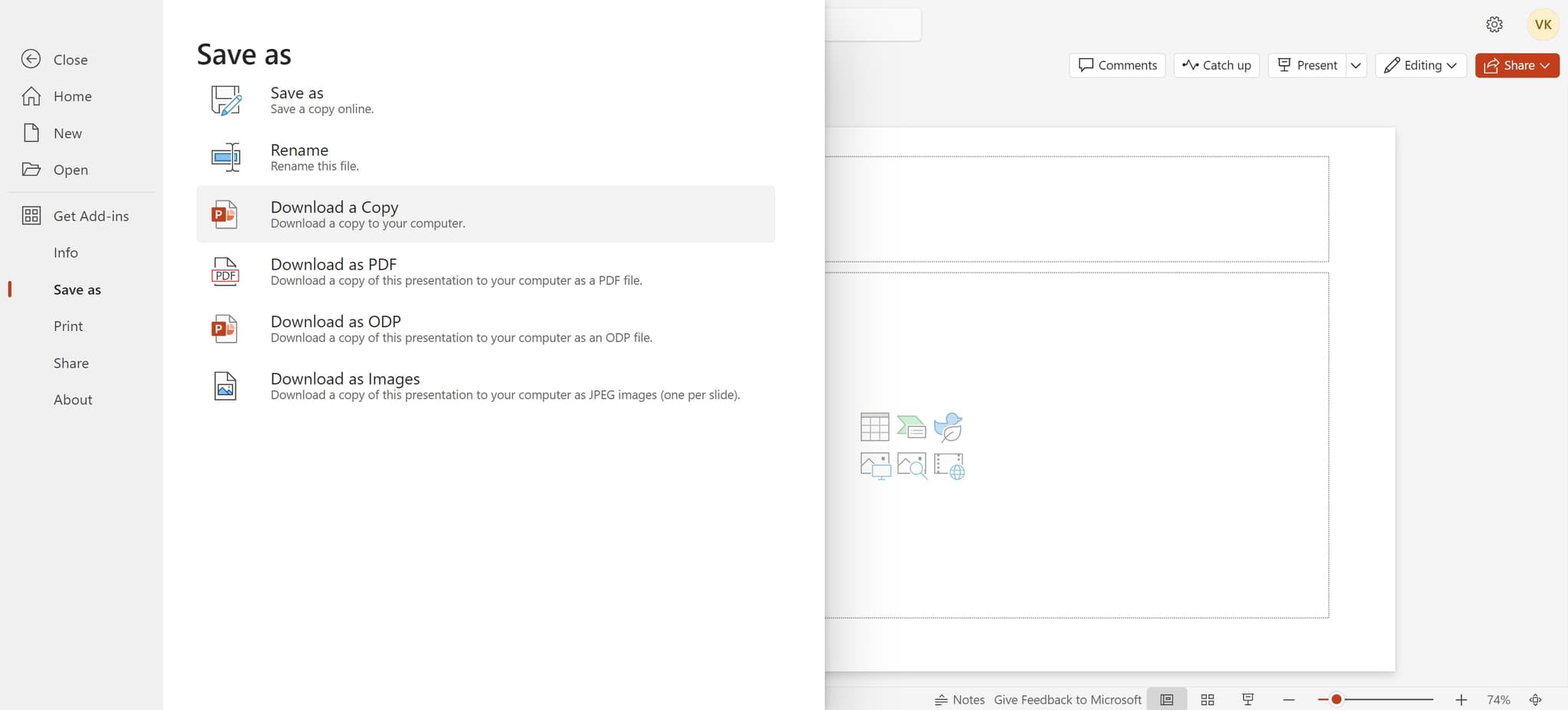
Click Download a copy to your computer
Select the Download a copy to your computer option from the Save As menu. This will prepare your presentation for download to your local machine rather than saving it to cloud storage.
- 5
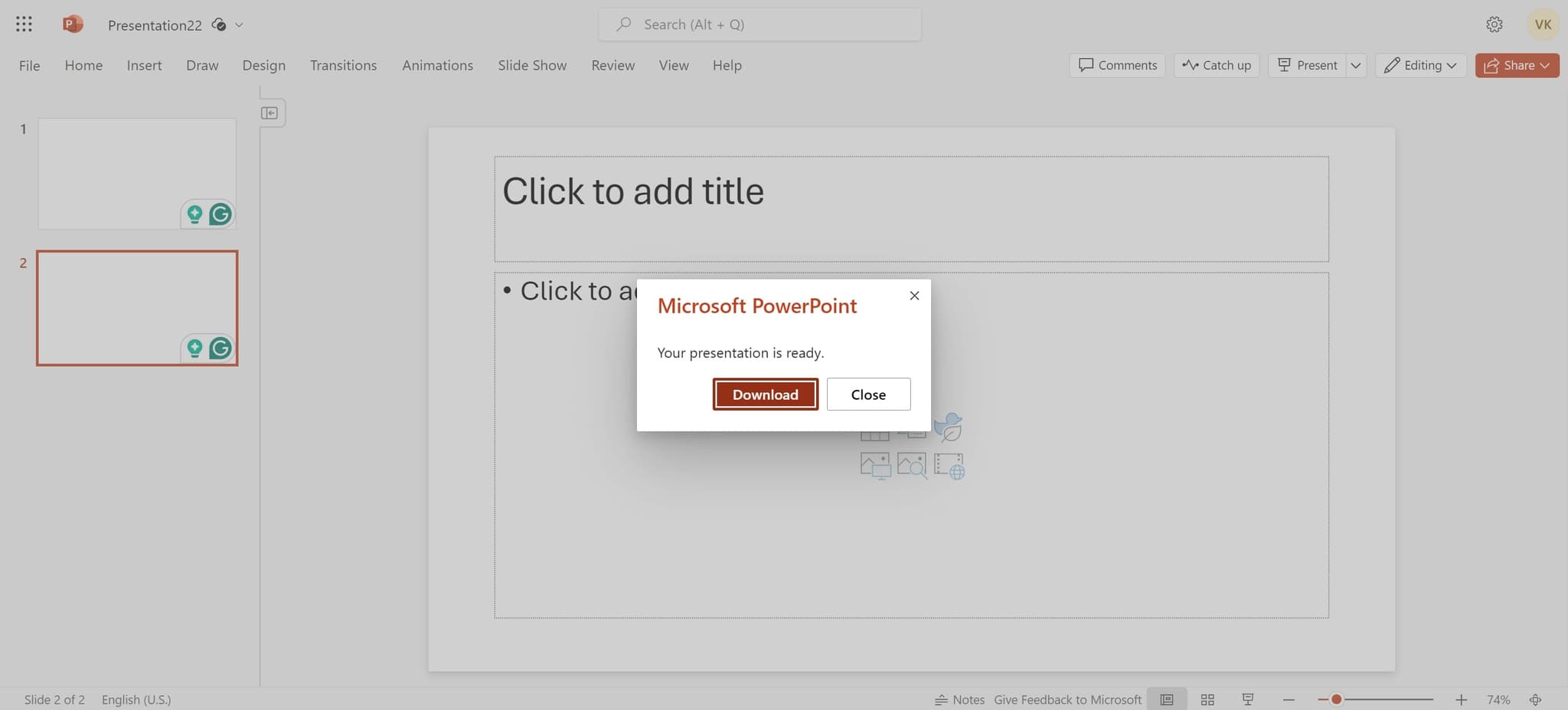
Click Download to complete
Click the Download button to finalize the process. Your PowerPoint file will now be saved to your computer's default downloads folder or the location you specify.
Frequently asked questions
Common questions about how to make a copy of a powerpoint.
No, creating a copy does not affect your original presentation in any way. The copy is a completely separate file that exists independently. Any changes you make to the copy will not impact the original version.
By default, your downloaded file will be saved to your computer's Downloads folder. You can typically change the save location during the download process by selecting a different folder when prompted.
Yes, you can create as many copies as needed by repeating the Save As and Download process. Each copy can have a unique filename, allowing you to maintain multiple versions of your presentation for different purposes.
Your downloaded copy will be in PowerPoint's standard format, typically .pptx for modern versions. The format remains consistent with your original file unless you specifically select a different format during the save process.
Absolutely. Once you've downloaded the copy to your computer, it functions as a regular PowerPoint file that you can open, edit, and save as needed. You have full control over this local version of your presentation.