How to convert a Canva design to a PowerPoint presentation

Converting a Canva design to PowerPoint allows you to leverage your creative work in a professional presentation format. This workflow bridges Canva's design capabilities with PowerPoint's presentation tools, giving you flexibility in how you use your designs.
Quick summary
In this tutorial, you'll learn how to export a Canva design and convert it into a PowerPoint presentation file. By following these steps, you'll be able to seamlessly transition your Canva projects into editable PowerPoint slides.
Why this matters
Many teams create visuals in Canva but need to present them in PowerPoint for consistency with organizational standards. This conversion process saves time by eliminating manual recreation and ensures your design quality remains intact across platforms.
Step-by-step guide
- 1
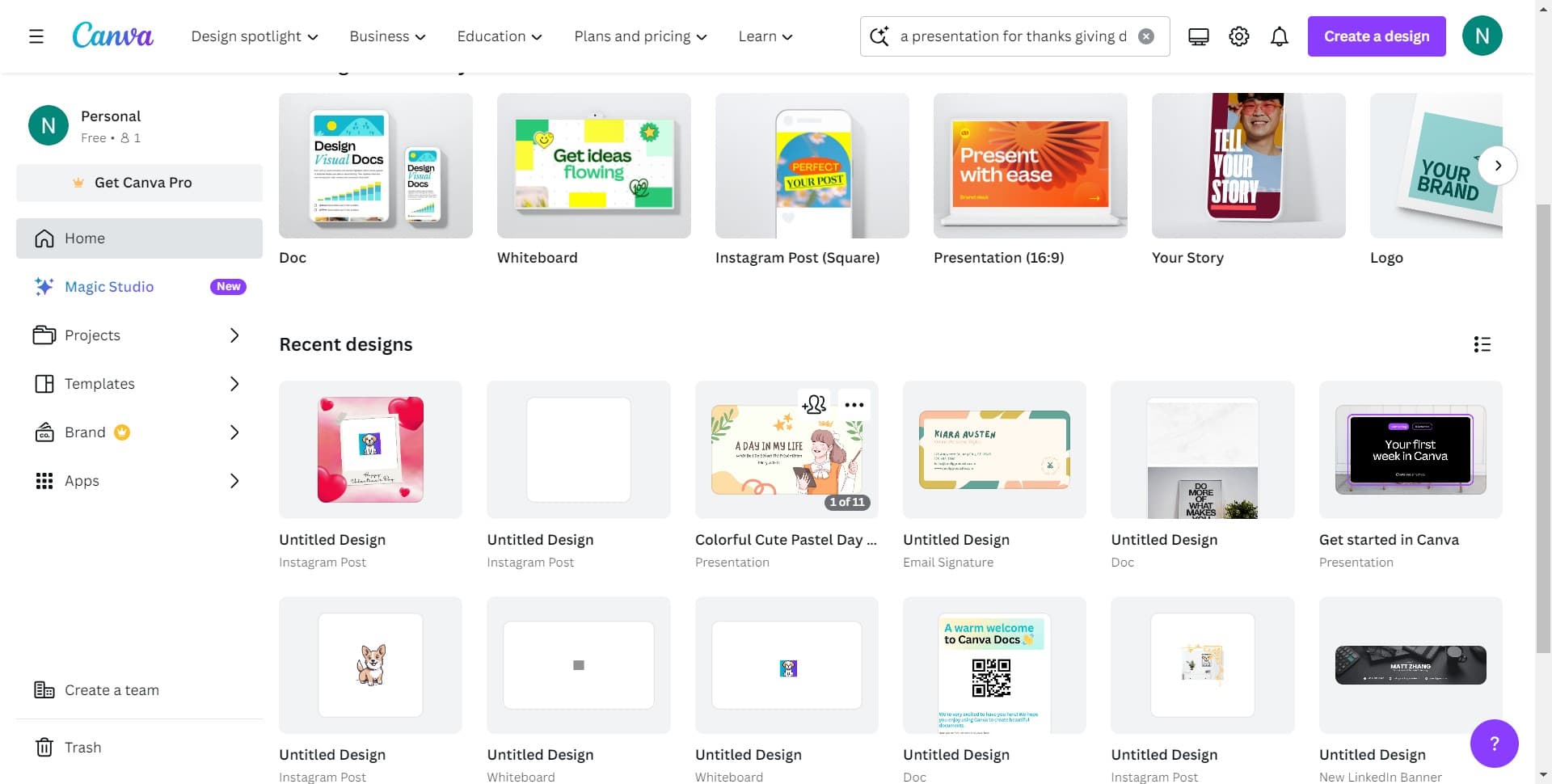
Click on Image
Start by selecting the Image option in Canva's export menu. This tells Canva you want to work with image-based exports rather than other file formats.
- 2
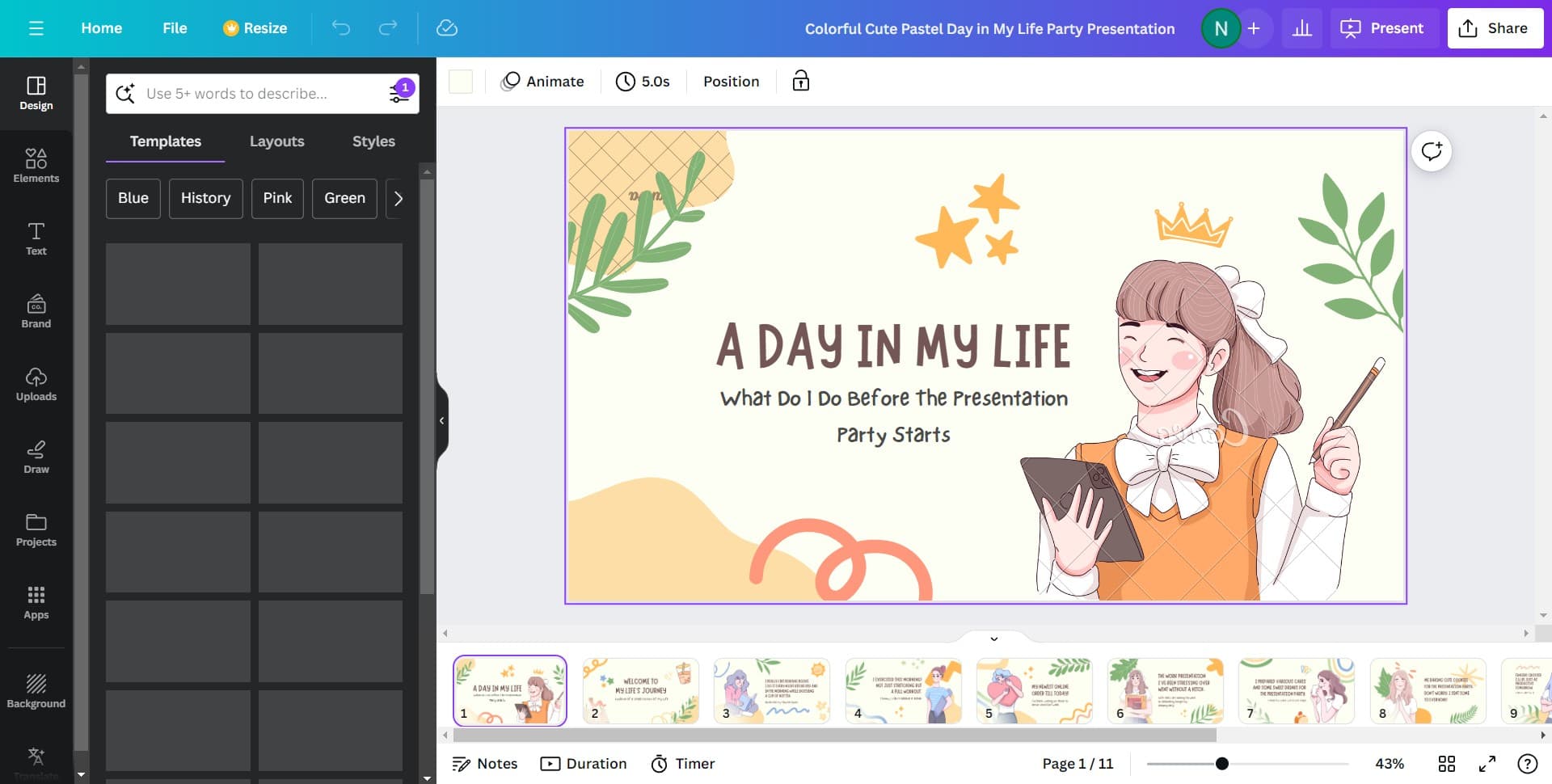
Click on Share
Navigate to the Share button to access Canva's sharing and export options. This opens the menu where you can configure how your design will be exported.
- 3
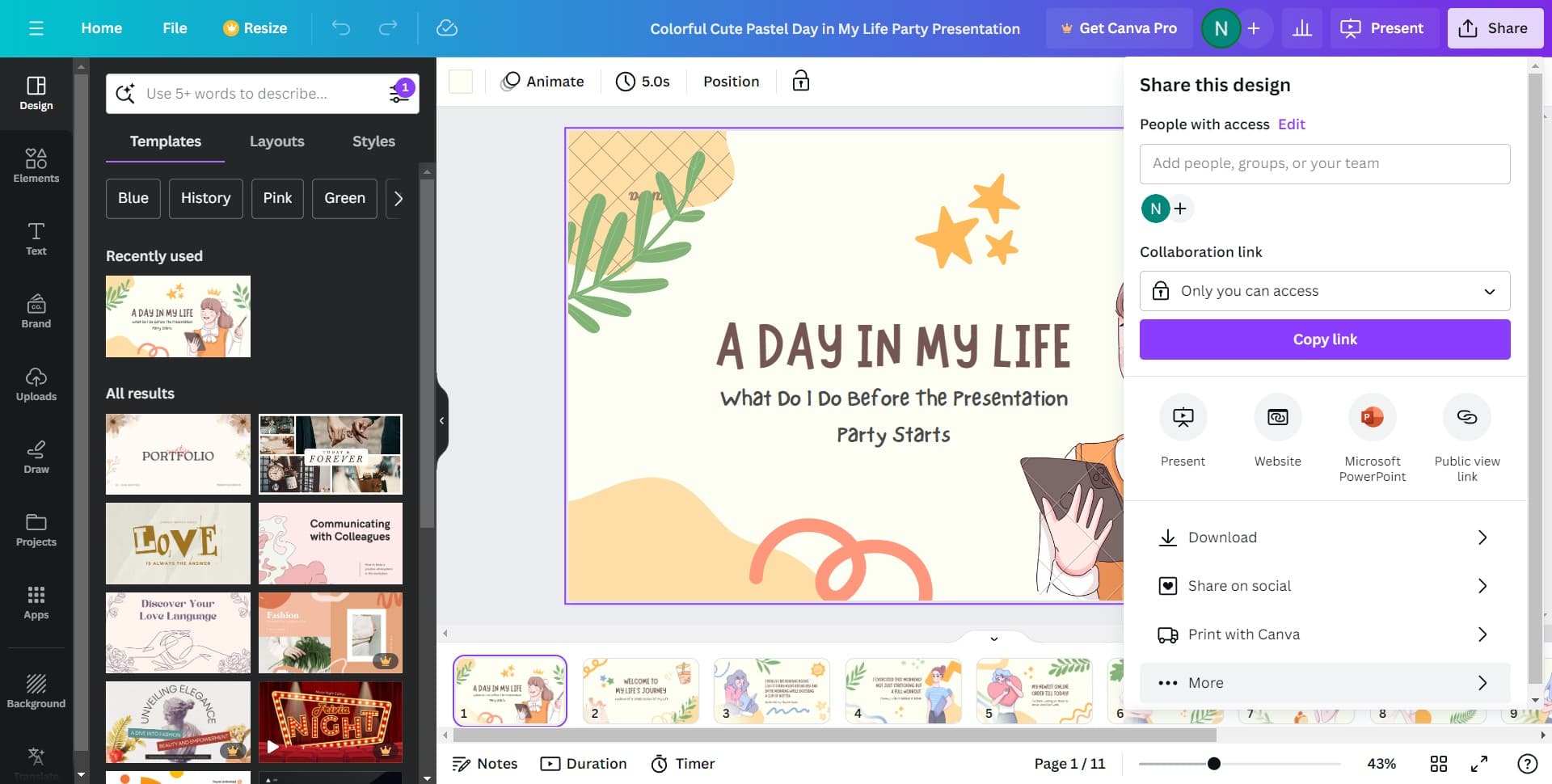
Click on More
Select the More option to reveal additional export formats and settings. This expands your available conversion options beyond the basic choices.
- 4
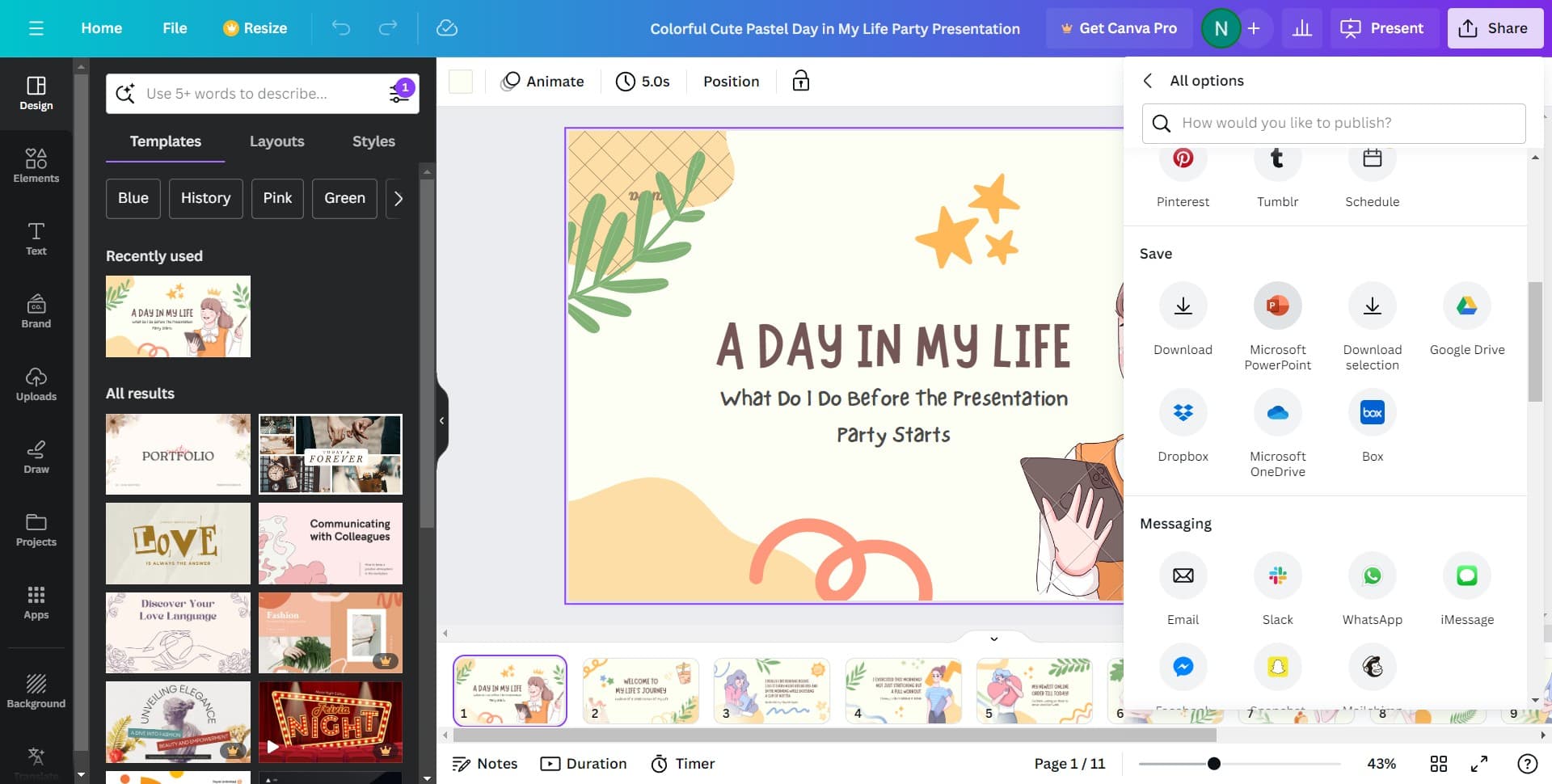
Access additional export options
Click through the subsequent menu items to navigate to the file format selection screen. These steps prepare you to choose your desired output format.
- 5
Navigate through format selection
Continue clicking to reach the file format options where PNG and PPTX choices will be available. Keep progressing through the menu hierarchy.
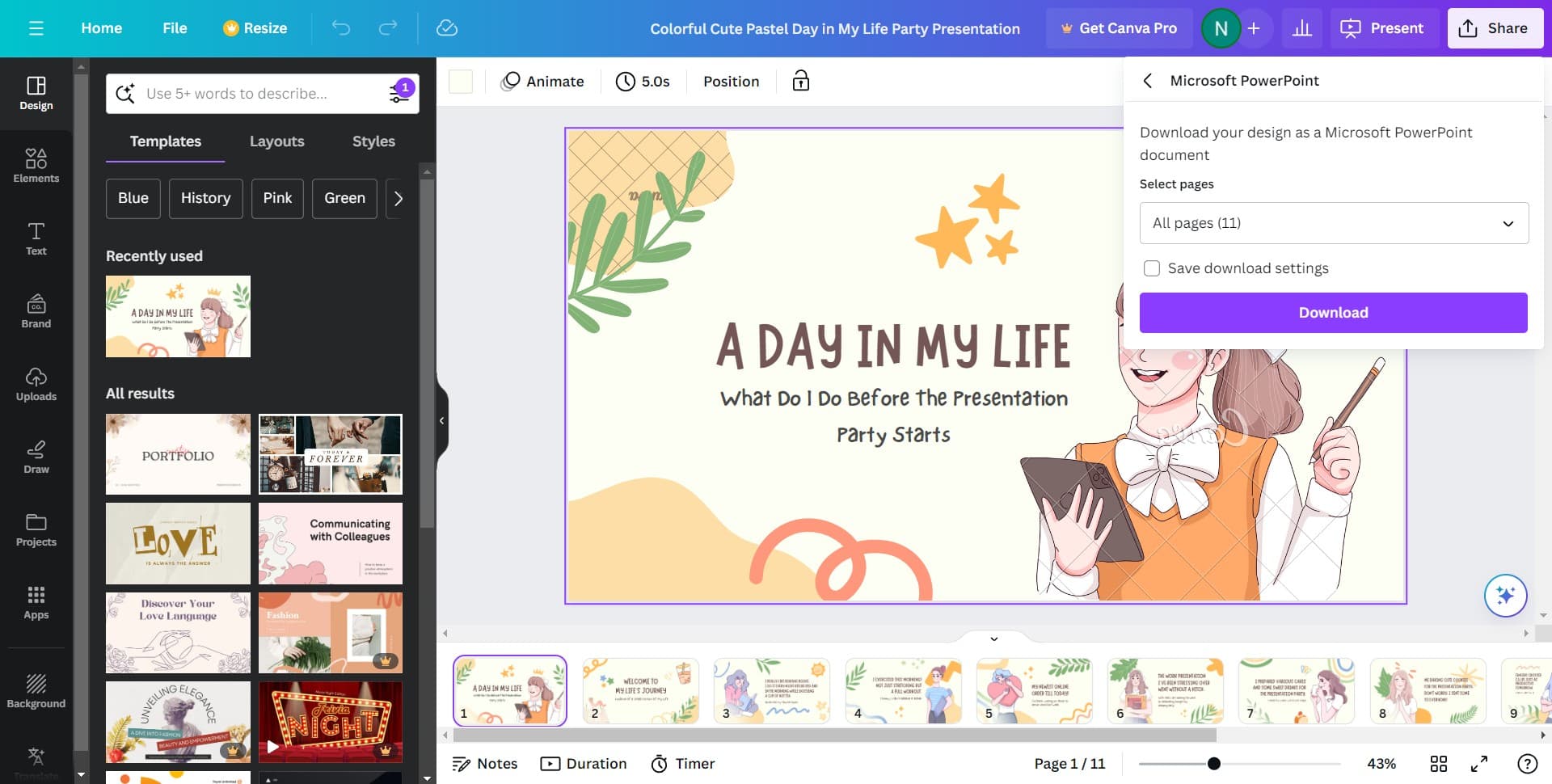
- 6
Proceed to file format menu
Click to advance to the final export configuration screen. You're now close to selecting your specific file format for conversion.
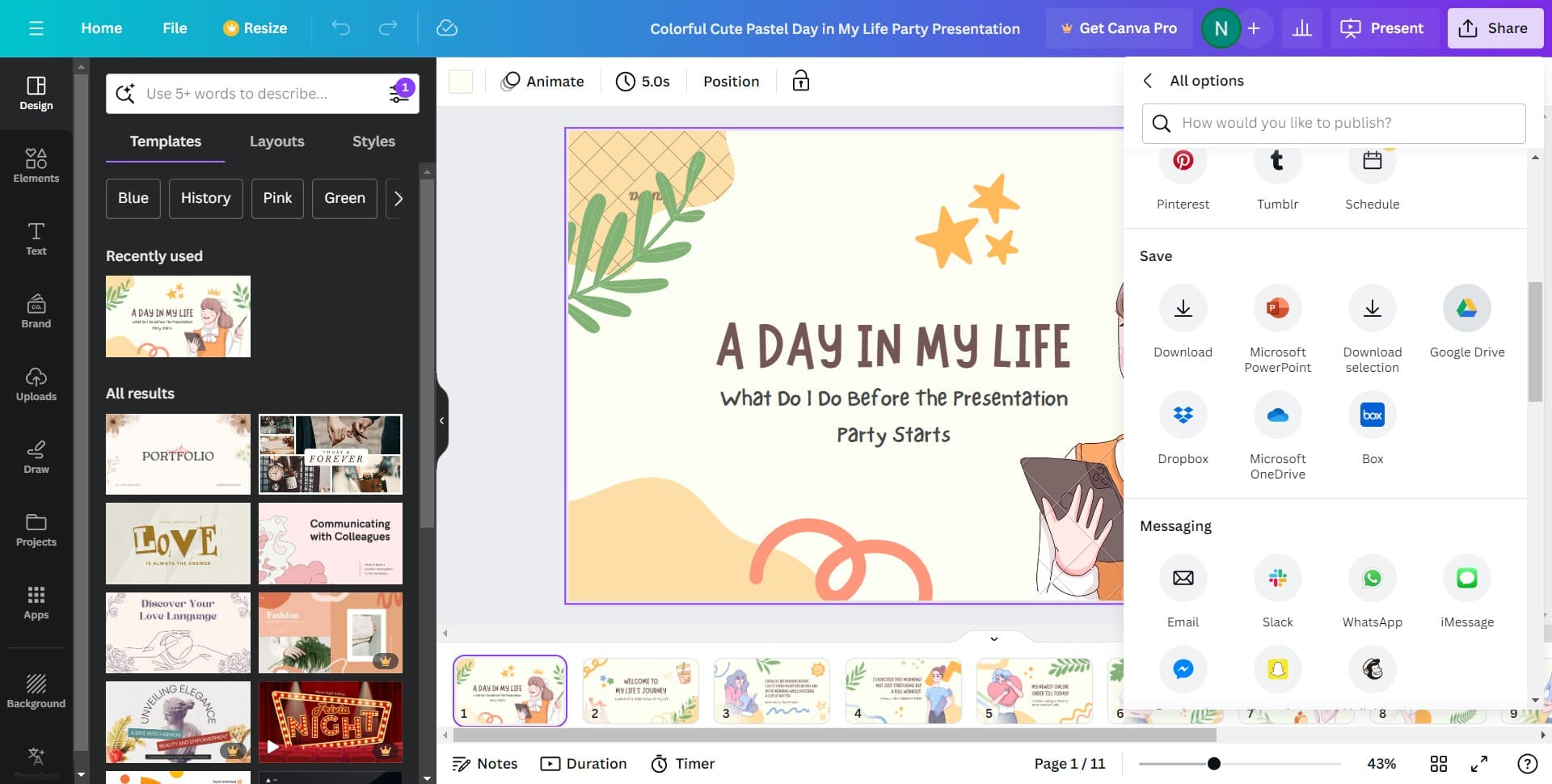
- 7
Select PNG format
Choose PNG as an intermediate format if needed for quality preservation. PNG exports maintain high visual fidelity before converting to PowerPoint.
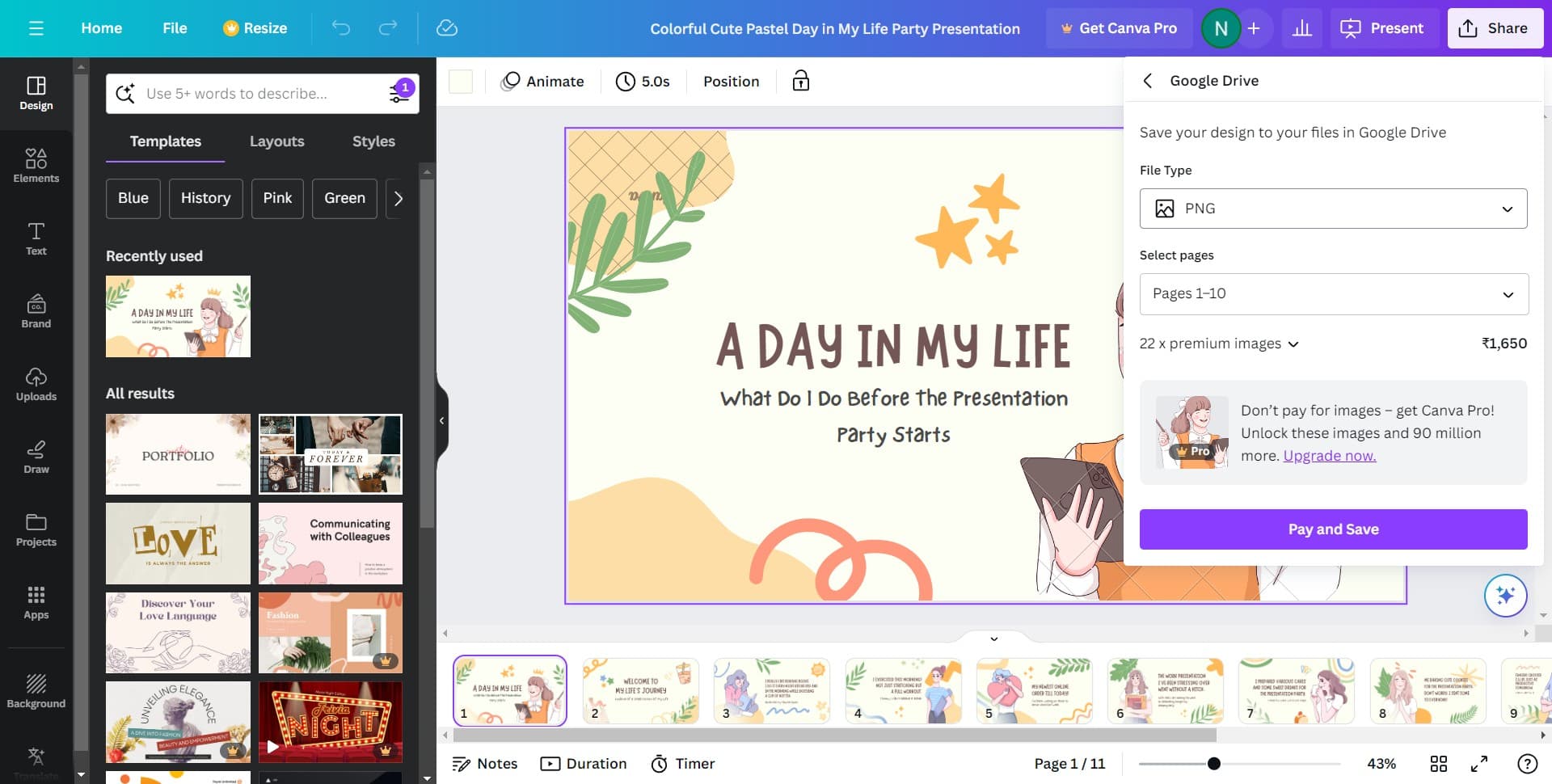
- 8
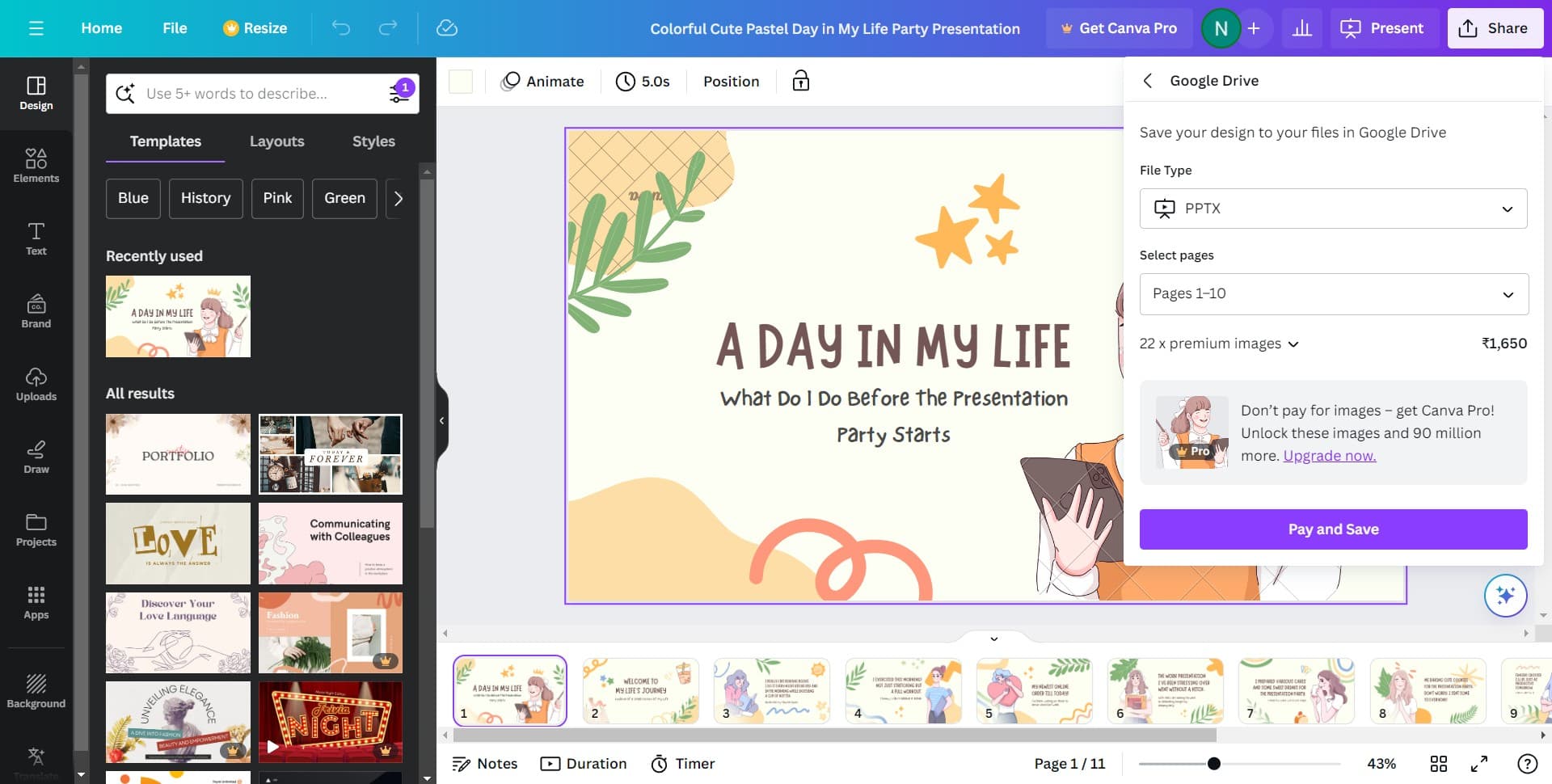
Select PPTX format
Click on PPTX to specify PowerPoint as your final export format. This ensures your Canva design will be compatible with Microsoft PowerPoint.
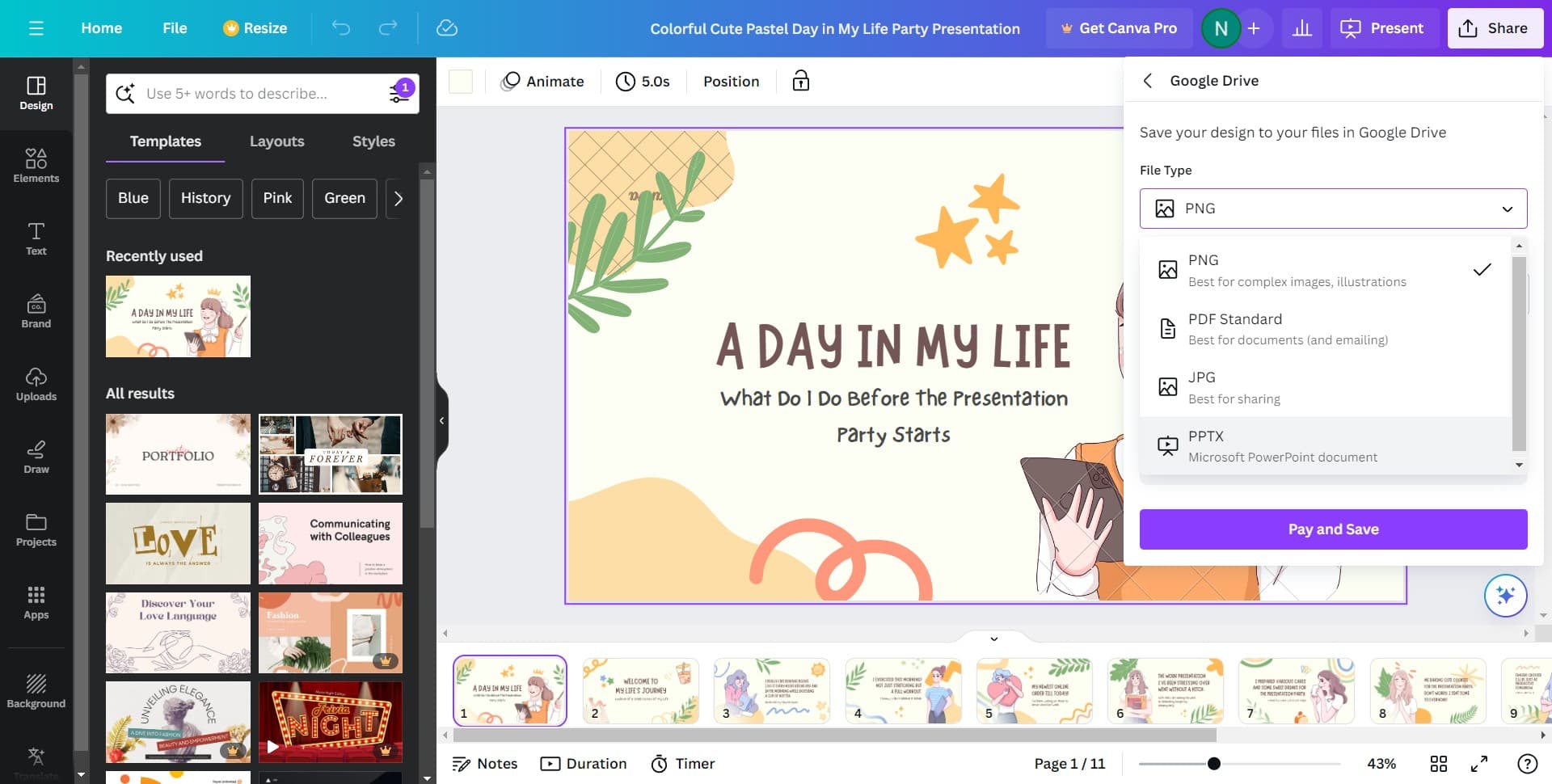
- 9
Click Pay and Save
Complete the conversion by clicking Pay and Save to finalize the export. Your design will now be processed and saved as a PowerPoint presentation file ready for download.
Frequently asked questions
Common questions about how to convert a canva design to a powerpoint presentation.
Yes, when you export as PPTX, your design converts to a PowerPoint file that you can edit using PowerPoint's tools. Some design elements may require adjustment depending on PowerPoint's formatting capabilities.
PNG exports your design as a static image file, while PPTX creates an editable PowerPoint presentation. If you need to edit text, colors, or layouts after export, PPTX is the better choice.
Generally, quality is well-preserved when converting from Canva to PowerPoint. However, some advanced Canva features or animations may not transfer perfectly and might need to be recreated in PowerPoint.
You'll need to export each Canva design individually following this process. Once you have multiple PPTX files, you can combine them into a single presentation using PowerPoint's slide insertion features.
Some Canva export formats may require payment depending on your subscription level. The Pay and Save step indicates whether a fee applies to your specific export.