How to Do a Hanging Indent in PowerPoint

A hanging indent is a formatting technique where the first line of a paragraph starts at the left margin, while all subsequent lines are indented. This style is commonly used in bibliographies, reference lists, and formal documents to improve readability and create a polished appearance.
Quick summary
In this tutorial, you'll learn how to apply a hanging indent to text in Microsoft PowerPoint. By following these straightforward steps, you'll be able to format your bullet points and paragraphs with professional-looking indentation that draws attention to the first line of each entry.
Why this matters
Hanging indents are essential for creating well-formatted reference lists, citations, and structured content in presentations. Using this formatting technique ensures your slides look professional and makes your content easier to scan and understand at a glance.
Step-by-step guide
- 1
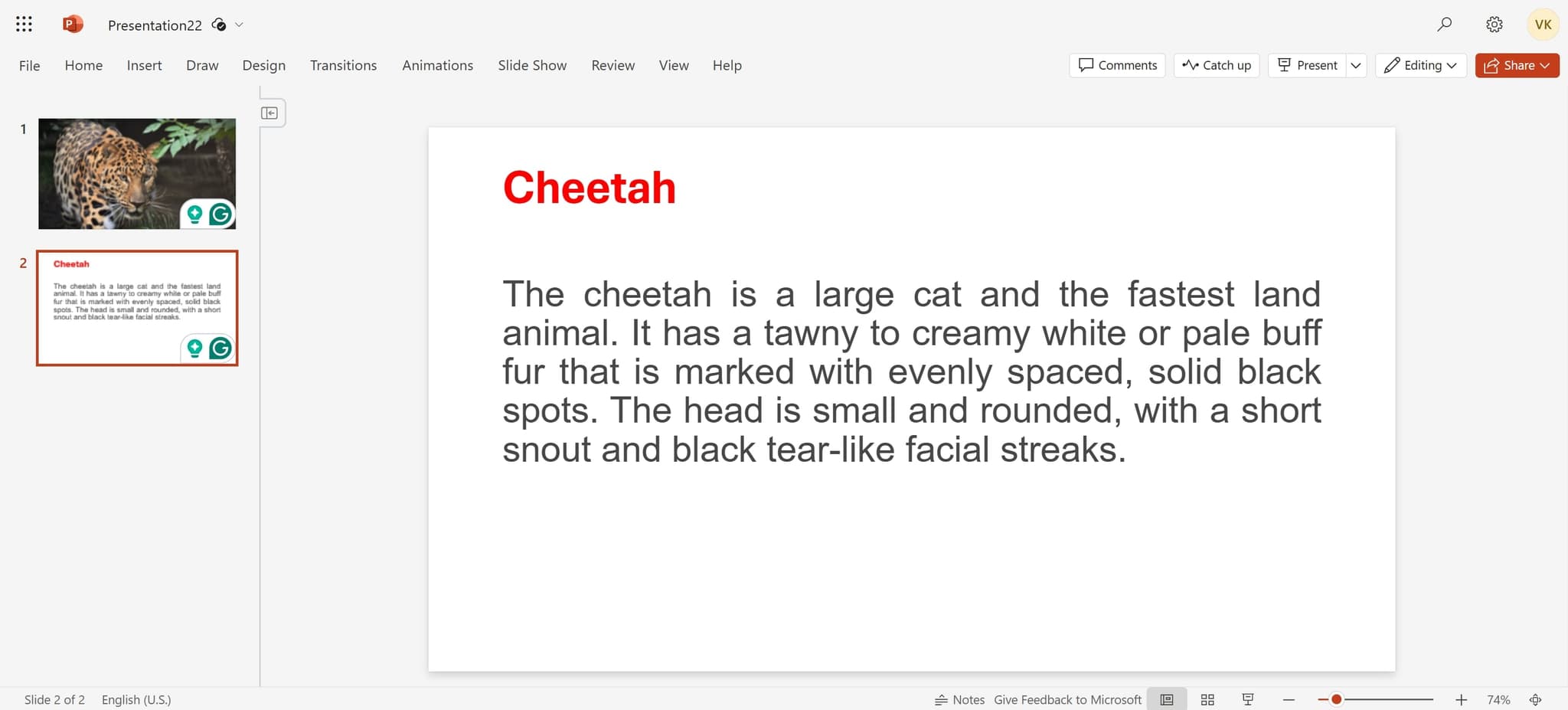
Select your text
Click on the text box or paragraph you want to format with a hanging indent. Make sure the text is selected before proceeding to the next step.
- 2
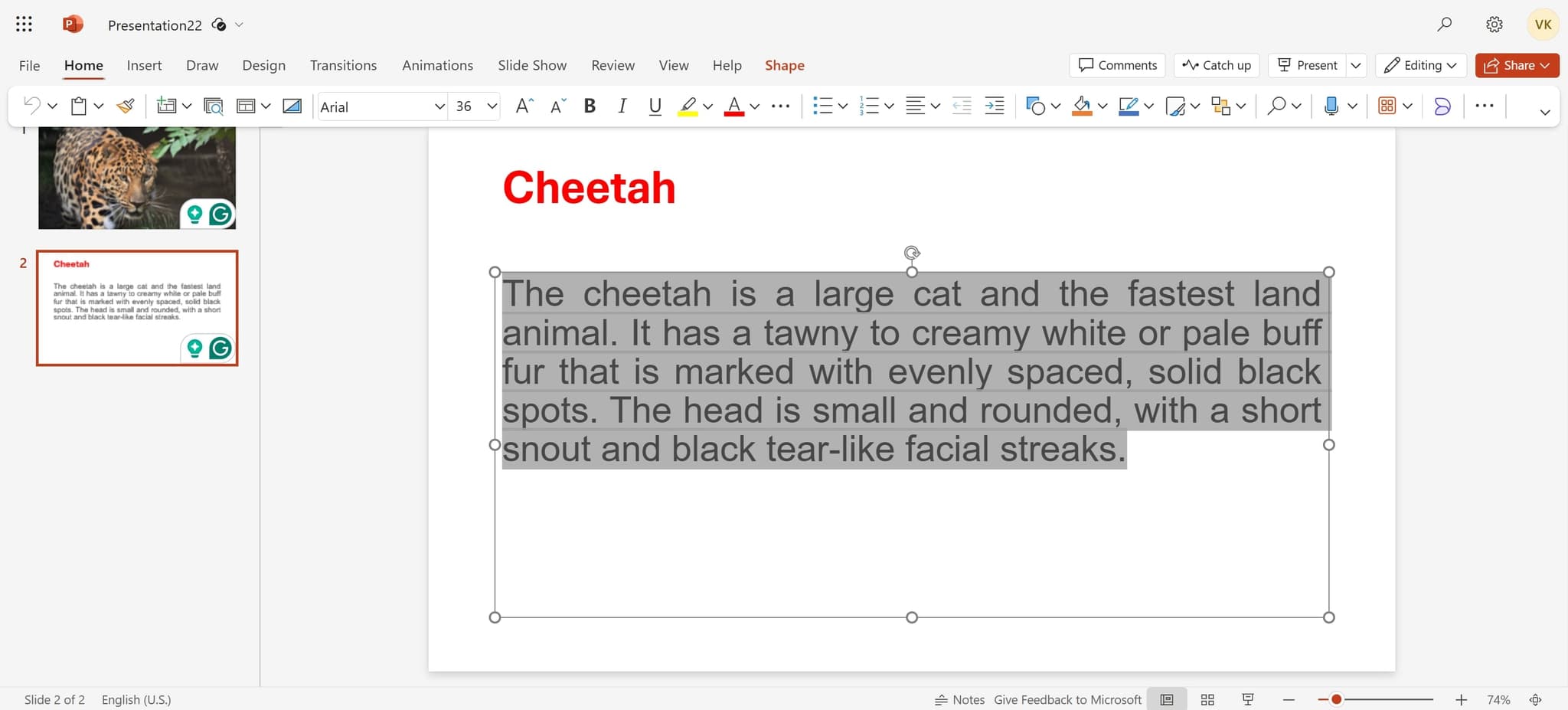
Navigate to the Home tab
Click on the 'Home' tab in the PowerPoint ribbon at the top of the screen. This will display the formatting options available for your selected text.
- 3
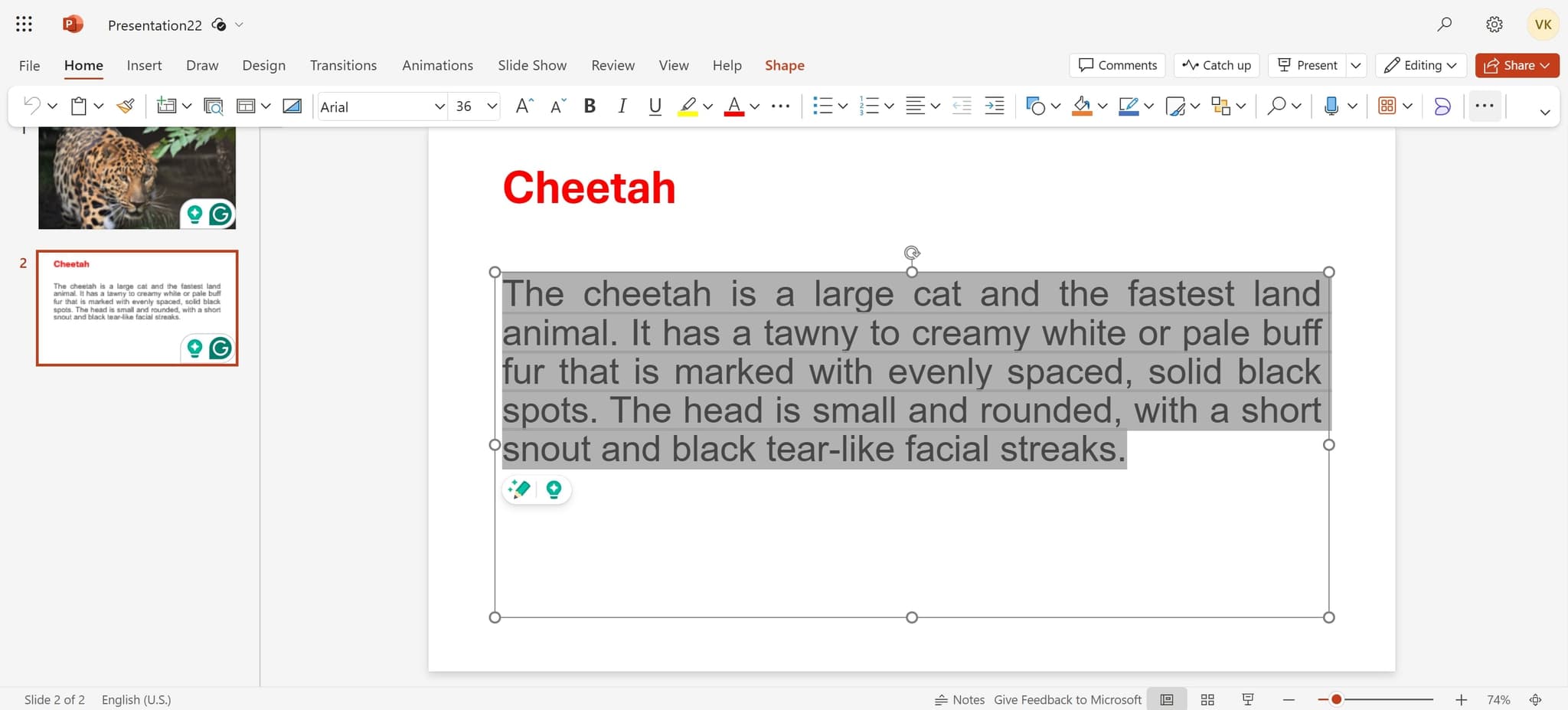
Open the paragraph dialog
Click on the dialog launcher icon in the Paragraph section. This small arrow icon opens the full paragraph formatting options.
- 4
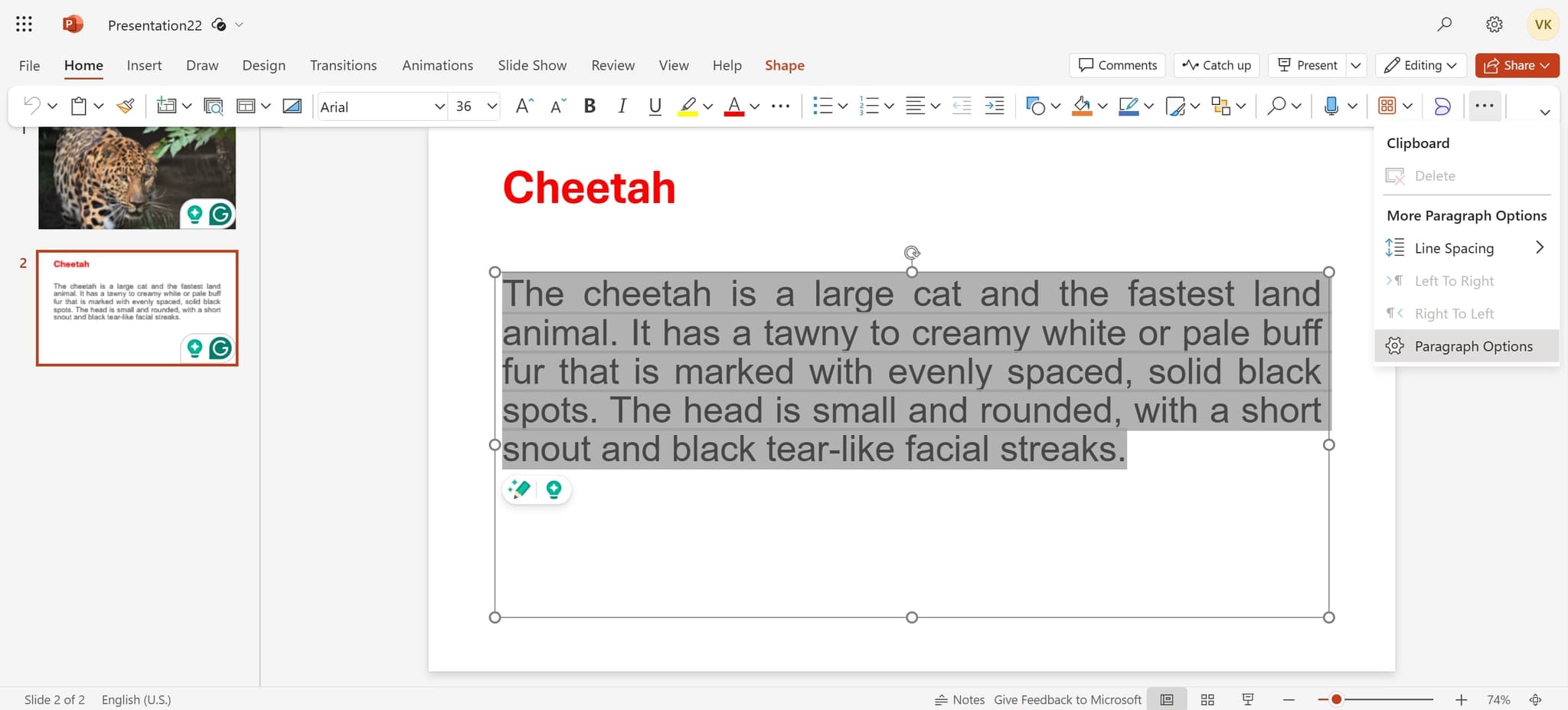
Access paragraph options
Click on 'Paragraph Options' from the menu that appears. This opens the detailed paragraph formatting dialog where you can configure indentation settings.
- 5
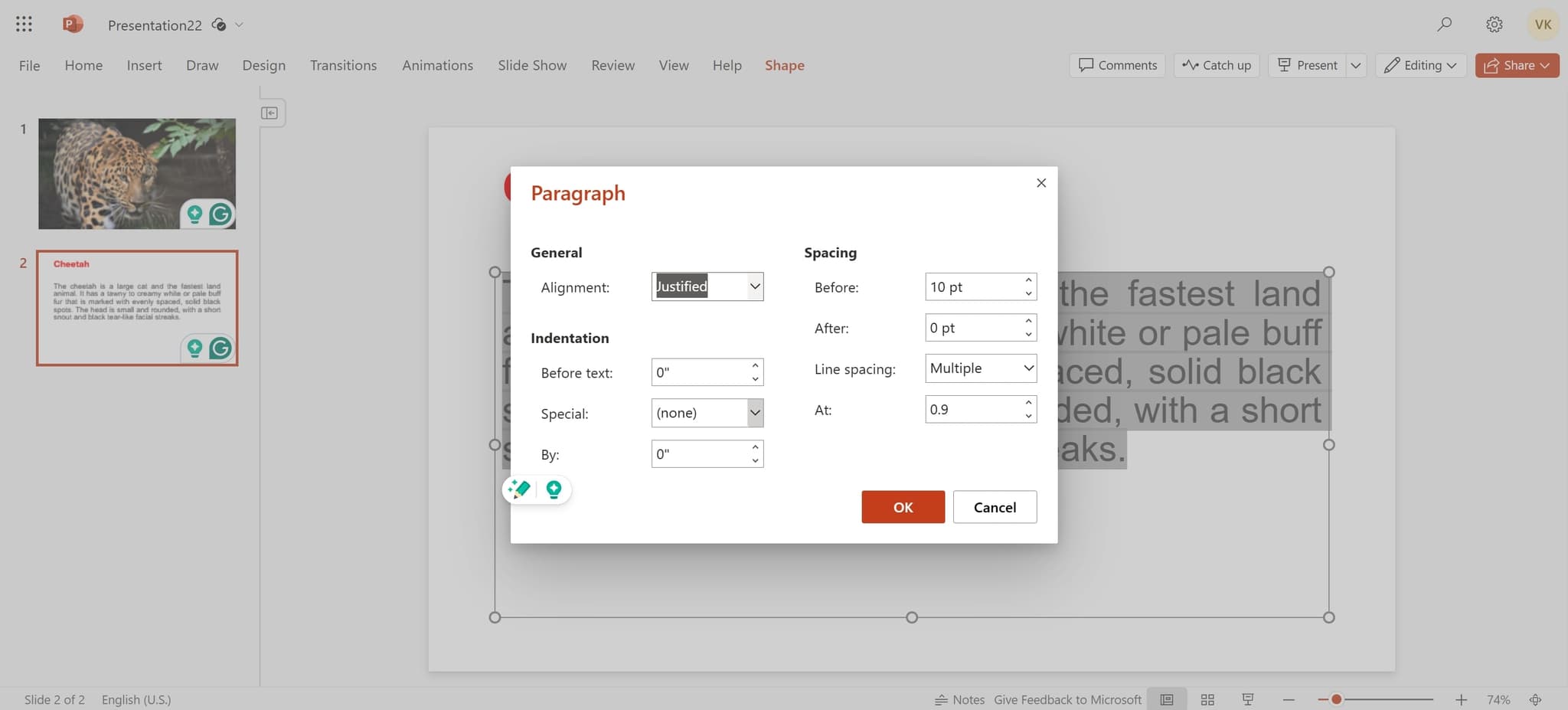
Navigate to indentation settings
Click on the indentation section in the dialog box. This area contains the controls you need to set up your hanging indent.
- 6
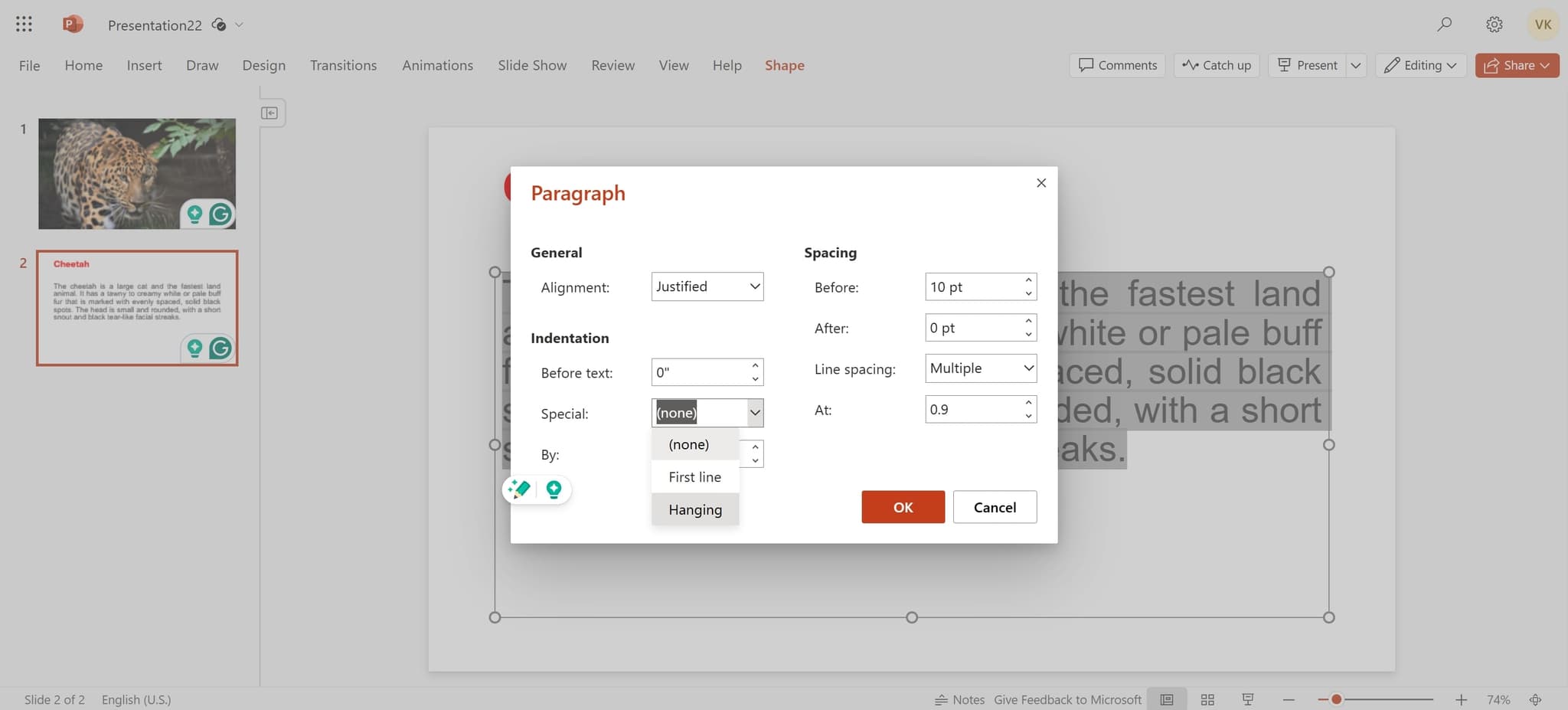
Select the hanging indent
Click on 'Hanging' from the available indentation options. This applies the hanging indent style to your selected text.
- 7
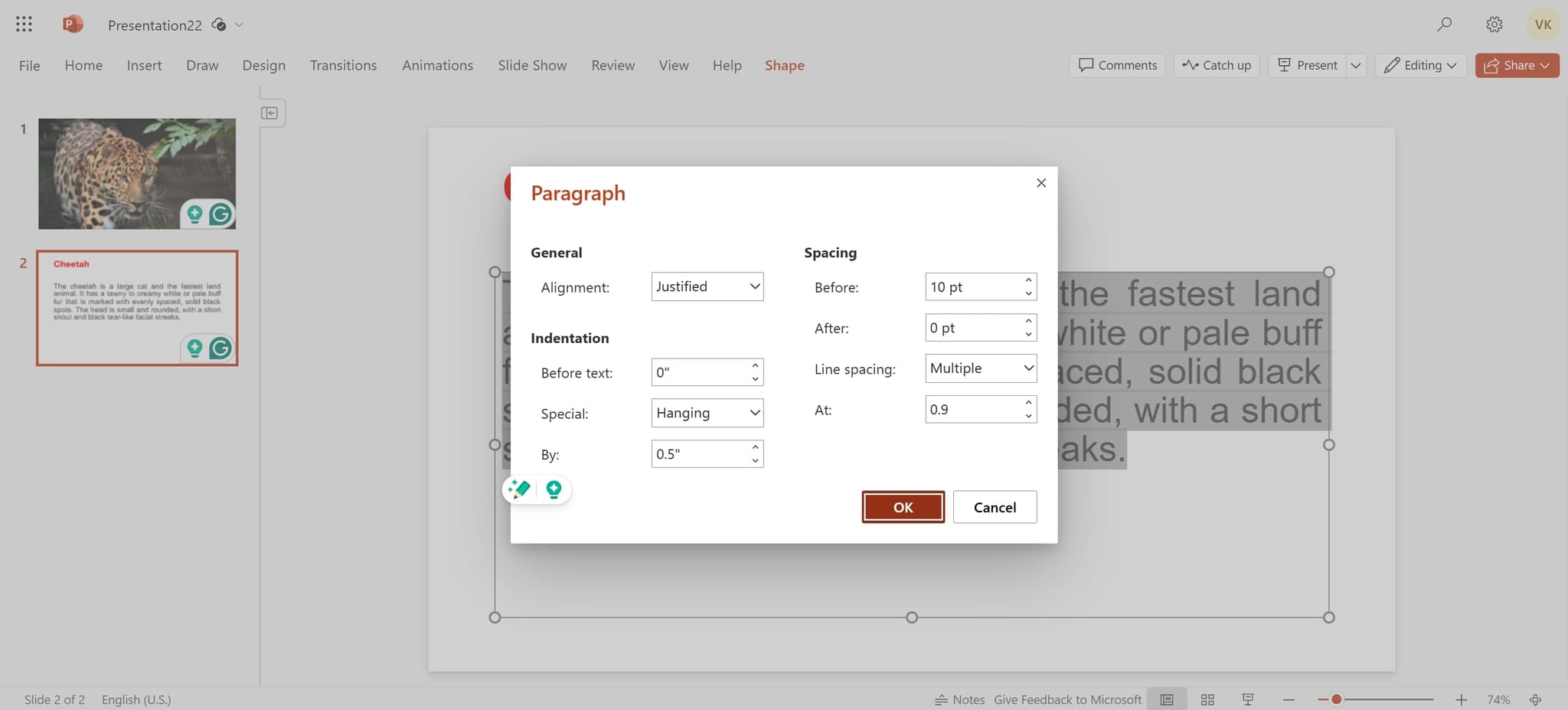
Apply the formatting
Click 'OK' to apply the hanging indent to your text. Your paragraph will now display with the first line at the left margin and subsequent lines indented.
Frequently asked questions
Common questions about how to do a hanging indent in powerpoint.
Yes, in the Paragraph Options dialog, you can specify the exact indent distance in the 'By' field next to the Hanging option. This allows you to customize how far the indented lines extend from the left margin.
A hanging indent applies only to the text box or paragraph you have selected. If you want to apply the same formatting to multiple text boxes, you'll need to select and format each one individually.
Yes, hanging indents work well with bullet points. Select the bulleted text and follow the same steps to apply a hanging indent, which will enhance the visual hierarchy of your bulleted list.
To remove a hanging indent, select the formatted text, open the Paragraph Options dialog again, and change the indentation setting from 'Hanging' back to 'None' or 'Left'. Then click OK to apply the change.
Hanging indents are ideal for reference lists, bibliographies, author attributions, and any content where you want the first line to stand out visually. They're particularly useful in academic or professional presentations requiring formal formatting.