How to Create an Org Chart in PowerPoint

An organizational chart is a visual representation of your company's structure, showing reporting relationships and hierarchies. PowerPoint makes it easy to create professional org charts using built-in chart templates and shapes, allowing you to quickly map out team structures for presentations, planning documents, or internal communications.
Quick summary
In this tutorial, you'll learn how to create an organizational chart in PowerPoint by accessing the chart insertion tools and selecting the hierarchical chart type. You'll discover how to insert and customize chart elements to build a complete org structure that suits your needs.
Why this matters
Org charts are essential for communicating company structure, clarifying reporting lines, and onboarding new employees. Creating them directly in PowerPoint keeps your presentation materials consistent and makes it simple to update hierarchies without switching between multiple applications.
Step-by-step guide
- 1
Access the Insert menu
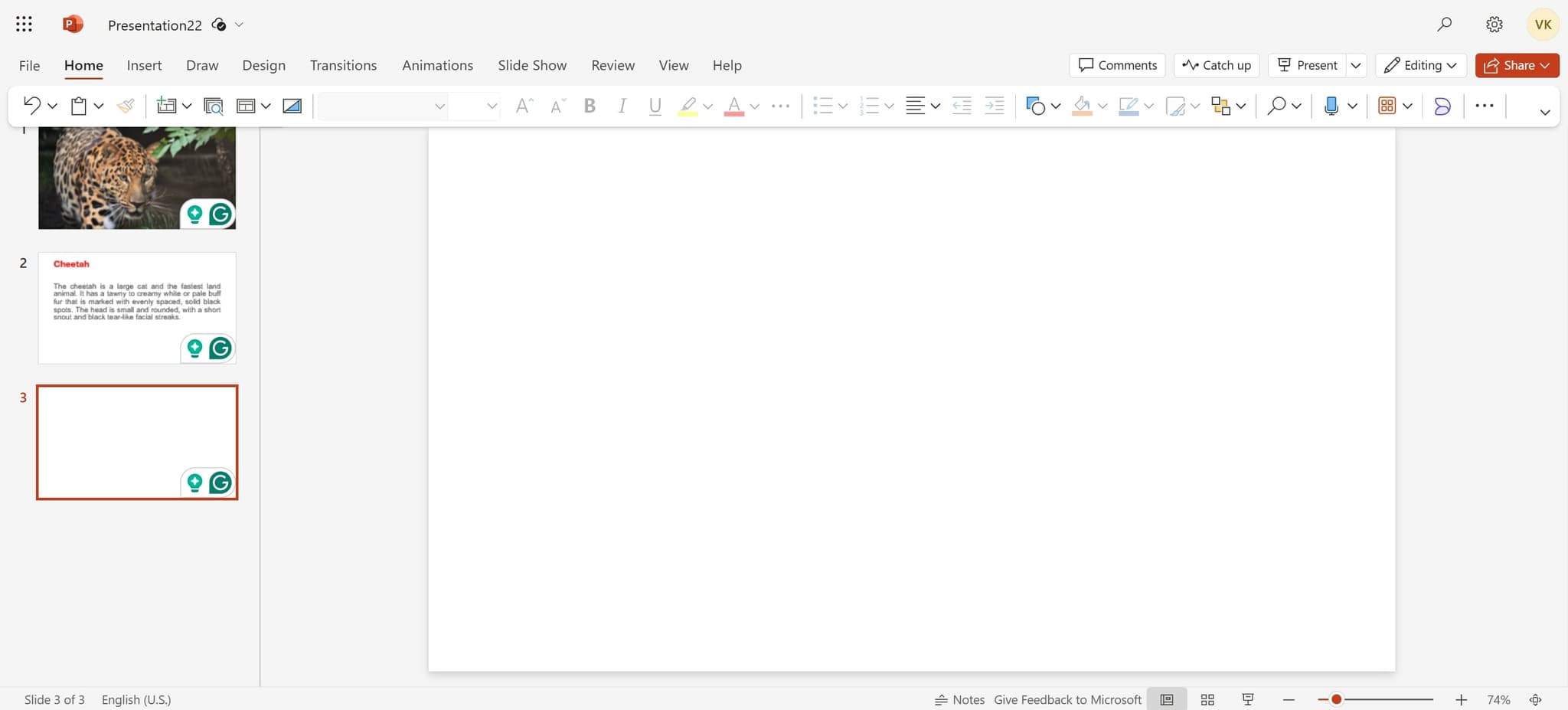
Begin by clicking on the Insert menu in the PowerPoint ribbon at the top of your screen. This opens access to all available content insertion options.
- 2
Navigate to the Chart option
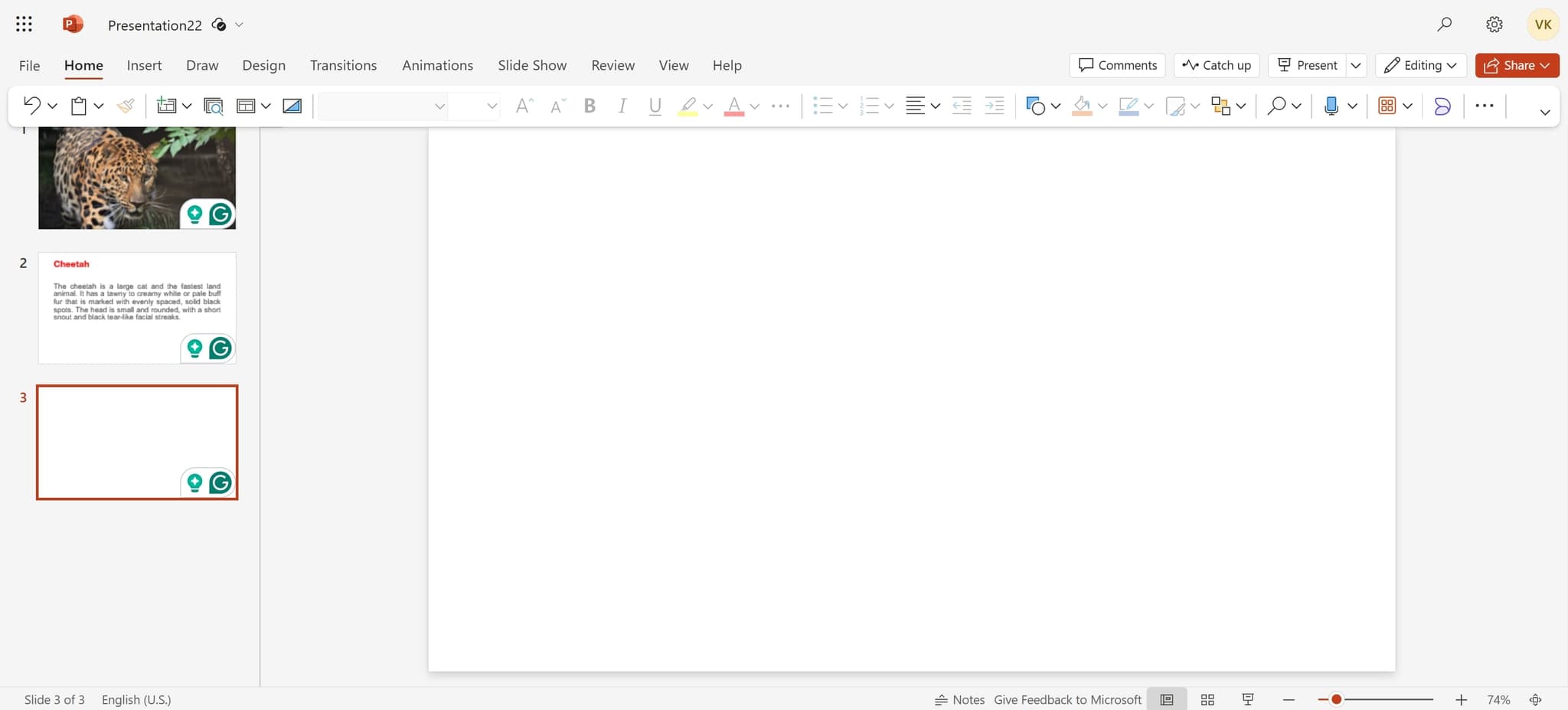
Look for and click on the appropriate submenu or button that will lead you to chart creation tools. This step prepares you to select the type of chart you want to insert.
- 3
Click on Chart
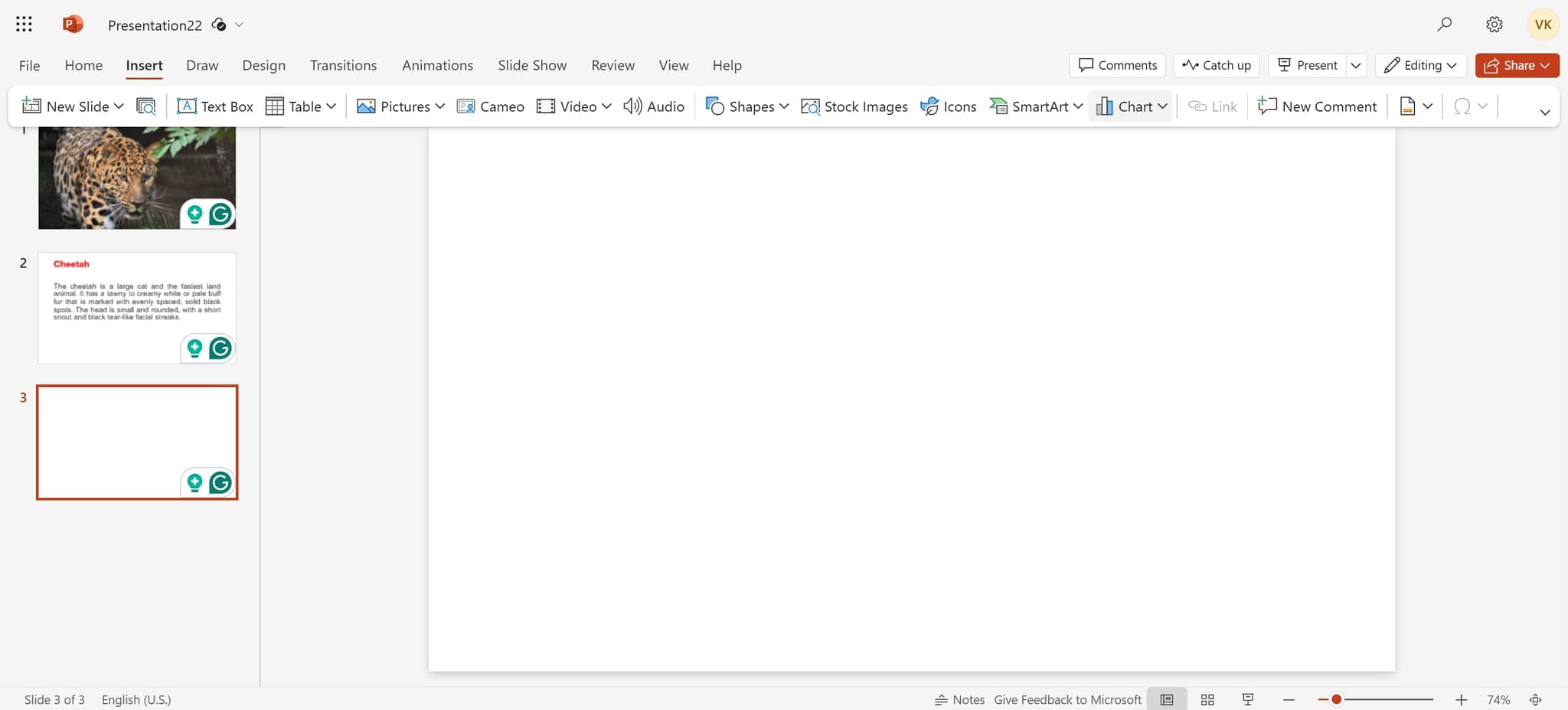
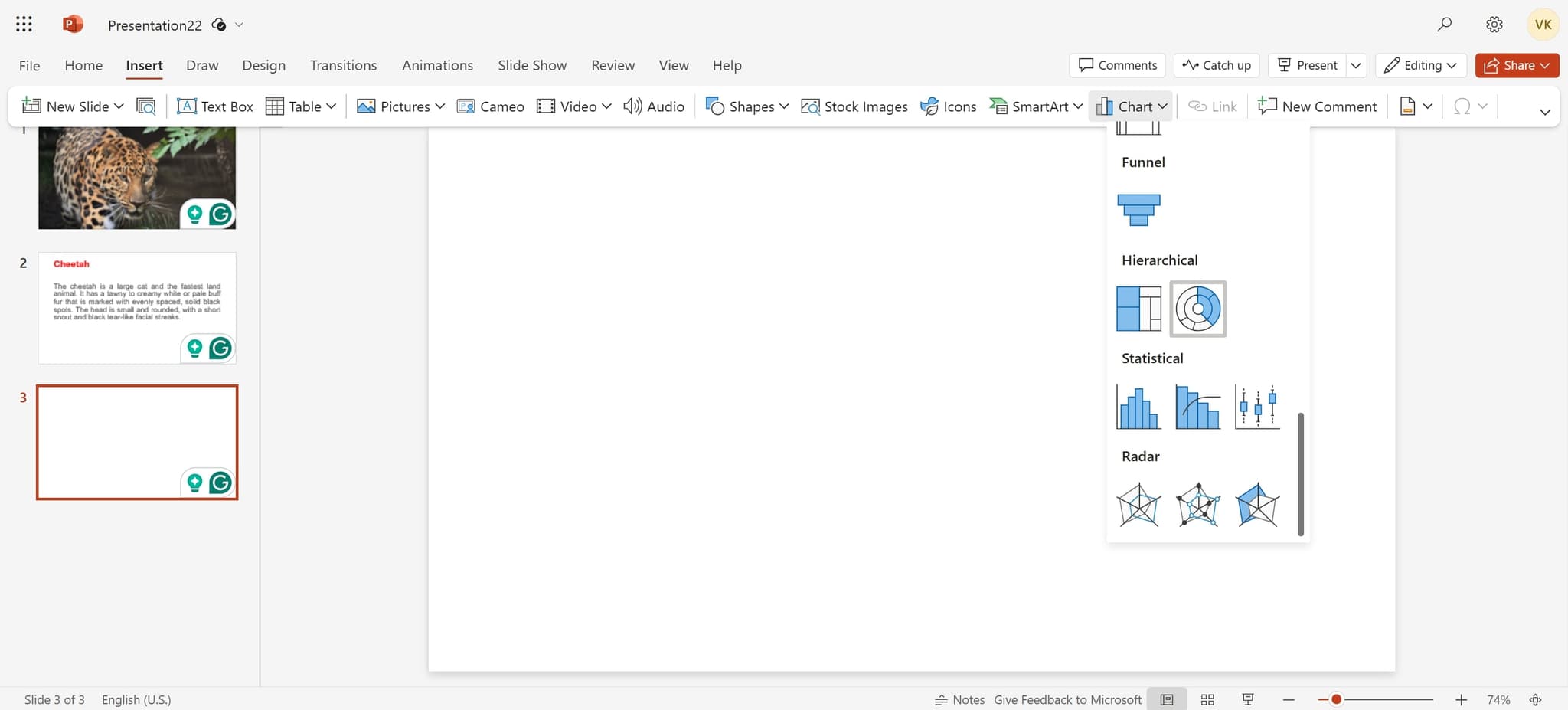
Select the Chart option from the menu. This launches the chart insertion dialog and displays available chart categories.
- 4
Select Hierarchical chart type
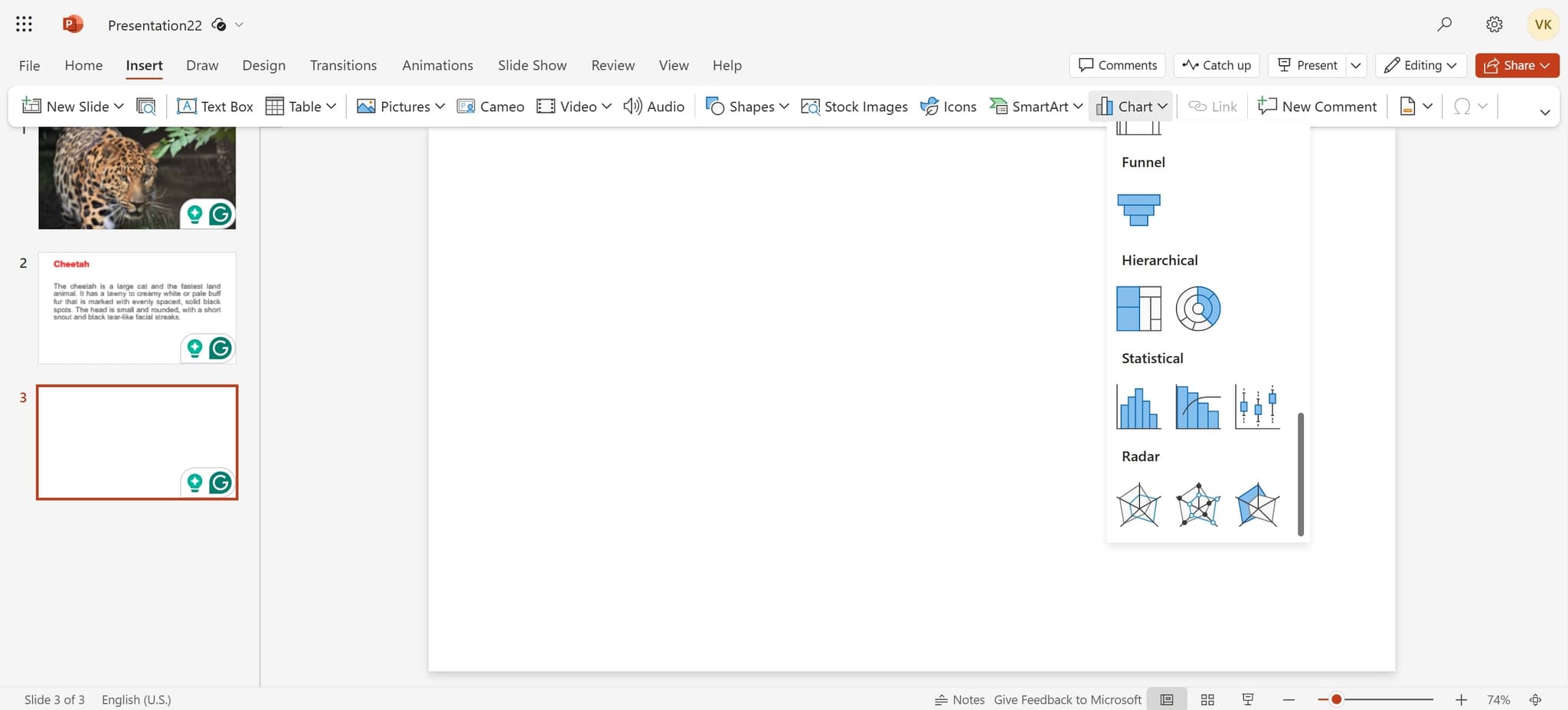
Click on the Hierarchical chart category. This chart type is specifically designed for showing organizational relationships and reporting structures.
- 5
Add the first element
Click on the chart element to begin building your org chart structure. This adds the first box to your hierarchy, typically representing the top-level position.
- 6
Add subsequent elements
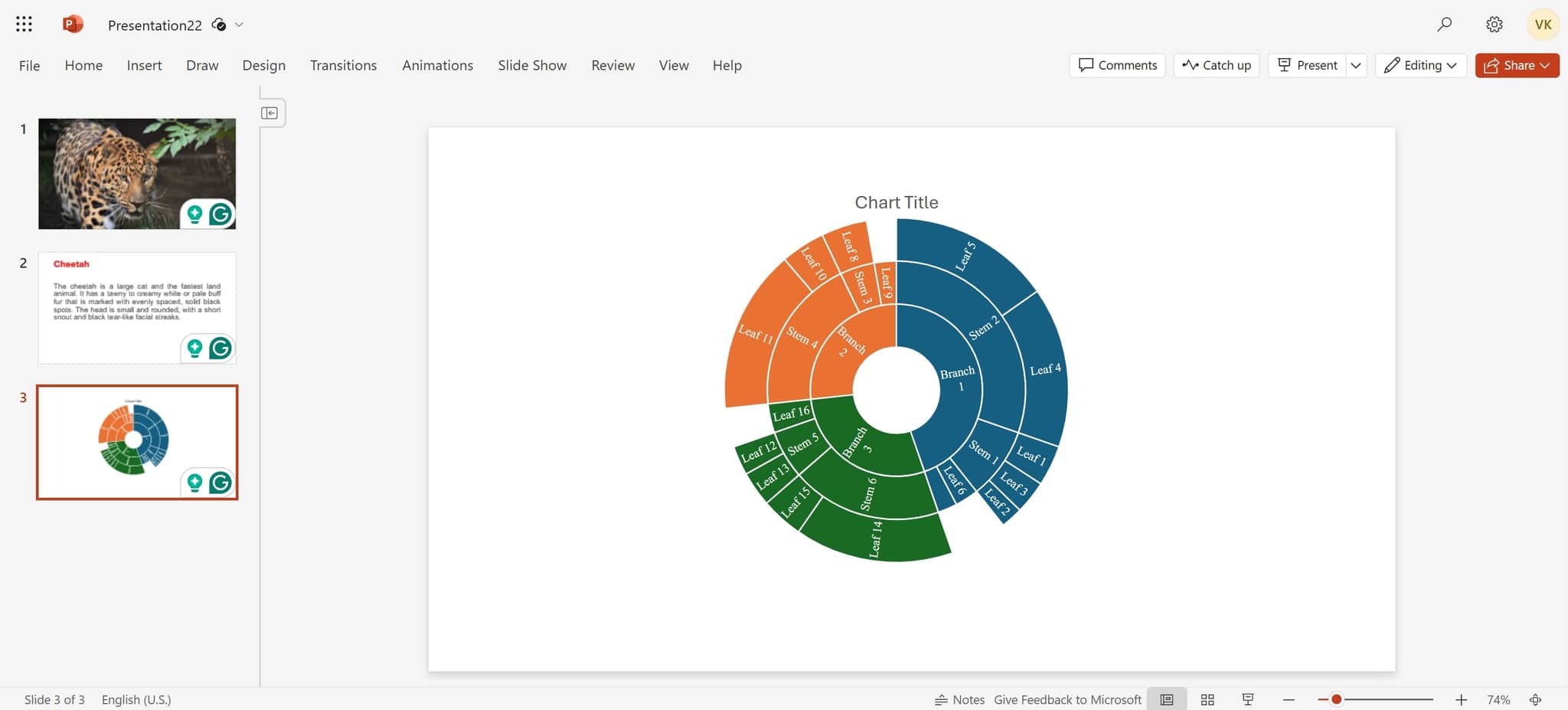
Click on additional elements to expand your organizational chart with more positions. Continue this process to build out all the levels and branches of your organization.
Frequently asked questions
Common questions about how to create an org chart in powerpoint.
Yes, you can edit any text box in your org chart by double-clicking on it and typing new information. PowerPoint allows unlimited editing of titles, names, and positions even after the chart has been inserted.
PowerPoint's hierarchical chart type automatically creates connecting lines between levels. If you need to adjust connections, you can use the connector tools from the Insert menu or manually draw lines between boxes.
You can customize colors, fonts, and styles by selecting chart elements and using the Format options in the ribbon. PowerPoint allows you to change background colors, text formatting, and line styles to align with your brand guidelines.
There is no practical limit to the number of positions you can add to your org chart. However, very large charts may become difficult to view on a single slide, so consider breaking them into multiple slides or using landscape orientation for complex structures.
Yes, since your org chart is created directly in PowerPoint, you can share it as part of your presentation file or export it as an image. You can also save individual slides as PDFs or image files for distribution to team members.