How to create a board in Trello

Creating a board in Trello is the first step to organizing your projects and tasks. Boards serve as the central hub where you can manage workflows, collaborate with team members, and track progress across different initiatives.
Quick summary
In this tutorial, you'll learn how to create a new board in Trello from start to finish. You'll navigate through the creation process, configure your board, and set up initial lists to begin organizing your work.
Why this matters
Boards are fundamental to Trello's productivity system, allowing teams to visualize workflows and manage tasks in one place. Creating well-structured boards from the beginning ensures your team can immediately start collaborating effectively and tracking work without delays.
Step-by-step guide
- 1
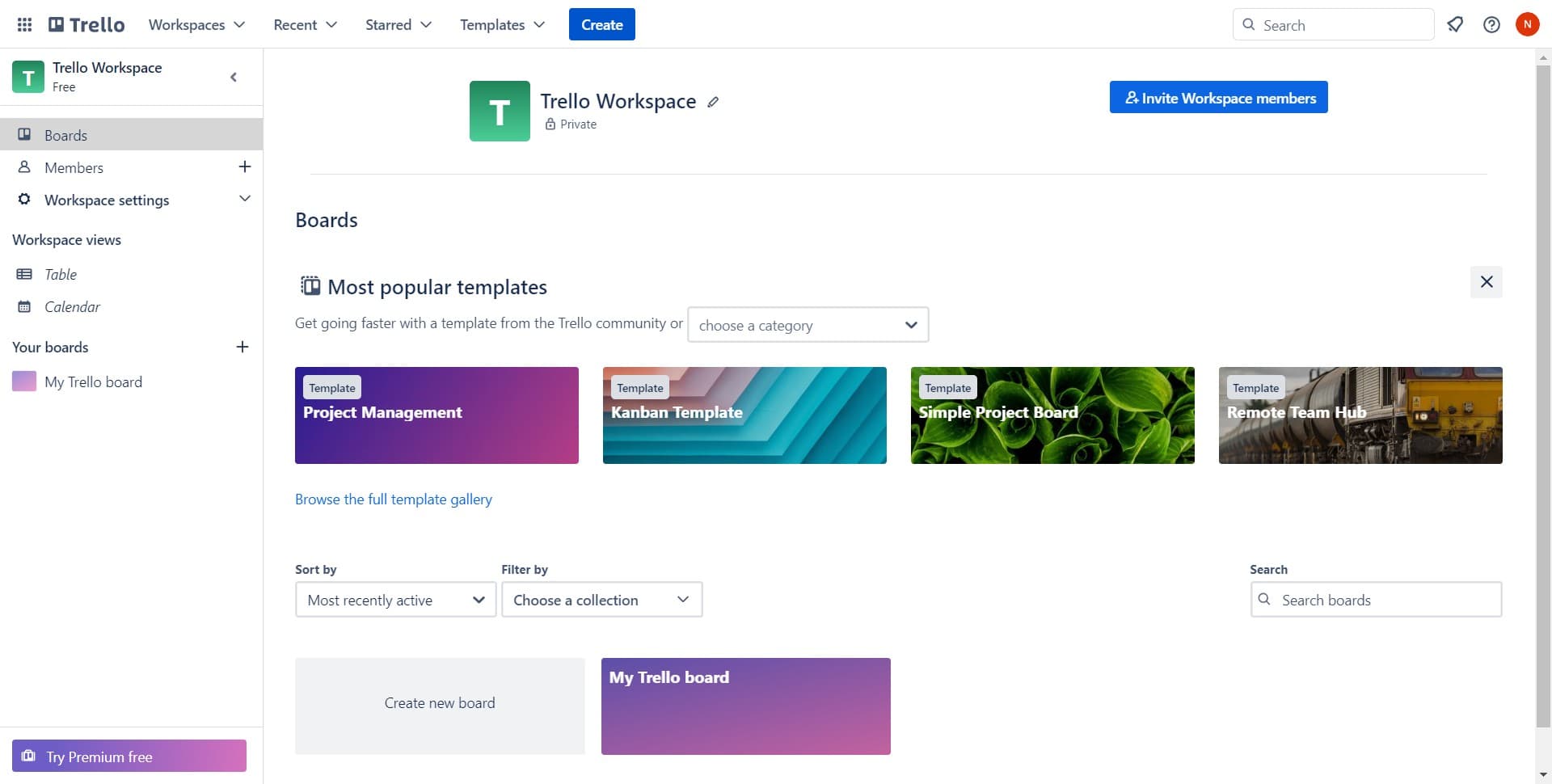
Click on Create button
Navigate to your Trello workspace and locate the Create button, typically found in the main navigation area. This button gives you access to create new boards and other Trello resources.
- 2
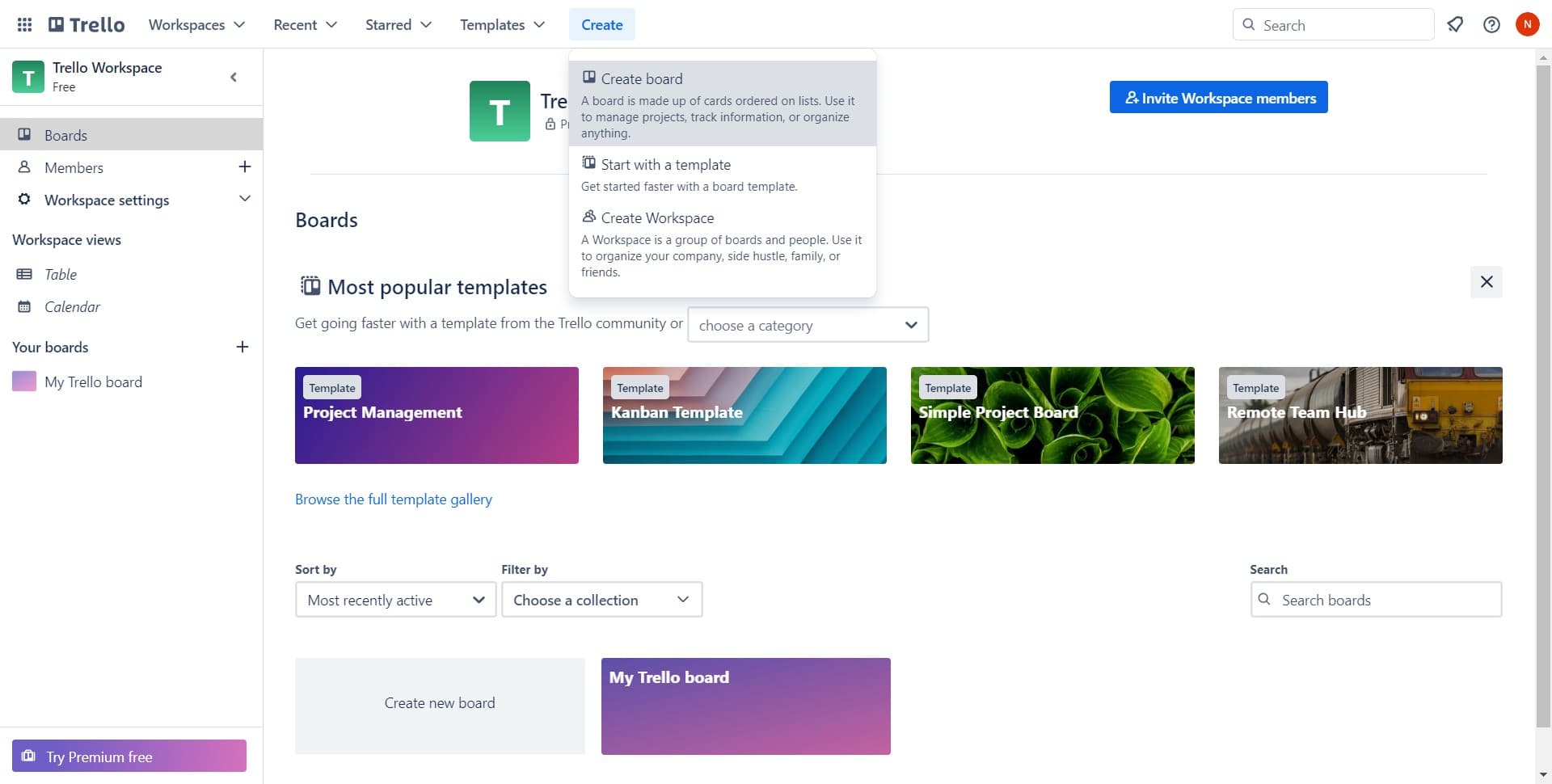
Select board creation option
From the dropdown menu, click on "A board is made..." to initiate the board creation process. This option will open the board creation form where you can configure your new board.
- 3
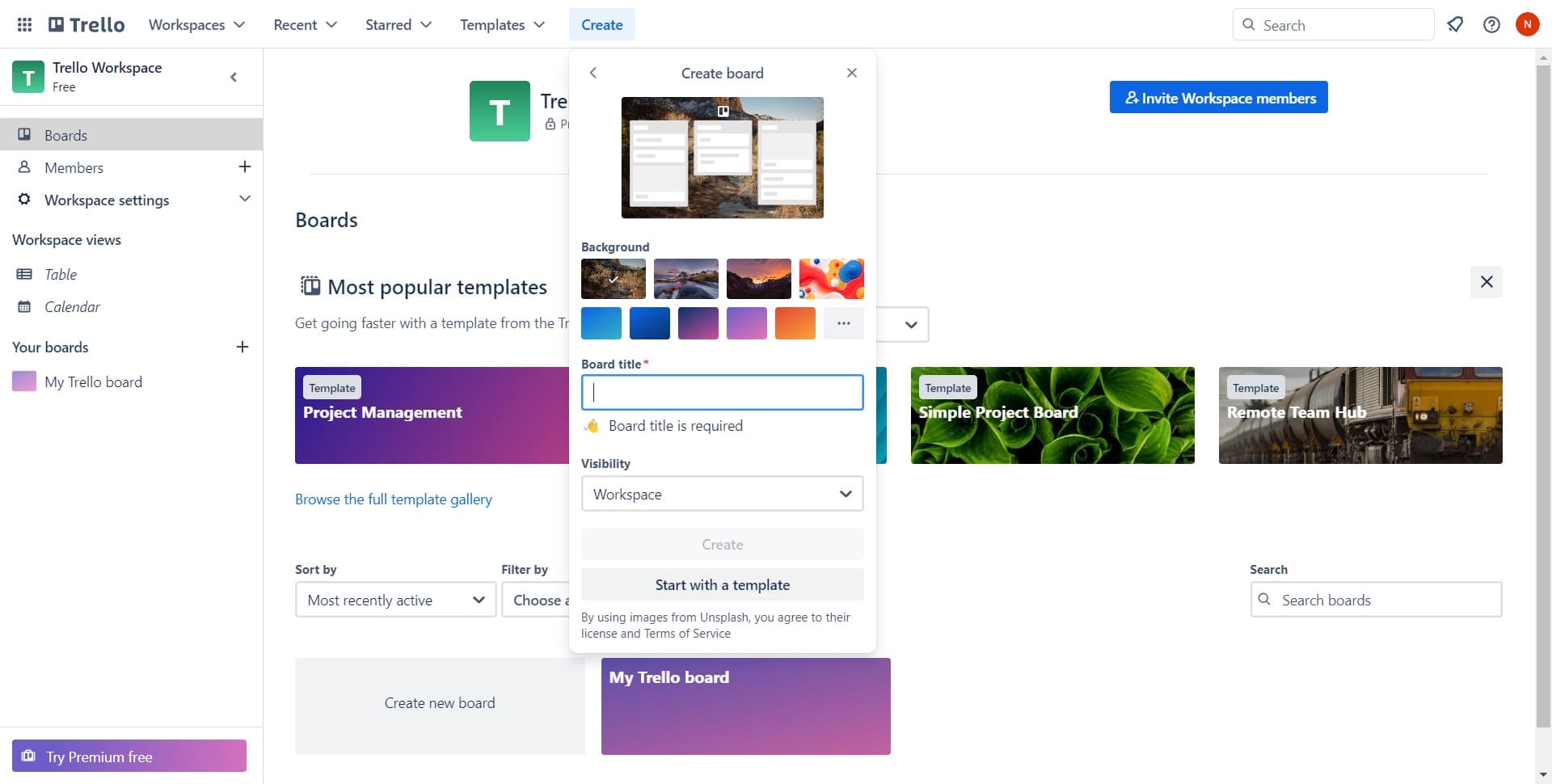
Enter board details
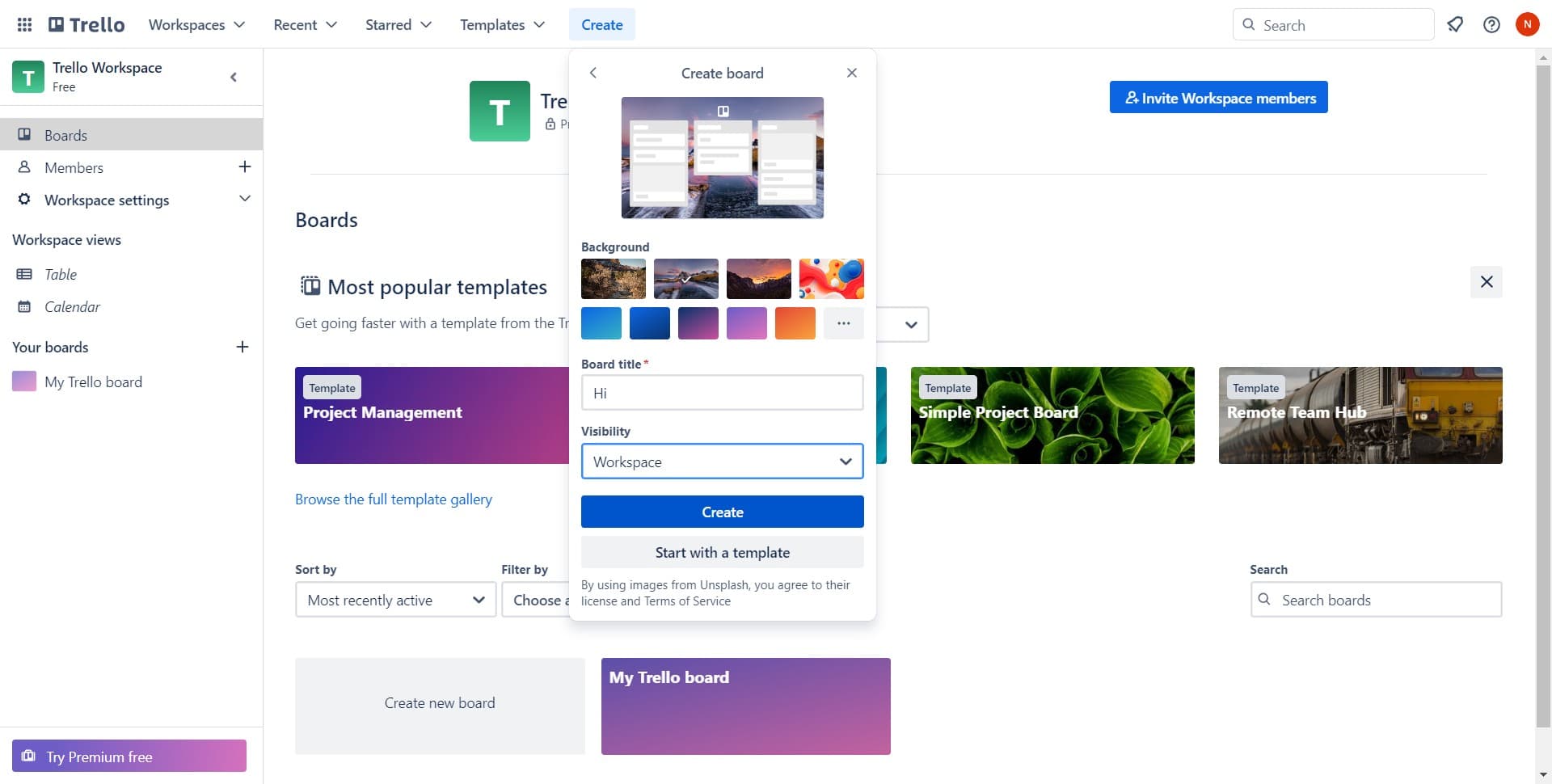
Fill in the required information for your board, such as the board name and any initial configuration settings. Make sure to provide a clear, descriptive name that reflects the purpose of your board.
- 4
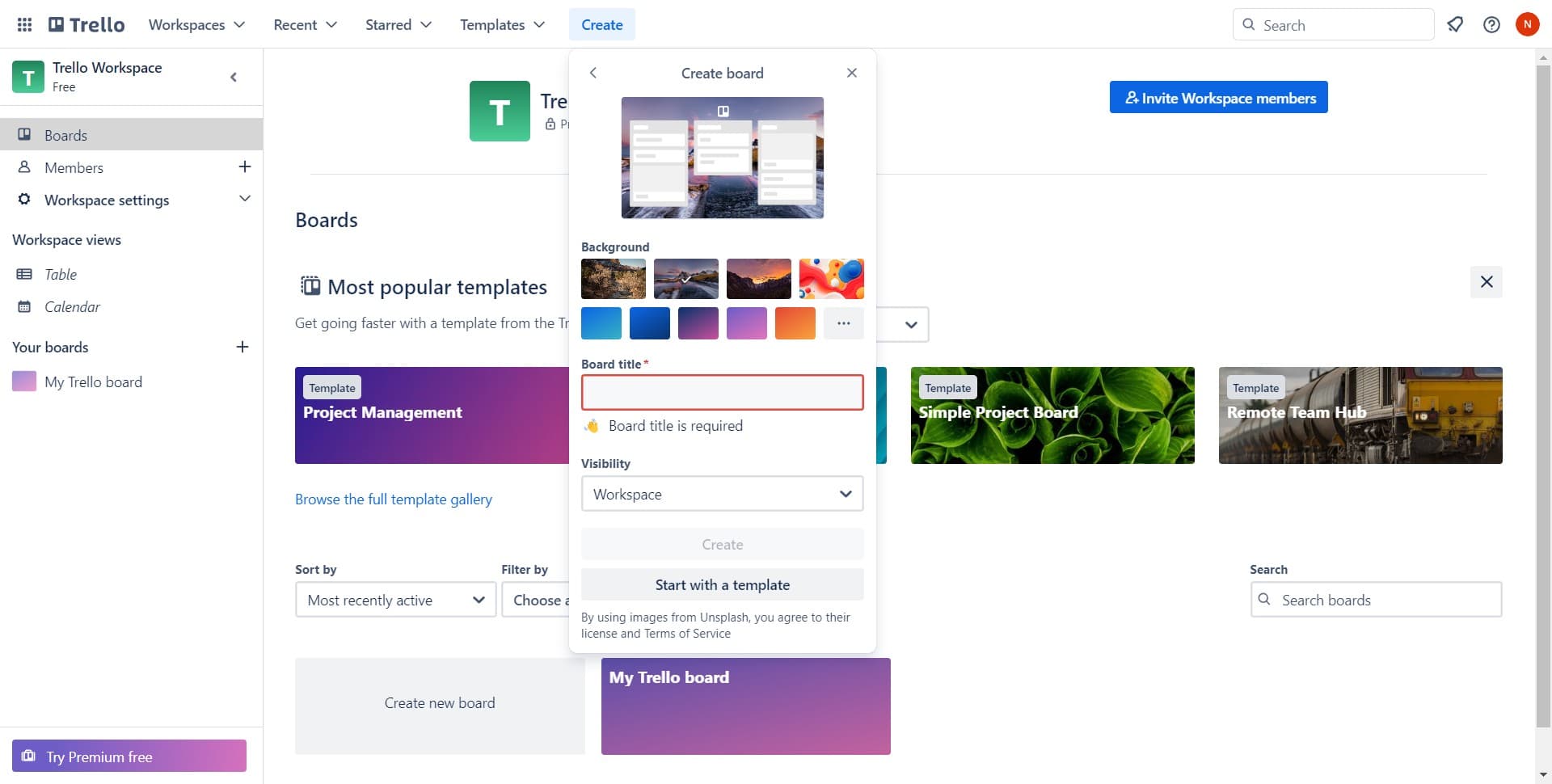
Configure board settings
Continue through the configuration screen to set additional board preferences. These settings may include visibility options, workspace assignment, and background preferences.
- 5
Confirm and create board
Click the Create button to finalize your board creation. Your new board will be generated and you'll be taken to the board view where you can start adding content.
- 6
Add first list
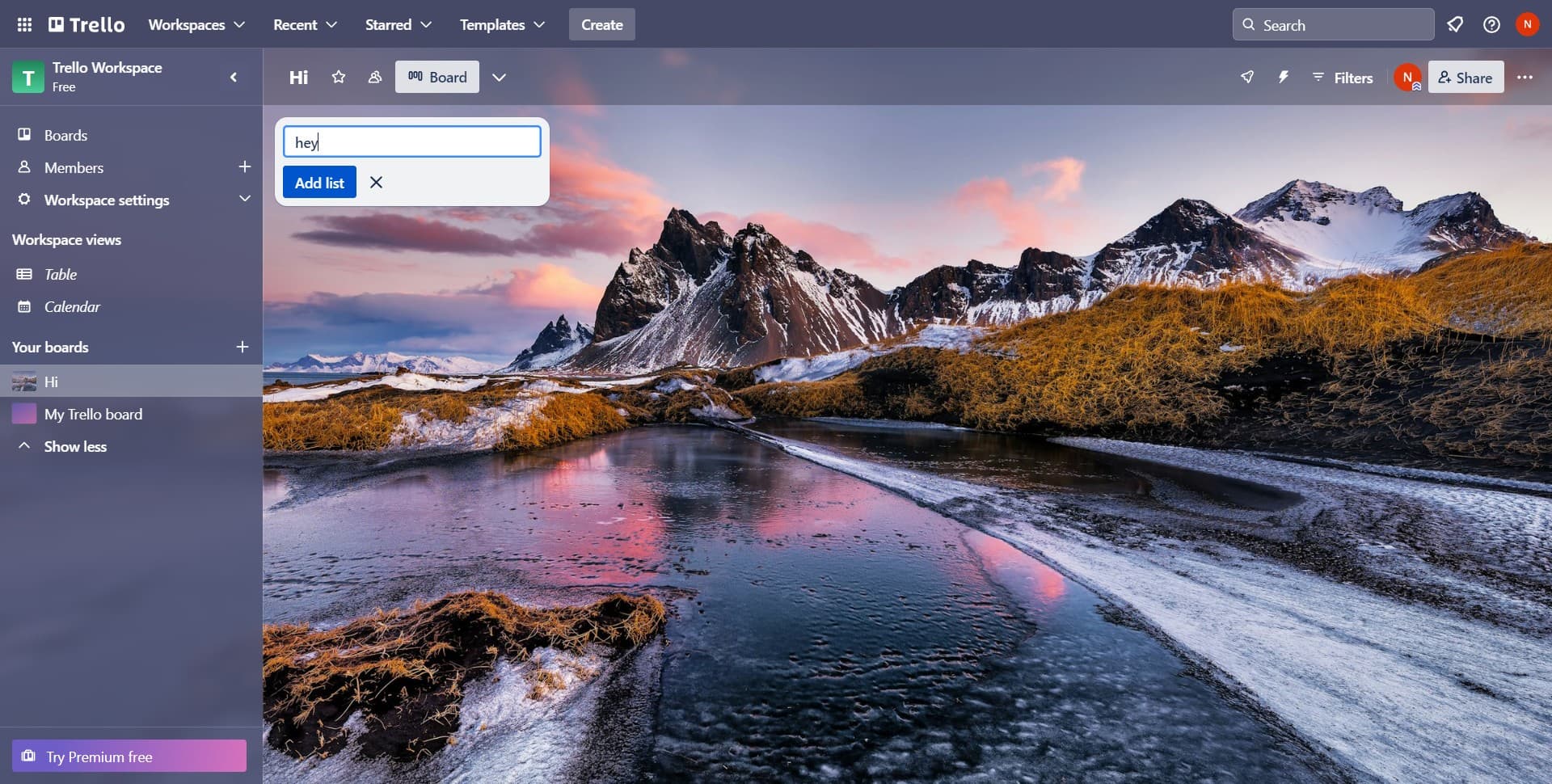
Click on "Add list" to create your first column on the board. Lists are the primary organizational units in Trello where you'll add and manage cards representing individual tasks or items.
- 7
Add additional lists
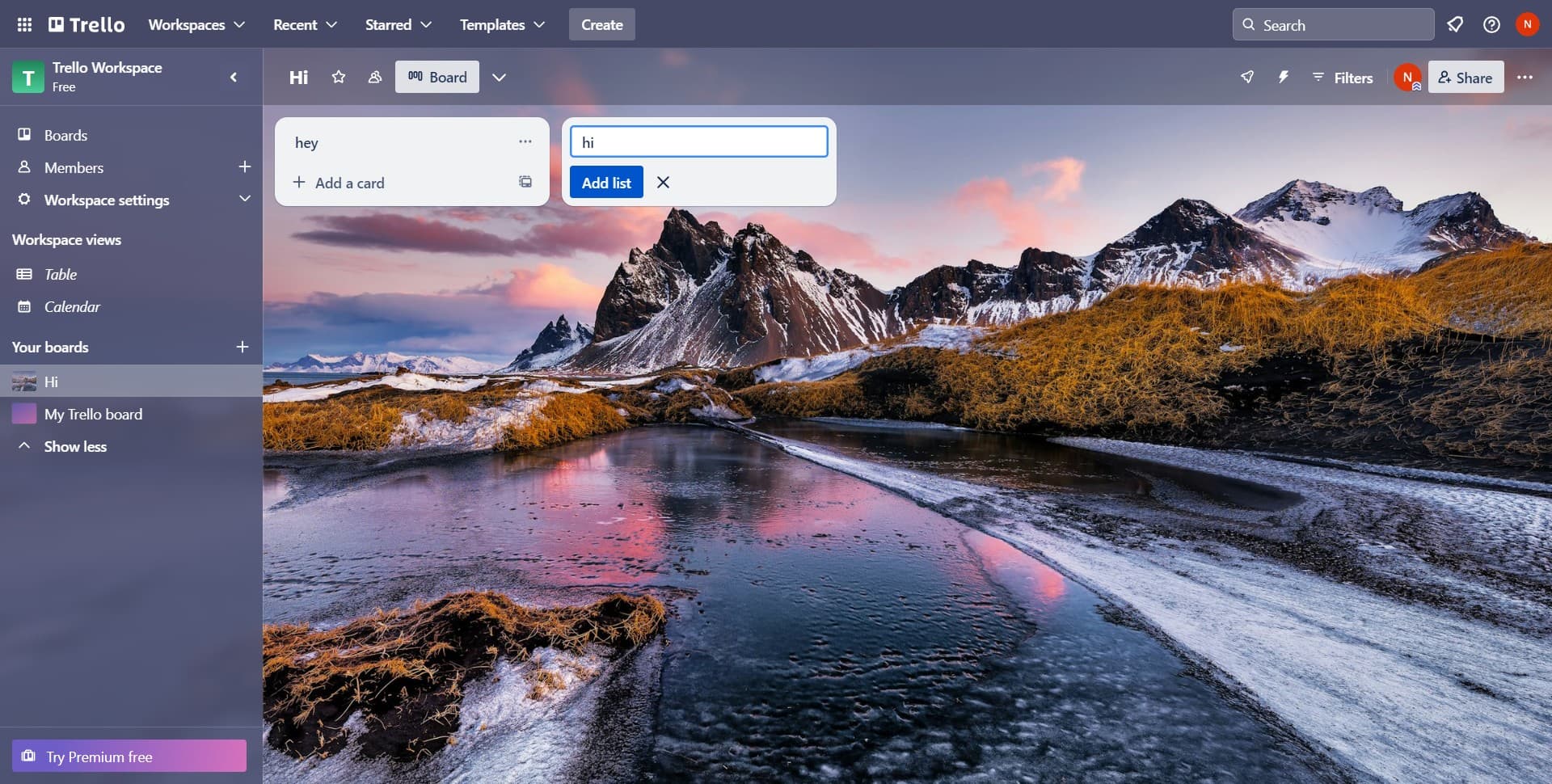
Click on "Add list" again to create more columns for your workflow. Most teams start with lists like To Do, In Progress, and Done, but you can customize these based on your specific needs.
Frequently asked questions
Common questions about how to create a board in trello.
Yes, you can easily rename your board at any time. Open the board, click on the board name at the top, and select the rename option. Your updated name will be saved immediately.
The number of boards you can create depends on your Trello plan. Free plan users have access to create multiple boards, while premium plans offer unlimited board creation and advanced features.
Absolutely. Trello allows you to choose background colors, patterns, and images for your board. You can access these options through the board menu to match your team's branding or personal preferences.
Once your board is created, click on the Share or Members button and enter the email addresses of team members you want to invite. You can also set permission levels to control what members can do on the board.
Private boards are only visible to invited members, while public boards can be seen by anyone with the link. You can set the board's privacy level during creation or change it later through the board settings.