How to create a workspace in Trello

Creating a workspace in Trello is the first step toward organizing your projects and collaborating with your team. A workspace serves as a container for all your boards, lists, and cards, allowing you to manage multiple projects in one centralized location. This guide walks you through the entire process from start to finish.
Quick summary
In this tutorial, you'll learn how to set up a new Trello workspace, configure its basic settings, and invite team members to collaborate. By the end, you'll have a fully functional workspace ready for your team to use.
Why this matters
A well-organized workspace is essential for effective project management and team collaboration. Having a dedicated workspace prevents clutter, keeps projects separate, and makes it easier for team members to find the boards and information they need. Proper workspace setup from the beginning saves time and reduces confusion as your team grows.
Step-by-step guide
- 1
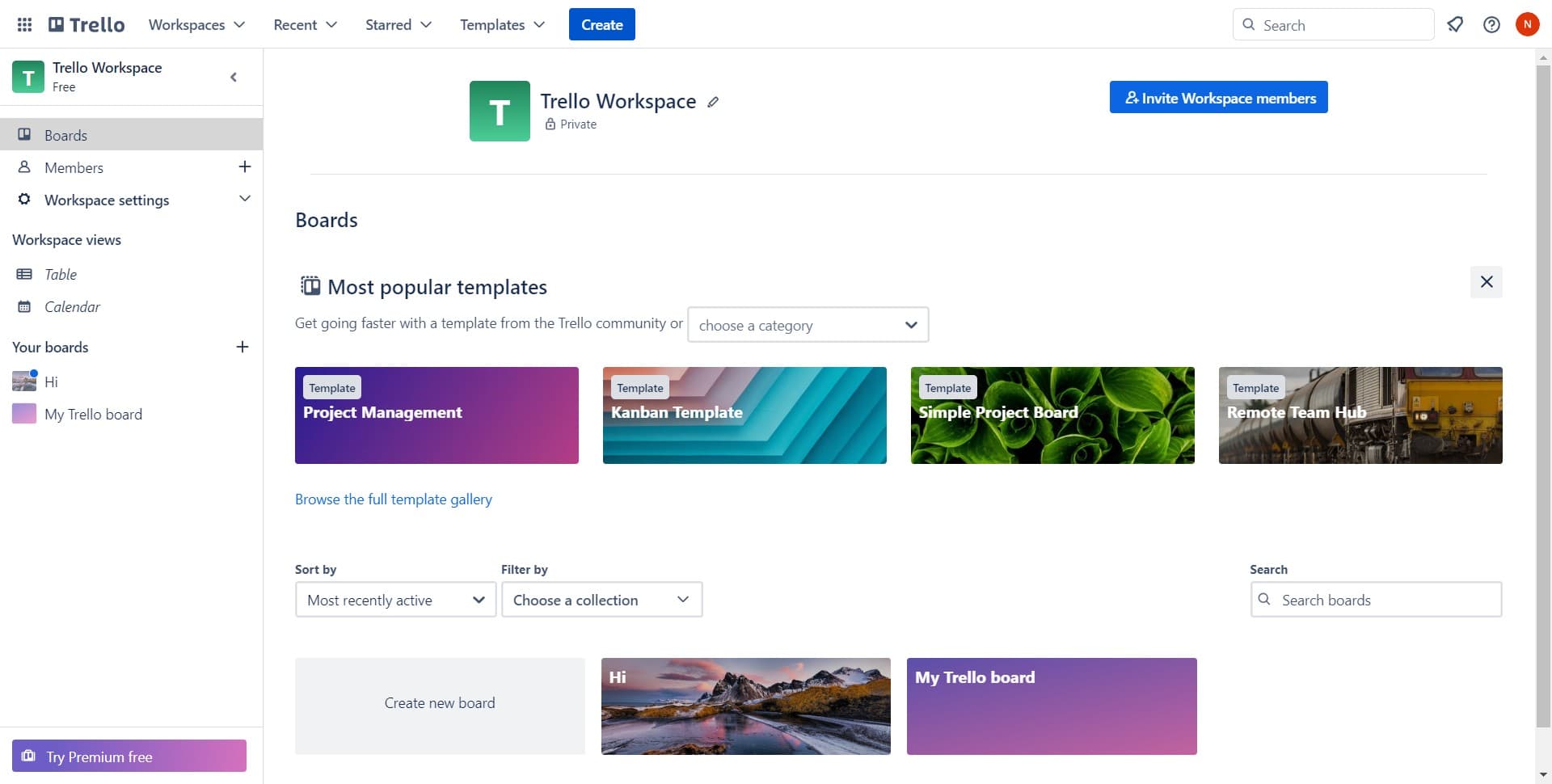
Click on the Create button
Start by locating and clicking the 'Create' button in your Trello interface. This button typically appears in the top navigation menu and is your entry point for creating new workspaces and boards.
- 2
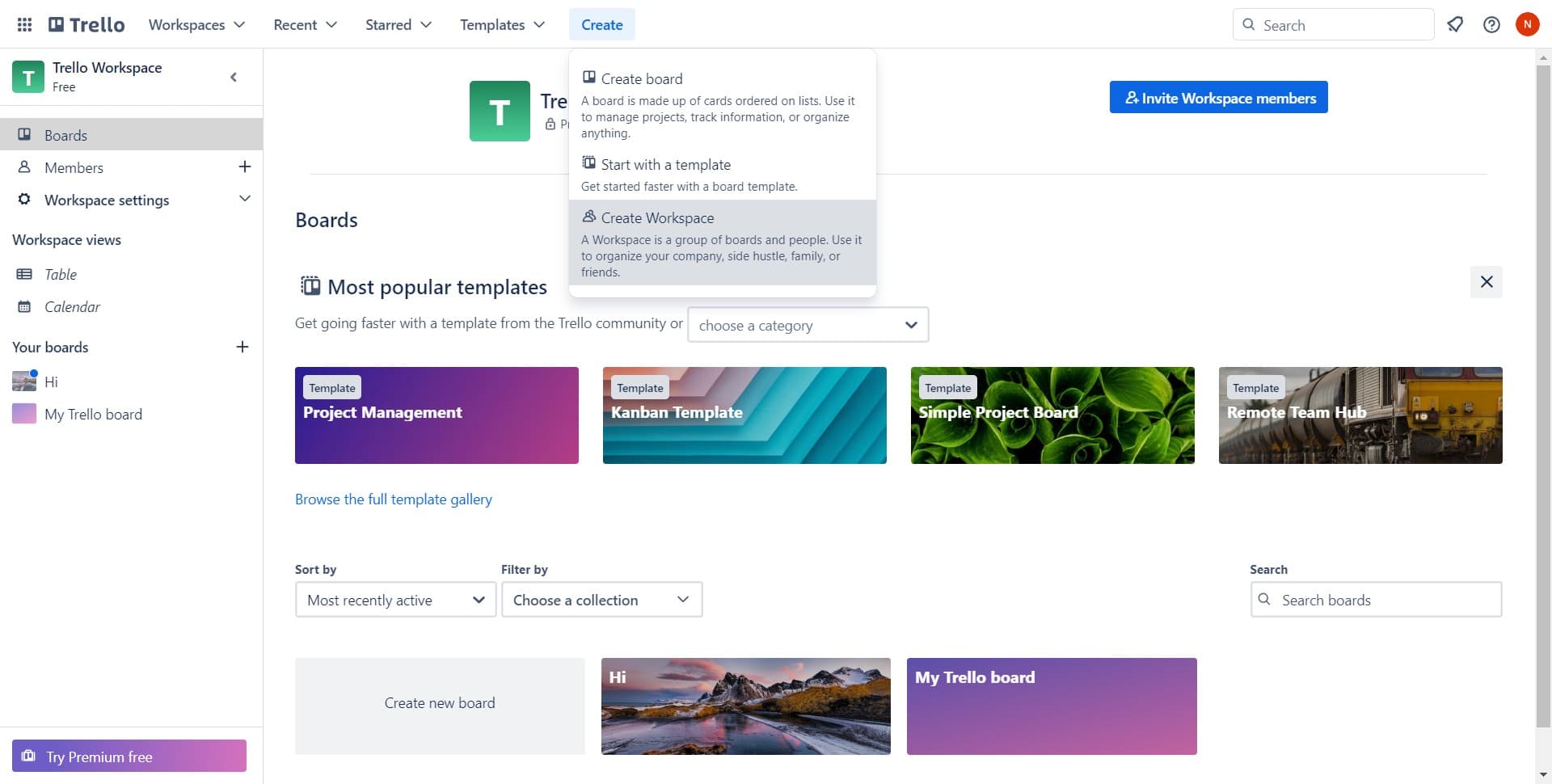
Select workspace creation option
From the menu that appears, click on 'A Workspace is...' to begin the workspace creation process. This option will explain what a workspace is and guide you through setup.
- 3
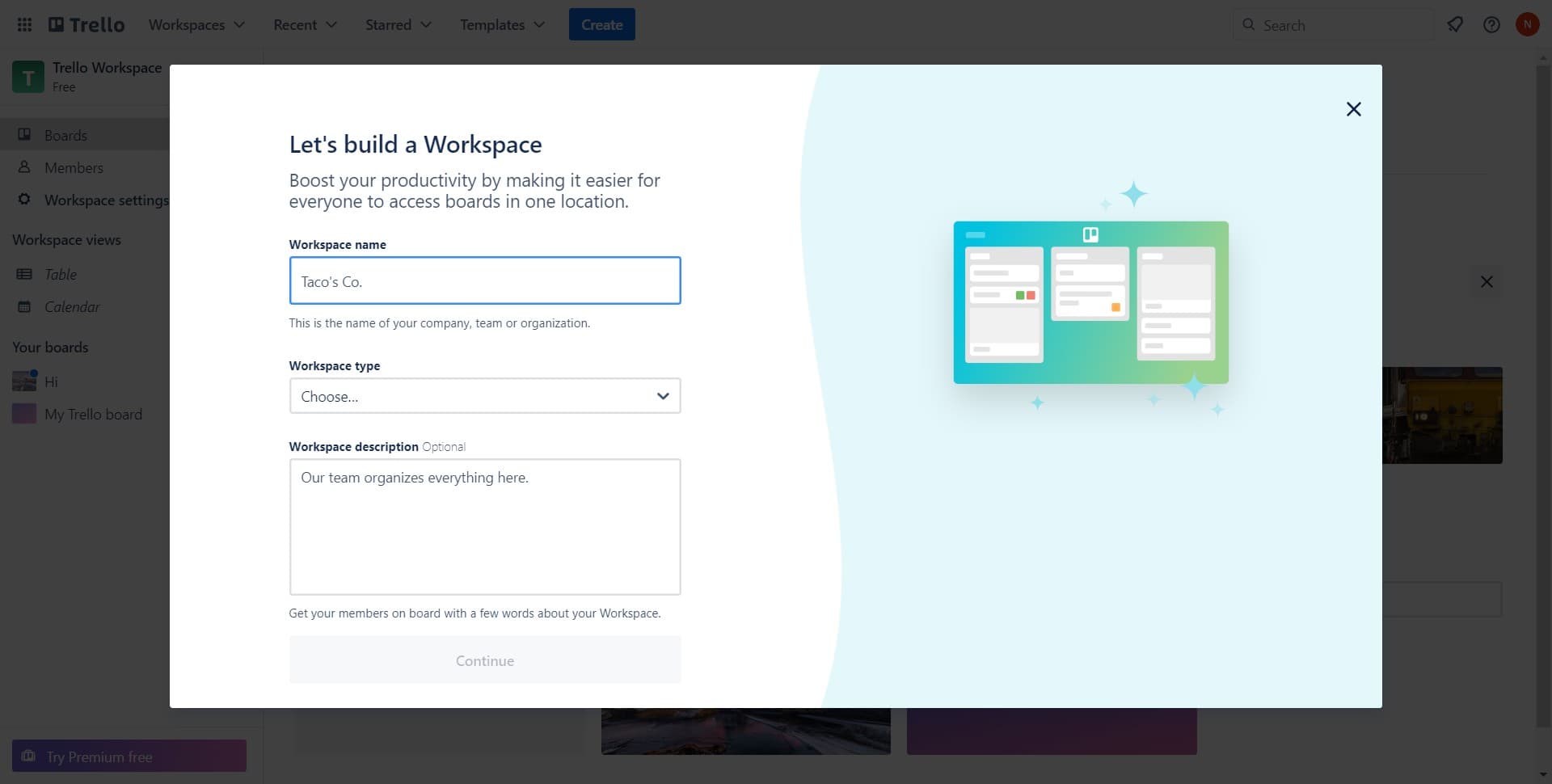
Proceed with workspace setup
Click the designated button to move forward with creating your new workspace. This action will take you to the workspace configuration screen where you'll enter details about your workspace.
- 4
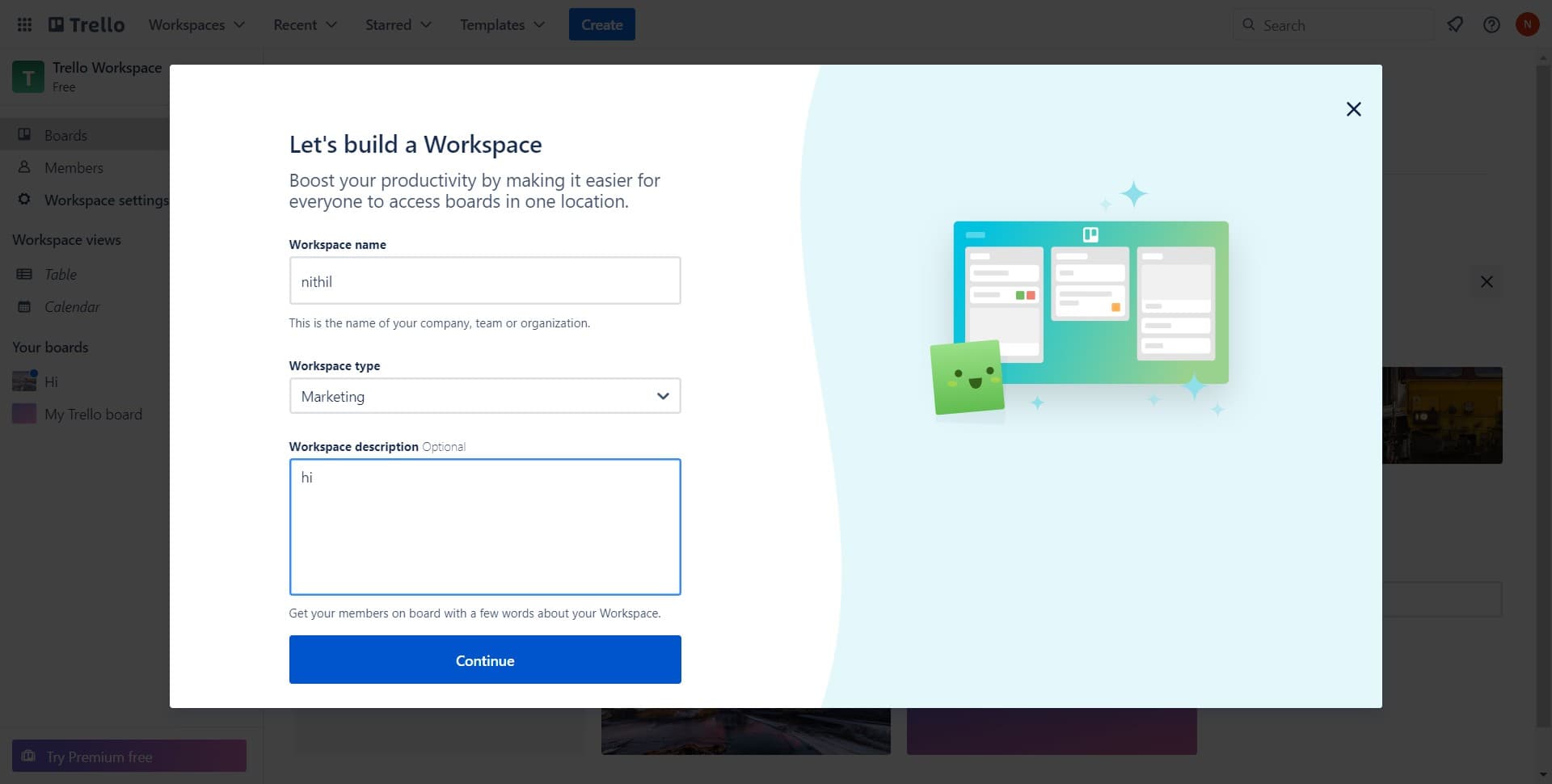
Click Continue to advance
After entering your workspace information, click the 'Continue' button to proceed to the next step. This confirms your workspace details and moves you toward team setup options.
- 5
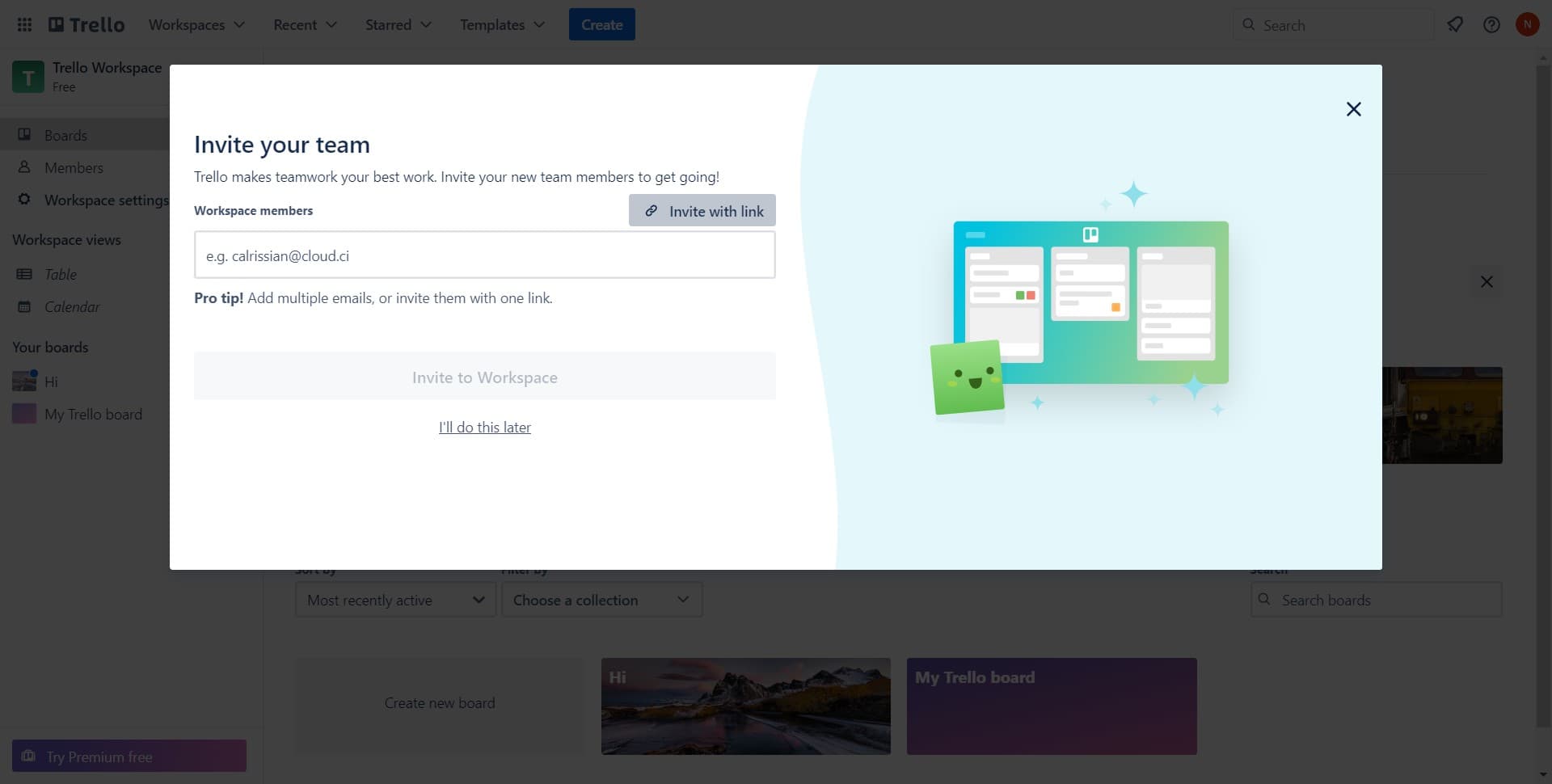
Invite members with a link
Click on 'Invite with link' to generate a shareable invitation link for your team members. This method allows you to quickly add collaborators to your new workspace without manually entering email addresses.
- 6
Upload workspace branding
Use the upload option to add a workspace logo or image if desired. This step personalizes your workspace and helps team members identify it visually.
- 7
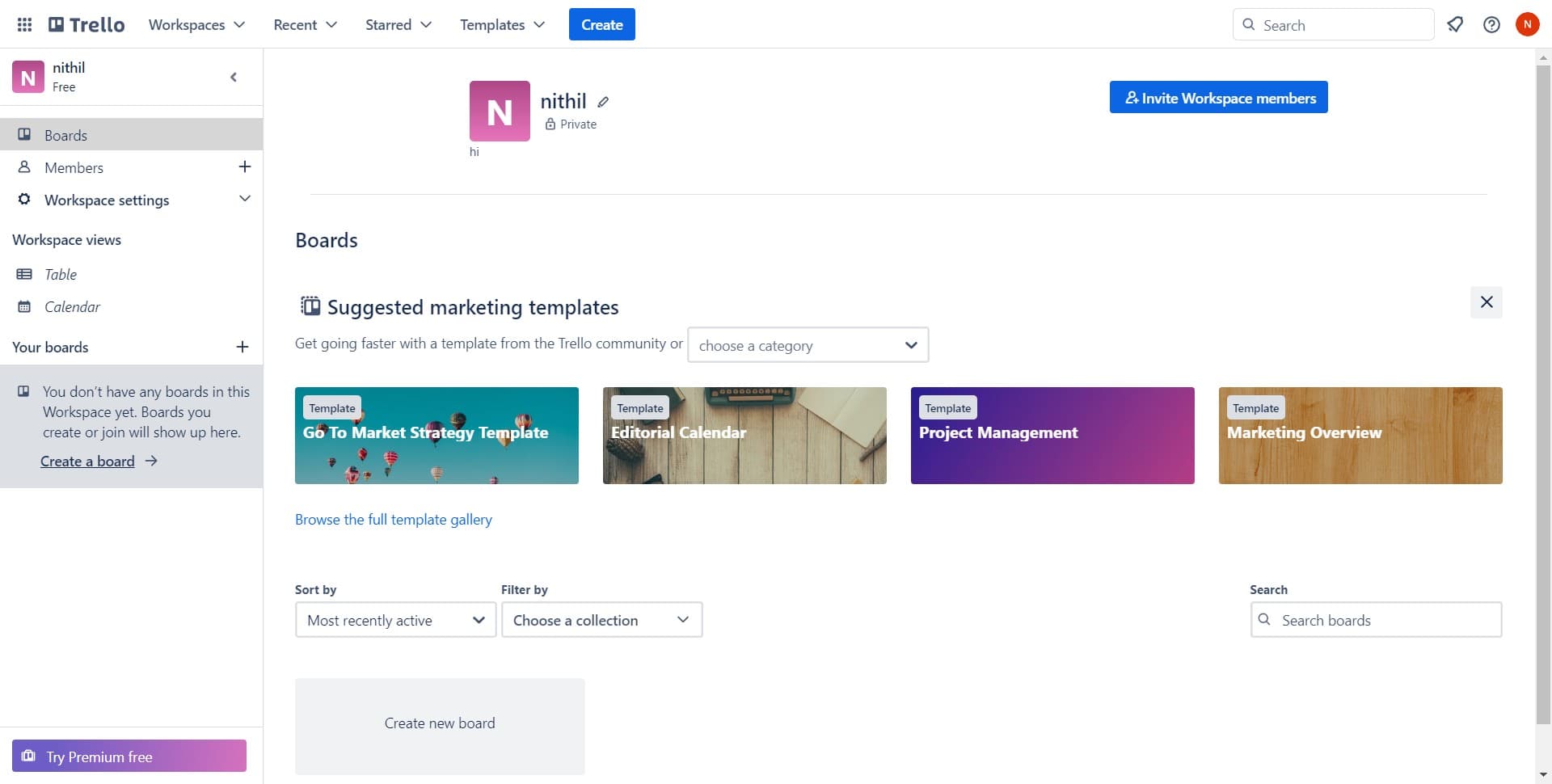
Navigate to Boards
Click on 'Boards' to view your workspace boards or create your first board. This takes you to the main workspace view where you can manage all your project boards.
Frequently asked questions
Common questions about how to create a workspace in trello.
Yes, you can edit your workspace name at any time by accessing workspace settings. Go to your workspace menu and select settings, then look for the workspace name option. Changes will be reflected immediately for all members.
The number of workspaces you can create depends on your Trello plan. Free accounts can create multiple workspaces, but there may be limits on the number of boards or members per workspace. Check your current plan details for specific limitations.
A workspace is a top-level container that holds multiple boards, while a board is where you organize your work using lists and cards. Think of a workspace as your organization and boards as individual projects within that organization.
Yes, workspace administrators can delete a workspace through the workspace settings menu. Keep in mind that deleting a workspace will remove all boards and data associated with it, so proceed with caution.
Trello's free plan allows you to create multiple workspaces at no cost. However, premium features and member limits may vary depending on your subscription level. Review Trello's pricing page to understand what's included with your plan.